

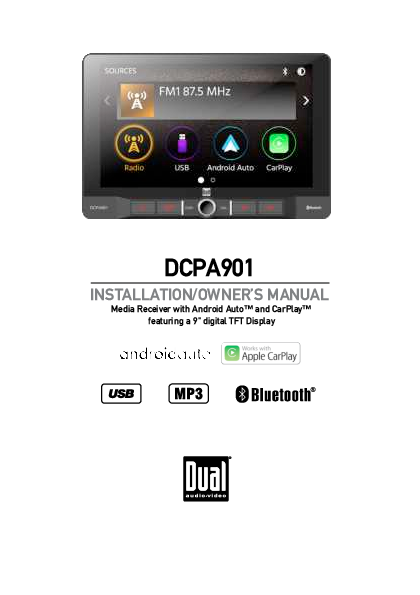
Dual DCPA901 Media Receiver
Installation/Owner's Manual
Featuring a 9" Digital TFT Display with Android Auto™ and Apple CarPlay™
Safety Notes
Video playback will not operate while the vehicle is moving. This is a safety feature to prevent driver distraction. In-dash video functions will only operate when the vehicle is in Park and the parking brake is engaged. It is illegal in most jurisdictions for the driver to view video while the vehicle is in motion.
The SAFETY NOTICE is a reminder to drive responsibly and safely while using your mobile phone device, or any APP's that are compatible with this unit.
It is highly recommended that your DUAL DCPA901 is installed by a professional installer or an authorized dealer.
This product is only for use in vehicles with 12VDC negative ground only.
To prevent damage or injury:
- Make sure to ground the unit securely to the vehicle chassis ground.
- Do not remove the top or bottom covers of the unit.
- Do not install the unit in a spot exposed to direct sunlight or excessive heat or the possibility of water splashing.
- Do not subject the unit to excessive shock.
- When replacing a fuse, only use a new one with the correct rating. Using a fuse with the wrong rating may cause the unit to malfunction.
- To prevent short circuits when replacing a fuse, disconnect the wiring harness first.
- Use only the provided hardware and wire harness.
- If you experience problems during installation, consult your nearest DUAL dealer.
- If the unit malfunctions, reset the unit as described. If the problem still persists, consult your nearest DUAL dealer or call tech assistance @ 1-866-382-5476.
- To clean the monitor, wipe only with a dry silicone cloth or soft cloth. Do not use a stiff cloth, or solvents such as paint thinner and alcohol. They can scratch the surface of the panel and/or remove the printing.
- When the temperature of the unit falls (as in winter), the liquid crystal inside the screen will become darker than usual. Normal brightness will return after the unit is in use for a while.
- When extending the ignition, battery, or ground wiring, make sure to use automotive-grade wiring with a minimum AWG 16 or more to prevent voltage drops.
- Do not touch the liquid crystal fluid if the LCD is damaged or broken. The liquid crystal fluid may be hazardous to your health or fatal. If the liquid crystal fluid from the LCD contacts your body or clothing, wash it off with soap immediately.
Copyright Notes
This product incorporates copyright protection technology protected by method claims of certain U.S. patents and other intellectual property rights owned by Macrovision Corporation and other rights owners. Use of this technology must be authorized by Macrovision Corporation and is intended for home and other limited viewing uses only, unless otherwise authorized. Reverse engineering or disassembly is prohibited.
The Bluetooth® word mark and logos are owned by the Bluetooth SIG, Inc.
Use of the Apple CarPlay logo means that a vehicle user interface meets Apple performance standards. Apple is not responsible for the operation of this vehicle or its compliance with safety and regulatory standards. Use of this product with iPhone, iPod, or iPad may affect wireless performance. Apple CarPlay is a trademark of Apple Inc. "Made for iPod" and "Made for iPhone" mean that an electronic accessory has been designed to connect specifically to iPod or iPhone, respectively, and has been certified by the developer to meet Apple performance standards. iPhone and iPod are trademarks of Apple, Inc., registered in the U.S. and other countries.
Availability of Android Auto™ may vary depending upon your country and phone model. Please visit android.com/auto for more information. Android, Android Auto, Google and other marks are trademarks of Google Inc.
Other trademarks and trade names are those of their respective owners.
Warning Statement ⚠️
Upon installation of this monitor/media player ("unit") into a vehicle, the driver must not operate this unit by watching videos or playing video games while driving. Failure to follow this instruction could lead to driver distraction, resulting in serious injury or death to vehicle occupants or persons outside the vehicle, and/or property damage.
Several states prohibit the installation of monitors/media players if the screen is visible from the driver's seat. If your jurisdiction has such a law, the unit must not be installed so the screen is visible from the driver's seat. Install the unit facing the front passenger seat only. Failure to follow this instruction could lead to driver distraction, resulting in serious injury or death to vehicle occupants or persons outside the vehicle, and/or property damage.
This unit is designed to be operated only when the vehicle is in "Park" and the parking brake is fully engaged. It includes a parking brake lock-out feature that prohibits operation if the vehicle is not in "Park" and/or the parking brake is not fully engaged. The installer must connect the parking brake detect wire to the parking brake mechanism to make this feature operable. DO NOT simply ground the parking brake detect wire to a metal portion of the vehicle. Failure to properly install the lock-out feature could lead to driver distraction, resulting in serious injury or death to vehicle occupants or persons outside the vehicle, and/or property damage.
Once the parking brake lock-out feature is installed, the owner/user must not attempt to disrupt/neutralize it by (a) partially engaging the parking brake and/or (b) using any device designed to send necessary brake signals. Failure to follow these instructions could lead to driver distraction, resulting in serious injury or death to vehicle occupants or persons outside the vehicle, and/or property damage.
When operating this unit, keep the volume level low enough so that occupants can hear traffic-related sounds such as police and emergency vehicles. Failure to follow this instruction could lead to driver distraction, resulting in serious injury or death to vehicle occupants or persons outside the vehicle, and/or property damage.
FCC Compliance
This device complies with Part 15 of the FCC Rules. Operation is subject to the following two conditions: (1) this device may not cause harmful interference, and (2) this device must accept any interference received, including interference that may cause undesired operation.
Warning: Changes or modifications to this unit not expressly approved by the party responsible for compliance could void the user's authority to operate the equipment.
This equipment complies with FCC radiation exposure limits set forth for an uncontrolled environment. It should be installed and operated with a minimum distance of 20cm between the radiator and your body. This transmitter must not be co-located or operating in conjunction with any other antenna or transmitter.
Note: This equipment has been tested and found to comply with the limits for a Class B digital device, pursuant to Part 15 of the FCC Rules. These limits are designed to provide reasonable protection against harmful interference in a residential installation. This equipment generates, uses, and can radiate radio frequency energy and, if not installed and used in accordance with the instructions, may cause harmful interference to radio communications. However, there is no guarantee that interference will not occur in a particular installation. If this equipment does cause harmful interference to radio or television reception, which can be determined by turning the equipment off and on, the user is encouraged to try to correct the interference by one or more of the following measures:
- Reorient or relocate the receiving antenna.
- Increase the separation between the equipment and receiver.
- Connect the equipment into an outlet on a circuit different from that to which the receiver is connected.
- Consult the dealer or an experienced radio/TV technician for help.
Preparation
Before You Start
- Disconnect the negative battery terminal. Consult a qualified technician for instructions.
- Avoid installing the unit where it would be subject to high temperatures (e.g., direct sunlight) or where it would be subject to dust, dirt, or excessive vibration.
INSTALLATION GUIDE
See the enclosed installation guide for more details. The preparation section shows diagrams for mounting the unit using various brackets and hardware (e.g., M5.0X6.0MM screws, M5.0X8.0MM screws) and offers different installation depths (1", 1/2", Flush).
Screen Rotation
The screen offers multiple adjustment options:
- Screen angle: Can pivot side to side.
- Screen height: Adjusts up to 1.5" down.
- Screen depth: Can be adjusted from 0" to 0.5" to 1" forward.
- Screen tilt: Tilts forward and back (approximately 25°).
Wiring Diagram - Inputs/Outputs
The wiring diagram illustrates connections for various components:
- Front Connections: Radio Antenna, USB, External Microphone.
- Rear Connections: 18-PIN connector (for Line Out Front L/R, Rear L/R, Subwoofer 1/2, Speaker outputs), 20-PIN connector (for Power, Ground, Ignition, Illumination, Reverse, Power Antenna, SWC Input, Parking Brake), AV IN (RCA), Camera Input (RCA), Video In.
Wiring Notes:
- Subwoofer outputs: The Subwoofer preamp audio outputs (Blue jacket with Black RCA) are active in all audio modes.
- Rear camera input: A rear view camera (not included) can be used with the Camera input.
Note: When replacing a fuse, use the correct type and amperage (15 amp ATC mini style fuse located on the power connector) to avoid damage.
Control Locations
The front panel and display feature the following controls:
- Display Icons: Radio, USB, Android Auto, CarPlay, Bluetooth.
- Physical Buttons:
- 1. VOICE ACTIVATION BUTTON (for Siri/Google Assistant)
- 2. SOURCE/HOME button
- 3. POWER/VOLUME/MUTE knob
- 4. PREVIOUS BUTTON
- 5. NEXT BUTTON
- 6. RESET / USB PORT
General Operation
- Power On/Off: Momentarily press to turn on; press and hold to turn off.
- Volume: Press "VOL+" or "VOL-" to adjust.
- Mute: Momentarily press MUTE to silence audio; press again to resume. Rotating the volume knob also cancels mute.
- Mode: Press MODE at the top left to display the main menu. Modes can also be accessed by selecting icons from the main menu (Radio, USB, Android Auto, CarPlay, BT Phone, BT Audio, AV In, Settings).
- Dimmer: Press the [brightness icon] to adjust brightness.
- A/V In: Connect external audio/video devices to the rear RCA Type A/V Input.
- USB: Insert a USB flash drive to play MP3/FLAC files.
- Reset: To resolve abnormal operation, press the RESET button located behind the front panel under the USB port. This resets the main processor to default settings. Use the tip of a pen to access.
Setup Menu
From the Main Menu, select Setup to access settings categorized as General, Audio, Display, and Others. Adjust options via the touchscreen.
- General: Adjust date, time, time format (12/24-hour), beep tone (On/Off), and radio region.
- Audio: Select EQ presets (Default, User, Classic, Rock, Jazz, Electric, Pop, Soft), adjust Time Alignment (PRESET 1/2/3), toggle Loudness, control Subwoofer (On/Off), and adjust Subwoofer Gain (-15 to 0).
- Display: Adjust Brightness (0-20) and Dimmer Mode (Auto/Day/Night).
- Others: Reset Bluetooth Settings, Reboot System, or view System Version.
Audio Operation
Equalizer Menu
Access the Equalizer from the main menu to adjust Fader, Balance, 8-Band Tone Control, and 8 Presets EQ Settings.
Time Alignment Menu
To set time alignment, measure the distance from each speaker to the desired "center stage" listening position (e.g., driver's seat). Adjust settings accordingly. Settings will vary by vehicle.
AM/FM Tuner Operation
From the main menu, touch the Radio icon to enter AM/FM tuner mode.
- Main Menu [Home Icon]: Return to the Main Menu.
- Current Mode Indicator: Displays tuning function status (e.g., Auto).
- Local / Distance [DX/LOC]: Toggle between local and distance tuning.
- Dimmer [Brightness Icon]: Adjust screen brightness.
- Seek Tune Down [◀️ Icon]: Automatically tune to a lower frequency.
- Seek Tune Up [▶️ Icon]: Automatically tune to a higher frequency.
- Preset Stations: Store or recall stations by pressing preset numbers (P1-P6).
- FM: Toggle between FM1, FM2, FM3.
- AM: Toggle between AM1, AM2.
- AS/PS: Press and hold to automatically store presets (Auto Store Presets). Press to scan through presets (Preset Scan).
- EQ [Equalizer Icon]: Adjust Equalizer settings.
- Keypad: Direct Search Keypad.
USB Operation
From the main menu, touch the USB icon to access USB playback.
- Main Menu [Home Icon]: Return to Main Menu.
- Current Mode Indicator: Displays the source currently playing.
- EQ [Equalizer Icon]: Adjust Equalizer settings.
- Search [Magnifying Glass Icon]: Search for a music file.
- List [List Icon]: Access a list of all files and folders. Navigate using up/down arrows and the back arrow [◀️ Icon].
- Repeat [Repeat Icon]: Repeat current track or all tracks in the folder.
- Random [Shuffle Icon]: Shuffle tracks in the current folder.
- Track Down [◀️ Icon]: Return to the beginning of the current track.
- Play / Pause [Play/Pause Icon]: Pause or resume playback.
- Track Up [▶️ Icon]: Skip to the next song.
Media Compatibility
File Type Compatibility
| File Type | File System | MP3 |
|---|---|---|
| FAT 12 | FAT | ✔️ |
| FAT 16/FAT 32 | FAT | ✔️ |
| File Extension | .mp3/.MP3/.Mp3/.mP3/.flac/ogg | ✔️ |
| .rmp/.m4a | ❌ | |
| MPEG Format | MPEG 1 | ✔️ |
| MPEG 2 | ✔️ | |
| MPEG 2.5 | ✔️ | |
| Sampling Frequency | MPEG 1 | 32/44.1/48kHz |
| MPEG 2 | 12/16/22.05/24kHz | |
| MPEG 2.5 | 8/11.025/12kHz | |
| Bitrate | MPEG 1 | 32 ~ 320kbps |
| MPEG 2 | 8 ~ 160kbps | |
| MPEG 2.5 | 8 ~ 160kbps | |
| Other Information | Directory Depth | Unlimited |
| File Name Length | 32 bytes | |
| Total File Number | 2000 files | |
| Total Folder Number | 200 folders | |
| File Number via Folder | 2000 files | |
| MP3 ID3 TAG | ver.1.x | ✔️ |
| ver.2.x | ✔️ | |
| Title, Artist, Album | ✔️ |
Incompatible Files:
- MP3 PRO format, MP3 playlists
- RMP format
- AAC, protected AAC, M4A format
Notes:
- Due to ongoing technological advancement, some USB flash drives may be incompatible with this unit.
- MP3 playback sequence begins in the root folder of the USB device. Empty folders or folders without MP3 files are skipped.
- Supports ISO9660 standards (max nested folder depth 8). Valid characters for folder/file names are A-Z, 0-9, and "_". Some characters may not display correctly.
- Can play back files in Joliet and other ISO9660 conforming standards.
- Some files may not play or display correctly depending on sampling rates and bit rates.
- For best results when ripping MP3 files: use 128kbps or higher constant bit rate and 44.1kHz or higher sampling frequency.
Bluetooth Operation
Before using Bluetooth, devices must be authenticated ("paired").
- Pairing a New Device: The unit broadcasts a pairing signal. Complete the sequence from your Bluetooth device. The device name is "DCPA901".
- Connect: The head unit automatically connects to the last connected device if "Auto connect" is On.
- Bluetooth Phone: Access Bluetooth from the main menu. A Bluetooth icon appears when a device is connected.
- Main Menu [Home Icon]: Return to Main Menu.
- Current Mode Indicator: Displays current operation mode.
- Bluetooth Status Indicator: Flashes when pairing, illuminates steadily when connected.
- Phone Keypad: Use the keypad to dial a phone number.
- Call [Phone Icon]: Dial a number and touch the Phone icon to call.
- Devices [Devices Icon]: Show pairing list. Connect to previously paired devices.
- Phone Book [Contacts Icon]: Access phone book menu.
- Call Log [Call Logs Icon]: View Dialed, Missed, and Received Calls.
- Bluetooth Music [Music Icon]: Transfer audio between the unit and mobile phone.
- Setup [Settings Icon]: Access Bluetooth settings.
- End Call [End Icon]: End a call or reject an incoming call.
- Audio Transfer Button: Transfer audio between unit and mobile phone.
- Microphone: Turn microphone voice On or Off.
- Keypad [Keypad Icon]: Return to the Keypad screen.
- Repeat [Repeat Icon]: Repeat current track or all tracks in the folder.
- Track Down [◀️ Icon]: Return to the beginning of the current track.
- Play / Pause [Play/Pause Icon]: Pause or resume playback.
- Track Up [▶️ Icon]: Skip to the next song.
- Random [Shuffle Icon]: Shuffle all tracks in the current folder.
Apple CarPlay Operation
Apple CarPlay is an interface for iPhone, allowing voice control (via Siri) of music, navigation, phone, and messaging apps to reduce driver distraction.
- Phone: Use Siri for calls, voicemails, and caller ID.
- Messages: Use Siri to send, read, and reply to text messages hands-free.
- Music: Access music via touchscreen or Siri. The receiver mirrors the iPhone screen.
- Maps: Use Siri for turn-by-turn directions and points of interest. Apple Maps are mirrored on screen, including traffic info and estimated time.
Compatible Devices
Made for iPhone models: iPhone 12 mini, 12, 12 Pro, 12 Pro Max, 11 Plus, 11, XS Max, XS, XR, X, 8, 8 Plus, 7, 7 Plus, 6, 6S.
Starting Apple CarPlay™
Wireless CarPlay Connection:
- Enter the main UI and click BT Phone to enter the Bluetooth interface.
- Click Refresh to search nearby Bluetooth, then click Pair to match Bluetooth.
- Open the iPhone WLAN to connect to the car. The CarPlay icon will appear in the device list upon successful connection.
- Enter the CarPlay interface to access Phone/Music/Map/Information functions.
Note: CarPlay features are limited while driving for safety. Available functions depend on the app provider. Visit www.apple.com/ios/carplay for more information.
Warning: Certain iPhone functions may be illegal while driving. Be aware of and obey local laws. If in doubt, stop and park your vehicle before using any devices.
Controlling Apple CarPlay™
Basic controls include Touch (brief press), Swipe (brief swipe), and Drag (press, hold, drag).
Exiting Apple CarPlay™
Disconnecting your iPhone automatically exits CarPlay mode. To exit while connected, press the Power/Volume knob momentarily to return to the unit's main menu.
Android Auto™ Operation
Android Auto™ brings useful apps to your phone screen or car display for easy focus on driving, controlling navigation, maps, calls, text messages, and music.
- Google Assistant: Use voice commands like "Ok Google" to control functions hands-free.
- Navigation: Get real-time traffic alerts and find routes.
- Calls & Messages: Use Assistant to call contacts, chat, read messages aloud, and text back hands-free.
Compatible Devices
Requires the Android Auto app from Google Play installed on an Android smartphone running Android Lollipop 5.0 or higher.
Warning: Certain smartphone uses may be illegal while driving. Be aware of and obey restrictions. Perform functions only when the car is parked if unsure.
Starting Android Auto™
Wireless Android Auto Connection:
- Enter the main UI and click BT Phone to enter the Bluetooth interface.
- Click Refresh to search nearby Bluetooth. Ensure your Phone's WLAN is on.
- Click Pair to match Bluetooth. Select your mobile Phone when prompted.
- Enter the Android Auto interface to access Phone/Music/Map/Information functions.
Note: The device is also connected via Bluetooth. If five devices are paired, you may need to delete a registered device. If Android Auto is turned on during a call on another cellular phone, the Bluetooth connection will switch to the Android Auto compatible device after the call.
Using Android Auto™
The Android Auto™ home screen displays personalized information. Say "OK Google" or select the microphone icon to talk to Google.
Exiting Android Auto™
To exit, press the Exit button. Disconnecting your Android phone also exits Android Auto™ mode.
Rear RCA Input
A/V IN: Connect an optional audio/video source into the RCA (rear) input. Adjust volume on the external audio source as needed.
Rear Camera Operation - (Optional)
Using Rear Camera: Connect an optional rear camera to the Camera Input (Black RCA connector). Refer to the wiring diagram.
Auto Selection: The unit automatically selects camera mode when connected to the reverse lamp circuitry.
SWC Input Operation
The built-in SWC Interface is compatible with PAC steering wheel control modules (PAC SWI-RC recommended). A third-party adapter may be required for compatibility with other steering wheel controls.
Available Controls:
- 1. Reset
- 2. Mode
- 3. Seek/Track Up (+)
- 4. Seek/Track Down (-)
- 5. Mute
- 6. Volume Up (+)
- 7. Volume Down (-)
- 8. Band
- 9. BT Talk
- 10. BT End
Note: Not all OE steering wheel functions may be supported.
PAC SWI-RC Installation Hints:
- Set "Radio Select Switch" on SWI-RC to position 7 - "Pioneer/Other/Sony".
- Program using the Pioneer/Sony/Other radio function mapping order for DUAL units.
- If a function is not supported or desired, skip it as per PAC SWI-RC instructions.
- Program SWC functions in the correct order per PAC SWI-RC instructions.
SWI-RC (3.3VDC Reference)
| Function Order | Function Mapping | Center Pin (Ring) Voltage (Function Select) | Tip Pin Voltage |
|---|---|---|---|
| 1 | Reset | H 3.3v | 0.6 |
| 2 | Mode | H 3.3v | 1.81 |
| 3 | Seek + / Track + | H 3.3v | 1.01 |
| 4 | Seek - / Track - | H 3.3v | 2.07 |
| 5 | Mute | H 3.3v | 2.32 |
| 6 | Volume + | H 3.3v | 2.73 |
| 7 | Volume - | H 3.3v | 2.73 |
| 8 | Band | H 3.3v | 2.73 |
| 9 | BT Talk | L 0.0V | 0.60 |
| 10 | BT End | L 0.0V | 1.01 |
Troubleshooting
General
| Problem | Cause | Action |
|---|---|---|
| Unit will not turn on (no power) | Yellow wire not connected or incorrect voltage Red wire not connected or incorrect voltage Black wire not connected |
Check connections for proper voltage (11~16VDC) Check connection to ground |
| Unit has power (but no sound) | Fuse blown Speaker wires not connected |
Replace fuse(s) Check connections at speakers |
| Unit blows fuse(s) | One or more speaker wires touching each other or touching chassis ground Yellow or red wire touching chassis ground Speaker wires touching chassis ground Incorrect fuse rating |
Insulate all bare speaker wires from each other and chassis ground Check for pinched wire Check for pinched wire Use fuses with correct rating |
| Unit has audio (but no video) | Parking brake safety circuit not connected Parking brake not applied |
Check connections at parking brake Apply parking brake as described on page 26 |
| IR remote does not work | Dead battery | Replace battery |
For Your Records
Please keep your original sales receipt and be prepared to provide it in the event you require service, as it is considered the best proof of purchase and indicates the date you purchased your Dual product.
Dealer Name: _________________________
Dealer Phone: _________________________
Purchase Date: _________________________
Register Your Product: Register your product online at www.dualav.com.
Specifications
FM Tuner
- Tuning range: 87.5MHz-107.9MHz
- Usable sensitivity: 10dBf
- 50dB quieting sensitivity: 20dBf
- Stereo separation @ 1kHz: 38dB
- Frequency response: 30Hz-13kHz
AM Tuner
- Tuning range: 530kHz-1710kHz
- Usable sensitivity: 24uV
- Frequency response: 30Hz-2.3kHz
Front USB
- Compatibility: High Speed USB 2.0
- USB Class: Mass storage class
Monitor
- Panel size: 9" diagonal measurement
- View angle (up/down/left/right): 50/70/70/70
- Resolution: 1024 (H) x 600 (V)
- Brightness (cd/m²): 500
- Contrast ratio: 500:1
- Pixels: 1,152,000
General
- Speaker output impedance: 4 ohms
- Line output voltage: 4 volt RMS
- Line output impedance: 200 ohms
- Chassis dimensions: 7" x 7" x 2" (W x D x H)
Amplifier (CEA-2006 Compliant)
- Power Output: 16 Watts RMS x 4 channels at 4 ohms and < 1% THD+N
- Signal to Noise Ratio: 80dBA (reference: 1 watt into 4 ohms)
Design and specifications subject to change without notice.
Limited One Year Warranty
This warranty grants specific legal rights, which may vary by state.
Dual Electronics Corp. warrants this product to the original purchaser to be free from defects in material and workmanship for one year from the original purchase date.
Dual Electronics Corp. will, at its option, repair or furnish an equal new, renewed, or comparable product during the warranty period, subject to verification of the defect and proof of purchase. Subsequent replacement products are warranted for the balance of the original warranty period.
Who is covered?
This warranty extends to the original retail purchaser for products purchased from an authorized Dual dealer and used in the U.S.A.
What is covered?
This warranty covers all defects in material and workmanship. It does not cover: software, installation/removal costs, damage from accident, misuse, abuse, neglect, product modification, improper installation, incorrect line voltage, unauthorized repair, failure to follow instructions, or damage during return shipment. Specific license conditions and copyright notices for software can be found at www.dualav.com.
What to do?
- Before calling for service, check the troubleshooting guide. Minor adjustments may resolve issues.
- If service is required during the warranty period, carefully pack the product (preferably in original packaging) and ship it via prepaid transportation with a copy of the original receipt to an authorized service center.
- Describe the problem in writing, including your name, return UPS shipping address (P.O. Box not acceptable), and a daytime phone number.
- For information and location of the nearest authorized service center, contact Dual Electronics Corp.:
- Call toll-free: 1-866-382-5476
- E-mail: cs@dualav.com
Exclusion of Certain Damages: This warranty is exclusive and in lieu of all other warranties, expressed or implied. Dual Electronics Corp. shall not be liable for indirect, incidental, or consequential damages.
 Drive with Android Auto. The best of Android, on your in-car display.
  iOS - CarPlay - Apple
  Premium Audio for Car, Marine, & Home - Dual Electronics