

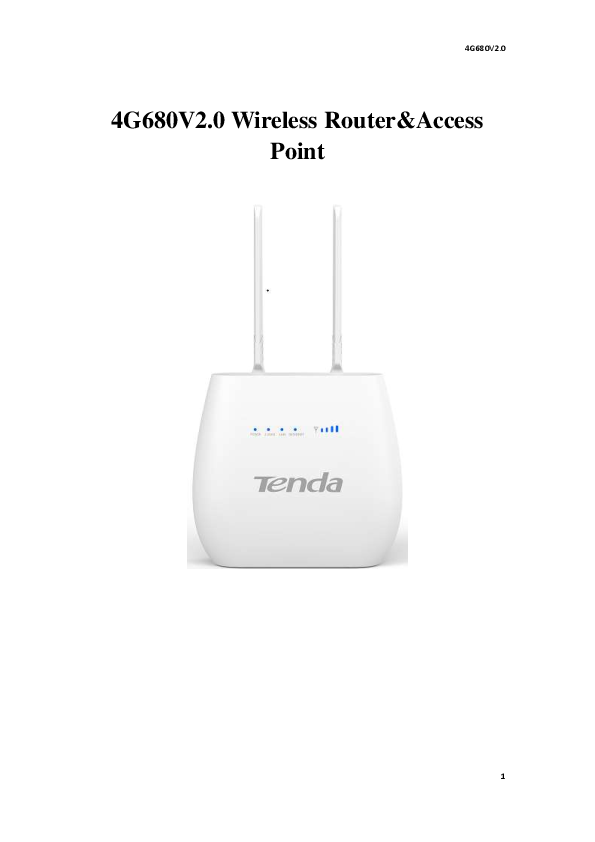
Tenda 4G680V2.0 Wireless Router & Access Point User Manual
Chapter 1: Product Overview
The Tenda 4G680V2.0 is a broadband router equipped with the latest 4G and Wireless-N technology. It functions as a full-featured network equipment, enabling users to access network connections in various settings like meetings, exhibitions, factories, or homes. When using a SIM card, it supports simultaneous phone calls and text messages. The 4G680V2.0 offers high performance, ease of use, and management, allowing multiple devices to share a single broadband link and ISP account for convenience and cost efficiency. It includes management functions for system configuration, DHCP server, firewall, and static route tables. This router is designed for easy configuration, even for non-professionals. This user guide provides comprehensive information on its functions.
1.1.1 Key Features
| Model | 4G680V2.0 |
| Dimensions | 125x117x46mm |
| Communication Chipset | Qualcomm MDM9207 |
| System (WAN) Frequency Bands | LTE Band B3/B7/B28 UMTS Band B1/B5/B8 GSM Band B2/B3/B5/B8 |
| Bandwidth | LTE BAND: 1.4/3/5/10/15/20 MHz, comply with 3GPP |
| Modulation | Downlink: QPSK/16-QAM/64-QAM, comply with 3GPP Uplink: QPSK/16-QAM, comply with 3GPP |
| Antenna | External antenna interface supported |
| RF Power Level | LTE FDD: Power Class 3 (23 +/-2dBm) UMTS: Power Class 3 (24 +1.7/-3.7dBm) EDGE: Power Class E2 (GSM850/900: 27dBm; DCS/PCS: 26dBm) GPRS: GSM850/900 Power Class 4: 33dBm; DCS/PCS Power Class 1: 30dBm) |
| Data Rate | 4G: 3GPP Cat. 4, Downlink/Uplink up to 150Mbps/50Mbps 3G: 3GPP Downlink/Uplink up to 42Mbps/5.76Mbps 2G: EGPRS Class33 Downlink/Uplink up to 296Kbps/236.8Kbps |
| External Interface | LAN/WAN: 2xRJ45 for 2xLANs RJ11: Optional: VoLTE USIM: Single, 2FF |
| Antenna | External antenna interface supported, internal/external auto-detecting |
| Power Jack | 12v1A interface |
| LED | Power: Power Status Indicator 2.4GHz: Light up in green when WIFI is enabled; blink when data transfer. WPS: For the WPS connection will shine. Internet: Light up in green when Internet is enabled. Blink when data transfer. Signal: Show signal strength. |
| Button | Power Key: Power Switch WPS Key: Enable WPS Reset Key: Restore Factory Settings |
| Memory | 4Gbits + 2Gbits |
| System | Connection Status Statistics |
| WebUI | Device Management Power Management Android/iOS App Management SMS Manager Automatic APN matching according to USIM Auto Data Connection USSD Service PIN/PUK Management Network Mode Selection(2G/3G/LTE/Auto) 64/128-bit WEP, WPA/WPA2, WPA-PSK/WPA2-PSK encryptions IPv4/v6 VPN Passthrough, VPN Client (Optional) Dynamic IP/Static IP/PPPoE/PPTP(Dual Access)/L2TP(Dual Access) Virtual Server, UPnP, DMZ, DDNS DoS, SPI Firewall, IP Address Filter/Domain Filter IP and MAC Address Binding Traffic Control (IP QoS) Access Control, Local Management, Remote Management |
| Operation System | Windows XP/7/8/10 MAC OS 10.7+ Linux Ubuntu 13.04+ |
| WLAN | Browser: IE9+, Firefox, Google Chrome, Safari, Opera Chipset: RT8192S Frequency: 2.4GHz Protocol: 802.11b/g/n Channel: 1~13 Antenna: Internal, 2 x 2 Suggested User numbers: 32 users Data Rate: 802.11b: Up to 11 Mbps; 802.11g: Up to 54 Mbps; 802.11n: Up to 300 Mbps |
| Environments | Power Supply: DC adaptor, 12V/1A Working Temperature: 0°C to 45°C Storage Temperature: -20°C to 60°C |
1.1.2 Product Layout
Front View: The front of the Tenda 4G680V2.0 router features several LED indicators and the Tenda logo. The numbered indicators are:
- 1. Power: Indicates power status.
- 2. 2.4GHz: Indicates Wi-Fi status (green when enabled, blinking when data transfer).
- 3. WPS: Indicates WPS connection status (shines when active).
- 4. Internet: Indicates internet connection status (green when enabled, blinking when data transfer).
- 5. Signal: Displays the signal strength.
Rear View: The rear of the router includes ports and buttons:
- 6. Power: Power ON/OFF button.
- 7. Power Adapter: DC-Jack 12V/1A power adapter port. Use only the included adapter to avoid damage and voiding the warranty.
- 8. LAN: LAN ports for connecting Ethernet-enabled devices.
- 9. WAN/LAN: A port that can function as a WAN interface (for DSL modem) or a LAN interface.
- 10. TEL: Port for connecting a telephone.
Bottom View: The bottom of the router has additional buttons and slots:
- 11. RESET: Press for 3 seconds to restore factory default settings.
- 12. WPS: Button to initiate WPS encryption.
- 13. SIM: Slot for inserting a SIM card for automatic registration.
Chapter 2: Quick Setup Guide
2.1 System Requirements
- Ethernet ADSL/Cable with an Ethernet port (RJ-45) OR an Internet SIM card.
- A computer with Windows, Macintosh, or Linux-based operating system with an installed Ethernet adapter.
- A web browser such as Internet Explorer version 8.0 or above, Google Chrome, Safari, or Firefox.
2.1.1 4G680V2.0 Placement
Place the 4G680V2.0 on a desk or flat surface, away from heat sources. For optimal performance, position it in the center of your home or office, in a location free from potential interference sources like metal walls or microwave ovens.
2.2 Network Setup
2.2.1 WAN Setting
Diagram: Illustrates a network setup connecting a notebook and a phone to the 4G680V2.0 router, which in turn connects to the internet via a 3G/4G signal and an ADSL Cable Modem.
Steps:
- Connect an Ethernet cable between your PC/Notebook and one of the available LAN ports on the 4G680V2.0.
- Connect an Ethernet cable between the WAN port of your ADSL/CABLE modem and the WAN port of the 4G680V2.0. Ensure your ADSL/CABLE modem is functioning correctly. Contact your ISP if you have questions.
- Power up the 4G680V2.0.
2.2.2 3G/4G Setting
When using a SIM card for network access, you can also make phone calls or send text messages.
Steps:
- Insert the SIM card into the designated port. (Note: The SIM card can support plugging and unplugging during operation.)
- Power up the 4G680V2.0 by pressing the Power button. The front panel lights will illuminate and remain stable.
Chapter 3: Product Setting
3.1 Configuration Wizard
3.1.1 TCP/IP Setting
To configure TCP/IP settings, navigate through your operating system:
- Enter [Start Menu] > Select [Control Panel] > Select [Network] > Select [Local Area Connection] > Select [Properties].
- In the properties window, select [Internet Protocol (TCP/IP)] and click [Properties].
The 4G680V2.0 supports DHCP. Ensure both 'Obtain an IP address automatically' and 'Obtain DNS server address automatically' are selected.
3.1.2 Log In
To access the Configuration Menu, open a web browser and enter the router's IP address (default is http://192.168.0.1). If you have changed the default IP address, use the new address. The factory default username and password are 'admin'. It is recommended to change the admin password for security.
3.2 Home
The Home page displays essential settings and network status information, including IP address, SIM card status, network signal type and quality, roaming status, new messages, traffic statistics, and system uptime.
3.3 Wizard
3.4 WAN
3.4.1 Connection
Dialing Mode:
- Auto Mode: The device automatically connects to the network upon powering on.
- Manual Mode: You need to manually connect to the network after accessing the 4G680V2.0 management page.
Screenshot: Router management interface showing WAN connection settings, including Dialing Mode selection, APN settings, and network status.
3.4.2 WAN Setting
Choose your Internet Access Type:
- WAN Mode: Select this to configure WAN settings.
- LAN Mode: Select this to configure 2G/3G/4G settings.
Connection Types:
- DHCP: A dynamic IP connection that allows the router to automatically obtain an IP address from the ISP's DHCP server.
- Static Mode: Enter the IP address, Subnet Mask (preconfigured as 255.255.255.0 for 4G680V2.0), Default Gateway, Primary DNS, and Secondary DNS provided by your ISP. This is for advanced users.
- PPPoE: Enter the PPPoE username and password from your ISP. Configure 'Operation Mode' and enable 'Keep Alive' for automatic reconnection. 'On Demand Mode Idle Time' sets the maximum period the connection remains active during inactivity before dropping.
3.4.3 APN Setting
Customize network configuration or add new APNs and set a default APN. For 3G/4G SIM card access, enter the APN, Dial Number, and Authentication details provided by your mobile network operator.
3.4.4 4G/3G/2G Modem
Select the network type: Auto (4G/3G/2G), LTE Only (4G), WCDMA Only (3G), or GSM Only (2G).
3.4.5 PIN
If prompted after rebooting, enter the correct PIN code supplied with your SIM card. Consult your carrier for PIN/PUK codes.
3.4.6 PLMN
- Automatic: The router automatically selects the most appropriate network.
- Manual: Click 'query' to choose the desired network.
3.5 LAN
3.5.1 LAN
Configure LAN port parameters, including the router's LAN IP Address and IP Subnet Mask.
Screenshot: Router management interface showing LAN settings with fields for IP Address and IP Subnet Mask.
3.5.2 DHCP
Configure DHCP settings, including the Starting and Ending IP Address range for LAN hosts and the Lease Time for IP address assignments.
Screenshot: Router management interface showing DHCP server settings with options for DHCP Mode, Start IP, End IP, and Lease Time.
3.6 SMS
Utilize the SMS function to send, receive, reply, forward, and save text messages. You can send multiple messages simultaneously and configure message storage location.
Chapter 3: Product Setting (Continued)
3.7 Wi-Fi
3.7.1 Basic
Configure wireless connection settings:
- Enable: Turn the router's wireless function on or off.
- Mode: Select the wireless network protocol (e.g., 802.11b/g/n, mixed).
- Channel: Choose a channel from 1 to 13, or select 'Auto' for the router to choose the frequency.
- SSID: Set the network name. It can be hidden or isolated to prevent unauthorized scanning or communication.
- Hide SSID: If enabled, wireless clients cannot scan for the router's SSID.
- Security Mode: Supports Disable, WEP(AUTO), WPA-PSK, WPA2-PSK, WPAPSKWPA2PSK.
Screenshot: Router management interface showing Wi-Fi Basic settings, including SSID, security type, and pre-shared key.
3.7.2 WPS
WPS (Wi-Fi Protected Setup) simplifies wireless connection by eliminating the need to enter encryption passphrases. Enable WPS configuration and press the WPS button on the router.
WPS PBC Authentication:
- Method 1: Access the management interface, press 'Apply' to start WPS (lasts 120 seconds).
- Method 2: Select the SSID of the device and connect. Then, press the WPS button on the 4G680V2.0 to activate WPS (lasts 120 seconds).
WPS PIN Authentication: Connect by inputting the relevant PIN key into the wireless network card's PIN text box. This requires the wireless network card or client to support WPS PIN authentication.
3.7.3 MAC Filter
- Deny list Stations: Add MAC addresses to prohibit devices from connecting. Devices not on the list can connect.
- Allow list Stations: Only devices with MAC addresses on this list can connect. Other devices are denied.
- Disable: Turns off the MAC Address Filter function.
Screenshot: Router management interface for MAC Address Filter settings.
3.7.4 Station List
Displays information about wireless devices currently connected to the 4G680V2.0.
3.8 Security
3.8.1 Firewall
Configure firewall settings: Enable or Disable the firewall function and set rules for packet filtering (Allow/Drop/Accept).
Screenshot: Router management interface showing Firewall settings.
3.8.2 NAT
The 4G680V2.0 supports NAT, IPSEC VPN Pass Through, PPTP VPN Pass Through, L2TP VPN Pass Through, and Webserver WWAN Access.
NAT is used when hosts in a private network need to communicate with the internet without encryption.
3.8.3 DMZ
Enable DMZ: Expose a specific computer on the LAN to the Internet to run applications that may have trouble working behind the router. This is recommended only as a last resort due to potential security risks.
DMZ Address: Specify the IP address of the computer on the LAN that requires unrestricted Internet communication.
Screenshot: Router management interface showing DMZ settings.
3.9 System
3.9.1 About
View basic system information, including Device Name, Firmware Version, IMEI, MEID, and Baseband Version.
3.9.2 Qos
Quality of Service (QoS) allows setting rules to prioritize specific data requests or restrict network quality for certain users to prevent interference with others.
3.9.3 Configuration
Restoring factory settings will delete all personal configurations and revert all pages to their default states.
3.9.4 Firmware Upgrade
Upgrade the router's firmware. Check for new versions online or download updates from the official website to your computer and then upload them via the upgrade page.
3.9.5 Password
Modify the administrator login password and set an automatic UI logout time.
3.9.6 Date and Time
Synchronize the local time and select the time zone. Options for Daylight Saving and NTP server addresses are available.
3.9.7 Language
Change the user interface language.
3.9.8 Reboot
Reboot the 4G680V2.0.
Appendix I: Call Function
This device offers call and text message functions. While browsing the internet, you can stay connected with family and friends.
Steps:
- Insert a 3/4G SIM card and power on the device.
- Connect a telephone through the RJ11 port of the device.
- Once the phone function is booted up, the telephone's signal LED will turn on, allowing you to use call functions.
Caution:
- Ensure your SIM card supports voice call service.
- Begin using call functions only after the call function is fully booted up (all text messages received).
Appendix II: FAQ
This appendix provides solutions to common installation and usage problems. If issues persist, contact customer support.
| Problem | Solution |
| Wireless device cannot connect to SSID. |
|
| Cannot Access internet: |
|
| Input IP, but fail to login to the administration page. |
|
| IP conflict when turn on the device: |
|
Appendix III: Safety Warnings
- Read the user guide: Please read this guide before using the device.
- Stay away from interference: Wireless devices can interfere with each other, affecting performance.
- Turn off the device in restricted area: Do not use the device around airplanes, medical devices, gases, chemicals, or explosive areas.
- Qualified services: Do not disassemble the device yourself; contact professionals for repair and installation.
- Accessories: Do not touch the device with wet hands while charging. Use only compatible accessories.
- Danger of explosion: Turn off the device in areas where explosions might occur and follow all notices regarding sparks that could cause fire or explosion.
