

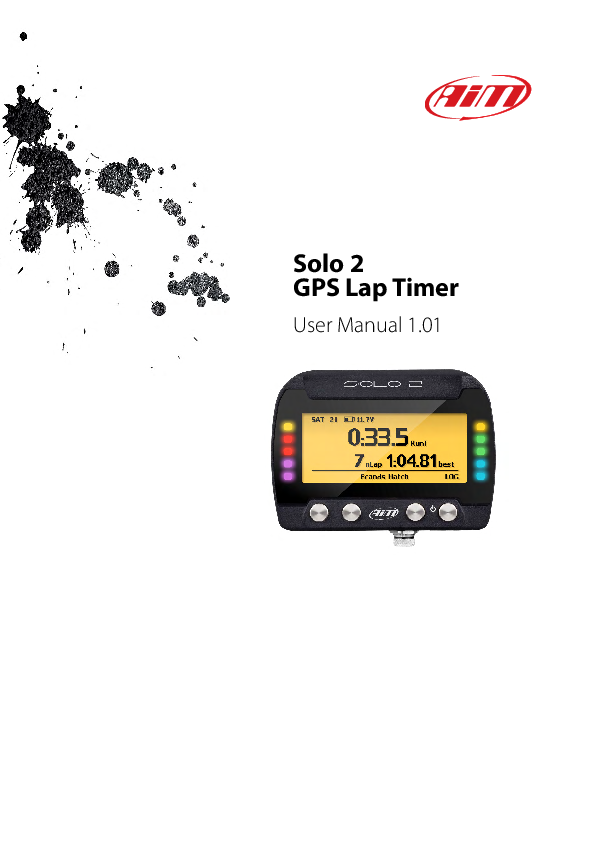
AIM Solo 2 GPS Lap Timer User Manual
Version 1.01
1 Solo 2 in a few words
The Solo 2 is the new AIM GPS Laptimer.
Why Solo 2?
Because it features:
- Integrated GPS + Glonass receiver.
- A large track database that Solo 2 uses to automatically select the track where you are racing.
- A powerful and comfortable Wi-Fi connection.
- Different types of races: speed and performance.
- 10 RGB LEDs that clearly indicate if you are improving or not.
- A large internal memory (four gigabytes) capable of recording a lot of tests.
2 What is in the kit?
The Solo 2 kit includes:
- Solo 2 device
- Solo 2 power cable with car lighter socket
- Solo 2 power cable with AC adapter
- Solo 2 mounting bracket with screws
- Race Studio 3 software installation CD
Image description: The image shows the contents of the Solo 2 kit, including the device itself, various cables, a mounting bracket, and a software CD.
3 Installation, powering and accessories
Thanks to its small dimensions and installation accessories, the Solo 2 can be installed on almost any motorsport vehicle. The internal battery keeps the Solo 2 alive for about 4/5 hours. Power consumption depends on the activity of:
- Wi-Fi (approx. 100 mA/hour when ON)
- Backlight
- Shift Light LEDs
- GPS tracking: Upon powering on, the Solo 2 starts searching for satellites. This activity is power-consuming for about 40-50 seconds, after which consumption decreases.
The Solo 2 can also be powered by a 12V, non-stabilized, external power source.
Installation Accessories
- Support for roll-bar (Part number: X46KSTG00)
- Support for generic tube (Part number: X46KSTP00)
- Support for suction cup (Part number: X46KSVS00)
4 At power on
When switched on, the Solo 2 shows the satellite page. To optimize display management, the keyboard disappears when not necessary. Press any pushbutton to make it reappear.
Image description: The Solo 2 display shows satellite information, including voltage (13.9V), GPS status (GOOD), and track learning status.
5.1 Type of racing
The Solo 2 supports two different types of races, each with specific options:
- Speed racing: Automatically selects the track. It can calculate, show, and set:
- Circuit type: closed or open.
- Predictive Reference lap: The time at the end of the current lap compared to a reference lap (best lap of the test or best lap of today).
- Auto OFF: Sets inactivity time before the device powers off (options: 10, 20, 30 minutes).
- Lap summary: Displays a summary page at the end of the test (enabled/disabled).
- Track width: Configurable between 5-100 meters.
- Performance racing: Offers performance options based on the unit of measure set in System Settings.
- Imperial units (mph): 0-60 mph, 60-0 mph.
- Metric units (km/h): 0-100 km/h, 0-160 km/h.
- Distance options (meters): 100 m, 150 m, 400 m, 1000 m.
- Auto OFF: Same as Speed racing.
5.2 Track management
The Solo 2's built-in GPS receiver is used for:
- Lap time calculation
- Speed calculation
- Predictive lap time calculation
- Position on the track for analysis
The system requires Start/Finish line coordinates. The Solo 2 includes a constantly updated database of world tracks, downloadable via the Race Studio 3 software.
The Solo 2 provides two track selection modes:
- Automatic: Automatically recognizes the track, loads Start/Finish line, and calculates lap times. This is the recommended mode for most cases.
- Manual: Allows manual selection from the internal database. This is useful when multiple track configurations are nearby. The device will still recognize the track but requires at least one complete lap.
Both modes offer three track list types:
- Closed nearest: Shows tracks within a 10 km radius (max 50 tracks).
- All tracks: Shows all stored tracks alphabetically.
- Custom: Shows only user-created tracks (learning mode).
Image description: The display shows the Track Management screen with options for Mode (Automatic/Manual), Track List Type, and Create New Track.
5.2.1 Track creation with Solo 2
If you are on a track not included in the Solo 2 database, you can create it. Depending on the circuit type set in "Type of racing", you can create a closed (automatic or manual) or an open circuit (manual only).
Creating a closed circuit automatically
To create a closed circuit automatically:
- Type of racing must be "Speed".
- Circuit type must be "Closed".
Image description: The Solo 2 display shows the process of creating a closed circuit automatically, including GPS signal strength and track learning status.
Creating a closed circuit manually
To create a closed circuit manually:
- Type of racing must be "Speed".
- Circuit type must be "Closed".
From the Solo 2 main page, press any key, then press TRACK. Press CREATE. Select AUTOMATIC CREATION and press ENABLE.
When the GPS signal is good, the Solo 2 records track points. It defines a temporary start/finish line upon detecting the same point twice. The track is automatically created. After the session, the track layout is displayed, and you can name it using the device keyboard.
Image description: The Solo 2 display guides the user through manually creating a closed track, including setting the start line.
Creating an open circuit (only manually)
To create an open circuit:
- Type of racing must be "Speed".
- Circuit type must be "Open".
From the Solo 2 main page, press any key, then press TRACK. Press CREATE. Select ADD START/FINISH LINE and press ENTER.
Image description: The Solo 2 display shows the process of creating an open track, including adding the start/finish line.
Note: The start and finish lines must be at least 10m apart. Once this distance is reached, an additional line appears on the display, and the OK button activates.
The Solo 2 allows creating a temporary track:
- Yes: The track is available until the following Tuesday.
- No: The track is saved permanently in the device memory.
Ensure the GPS signal is "GOOD", go to the start line, and press OK.
To acquire the track shape, press YES. Proceed through the track towards the finish line to set it.
The track is created and named with the date and time of creation. The display shows its shape.
For more information on track creation, refer to the FAQ section on www.aim-sportline.com.
5.3 Display setup
Selecting the display setup icon leads to the following page, where you can configure the system backlight and display pages.
- Backlight: You can set the Solo 2 backlight to "ON" (default) or "OFF", and choose from eight different colours.
Image description: The Solo 2 display shows various backlight colour options.
5.3.2 Pages Setup
The Solo 2 can display two to five pages, depending on the race type. Some pages are enabled by default, while others (custom pages, available for "Speed" race type) need to be enabled.
Default Pages:
- Track page
- Lap time page: Configurable formats include "Rolling" (dynamic display for 5 seconds after crossing the line) and "Static" (steady display for the entire lap).
- Predictive page (Speed race only): Configurable formats include "Predictive" (shows predicted time) and "+/- Best" (shows time gap to reference lap).
Custom pages can be enabled via the CONFIG button and can display up to four fields, with various options available.
Image description: The Solo 2 display shows examples of Lap Time and Predictive page setups.
5.4 Wi-Fi
Manage Wi-Fi settings and reset its configuration here. Wi-Fi modes are:
- ON: Wi-Fi is always on.
- Auto: Switches Wi-Fi on when the vehicle is stopped and automatically off when Solo 2 starts recording (speed > 10 km/h for 3 seconds with good GPS signal).
- OFF: Wi-Fi is off.
The Wi-Fi Reset CFG option allows resetting Wi-Fi configuration, useful if the password is forgotten.
Image description: The Wi-Fi settings screen shows options for Wi-Fi mode, SSID, IP, and firmware version.
5.5 System settings
Select this icon to enter the System Settings page.
5.5.1 Unit of measure
Set the speed unit to km/h or mph. This choice affects the options available in the "Type of Race" menu for "Performance" type.
Image description: The Unit of Measure screen allows selection between different units.
5.5.2 Led Bar (Type of race: speed only)
This section configures the 10 lateral LEDs. The function can be set to Laptime or OFF. The Led Value can be set to 0.1 sec, 0.2 sec, or 0.05 sec.
In Laptime mode, LEDs indicate lap time improvement (green) or worsening (red). The LED values determine the time gap for each LED. For example, if your lap time improves by 0.3 sec towards the reference lap:
- With 0.1 sec LED Value, 3 green LEDs will light up.
- With 0.2 sec LED Value, 1 green LED will light up.
- With 0.05 sec LED Value, all LEDs will light up green.
Image description: The Solo 2 display shows the LED bar configuration and an example of the device with its LEDs illuminated.
5.5.3 Date Time
Set the time zone, enable/disable "Daylight Saving time", and configure date and time formats. Date and time are automatically synchronized via GPS signal.
Image description: The Date Time screen shows Time Zone, Daylight Saving Time, Time Format, Date Format, and current time/date.
5.5.4 Language
Set the Solo 2 language. The default is English. Available languages include:
- English
- Italian
- Deutsch
- Spanish
- French
- Dutch
- Danish
- Portuguese
- Japanese
- Czech
5.5.5 Clear Memory
Press OK to clear the Solo 2's memory.
Image description: The Clear Memory screen prompts the user to confirm clearing all memory.
5.5.6 System info
This page displays the serial number, firmware version, boot version, and hardware revision of your Solo 2.
Image description: The System Info screen shows details like Logger, Serial N., Fw Version, Boot Version, and Hw Revision.
6 On the track
Upon switching on, the Solo 2 displays main settings: Type of racing, Circuit type, Track name (if within 10 km), and Date/Time.
Several Solo 2 pages are available for online visualization. Scroll through them using the NEXT button (for "Type of Race: Speed" only). Pages may vary based on device configuration.
6.1 Track page
This page is accessed by pressing the TRACK button. It shows:
- On the left: The selected track. You can select a new track manually or automatically via
MENU>Track Management. If the track is not in the Solo 2 database, it switches to "learning mode". - On the right: The satellite bar, indicating visible satellites and signal strength, useful for evaluating GPS status.
Image description: The Track page displays the track name (e.g., Homestead FL) and GPS status. Another image shows the "NO NEARBY TRACKS" status.
6.2 Other pages
Other available pages include Laptime Page, Predictive Page, and two Custom Pages. Use the NEXT button to scroll through them.
- Laptime page: Shows the current lap time, regardless of race type.
- Predictive page: Shows the predicted current lap time in the configured format (e.g., +/- in relation to Reference Lap, Predicted lap time).
- Custom pages: Can be customized to display desired information. These pages need to be created and enabled as explained in the "Pages setup" paragraph.
Image description: Examples of the Laptime page showing lap times and the Predictive page showing speed and time.
7 Data Recall
After a test, you can recall sampled data by pressing MEM. Data Recall differs based on the race type set on your Solo 2.
7.1 Data Recall "Speed" mode
If "Type of Race - Speed" is selected, Data Recall shows specific pages. The first is the "Summary page". Select the desired session and press ENTER.
Once a session is selected, you see all tests within that session, showing the test time and best lap. Select a test and press ENTER.
The "Lap Summary" page (if enabled) shows the three best laps of the test with their maximum speed. Press PAGE.
This page is a histogram summary. You can navigate left and right to view all laps.
Image description: The display shows session summaries, individual test details, lap summaries with speed, and a histogram view of laps.
7.2 Data Recall "Performance" mode
If "Type of Race - Performance" is selected, Data Recall shows different pages.
If your test is less than two hours old, you are automatically directed to the "Lap Summary" page, showing:
- The selected performance metric (e.g., 1/8 mile).
- Lap time and speed (e.g., 9.10 seconds and 72.3 mph).
- A table detailing length, time, and speed for the performance, with split times. Press
TESTS.
You will then see the "Test sessions summary" page, listing sessions from most recent backwards. Select a session and press ENTER.
The "Session page" displays all laps from the session, most recent first. Press ENTER to view the "TEST" page.
Image description: The display shows performance data, session summaries, and lap details for performance mode.
8 Wi-Fi configuration
Solo 2 configuration is done using Race Studio 3 software. Two Wi-Fi modes are available.
8.1 Configuring Solo 2 as an access point (AP)
This is the default and easiest configuration, ideal for connecting one device to one computer. The Solo 2 creates its own Wi-Fi network and acts as an Access Point for your PC.
Please set an access password as soon as possible. To establish a Wi-Fi connection:
- Ensure Wi-Fi is enabled.
- Note your Solo 2 Name.
Image description: The Solo 2 display shows the AP mode connection status with GPS GOOD and device name.
This AP or SSID name is unique to your device. Example: "AiM-Solo2-00101" where "AiM" is the prefix, "Solo 2" is the identifier, and "00101" is the serial number.
Image description: The Race Studio 3 software interface shows the configuration for Wi-Fi Power Mode (Auto), Wi-Fi Mode (Access Point), and Wi-Fi Network Name (AIM-SOLO2-00101).
8.2 Adding Solo 2 to an existing network
This mode is more complex but flexible, allowing multiple devices and computers to connect to an existing Wi-Fi network (WLAN) via an external Access Point. The Solo 2 and PC connect to this existing network.
To connect:
- Run Race Studio 3.
- Click the Wi-Fi icon and select your device.
- The connection is established in a few seconds.
When in WLAN mode, Solo 2 offers two security levels: network authentication (password) and device authentication (Solo 2 password). If you forget the password, you can reset Wi-Fi configuration from the Solo 2 menu.
Image description: A diagram shows multiple devices connecting to a router, which then connects to a PC. Another diagram shows Race Studio 3 connecting to a device in "Existing network" mode.
To set other parameters, create a unique password for secure, encrypted communication (WPA2-PSK standard). Allowed characters include letters, digits, and specific symbols. A "Space" can be used but not as the first character.
You can add a name to the SSID (up to eight characters) for better recognition. For example, "AiM-Solo2-00101-Tom Wolf". After setting parameters, click "Transmit". Solo 2 reboots with the new configuration. Race Studio 3 will prompt for the password if the device is protected.
Image description: The Race Studio 3 interface shows configuration for "Existing network" mode, including network name, password, and device password.
Please Note: The same Wi-Fi connection can be created using the operating system tool. Once authenticated, you can communicate with the device using Race Studio 3.
This situation is ideal for teams with multiple drivers and staff. Each Solo 2 can have its own password for added security. Race Studio 3 lists all connected Solo 2 devices under "Connected devices". Select your device, go to the "Wi-Fi and properties" tab, set it to "Existing Network", and fill in the network name, network password, and device password. Click "Transmit" to apply settings.
Please note: Only passwords following the WPA2-PSK standard are admitted.
Image description: The Race Studio 3 interface shows multiple AiM devices connected to the "AiM" WLAN. Another image shows a device "Solo2-00101" switched to WLAN mode. A list of connected devices is also shown.
8.3 Wi-Fi network settings
This section describes how to configure a WLAN for AiM devices and a PC. The example configuration includes router settings (IP Address, Subnet Mask) and DHCP server settings (IP Address Range, Lease Time).
These settings enable a DHCP server, providing IP addresses in a 2-6 range, allowing up to 5 network hosts. The number of devices depends on the subnet mask.
| Subnet mask: | IP address range: | Number of devices: |
|---|---|---|
| 255.255.255.0 | 192.168.0.1 - 254 | 254 |
| 255.255.255.128 | 192.168.0.1 - 126 | 126 |
| 255.255.255.192 | 192.168.0.1 - 62 | 62 |
| 255.255.255.224 | 192.168.0.1 - 30 | 30 |
| 255.255.255.240 | 192.168.0.1 - 14 | 14 |
| 255.255.255.248 | 192.168.0.1 - 6 | 6 |
For optimal performance, it is recommended to use a network device with a DHCP server and 3x3 MIMO technology. Avoid allowing Internet access on this WLAN to maximize bandwidth.
Example device network configuration parameters:
- Wireless network name:
network_1 - Gateway address: 192.168.0.1
- Primary DNS server: 0.0.0.0
- Secondary DNS server: 0.0.0.0 (These settings prevent Internet connectivity on this WLAN.)
- Subnet mask: 255.255.255.248
- Enable DHCP server: Yes
- DHCP IP address range: 192.168.0.2 to 192.168.0.6
8.4 The Internet connectivity
For optimal speed, it is recommended not to allow Internet access on the same network as your AiM devices. While Internet access can be enabled, it may degrade communication speed. A second Wi-Fi connection via an additional NIC can provide both optimal data network speed and Internet connectivity.
8.5 Connection issues
If Solo 2 connects to Race Studio 3 via Wi-Fi but the interface does not show it, the Wi-Fi port setting might be static. To switch to dynamic (DHCP):
- Open "Network and sharing centre" in Windows.
- Right-click the Wi-Fi connection and select "Properties".
- Double-click "Internet Protocol version 4 (TCP/IPv4)".
- Verify that "Obtain an IP address" is active.
For further information, refer to the FAQ section on Wi-Fi at www.aim-sportline.com.
8.6 Working on Mac™ with virtualized Windows™
Race Studio 3 only runs on Windows. Mac users can use a virtualized Windows machine. The host OS (Mac) must share its Wi-Fi interface with the virtualized OS (Windows) as an Ethernet interface, not Wi-Fi.
Configuring Parallels™: Select "Configure..." in the Parallels Menu.
Image description: The Parallels configuration menu shows options for Hardware, Network settings.
Press "Hardware", select "Network" from the dropdown menu, and set the "Type" field to "Wi-Fi". Then select the device you want to communicate with.
To ensure communication, select "Open Network preferences..." menu.
Image description: The Windows network status shows "Connected" with an IP address.
To enable Race Studio 3 on a Mac with virtualized Windows:
- Press the Wi-Fi icon.
- Select the "Wi-Fi Settings" icon.
- Enable the checkbox shown.
Image description: The Wi-Fi settings on macOS show connection status and available networks. A checkbox indicates "Enable if Windows is running as virtualized on MacOs".
8.7 Connected device visualization issues
When using Race Studio 3 on an iMac with virtualized Windows, devices connected via Wi-Fi may take time to appear or not appear at all. Using a Wi-Fi (WLAN) router as an Access Point is always recommended, as it allows more external devices to connect. Solo 2 Wi-Fi configuration should be set to "Existing Network" as explained previously.
Image description: A list of Wi-Fi networks is shown, including AIM devices.
9 PC connection
Solo 2 connects to a PC only via Wi-Fi. To do this:
- Ensure Solo 2 Wi-Fi is set to "AUTO" or "ON".
- Note your Solo 2 name (found on the home page bottom line or in "System Information").
- Click the Race Studio 3 Wi-Fi icon and select your Solo 2.
Once connected, you have these options:
- Live Measures: View all Solo 2 channels.
- Download: Download data (see related chapter).
- Wi-Fi and Properties: Manage Wi-Fi configuration (see related chapter).
- Settings: Configure date format, daylight time, time format/zone, backlight colour, and night vision.
- Tracks: Manage tracks stored in device memory.
- Logo: Transmit/receive logos for the startup screen (JPEG or BMP format). Use recent Windows versions (Windows 8 or 10).
- Firmware: Check or update Solo 2 firmware version.
Image description: The Race Studio 3 interface shows the PC connection setup with Wi-Fi icon and device selection.
10 Track Management
The Solo 2's built-in GPS receiver is used for lap time, speed, predictive lap time calculation, and track position analysis. The system needs Start/Finish line coordinates. The Solo 2 includes a database of world tracks, updated and loaded via Race Studio 3.
Two track selection modes are available:
- Automatic: Automatically recognizes the track, loads Start/Finish line, and calculates lap times.
- Manual: Allows manual selection from the internal database, useful for multiple track configurations nearby. Requires at least one complete lap to recognize the track.
Available track list types:
- Nearest: Tracks within 10 km.
- All: All stored tracks alphabetically.
- Custom: User-created tracks (learning mode).
If running on a track not in the database, you can create a new track (as explained in section 5.2.1) and load it into Race Studio 3. You can modify coordinates, name the track, and transmit it to the PC.
For more information on track management, refer to the "Track Manager" user manual available on www.aim-sportline.com.
Image description: The Track Management screen in Race Studio 3 is shown for both Automatic and Manual modes.
11 Data download
Once the Solo 2-PC connection is established, activate the "Download" tab to download sampled data.
This page displays information about stored files: number of laps, best lap, date/time, and file dimensions. Select one or more files and press "Download" to analyze them.
Image description: The Race Studio 3 download screen shows a list of data files with details like date, time, laps, and size.
12 Data Analysis
After downloading data, press the "Analysis" icon to open the Race Studio Analysis software, which displays graphs and images to help analyze your data.
Image description: The Race Studio Analysis software interface showing data graphs and charts.
13 New firmware upgrade
AIM technicians continuously improve firmware and software. An icon with an arrow indicates when a new version is available for download. Click it to download new applications.
Once the new firmware is downloaded, connect your device to the PC via Wi-Fi to perform the upgrade. The device will be ready in seconds.
Image description: The firmware upgrade screen in Race Studio 3 shows available software and firmware updates.
14 Technical specifications and drawings
- Display: Graphical, 128x64 pixels.
- Display pages: Up to 5 freely configurable.
- Backlight: 7 configurable RGB colours.
- Shift lights/alarm LEDs: 10 configurable RGB LEDs.
- Integrated track database: Yes.
- Inertial platform: Internal 3-axis ±5g accelerometer + 3-axis gyro + 3-axis magnetometer.
- Wi-Fi connection: Yes.
- Integrated GPS: 10Hz GPS+Glonass.
- External power: 12V.
- Memory: 4GB.
- Battery type: Rechargeable Lithium.
- Pushbuttons: Metallic.
- Weight: 240g (battery included).
- Waterproof: IP65.
- Analysis software: Race Studio Analysis, freely downloadable from www.aim-sportline.com.
Image description: A diagram shows the Solo 2 device with its display and buttons, connected to an EXP connector. The EXP connector details (5 pins: nc, GND, nc, nc, +Vb ext) are also shown.