

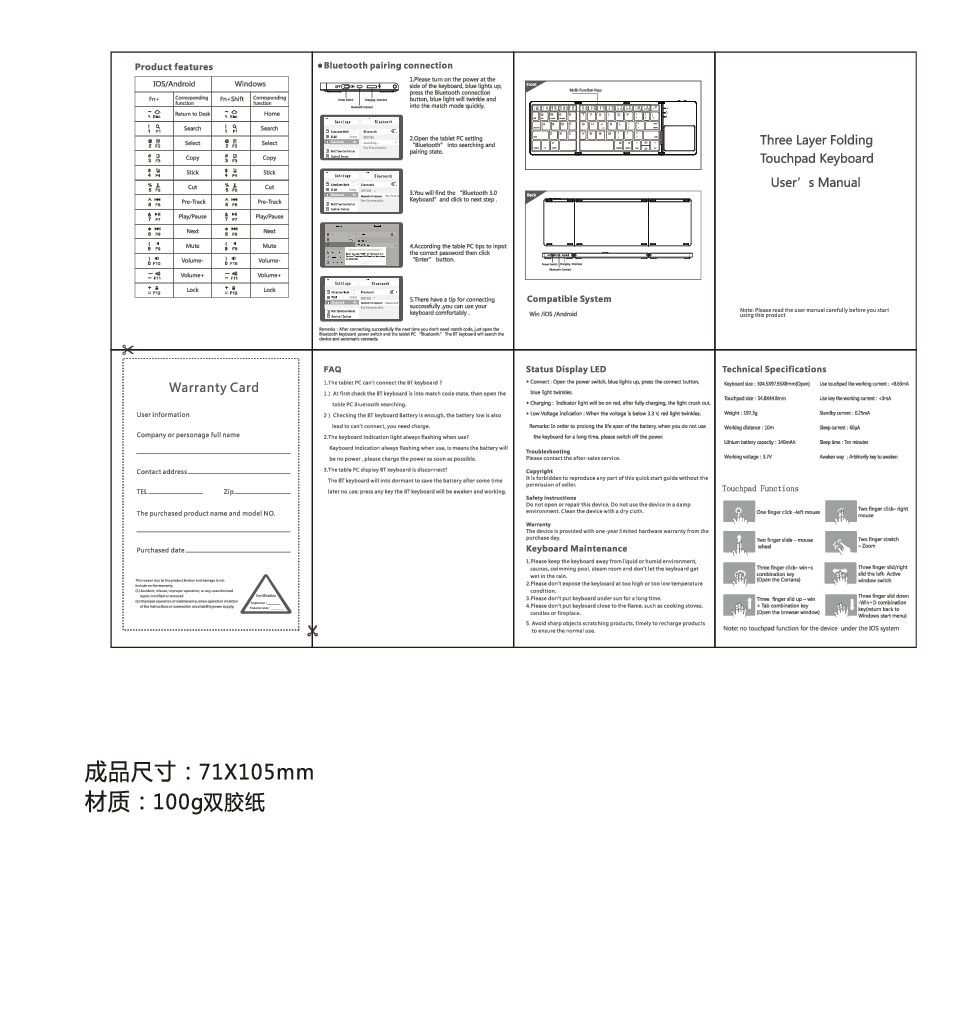
Product Features
| Fn+ Key | IOS/Android Corresponding Function | Windows Corresponding Function |
|---|---|---|
| F1 | Home | Home |
| F2 | Search | Search |
| F3 | Copy | Copy |
| F4 | Cut | Cut |
| F5 | Paste | Paste |
| F6 | Previous Track | Previous Track |
| F7 | Play/Pause | Play/Pause |
| F8 | Next Track | Next Track |
| F9 | Mute | Mute |
| F10 | Volume- | Volume- |
| F11 | Volume+ | Volume+ |
| F12 | Lock | Lock |
Bluetooth Pairing Connection
- Please turn on the power at the side of the keyboard. The blue light will illuminate. Press the Bluetooth connection button; the blue light will twinkle and enter match mode quickly.
- Open the tablet PC's settings and navigate to "Bluetooth" to enter searching and pairing state.
- You will find "Bluetooth 3.0 Keyboard" and click to proceed.
- According to the tablet PC prompts, input the correct password then click the "Enter" button.
- A message indicating successful connection will appear, allowing you to use your keyboard comfortably.
Remarks: After connecting successfully, you do not need to match code the next time. Simply turn on the Bluetooth keyboard power switch and the tablet PC's Bluetooth. The BT keyboard will search for the device and connect automatically.
Compatible System
Win/iOS/Android
Warranty Card
User Information
Company or personage full name: _________________________
Contact address: _______________________________________
TEL: _________________________ Zip: ______________
The purchased product name and model NO.: _________________________
Purchased date: _________________________
Warranty Exclusions: This warranty does not cover product breakdown and damage caused by:
- (1) Accident, misuse, improper operation, or any unauthorized modification.
- (2) Improper operation or connection to unsuitable power supply, or violation of the instructions.
FAQ
- 1. The tablet PC can't connect the BT keyboard?
-
- At first, check if the BT keyboard is in match code state, then open the tablet PC Bluetooth searching.
- Check if the BT keyboard battery is sufficient. Low battery can also lead to connection failure; you need to charge it.
- 2. The keyboard indication light always flashing when in use?
- The keyboard indication light flashing always means the battery is low. Please charge the power as soon as possible.
- 3. The tablet PC displays BT keyboard is disconnected?
- The BT keyboard will enter dormant mode to save battery after some time of inactivity. Press any key to awaken the BT keyboard and resume working.
Status Display LED
- Connect: Open the power switch, blue light illuminates. Press the connect button, blue light twinkles.
- Charging: Indicator light will be on red. After fully charging, the light goes out.
- Low Voltage Indication: When the voltage is below 3.3V, the red light twinkles.
Remarks: In order to prolong the life span of the battery, please switch off the power when you do not use the keyboard for a long time.
Technical Specifications
| Keyboard size | 304.5X97.95X8mm (Open) |
| Touchpad size | 54.8X44.8mm |
| Weight | 197.3g |
| Working distance | 10m |
| Lithium battery capacity | 140mAh |
| Working voltage | 3.7V |
| Touchpad working current | <8.63mA |
| Key working current | <3mA |
| Standby current | 0.25mA |
| Sleep current | 60μΑ |
| Sleep time | Ten minutes |
| Awaken way | Arbitrarily key to awaken |
Touchpad Functions
Note: There is no touchpad function for the device under the iOS system.
- One finger click: Left mouse click
- Two finger slide: Mouse wheel
- Two finger click: Right mouse click
- Two finger stretch: Zoom
- Three finger click: Win+S
- Three finger slide left: Active window switch
- Three finger slide right: Open Cortana
- Three finger slide up: Win+Tab combination key
- Three finger slide down: Win+D combination key (return to Windows start menu)
Safety Instructions
- Do not open or repair this device.
- Do not use the device in a damp environment.
- Clean the device with a dry cloth.
Keyboard Maintenance
- Please keep the keyboard away from liquid or humid environments, saunas, swimming pools, steam rooms, and do not let the keyboard get wet in the rain.
- Please do not expose the keyboard at too high or too low temperature conditions.
- Please do not put the keyboard under the sun for a long time.
- Please do not put the keyboard close to the flame, such as cooking stoves, candles, or fireplaces.
- Avoid sharp objects scratching products; timely recharge products to ensure normal use.
FCC Compliance
This device complies with part 15 of the FCC Rules. Operation is subject to the following two conditions: (1) this device may not cause harmful interference, and (2) this device must accept any interference received, including interference that may cause undesired operation.
Any changes or modifications not expressly approved by the party responsible for compliance could void the user's authority to operate the equipment.
NOTE: This equipment has been tested and found to comply with the limits for a Class B digital device, pursuant to Part 15 of the FCC Rules. These limits are designed to provide reasonable protection against harmful interference in a residential installation. This equipment generates, uses, and can radiate radio frequency energy and, if not installed and used in accordance with the instructions, may cause harmful interference to radio communications. However, there is no guarantee that interference will not occur in a particular installation.
If this equipment does cause harmful interference to radio or television reception, which can be determined by turning the equipment off and on, the user is encouraged to try to correct the interference by one or more of the following measures:
- Reorient or relocate the receiving antenna.
- Increase the separation between the equipment and receiver.
- Connect the equipment into an outlet on a circuit different from that to which the receiver is connected.
- Consult the dealer or an experienced radio/TV technician for help.
The device has been evaluated to meet general RF exposure requirement. The device can be used in portable exposure condition without restriction.
Product Dimensions
Finished size: 71X105mm
Material: 100g double-sided paper
