

File info: application/pdf · 11 pages · 871.08KB
Getting Started with Reviewbox
On the next screen you will see instructions to upload a file containing the product listings to be added to your catalog. You will need to create a comma-delimited text (CSV) file with two required columns: ‘source’ an…
On the next screen you will see instructions to upload a file ... and sort the reviews based on any column, and you can save quick filters for later.
Full PDF Document

If the inline viewer fails, it will open the original document in compatibility mode automatically. You can also open the file directly.
Extracted Text
Getting Started with Reviewbox

1.0 How to load your product listings
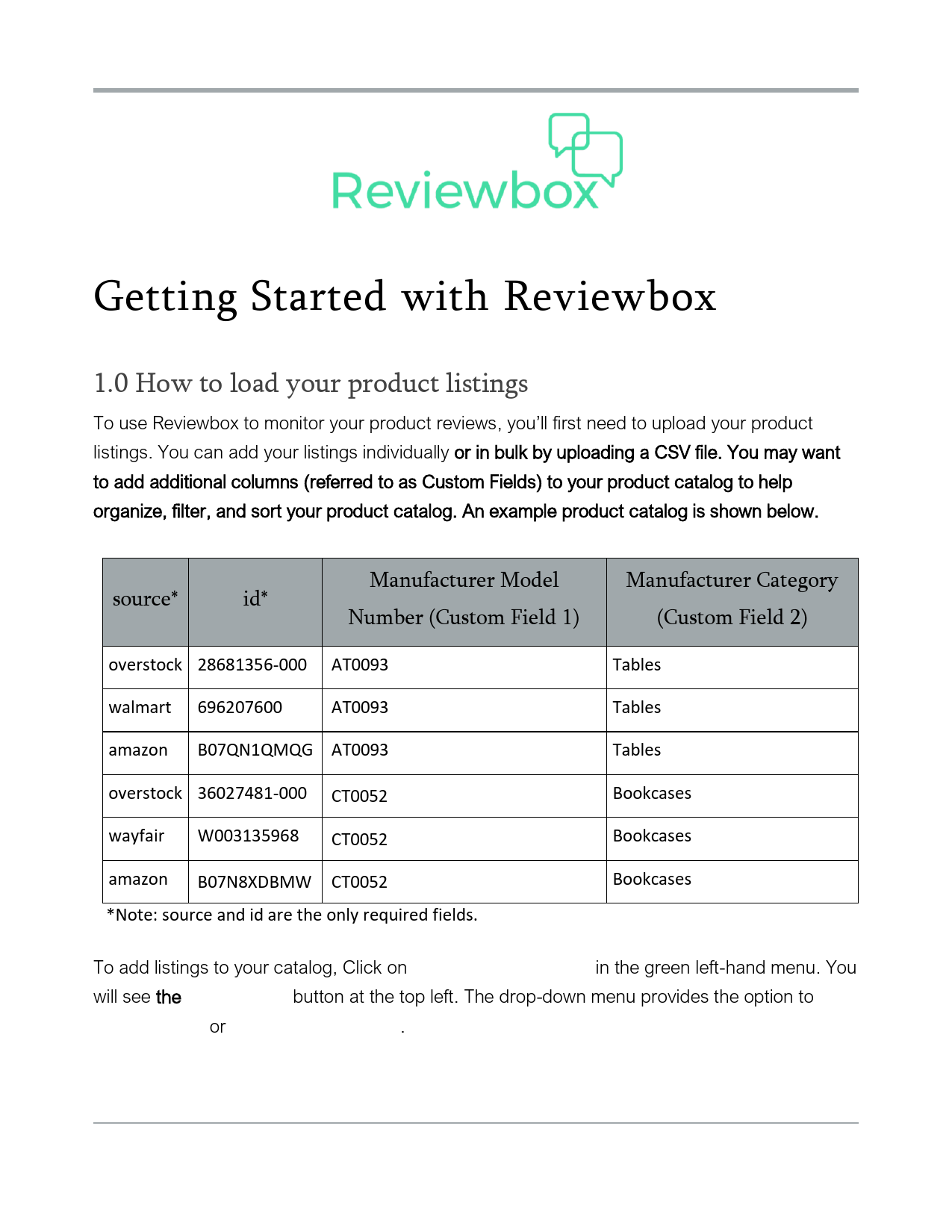
To use Reviewbox to monitor your product reviews, you'll first need to upload your product listings. You can add your listings individually or in bulk by uploading a CSV file. You may want to add additional columns (referred to as Custom Fields) to your product catalog to help organize, filter, and sort your product catalog. An example product catalog is shown below.

source*

id*

Manufacturer Model Number (Custom Field 1)

Manufacturer Category (Custom Field 2)

overstock 28681356-000 AT0093

Tables

walmart 696207600

AT0093

Tables

amazon B07QN1QMQG AT0093

Tables

overstock 36027481-000 CT0052 wayfair W003135968 CT0052 amazon B07N8XDBMW CT0052 *Note: source and id are the only required fields.

Bookcases Bookcases Bookcases

To add listings to your catalog, Click on Catalog Management in the green left-hand menu. You will see the Add Listings button at the top left. The drop-down menu provides the option to Add Single Listing or Bulk Upload Listings.

Reviewbox, Inc. 408 North Cedar Bluff Road, Suite 140 Knoxville, TN 37923

1. 1 Upload a single listing
Under Add Listings choose Add Single Listing. You can add the listing to one or more of the Reviewbox monitoring services. Then click Next.
Reviewbox, Inc. 408 North Cedar Bluff Road, Suite 140 Knoxville, TN 37923

The next screen allows you to enter the product listing information. Choose the appropriate retail website in the Source field. All supported retailers are listed there. Next enter the Listing ID. For Amazon.com, this ID is the ASIN. For other retailers this ID should be the specific identifier used by that retailer. Often these are specific to the color, size, or other variation of the parent product. For guidance on how to find Listing IDs for your products, see the Reviewbox Help page. Finally, enter any Custom Fields that you would like to use to organize the catalog. Examples include the UPC, manufacturer model number, product category, brand, and other information. You may add multiple custom fields by clicking on the +. When all fields are complete, click Submit.
If the listing went into your catalog, you will see a Success screen. Note that it may take up to 12 hours for Reviewbox to collect the product reviews.
Reviewbox, Inc. 408 North Cedar Bluff Road, Suite 140 Knoxville, TN 37923

1. 2 Upload multiple listings
Often you will want to add many product listings to Reviewbox at once. Under Add Listings choose Bulk Upload Listings. You can then choose to add these listings to one or more of the Reviewbox monitoring services. Click Next. On the next screen you will see instructions to upload a file containing the product listings to be added to your catalog. You will need to create a comma-delimited text (CSV) file with two required columns: `source' and `id'. Note that the names of these columns are case-sensitive. You may add additional columns for your custom fields to the right of the two required columns. A bulk upload template is provided for your convenience. Drag your csv file onto the upload screen and click Submit.
If the listings went into your catalog, you will see a Success screen. Note that it may take up to 12 hours for Reviewbox to collect the product reviews.
Reviewbox, Inc. 408 North Cedar Bluff Road, Suite 140 Knoxville, TN 37923

2.0 How to use Reviewbox for Review Monitoring
Once your product catalog has been entered into the Reviewbox system, it can take up to 12 hours to retrieve all the reviews and questions for your listings. Once your data has been populated, you can view and respond to reviews using the Reviewbox page within the Reviewbox web application. Access the Reviewbox page from the left-hand green menu by clicking on Products and then Reviewbox. The page will look something like this.
Reviewbox, Inc. 408 North Cedar Bluff Road, Suite 140 Knoxville, TN 37923

This grid interface lists all the reviews of all of your products within the specified date range. You can see the date, author, star rating, and full text of each reviews as well as whether it was a verified purchase and whether there were images or videos included with the review. Click on the text of a review to see the details about that review and to leave a response to that review on the retail site. This view is highly customizable. You can reorder the columns by grabbing the heading and sliding it to the right or left. You can hide columns by clicking on the Columns button on the far right. You can filter and sort the reviews based on any column, and you can save quick filters for later. You can also examine the reviews by Product. Select the Products tab at the top of the page and you will see a list of your product listings along with a summary of all the ratings and reviews for each product.
Reviewbox, Inc. 408 North Cedar Bluff Road, Suite 140 Knoxville, TN 37923

Click on a product ID and you will see a panel summarizing the overall ratings and reviews for that product. Click on a product Name (title) and you will go to a list of the reviews for that product. From there you can sort and filter the reviews and see a chart of the average rating over time. The Reviewbox interface also provides an easy way to view and respond to customer questions. Click on the Questions tab at the top of the page to see a list of all questions for your products. It is organized the same as the Reviews. If you click on the question text, you can see details about the question and leave a response on the retail site.
Reviewbox, Inc. 408 North Cedar Bluff Road, Suite 140 Knoxville, TN 37923

3.0 How to set up review notifications
Reviewbox offers automated alerts to let you know when you receive a review that requires attention. To set up notifications, go to the Account section on the green left-hand menu.
Choose the Notification Settings tab at the top of the page. From here, you can enter your email or a Slack channel to receive notifications. You may add multiple addresses using the + button. If you have enabled our response tracking feature, you can also enter emails to be alerted when someone has responded to one of your comments or answers.
Reviewbox, Inc. 408 North Cedar Bluff Road, Suite 140 Knoxville, TN 37923

The email notifications can be configured to be sent continuously (approximately every 8 hours), daily (early morning Eastern US time), or less frequently. One of the most useful features is the ability to filter by the star rating. If you only want to be alerted about negative reviews, choose the `Fewer than 3 stars' filter option. Be sure to scroll all the way down the page to save your notification settings. Emails will look something like this, with a chart of the ratings at the top, followed by the questions and reviews that fit your filters. To quickly respond to a question or review, just click on the review or question text within the email. There is no need to log in to the Reviewbox application.
Reviewbox, Inc. 408 North Cedar Bluff Road, Suite 140 Knoxville, TN 37923

4.0 How to download your reviews
Reviewbox makes it easy to download your reviews to analyze later. From the Reviewbox page click on the Select Download button above the list of reviews. There are three options: Review & Question Details Export, All Reviews & Questions Details Export, and Current View.
Review & Question Details Export This export provides two csv files, separate files for the reviews and the questions, containing all the information about the reviews and questions within your specified date range. For more information about the specific data fields provided, please see our Data Dictionary.
All Reviews & Questions Details Export This export provides two csv files, separate files for the reviews and the questions. They are the same as the above export, but they include ALL reviews and questions ever posted for those products.
The two exports above are available from the Downloads page within the Reviewbox application. The latest seven exports are visible, and they will remain available for 30 days.
Current View This option allows you to download the information that is currently displayed in the page that you are viewing. For example, if you are viewing the Reviews page for a particular product, filtered to only the 1-star reviews within the past month, then the Current View would provide a csv file including only those reviews. This csv file is accessible immediately, without going to the Downloads page.
5.0 Set up a recurring review export
Reviewbox, Inc. 408 North Cedar Bluff Road, Suite 140 Knoxville, TN 37923

You can also opt to receive a data export automatically each day, week, or month. Go to Reports on the left-hand green menu and select + Create. Under Exports, choose either Review Details Export or Question Details Export. On the next screen, enter the parameters of the data export you want to receive. Be sure to select either Daily, Weekly, or Monthly under Recurring Export. Then you can select the file type (CSV or Excel) that you want to receive and the email address(es) where it should be sent. Note: the recipients of this data export do not need a Reviewbox account. You can also have your data export pushed into a cloud storage area of your choice.
Reviewbox, Inc. 408 North Cedar Bluff Road, Suite 140 Knoxville, TN 37923