

古瑞WIFI
File info: application/pdf · 3 pages · 2.78MB
古瑞WIFI
Growatt ShineWiFi-F Quick Installation Guideline. For more info, please download from http://server.growatt.com. 86 755 2747 1942. F 86 755 2747 2131.
Growatt ShineWiFi-F Quick Installation Guideline
Plug Shine WiFi-F into the WiFi/GPRS port Connection between inverter and Shine WiFi-F module Scan the QR code below to download ShinePhone, also you search ShinePhone in iOS or Google Play Store, install it. can downlo…
Full PDF Document

If the inline viewer fails, it will open the original document in compatibility mode automatically. You can also open the file directly.
Extracted Text
Growatt ShineWiFi-F Quick Installation Guideline

For more info, please download from http://server.growatt.com

+86 755 2747 1942

F +86 755 2747 2131

E service@ginverter.com

W www. ginverter.com

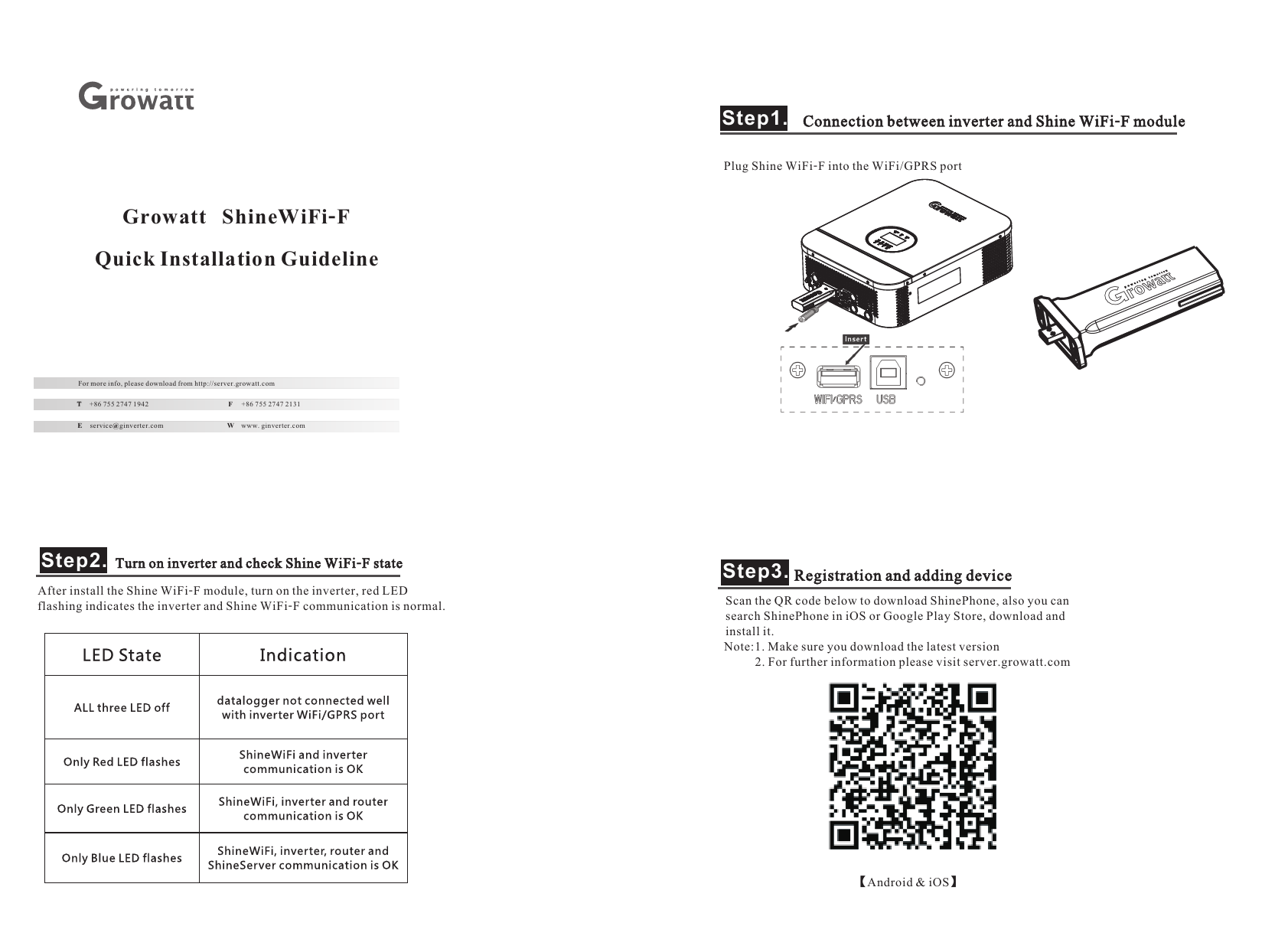
Step2. Turn on inverter and check Shine WiFi-F state
After install the Shine WiFi-F module, turn on the inverter, red LED flashing indicates the inverter and Shine WiFi-F communication is normal.

Step1. Connection between inverter and Shine WiFi-F module
Plug Shine WiFi-F into the WiFi/GPRS port
Step3. Registration and adding device
Scan the QR code below to download ShinePhone, also you can search ShinePhone in iOS or Google Play Store, download and install it. Note:1. Make sure you download the latest version
2. For further information please visit server.growatt.com
Android & iOS

1. Connect your mobile phone to the WiFi of your home router of which the Shine WiFi-F module will be connected. 1) The router name should consist with English letters and numbers, it does not support special symbols. 2) For safety reason, please use an encrypted wireless network 3) It does not support a public network that uses a secondary authentication. 4) It does not support bridge network.
2. Open ShinePhone APP, click "Register" on login page.

3.Select country and city, then click "Next" enter next page. Note: If you select a wrong country and city, the system time maybe wrong.

4.Fill out the required information, then click "Next", 5. Scan or input the ShineWiFi barcode and checkcode,then

it will guide you to the "Add datalogger" page.

click "Register", it will move you to the "Set Shine Wifi-F"

page.

6. Fill out the wifi network and password, then click"Configuration", after successful configuration, a note will pop up "Configured successfully", then it will move to the "my plant" page. Note: There are 3 LEDs on Shine WiFi-F, only the blue LED flashing indicates the Shine WiFi-F module is successfully connected to the router and Growatt Shine Server.

7.If the pop up a message says "Failed", please refer to Appendix A of the troubleshooting guide to solve the problem. After that, login to your account and click the "+" sign on the right top side of the page, and select"Datalogger list"in the appearing dialog window. Push on the datalogger's serial number for 3 sec, until a small dialog window appears,select "Configure datalogger". It will move to the "Set Shine Wifi-F"page,enter the home routers name and password, then click, "Set" the connection configuration process will begin.

8.After successful configuration, it will move to the"my
plant" page, select the inverter in the device list to check the inverter update information.

9.If you want to add/edit/delete/configure a datalogger, click the "+" sign on the right top side of the
"my plant" page. There are 4 options in the dialog window when push on the datalogger's serial number, click the one you need.
1)"Add datalogger" is for adding a new Shine WiFi-F module to this account. 2)"Edit datalogger" is used to assign an alias name for your Shine WiFi-F module. 3)"Delete datalogger" is used to remove the Shine WiFi-F module from this account. 4)"Configure datalogger" is used for configuring the connection of the Shine WiFi-F module to the
router.

Step4. Reset Shine WiFi to Factory Settings
When you have changed your home router password, or changed to a new router, you need to reset Shine WiFi-F to factory settings and reconfigure it. Remove the rubber plug, and press the KEY button for 6 sec, until all three LEDs long light up, then login to your ShinePhone account, click the "+"on right top of this page, long press this datalogger serial number to reconfigure.
Appendix A: Shine WiFi-F KEY Button Description

Shine WiFi-F Shine WiFi-F

Shine WiFi-F

Shine WiFi-F Shine WiFi-F

Shine WiFi-F

Shine WiFi-F

Troubleshooting
Shine WiFi-F
Shine WiFi-F
Shine WiFi-F Shine WiFi-F
Shine WiFi-F Shine WiFi-F
Shine WiFi-F

Shine WiFi-F