

SOUNDLEISURE Gazelle CD Jukebox User Manual
File info: application/pdf · 36 pages · 1.15MB
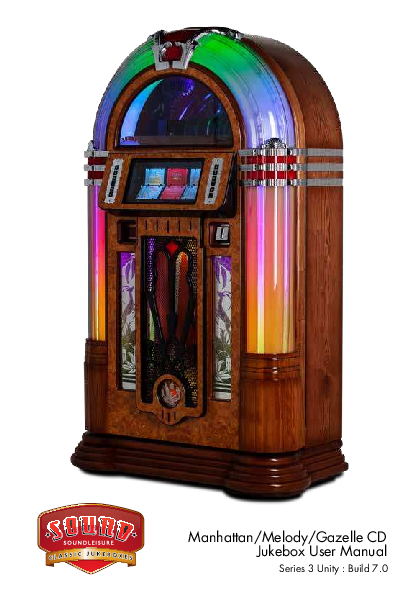
Manhattan/Melody/Gazelle CD Jukebox User Manual
CD manhattan-melody-gazelle-S3 Manual UK
Manhattan CD Jukebox – Sound Leisure Limited
Jukebox User Manual
Series 3 Unity : Build 7.0. Contents. 1. Introduction Pg 3. 2. Important safety instructions. Pg 4. 3. Taking delivery / Transit mode. Pg 7. 4. Label magic Pg 11. 5. Inserting title cards View
Extracted Text
Manhattan/Melody/Gazelle CD Jukebox User Manual
Series 3 Unity : Build 7.0

Contents

1. Introduction 2. Important safety instructions 3. Taking delivery / Transit mode 4. Label magic 5. Inserting title cards 6. Loading compact discs 7. Playing the Jukebox 8. Connecting external audio devices 9. Adding additional speakers 10. Adjusting amplifier settings 11. Jukebox lighting adjustment/bubble tubes 12. Bluetooth 13. Troubleshooting and error codes

Pg 3 Pg 4 Pg 7 Pg 11 Pg 12 Pg 14 Pg 16 Pg 20 Pg 22 Pg 24 Pg 27 Pg 30 Pg 32

Please note that the images in this manual show the SL15 full sized cabinet, however all components are identically placed in the Sl15 Slimline cabinet.

2

Introduction
Thank you for purchasing a Classic Jukebox from Sound Leisure, the world's premier Jukebox manufacturer. This product has been designed and built to give you many years of enjoyment and trouble free use. This owner's guide provides all the information you will need to install and operate the Jukebox safely. About Sound Leisure Sound Leisure have been manufacturing Jukeboxes in Leeds, UK since 1978. The family owned and run business was originally formed by Alan Black and three generations of the family now work alongside a team of skilled craftsmen and women, all dedicated to manufacturing the finest Jukeboxes in the world.
3

Important Safety Instructions
� Read these instructions. � Keep these instructions. � Heed all warnings. � Follow all instructions. � Do not use this apparatus near water. � Clean only with a dry cloth. � Do not block any ventilation openings. Install in accordance with the
manufacturer's instructions. � Do not install near any heat sources such as radiators, heat registers, stoves
or other apparatus (including amplifiers) that produce heat. � Do not defeat the safety purpose of the polarized or grounding-type plug.
A polarized plug has 2 blades with one wider than the other. A grounding type plug has two blades and a third grounding prong. The wide blade or the third prong are provided for your safety. If the provided plug does not fit into your outlet, consult an electrician for replacement of the obsolete outlet. � Protect the power cord from being walked on or pinched particularly at plugs, convenience receptacles, and the point where they exit from the apparatus. � Only use attachments/accessories specified by the manufacturer. � Use only the cart, stand, bracket or table specified by the manufacturer, or sold with the apparatus. When a cart is used, use caution when moving the cart/apparatus combination to avoid injury from tip-over. � Unplug this apparatus during lightning storms or when unused for long periods of time. � Refer all servicing to qualified service personnel. Servicing is required when the apparatus has been damaged in any way, such as if a power-supply cord or plug is damaged, liquid has been spilled or objects have fallen into the apparatus, the apparatus has been exposed to rain or moisture, does not operate normally or has been dropped.
Bubble Tubes The bubble tubes in the top & side pilasters must only be handled by trained personnel. They contain small amounts of the harmful chemical DCM (dichloromethane). In the event of accidental leakage the chemical
4

will generally evaporate. However please take the following precautions. Ventilate the room immediately by opening doors & windows. Vacate the room until any residual odour disperses. Extinguish any source of ignition. Avoid breathing vapours & contact with skin. If skin contact occurs wash immediately with soapy water, remove contaminated clothing & wash before reuse.
Additionally � This Jukebox contains high voltage & high temperature parts. Do not attempt
to carry out any work that is not specifically instructed in this manual. If the Jukebox fails to operate correctly, switch off the machine and contact Sound Leisure. � This Jukebox is heavy. DO NOT attempt to lift the unit. � DO NOT attempt to move the Jukebox with the front glass/door open. The Jukebox is top heavy and may tip forward if moved with the front glass/ door open. � This appliance must be connected to a mains socket with a protective earth connection. � The mains plug is the designated `disconnection device' and as such should be readily operable. � `WARNING' To reduce the risk of fire or electric shock, do not expose this apparatus to rain or moisture.
� Fuses should be replaced like for like at all times. � Terminals marked with the symbol above are considered hazardous live
and external wiring connected to these terminals requires installation by an instructed person or the use of ready-made contact leads. � Jukebox contains transmitter module FCC ID : T9J-RN52 � Refer to Bluetooth section for more information. � This Jukebox is approved for operation : below 2000m elevation between 0�C and 40�C
5

FIG1 : Lock locations & rear panels
Main cabinet lock is on the left hand side of the cabinet.

Rear cabinet door lock

Mains power socket and switch

Earth bond

Audio Out sockets and RESET button

6

Taking Delivery / Transit Mode
Once the Jukebox has been positioned in its designated space the following instructions will allow you to prepare it for use. The keys to open the Jukebox will be found attached to the rear of the cabinet. The keys will open the side locks and the rear cabinet lock. See opposite page FIG1. Transit Mode Upon delivery the Jukebox CD player mechanism will be locked in "Transit Mode." The following pages explain how to remove the transit fixings and prepare the Jukebox for use. Please work through this guide in order. To reduce the risk of accidental damage to the Jukebox when removing transit bars, it is recommended to carry out this procedure with the Jukebox powered OFF.
7

FIG2 : Retaining transit bar locations (mechanism)

Transit bar thumb screw (L)

Transit bar thumb screw (R)

Vertical retaining Horizontal retaining

transit bolt

transit bar

Transit bar post (L)

Transit bar post (R)

Mechanism retaining wingnuts (underside)

Mechanism retaining wing nuts (remove) x4
8

How to remove the transit bars on the CD mechanism. Please refer to the images opposite for the location of components. � Ensure the Jukebox is powered OFF. � Carefully remove the `horizontal retaining transit bar' by loosening and
removing the left and right `transit bar thumb screws'. � Remove the left and right `transit bar posts' by turning anti-clockwise. � Unscrew and remove the `vertical retaining transit bolt'.
Retain and store safely the removed transit components for future use. � Locate the 4 mechanism retaining wingnuts securing the mechanism (FIG2). � Remove the wingnuts and rubber retaining washers. Retain these for future
use. � Power on the Jukebox.
The Jukebox display will show "TRANSIT" � At the rear of the Jukebox press the "RESET"
button once. The location of this button is shown in FIG1. The Jukebox mechanism will move to the end of the CD rack then centre itself. The display will no longer show "TRANSIT" The Jukebox is now ready for operation.
9

How to place the Jukebox into transit mode. If the Jukebox is to be moved any distance, where the mechanism or CD's are in danger of moving, it is recommended that the Jukebox be placed into Transit Mode. You will require the transit retaining bars that were delivered with your Jukebox. The location of the following items listed is shown in FIG 2
� With no discs playing, press and hold the "RESET" button on the rear of the Jukebox for 5 seconds. The location of this button is shown in FIG1.
The CD mechanism will park in the transit position and the display will show "TRANSIT."
� Power OFF the Jukebox. � Open the rear door of the Jukebox and locate the 4 wingnuts secured to the
retaining bolts of the Mechanism. � Tighten the wingnuts against the washers so that they securely hold the
mechanism down to the shelf. � Close and lock the rear door of the Jukebox. � Open the front door of the Jukebox. � Replace the left and right transit bar posts by turning clockwise. � Carefully replace the horizontal retaining transit bar, holding it in place by
the transit bar thumb screws. � Replace the vertical retaining transit bolt by turning clockwise. � Close and lock the front door of the Jukebox.
The Jukebox can now be safely moved.
10

Label Magic

Sound Leisure has developed the Label Magic title card printing software to facilitate the easy design and printing of title cards for your Sound Leisure Jukebox.

jukebox title card printing software check yionucrluwdeeldcofrmeeepwaictkhfeovreyroyusrou1n2dmloenistuhrseujbuskcerbipotxi.on card

Included in the welcome pack supplied with your Jukebox is a FREE 12 month subscription to Sound Leisure's Label Magic title card printing software.

To get started creating your cards, download your free copy of Label Magic from:

www.label-magic.com/sl

Once you have installed Label magic, use the code printed on the postcard included in your welcome pack to activate your free 12 month subscription.

Once you have printed your title cards follow the steps overleaf for how to insert these in the Jukebox.

11

Inserting title cards
Title Cards Perforated blank title cards and Sound Leisure's Label Magic printing software are included in your Jukebox welcome pack. For further details on installing your software and your FREE 12 month subscription code please see the postcard included in the welcome pack or visit :
soundleisure.com/classic-Jukeboxes/accessories/label-magic-title-card-software
This will assist you in designing and printing title cards. Additional cards are available to purchase through our website.
https://soundleisure.com/classic-jukeboxes/accessories/title-cards-2-part
The title cards start at selection no. 100 and finish at 179.
How to remove the title rack mechanism � Unlock and open the jukebox door. On the inner side of the door you will
find the title rack holder. � Gently release the wiring from the title rack wiring clips shown in FIG3 � Unscrew and remove the retaining screws shown in FIG3. It is advisable to
support the title rack as the screws are loosened. � Remove the title rack from the Jukebox as shown in the lower image of
FIG3. � The title rack can now be supported on a chair or the floor. � Insert the title cards into the retaining clips of each page of the mechanism. � To move to the next page use the title rack `FLIP' button as located in FIG3.
DO NOT ROTATE THE TITLE RACK BY HAND AS THIS CAN DAMAGE THE TITLE RACK MECHANISM.
� Once all the title cards are inserted, replace the mechanism back into the Jukebox securing into place using the retaining screws. Then ensure all cables are neatly replaced in the wiring clips.
12

Title rack `FLIP' button

FIG3 : Title card mechanism located on inside of Jukebox door.

Title rack wiring clips

Title rack holder

Retaining screws Title rack mechanism removed from the door.
Inserting the title cards into retaining clips.
13

Loading Compact Discs
The mechanism rack that holds the CDs is numbered to correspond with the title selection cards.
Slot 00 = title card 100 Slot 01 = title card 101 Slot 02 = title card 102 etc.
Insert the CDs with the CD label facing TO THE RIGHT, (see fig 4).

Compact Disc's

Compact Disc's

PLEASE ENSURE THAT THE CDs ARE INSERTED ABSOLUTELY STRAIGHT Failure to do so can result in the mechanism mishandling the CD's which can cause damage to the CD's or the mechanism. If the jukebox is moved for any reason, please check again that all the CDs are aligned correctly, and none have been displaced. If moving the Jukebox over an uneven surface or any significant distance please replace the transit bars as specified in the section on page 10.
14

FIG4 : CDs inserted into the mechanism Note the printed side is facing towards the right
15

Playing the Jukebox
Making Selections � When the discs and labels are installed, selections can be made using the
keyboard at the front of the Jukebox or via the remote control. � To "flip" the title rack pages press the red buttons located on the bottom
right hand side of the button bank or press F3/F4 of the remote control. (FIG5) � When making selections the Jukebox will require a disc number (which is the 3 digit number specified on the title card) and a 2 digit track number (either 00 to play the entire disc - or the track number as specified on the title card) � If you make a mistake while entering a selection press `C' on the remote or Jukebox button bank to re-start the selection process.
Playing a single track � To play a track, select the 3 digit number for the disc, and then the 2 digit
number of the individual track. These numbers will show up on the display as they are entered. � This process can then be repeated to build up the "playlist" on the Jukebox.
Playing an entire CD album � To play an entire CD, select the 3 digit disc number then enter the 2 digit
track number as `00'. � When playing the whole of an album, the `SKIP' buttons |<< / >>| can be
used to select the next or previous track on that disc. � When playing individual tracks from multiple albums the buttons can be
used to reject the track or skip back to the beginning of the track playing. � Multiple discs or tracks can be selected to build a "playlist" on the Jukebox. Playlists can be cleared by pressing the "F1" button on the remote control.
Ejecting a track or disc � To eject an entire disc press `REJECT DISC' on the remote. � To reject a single track press `REJECT TRACK' on the remote.
Display � When the Jukebox is playing, the display will switch off. Pressing the `C'
button will show which disc/track is currently playing.
16

FIG5 : remote control

Selections and additional functionality of the Jukebox can be controlled via the remote control supplied with your Jukebox.

Sleep mode (places the Jukebox into low
power standby)

Switches amplifier to Jukebox input

Switches amplifier to Bluetooth input
Switches amplifier to Aux input

Clear playlist
Turn Shuffle Mode ON Skip Backwards
(Replays current track) Title rack page flip Mute vol
Vol 1 (stereo pair)
Jukebox speakers
Reject track

Lighting Control (See lighting section)
Bluetooth pairing Sequential play ON Skip Forwards (Plays next track if applicable) Turn Shuffle Mode OFF Title rack page flip
Vol 2 (stereo pair) external speakers if installed
Reject disc

Keyboard cancel

Numeric selection keys. Used to make track selection
17

Adjusting Volume As a precaution against overloading the speakers when switching the Jukebox on, the volume is preset to a low level.
� To raise the volume to the preferred level, select a track, wait until the CD is playing, then adjust the volume using the `VOL 1' volume keys on the remote control.
� The display will briefly show the volume level as `L -'. The number will vary dependant on the volume level with 0 for off and 50 for full volume.
� The `VOL 2' volume keys (on the remote) are used to adjust the volume of the spare amplifier channels, please refer to page 22 "Adding additional speakers".
� Pressing the `MUTE' key on the remote, will instantly mute the amplifier and the display will show `L --`, to return the volume to the previous level press any of the volume keys.
Powering Off the Jukebox : Sleep Mode It is recommended that the Jukebox is powered off using the standby procedure and then to "full off" at the mains switch if required. This ensures that CDs are ejected and the mechanism is in a safe position. Failure to power the Jukebox down in this way could damage the jukebox mechanism.
To power off the Jukebox � Press the "POWER" button on the remote control. (FIG 5) If a CD is playing
it will be returned to its position in the mechanism stack. The mechanism will then return to its home position at the left hand side. "Sleep" will show on the Jukebox display.
NOTE : Sleep mode is useful if you are going to be using your Jukebox within a day or so. This will conserve power but still "wake' the Jukebox quickly should you wish to use it.
If you are not going to use the Jukebox for a few days then it is recommended to use sleep mode followed by a full power off using the power switch on the back of the Jukebox.
18

Shuffle Mode The Jukebox features a random shuffle mode. This feature allows continuous play until the function is disabled. If a manual selection is made when shuffle mode is enabled then the currently playing track will play out before the chosen selection is played. Once the manual selection has been played shuffle mode will continue.
Shuffle mode has two settings : shuffle disc and shuffle track.
Shuffle disc � This mode will play the entirety of a CD before randomly selecting another
CD and playing. This is to listen to complete albums. This setting will continue to play random CD albums until the mode is disabled.
Shuffle track � Shuffle track mode will play a random track from a random CD until the
mode is disabled.
How to enable or disable Shuffle modes � The shuffle modes are enabled by pressing the "shuffle on" button on the
remote control.
� Pressing the "shuffle on" button ONCE enables the Shuffle DISC mode. When enabled the Jukebox display will show : "DISC" and a small dot will appear in the lower section of the display.
� Pressing the "shuffle on" button TWICE enables the shuffle TRACK mode. When enabled the Jukebox display will show : TRAC and a small dot will show in the bottom half of the display.
� To disable shuffle mode press the "Shuffle Off" button on the remote control. The small dot will no longer show to indicate that shuffle mode is not enabled.
19

Sequential Play This feature plays the disks in ascending order e.g: 100 - 101 - 102. The mechanism will start from its current position and then play sequentially until the feature is turned off.
� To activate sequential mode press "F2" on the remote control (FIG5). � "ORDER" will show on the display and a decimal point will denote that a
shuffle mode is enabled. � Sequential mode can be turned off by pressing "F2" again or "SHUFFLE
OFF" � Normal shuffle modes will over ride sequential mode and sequential mode
cannot be activated when other shuffle modes are in operation.

FIG6 : Rear of Jukebox : Door open

Speaker matching
pad

D4 Digital Amplifier

Audio Out connection and
RESET button

Mains input and switch

Bluetooth Module

20

Connecting external audio devices
Connecting an audio source to the Jukebox input Audio sources, such as DAB radios or streaming devices can be connected to Aux 2 input on the D4 amplifier. (FIG7) The Jukebox automatically switches inputs. � The player mechanism is the default device and will always take priority over
any other audio sources. � If the player mechanism is idle (no disc playing), the Bluetooth will take
priority. � If the player and Bluetooth are not playing then the Aux 2 input will take
priority. Please note: It is recommended that the audio output level of the connected device is kept at between 3/4 and full and the volume is adjusted using the volume control of the Jukebox.
Connecting to the Jukebox audio output An audio output is provided to allow the Jukebox to play through another amplifier, such as Surround Sound or Multi-room audio system. Connect a stereo phono lead to the Audio Out connections located on the rear lower right of the Jukebox. (FIG6) The audio level is approximately 2Vp-p but will vary depending upon the audio being played.
21

Adding additional speakers
The D4 Digital Amplifier has 4 independent outputs, configured as 2 stereo pairs. Channels 1 and 2 are used to drive the Jukebox's internal speakers. Channels 3 and 4 (left and right) can be used to connect additional external speakers. To connect additional external speakers Please Note : The additional speakers should not present a load lower than 4 Ohms to each amplifier channel, please contact Sound Leisure if you are unsure which speakers are suitable or would like a different speaker set-up to the one described below. � Locate the speaker matching pad in the rear of the Jukebox cabinet. (FIG6) � Connect the left speaker cables to CH3 as denoted in FIG8. � Connect the right speaker cables to CH4 as denoted in FIG8. The volume for these speakers is controlled using the VOL 2 keys on the remote control.
22

FIG7 : View of Sound Leisure D4 Digital Amplifier
Microphone Input 6.35mm Jack
Jukebox input
Auxiliary input 1: connected to Bluetooth module
Auxiliary input 2 : for connection to external audio devices
Digital Amp menu selection buttons. Menu down, Menu up, - minus, + plus
FIG8 : Speaker matching pad Shown with default Jukebox speakers connected

Connect to left external
speaker

Connect to right external speaker
23

Adjusting amplifier settings
It is possible to adjust the audio equalisation of the amplifier to suit a specific environment or taste. There are separate settings for the internal Jukebox speakers (Channel 1/2) and any additional speakers that may be connected (Channel 3/4).
Pressing the `MENU UP' or `MENU DOWN' buttons on the D4 amplifier will cycle through the available menus. Pressing the `+' or `-` buttons will increment or decrement the value of the current menu. Any changes will be automatically saved. (The location of these buttons is shown in FIG 7 on page 21) If no buttons are pressed for 1 minute, the amplifier will revert back to its default display mode.
Below is a description of the available menus:
� Channel 1 Stereo / Mono Switch This menu is used to set the amplifier in Stereo or 2 channel Mono. This should be left as `Stereo'.
� Channel 1 Master This menu sets the maximum volume level that can be achieved with the remote and should be used to set a maximum level for the Jukebox speakers.
� Channel 1 Bass This menu sets the bass level of the Jukebox speakers. It can provide a cut or boost of 15dB.
� Channel 1 Middle This menu sets the middle level of the Jukebox speakers. It can provide a cut or boost of 15dB.
� Channel 1 Treble This menu sets the treble level of the Jukebox speakers. It can provide a cut or boost of 15dB.
� Channel 1 Microphone Volume If you wish to use a microphone we recommend a wired low impedance mic. If you wish to use a wireless microphone please contact Sound Leisure.
24

� Aux Input 1 This Menu sets the master volume level for Auxiliary Input 1. This allows the volume of the Auxiliary input to be balanced against the volume of the CD mechanism.
� Aux Input 2 This Menu sets the master volume level for Auxiliary Input 2. See Aux Input 1 for description.
� Aux Input Auto/Manual Changes from auto input selection to manual input selection.
� Aux Input Time This menu sets the time that an auxiliary input must be present before the amplifier will make it active and is defaulted to 2 seconds. The value can be set between 2 and 60 seconds.
� Microphone Voiceover / Karaoke If karaoke is selected the music and microphone will be heard together. If voiceover is selected whenever the microphone is used the music will be muted, the music will un-mute when the microphone is no longer being used.
� Microphone Bass This menu sets the Bass level of the microphone input. It can provide a cut or boost of 15dB.
� Microphone Middle This menu sets the Middle level of the microphone input. It can provide a cut or boost of 15dB.
� Microphone Treble This menu sets the Treble level of the microphone input. It can provide a cut or boost of 15dB.
� Line Out Master This menu sets the volume level of the Audio Out.
� Line Out Microphone Volume This menu sets the volume of the microphone sent to the Audio Out.
� Line Out Voiceover / Karaoke If karaoke is selected the Audio Out music and microphone will be heard together. If voiceover is selected, whenever the microphone is used the Audio Out music will be muted, the music will un-mute when the microphone is no longer being used.
25

� Loudness When switched on the loudness control will provide a dynamic boost to the bass and treble when the Jukebox is used at low volume, the lower the volume the higher the boost. This is a subtle effect that adds clarity to music at low volumes.
� Default Volume This menu sets the default volume of the Jukebox after power on. Each channel of the amplifier can be assigned its own level.
� Fade In This sets a 2 second fade in at the start of a record or cd. It is recommended to enable this on a vinyl Jukebox.
26

Jukebox Lighting Adjustment
The Jukebox features Sound Leisure's Diamond Pack LED lighting system. This allows the lighting of the Jukebox to be controlled and altered via the remote control. Please note that whilst the Jukebox is in "colour selection mode" and "C" is showing in the display, no other features including disc selection are possible. The colour selection mode must be exited before disc selection is possible.
The system features 9 preset lighting patterns for the top and pilaster sections. You can also set the brightness of these sections as well as turn off the bubble tubes completely if required.
The colour of the lighting in the title rack can also be set to one of 9 patterns.
Please note that whilst the Jukebox is in "colour selection mode" and "C" is showing in the display, no other features including disc selection are possible. The colour election mode must be exited before disc selection is possible.
To Set the colour pattern on your Jukebox. � To initiate the colour changing mode press `COLOUR MENU' on the remote
control. � The display will show COL 1. (Col 1 = Pattern change mode) � Select a pattern using the number keys on the remote from 0 - 9.
The patterns are as listed on the page 29). � Press `COLOUR EXIT' on the remote control to revert back to music selection
mode. � To set the brightness of the main Jukebox lights (arch and pilasters of the
lights) � To initiate the brightness mode press `COLOUR MENU' - TWICE on the
remote control. � The display will show COL 2. (Col 2 = Brightness mode) � Select a brightness level of 0 - 9 on the remote control key pad. 0 =
minimum brightness - 9 = full brightness. � Press `COLOUR EXIT' on the remote control to revert back to music selection
mode.
27

To set the colour pattern in the title rack. � To initiate the title rack colour mode press `COLOUR MENU' - THREE TIMES
on the remote control. � The display will show COL 3. (Col 3 = Title rack colour mode) � Select a pattern using the number keys on the remote from 0 - 9. � The patterns for the title rack are as follows :
0 Off 1 Fixed Red 2 Fixed Green 3 Fixed Blue 4 Fixed Purple 5 Fixed Orange 6 Fixed Light Blue 7 Fixed White 8 White/Blue Fade 9 Fade colour rotation pattern
Holding Colour selections At any point whilst setting the lighting, pressing the `HOLD ON' button will freeze the colour selection. The lighting will be frozen on that selection until the `HOLD OFF' button is pressed.
Turning Bubble tubes On and Off It is possible to turn the bubble tubes on or off in your jukebox.
� To initiate the bubble tube mode press `COLOUR MENU' - FOUR TIMES on the remote control.
� The display will show COL 4. (Col 4 = Bubble tube mode) � To turn the bubble tubes ON press "1" on the remote control number keys � To turn the bubble tubes OFF press "0" on the remote control number keys
Please note that the buble tubes operate using a heating element. The bubble tubes may take time to start or stop as the heating element either reaches the required temprature or cools down.
28

Diamond Pack Main Lighting patterns � 0 Rotiserie
A pattern to mimic the classic Jukebox look. A static arch filled with greens and reds with the pilasters slowly varying through a rainbow of colours.
� 1 RGB Fade 6 Variations of colours using reds, greens and blues.
� 2 SLMix / Rainbow Slowly fading solid blocks of colour covering the whole juke box which include a large variation of vibrant hues.
� 3 Slow Disco A moving colour chase slowly changing through the colours of the rainbow.
� 4 Red Green Mix Multiple blocks of solid colours with a typically soft range of red and green tones.
� 5 Blue Red Mix Multiple blocks of solid colours with a typically harder range of red and blue tones.
� 6 Disco This is identical to slow disco but with a much faster moving chase.
� 7 Colour Shift Slowly changing palette of varying colours.
� 8 Ladder A blue fill which slowly changes to yellow as the Jukebox is filled before returning to blue again.
� 9 Colour chase A fast moving colour chase with Reds, Yellows, greens, pinks and indigo moving up the Jukebox.
29

Bluetooth
The Jukebox allows audio streaming via Bluetooth. To pair an audio device to the Jukebox. � Press the `BT PAIR' button on the Jukebox remote control. � "BT ON" will show on the Jukebox display. � Turn on the Bluetooth connection on your audio device and begin searching
for devices (refer to your audio device manual for instruction on how to search and pair to a device). � The Jukebox will show as the name "SoundleisureJB" � The pairing procedure is only required on the first connection. Once your device is paired, it is possible to reconnect by selecting "SoundleisureJB" from your devices paired list. It is not necessery to press the `BT PAIR' button again. � The Jukebox can remember up to 8 paired devices. (Although only one can be playing at a time)
30

Important Bluetooth Information Jukebox contains transmitter module FCC ID : T9J-RN52 This equipment has been tested and found to comply with the limits for a Class B digital device, pursuant to part 15 of the FCC Rules. These limits are designed to provide reasonable protection against harmful interference in a residential installation. This equipment generates, uses and can radiate radio frequency energy, and if not installed and used in accordance with the instructions, may cause harmful interference to radio communications. However, there is no guarantee that interference will not occur in a particular installation. If this equipment does cause harmful interference to radio or television reception, which can be determined by turning the equipment off and on, the user is encouraged to try to correct the interference by one or more of the following measures: � Reorient or relocate the receiving antenna. � Increase the separation between the equipment and receiver. � Connect the equipment into a mains outlet on a circuit different from that to
which the receiver is connected. � Consult the dealer or an experienced radio/TV technician for help.
31

Troubleshooting and error codes
Great care has been taken to ensure your discs are protected whilst in the Jukebox. The mechanism carries out numerous checks to ensure it is running correctly. In the unlikely event of an error the mechanism will freeze position and one of the following error codes will be displayed on the LED.
General errors are as follows : 1.00 : PSU module not detected 2.00 : Display module not detected 3.00 : Amp module not detected 4.00 : Mech module not detected 5.00 : Lighting module not detected
Mechanism error codes as follows : 4.01 : Low Voltage 4.02 : Memory Error 4.03 : Lift Motor 4.04 : Scan Motor 4.05 : Clamp Motor 4.06 : CD Player 4.07 : 5V Fault 4.08 : Transit Bar still fitted 4.09 : 3V3 Fault 4.10 : Clamp Fault 4.11 : Bow Position Error 4.12 : Vertical Position Error 4.13 : Horizontal Position Error
32

How to clear an Error Code. � Open the front glass of the Jukebox. � Remove any jammed CDs or any CDs on the CD player. � Close the front glass of the Jukebox � The mechanism will then re-synchronise and resume normal operation. General Troubleshooting � Unable to make selections?
Ensure that the Jukebox is not in colour selection mode. If it is then "C" will be displayed. Press `COLOUR EXIT' on the remote control. IF YOU ARE UNSURE HOW TO PROCEED PLEASE CONTACT SOUND LEISURE : Email : CDTech@soundleisure.com Tel : +44 (0) 113 232 1700
33

34

35

For any further information or technical support please call Sound Leisure :
Sound Leisure Limited Sandleas Way Leeds LS15 8AR
T: +44 (0) 113 232 1700 F: +44 (0) 113 232 1701 E: letstalk@soundleisure.com www.soundleisure.com
Twitter : @classicJukebox Facebook.com/classicJukeboxes Intagram : @soundleisurejukeboxes