

Onn Universal Remote Manual
User Manual
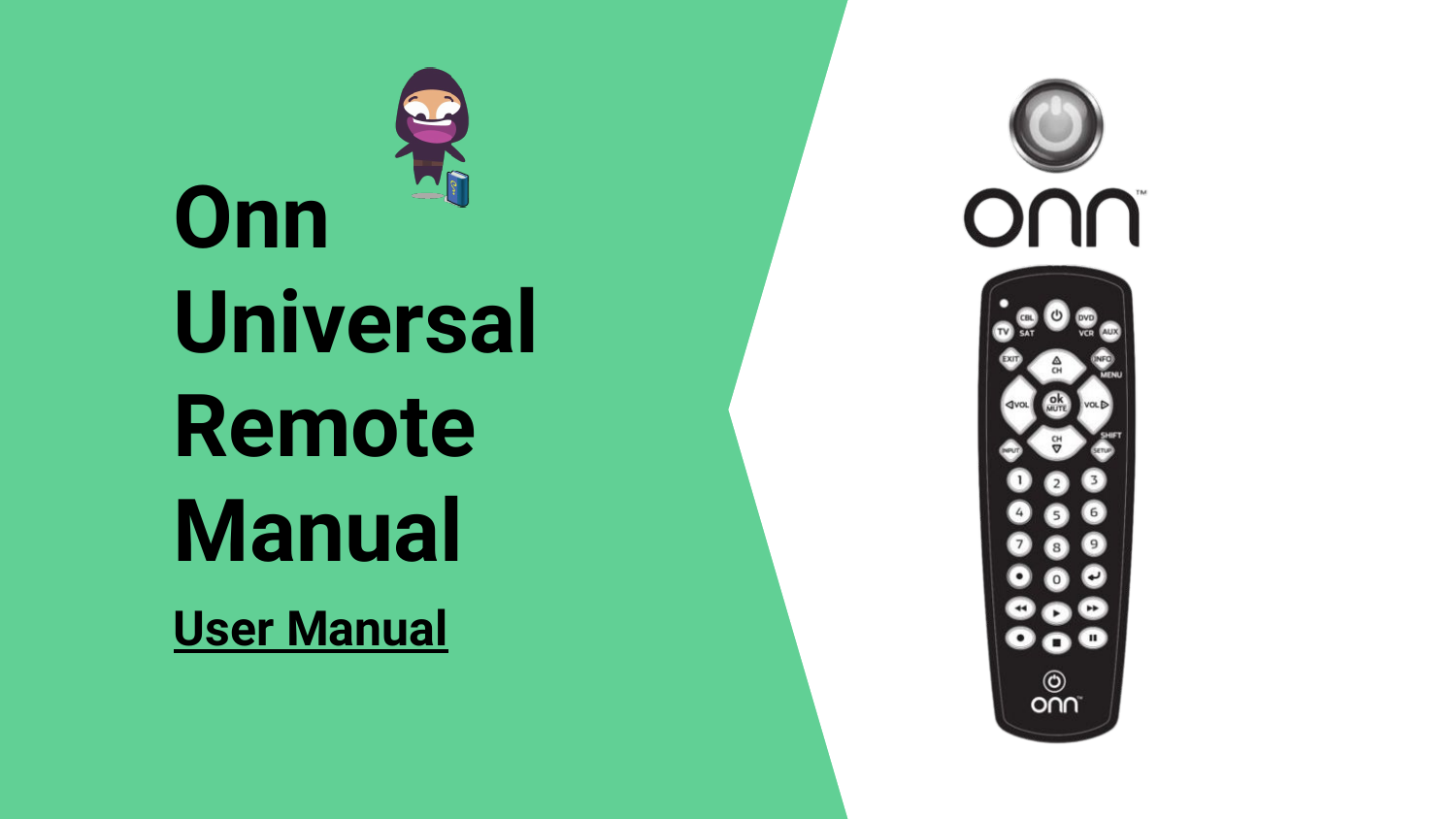
An image of the Onn Universal Remote Control is displayed on the left side of the page, with the title 'Onn Universal Remote Manual' and 'User Manual' text. The remote itself is shown on the right side.
About this item
- TV Specification: The remote is compatible with all Onn. Roku TVs.
- Remote Key Features: Includes 4 shortcut buttons for Netflix, Amazon, YouTube, and Hulu. Features TV power and Volume buttons. Maximum operation distance is 25 ft. TV response time is less than 0.1 second. It is an ideal replacement for older Roku TV remotes.
- Ease of Use: ⚠⚠ No setup required. ⚠⚠ No programming needed.
- High-Grade Material: Constructed from first-class ABS and silicon for a comfortable feel and durability.
- Important Reminder: ⚠⚠ ATTENTION: This remote is NOT compatible with Roku Player and Roku Stick devices. Two AAA batteries are required but not included.
Note: Products with electrical plugs are designed for use in the US. Outlets and voltage differ internationally, and this product may require an adapter or converter for use in your destination. Please check compatibility before purchasing.
Battery Installation
Your universal remote requires two (2) AAA Alkaline batteries (not included).
To Install Batteries
- Remove the battery compartment cover by sliding the cover down.
- Match the (+) and (-) marks on the batteries to the (+) and (-) marks inside the battery compartment. Insert two (2) AAA Alkaline batteries, ensuring they are fresh.
- Slide the battery compartment cover back into place.
Note: If your remote stops operating properly, replace the batteries with new ones. The remote will retain programmed codes for up to 10 minutes after the batteries are removed.
Programming Your Remote
Your ONN universal remote control is designed to control up to 4 different audio/video devices such as TV, DVD, VCR, satellite, cable, and audio using only one remote. To use this remote, you will need to program it to control the devices of your choice. There are two primary methods for programming: direct code entry or auto code search.
Controlling Combo Devices
Some Combo devices (e.g., TVNCR, TV/DVD, DVDSCR) may require you to set up two different Mode buttons to control both parts of the Combo device. For example, if you have a TV/DVD Combo, you might need to set up one code under the TV button to control the TV part AND a separate code (under any other Mode button) to control the DVD part.
Master Volume Feature
The Master Volume Feature allows you to select a single device (TV or audio receiver) that the volume control will always manage. For example, the remote can be in TV mode while the volume buttons control the volume on your audio receiver instead of your TV.
Programming Your Remote is Easy
Direct Code Entry Method
- Step 1: Press and hold the
PROGRAMbutton until the red indicator light on the button illuminates and remains red. - Step 2: Select the device you want to program from the Device Categories. The red indicator light will blink once and remain on. The available categories are: TV, SAT/CBL, AUDIO, B-RAY/DVD, STREAM, OTHER.
- Step 3: Enter the 4-digit code from the included list for the category and brand of your device. If a valid code is entered, the red indicator light on the
PROGRAMbutton will shut off. If the red indicator light remains on, an incorrect code was entered. In that case, check the code list again and re-enter the code.
Diagram of the remote's numeric keypad, featuring digits 0-9, a DOT button, and an ENTER button.
Roku TV Compatibility
This remote is designed for Onn. Roku TVs. It is NOT compatible with Roku Players or Roku Sticks.
Visual comparison of Roku devices. Images show various Roku Box and Roku Stick models, each marked with a red cross (❌) indicating they are not compatible with this remote. In contrast, a Roku TV is shown with a green checkmark (✔️), signifying compatibility. The interface of a Roku TV is displayed, listing popular streaming apps. A close-up highlights the 'Roku TV' logo on a television set. Text explains that a Roku TV is a smart TV with a built-in Roku system, while a Roku Player is a separate HDMI device.
Frequently Asked Questions (FAQ)
- Q: What is the Onn Universal Remote Manual and Codes [ONB13AV004] used for?
A: The Onn Universal Remote Manual and Codes [ONB13AV004] is a guide for programming the Onn universal remote control to operate up to four different audio/video devices such as TV, DVD, VCR, satellite, cable, and audio using only one remote. - Q: What does the manual provide instructions for?
A: The manual provides detailed instructions on how to install batteries, program the remote using direct code entry or auto code search, and control combo devices. It also includes a master volume feature that allows users to select a single device (TV or audio receiver) that the volume control always controls. - Q: What troubleshooting tips are provided in the manual?
A: The manual provides troubleshooting tips for situations where the remote does not operate the device or some features of the device. - Q: Is there a code list included in the manual?
A: Yes, the manual includes a code list for programming the remote. - Q: Is there a QR code provided in the manual?
A: Yes, there is a QR code provided in the manual that can be scanned to view a helpful demonstration video for programming the ONN remote. - Q: What is the difference between the ONB13AV004 and the ONNB13AV004?
A: They are exactly the same remote. The only difference is the packaging. - Q: What TV brand is ONN?
A: ONN is a brand of electronics sold exclusively at Walmart stores.
