

ZQ630 User Guide (en)
File info: application/pdf · 114 pages · 20.95MB
ZQ630 User Guide (en)
P1102928-002 Rev. A
ZQ630 User Guide (en) - VisionID
Refer to ZPL Programming. Manual, available at www.zebra.com/manuals for RTC commands. Ethernet. 10 or 100 mps Ethernet auto detect when docked in ...
Full PDF Document

If the inline viewer fails, it will open the original document in compatibility mode automatically. You can also open the file directly.
Extracted Text
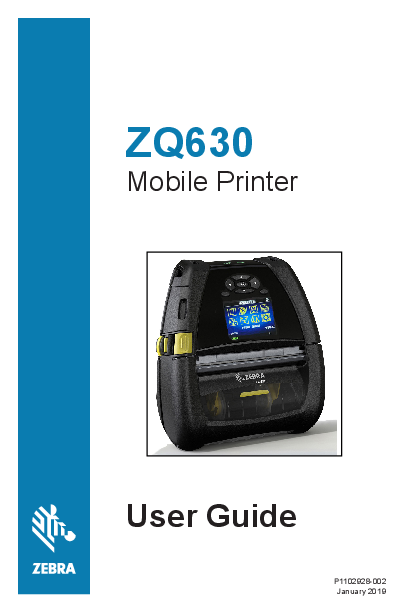
ZQ630
Mobile Printer
User Guide
P1102928-002 January 2019

Contents
Proprietary Statements....................................................... 6 Document Conventions...................................................... 8 Introduction to the ZQ630 printer...................................... 9
Unpacking and Inspection.................................................................10 Reporting Damage............................................................................10 ZQ630 Technology............................................................................10 PowerPrecision+ (PP+) Battery ................................................ 11 Printing Technology...........................................................................12 QR Code...........................................................................................12 Made for iPhone (MFi)......................................................................13 Near Field Communication (NFC).....................................................13 Color LCD Display............................................................................13 Radio-Frequency Identification (RFID).............................................13 RFID Calibration...............................................................................15
ZQ630 Overview................................................................ 16 Getting Ready to Print....................................................... 18
Battery...............................................................................................18 Removing the Battery.......................................................................18 Removing the Battery Tape Insulator................................................19 Installing the Battery.........................................................................20 Battery Safety...................................................................................21 Charger Safety..................................................................................21 AC Power Adapter ...........................................................................22
2 ZQ630 User Guide

Ethernet and Charging Cradle..........................................................23 LED Status Indicator.........................................................................23 Printer Operation with Cradle............................................................24 1-Slot Battery Charger .....................................................................25 Charging Status Indicators................................................................25 3-Slot Battery Charger .....................................................................26 Loading the Media in the ZQ630 Printer...........................................27 Loading Media Procedure.................................................................27 Loading Media in Peel-off Mode ......................................................29 Operator Controls.............................................................................30 Standard Control Panel.....................................................................30 Normal Boot-up LED Behavior..........................................................30 Sleep Mode LED Behavior................................................................31 Shutdown Behavior...........................................................................31 Power LED Ring Behavior................................................................32 LCD Control Panel............................................................................33 Status Bar Icons................................................................................34 Home Menu Screen .........................................................................36 Home Screen Icons and Parameters................................................38 Alert Messages.................................................................................38 Buttons..............................................................................................39 Power-Up Sequences.......................................................................39 Runtime Sequences without LED Flashes........................................40 Sleep Mode.......................................................................................40 Adaptive Print Performance..............................................................41 Draft Mode........................................................................................41 Verify the Printer is Working..............................................................42 Printing a Configuration Label...........................................................42 Connecting the Printer......................................................................42 Cable Communication.......................................................................43 RS-232C Communications...............................................................43 USB Communications.......................................................................43 Providing Strain Relief for Communications Cable...........................44 Zebra Setup Utilities..........................................................................45 Zebra Android Printer Setup Utility (for Link-OS Printers).................45 Wireless Communications with Bluetooth.........................................46
3 ZQ630 User Guide

Bluetooth Networking Overview........................................................46 Bluetooth Security Modes.................................................................47 Bluetooth Minimum Security Modes.................................................48 WLAN Overview................................................................................49 Setting Up the Software....................................................................50 Designing Labels..............................................................................50 Using Pre-Printed Receipt Media......................................................52 Black Mark Dimensions (Receipt Media)..........................................52 Label Areas.......................................................................................52 Label Design Examples....................................................................53 Keep-Out Areas................................................................................54 Near Field Communication (NFC).....................................................54 NFC Use Cases................................................................................55 Wearing the Printer...........................................................................56 Swivel Belt Clip.................................................................................56 Adjustable Shoulder Strap................................................................57 Soft Case..........................................................................................58 Hand Strap........................................................................................59 Hard Case.........................................................................................60 Waist Holster.....................................................................................61 Preventive Maintenance...................................................................62 Extending Battery Life.......................................................................62 General Cleaning Instructions...........................................................62 LCD Control Panel Indicators...........................................................64 Troubleshooting Topics.....................................................................66 Troubleshooting Tests.......................................................................68 Printing a Configuration Label...........................................................68 Communications Diagnostics............................................................68
Specifications.................................................................... 73
Printing Specifications.......................................................................73 Memory and Communications Specifications...................................73 Label Specifications..........................................................................74 Physical, Environmental and Electrical Specifications......................74 CPCL Font and Bar Code Specifications and Commands................74 ZPL Font and Bar Code Specifications and Command....................76 Communication Ports........................................................................77
4 ZQ630 User Guide

ZQ630 Dimensions...........................................................................79 ZQ630 Mounting Hole Dimensions...................................................80 ZQ630 Accessories...........................................................................81
Appendix A......................................................................... 83
Interface Cables (RS-232 Cables)....................................................83 USB Cables......................................................................................84
Appendix B......................................................................... 85
Media Supplies.................................................................................85
Appendix C......................................................................... 85
Maintenance Supplies.......................................................................85
Appendix D......................................................................... 86 Appendix E....................................................................... 107 Appendix F....................................................................... 108
Battery Disposal..............................................................................108 Product Disposal.............................................................................108
Appendix G...................................................................... 109
Using Zebra.com.............................................................................109
Appendix H........................................................................111
Product Support.............................................................................. 111
5 ZQ630 User Guide

Proprietary Statements Copyright
� 2018 ZIH Corp and/or its affiliates. All rights reserved. ZEBRA and the stylized Zebra head are trademarks of ZIH Corp., registered in many jurisdictions worldwide. All other trademarks are the property of their respective owners.
COPYRIGHTS AND TRADEMARKS: For complete copyright and trademark information, go to www.zebra.com/copyright WARRANTY: For complete warranty information, go to www.zebra.com/warranty END USER LICENSE AGREEMENT: For complete EULA information, go to www.zebra.com/eula
Terms of Use
Proprietary Statement: This manual contains proprietary information of Zebra Technologies Corporation and its subsidiaries ("Zebra Technologies"). It is intended solely for the information and use of parties operating and maintaining the equipment described herein. Such proprietary information may not be used, reproduced, or disclosed to any other parties for any other purpose without the express, written permission of Zebra Technologies.
Product Improvements: Continuous improvement of products is a policy of Zebra Technologies. All specifications and designs are subject to change without notice. Liability Disclaimer: Zebra Technologies takes steps to ensure that its published Engineering specifications and manuals are correct; however, errors do occur. Zebra Technologies reserves the right to correct any such errors and disclaims liability resulting therefrom.
Limitation of Liability: In no event shall Zebra Technologies or anyone else involved in the creation, production, or delivery of the accompanying product (including hardware and software) be liable for any damages whatsoever (including, without limitation, consequential damages including loss of business profits, business interruption, or loss of business information) arising out of the use of, the results of use of, or inability to use such product, even if Zebra Technologies has been advised of the possibility of such damages. Some jurisdictions do not allow the exclusion or limitation of incidental or consequential damages, so the above limitation or exclusion may not apply to you.
6 ZQ630 User Guide

Monotype�, Intellifont� and UFST� are trademarks of Monotype Imaging, Inc. registered in the United States Patent and Trademark Office and may be registered in certain jurisdictions. AndyTM, CG PalacioTM, CG Century SchoolbookTM, CG TriumvirateTM, CG TimesTM, Monotype KaiTM, Monotype MinchoTM and Monotype SungTM are trademarks of Monotype Imaging, Inc. and may be registered in some jurisdictions. HY Gothic HangulTM is a trademark of Hanyang Systems, Inc. AngsanaTM is a trademark of Unity Progress Company (UPC) Limited. Andale�, Arial�, Book Antiqua�, Corsiva�, Gill Sans�, Sorts� and Times New Roman� are trademarks of The Monotype Corporation registered in the United States Patent and Trademark Office and may be registered in certain jurisdictions. Century GothicTM, Bookman Old StyleTM and Century SchoolbookTM are trademarks of The Monotype Corporation and may be registered in certain jurisdictions. HGPGothicB is a trademark of the Ricoh company, Ltd. and may be registered in some jurisdictions. UniversTM is a trademark of Heidelberger Druckmaschinen AG, which may be registered in certain jurisdictions, exclusively licensed through Linotype Library GmbH, a wholly owned subsidiary of Heidelberger Druckmaschinen AG. Futura� is a trademark of Bauer Types SA registered in the United States Patent and Trademark Office and may be registered in some jurisdictions. TrueType� is a trademark of Apple Computer, Inc. registered in the United States Patent and Trademark Office and may be registered in certain jurisdictions. All other product names are the property of their respective owners. "Made for iPod", "Made for iPhone", and "Made for iPad" mean that an electronic accessory has been designed to connect specifically to iPod, iPhone, or iPad, respectively, and has been certified by the developer to meet Apple performance standards. Apple is not responsible for the operation of this device or its compliance with safety and regulatory standards. Please note that the use of this accessory with iPod, iPhone, or iPad may affect wireless performance. Bluetooth� is a registered trademark of the Bluetooth SIG. � 1996�2009, QNX Software Systems GmbH & Co. KG. All rights reserved. Published under license by QNX Software Systems Co. All other brand names, product names, or trademarks belong to their respective holders. �2018 ZIH Corp.
Works with:
Certified by:
IP 43
7 ZQ630 User Guide

Document Conventions
The following graphic icons are used throughout the documentation set. These icons and their associated meanings are described below.
Caution � Warns you of the potential for electrostatic discharge. Caution � Warns you of a potential electric shock situation. Caution � Warns you of a situation where excessive heat could cause a burn Caution � Advises you that failure to take or avoid a specific action could result in physical harm to you. Caution � Advises you that failure to take or avoid a specific action could result in physical harm to the hardware. Important � Advises you of information that is essential to complete a task. Note � Indicates neutral or positive information that emphasizes or supplements important points of the main text.
8 ZQ630 User Guide

Introduction to the ZQ630 printer
Thank you for choosing our Zebra� ZQ630 Mobile Printer. You will find these rugged printers will become a productive and efficient addition to your workplace thanks to their innovative design and state of the art features. Zebra Technologies is the leader in industrial printers with world-class support for all of your bar code printers, software, and supplies. This user's guide gives you the information you will need to operate the ZQ630 printer. They use some of the latest technologies such as an 802.11ac/Bluetooth 4.1 dual radio, optional RFID capability, a smart battery with PowerPrecision+ functionality, Near Field Communication (NFC), a color LCD display and Made for iPhone� (MFi). MFi printers provide Apple co-processor (MFi) support which allows an Apple device such as an iPhone or iPad� to authenticate and connect over Bluetooth�.
These printers use CPCL, ZPL and EPL programming languages. To create and print labels using these languages, refer to the Programming Guide for CPCL (p/n P1073699-001), ZPL (p/n P1012728-010) and EPL (p/n 14245L-002). See Appendix H for instructions on how to access manuals on zebra.com. ZQ630 Software Utilities: � ZebraNet Bridge EnterpriseTM: printer configuration, fleet
management � Zebra Setup Utility: single printer configuration, quick setup � Zebra Mobile Setup Utility: Android-based setup tool � ZebraDesigner Pro v2: label design � Zebra Designer Drivers: Windows� driver � OPOS Driver: Windows driver � Multiplatform SDK � Zebra Downloader � Printer Profile Manager Enterprise (PPME)
(These utilities can be found on the Zebra website at http://www.zebra.com/us/en/support-downloads.html. See Appendix G.)
9 ZQ630 User Guide

Unpacking and Inspection
� Check all exterior surfaces for damage. � Open the media cover (refer to "Loading the Media" in the Getting
Ready to Print section) and inspect the media compartment for damage. In case shipping is required, save the carton and all packing material.

Printer
ZEBRA PRODUCT REGISTRATION CARD Register today to receive beneftis including free updates and product protection!
Registrazione via internet

�2013 ZIHCorp.

/

Registration

Card

Zebra Technologies Corporation 475 Half Day Road, Suite 500 Lincolnshire, IL 60069 USA T: +1 847.634.6700 or +1 800.423.0442
In the Americas contact:
Zebra Technologies Corporation 475 Half Day Road, Suite 500 Lincolnshire, IL 60069 USA T: +1 847.634.6700 or +1 800.423.0442
In Europe, Africa, the Middle East, and India contact:
Zebra Technologies Europe Limited Dukes Meadow, Millboard Road Bourne End Buckinghamshire SL8 5XF, UK T: +44 (0)1628 556000 F: +44 (0)1628 556001

120 Robinson Road #06-01 Parakou Building Singapore 068913 T: +65 6858 0722 F: +65 6885 0838
AA18153-104 Rev. B August 2012

AA18153-104

Safety

Guide

QSG
Regulatory Guide

Battery

Belt Clip

Reporting Damage
If you discover shipping damage:
� Immediately notify and file a damage report with the shipping company. Zebra Technologies Corporation is not responsible for any damage incurred during shipment of the printer and will not cover the repair of this damage under its warranty policy.
� Keep the carton and all packing material for inspection. � Notify your authorized Zebra re-seller.

ZQ630 Technology
The ZQ630 printer use several technologies made popular in other Zebra Mobile Printer product lines, as well as newer, state-of-theart technologies.

10 ZQ630 User Guide

PowerPrecision+ (PP+) Battery
The ZQ630 printer uses a 4-cell Li-Ion battery pack with integrated intelligence and data storage capability meeting PowerPrecision+ (PP+) functionality. This intelligent battery has the integrated technology required to collect the detailed realtime battery metrics needed to maximize useful battery life and ensure every battery is healthy and able to hold a full charge. In addition, technology inside the batteries tracks and maintains the metrics required to provide real-time visibility into more meaningful battery statistics, such as total cycle usage of the battery, whether the battery is old and should be retired or how long a battery will take to fully charge.

Operating Temperature
-20�C to +50�C (-4�F to 122�F)

Charging Temperature
0�C to +40�C (32�F to 104�F)

Storage Temperature
-25�C to +65�C (-13�F to 149�F)

The ZQ630 printer will only function properly with genuine Zebra smart battery packs.

The smart battery's health has three states: GOOD, REPLACE, and POOR. The battery health factor determines whether or not the printer can operate and what is communicated to the user via the display.

# of Charge Cycles <300
300 but <550

Health GOOD REPLACE

550 but <600

REPLACE

600

POOR

Power-up Message
None
"Battery Diminished Consider Replacing" *
"Warning-Battery Is Past Useful Life" *
"Replace Battery Shutting Down" **

* Warning accompanied by one long beep.
** Warning will flash on and off accompanied by beeping at a rate of once per second. After 30 seconds the printer will shut down.

Note � Power down the printer before removing the battery to minimize the risk of corruption.

11 ZQ630 User Guide

Printing Technology The ZQ630 printer uses the Direct Thermal method to print human readable text, graphics and barcodes. It incorporates a sophisticated print engine for optimal printing under all operational conditions. Direct thermal printing uses heat to cause a chemical reaction on specially treated media. This reaction creates a dark mark wherever a heated element on the printhead comes in contact with the media. Since the printing elements are arranged very densely at 203 d.p.i. (dots per inch) horizontal and 200 d.p.i. vertical, highly legible characters and graphic elements may be created a row at a time as the media is advanced past the printhead. This technology has the advantage of simplicity, as there is no requirement for consumable supplies such as ink or toner. However, since the media is sensitive to heat, it will gradually lose legibility over long periods of time, especially if exposed to environments with relatively high temperatures or in direct sunlight.
QR Code The QR barcode includes human readable text URL, for example www.zebra.com/zq630-info, which links the user to printer information and short videos on topics such as buying supplies, features overview, loading media, printing a configuration report, cleaning instructions, and accessory information.
Figure1 � QR Code
QR Code
12 ZQ630 User Guide

Made for iPhone (MFi) ZQ630 printer supports communication with Apple devices running iOS 10 or later over a standalone Bluetooth 4.1 radio and the BT4.1 radio included with the 802.11ac (dual) radio.
Near Field Communication (NFC) The ZQ630 printer supports a passive NFC tag which complies with the "Android Standard Tag format" since Android devices are the most common found on the market today. The NFC tag is programmed from the factory and supports Bluetooth pairing to enable a tablet, smartphone or terminal to automatically pair with the printer via a Bluetooth connection (within the bounds of the security profile being used). The NFC tag also supports app launching whereby an app developed either by Zebra or a third party will launch on a NFCenabled smartphone, tablet or terminal. Similarly, the NFC tag enables launching to a web support page via a tablet, smartphone or terminal.
Color LCD Display The ZQ630 printer features a color, non-touch LCD display which supports a 288x240 pixel viewable area. The user will be able to view the display in both room light and night time conditions. The display is capable of displaying colored text as well as color images. In order to save power, the display will dim after a configurable timeout.
Radio-Frequency Identification (RFID) The ZQ630 printer is equipped with an RFID encoder/reader, which is integrated into the printer's printhead assembly. The ZQ630 encodes (writes) information on ultra-thin UHF RFID transponders that are embedded in "smart" labels, tickets, and tags. The printer encodes the information; verifies proper encoding; and prints bar codes, graphics, and/or text on the label's surface. The ZQ630 printer uses Zebra's extensive set of RFID commands running under ZPL programming language.
13 ZQ630 User Guide

The RFID transponder is sometimes called the RFID tag or an inlay. The transponder is usually made of an antenna that is bonded to an integrated circuit (IC) chip. The IC chip contains the RF circuit, coders, decoders, and memory. If you hold an RFID label up to the light, you can see the transponder's antenna, and you can feel a bump in the label where the IC chip is located. The ZQ630 can encode and verify EPC (Electronic Product Code) Generation 2 Class 1 UHF passive RFID tags, in addition to printing human readable text and conventional 1 and 2-D barcode information on Zebra supplied RFID thermal transfer media. EPC is a product numbering standard that can be used to identify a variety of items by using RFID technology. EPC Generation 2 tags offer advantages over other tag types. The tag identification (TID) memory in a Generation 2 tag includes the chip manufacturer and model number information, which can be used to identify which optional features are present on the tag. These optional features include those for data content and security.
Gen 2 tags typically have a 96-bit EPC identifier, which is different from the 64-bit identifiers common in early EPC tags. The 96-bit EPC code links to an online database, providing a secure way of sharing productspecific information along the supply chain. Gen 2 tags also support much larger data structures. The size of user memory available (if any) varies by the model and manufacturer of the tag.
Encoding and printing of an RFID label usually are completed on the first try, but some failures may occur. If you experience consistent encoding failures, it may signal a problem with the RFID tags, your label formats, or with the transponder placement. If an RFID tag cannot be encoded, "VOID" will be printed on the label. The printer then attempts to read/encode "n" labels before the next format is attempted, where "n" is specified by the ZPL programming language "^RS" command. Acceptable values of "n" are 1 to 10 and the default is 3. After printing the defined number of voided RFID labels, the printer default is No Action (Label format causing the error is dropped).
While the user doesn't have control of where on the label the VOID is printed, they can control the length of the image. The start of the VOID image is always at the program position (or F0 if a backward program position). More information on the "^RS" command may be found in the RFID Programming Guide 3 available on zebra.com.
Please refer to Appendix D for details on RFID menu options.
Note � RFID is an optional feature on the ZQ630 and is a factoryinstalled option only.
14
ZQ630 User Guide

RFID Calibration
RFID calibration sets communication parameters for your tag type. This procedure should be done after the printer has been calibrated for the media (length and gap settings), typically a label length calibration. During the RFID calibration process, the printer moves the media, calibrates the RFID tag position, and determines the optimal settings for the RFID media being used.

These settings include the programming position, the read/write power level to use. To restore the printer's default programming position at any time, use the "restore" option in the rfid.tag.calibrate SGD command.

Do not remove any labels or tag from the liner (label backing or `web'). This allows the printer to determine RFID settings which do not encode adjacent tags.

Always do a Label Length Calibration and RFID Calibration when you change media type. It should not be necessary when simply replacing an empty roll of the same media.

Before beginning, load RFID media into the printer and perform the label length calibration.

1. Press the Feed button

once to advance one label.

2. Press the Home button . Navigate to the RFID menu button and press the `OK' button on the keypad.

3. Use the `Left' and `Right' arrows on the keypad to browse to the `RFID CALIBRATE' procedure. Press the `OK' button on the keypad.

4. The printer will slowly feed a label while adjusting the location and RFID read/write communication settings for your chosen RFID tag/ label. The printer will feed an additional label in some cases when calibration has completed successfully with the display message reading: READY.

5. Remove the excess media. Media calibration has finished and you are ready to print.

15 ZQ630 User Guide

ZQ630 Overview
Figure2 � Overview of Features 2 1
13

3 3

5 4
12 7

11

6

8

9

19

10

1. Platen Roller 2. Back Side Sensor 3. Media Support Disks 4. Tear Bar 5. Front Side Sensor 6. Peeler Lever 7. Peeler Bail 8. Latch Release Lever 9. Key Pad 10. Strap Post 11. Status Screen 12. Printhead 13. Media Cover

14. Belt Clip 15. Battery 16. DC Input 17. MAC Address Label 18. Docking Contacts 19. USB/RS-232 Comm Ports 20. Print Touch (NFC) Icon

16 ZQ630 User Guide

14
15
16 17 18
www.zebra.com/zq630-info
Note � Scanning the QR code with a smartphone will provide printerspecific information at www.zebra.com/zq630-info. Note � Tapping the Zebra Print TouchTM icon with a Near Field Communication (NFC) enabled smartphone will provide instant access to printer-specific information. For more information about NFC and Zebra products, go to http://www.zebra.com/nfc. Bluetooth pairing applications via NFC is also possible. Please see Zebra Multiplatform SDK for more information.
20
17 ZQ630 User Guide

Getting Ready to Print Battery Installing/Removing Battery & Battery Tape Insulator
Important � Batteries are shipped in sleep mode to preserve their maximum capacity while in storage prior to initial use. Plug in the AC adapter (see page 22) or insert the battery into the 1-Slot Battery Charger (see page 25) or 3-Slot Battery Charger (see page 29) to wake it up before using for the first time.
Removing the Battery 1. If a belt clip is present on the
bottom of the printer, rotate it such that it provides clearance for the battery or remove altogether.
2. Depress the latch on the battery pack (where indicated).
3. Rotate the pack away from the battery well. Lift the battery up and out of the printer.
18 ZQ630 User Guide

Removing the Battery Tape Insulator
Battery Tape Insulator

1. Pull up on the tape insulator tab located on the bottom of the battery pack.

2. Peel back the tape insulator and remove it from the top of the battery pack. Discard upon removal.

Caution � Battery can explode, leak or catch fire if improperly charged or exposed to high temperature. Do not disassemble, crush, puncture, short external contacts or dispose in fire or water. Charge on a Zebra approved Lithium-Ion charger only.
19 ZQ630 User Guide

Installing the Battery 1. Locate the battery
compartment on the bottom of the printer (where indicated).
2. Swivel the belt clip (if present) to access the battery compartment or remove altogether.
3. Insert the battery into the printer as shown. (It is not possible to insert the pack in the incorrect orientation.)
4. Rock the battery into the compartment as shown until it locks in place.
20 ZQ630 User Guide

Battery Safety
Caution � Avoid accidental short circuiting of any battery. Allowing battery terminals to contact conductive material will create a short circuit which could cause burns and other injuries or could start a fire.
Important � Always refer to the Important Safety Information data sheet shipped with each printer and the Technical Bulletin shipped with each battery pack. These documents detail procedures to ensure maximum reliability and safety while using this printer.
Important � Always dispose of used batteries properly. Refer to Appendix E for more battery recycling information.
Caution � Use of any charger not approved specifically by Zebra for use with its batteries could cause damage to the battery pack or the printer and will void the warranty.
Caution � Do not incinerate, disassemble, short circuit, or expose to temperatures higher than 65oC (149oF).
Charger Safety
Do not place any charger in locations where liquids or metallic objects may be dropped into the charging bays.
21 ZQ630 User Guide

AC Power Adapter (p/n P1031365-024 with US Type-A Line Cord)
Figure3 � AC Power Adapter Charging AC Adapter
AC Power Cord (varies with geographic location)
DC Input
� Open the protective cover on the printer to expose the DC input charger jack.
� Connect the appropriate AC power cord for your location to the adapter and then plug the power cord into an AC receptacle.
� Plug the barrel plug from the AC adapter into the charger jack on the printer.
� The printer will power up and begin charging. The printer can be left on or turned off at this point. Charging will continue in either state.
Important � While it's possible to charge the battery when using the printer, charge times will increase under this condition.
22 ZQ630 User Guide

Ethernet and Charging Cradle
The ethernet cradle is an expansion base intended for use with the ZQ630 printer. The cradle provides charging power to the docked printer as well as providing a standard 10/100 Mb/s Ethernet port for communication to the printer. The cradle also supplies battery charging power to the docked printer and acts as a supplementary power source.
The cradle features two LED's to indicate the status of the cradle: Solid green to indicate when power is provided to the input of the cradle; and blinking green to indicate Ethernet activity. The cradle allows the user to dock the printer easily and remove it with the push of a button. The printer will remain operable while docked, i.e. display is viewable, charge LED status is viewable, and printer controls and data entry are available. The printer will still print while docked and the user will be able to replace the media as well.

LED Status Indicator
LED Status Solid Green Blinking Green

Indication Power On Ethernet Activity

Note � Remove the docking contacts cover on the bottom of the printer before docking the printer in the cradle.
Note � Clean the docking contacts with a Zebra cleaning pen to remove any residue left behind by the label.

23 ZQ630 User Guide

Figure4 � Ethernet Cradle

Height 66.2 mm (2.6 in.)

Width 200.6 mm (7.89 in.)

Length 219.61 mm (8.64 in.)

Printer Operation with Cradle
� ZQ630 printer will charge when placed in the cradle. � Docking the printer in the cradle will automatically turn the printer
on to ensure it is available to be managed remotely. � When the printer detects input power from the cradle, and the
presence of a live Ethernet link, it will automatically connect to the Ethernet network. � The 802.11ac radio will be turned off when the Ethernet link is active. It will turn back on if the Ethernet link is no longer active. � For printers with a Bluetooth radio, this interface will remain active while the printer is in the cradle. � The serial and USB ports will remain active while the printer is in the cradle. � The DC input barrel jack connector cannot be used while the printer is in the cradle. The DC barrel jack should be plugged directly into the cradle instead.

24 ZQ630 User Guide

Note � The printer provides over voltage protection such that no damage occurs when voltages from 0-36V are applied at the DC Power jack. Upon application of voltage greater than 36V, the DC line fuse will permanently open to reduce fire hazard. The battery is only charged when 12VDC is applied using the Zebra AC adapter.
1-Slot Battery Charger (p/n SAC-MPP-1BCHGUS1-01SA with US Type-A Line Cord) Use Case: Home Office/Small Business
The 1-Slot Battery Charger provides the user with a single, spare battery charging solution. Similar to the 3-Slot Battery Charger, the single charger will charge a 4-cell battery within six (6) hours.
Figure5 � 1-Slot Battery Charger
LED Indicator
25 ZQ630 User Guide

Charging Status Indicators

Both the 3-slot and 1-slot battery chargers use an LED indicator

located next to each slot to indicate the charge state in either green,

reCCCCCCC((((((CCCCCCCCdBBCCCCCCCBBBBBBBBBBBhhhhhhhCCCCCCC((((((((((((((((((((hhUUhhhhhUUUUUUUUUUUh,aaaaaaaeeeeeeeeeeeeeCCC((CCCCCCCCCCCChhhhhhhhhhhhhhCCCCCCC(((((((((((((aaHHaaaaaannrnrnnrnnrnrnrnnnrnsssssssssssssaaaaaaaHHHHHHHHHHHHHoaaaaaaahhhMhhhhhhhhhhhhgggggggrrrrrrrMMMMMMMrhhhhhhhttttttttttttthheehhhhhhhhhhhrrrrrrrgggggggrrrrrrraaaaaaaaaaaaaaageeeeeeeeeeeeeriiiiiiigggggggaaaaaaaoBBgggggggBBBBBBBBBBBneeaannnnnneeeeeeeeeeeeeeeeeerrrrrrrrrrrrrrroooooooeaaaaaaaaaaaaaeeeeeeerrrrrrreeeeeeeggggaadllgggggggggggggggggalalalllalalaaaaaaaaaaaaaattaaaaaaagggggggllllllllllllldddddddDDDDDDDttttttttttttthhFiiilliiiiiiiiiiiillllletttttttttttttDDDDDDDmhhhhhhhhhhhhhnnnttnnnnnnnnnnnntttttttttttFFFFFFFiiiiiiiDDDDDDDttttttttttttteeeeeeennnnnnnhhyyhhhhhhhhhhhaoooooooeeeeeeeeeeeeeyyyyyyyyyyyyygggggggggggggggaaaaaaaoooooooo))oooooogggggggyyyyyyyyyyyyyunnnnnnnrrrrrrrrrrrrr)))))))))))))b)))))))uuuuuuunnnnnnnyyyyyyyyyyyyyn))nnnnnn)))))))))))leeeeeeetllllllleeeeeeeeeeeeeeettttttt)))))) r

as

detCCCCCCCahhhhhhhilaaaaaaaerrrrrrrdgggggggiiiiiiinbnnnnnngeggggggIlnoIIIIIInnnnnndwddddddic.iiiiiiccccccataaaaaaiottttttiiiiiinoooooonnnnnn
Charging Indication

3-S(lCohtarBgeatDtoenrey) Charger

FFFFFFFaaaaaaaDDDDDDDDssssssseeeeeeeettttttt sbsssssssbbbbbbclccccccclllllliiiiiiinrnnnnnnrrrrrrrikiiiiiiikkkkkkppppppppiiiiiiintnnnnnntttttttiggggggiiiiiiioooooooonrrrrrrnnnnnnneeeeeedddddd FaSSSSSSSsotoooooolblllllliiiiiiidddddddlinaaaaaaakmmmmmmminbbbbbbgeeeeeerrrrrrred
SSSSSSSSoooooooolllllllliiiiiiiidddddddd agggggggmrrrrrrreeeeeeebeeeeeeennnnnnr
SSSSSSSSoooooolooidllllllliiiiiiidddddddgrrrrrrreeeeeeeddddedn AAAAAAAAAAAAAAAllllllllttttttttlllllllttttttteeeeeeeeeeeeeeebbrrrrrrrrbbbbbbbbbbbbbrrrrrrrnnnnnnnnrrnnnnnnnrrrrrrirrrrrrriaaaaaaaagiiiiiigiiiiiiiaaaaaaagggggggggggggtttttttthhttttttteeeeeeeehhhhhhhhhhhhheeeeeeettsssssssstttttttttttttsssssssbSbSSSSSSSbbbbbbbbbbbbbbbbbbbubbbbbbbuouuuuuuooooooouuuuuuueeeeeeeereeeeeeerlrrrrrrlllllllsrrrrrrrttttttttisiiiiiiisssssstttttttdssssssswwwwwwwwdddddddtwwwwwwwtttttttstttttttssssssseeeeeeeesssssssrrrrrrrreeeeeeeeoeeeeeeeeeeeeeeeoooooooeeeeeeeooooooodfddddddnnnnnnnnffffffnnnnnnnfffffffaggggggaaaaaaassssssssmsssssssrrrrrroooooooommmmmmmeoooooooeeeeeblllllllleiiiiiiilllllllieeeeebbbbbbbdddddddiiiiiiidedddddddnnnnnneeeeeeeraaaaaaaarrrrrrraaaaaaannnnnnnnnnnnnnnddddddddddddddd
bright bursts of green

(p/n SAC-MPP-3BCHGUS1-01) Dual 3-Slot Battery Charger (p/n

SAC-MPP-6BCHUS1-01) w/ US Type-A Line Cord

Use Case: Settlement Room
The 3-Slot Battery Charger is a charging system for use with the 2-cell lithium-ion batteries used in the ZQ630 printer. The 3-slot charger is capable of charging three 4-cell batteries simultaneously within six (6) hours. It can either be used as a standalone charger or mounted on a 5-slot share cradle.

Figure6 � 3-Slot Battery Charger

26 ZQ630 User Guide

Note � For detailed information on the 1-Slot, 3-Slot Battery Charger and 3-Slot Dual Pack Charger, refer to the P1096323101, P1096767-101 and P1097966-101 Quick Start Guides at https://www.zebra.com/us/en/support-downloads.html
Loading the Media in the ZQ630 Printer
You can operate ZQ630 printer in one of two different modes: TearOff or Peel-Off. Tear-Off mode allows you to tear off each label (or a strip of labels) after it is printed. In Peel-Off mode, the backing material is peeled away from the label as it is printed. When printing batches, after you remove the label, the next one is printed. Loading Media Procedure 1. Open the printer (Refer to Figure7). � Press the Media Cover Button on the side of the printer as shown
in "1" below. The Media Cover will open automatically. � Rotate the Media Cover back completely as shown in "2",
exposing the media compartment and adjustable media supports.
Figure7 � Opening the Printer
1
27 ZQ630 User Guide

2. Pull the media supports apart. Insert the roll of media (in the orientation shown) between the supports and let the supports secure the media in place. The supports will adjust themselves to the width of the media, and the media roll should be able to spin freely on the supports.
Figure8 � Loading Media

3. If you plan to use the printer in tear-off mode, close the media cover as shown below.

Pull Media out of Printer

4

Close Media

Cover

Note � Please refer to the Programming Guide (P1012728-010) for information on changing the setting to adjust the media feed length via a Set-Get-Do (SGD).
28 ZQ630 User Guide

Loading Media in Peel-off Mode � If you plan to use the printer in the peel-off mode, peel a few labels off of the media and load the media as previously described. � Press down on the latch release lever to open the media cover and load the media as shown in Figures7 and 8. � Close the media cover as shown in (1) in Figure 9. � Push the peeler lever up (2) and lock it in place to release the peeler bail into the "up" position (3). � The media will feed between the peeler bail and platen.
Figure9 � Activating Peeler Bar
4
� Turn on the printer or press the Feed button on the front of the printer if the printer is already on. The printer will advance the media to the next label, if printing labels. If you are printing on journal media, the printer will advance a short strip of media.
To disengage the peeler bail, press the button on the peeler lever and press down on the peeler button to lock it in place in its original home position.
29 ZQ630 User Guide

Operator Controls
The ZQ630 printer comes equipped with a keypad control panel and a color LCD graphical user interface. The standard control panel is illustrated in Figure 10. The LCD interface allows easy display and selection of many printer functions as detailed on following pages.
Standard Control Panel The standard control panel has multiple control buttons and two multipurpose indicators.
� The Power Button (Fig. 10) turns the printer on and off. It also puts the printer in Sleep Mode and wakes it from sleep.
� The Media Feed Button (Fig. 10) advances a length of media which is determined by the type of media being used. Label media will be advanced to the next gap or bar sense marker. Journal (plain) media will be advanced by a length determined by the printer's software.
� Four Way Navigation Buttons (Fig. 12) allow the user to scroll between functions on the LCD user space. (The Navigation Buttons do not apply to the Status Bar and Navigation Bar.)
� Enter Button allows the user to select the desired function highlighted on the LCD interface and is indicated by the word "OK".
� Two software defined function keys (Fig. 12) allow the user to select a function listed on the navigation bar
Figure10 � Control Panel

Power Button Press to turn unit on. There will be approximately a 20 second boot up time. Press for 3 sec. to turn unit off.

Feed Button Press to advance a blank label or a software-determined length of journal media.

30 ZQ630 User Guide

Normal Boot-up LED Behavior 1. Press Power (on/off) button to turn the printer on. 2. When Power button is released, the power ring will blink as the printer boots up. 3. When the boot-up sequence is complete, the power ring will stop blinking and remain steadily lit. The color of the power ring depends on the charge status.
Sleep Mode LED Behavior 1. Pressing the Power Button for less than three (3) seconds will put the printer in sleep mode. 2. During Sleep Mode, the Power LED will slowly pulse either Green, Amber or Red depending upon whether or not the printer is charging successfully.
Shutdown Behavior 1. Press the Power Button for approximately three (3) seconds to turn the printer off. 2. The "Shutting Down" alert message will appear on the LCD prior to the printer shutting down.
Figure11 � Printer Shutdown
31 ZQ630 User Guide

Power LED Ring Behavior
The Power Button is surrounded by a three-color (green, amber, red) LED ring. The Power LED Ring will:
� Blink once per 2 seconds green/amber/red during boot-up. � Display solid green when the printer is fully charged while On or
Off. � Pulsing green to indicate Sleep Mode and not charging. � Solid amber to indicate charging while On or Off. � Pulsing amber to indicate charging while in sleep mode. � Solid red to indicate an unhealthy charging or charged battery
when not in sleep mode (either On or Off). � A charge fault will flash red twice per second. � Pulsing red to indicate unhealthy charging or charged battery
when in sleep mode.

((((((((((((((((((((((((((((((((((((((((((((((((((((((((((

((((((((((((((

))))))))))))))((((((((((((((((((((((((((((((((((((((((((((((((((((((((((

((((((((((((((

((((((((((((((

CCCCCCCChhhhhhhhaaaaaaaarrrrrrrgggggggrgiiiiiiiCCCCCCCnnnnnnnBPBPBPBPBPBPBPiCnhhhhhhhBuuuuuuuggggggglllllllPiiiiiiihgaaaaaaannnnnnnllllllllu///////isssssssrrrrrrraCCCCCCC/nkkkkkkklgggggggeeeeeeeCrshhhhhhhPPPPPPPPPPPPPPkgiiiiiiigggggggehgggggggnnnnnnnooooooooooooooaaaaaaaCCCCCCCgirrrrrrrPaPrrrrrrrnggggggggrrrrrrrwwwwwwwwwwwwwweeeeeeehhhhhhheeeeeeerogggggggrogCr///////eeeeeeegaaaaaaaeeeeeeeeeeeeeeeeeeeweeeeeeeCCCCCCCw/ennnnnnnhrrrrrrrnnnnnnnerrrrrrrrrrrreChhhhhhhgggggggenCCCCCCC///////aeOOOOOOOOOOOOOOnCaaaaaaahSSSSSSSCCCCCCCaaaaaaariiiiiiir/ooooooornnnnnnngmmmmmmmannnnnnnnnnnnnnlllllllrrrrrrraohhhhhhhOSmmmmmmmeeeeeeeOgggggggggggggmir//////////////mlaaaaaaaeeeeeeenbbbbbbbnegeeeeeeeCBCBCBCBCBCBCBnppppppprrrrrrriiiiiiipppppppgbe/eeeeeeennnnnnneaaaaaaapggggggghhhhhhh/CCCCCCClllllllBCpeeeeeeerrrrrrretttttttleeeeeeeMMMMMMMaaaaaaaiCSSSSSSSooooooo///////tttttttaentttttttrhrrrrrrrrrrrrreeeeeeeMllllllleeeeeeeo/mmmmmmmFFFFFFFttgggggggoooooooeeeeeeeeeeeeeeartrrrrrrreSaaaaaaamdddddddeeeeeeeedddddddeeeeeeee(((((((yyyyyyyorpppppppluuuuuuuUUUUUUUg(epppppppddddddddreeeeeeedUpCCCCCCCllllllldddddddlllllllynnnnnnneeeeeeeettttttt///////eMMMMMMMBBBBBBBdlhhhhhhhuuuuuuunNNNNNNNptttttttdhhhhhhheC/eeeeeeeaaaaaaauaaaaaaarrrrrrrhtNeeeeeeeoooooooooooooohiiiiiiiMBtttttttrrrrrrrernnnnnnne(((((((aaaaaaattttttttttttdddddddgggggggaoiUUUUUUUaeeeeeeeanggggggglllllllo(CCCCCCCreeeeeeeiiiiiiitttttttttUnnnnnnnnnnnnnnrrrrrrrlgghhhhhhhdtthhhhhhhbbbbbbbCyyyyyyyeggggggghhhhhhhnhiyyyyyyyeaaaaaaanbooooooohreeeeeeehy///////rrrrrrrygoooooooaSSSSSSS/aaaaaaagggggggeStttttttrollllllllllllaiiiiiiieeeeeee-------gtttttttnnnnnnnltuuuuuuuhhhhhhhleeeeeeei-tgggggggnpppppppueyyyyyyyppppppphg)))))))ppyMMMMMMM)Mooooooooddddddddeeeeeeee))))))) ) Charge Fault

(((((( )))))) = blinking

= solid state

(((((( (((

(((

= pulsing

((((((

32

ZQ630 User Guide

LCD Control Panel The color LCD control panel allows the user to view the status of the ZQ630 printer and have access to various printer alerts and messages. It also has multi-directional keys which allow navigation and selection of menu options affecting printer functions. These keys allow scrolling through the various options and settings. The "OK" button allows selection of the option or function displayed on the screen.
The top of the screen has a row of status icons, or a Status Bar, which indicate the state of various printer functions. The Status Bar is located above the Status Screen shown below along with a Navigation Bar. The Status Screen is the default display and is shown at power up. When navigating the menus, the printer will automatically return to this screen when the user is done navigating after an appropriate delay.
Figure12 � LCD Control Panel
Printer Status Bar Indicates the status of several printer functions.**

Navigation Bar Displays userselectable options.
Soft Key
Select Button Press to select a menu choice on the Status Screen.

** Not every icon will be displayed on the Status Bar at one time, only those applicable to the printer's configuration and status.
33 ZQ630 User Guide

Status Screen Default screen the printer will display when the user is not navigating the main menu screen.
Soft Key Press to select a function on the Navigation Bar.
Four Way Navigation Buttons Scroll through menu choices on Status Screen Press "OK" to enter.

Status Bar Icons

Indicates Bluetooth� connection status. The icon will blink to show that the printer is receiving label data via Bluetooth, and is solid blue when link is established. This icon appears only on printers with the Bluetooth wireless option installed.

Indicates that the printer is connected to a radio network via 802.11 protocols. The antenna icon will blink with no parentheses when looking for an access point. One set of solid parentheses with blinking antenna indicates WLAN is associated and attempting authentication. Two sets of solid parentheses and solid antenna indicate the printer is successfully connected to the WLAN.

The icon and two parentheses will blink to show the printer is

receiving printer data via WLAN. The four (4) bars

indicate

the strength of the WLAN connection to the access point. These

icons appear only with the 802.11 radio installed, i.e. one solid

yellow bar, two solid green bars, three solid green bars and four

solid green bars.

The Ethernet icon will blink green when the printer is receiving label data via the Ethernet connection and solid green when connected. It will not be displayed on the status bar when the Ethernet is inactive. This icon appears only when the Ethernet option is installed and the printer is docked in Ethernet cradle.

The Data icon indicates data being sent to the printer, i.e. the
icon will blink green when there is a label data transmission via the serial or USB ports. It will be solid green when the parser is locked.

The Media Out icon will blink red when there is no media in the printer and will appear solid white when there is media in the printer.

34 ZQ630 User Guide

The Head Latch icon indicates if the media cover is closed or not properly latched. It will appear unlocked and blinking red if open and will not appear if the cover is closed.

The Error icon will be displayed and blink red if an error condition exists. The icon will not be displayed if no printer error exists. Since there are separate icons for Media Out and Head Latch Open, these two alerts do not apply to the Error icon.

The Battery Charge Level icon indicates the reported state
of charge from the battery pack. In a non-charging state, four (4)
solid green bars indicates the battery level is greater than 80%. Three (3) solid green bars indicates if the battery level is less than or equal to 80% but greater than 60%. Two (2) solid yellow bars indicates if the level is less than or equal to 60% but greater than
40%. One (1) solid red bar indicates if the battery level is less than or equal to 40% but greater than 20%. And zero (0) bars (solid red battery outline) indicates if the level is less than or equal to 20%.

While the battery is charging, a lightning bolt will appear in the

battery icon

to indicate that charging is taking place. When

the battery is charging and fully charged, four blinking green bars

will be displayed. When the battery is charging and the level is

greater than 80%, the battery icon will alternate between four bars

and three blinking green bars. When the battery is charging and

the level is less than or equal to 80% but greater than 60%, the icon

will alternate between three bars and two blinking yellow bars.

When the battery is charging and the level is less than or equal to

60% but greater than 40%, the icon will alternate between two bars

and one blinking red bar. When the battery is charging and the

level is less than or equal to 40% the icon will alternate between

one bar and zero blinking red bars.

35 ZQ630 User Guide

Home Menu Screen
The printer's control panel includes a display where the user can view the printer's status or change its operating parameters. After the printer completes the power-up sequence, it moves to the Idle Display screen. This screen includes the printer's current status, information such as firmware version and IP address, and a Home menu shortcut.
Press the left soft key to go to the Home Menu screen which displays graphical parameter options including Settings, Tools, Network, RFID, Language, Sensors, Ports, Communications and Battery (as shown in Figure13). These options allow the user to view the printer's status or change its operating parameters.
Figure13 � Home Menu Screen
The user can scroll between icons using the four-way arrow buttons. When an icon is highlighted (i.e. Settings above), its text description will be displayed in the middle of the navigation bar (see Figure13), and can be selected by pressing the "OK" button. This will take the user to the first screen (i.e Darkness) under that parameter, which gives the user status information specific to that option (see Figure14). In order to navigate to the next screen, click on the right arrow button.
36 ZQ630 User Guide

Figure14 � Parameter Menu Screen Example
Scrolling Arrow
Some parameter settings like the Darkness setting above have a scroll option to view multiple setting choices. This option is identifiable by the presence of up and down scrolling arrows located on either side of the display (see Figure14). Press the up and down arrows on the keypad to scroll through a menu's options. In some cases, further actions will appear on the right side of the status screen (see arrow in Figure15). Press the right soft key to initiate said action.
Figure15 � Scrolling Menu
Click on the left soft key to exit the screen and again to return to the Home Menu screen to choose a different parameter.
37 ZQ630 User Guide

Home Screen Icons and Parameters

Icon

Parameter
See Settings menu in Appendix D

See Tools menu in Appendix D

See Network menu in Appendix D

See RFID menu in Appendix D

See Language menu in Appendix D

See Sensors menu in Appendix D

See Ports menu in Appendix D

See Bluetooth menu in Appendix D

Alert Messages
The ZQ630 printer also displays various blinking alerts, such as "Media Out", "Media Cover Open", or "Battery Low". These alerts are broken up into Errors, Warnings and Info with different color mapping used to differentiate one from the other (see table below).

Foreground Color (Text) Background Color

INFO White Green

WARNING Black Yellow

ERROR White Red

38 ZQ630 User Guide

Figure16 � Error Alert Message

The user can respond to actions by pressing one of the soft keys to indicate that an action has been taken to address the alert in question. Once the condition causing the alert has been addressed (i.e. loading media), the alert message will be cleared.
Buttons
The user has the ability to use the ZQ630's multi-button interface to run the following power-up and runtime sequences.

Power-Up Sequences

Seq. # 1

Function Two Key Report

2

Revert to Factory

WML

3

Forced Download

4

Turn printer On

or Off or to enter

Sleep Mode

Keys
Hold down Feed button while pressing
power button
Hold down the UP and DOWN arrows while pressing power
button
Hold down both soft keys while pressing
power button
Power button

Button

Note � A user would need to revert to factory WML if some features were turned off in the custom WML and there is a need to get to the "full" menu. Also, if a change was made that caused the WML system to lock up, the user can reboot and restore functionality temporarily in order to fix the mistake.

39 ZQ630 User Guide

Note � A forced download is when the printer is powered up in a mode wherein it is running only the code that allows for firmware downloads to happen.

Runtime Sequences without LED Flashes

Seq. #

Function

Keys

1

Media Feed

Feed

Button

2

Wake, if in Sleep

Any button

Mode

Sleep Mode
The Sleep Mode feature is a way the printer conserves battery life whereby the printer will automatically go into a "sleep" state after twenty (20) minutes of inactivity. When the printer is in this state there will be no content displayed on the LCD in addition to no backlight. The printer will indicate Sleep Mode by a slow blinking green LED ring around the Power Button.
If the Power Button is pressed for less than three (3) seconds, then the printer will go into sleep mode. The printer will indicate this on the LCD in the form of a "Sleeping" Info Alert (see Figure17), which disappears when the display turns off.

Figure17 � Sleep Mode Info Message

40 ZQ630 User Guide

When the printer is in sleep mode, the green LED ring around the power button will pulse approximately once every three seconds. Pressing any button on the printer will wake the printer from sleep mode. Other power mangement features of the ZQ630 printer include "wake on Bluetooth" and "wake on WiFi" whereby the printer exits sleep mode due to data exchanged via Bluetooth 4.1 or a network message received over WiFi. The printer will not enter sleep mode when docked in an Ethernet cradle. To enable or disable Sleep Mode, send the power.sleep.enable command to the printer using Zebra Setup Utilities (ZSU) and set it to either "on" or "off". (The default setting is "on".) To set the time after which the printer will enter Sleep Mode, send the power.sleep.timeout (in seconds) to the printer using the ZSU.
Adaptive Print Performance
The ZQ630 printer uses PSPT PrintSmart Gen 2 technology which adapts to your print conditions such that print quality is not sacrificed. When the printer sees environmental conditions such as state of charge, battery health, cold temperature extremes, or high density printing, the printer will adjust print performance to preserve battery function and allow printing to continue. This may affect the speed and sound of printing but not the print quality.
Draft Mode
The user can configure the printer to print in Draft Mode via SGD command media.draft_mode (default is "off"), which optimizes the printer for text-only printing. While in Draft Mode, print speed increases from 4 inches per second (ips) to 5 ips with approximately a 22% reduction in optical density.
Note � For an explanation and a list of all SGD commands, please refer to the Programming Guide (p/n P1012728-010) at: http://www.zebra.com/us/en/support-downloads.html
41 ZQ630 User Guide

Verify the Printer is Working
Before you connect the printer to your computer or portable data terminal, make sure that the printer is in proper working order. You can do this by printing a configuration label using the "two key" method. If you can't get this label to print, refer to "Troubleshooting".
Printing a Configuration Label 1. Turn the printer off. Load the media compartment with journal media (media with no black bars or gaps on the back) 2. Press and hold the Feed Button. 3. Press and release the Power button and keep the Feed button pressed. When printing starts, release the Feed button. The unit will print a line of interlocking "x" characters to ensure all elements of the print head are working, print out the version of software loaded in the printer and then print the report.
The report indicates model, serial number, baud rate, and more detailed information on the printer's configuration and parameter settings. (See the Troubleshooting Section for sample printouts and a further discussion on how to use the configuration label as a diagnostic tool.)
Connecting the Printer
The printer must establish communications with a host terminal which sends the data to be printed. Communications occur in four basic ways:
� ZQ630 printer can communicate by cable via either RS-232C or USB 2.0 protocols. Windows drivers that support printing via Serial, USB and the network are included in the Zebra Designer Driver which can be downloaded from www.zebra.com/drivers.
� By means of a wireless LAN (Local Area Network) per 802.11 specifications. (Optional)
� By means of the Ethernet when docked on the Ethernet cradle. � By means of a Bluetooth short range radio frequency link. � WinMobile�, Blackberry�, and Android� devices use standard
Bluetooth protocol. � ZQ630 printer is compatible with iOS devices, therefore printing
via Bluetooth to an Apple� device is possible.
42 ZQ630 User Guide

Cable Communication
Caution � The printer should be turned off before connecting or disconnecting a communications cable.
The ZQ630 printer can communicate by cable; the specific cable supplied with your printer will vary with the host terminal and your model printer.
RS-232C Communications The 14-pin serial connector on your communications cable plugs into the serial communications port on the side of the printer. ZQ630 printer also have a USB port.
USB Communications The small 5-pin connector on the USB cable plugs into the printer. The connectors are keyed to assure correct alignment; do not try to force the cable if it does not plug in.
Figure18 � Communications Options

Communications Port

Communications Cable to Terminal. Part #'s vary. Refer to Appendix A.

RS-232C or USB Communications Cable to Computer. (Refer to Appendix A for part #'s.)
43 ZQ630 User Guide

The other end of the cable must be plugged into the host terminal as shown in Figure 18, or to a serial or USB port on a computer. The ZQ630 printer is configured with the USB Open HCI interface driver allowing it to communicate with Windows� based devices.
Zebra Designer Driver uses Windows drivers that support printing via Serial, USB and the network. Other terminals or communications devices may require the installation of special drivers to use the USB connection. Consult the factory for further details.
Providing Strain Relief for Communications Cable
If you are connecting either a USB or RS-232 communications cable to the printer permanently, access the communications port on the side of the printer next to the latch release lever. Plug the connector into the appropriate port and align the plastic locking cap with the cut outs shown below. Rotate the locking cap clockwise to lock the cable in place. (Turn counter clockwise to unlock the cable.) Once locked in place, this provides strain relief for the cable and will prevent the cable from disconnecting from the printer.

1. Insert connector in communications port.

2. Rotate locking cap clockwise to secure.

Note � Only one cable can be present in the USB/RS-232 communications port at a time for strain relief purposes.

44 ZQ630 User Guide

Zebra Setup Utilities
Before you start to configure your printer for use on a Local Area Network (LAN), you will need some basic information which will enable you to establish the network configuration for your printer. Zebra Setup Utilities (ZSU) provides a quick and easy way to configure your printers for a variety of purposes, including setting them up for wireless communications either on a Local Area Network (LAN) or using the international BluetoothTM communications standard. Once ZSU has been downloaded to your computer, attach the USB cable to the printer and computer as shown in Figure18. Go to http://www.zebra.com/setup to download ZSU Installer.
Zebra Android Printer Setup Utility (for Link-OS Printers) The ZQ630 printer can also be configured using the Zebra Android Printer Setup Utility. This utility can be downloaded from Google Play to an Android device such as a smartphone or the TC51 or TC56 mobile handheld computers. The Android mobile device can be paired with the printer via Bluetooth or a USB cablle and users can quickly navigate the app to perform the following tasks.
SShhoowwssccuurrerenntltylycocnonencetcetdedprpinrtinetrer Displaayyssccuurrrerennt pt prirnitnetresrtsatautsu: s:
= aallllccleleaarr
= erroorrpprreesseennt t Quickk aacccceesssstotoWWizairzdasr,dPsr,inPterirnAtecrtiAoncstions and FFilileess
Figure19 � Setup Utility Main Screen
45 ZQ630 User Guide

Wireless Communications with Bluetooth
Bluetooth is a worldwide standard for the exchange of data between two devices via radio frequencies. This form of pointto-point communication does not require access points or other infrastructure. Bluetooth radios are relatively low powered to help prevent interference with other devices running at similar radio frequencies. This limits the range of a Bluetooth device to about 10 meters (32 feet). The default for the ZQ630 is Class 2, but the range can be set to Class 1 via a SGD (bluetooth.power_class) to increase power. Both the printer and the device it communicates with must follow the Bluetooth standard.
Bluetooth Networking Overview Each Bluetooth enabled ZQ630 printer is identified by a unique Bluetooth Device Address (BDADDR). This address resembles a MAC address whereby the first three bytes are vendor, and the last three bytes are device (e.g. 00:22:58:3C:B8:CB). This address is labeled on the back of the printer via a barcode for ease of pairing. (For the dual radio, the MAC address label only represents WiFi MAC address. See page 49.) In order to exchange data, two Bluetooth enabled devices must establish a connection. Bluetooth software is always running in the background, ready to respond to connection requests. One device (known as the client) must request/initiate a connection with another. The second device (the server) then accepts or rejects the connection. A Bluetooth enabled ZQ6 printer will normally act as a slave creating a miniature network with the terminal sometimes referred to as a "piconet". Discovery identifies Bluetooth devices that are available for pairing whereby the master device broadcasts a discovery request and devices respond. If a device is not discoverable, the master cannot pair unless in knows the BDADDR or has previously paired with the device. If both devices support Bluetooth 2.1 or higher they will use Security Level 4 Secure Simple Pairing (SSP), a mandatory security architecture that features two (2) association models: Numeric Comparison and Just Works (no user confirmation).
46 ZQ630 User Guide

Bluetooth Security Modes

Security Mode 1
If a BT>/= 2.1 device is pairing with a BT</= 2.0 device, it falls back to BT 2.0 compatibility mode and behaves the same as BT 2.0. If both devices are BT >/= 2.1, Secure Simple Pairing must be used according to the BT spec.

Security Mode 2
If a BT >/= 2.1 device is pairing with a BT </= 2.0 device, it falls back to BT 2.0 compatibility mode and behaves the same as BT 2.0. If both devices are BT >/= 2.1, Secure Simple Pairing must be used according to the BT spec.

Security Mode 3
If a BT >/= 2.1 device is pairing with a BT </= 2.0 device, it falls back to BT 2.0 compatibility mode and behaves the same as BT 2.0. If both devices are BT >/= 2.1, Secure Simple Pairing must be used according to the BT spec.

Security Mode 4: Simple Secure Pairing
Simple Secure Pairing: a new security architecture introduced supported in BT >= 2.1. Service-level enforced, similar to mode 2. Mandatory when both devices are BT >= 2.1. There are four association models currently supported by mode 4. Security requirements for services must be classified as one of the following: authenticated link key required, unauthenticated link key required, or no security required. SSP improves security through the addition of ECDH public key cryptography for protection against passive eavesdropping and man-in-the-middle (MITM) attacks during pairing.

Numeric Comparison
Designed for situation where both devices are capable of displaying a six-digit number and allowing user to enter "yes" or "no" response. During pairing, user enters "yes" if number displayed on both devices matches to complete pairing. Differs from the use of PINs in legacy (BT<=2.0) pairing because the number displayed for comparison is not used for subsequent link key generation, so even if it is viewed or captured by an attacker, it could not be used to determine the resulting link or encryption key.

Just Works
Designed for situation where one (or both) of the pairing devices has neither a display nor keyboard for entering digits (e.g. Bluetooth headset). It performs authentication step 1 in the same manner as as numeric comparison, but the user cannot verify that both values match, so MITM (man-in-the-middle) protection is not provided. This is the only model in SSP that does not provide authenticated link keys.

Each mode, except for Just Works, has Man-In-The-Middle (MITM) protection, meaning no third device can view the data being passed between the two devices involved. The SSP mode is usually negotiated automatically based on the capabilities of both the master and slave. Lower security modes can be disabled via the bluetooth.minimum_security_mode SGD. The bluetooth.minimum_security_mode SGD sets the lowest security level at which the printer will establish a Bluetooth connection. The printer will always connect at a higher security level if requested by the master device. To change the security mode and security settings in the ZQ630 printer, use Zebra Setup Utilities.

47 ZQ630 User Guide

Bluetooth Minimum Security Modes
BT Version of Master Device (>2.1)

bluetooth.minimum_security_mode=1 bluetooth.minimum_security_mode=2 bluetooth.minimum_security_mode=3 bluetooth.minimum_security_mode=4 bluetooth.bluetooth_PIN

Secure Simple Pairing Just Works/Numeric Comparison
Secure Simple Pairing Just Works/Numeric Comparison
Secure Simple Pairing Numeric Comparison
Secure Simple Pairing Numeric Comparison
Not Used

bluetooth.minimum_security_mode sets the lowest security level at which the printer will establish a Bluetooth connection. The printer will always connect at a higher security level if requested by the master device.
The ZQ630 printer also features bonding for Bluetooth. The printer caches pairing info so devices stay paired through power cycles and disconnects. This eliminates the need to repair on every connection establishment. The bluetooth.bonding SGD is on by default.
Note � For detailed information on Bluetooth, please refer to the Bluetooth Wireless User Guide (P1068791-002) at: http://www.zebra.com/us/en/support-downloads.html
In addition, the ZQ630 printer supports passive Near Field Communication (NFC) technology. Using the "Print Touch" feature located on the side of the printer, end-users can automatically pair with a handheld device that supports NFC technology. The NFC tag has the printer's BDADDR encoded in a URL on the tag. Simply touching the NFC handheld device to the "Print Touch" icon on the printer will connect and pair the handheld device to the printer.
48 ZQ630 User Guide

WLAN Overview
ZQ630 printers are optionally equipped with a Dual Radio that uses the industry standard 802.11 protocols and Bluetooth 4.1. They will have the FCC ID number on the serial number label on the back of the unit. � ZQ630 Wireless Network Printers with the Zebra 802.11 WLAN
radio module can be identified by the text "Wireless Network Printer" on the serial number label on the back of the printer. � These printers allow communication as a node within a wireless local area network (WLAN). Methods of establishing communications to the printer will vary with each application. More information and LAN configuration utilities are included in the ZebraNet Bridge EnterpriseTM program (version 2.8 and later). Zebra Setup Utilities (ZSU) and Zebra Mobile Setup Utility can also be used to configure WLAN communications settings. Both ZebraNet Bridge Enterprise and ZSU may be downloaded from the Zebra Web site.
Figure20 � BT/WLAN Communications
49 ZQ630 User Guide

Setting Up the Software
ZQ630 printer use Zebra's CPCL, ZPL or EPL Programming languages which were designed for mobile printing applications. CPCL and ZPL are fully described in the ZPL Programming Guide (p/n P1012728-010), CPCL Programming Guide (p/n P1073699001) and ZPL II Programming Guide (p/n 46530L) available online at https://www.zebra.com/us/en/support-downloads.html. You can also use ZebraDesigner Pro v2, Zebra's Windows� based label creation program which uses a graphical interface to create and edit labels in either language. Refer to Appendix H for tips on downloading the Designer Pro application from Zebra's Web site.

Designing Labels
The following examples provide guidelines for designing labels for the ZQ630 printer, specifically for Gap Media, Black Bar Media and Journal Media. The illustrations for each media type define recommended tolerances, keep-out zones and safe printing zones designed to avoid any vertical registration issues during printing. Dimensions are determined based on product registration capabilities and Zebra-recommended media tolerances.

Top edge of die-cut label

Figure21 � Gap Media

CPCL Label

1.25 mm

Height

1.59 mm

Safe Printing Zone

1.59 mm

Media Feed Direction

Bottom edge of die-cut label

1.25 mm

"H"

Max Label Height = "H" = 2.5 mm

50 ZQ630 User Guide

1.59 mm

Figure22 � Journal Media

1.59 mm

Media Feed Direction

Safe Printing Zone

Figure23 � Black Bar Label Media

CPCL Label

1.25 mm

Height

1.59 mm

Safe Printing Zone

Black Bar 1.59 mm

Media Feed Direction

Black Bar

1.25 mm

"H"

Max Label Height = "H" = 2.5 mm

51 ZQ630 User Guide

Using Pre-Printed Receipt Media ZQ630 printers support alignment of pre-printed receipts by using the out of paper sensor located near the printhead.
Black Mark Dimensions (Receipt Media) The reflective media black marks (or black bar/marks) should extend past the centerline of the roll on the front side of the paper. � Minimum mark width: 0.59 in. (15 mm) perpendicular to the edge of the media, and centered within the width of the roll. � Mark length: 0.19 - 0.24 in. (4.8 - 6.0 mm) parallel to the edge of the media.
Label Areas The media/black bar sensor detects the dark, pre-printed bar on the media, so a path in the center of the paper must be kept free of dark, pre-printed graphics.
Note � Dark, pre-printed graphics refer to any symbols, barcodes, text and/or colored areas that have been applied to the receipt paper rolls before they have ever been used in the printer.
Figure24 � Label Areas
Keep dark color pre-printed graphics, barcodes, and text out of the
path of the bar sensor.
0.59 in. (15 mm)
52 ZQ630 User Guide

Label Design Examples This section shows examples of labels with and without problems.

Figure25 � Label Design Examples

ACME COLLEGE PARKING

ACME COLLEGE

PARKING

VIOLATION

VIOLATION

PROBLEM LABEL DESIGN
The dark color, pre-printed text and graphics are in the path of the black bar at the bottom of the receipt.

GOOD LABEL DESIGN
The center path to the black bar is free of dark color, pre-printed text and graphics.

ACME RECEIPT

ACME RECEIPT

Quality FIRST 123456789

Quality FIRST
1 2 3 4 5 6 7 8 9
PROBLEM LABEL DESIGN
The dark color, pre-printed text and graphics are in the path of the black bar at the bottom of the receipt.

GOOD LABEL DESIGN
The center path to the black bar is free of dark color, pre-printed text and graphics.

Note � Complete information on using pre-printed receipt paper can be found in the FORM command in the CPCL Programming Guide (P1073699-001) at www.zebra.com/manuals.
53 ZQ630 User Guide

Keep-Out Areas At times, incomplete printing of text and/or graphics appear because minimum margins are not provided during label design. The recommended minimum margins, or "keep out areas" are shown in Figure26.
Figure26 � Keep Out Areas

*
0.59 in. (15 mm)

*

**

*

*

Receipt Paper with Black Bars
*Maintain a minimum "keep out area" of 1/16 in. (1.59 mm) from the two outer
edges of the paper roll and from the black bars.

Continuous Receipt Paper (without Black Bars)
*Maintain a minimum "keep out area" of 1/16 in. (1.59 mm) from the two outer
edges of the paper roll.

Note � The length of each "continuous" receipt is determined by the data sent to the printer.

Near Field Communication (NFC)
Devices using NFC may be active or passive. A passive device, such as a ZQ630 printer with an NFC tag, contains information that other devices can read but does not read any information itself. An active device, such as a smartphone, can read the information on the printer's NFC tag, but the tag itself does nothing except transmit the info to authorized devices.

54 ZQ630 User Guide

Figure27 � Near Field Communication (NFC) Pairing
http://www.zebra.com/nfc
NFC Use Cases � Bluetooth Pairing � used to cause a tablet, smart phone or terminal to automatically pair with the printer via a Bluetooth connection, within the bounds of the security profile being used. This shall contain the BT address and serial number of the printer. � App launching � used to cause an app, developed either by Zebra or a third party to be executed on a smart phone, tablet or terminal � Web site launching � used to cause a smart phone, tablet or terminal to display a web site developed by Zebra or a third party developer
Note � Tapping the Zebra Print TouchTM icon with a Near Field Communication (NFC) enabled smartphone will provide instant access to printer-specific information. For more information about NFC and Zebra products, go to http://www.zebra.com/nfc. Bluetooth pairing applications via NFC is also possible. Please see Zebra Multiplatform SDK for more information.
55 ZQ630 User Guide

Wearing the Printer
Swivel Belt Clip The ZQ630 printer has a plastic swivel belt clip (P1031365-028) included as a standard feature. To use: hook the clip over your belt, and ensure that the clip is securely attached to the belt. The belt clip will pivot to allow you to move freely while wearing the printer. In order to install or remove the plastic Belt Clip you will need to remove the battery pack. The printer also has the option of using a more rigid metal belt clip (P1050667-031) which screws onto the printer using two (2) 6-32 x 1/4 Pan Head Phillips screws. The metal clip also attaches to the printer while housed in the Hard Case (P1050667-034) using two (2) 6-32 x 5/8 Pan Head Phillips screws.
Figure28 � Printer with Belt Clips Plastic Belt Clip
Metal Belt Clip with and without Hard Case
56 ZQ630 User Guide

Adjustable Shoulder Strap Refer to Figure29 if your printer is equipped with the shoulder strap option (p/n P1031365-192).
Figure29 � Using the Optional Shoulder Strap 1. Insert the end of the shoulder strap
behind the post on the front side of the printer and loop it around the post.
2. Insert the hole on the end of the strap over the metal post (circled) to secure.
3. Repeat the same steps on the opposite side of the printer.
57 ZQ630 User Guide

Soft Case The ZQ630 printer has a soft case option (p/n P1050667-017) that also allows you to carry the printer from your belt.
Figure30 � Using the Soft Case 1. Lift up the top flap of the soft case
which is secured with Velcro.
2. Slide the printer into the case such that the LCD display is visible through the plastic window.
Note � The shoulder strap option can be used with the soft case by securing the ends of the shoulder strap on the two metal rings on the soft case.
58 ZQ630 User Guide

Hand Strap The ZQ630 hand strap accessory (p/n P1031365-027) attaches to the printer's cut-outs to provide the user with a convenient and secure method of carrying the printer.
Figure31 � Using the Hand Strap 1. Insert the loop on the end of the
strap through the cut out on the front of the printer as shown below.
2. Loop the end of the strap back around the cut out and secure it over the button.
3. Repeat this process for the opposite end of the strap.
59 ZQ630 User Guide

Hard Case ZQ630 printer has a two piece hard case option (P1050667-034) that also allows you to carry the printer from your belt with the metal belt clip (included), while also providing increased protection for the printer. It pivots via a hinge located on the back and snaps into place in front as shown below. The metal belt clip is mounted to the hard case and printer with two screws. If no belt clip is used, two shorter screws are used to hold the printer to the hard case.
Figure39 � Using the Hard Case
1. Insert the printer into the bottom half of the Hard Case shell.
2. Rotate the top half of the Hard Case shell over the top of the printer and snap shut.
3. Use a #1 Phillips Head driver to secure the two (2) 6-32 x 5/8 screws to the bottom of the Hard Case.
60 ZQ630 User Guide

Waist Holster ZQ630 printer has a waist holster option (p/n SG-MPP-Q4HLSTR1-01) that allows the user to carry the printer around their waist for easy access.

1. Undo the snap on the Waist Strap which helps attach it to the printer Mount Pad.

3. Align the holes on the Mount Pad with the mounting holes on the
bottom of the printer (circled). Use a 4mm hex driver on the two 6-32 x 0.375" screws (green circle) and two #6 washers to attach the Mount Pad
to the top of the printer. Attach the two (2) 6-32 x 0.625" screws (red circle) and washers on the bottom of the
Mount Pad.

2. Unlock the male D swivel clip (circled) on the Waist Strap from the female D clip on the printer Mount Pad to remove.

4. Connect the male D swivel clip on the Waist Strap to the female D clip on the printer Mount Pad. Snap shut to secure (opposite side) and
rotate the Waist Strap 180o.

5. Unsnap the Waist Strap and adust the strap to the desired length.
6. Wrap the Waist Strap around your waist and snap the clip in place
to secure. The printer should hang comfortably below the hip.
61 ZQ630 User Guide

Preventive Maintenance
Extending Battery Life � Never expose the battery to direct sunlight or temperatures over 40� C (104� F) when charging. � Always use a Zebra charger designed specifically for LithiumIon batteries. Use of any other kind of charger may damage the battery. � Use the correct media for your printing requirements. An authorized Zebra re-seller can help you determine the optimum media for your application. � If you print the same text or graphic on every label, consider using a pre-printed label. � Choose the correct print darkness, and print speed for your media. � Use software handshaking (XON/XOFF) whenever possible. � Remove the battery if the printer won't be used for a day or more and you're not performing a maintenance charge. � Consider purchasing an extra battery. � Remember that any rechargeable battery will lose its ability to maintain a charge over time. It can only be recharged a finite number of times before it must be replaced. Always dispose of batteries properly. Refer to Appendix F for more information on battery disposal.
General Cleaning Instructions
Caution � Avoid possible personal injury or damage to the printer. Never insert any pointed or sharp objects into the printer. Always turn off the printer before performing any cleaning procedures. Use care when working near the tear bars as the edges are very sharp.
Warning � The printhead can get very hot after prolonged printing. Allow it to cool off before attempting any cleaning procedures.
Only use a Zebra cleaning pen (not supplied with the printer) or a cotton swab with 90% medical grade alcohol for cleaning the printhead.
Caution � Use only cleaning agents specified in the following tables. Zebra Technologies Corporation will not be responsible for damage caused by any other cleaning materials used on this printer.
62 ZQ630 User Guide

ZQ630 Cleaning

Area

Method

Printhead
Platen Surface (Linered)
Platen Surface (Linerless)
Scraper (Linerless Units Only) Tear Bar
Printer Exterior
Printer Interior
Interior of units with Linerless Platens

Use a Zebra cleaning pen to swab the thin gray line on the printhead, cleaning the print elements from the center to the outside edges of the printhead.
Rotate the platen roller and clean it thoroughly with a fiber-free swab, or lint free, clean, damp cloth lightly moistened with medical grade alcohol (90% pure or better) (Figure32).
Rotate platen roller and clean with a fiber-free swab and 1 part liquid soap (Palmolive or Dawn) and 25 parts water. Use pure water to clean after soap/water mixture. (Figure33)
Use adhesive side of media to clean scraper on linerless units. (Figure33)
Clean thoroughly with 90% medical grade alcohol and a cotton swab. (Figure32)
Water-dampened cloth or 90% medical grade alcohol wipe.
Gently brush out printer. Ensure the Bar Sensor and Gap Sensor windows are free of dust. (Figure32)
Clean thoroughly with 90% medical grade alcohol and a fiber-free swab. (See Figure33 for specific target areas for interior cleaning.)

Interval After every five rolls of media (or more often, if needed). When using linerless type media, cleaning is required after every roll of media.
After every five rolls of media (or more often, if needed)
Clean platen only if there is an issue during printing, i.e. media not releasing from the platen. (*See Note below.)
After every five rolls of media (or more often, if needed). As needed
As needed
As needed
After every five rolls of media (or more often, if needed).

Note � This is an emergency procedure only to remove foreign contaminates (oils, dirt) from the platen that can damage the printhead or other printer components. This procedure will shorten or even exhaust the linerless platen's useable life. If the linerless media continues to jam after cleaning and feeding 1 to 2 meters (3 to 5 feet) of media, replace the platen.

63 ZQ630 User Guide

Figure32 � ZQ630 Cleaning (Linered)

Tear Bar

Back Side Sensor

Peeler Bar
Platen Roller

Front Side Sensor
Printhead Elements

Platen Roller
Platen Holder

Figure33 � ZQ630 Cleaning (Linerless)

Scraper

Media Support Disks

Media Supports
Peeler Bail

Printhead Elements

64 ZQ630 User Guide

LCD Control Panel Indicators
The top of the display shows several icons which indicate the status of various printer functions. Check the indicator status, then refer to the Troubleshooting topic referenced in the chart to resolve the problem.

Icon

Status Solid blue Not Present Blinking blue Antenna Blinking Antenna Blinking/1 Parenthesis
Steady Antenna and 2 Parentheses
Steady Antenna and 2 Parentheses
Blinking Not Present 4 Green Bars 3 Green Bars 2 Yellow Bars 1 Red Bar 0 Bars (Red battery outline) 4 green Blinking w/ Lightning Bolt 3 green Blinking w/ Lightning Bolt 2 yellow Blinking w/ Lightning Bolt 1 red Blinking w/ Lightning Bolt 0 Bars w/ red Lightning Bolt

Indication Bluetooth link established
Bluetooth link inactive Connecting or transmitting labels
Looking for AP WLAN Associated & Attempting
Authentication WLAN Associated and
Authenticated
Receiving Data
No Radio Present >80% charged
60%-80% charged 40%-60% charged 20%-40% charged
Low Battery Charging >80% Capacity Charging 60-80% Capacity Charging 40-60% Capacity Charging 20-40% Capacity Charging <20% Capacity

Blinking red

Media cover open

Blinking green Solid green Not Present
Blinking green Solid green Blinking red Solid white

Receiving data Ethernet Connected No Ethernet Connection Data processing in progress No data being processed
Out of Media Media present

65 ZQ630 User Guide

Icon

Status Blinking red Not Present 4 green bars 3 green bars 2 green bars 1 yellow bar
0 Bars

Indication Error exists (excluding Media Out
and Head Latch Open) No error exists
802.11 signal strength > 75% 802.11 signal strength </= 75% 802.11 signal strength </= 50%
but >25% 802.11 signal strength </= 25%
No Signal Strength

Troubleshooting Topics 1.No power:
� Check that battery is installed properly. � Recharge or replace battery as necessary.

Caution � Always dispose of batteries properly. Refer to Appendix F for more information on proper battery disposal.

2.Media does not feed:
� Be sure media cover is closed and latched. � Check spindle holding media for any binding. � Ensure most recently printed label is removed (only in peel
mode). � Ensure label sensor is not blocked.

3.Poor or faded print: � Clean print head. � Check quality of media.

4.Partial or missing print:
� Check media alignment. � Clean print head. � Ensure media cover is properly closed and latched.

5.Garbled print: � Check baud rate.

66 ZQ630 User Guide

6.No print: � Check baud rate. � Replace battery. � Check cable to terminal. � Establish RF Link and/or restore LAN associativity. � Invalid label format or command structure. Place printer in Communications Diagnostic (Hex Dump) Mode to diagnose problem.
7.Reduced battery charge life: � If battery is older than 1 year old, short charge life may be due to normal aging. � Check battery health. � Replace battery.
8. flashing: � Blinking green Data icon is normal while data is being received.
9. or flashing: � Check that media is loaded and that the media cover is closed and securely latched.
10.Communication error: � Check baud rate. � Replace cable to terminal.
11.Label jam: � Open head release latch and media cover. � Remove and reinstall media.
12.Skip Labels: � Check media for top of form sense mark or label gap. � Check that the maximum print field has not been exceeded on label. � Ensure bar or gap sensor is not blocked or malfunctioning.
67 ZQ630 User Guide

13.Blank LCD screen: � Make sure printer is turned on. � No application loaded or application corrupted: reload program.
14.No NFC Connectivity � Ensure smartphone is positioned 3 inches (7.62 cm) or closer to the Print Touch icon on the side of the printer.
Troubleshooting Tests Printing a Configuration Label
To print out a listing of the printer's current configuration follow these steps: 1. Turn the printer off. Load the media compartment with journal
media (media with no black bars printed on the back). 2. Press and hold the Feed Button. 3. Press and release the Power button and keep the Feed button
pressed. When printing starts, release the Feed button.
Note � The configuration report can also be printed from the Info (Help) menu on the LCD.
Refer to Figures 34, 34a, 34b for sample configuration printouts.
Communications Diagnostics If there is a problem transferring data between the computer and the printer, try putting the printer in the Communications Diagnostics Mode (also referred to as the "DUMP" mode). The printer will print the ASCII characters and their text representation (or the period `.', if not a printable character) for any data received from the host computer. To enter Communications Diagnostics Mode: 1. Print a configuration label as described above. 2. At the end of the diagnostics report, the printer will print: "Press FEED key to enter DUMP mode". 3. Press the FEED key. The printer will print: "Entering DUMP mode".
68 ZQ630 User Guide

Note � If the FEED key is not pressed within 3 seconds, the printer will print "DUMP mode not entered" and will resume normal operation.
4. At this point, the printer is in DUMP mode and will print the ASCII hex codes of any data sent to it, and their text representation (or "." if not a printable character).
Additionally, a file with a ".dmp" extension containing the ASCII information will be created and stored in the printer's memory. It can be viewed, "cloned" or deleted using the Net Bridge application. (Refer to the ZebraNet Bridge Enterprise documentation for more information.) To terminate the Communications Diagnostics Mode and re- turn the printer to normal operations: 1. Turn the printer OFF. 2. Wait 5 seconds. 3. Turn the printer ON.
Contacting Technical Support If the printer fails to print the configuration label, or you encounter problems not covered in the Troubleshooting Guide, contact Zebra Technical Support. Technical Support addresses and phone numbers for your area can be found in Appendix H of this manual. You will need to supply the following information: � Model number and type (e.g. ZQ630) � Unit serial number (Found on the large label on the back of the printer, also found in the configuration label printout.) � Product Configuration Code (PCC) (15 digit number found on the label on the back of the unit)
69 ZQ630 User Guide

Figure34 � ZQ630 Configuration Label

AC3FA4E9753B

Building Two-Key Report...
XXXXXXXXXXXXXXXXXXXXXXXXXXXXXX
Zebra Technologies ZQ630 Serial Number:
XXZLJ173000235
PCC: ZQ63-AUWA001-00 Name: XXZKJ183200235 Program:
OS: 6.5.0 PLD: 17 Rev. 65 PSPT: 8 Rev. 5 PMCU: Rev. 6 Firmware: V85.20.16ZP37774
Checksum: DA31 Cable Communications:
19200 BPS, null,8,1 Handshake: rts/cts DSR: 0 Universal Serial Bus: 2.0 Full Speed Device Vendor ID No: 0x0ASF Product ID No: 0x014C Manufacturer String: Zebra Tec hnologies Product String: ZTC ZQ630-203d pi CPCL ID string: off Bluetooth: iOS: supported Version: 5.5.2 Date: 10/03/2017 Baud: 115200 Device: Printer Mode: Slave Friendly Name: XXZKJ173000235 Minimum Security Mode: 1 Discoverable: on Bluetooth Spec: 3.0/4.0 Enabled: on Address: AC:3F:A4:E9:75:3B

Wireless: Radio: 802.11 a/b/g/n/ac Region: usa/canada Country: usa/canada Enabled: on MAC Address: ac:3f:a4:C6:8D: IP Address: 0.0.0.0
PrintGhNaeettaemwadasykT::es02.5t05..02.505.255.0
Operating Mode: infrastructu International Mode: off Preamble Length: long Security: none
IdentSiftioersedPErSiSnItDe:r 125 as a ZAsQso6c3i0ated: no
DHCP: on DHCP CID type: 1 DHCP CID: ac3fa4e93753a Power Save: on
PrinEttheerrnSet:erial NumbMAeCr Address: 00:07:4D:8B:4A:
IP Address: 0.0.0.0 Netmask: 255.255.255.0 Gateway: 0.0.0.0 DHCP: on DHCP CID type: 1 DHCP CID: 00074D8B4A00
FirmAcativwe Naertework Information: VersiAIocPntiAvdedrNeestsw:or0k.:0.U0n.k0nown
Netmask: 255.255.255.0 Gateway: 0.0.0.0 TCP Port: 6101 Alternate TCP Port: 9100 TCP JSON Config Port: 9200 UDP Port: 6101 Remote Server: Remote Server Port: 10013 TCP: on UDP: on LPD: on DHCP: on BOOTP: on
MFI SFHuTTPTp:Pp:oonornted
SMTP: on POP3: on SNMP: on TELNET: on MIRROR: off UDP Discovery: on Weblink: DHCP CID type: 1 DHCP CID: ac3fa4e9753a
BluPeetrLiopChDoe:trahIlsTn:Mstalled Radio Address

70 ZQ630 User Guide

Figure34a � ZQ630 Configuration Label (cont.)

AC3FA4E9753B

Wireless:

Radio: 802.11 a/b/g/n/ac

Region: usa/canada

Country: usa/canada

Enabled: on

MAC Address: ac:3f:a4:C6:8D:40

IP Address: 0.0.0.0

X

Netmask: 255.255.255.0 Gateway: 0.0.0.0

Operating Mode: infrastructure

International Mode: off

Preamble Length: long

Security: none

Stored ESSID: 125

Associated: no

DHCP: on

DHCP CID type: 1

DHCP CID: ac3fa4e93753a

Power Save: on

Ethernet:

MAC Address: 00:07:4D:8B:4A:00

IP Address: 0.0.0.0

Netmask: 255.255.255.0

Gateway: 0.0.0.0

DHCP: on

DHCP CID type: 1

DHCP CID: 00074D8B4A00

Active Network Information:

Active Network: Unknown

IP Address: 0.0.0.0

Netmask: 255.255.255.0

Gateway: 0.0.0.0

TCP Port: 6101

Alternate TCP Port: 9100

TCP JSON Config Port: 9200

UDP Port: 6101

Remote Server:

Remote Server Port: 10013

TCP: on

UDP: on

LPD: on

DHCP: on

BOOTP: on

FTP: on

HTTP: on

SMTP: on

POP3: on

SNMP: on

TELNET: on

MIRROR: off

UDP Discovery: on

Weblink:

DHCP CID type: 1

DHCP CID: ac3fa4e9753a

Peripherals:

LCD: Installed

Power Management:

In-activity Timeout:36000 Secs

Low-battery Timeout:60 Secs

Remote (DTR) pwr-off:Disabled

Voltage

:8.31

80L2ow.1-b1aatcWarrandinigo op:t8io%n

inLPsootwwa-elbrlaetOdnS.hCTuytch-ldiesoswsn ec::22t3io% n

deBtaattilesrythHeealrtahdio's:good

nMeeBmtaowtrtyoe: rrykCsyceltetinCogunst.:0

Flash :134217728 Bytes

RAM :8388608 Bytes Label:

Width :824 dots, 103 mm

Height:65535 dots, 8191 mm Sensors: (Adj)

Pres[DAC:132,Thr:60,Cur:159]

Label Removed

Media [204 (826 dots)]

Black Bar [DAC:119,Thr:70,Cur:0

]

Gap [DAC:132,Thr:50,Cur:131]

Temperature :24C (67)

Voltage

:8.3V (255)

Resident Fonts:

Font

Sizes Chars

--------- ----- -----

0

0- 6

Et1hernet 0

In24formation00--

1 7

20-FF 20-80 20-59 20-FF

5

0- 3 20-FF

6

0

20-44

7

0- 1

File Directory:

20-FF

NeF-i-tl-we--o-r-k--------

Size --------

InEfo:2rKmEYa.TtXioT n

3507

E:TT0003M_.TTF

169188

134044672 Bytes Free Command Language:

CCL Key `!'[21] ZPL Configuration Information:

Rewind.........Print Mode

Mark...........Media Type

30.0.............Darkness

+00.......Tear Off Adjust

2030.........Label Length

72mm..........Print Width

7Eh........Control Prefix

2Ch.............Delimiter

00...........Top Position

No Motion..Media Power Up

Feed....Media Head Closed

00............Left Margin

576..........Dots per row

End ZPL Configuration

Print-head test: OK

End of report

PPreesrs iFpEEhDekreay ltos IenntsertDaUlMlePdmode

71 ZQ630 User Guide

Figure 34b: ZQ630 Configuration Label (cont.)

Power Management:

In-activity Timeout:36000 Secs

Low-battery Timeout:60 Secs

Remote (DTR) pwr-off:Disabled

Voltage

:8.31

Low-bat Warning :8 %

Low-bat Shut-down :2 %

Power On Cycles :23

Battery Health

:good

Battery Cycle Count:0

Memory:

Flash :134217728 Bytes

RAM :8388608 Bytes

Label:

Width :824 dots, 103 mm

Height:65535 dots, 8191 mm

Sensors: (Adj)

Pres[DAC:132,Thr:60,Cur:159]

Label Removed

Media [204 (826 dots)]

Black Bar [DAC:119,Thr:70,Cur:0

]

Gap [DAC:132,Thr:50,Cur:131]

Temperature :24C (67)

Voltage

:8.3V (255)

Resident Fonts:

Font

Sizes Chars

--------- ----- -----

0

0- 6 20-FF

1

0

20-80

2

0- 1 20-59

4

0- 7 20-FF

5

0- 3 20-FF

6

0

20-44

7

0- 1 20-FF

File Directory:

File

Size

--------------- --------

E:2KEY.TXT

3507

E:TT0003M_.TTF

169188

134044672 Bytes Free

Command Language:

CCL Key `!'[21]

ZPL Configuration Information:

Rewind.........Print Mode

Mark...........Media Type

30.0.............Darkness

+00.......Tear Off Adjust

2030.........Label Length

72mm..........Print Width

7Eh........Control Prefix

2Ch.............Delimiter

00...........Top Position

No Motion..Media Power Up

Feed....Media Head Closed

00............Left Margin

576..........Dots per row

End ZPL Configuration

Print-head test: OK

End of report

Press FEED key to enter DUMP mode

Flash and RAM Memory Installed Maximum Label Size
Resident Human Readable Fonts Installed
Files loaded in printer memory (includes prescaled or scalable fonts)
CPCL and ZPL programming languages are supported

72 ZQ630 User Guide

Specifications

Note � Printer specifications are subject to change without notice.

Printing Specifications

Parameter Print Width Print Speed
Printhead Burn Line to Tear Edge Distance Printhead Life

ZQ630 Up to 104 mm (4.1 in.) 101.6 mm (4 in.)/second 127 mm (5 in.)/second in Draft Mode
4.06 mm (0.16 in.) +/- .25 mm (.01")
No less than 1 million inches of media fed using Zebra media.

Print Density

203 dots/in. or better

Memory and Communications Specifications

Parameter Flash Memory RAM Memory

ZQ630 512 MB1 256 MB1

Standard Communications

RS-232 serial port (14 Pin serial connector) Configurable Baud rate (from 9600 to 115.2 Kbps), parity and data
bits. Software (X-ON/X-OFF) or hardware (DTR/STR) communication
handshake protocols.

USB 2.0 Full Speed Interface (12 Mbps)

Wireless Communication Options

1. Dual Radio: 802.11ac with Bluetooth v4.1 (both Classic & BLE) 2. Bluetooth v4.1 (both Classic & BLE)

Real Time Clock (RTC)

Time and date under application control. Refer to ZPL Programming Manual, available at www.zebra.com/manuals for RTC commands.

Ethernet

10 or 100 mps Ethernet auto detect when docked in cradle.

1. Memory configuration on your printer may be ascertained by printing a configuration label as detailed on page 68.

73 ZQ630 User Guide

Label Specifications

Parameter Media Width
Max/Min Label Length
Black Bar Sensor to Printhead Burnline
Distance
Media Thickness (except Tag)
Max Tag Thickness
Max Label Roll Outer Diameter
Inner Core Diameters**
Black Mark Location
Black Mark Dimensions

ZQ630 50.8 mm (2 in.) to 111 mm (4.4 in.) linered 50.8 mm (2 in.) to 109 mm (4.3 in.) linerless
12.7 to 812.8 mm (0.5 to 32 in.) maximum 15.87 mm (0.625 in.) +/- 0.635 mm (0.025 in.)
3.2 to 7.5 mils (0.08128 to 0.1905 mm)
5.5 mils (0.1397 mm) or less 66.8 mm (2.6 in.)
19.05 mm (0.75 in.) or 34.925 mm (1.375 in.)
The reflective media black marks should be centered on media roll Minimum mark width: 12.7 mm (0.5 in.) Mark length: 2.4-11 mm (0.09 to 0.43 in.)

Note � Use Zebra brand direct thermal media that is outside wound. Media may be reflective (black mark) sensing, or transmissive (gap) sensing, diecut, continuous or linerless. For die-cut labels, use only full auto dies.

** ZQ630 printer support coreless media which is 19 mm (0.75 in.) in inner diameter.

Physical, Environmental and Electrical Specifications

Parameter

ZQ630

Weight w/ battery and no media

2.45 lbs. (1.113 kg)

Operating: -20 �C to 50 �C (-4 �F to 122 �F) with or without RFID option

Temperature

Storage: -25 �C to 65 �C (-13 �F to 149 �F) with or without RFID option

Charging: 0 �C to 40�C (32 �F to 104 �F) with or without RFID option

Relative Humidity

Operating/Storage: 10% to 90% noncondensing with or without RFID option

Battery

Smart Battery (4 cell) Lithium-Ion, 7.4 VDC (nominal); 6.8 AHr min.

Intrusion Protection (IP)
Rating

IP43 (without optional environmental case) IP54 (with case)

74 ZQ630 User Guide

CPCL Font and Bar Code Specifications and Commands

Standard Fonts Available Optional Fonts
Linear Bar Codes Available
2-D Bar Codes Available Rotation Angles

25 bit-mapped fonts; 1 scalable font (CG Trimvirate Bold Condensed*) *Contains UFST from Agfa Monotype Corporation Downloadable optional bit-mapped & scalable fonts via Net Bridge software.

Optional International character sets: Chinese 16 x 16 (trad), 16 x 16 (simplified),24 x 24 (simplified); Japanese 16 x 16, 24 x 24

Barcode (CPCL Command)

Aztec (AZTEC) Codabar (CODABAR, CODABAR 16) UCC/EAN 128 (UCCEAN128) Code 39 (39, 39C, F39, F39C) Code 93 (93) Code 128 (128) EAN 8, 13, 2 and 5 digit extensions (EAN8, EAN82, EAN85, EAN13, EAN132, and EAN135) EAN-8 Composite (EAN8) EAN-13 Composite (EAN13) Plessey (PLESSEY) lnterleaved 2 of 5 (I2OF5) MSI (MSI, MSI10, MSI1110) FIM/POSTNET (FIM) TLC39 (TLC39) UCC Composite A/B/C (128(Auto)) UPCA, 2 and 5 digit extensions (UPCA2 and UPCA5) UPCA Composite (UPCA) UPCE, 2 and 5 digit extensions (UPCE2 and UPCE5) UPCE Composite (UPCE) MaxiCode (MAXICODE) PDF 417 (PDF-417) Datamatrix (using ZPL emulation) (DATAMATRIX) QR Code (QR)

RSS:

RSS-14 (RSS-Subtype 1) RSS-14 Truncated (RSS-Subtype 2) RSS-14 Stacked (RSS-Subtype 3) RSS-14 Stacked Omnidirectional (RSSSubtype 4) RSS Limited (RSS-Subtype 5) RSS Expanded (RSS-Subtype 6)

0�, 90�, 180�, and 270�

75 ZQ630 User Guide

ZPL Font and Bar Code Specifications and Command

Standard Fonts

15 bit-mapped fonts; 1 scalable font (CG Trimvirate Bold Condensed*) Downloadable optional bit-mapped & scalable fonts via Net Bridge software.

Available Optional Fonts

Zebra offers font kits covering multiple languages including Simplified and Traditional Chinese, Japanese, Korean, Hebrew/Arabic, and others.

Barcode (CPCL Command)

Linear Bar Codes Available 2-D Bar Codes Available

Aztec (^B0) Codabar (^BK) Codablock (^BB) Code 11 (^B1) Code 39 (^B3) Code 49 (B4) Code 93 (^BA) Code 128 (^BC) DataMatrix (^BX) EAN-8 (^B8) EAN-13 (^BE) GS1 DataBar Omnidirectional (^BR) Industrial 2 of 5 (^BI) lnterleaved 2 of 5 (^B2) ISBT-128 (^BC) LOGMARS (^BL) Micro-PDF417 (^BF) MSI (^BM) PDF-417 (^B7) Planet Code (^B5) Plessey (^BP) Postnet (^BZ) Standard 2 of 5 (^BJ) TLC39 (^BT) UPC/EAN extensions (^BS) UPC-A (^BU) UPC-E (^B9) Maxi Code (^BD) QR Code (^BQ)

Rotation Angles

0�, 90�, 180�, and 270�

76 ZQ630 User Guide

Communication Ports RS-232C

Pin # 1 2 3 4

Signal Name CTS TXD RXD DSR

Type input output input input

5

GND

6

DTR

output

7

N/A

8

RTS

output

9

N/A

10

N/A

11

N/A

12

N/A

13

N/A

14

N/A

Description Clear To Send from host Transmit Data Receive Data Data Set Ready: low to high transition turns printer on, high to low transition turns printer off (if enabled) Ground Data Terminal Ready: set high when printer is on. Switched 5V (300mA max) Do Not Use Request To Send set high when printer is ready to accept a command or data Do Not Use Do Not Use Do Not Use Do Not Use Do Not Use Do Not Use

14

12

10

8

6

4

2

13

11

9

7

5

3

1

Figure35 � RS-232C Communication Port
77 ZQ630 User Guide

USB

Pin # 1 2 3 4 5

Signal Name VBUS USBUSB+ USB_ID Return

Type -
bi-directional bi-directional
-

5

Description USB Bus Power
I/O signals I/O signals Identifies A/B connector
Ground
1

Figure36 � USB Communication Port

78 ZQ630 User Guide

Figure37 � ZQ630 Dimensions

82.5 mm (3.25 in.)

Height

186.7 mm (7.35 in.)

165.1 mm (6.5 in.)
Width

Length

79 ZQ630 User Guide

Figure38 � ZQ630 Mounting Hole Dimensions 101.6 mm (4.0 in.)
Use two (2) M2.5 x 0.45 screws in the indicated positions above.
80 ZQ630 User Guide

ZQ630 Accessories

Part # BTRY-MPP-68MA1-01 P1050667-007 P1050667-010 P1050667-017 P1050667-018 P1050667-019 P1050667-020
P1050667-021 P1050667-022 P1050667-023 P1050667-024
P1050667-025 P1050667-026 P1050667-027 P1050667-028 P1050667-029 P1050667-030 P1050667-031 P1050667-032
P1050667-033
P1050667-034 P1050667-035
P1050667-037 P1050667-038 P1050667-041 P1050667-047 P1031365-024

Description KIT ACC ZQ630 SPARE SMART BATTERY KIT ACC QLn420 RUBBER DOOR I/O (15) KIT ACC QLn420 RUBBER DOOR DC JACK (15) KIT ACC QLn4/ZQ630 SOFT CASE (Includes Shoulder Strap) KIT ACC QLn4/ZQ63 -EC AC ADAPTER US (type A) CORD KIT ACC QLn4/ZQ63-EC AC ADAPTER UK (type G) CORD KIT ACC QLn4/ZQ63-EC AC ADAPTER EU/CHILE (type C) CORD KIT ACC QLn4/ZQ63-EC, AC ADAPTER, JAPAN CORD KIT ACC QLn4/ZQ6-EC AC ADAPTER BRAZIL CORD KIT ACC QLn4/ZQ63-EC AC ADAPTER ARGENTINA CORD KIT ACC QLn4/ZQ63-EC AC ADAPTER AUSTRALIA (type l) CORD KIT ACC QLn4/ZQ63-EC, AC ADAPTER,CN CORD KIT ACC QLn4/ZQ63-VC � 15V � 60V to 12V KIT ACC QLn4/ZQ63-EC, AC ADAPTER,TAIWAN CORD KIT ACC QLn4/ZQ63-EC AC ADAPTER, ISRAEL CORD KIT ACC QLn4/ZQ63-EC (NO ADAPTER, NO CORD) KIT ACC QLn4/ZQ63-VC (no adapter, no cord) KIT ACC QLn4/ZQ63 METAL BELT CLIP KIT ACC QLn4/ZQ63 Handi-Mount (compact, flexible RAM arm) with Base Plate KIT ACC QLn4/ZQ63 Handi-Mount (compact, flexible RAM arm) without Base Plate KIT ACC QLn4/ZQ63 ASSY HARD CASE W/METAL BELT CLIP KIT ACC QLn4/ZQ63 Mobile Mount for Forklifts (with U-arm bracket and fanfold bin) KIT ACC QLn4/ZQ63 MOBILE MOUNT PLATE KIT ACC QLn/ZQ6 DESKTOP STAND KIT ACC QLn4/ZQ63 BATTERY ELIMINATOR NO ADAPTER KIT ACC QLn4/ZQ63 RAM MOUNT PLATE KIT ACC,QLn/ZQ5/ZQ6,AC ADAPTER,US (type A) Cord

81 ZQ630 User Guide

ZQ630 Accessories cont.

P1031365-060
P1031365-061 P1031365-062 P1031365-063 P1031365-064 P1031365-065
P1031365-066
P1031365-067 P1031365-068 P1031365-083
P1031365-088 P1031365-089
P1031365-093 P1031365-094 P1031365-095 P1031365-096 P1031365-192 P1031365-104
AC18177-5
SAC-MPP-3BCHGUS1-01 SAC-MPP-6BCHUS1-01 SAC-MPP-1BCHGUS1-01 VAM-MPP-VHCH1-01 P1065668-008
SG-MPP-Q4HLSTR1-01

KIT ACC QLn/ZQ6 11 PIN Serial Cable (with strain relief) to MC3000 KIT ACC QLn/ZQ6 Serial DEX Cable (with strain relief) KIT ACC QLn/ZQ6 Serial Cable (with strain relief) to RJ45 Kit ACC SC2 Li-ION SMART CHARGER, US (type A) cord Kit ACC SC2 Li-ION SMART CHARGER, UK (type G) cord Kit ACC SC2 Li-ION SMART CHARGER, EU/CHILE (type C) cord Kit ACC SC2 Li-ION SMART CHARGER, AUSTRALIA (type I) cord Kit ACC SC2 Li-ION SMART CHARGER, BRAZIL Kit ACC SC2 Li-ION SMART CHARGER, CHINA CORD KIT ACC,QLn/ZQ5/ZQ6,AC ADAPTER, ARGENTINA CORD KIT ACC SC2 LI-ION SMART CHARGER, ISREAL CORD KIT,ACC,SC2 LI-ION SMART CHARGER,ARGENTINA CORD KIT ACC,QLn/ZQ5/ZQ6,AC ADAPTER,TAIWAN CORD KIT ACC,QLn/ZQ5/ZQ6,AC ADAPTER,JAPAN CORD KIT ACC SC2 LI-ION SMART CHARGER, TAIWAN CORD KIT ACC SC2 LI-ION SMART CHARGER, JAPAN CORD KIT ACC QLn SERIES SHOULDER STRAP KIT ACC QLn SERIAL CABLE (with strain relief) to LS2208 SCANNER EXTENDED MODEL UCLI72-4 QUAD BATTERY CHARGER (US line cord, see Sales for others) 3-SLOT BATTERY CHARGER DUAL 3-Slot BATTERY CHARGER 1-SLOT BATTERY CHARGER VEHICLE ADAPTER KIT,ACC,QLn,AC ADAPTER,STRAIGHT,30W,HC with US (type A) CORD KIT,WAIST,STRAP,QLn420

Note � Refer to Appendix A for additional information on Data I/O cables.
82 ZQ630 User Guide

Appendix A Interface Cables (RS-232 Cables)
Part Number P1031365-053; DB-9 to 14-Pin Serial
Part Number P1031365-052; 8-Pin DIN to 14-Pin Serial Cable
83 ZQ630 User Guide

USB Cables
Part Number AT17010-1; USB A to USB Mini B Cable

- GND - D+ - D- VBUS

- VBUS - D- D+ - NC - GND

Part Number P1031365-055; 4 Position USB Mini to 4-Pin USB (w/ Strain Relief)

Note � Visit the Zebra website at: www.zebra.com/accessories for a listing of interface cables for all Zebra mobile printers.
84 ZQ630 User Guide

Appendix B
Media Supplies
To insure maximum printer life and consistent print quality and performance for your individual application, it is recommended that only media produced by Zebra be used. This includes Zebra RFID media made for the ZQ630. Non-Zebra RFID media may not pass RFID calibration. Advantages include: � Consistent quality and reliability of media products. � Large range of stocked and standard formats. � In-house custom format design service. � Large production capacity which services the needs of many
large and small media consumers including major retail chains world wide. � Media products that meet or exceed industry standards. For more information go the Zebra website (www.zebra.com) and select the Products tab, or refer to the CD included with the printer.
Note � It is recommended that linerless media be stored at temperatures between 20oC and 35oC.
Appendix C
Maintenance Supplies
In addition to using quality media provided by Zebra, it is recommended that the printer be cleaned as prescribed in the maintenance section. The following item is available for this purpose: � Cleaning Pen (12 pack): p/n 105950-035
85 ZQ630 User Guide

Appendix D

SETTINGS Menu
DARKNESS -49
PRINT SPEED 4.0

Set the darkness to the lowest setting that provides good print quality. If you set darkness too high, the label image may print unclearly, bar codes may not scan correctly, or the printhead may wear prematurely.
SGD: print.tone_zpl
Select the speed for printing a label (given in inches per second). Slower print speeds typically yield better print quality.
SGD: media.speed

MEDIA TYPE MARK

Select the type of media that you are using.
SGD: ezpl.media_type

TEAR OFF 0

If necessary, adjust the position of the media over the tear bar after printing.
SGD: ezpl.tear_off

86 ZQ630 User Guide

PRINT WIDTH 576
PRINT MODE REWIND

Specify the width of the labels being used. The default value is the maximum width for the printer based on the printhead's DPI value. SGD: ezpl.print_width
Select a print mode that is compatible with your printer options. SGD: ezpl.print_mode

LABEL TOP 0
LEFT POSITION 0
REPRINT MODE OFF

If necessary, shift the position of the image vertically on the label. � Negative numbers move the image higher on the label (toward the printhead). � Positive numbers move the image farther down on the label (away from the printhead) by the specified number of dots. SGD: zpl.label_top
If necessary, shift the print position horizontally on the label. Positive numbers move the left edge of the image toward the center of the label by the number of dots selected, while negative numbers move the left edge of the image toward the left edge of the label. SGD: zpl.left_position
When reprint mode is enabled, you can reprint the last label printed either by issuing certain commands or by pressing the DOWN ARROW on the keypad.
SGD: ezpl.reprint_mode

87 ZQ630 User Guide

LABEL LENGTH MAX 39
LANGUAGE ENGLISH

Set the maximum label length to a value that is at least 1.0 in. (25,4 mm) greater than the actual label length plus the interlabel gap. If you set the value to one that is smaller than the label length, the printer assumes that continuous media is loaded, and the printer cannot calibrate. SGD: ezpl.label_length_max
If necessary, change the language that the printer displays. SGD: display.language
Note � The selections for this parameter are displayed in the actual language to make it easier to find one that you are able to read.

88 ZQ630 User Guide

TOOLS Menu
PRINT INFORMATION SETTINGS PRINT
BACKLIGHT TIMEOUT 10

Prints a printer configuration label, sensor profile, barcode information, font information, images, formats, two-key report, and network settings.
SGD: device.user_vars.display_ wmlsg_printlist
Sets the duration of the LCD backlight in seconds.
SGD: display.backlight_on_time

POWER UP ACTION NO MOTION

Set the action for the printer to take during the power-up sequence, i.e. no motion, calibrate, etc.
SGD: ezpl.power_up_action

HEAD CLOSE ACTION FEED

Set the action for the printer to take when you close the printhead, i.e. feed, calibrate, etc.
SGD: ezpl.head_close_action

LOAD DEFAULTS FACTORY

Restore specific printer, print server, and network settings back to the factory defaults. Use care when loading defaults because you will need to reload all settings that you changed manually. This menu item is available through two user menus with different default values for each. SGD: ezpl.load_defaults

89 ZQ630 User Guide

LABEL LENGTH CAL

Calibrate the printer to adjust the length of the label.

DIAGNOSTIC MODE ENABLED
ZBI ENABLED? NO
PASSWORD PROTECT SELECTED

Use this diagnostic tool to cause the printer to output the hexadecimal values for all data received by the printer. SGD: device.user_vars.display_ diagnostic_list
This menu item indicates if the Zebra Basic Interpreter (ZBI 2.0TM.) option is enabled on your printer. If you would like to purchase this option, contact your Zebra reseller for more information. SGD: zbi.key
Select the level of password protection for user menu items. The default printer password is 1234. SGD: display.password.level

90 ZQ630 User Guide

NETWORK Menu
ACTIVE PRINT SERVER NONE
PRIMARY NETWORK WIRELESS

Informs the user of the presence of an active server. Only one print server can be installed at a time, therefore the print server installed is the active print server. SGD: ip.active_network
View or modify whether the wireless print server is considered primary. You may select which one is primary. SGD: ip.primary_network

WLAN IP ADDRESS 0.0.0.0

View, and if necessary, change the printer's WLAN IP address.
SGD: wlan.ip.addr

WLAN SUBNET MASK 255.255.255.0

View, and if necessary, change the WLAN subnet mask.
SGD: wlan.ip.netmask

WLAN GATEWAY 0.0.0.0

View, and if necessary, change the default WLAN gateway.
SGD: wlan.ip.gateway

91 ZQ630 User Guide

WLAN IP PROTOCOL ALL

This parameter tells if the user (permanent) or the server (dynamic) selects the WLAN IP address.
SGD: wlan.ip.protocol

WLAN MAC ADDRESS 00:19:70:7A:20:44

View the WLAN Media Access Control (MAC) address of the wireless print server that is installed in the printer.
SGD: wlan.mac_addr

ESSID DSF802LESS54
AP MAC ADDRESS 00:05:9A:3C:78:00

The Extended Service Set Identification (ESSID) is an identifier for your wireless network. This setting, which cannot be modified from the control panel, gives the ESSID for the current wireless configuration.
SGD: wlan.essid
View the AP MAC address associated with the printer.
SGD: wlan.bssid

CHANNEL

View the wireless channel being used when the wireless network is active and authenticated.
SGD: wlan.channel

92 ZQ630 User Guide

SIGNAL 0

View the wireless signal strength when the wireless network is active and authenticated.
SGD: wlan.signal_strength

WIRED IP ADDRESS 0.0.0.0

View, and if necessary, change the printer's wired IP address.
SGD: internal_wired.ip.addr

WIRED SUBNET MASK 255.255.255.0

View, and if necessary, change the printer's wired subnet mask.
SGD: internal_wired.ip.netmask

WIRED GATEWAY 0.0.0.0

View, and if necessary, change the wired gateway setting.
SGD: internal_wired.ip.gateway

WIRED IP PROTOCOL ALL

This parameter tells if the user (permanent) or the server (dynamic) selects the IP address. If a dynamic option is chosen, this parameter tells the method(s) by which the wired or wireless server receives the IP address from the server.
SGD: internal_wired.ip.protocol

93 ZQ630 User Guide

WIRED MAC ADDRESS 00:07:4D:3F:D3:B2

View, and if necessary, change the printer's network signal.
SGD: internal_wired.mac_addr

IP PORT 6101
IP ALTERNATE PORT 9100

This printer setting refers to the internal wired print servers port number that the TCP print service is listening on. Normal TCP communications from the host should be directed to this port.
SGD: ip.port
This command sets the port number of the alternate TCP port.
SGD: ip.port_alternate

PRINT INFORMATION NETWORK
RESET NETWORK

Print the specified information on one or more labels. This menu item is available through three user menus with different default values for each.
SGD: device.user_vars.display_ wmlsgd_printlist
This option resets the wired or wireless print server and saves any changes that you made to any network settings.

94 ZQ630 User Guide

VISIBILITY AGENT
LOAD DEFAULTS NETWORK

When the printer is connected to a wired or wireless network, it will attempt to connect to Zebra's Asset Visibility Service via the Cloud-based Zebra Printer Connector using an encrypted, certificateauthenticated web socket connection. The printer sends Discovery Data and Settings and Alerts Data. Data printed via any label formats is NOT transmitted. To opt out of this feature, disable this setting.
SGD: weblink.zebra_connector. enable
Restore specific printer, print server, and network settings back to the factory defaults. Use care when loading defaults because you will need to reload all settings that you changed manually. This menu item is available through two user menus with different default values for each.
SGD: ezpl.load_defaults

95 ZQ630 User Guide

RFID Menu
RFID STATUS RFID OK

Display the status of the RFID subsystem of the printer.
SGD: rfid.error.response

RFID CALIBRATE
READ RFID DATA EPC NONE
RFID TEST

Initiate tag calibration for RFID media. (Not the same as media calibration.) During the process, the printer moves the media, calibrates the RFID tag position, and determines the optimal settings for the RFID media being used. SGD: rfid.tag.calibrate
Read and return the specified tag data from the RFID tag. SGD: rfid.tag.read.content & rfid.tag.read.execute
During the RFID test, the printer attempts to read and write to a transponder. SGD: rfid.tag.test & rfid.tag.test.execute

96 ZQ630 User Guide

RFID PROGRAM POS. FO
RFID READ POWER 16

If the desired programming position (read/ write position) is not achieved through RFID tag calibration, a value may be specified. SGD: rfid.position.program
If the desired read power is not achieved through RFID tag calibration, a value may be specified. SGD: rfid.reader_1.power.read

RFID WRITE POWER 16
RFID VALID COUNT 0
RFID VOID COUNT 0

If the desired write power is not achieved through RFID tag calibration, a value may be specified. SGD: rfid.reader_1.power.write
Resets the RFID valid label counter to zero. SGD: odometer.rfid.valid_ resettable
Resets the RFID void label counter to zero. SGD: odometer.rfid.void_ resettable

97 ZQ630 User Guide

LANGUAGES Menu
LANGUAGE ENGLISH
COMMAND LANGUAGE HYBRID_XML_ZPL

If necessary, change the language that the printer displays.
SGD: display.language
Note � The selections for this parameter are displayed in the actual languages to make it easier to find one that you are able to read.
View or select the appropriate command language.
SGD: device.languages

COMMAND CHAR ^ (5E)

The format command prefix is a two-digit hex value used as a parameter place marker in ZPL/ZPL II format instructions. The printer looks for this hex character to indicate the start of a ZPL/ZPL II format instruction. Set the format command character to match what is used in your label formats.
SGD:zpl.format_prefix

CONTROL CHAR ~ (7E)

Set the control prefix character to match what is used in your label formats.
SGD: zpl.command_prefix

98 ZQ630 User Guide

DELIMETER CHAR , (2E)
ZPL MODE ZPL II
VIRTUAL DEVICE NONE

The delimiter character is a two-digit hex value used as a parameter place marker in ZPL/ZPL II format instructions. Set the delimiter character to match what is used in your label formats.
SGD: zpl.delimiter
Select the mode that matches what is used in your label formats. This printer accepts label formats written in either ZPL or ZPL II, eliminating the need to rewrite any ZPL formats that already exist. The printer remains in the selected mode until it is changed in one of the ways listed here.
SGD: zpl.zpl_mode
If any Virtual Device apps are installed on your printer, you may view or enable/ disable them from this user menu. For more information about Virtual Devices, go to the User Guide for the appropriate Virtual Device, or contact your local reseller.
SGD: apl.selector

99 ZQ630 User Guide

SENSORS Menu
MEDIA STATUS OK

Informs the user of the presence or absence of media in the printer.
SGD: media.status

LABEL LENGTH CAL

SGD: zpl.calibrate

TAKE LABEL 0

Set the intensity of the take label LED.
SGD: ezpl.take_label
Note � This value is set during sensor calibration. Do not change this setting unless you are told to do so by Zebra Technical Support or by an authorized service technician.

100 ZQ630 User Guide

BLUETOOTH Menu
BLUETOOTH ADDRESS NO BLUETOOTH RADIO

View the Bluetooth address for the presence of a BT radio.
SGD: bluetooth.address

MODE SLAVE

View the Bluetooth connection pair printer's device type--Slave will always be displayed.

DISCOVERY ON

Select if the printer is "Discoverable" for Bluetooth device pairing. View the discovery status, i.e. ON or OFF.
SGD: bluetooth.discoverable

CONNECTED NO

View the connection status of the BT radio, i.e. YES or NO.
SGD: bluetooth.connected

101 ZQ630 User Guide

BT SPEC VERSION NO RADIO

View the Bluetooth operational specification level.
SGD: bluetooth.radio_version

MIN SECURITY MODE 1
MFI CAPABILITY PRESENT

View, and change if necessary, the minimum level of applied security of the BT radio. SGD: bluetooth.minimum_security_ mode
Informs the user of the presence or availability of Made for iPhone (MFi) capability. SGD: device.feature.mfi

BAUD RATE 19200

Select the baud value that matches the one being used by the host computer.
SGD: comm.baud

DATA BITS 8

Select the data bits value that matches the one being used by the host computer.
SGD: comm.data_bits

102 ZQ630 User Guide

PARITY NONE

Select the parity value that matches the one being used by the host computer.
SGD: comm.parity_alt

HOST HANDSHAKE RTS/CTS

Select the handshake protocol that matches the one being used by the host computer.
SGD: comm.handshake

HALT ON ERROR YES

SGD: comm.halt

103 ZQ630 User Guide

BATTERY Menu
HEALTH GOOD
CYCLE COUNT 3
SERIAL NUMBER

Indicates the current health of the battery, i.e. Good, Past Useful Life, etc. SGD: power.health
View the current charging cycle count of the battery. SGD: power.cycle_count
Indicates the serial number of the battery pack. SGD: power.serial_number_string

TIMEOUT (SECONDS) 0

View, and if necessary, change the battery timeout.
SGD: power.inactivity_timeout_ alt

VOLTAGE 8.54

View the current voltage level of the battery pack.
SGD: power.voltage

104 ZQ630 User Guide

WARNING 6.87 (176)

SGD: power.low_battery_warning

DTR CONTROL OFF

SGD: power.dtr_power_off

PREDICTED CAPACITY 100%

SGD: power.relative_state_of_ charge

BATTERY CAPACITY MAH

Battery capacity measured in mAH. SGD: power.remaining_capacity

CHARGER STATUS BATTERY PRESENT

Indicates the presence of a battery charger.
SGD: power.chrgr_status

105 ZQ630 User Guide

BATTERY HEALTH

SGD: power.percent_health

106 ZQ630 User Guide

Appendix E
Serial and PCC Number Locations for ZQ630 printer
PCC Barcode Serial Number Barcode Important � Due to compliance and customs restraints, an integrator may not be able to ship a printer purchased in one country to another country based on the limitations imposed by regional SKUs. The country code identified in the printer SKU determines the area of the world in which the printer can be used.
107 ZQ630 User Guide

Appendix F
Battery Disposal
The EPA certified RBRC� Battery Recycling Seal on the Lithium-Ion (Li-Ion) battery supplied with your printer indicates Zebra Technologies Corporation is voluntarily participating in an industry program to collect and recycle these batteries at the end of their useful life, when taken out of service in the United States or Canada. The RBRC program provides a convenient alternative to placing used Li-Ion batteries into the trash or the municipal waste stream, which may be illegal in your area.
Important � When the battery is depleted, insulate the terminals with tape before disposal.
Please call 1-800-8-BATTERY for information on Li-Ion battery recycling and disposal bans/restrictions in your area. Zebra Technologies Corporation's involvement in this program is part of our commitment to preserving our environment and conserving our natural resources. Outside North America, please follow local battery recycling guidelines.
Product Disposal
The majority of this printer's components are recyclable. Do not dispose of any printer components in unsorted municipal waste. Please dispose of the battery according to your local regulations, and recycle the other printer components accordingto your local standards. For more information, please see our web site at: http://www.zebra.com/environment.
108 ZQ630 User Guide

Appendix G Using Zebra.com
The following examples illustrate the search function on Zebra's website for finding specific documents and downloads. Example 1: Find the ZQ630 User Guide. Go to http://www.zebra.com/us/en/support-downloads.html Type the appropriate printer name in search box.
Type Printer Name (i.e. ZQ630)
Click on the "Get Support" button for How-To videos, manuals, drivers, firmware and software & utilities
109 ZQ630 User Guide

Click on "Manuals" tab to access all printer documentation.
Click on the dropdown menu to choose your language and then click on the download button next to the selected manual.
110 ZQ630 User Guide

Appendix H
Product Support
When calling with a specific problem regarding your printer, please have the following information on hand:
� Model number/type (e.g. ZQ630) � Unit serial number (refer to Appendix E) � Product Configuration Code (PCC) (refer to Appendix E)

In the Americas contact:
Regional Headquarters
Zebra Technologies Corporation 3 Overlook Point Lincolnshire, Illinois 60069 U.S.A. T: +1 847 634 6700 Toll Free: +1 866 230 9494 F: +1 847 913 8766

Technical Support
T: +1 877 275 9327 F: +1 847 913 2578 Hardware: ts1@zebra.com Software: ts3@zebra.com

Customer Service Dept.
For printers, parts, media, and ribbon, please call your distributor, or contact us. T: +1 877 275 9327 E: clientcare@zebra.com

In Europe, Africa, the Middle East, and India contact:

Regional Headquarters

Technical Support

Zebra Technologies Europe Limited Dukes Meadow Millboard Road Bourne End Buckinghamshire SL8 5XF, UK T: +44 (0)1628 556000 F: +44 (0)1628 556001

T: +44 (0) 1628 556039 F: +44 (0) 1628 556003 E: Tseurope@zebra.com

Customer Service Dept.
For printers, parts, media, and ribbon, please call your distributor, or contact us. T: +44 (0) 1628 556032 F: +44 (0) 1628 556001 E: cseurope@zebra.com

In the Asia Pacific region contact:

Regional Headquarters

Technical Support

Zebra Technologies Asia Pacific Pte. Ltd. 71 Robinson Road #05-01/02/03 Parakou Building Singapore 068913 T: +65 6858 0722 F: +65 6885 0838

T: +65 6858 0722 F: +65 6885 0838 E: (China) tschina@zebra.com All other areas: tsasiapacific@zebra.com

Customer Service Dept.
For printers, parts, media, and ribbon, please call your distributor, or contact us. T: +65 6858 0722 F: +65 6885 0836 E: (China) order-csr@zebra.com All other areas: csasiapacific@zebra.com

111 ZQ630 User Guide

Index
A

D
Designing Labels 50 Dimensions, ZQ620 79 Document Conventions 8 Draft Mode 41

Accessories 56�80, 81 Adaptive Print Performance 41 Alert Messages 38 Appendix A, USB Cables 83 Appendix B, Media Supplies 85 Appendix C, Maintenance Supplies 85 Appendix D, Parameters Menus 86 Appendix E, Serial and PCC 107 Appendix F, Battery Disposal 108 Appendix G, Using Zebra.com 109 Appendix H, Product Support 111
B

E
Ethernet Cradles 23
G
General Cleaning Instructions 62 Getting Ready to Print 18
H
Hard Case 60 Home Menu Screen 36 Home Screen Icons & Parameters 38

Battery, installing 18 Battery pack
Power Precision 11 Battery Safety 21 Belt Clip 56 Black Mark Dimensions 52 Bluetooth 46 Bluetooth, minimum security modes
48 Bluetooth, networking 46

I
Installing the Battery 18 Introduction to the ZQ6 Printers 9
L
Label Areas 52 Label Design Examples 53 LCD Control Panel 33, 65

Bluetooth, security modes 47

M

C
Cable Communication 43 Charger, battery 21�27

Made for iPhone (MFi) 13 Media, loading 27 Mounting Dimensions ZQ620 80

1-Slot Charger 25 3-Slot Charger 26

N

Ethernet Cradles 23 Charger Safety 21 Communication Port 77

Near Field Communication (NFC) 13, 54

Communications Diagnostics 68 Configuration Label, sample 70

P

CPCL Font and Bar Code Specifications and Commands 74
Cradles, Ethernet and Charging 23

Power Save Mode 40 Power-Up Sequences 39 Preventive Maintenance 62 Printer Status Icons 34 Printing Method

Direct Thermal 12

Programming language

112

ZQ630 User Guide

CPCL 9
Q
QR Code 12
R
RS-232C Communications 43
S
Shoulder Strap 57 Sleep Mode 40 Smart Battery, PowerPrecision+ 11 Smart Charger-2 (SC2) Single Battery
Charger 21 Soft Case 58, 60, 61 Specifications, label 74 Specifications, memory and
communications 73 Specifications, physical, environmental
and electrical 78 Specifications, printing 73 Status Bar Icons 34
T
Troubleshooting, tests 68 Troubleshooting, topics 66
V
Verify printer is working 42
W
Waist Holder 61 Wearing the Printer 56 WLAN, overview 49
Z
Zebra Setup Utilities 45 Zebra Setup Utility (Android) 45 ZPL Font and Bar Code Specifications
and Commands 76 ZQ6 Accessories 81
113 ZQ630 User Guide

Zebra Technologies Corporation 3 Overlook Point Lincolnshire, IL 60069 USA P: +1 847.634.6700 or F: +1 847.913.8766
114 ZQ630 User Guide