

1..2
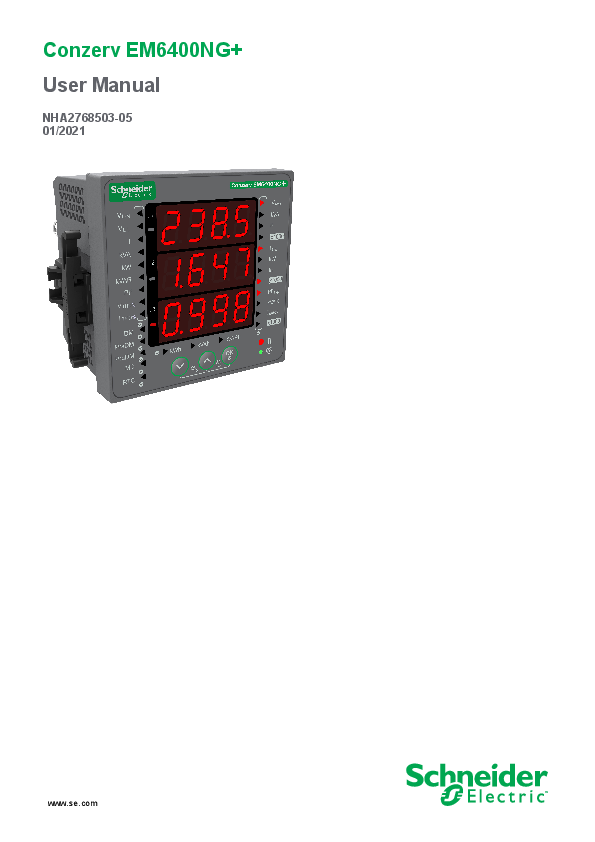
File info: application/pdf · 70 pages · 10.59MB
1..2
Conzerv EM6400NG
Conzerv EM6400NG User Manual - Download.schneider ...
Conzerv EM6400NG . User Manual. NHA2768503-05. 01/2021 www.se.com ... instruction manual, may cause harmful interference to radio communications.
Extracted Text
Conzerv EM6400NG+ User Manual
NHA2768503-05 01/2021
www.se.com

Legal Information
The Schneider Electric brand and any trademarks of Schneider Electric SE and its subsidiaries referred to in this guide are the property of Schneider Electric SE or its subsidiaries. All other brands may be trademarks of their respective owners.
This guide and its content are protected under applicable copyright laws and furnished for informational use only. No part of this guide may be reproduced or transmitted in any form or by any means (electronic, mechanical, photocopying, recording, or otherwise), for any purpose, without the prior written permission of Schneider Electric.
Schneider Electric does not grant any right or license for commercial use of the guide or its content, except for a non-exclusive and personal license to consult it on an "as is" basis. Schneider Electric products and equipment should be installed, operated, serviced, and maintained only by qualified personnel.
As standards, specifications, and designs change from time to time, information contained in this guide may be subject to change without notice.
To the extent permitted by applicable law, no responsibility or liability is assumed by Schneider Electric and its subsidiaries for any errors or omissions in the informational content of this material or consequences arising out of or resulting from the use of the information contained herein.

Safety information

Conzerv EM6400NG+

Important information
Read these instructions carefully and look at the equipment to become familiar with the device before trying to install, operate, service, or maintain it. The following special messages may appear throughout this manual or on the equipment to warn of potential hazards or to call attention to information that clarifies or simplifies a procedure.
The addition of either symbol to a "Danger" or "Warning" safety label indicates that an electrical hazard exists which will result in personal injury if the instructions are not followed.
This is the safety alert symbol. It is used to alert you to potential personal injury hazards. Obey all safety messages that accompany this symbol to avoid possible injury or death.

DANGER
DANGER indicates a hazardous situation which, if not avoided, will result in death or serious injury. Failure to follow these instructions will result in death or serious injury.
WARNING
WARNING indicates a hazardous situation which, if not avoided, could result in death or serious injury.
CAUTION
CAUTION indicates a hazardous situation which, if not avoided, could result in minor or moderate injury.
NOTICE
NOTICE is used to address practices not related to physical injury.

Please note

Electrical equipment should be installed, operated, serviced and maintained only by qualified personnel. No responsibility is assumed by Schneider Electric for any consequences arising out of the use of this material. A qualified person is one who has skills and knowledge related to the construction, installation, and operation of electrical equipment and has received safety training to recognize and avoid the hazards involved.

NHA2768503-05

3

Conzerv EM6400NG+
Notices
FCC

This equipment has been tested and found to comply with the limits for a Class A digital device, pursuant to Part 15 of the FCC rules. These limits are designed to provide reasonable protection against harmful interference when the equipment is operated in a commercial environment. This equipment generates, uses, and can radiate radio frequency energy and, if not installed and used in accordance with the instruction manual, may cause harmful interference to radio communications. Operation of this equipment in a residential area is likely to cause harmful interference in which case the user will be required to correct the interference at his own expense.
The user is cautioned that any changes or modifications not expressly approved by Schneider Electric could void the user's authority to operate the equipment.
This digital apparatus complies with CAN ICES-3 (A) /NMB-3(A).

4

NHA2768503-05

Table of Contents

Conzerv EM6400NG+

NHA2768503-05

Safety precautions ......................................................................................9 Introduction ................................................................................................10
Meter overview.........................................................................................10 Meter features ..........................................................................................10 Feature summary .....................................................................................10 Measured parameters...............................................................................12
Energy ...............................................................................................12 Demand .............................................................................................12 Instantaneous..................................................................................... 12 Power quality......................................................................................12 Data display and analysis tools ..................................................................13 Power Monitoring Expert .....................................................................13 Power SCADA Operation ....................................................................13 Meter configuration ...................................................................................13
Hardware references................................................................................14
Meter types ..............................................................................................14 Supplemental information..........................................................................14 Panel meter .............................................................................................14 Tamper-resistant cover .............................................................................15 Meter mounting ........................................................................................15 Meter wiring .............................................................................................15 Direct connect voltage limits ......................................................................15 Balanced system considerations................................................................17 Serial communications ..............................................................................17
RS-485 wiring.....................................................................................18 Pulse output.............................................................................................19
Display and meter setup ..........................................................................20
Display overview ......................................................................................20 LED indicators..........................................................................................20
Energy pulsing LED ............................................................................21 Heartbeat / serial communications LED ................................................21 Button functions .......................................................................................21 Meter screen menus .................................................................................22 Display screen menus .........................................................................22 Setup screen menus ...........................................................................24 Demand .............................................................................................30 Communications setup........................................................................32 Setting up the password ......................................................................32 Setting up date and time......................................................................33 Diagnostics (Diag) screen menus.........................................................33 Clear screen menus ............................................................................35 Lock / Unlock......................................................................................37
Remote meter setup .................................................................................38
Overview .................................................................................................38 ION setup ................................................................................................38 RS-485 port setup ....................................................................................38
Using a serial communications converter to set up RS-485 ....................38
5

Conzerv EM6400NG+ 6

Meter setup through RS-485 .....................................................................39 Meter configuration using ION setup ..........................................................39
Viewing meter data ...................................................................................40
Viewing meter data from the display...........................................................40 Using ION Setup to view or modify configuration data..................................41 Using software to view meter data..............................................................41 Power Monitoring Expert ...........................................................................42 Power SCADA Operation .........................................................................42 Modbus command interface ......................................................................42
Measurements and calculations .............................................................43
Meter initialization.....................................................................................43 Real-time readings ...................................................................................43 Energy measurements ..............................................................................43 Quadrant based VARh ..............................................................................43 Min/max values ........................................................................................44 Power demand .........................................................................................44
Power demand calculation methods .....................................................44 Block interval demand .........................................................................44 Synchronized demand.........................................................................45 Thermal demand ................................................................................45 Current demand .......................................................................................46 Predicted demand...............................................................................46 Peak demand .....................................................................................47 Timer .......................................................................................................47
Power quality .............................................................................................48
Harmonics overview .................................................................................48 Total harmonic distortion %........................................................................48
Harmonic content calculations .............................................................48 THD% calculations..............................................................................48 Displaying harmonics data ........................................................................48
Maintenance and upgrades.....................................................................50
Maintenance overview ..............................................................................50 Troubleshooting LED indicators .................................................................50 Meter memory ..........................................................................................50 Meter battery............................................................................................50 Viewing firmware version, model and serial number ....................................51 Firmware upgrades...................................................................................51
Firmware upgrade using DLF3000 .......................................................51 Technical assistance.................................................................................52
Verifying accuracy.....................................................................................53
Overview of meter accuracy ......................................................................53 Accuracy test requirements .......................................................................53 Verifying accuracy test ..............................................................................54 Required pulses calculation for accuracy verification testing ........................55 Total power calculation for accuracy verification testing ...............................56 Percentage error calculation for accuracy verification testing .......................56 Accuracy verification test points .................................................................56 Energy pulsing considerations ...................................................................57 VT and CT considerations..........................................................................57 Example calculations ................................................................................58
NHA2768503-05

Conzerv EM6400NG+
Typical sources of test errors .....................................................................59
Power and power factor ...........................................................................60
Power and power factor ............................................................................60 Current phase shift from voltage ................................................................60 Real, reactive and apparent power (PQS)...................................................60 Power factor (PF) .....................................................................................61
Power factor sign convention ...............................................................61 Power factor min/max convention.........................................................62 Power factor register format.................................................................63
Specifications ............................................................................................65

NHA2768503-05

7

Safety precautions
Safety precautions

Conzerv EM6400NG+

Installation, wiring, testing and service must be performed in accordance with all local and national electrical codes.
DANGER
HAZARD OF ELECTRIC SHOCK, EXPLOSION, OR ARC FLASH � Apply appropriate Personal Protective Equipment (PPE) and follow safe
electrical work practices. See NFPA 70E, CSA Z462 or other local standards. � Turn off all power supplying this device and the equipment in which it is installed before working on or in the equipment. � Always use a properly rated voltage sensing device to confirm that all power is off. � Follow guidelines in the Wiring section of the related Installation Sheet. � Assume communications and I/O wiring are hazardous live until determined otherwise. � Do not exceed the maximum ratings of this device. � Do not short secondary terminals of Voltage Transformer (VT). � Do not open secondary terminals of Current Transformer (CT). � Ground secondary circuit of CTs. � Do not use the data from the meter to confirm power is off. � Replace all devices, doors and covers before turning on power to this equipment. Failure to follow these instructions will result in death or serious injury.
NOTE: See IEC 60950-1 for more information on communications and I/O wiring connected to multiple devices.
WARNING
UNINTENDED OPERATION � Do not use this device for critical control or protection of persons, animals,
property or equipment. Failure to follow these instructions can result in death, serious injury, or equipment damage.
WARNING
POTENTIAL COMPROMISE OF SYSTEM AVAILABILITY, INTEGRITY, AND CONFIDENTIALITY � Change default passwords/passcodes to help prevent unauthorized access
to device settings and information. � Disable unused ports/services and default accounts, where possible, to
minimize pathways for malicious attacks. � Place networked devices behind multiple layers of cyber defenses (such as
firewalls, network segmentation, and network intrusion detection and protection). � Use cybersecurity best practices (for example: least privilege, separation of duties) to help prevent unauthorized exposure, loss, modification of data and logs, interruption of services, or unintended operation. Failure to follow these instructions can result in death, serious injury, or equipment damage.

NHA2768503-05

9

Conzerv EM6400NG+
Introduction

Introduction

Meter overview
The EM6400NG+ series meters are digital meters that offer comprehensive 3phase electrical instrumentation and load management facilities in a compact and rugged package.
The EM6400NG+ meters offer value for the demanding needs of your energy monitoring and cost management applications. All meters in the EM6400NG+ series range comply with Class 1, Class 0.5S, or Class 0.2 accuracy standards and feature high quality, reliability and affordability in a compact and easy to install format.

Meter features

The EM6400NG+ meter supports many features, a few of the features are listed below:
� LED display screen: Intuitive self-guided navigation using three buttons LED display, with three lines of concurrent values. Two columns of LEDs given on the either side of the meter's front panel indicate the parameter name being displayed.
� Energy accounting and balancing.
� Measurement of both True PF and Displacement PF.
� EM6400NG+ POP (Class 1 and 0.5S) and RS-485 (Class 1, 0.5S, and 0.2) models.
� THD% and individual harmonics up to 15th order for voltage and current.
� Active, reactive, and apparent energy readings.
� Min/Max values of instantaneous parameters with timestamp.
� Cybersecurity: The meter supports the disabling of RS-485 port through front panel keys to prevent unauthorized access. Toggle the RTU devices in case of limited availability of nodes in software system.
� Suppression current: The meter can be configured to disregard the measurement of induced / auxiliary load current in the circuit (can be set from 5 to 99 mA).
You can use the meter as a stand-alone device, but its extensive capabilities are fully realized when used as part of an energy management system.
For applications, feature details and the most current and complete specifications of the EM6400NG+ meters, see the EM6400NG+ technical datasheet at www.se. com.

Feature summary
Parameter Accuracy Class for Wh
Accuracy Class for VARh
Sampling rate per cycle Current:
� Per-phase and 3 phase average � Calculated neutral current
10

EM6400NG+ POP Class 1 Class 0.5S
2.0 1.0 64

EM6400NG+ RS-485 Class 1 Class 0.5S Class 0.2 2.0 1.0 64
NHA2768503-05

Introduction
Parameter Voltage:
� V L-N - per-phase and 3 phase average � V L-L - per-phase and 3 phase average Power Factor � Per phase and 3 phase total
Frequency Power:
� Active power (kW) - Phase wise and total � Apparent power (kVA) - Phase wise and total � Reactive power (kVAR) - Phase wise and total 3 Phase unbalance
Demand parameters (kW, kVA, kVAR, I) � Last demand � Present demand � Predictive demand � Peak demand: Timestamp for peak demand 1
Energy: kWh, kVAh, kVARh (4 Quadrant) � Delivered (Import / Forward) � Received (Export / Reverse)

EM6400NG+ POP
True PF
Current  (no timestamp)
Delivered Received

Meter On hours
Load Run hours
Power Interruptions
THD: � Voltage L-N per phase � Voltage L-L per phase � Current per phase
Individual Harmonics 1
Min / Max with timestamp 1 � V L-L average � V L-N average � Current average � Frequency � Active power, Total � Apparent power, Total � Reactive power, Total � Power factor, Total
RTC
Communication
Retrofit (RtFt) For configuring legacy communication data models

--  -- --
-- POP --

Conzerv EM6400NG+ EM6400NG+ RS-485
True PF Displacement PF 1
Current Voltage 1
Delivered Received Total 1 Net 1 Last cleared (Old) 1

Up to 15th odd harmonics
 RS-485 Modbus RTU

1. Indicates features that can be read through communication only.

NHA2768503-05

11

Conzerv EM6400NG+
Measured parameters

Introduction

Energy

The meter provides bi-directional, 4-quadrant, Class 1 / Class 0.5S / Class 0.2 accurate energy metering.
The meter stores all accumulated active, reactive and apparent energy parameters in non-volatile memory:
� kWh, kVARh, kVAh (delivered) � kWh, kVARh, kVAh (received)
� kWh, kVARh, kVAh (delivered + received) � kWh, kVARh, kVAh (delivered - received) NOTE: Based on the energy scale selection, when any of energy parameters overflow at 999999999.999 all energy parameters value resets.

Demand

The meter provides last, present, predicted, and maximum (peak) demand values, and a timestamp when the maximum (peak) demand occurred.
The meter supports standard demand calculation methods, including sliding block, fixed block, rolling block, thermal and synchronized.
Peak demand registers can be reset manually (password protected).
Demand measurements include: � W, VAR, VA demand total � Amps demand average

Instantaneous

The meter provides highly accurate 1-second measurements, average values, including true RMS, per phase and total for:
� Per phase and average voltage (line-to-line, line-to-neutral) � Per phase and average current, and neutral current
NOTE: Neutral current is calculated. � Per phase and total power (VA, W, Var) � Per phase and average for true and displacement power factor � System frequency � Per phase and maximum of all three for voltage unbalance and current
unbalance

Power quality

The meter provides complete harmonic distortion metering, recording, and realtime reporting, up to the 15th harmonic for all voltage and current inputs.
The following power quality measurements are available:
� Individual odd harmonics up to 15th order (voltage and current, per phase)
� Total harmonic distortion (THD%) for current and voltage (displays line-to-line or line-to-neutral, based on selected system configuration)

12

NHA2768503-05

Introduction
Data display and analysis tools

Conzerv EM6400NG+

Power Monitoring Expert
EcoStruxureTM Power Monitoring Expert is a complete supervisory software package for power management applications.
The software collects and organizes data gathered from your facility's electrical network and presents it as meaningful, actionable information via an intuitive web interface.
Power Monitoring Expert communicates with devices on the network to provide: � Real-time monitoring through a multi-user web portal � Trend graphing and aggregation � Power quality analysis and compliance monitoring � Preconfigured and custom reporting
See the EcoStruxureTM Power Monitoring Expert online help for instructions on how to add your device into its system for data collection and analysis.

Power SCADA Operation
EcoStruxureTM Power SCADA Operation is a complete real-time monitoring and control solution for large facility and critical infrastructure operations.
It communicates with your device for data acquisition and real-time control. You can use Power SCADA Operation for:
� System supervision � Real-time and historical trending, event logging � PC-based custom alarms See the EcoStruxureTM Power SCADA Operation online help for instructions on how to add your device into its system for data collection and analysis.

Meter configuration
Meter configuration is performed through the display or through ION Setup.
ION Setup is a meter configuration tool that can be downloaded for free at www.se.com.
See the Conzerv EM6400NG Load Manager topic in the ION Setup online help or in the ION Setup device configuration guide. To download a copy, go to www.se.com and search for ION Setup device configuration guide.

NHA2768503-05

13

Conzerv EM6400NG+
Hardware references

Hardware references

Meter types

The EM6400NG+ series is available in one physical form factor.

Commercial Reference

Description

METSEEM6400NGPOCL1 Class 1 panel mount meter with pulse output and integrated display.

METSEEM6400NGPOCL5 Class 0.5S panel mount meter with pulse output and integrated display.

METSEEM6400NGRSCL1 Class 1 panel mount meter with RS-485 and integrated display.

METSEEM6400NGRSCL5 Class 0.5S panel mount meter with RS-485 and integrated display.

METSEEM6400NGRSCL2 Class 0.2 panel mount meter with RS-485 and integrated display.

Supplemental information
This document is intended to be used in conjunction with the installation sheet that ships in the box with your device and accessories.
See your device's installation sheet for information related to installation.
See your product's catalog pages at www.se.com for information about your device, its options and accessories.
You can download updated documentation from www.se.com or contact your local Schneider Electric representative for the latest information about your product.

Panel meter

The back of your meter supports various power system connections.

14

NHA2768503-05

Hardware references

A Auxiliary power supply (control power) terminals (L+, N-) B Input voltage terminals (V1, V2, V3, VN) C Retainer clip D Input current terminals [A1(S1, S2), A2 (S1, S2), A3 (S1, S2)] E RS-485 communications/POP terminals (D1+, D0-) F Protective cover

Conzerv EM6400NG+

Tamper-resistant cover
The tamper-resistant cover helps prevent tampering with the meter's voltage and current measurement inputs.
The tamper-resistant cover encloses the terminals, the conductor fixing screws and a length of the external conductors and their insulation. The covers are secured by tamper-resistant meter seals.
The meter's tamper-resistant cover must be installed by a qualified installer.

Meter mounting
For mounting instructions and safety precautions, see the installation sheet that was shipped with your device You can also download the latest copy at www.se.com.

Meter wiring

For wiring instructions and safety precautions, see the meter installation sheet that was shipped with your meter.
You can also download the latest copy at www.se.com.

Direct connect voltage limits
You can connect the meter's voltage inputs directly to the phase voltage lines of the power system if the power system's line-to-line or line-to-neutral voltages do not exceed the meter's direct connect maximum voltage limits.
The meter's voltage measurement inputs are rated by the manufacturer for up to 277 V L-N / 480 V L-L. However, the maximum voltage allowed for direct connection may be lower, depending on the local electrical codes and regulations. As per installation category II / III the maximum voltage on the meter voltage measurement inputs should not exceed 277 V L-N / 480 V L-L for CAT III and 347 V L-N / 600 V L-L for CAT II.
If your system voltage is greater than the specified direct connect maximum voltage, you must use VTs (voltage transformers) to step down the voltages.

NHA2768503-05

15

Conzerv EM6400NG+

Power system description
Single-phase 2wire line-toneutral

Meter setting

Symbol

Display Display (meter) (communication)

1P.LN 1PH 2Wire L-N

Single-phase 2- 1P.LL wire line-to-line

1PH 2Wire L-L

Single-phase 3wire line-to-line with neutral

1P.3L

1PH 3Wire L-L with N

Hardware references

Direct connect maximum (UL / IEC)

Installation category III

Installation category II

 277 V L-N

 347 V L-N

# of VTs (if required)
1 VT

480 V L-L

600 V L-L

1 VT

 277 V L-N / 480  347 V L-N / 600 2 VT

V L-L

V L-L

3-phase 3-wire Delta ungrounded

3P.3L

3PH 3Wire Ungrounded Delta

480 V L-L

600 V L-L

2 VT

3-phase 3-wire Delta corner grounded

3PH 3Wire Corner Grounded Delta

3-phase 3-wire Wye ungrounded

3PH 3Wire Ungrounded Wye

480 V L-L

600 V L-L

2 VT

480 V L-L

600 V L-L

2 VT

3-phase 3-wire Wye grounded

3PH 3Wire Grounded Wye

480 V L-L

600 V L-L

2 VT

3-phase 3-wire Wye resistancegrounded

3PH 3Wire Resistance Grounded Wye

3-phase 4-wire open Delta center-tapped

3P.4L

3PH 4Wire Center-Tapped Open Delta

16

480 V L-L

600 V L-L

2 VT

240 V L-N / 480 V 240 V L-N / 480 V 3 VT

L-L

L-L

N
NHA2768503-05

Hardware references

Power system description
3-phase 4-wire Delta centertapped

Meter setting

Symbol

Display Display (meter) (communication)

3PH 4Wire Center-Tapped Delta

Conzerv EM6400NG+

Direct connect maximum (UL / IEC)

Installation category III

Installation category II

240 V L-N / 480 V 240 V L-N / 480 V

L-L

L-L

# of VTs (if required)
3 VT

3-phase 4-wire ungrounded Wye

3PH 4Wire Ungrounded Wye

N

 277 V L-N / 480  347 V L-N / 600 3 VT or 2 VT

V L-L

V L-L

3-phase 4-wire grounded Wye

3PH 4Wire Grounded Wye

3-phase 4-wire resistancegrounded Wye

3PH 4Wire Resistance Grounded Wye

 277 V L-N / 480  347 V L-N / 600 3 VT or 2 VT

V L-L

V L-L

N

 277 V L-N / 480  347 V L-N / 600 3 VT or 2 VT

V L-L

V L-L

N

Balanced system considerations
In situations where you are monitoring a balanced 3-phase load, you may choose to connect only one or two CTs on the phase(s) you want to measure, and then configure the meter so it calculates the current on the unconnected current input(s).
NOTE: For a balanced 4-wire Wye system, the meter's calculations assume that there is no current flowing through the neutral conductor.
Balanced 3-phase Wye system with 2 CTs
The current for the unconnected current input is calculated so that the vector sum for all three phases equal zero.
Balanced 3-phase Wye or Delta system with 1CT
The currents for the unconnected current inputs are calculated so that their magnitude and phase angle are identical and equally distributed, and the vector sum for all three phase currents equal zero.
NOTE: You must always use 3 CTs for 3-phase 4-wire center-tapped Delta or center-tapped open Delta systems.

Serial communications
The meter supports serial communications through the RS-485 port. Up to 32 devices can be connected on a single RS-485 bus.

NHA2768503-05

17

Conzerv EM6400NG+
RS-485 wiring
18

Hardware references
In an RS-485 network, there is one master device, typically an Ethernet to RS-485 gateway. It provides the means for RS-485 communications with multiple slave devices (for example, meters). For applications that require only one dedicated computer to communicate with the slave devices, an RS-232 to RS-485 converter can be used as the master device.

Connect the devices on the RS-485 bus in a point-to-point configuration, with the (+) and (-) terminals from one device connected to the corresponding (+) and (-) terminals on the next device.
C

-

-

+

+

120
NOTE: Straight-line topology only. Loop or ring topology is not supported. Resistor is an optional accessory that you can order separately. To terminate a series, it is recommended to use a 120  / 0.5 W resistor.

RS-485 cable
Use a shielded 2 wires or 1 twisted pair RS-485 cable to wire the devices. Use the twisted pair to connect the (+) and (-) terminals.

RS-485 terminals
C Common. This provides the voltage reference (zero volts) for the data plus and data minus signals
Shield. Connect the bare wire to this terminal to help suppress signal noise that may be present. Ground the shield wiring at one end only (either at the master or the last slave device, but not both.
- Data minus. This transmits/receives the inverting data signals.
+ Data plus. This transmits/receives the non-inverting data signals.
NOTE: If some devices in your RS-485 network do not have the C terminal, use the bare wire in the RS-485 cable to connect the C terminal from the meter to the shield terminal on the devices that do not have the C terminal.

RS-485 maximum cable length
The total distance for devices connected on an RS-485 bus should not exceed 900 m (2953 ft).

RS-485 network configuration
After you have wired the RS-485 port and powered up the meter, you must configure the serial communications port in order to communicate with the meter. Each device on the same RS-485 communications bus must have a unique address and all connected devices must be set to the same protocol, baud rate, and parity (data format).
NOTE: To communicate with the meter using ION Setup, you must set the serial site and all connected devices in the RS-485 network to the same parity setting.

NHA2768503-05

Hardware references
Pulse output

Conzerv EM6400NG+
The meter is equipped with one pulse output port (D1+, D0-). You can configure the pulse outputs for use in the following application:
� Energy pulsing applications, where a receiving device determines energy usage by counting the k_h pulses coming from the meter's pulse output port.
One pulse output can handle voltage less than or equal to 40 V DC (20 mA maximum). For higher voltage applications, use an external relay in the switching circuit.
D1-
(61)
40 V
20 mA D1+
(60)

NHA2768503-05

19

Conzerv EM6400NG+
Display and meter setup

Display and meter setup

Display overview
The display lets you use the meter to perform various tasks such as setting up the meter, displaying data screens, or performing resets.

Conzerv EM6400NG+

% %
%

A

Phase measurements

VL-N, VL-L, I, kVA, kW, kVAR,

PF, VTHD, ITHD

B

Demand measurements

DM, PrsDM, PrdDM, MD

C

RTC

Date and time

D

Negative indicator

E

Navigation key

To navigate down

F

Energy readings

Apparent energy, Active

energy, and Reactive energy

G

Navigation key

To navigate up

H

OK

Enter key

To toggle between measurement parameters

I

Energy pulsing LED (Red)

Heartbeat / communications LED (Green)

J

x 1000 indicator

K

System measurements

Vavg, kVA, F, Iavg, kW, In, PFavg,

kVAR, Iunb

LED indicators

The LED indicators alert or inform you of meter activity.

20

NHA2768503-05

Display and meter setup

Conzerv EM6400NG+

A

Alarm / energy pulsing LED (Red)

B

Heartbeat / serial communications LED (Green)

Energy pulsing LED

The EM6400NG+ meter has an energy pulsing LED that can be configured for energy pulsing.
This LED flashes at a rate proportional to the amount of energy consumed. This is typically used to verify the meter's accuracy.
NOTE: EM6400NG+ meter does not support alarm function.

Heartbeat / serial communications LED
The heartbeat / serial communications LED blinks to indicate the meter's operation and serial Modbus communications status.
The LED blinks at a slow, steady rate to indicate the meter is operational. The LED flashes at a variable, faster rate when the meter is communicating over a Modbus serial communications port.
You cannot configure this LED for other purposes.
NOTE: A heartbeat LED that remains lit and does not blink (or flash) can indicate a problem. In this case, power down the meter and reapply power. If the LED still does not blink or flash, contact Technical Support.

Button functions

The meter supports single press and combination press functions of the buttons.

Symbol

Description To navigate down the list of items.

Press and hold for 2 seconds.

To move cursor to the left. To navigate up the list of items.

Press and hold for 2 seconds.

To move cursor to the right.

NHA2768503-05

21

Conzerv EM6400NG+

Symbol

Description To select a parameter.

Display and meter setup

Press and hold for 2 seconds.

To enter into or exit Clear page. To enter into or exit Setup page. To enter into or exit Diagnostics page. To lock or unlock a meter page.

Meter screen menus
All meter screens are grouped logically, according to their function. You can access any available meter screen by first selecting the Level 1 (top level) screen that contains it.
With the meter front panel, you can view parameter values; configure parameters; perform demand resets; perform LED checks; and view meter information. Each of these functions can be accomplished by pressing the Up, Down, and OK buttons on the front panel.
These button actions achieve different results according to the mode that the meter is in:
� Display mode (default): view parameter measurements � Setup mode: configure a parameter � Clear mode: reset measurements � Lock mode: lock or unlock a screen This section describes front panel navigation within each mode.
Display screen menus
In Display mode, you can view values from the following measurement groups: � System measurements � Phase measurements � Energy measurements � Demand measurements � RTC
Viewing display parameters
The meter's display screen and buttons allow you to view the required parameters.
1. Press the OK button to navigate to different measurement types.
2. Press the Up or Down button to navigate to the previous or next value under each measurement type.

22

NHA2768503-05

Display and meter setup

Conzerv EM6400NG+

Display screen menu tree

Use the menu tree to navigate to the setting you want to view. The below image summarizes the available meter screens and parameters:

System measurement

Vavg Iavg PFavg
kVA kW kVAR
F In Iunb%

Phase measurement

VL-N VL-L I kVA kW kVAR PF VTHD% ITHD%

V1, V2, V3 V12, V23, V31 A1, A2, A3 kVA1, kVA2, kVA3 kW1, kW2, kW3 kVAR1, kVAR2, kVAR3 PF1, PF2, PF3 V1THD, V2THD, V3THD A1THD, A2THD, A3THD

Energy measurement

kWh kVAh kVARh

Active Energy - Import/Export Apparent energy - Import/Export Reactive Energy - Import/Export

Demand measurement RTC

DM PrsDM PrdDM MD

kW, kVA, kVAR, Iavg kW, kVA, kVAR, Iavg kW, kVA, kVAR, Iavg kW, kVA, kVAR, Iavg

RTC

Date and Time

Display parameters

The meter displays various power system measurements.

Measurement Group System measurements Phase measurements Demand measurements RTC
Energy readings

Parameters Measured
Vavg, kVA, F, Iavg, kW, In, PFavg, kVAR, Iunb
VL-N, VL-L, I, kVA, kW, kVAR, PF, VTHD, ITHD DM, PrsDM, PrdDM, MD
Date and time NOTE: RTC is only applicable for meters with RS-485 communication. Meters with POP do not support this function.
kWh (Active energy): Delivered / Received
kVAh (Apparent energy): Delivered / Received kVARh (Reactive energy): Delivered / Received

NOTE: When the x 1000 LED is lit, multiply the displayed value by 1000 for the actual value.

NHA2768503-05

23

Conzerv EM6400NG+

Display and meter setup

Button functions in viewing display parameters

Display mode is the default page when you power up the meter.

Mode Display Mode

Button

Function To view the next parameter value.

To view the previous parameter value.

To move from one measurement group to the next measurement group.

Setup screen menus

Setup screen enables you to configure various setup parameters. Below is the list of setup parameters and the configurations it supports.

24

NHA2768503-05

Display and meter setup NHA2768503-05

EM6400NG+ meter setup menus

Conzerv EM6400NG+

Setup parameters

tYPE Vt Vt.Pr Vt.SE Ct Ct.Pr Ct.SE FrEq A.SuP Ct.Sq Ct.rV Pd Pd.CY Pd.ut Pd.SY Ad Ad.CY Ad.ut Ad.SY LED L.PLS L.PAr PASS CoM Id bAud Prty YEAr dAtE hour PoP P.PLS P.PAr

1P.LN, 1P.LL, 1P.3L, 3P.3L, 3P.4L no.Vt, 2.VT, 3.VT, 1.VT 0100 V to 999000 V 100, 110, 115, 120 A.1, A.2, A.3, A.12, A.23, A.31, A.123 1 A to 32760 A 1 A, 5 A 50 Hz, 60 Hz 5 mA A.123, A.321, A.312, A.231, A.213, A.132 nonE, A.1, A.2, A.3, A.12, A.23, A.31, A.123 Ther, t.Sb, t.b, t.rb, CS.b, CS.rb, CL.b, Cl.rb 1 to 60 mins 1 to 60 mins 00:00 - 23:59 Ther, t.Sb, t.b, t.rb, CS.b, CS.rb, CL.b, Cl.rb 1 to 60 mins 1 to 60 mins 00:00 - 23:59 Off, EnrG, ALM 1 to 9999000(Pulse per k_h) d.Wh, r.Wh, t.Wh, d.Vrh, r.Vrh, t.Vrh, d.VAh, r.VAh, t.VAh, nonE 0000 - 9999 ON, OFF 1 to 247 4800, 9600, 19200, 38400 Even, Odd, None YYYY (2000 to 2127) M(month) - 1 to 12, dd(day) - 1 to 31 HH(hours) - 00 to 23, M(minutes) - 00 to 59 Off, EnrG 1 to 9999000 (k_h) Wh, Vrh, VAh

NOTE: The setup parameters CoM, Id, bAud, Prty, YEAr,. dAtE, and hour are applicable for the commercial references METSEEM6400NGRSCL1, METSEEM6400NGRSCL5, and METSEEM6400NGRSCL2. The setup parameters PoP, P.PLS, and P.PAr are available for the commercial references.METSEEM6400NGPOCL1, and METSEEM6400NGPOCL5.

Entering setup
The meter's display screen and buttons allow you to navigate to and edit the required parameters.
1. Press and hold the Up key and Down key simultaneously for 2 seconds. 2. Enter the password. Default password is 0000. 3. Press OK key to enter setup. 4. Press and hold the Up key and Down key simultaneously for 2 seconds to exit
Setup after viewing parameters.

Setup parameters
The meter supports configuration of various measurement parameters.

25

Conzerv EM6400NG+

Display and meter setup

Name on display

Description tYPE = Power System Configurations
Vt= VT Connect
Vt.Pr = Primary Voltage (V L-L)

Input range

Default value

Input range = 1P.Ln, 1P.LL, 1P.3L, 3P.3L, 3P.4L Default value = 3P4L
NOTE: Other power system configurations can be set through ION setup.

3P.4L

Input range = no.Vt, 2.VT, 3.VT, 1. VT
NOTE: The VT Connect parameters are enabled based on selected power system configuration.

no.Vt

100 V to 999000 V

120

NOTE: Vt.Pr will not be enabled if VT Connect is no. VT.

Vt.SE = Secondary Voltage (V L- 100, 110, 115, 120 V

120

L)

NOTE: Vt.SE will not be

enabled if VT Connect is no.

VT.

Ct = CT Terminal Ct.Pr = CT Primary

A.1, A.2, A.3, A.12, A.23, A.31, A.123
NOTE: The Ct terminal parameters are enabled based on the selected power system and VT connect configuration.

A.123

1 A to 32760 A

100

NOTE: Ct primary can be set to 32767 A through communication.

Ct.SE = CT Secondary

1 A, 5 A

5

FrEq = System Frequency

50 Hz, 60 Hz

50

A.SuP: A.Suppression (Minimum 5 mA to 99 mA

5

current at which meter starts

functioning)

Ct.Sq = CT Sequence Ct.rV = CT Polarity Correction

Input range = A.123, A.321, A.312, A.231, A.213, A.132
NOTE: The CT Sequence is applicable for 3P.3L and 3P.4L configurations and A.123 CT Terminal value. If you change the Power System Configurations or CT Terminal value, then the CT sequence resets to the default value.
Input range = nonE, A1, A.2, A.3, A.12, A.23, A.31, A.123
NOTE: The CT Polarity Correction parameters are enabled based on selected Power System Configurations and CT

A.123 nonE

26

NHA2768503-05

Display and meter setup

Name on display

Description

Pd = Power Demand

Conzerv EM6400NG+

Input range

Default value

Terminal value. If you change the Power System Configurations or CT Terminal value, then the CT Polarity Correction resets to the default value.
tHEr, t.Sb, t.b, t.rb, CS.b, CS.rb, t.b CL.b, CL.rb

Pd.CY = Power Demand Period
Pd.ut = Power Demand Update Time
Pd.SY = Power Demand Clock Sync Time
Ad = Current Demand

1 to 60 mins

15

NOTE: The demand update time is available for rolling block methods under power demand.

1 to 60 mins

15

NOTE: The power demand update time is available for rolling block methods under power demand.

00:00 to 23:59
NOTE: The clock sync time is available only for clock sync block and clock sync roll block methods under power demand.
tHEr, t.Sb, t.b, t.rb, CS.b, CS.rb, CL.b, CL.rb

00.00 t.b

Ad.CY = Current Demand Period 1 to 60 mins

15

Ad.ut = Current Demand Update Time
Ad.SY = Current Demand Clock Sync Time
LEd = LED

1 to 60 mins
NOTE: The current demand update time is available for rolling block methods under current demand.
00:00 to 23:59
NOTE: The clock sync time is available only for clock sync block and clock sync roll block methods under current demand.
Off, EnrG

15 00.00 Off

L.PLS = LED Pulse Weight

1 to 9999000 (Pulse per k_h)

1

NOTE: Pulse per energy values cannot be viewed if LED is off.

LPAr = LED Energy Parameter

d.Wh, r.Wh, t.Wh, d.Vrh, r.Vrh, t. Vrh, d.VAh, r.VAh, t.VAh, nonE
NOTE: LED parameter values cannot be viewed if LED is off.

nonE

NHA2768503-05

27

Conzerv EM6400NG+

Name on display

Description PASS = Password

Input range 0000 - 9999

Display and meter setup
Default value 0000

CoM = Communication NOTE: Id, baud rate, and parity cannot be viewed if com is off.
Id = Unit Id

ON, OFF, RTFT

ON

NOTE: ON / OFF: To enable / disable communications port.

NOTE: Retrofit (RTFT): For configuring legacy communication data models (Applicable only in EM6400NG+ RS-485 meter model).

1 to 247

1

bAud = Baud Rate

4800, 9600, 19200, 38400

19200

Prty = Parity

EVEn, odd, nonE

EVEn

YEAr = RTC

YYYY ( 2000 to 2127)

NA

dAtE = Month:Date

MM (month) - 1 to 12

NA

dd (day) - 1 to 31

hour = Hours:Minutes

HH (hours) - 00 to 23

NA

MM (minutes) - 00 to 59

PoP = Communication Pulse Output
P.PLS = POP Pulse Weight

Off, EnrG
NOTE: Pulse weight and energy parameter cannot be viewed if POP is off.

EnrG

1 to 9999000 (pulse per k_h)

200

28

NHA2768503-05

Display and meter setup

Name on display

Description P.PAr = POP Energy Parameter

Input range Wh, VAh, Vrh

Indicates optional setup parameters

Conzerv EM6400NG+
Default value Wh

NHA2768503-05

Button functions in viewing setup parameters

The meter supports single press and combination press functions of the buttons to view setup parameters.

Mode

Button

Function
To navigate to the next parameter configuration screen.

Setup Menu

To navigate to the previous parameter configuration screen.
Enter setup mode to configure the displayed parameter value.

Press and hold the Up and Down buttons simultaneously for 2 seconds to enter Setup.
Exit setup with the same button sequence.

Button functions in editing setup parameters

The meter supports single press and combination press functions of the buttons to edit setup parameters.

Mode

Button

Setup Menu

Function
Flashing Digit: To decrease the numeric value.
Flashing Value: To view the next value from the list.
Flashing Decimal Point: To move the decimal point to the left.
Flashing Digit: To increase the numeric value.
Flashing Value: To view the previous value from the list.
Flashing Decimal Point: To move the decimal point to the right.
Flashing Digit / Flashing Decimal Point: To move the position of the cursor to left.

Press and hold for 2 seconds.

Flashing Digit / Flashing Decimal Point: To move the position of the cursor to right.

Press and hold for 2 seconds.

29

Conzerv EM6400NG+
Demand

Mode

Button

Display and meter setup
Function To select a parameter to edit the values. To select configured parameter values. To save the changes made to setup parameter. Press and hold the Up and Down buttons simultaneously for 2 seconds to enter Setup. Exit setup with the same button sequence.

Editing setup parameters
You can edit various measurement parameters as required.
1. Press and hold the Up and Down buttons simultaneously for 2 seconds to enter Setup.
2. Enter password. Default password is 0000.
3. Press OK.
4. Press the Up or Down button to select a parameter to edit. The selected parameter flashes the digit, value, or decimal point that is required to be set (the meter automatically determines which option to flash for editing, depending on the parameter).
5. Increase or decrease the digit value, move the decimal point, or select a value from a pre-programmed list using the Up or Down button.
6. Press OK after making the required changes.
7. Press and hold the Up and Down buttons simultaneously for 2 seconds to exit Setup.
8. Select Yes to save your settings.
Exiting setup parameters
The following steps describe how to exit setup mode without editing any parameter values.
1. Press and hold the Up and Down buttons simultaneously for 2 seconds to enter Setup.
2. Enter password. Default password is 0000.
3. Press OK.
4. Press the Up or Down button to view various setup parameters.
5. Press and hold the Up and Down buttons simultaneously for 2 seconds to exit Setup without making any changes to the parameter values.

Demand parameters
Demand is a measure of average consumption (typically power or current) over a fixed programmed time interval.

30

NHA2768503-05

Display and meter setup NHA2768503-05

Conzerv EM6400NG+

Power / current demand setup parameters

Parameter Method
Interval Subinterval (update time) Clock Sync Time

Values

Description

� Thermal: Ther
� Timed Sliding Block: t.Sb
� Timed Block: t.b
� Timed Rolling Block: t.rb
� Command Sync Block: CS.b
� Command Sync Rolling Block: CS.rb
� Clock Sync Block: CL.b
� Clock Sync Rolling Block: Cl.rb
NOTE: Command sync and clock sync methods are applicable for meters with RS-485 communication only.

Select the appropriate demand calculation method for your needs.

1 � 60

Set the demand interval, in minutes.

1 � 60

Applies only to rolling block methods.

Define how many subintervals the demand interval should be equally divided into.

00:00 � 23:59

Applies only to clock sync methods (these synchronize the demand interval to the meter's internal clock).

Define what time of day you want to synchronize the demand.

Viewing demand values on Display screen
You can view the demand values provided on the display screen by navigation through display parameters.
1. Press OK to navigate to demand values on display screen. 2. The LED indicates last demand (DM).The values displayed on the screen
indicate kVA, kW, and kVAR. 3. Press the Down button to view Iavg values. 4. Repeat the steps to view present demand (PrsDM), predictive demand
(PrdDM), and max demand (MD) values.
Viewing demand values in Setup screen
The meter supports editing power and current demand through setup mode. 1. Press and hold the Up and Down buttons simultaneously for 2 seconds to enter Setup. 2. Enter password. Default password is 0000. 3. Press OK. 4. Press the Down button to select Pd (power demand) or Ad (current demand) parameter. 5. Press OK. 6. Press the Down button to select required values from the existing list. 7. Press OK. 8. Press and hold the Up and Down buttons simultaneously for 2 seconds to exit Setup.

31

Conzerv EM6400NG+

Display and meter setup

9. Select Yes to save your settings.

Communications setup
After wiring the meter's serial communications ports, you can configure these ports so you can connect to the meter remotely and use device configuration software such as ION Setup to configure the meter.
The setup screen allows you to configure the meter's RS-485 communications port so you can use software to access the meter's data or configure the meter remotely.
To turn on communication in setup screen, follow these steps: 1. Press and hold the Up and Down buttons simultaneously for 2 seconds to enter setup. 2. Enter password. Default password is 0000. 3. Press OK. 4. Press the Down button to select a CoM (communication) parameter. 5. Press OK. 6. Press the Down button to select on from the list. 7. Press OK. 8. Press and hold the Up and Down buttons simultaneously for 2 seconds to exit Setup. 9. Select Yes to save your settings.
RS-485 communication parameters

Parameter Address
Baud Rate
Parity � Number of stop bits

Values 1 to 247
4800, 9600, 19200, 38400
Even � 1 Odd � 1 None � 2

Description
Set the address for this device. The address must be unique for each device in a communications loop.
Select the speed for data transmission. The baud rate must be the same for all devices in a communications loop.
Select None if the parity bit is not used. The parity setting must be the same for all devices in a communications loop.

NOTE: Communication parameters display ON / OFF / Retrofit (RTFT).
NOTE: Retrofit provides you an option of configuring legacy data models for your device to communicate with newer models. (Applicable only in EM6400NG+ RS-485 meter model).

Setting up the password
The meter password can only be configured through the front panel.
The factory-default setting for all passwords is "0000" (zero). Changing the default password for screens that are password protected prevents unauthorized personnel from accessing certain screens such as the Setup and Clear screens.
To change the meter password using Setup, follow these steps: 1. Press and hold the Up and Down buttons simultaneously for 2 seconds to enter Setup. 2. Enter password. Default password is 0000. 3. Press OK. 4. Press the Down button to select PASS (password) parameter. 5. Press OK.

32

NHA2768503-05

Display and meter setup

Conzerv EM6400NG+

6. Press the Down button to change the digits. NOTE: Hold Down button for 2 seconds to move the cursor to the next digit.
7. Press OK. 8. Press and hold the Up and Down buttons simultaneously for 2 seconds to exit
Setup. 9. Select Yes to save your settings.
Password settings

Parameter Pass

Values 0000 - 9999

Description
Sets the password for accessing the meter setup screen.
NOTE: Common password applies across all parameters.

Lost password
Visit www.se.com for support and assistance with lost passwords or other technical problems with the meter. Make sure you include your meter's model, serial number and firmware version in your email or have it readily available if calling Technical Support.

Setting up date and time

The Clock setup allows you to set the meter's date and time. 1. Press and hold the Up and Down buttons simultaneously for 2 seconds to enter Setup. 2. Enter password. Default password is 0000. 3. Press OK. 4. Press the Down button to select year, date, and hour parameter. 5. Press OK. 6. Press Down button to change the digits. NOTE: Hold the Down button for 2 seconds to move the cursor to the next digit. 7. Press OK. 8. Press and hold the Up and Down buttons simultaneously for 2 seconds to exit Setup. 9. Select Yes to save your settings. NOTE: You must always set or sync the meter time to local time.
Clock setup parameters

Parameter Year Date

Values YYYY MM:DD

Hour

HH:MM

Description
Set the current year using format displayed on screen.
Set the current date using the format displayed on screen, where date is in MM (month) and DD (date) format.
Use the 24 hours format to set the current time in local time, where the time is in HH (hour) and MM (minutes) format.

Diagnostics (Diag) screen menus
In Diag, you can verify the front panel LEDs, and view meter information. Below is the list of Diag parameter that are displayed on the meter screen.

NHA2768503-05

33

Conzerv EM6400NG+

Display and meter setup

EM6400NG+ meter diag menus

Diag parameters

All LEDs on Meter Model Serial number OS version RS version Diagnostics error code Delivered run hours Received run hours On hours Interruptions RS-485

Viewing Diag
The meter's display screen and buttons allow you to navigate to the Diag.
1. Press and hold the Down and OK buttons simultaneously for 2 seconds to view Diag.
2. Press the Down button to navigate to the next screen.
3. Press and hold the Down and OK buttons simultaneously for 2 seconds to exit Diag.

Screens All LEDs on Meter Model Serial number OS version RS version Diagnostics error code
Run hours

Diag screens

The meter displays various diagnostics screens.

Description

On entering diag screen, all LEDs on the front panel light up. The display shows four eights (8888), four decimal points (....) per line, negative indicators, and parameter LEDs. This indicates that the front panel LEDs and display are operating correctly.

Displays the meter model number.

Displays the meter serial number, for example SN.0500005174.
NOTE: Ensure you have your meter's serial number information available while contacting Technical Support for help.

Displays the operating system version number, for example OS 1.00.0.

Displays the reset (boot code) version number, for example RS 1.00.0.

Displays the error codes of the meter for diagnostics. The following are the diagnostics error codes. � 0003 is the error code for RAM failure. � 0005 is the error code for NVRAM failure. � 0009 is the error code for RTC failure. � 0011 is the error code for Calibration failure. � 0021 is the error code for Clipping detected. � 0041 is the error code for Over-Running energy pulse output. � 0081 is the error code for Backup RAM failure. � 0101 is the error code for Language file mismatch. � 0201 is the error code for Language string mismatch.

Delivered / Import

Indicates the period the load has been delivered. This counter accumulates as long as the load is ON.

34

NHA2768503-05

Display and meter setup

Conzerv EM6400NG+

Screens On hours Interruptions
RS-485

Description

Received / Export

Indicates the period the load has been received. This counter accumulates as long as the load is ON.

Indicates the period for which the power meter's auxiliary supply is ON, regardless of the voltage and current inputs.

Number of supply outages, means the number of auxiliary supply interruptions. If the power meter auxiliary supply is from a UPS then the INTR (number of interruptions) will be zero (as long as the UPS stays ON), even if the voltage signals die out from time to time.

Communication error code
Communication settings screen

Displays the communication errors of the meter. The following are the communication error codes.
� F is the error code for Illegal function error � A is the error code for Data Address error � D is the error code for Data value error � E is the error code for Slave device failure error � B is the error code for Device busy error � C is the error code for CRC error � O is the error code for Over Run error � U is the error code for Unit ID error
Displays the unit ID, baud rate, and parity values of the meter.

Button functions in viewing Diag screen

The meter supports single press and combination press functions of the buttons to view Diag screens.

Mode

Button

Function To navigate to the next screen.

Setup Menu

To navigate to the previous screen.
Press and hold the Down and OK buttons simultaneously for 2 seconds to view Diag. Exit Diag screen with the same button sequence.

Clear screen menus

Clear screen enables you to reset energy, demand, min / max, or max demand values.
Below is the list of clear screen parameter that are displayed on the meter screen.
Meter clear screen menus

Clear parameters

Energy DM Hi Lo MD

NHA2768503-05

Entering Clear screen
The meter's display screen and buttons allow you to navigate to Clear. 1. Press and hold the OK button for 2 seconds.
35

Conzerv EM6400NG+

Display and meter setup

2. Press the Up button to select Yes.
3. Press OK.
4. Enter password. Default password is 0000.
5. Press OK.
6. Press the Down or Up button to navigate to the required parameter for clearing the values.
7. Press and hold the OK button simultaneously for 2 seconds to exit Clear screen.

Parameters Energy DM Hi Lo
MD

Clear parameters
The meter supports reset of various parameters.
Description
Resets the energy values. The meter supports reset of the following parameter values: � Active energy - Import / Export � Reactive energy - Import / Export � Apparent energy - Import / Export � Run Hour
Used for demand synchronization function. The meter supports reset of the following parameter values: � Last demand � Present demand � Predictive demand
Resets the minimum and maximum (min/max) values. The meter supports reset of the following parameter values:
� V L-L average � V L-N average � Current average � Frequency � Active power, Total � Apparent power, Total � Reactive power, Total � Power factor, Total
Resets the maximum demand values. � W, VA, VAR, and current demand with timestamp

Button functions in editing Clear parameters

The meter supports single press functions of the buttons to enter Clear screens.

Mode

Button

Clear Screen

Function
Press and hold OK button for 2 seconds to enter Clear.
Press OK button to clear/reset parameter values.
Press and hold OK button for 2 seconds to exit Clear.
To navigate to the next parameter.

To navigate to the previous parameter.

36

NHA2768503-05

Display and meter setup
Lock / Unlock

Conzerv EM6400NG+

Lock enables you to set the a meter screen to default screen. You can scroll to other display screens while a screen has been locked. Once the manual scrolling is stopped, the meter displays the default (lock) screen after four minutes.
The meter's display screen and buttons allow you to lock or unlock any screen.
To lock / unlock a meter screen: � Press and hold the Up and OK buttons simultaneously for 2 seconds to lock or unlock a meter screen. NOTE:
You can only lock the display parameters.
You cannot enter the Setup or Clear when a meter screen is locked.

Button functions in locking / unlocking meter screen

The meter supports a combination press function of the buttons to lock or unlock a screen.

Mode Lock / Unlock

Button

Function
Press and hold the Up and OK buttons simultaneously for 2 seconds to lock or unlock a meter screen.

NHA2768503-05

37

Conzerv EM6400NG+
Remote meter setup

Remote meter setup

Overview

You can configure the meter's setup parameters through the meter's RS-485 communications port.
The meter is factory-configured with default RS-485 communications port settings. You must modify the default settings before connecting the meter to your RS-485 network. To configure the RS-485 port, you need:
� ION Setup
NOTE: Remote meter setup is applicable only for meter models supporting RS-485 communication.

ION setup

Go to www.se.com and search for ION Setup to download a copy of the installation file.
If you already have an existing installation of ION Setup, it is recommended that you upgrade to the latest version in order to access new features or enhancements and properly configure features available on your device.
Refer to the online help to learn how to use ION Setup.

RS-485 port setup
The meter is factory-configured with default serial communications settings that you may need to modify before connecting the meter to the RS-485 bus.
The meter is factory-configured with the following default serial communications settings:
� Protocol = Modbus RTU � Address = 1 � Baud rate = 19200 � Parity = Even You can use a communications converter (USB to RS-485 or RS-232 to RS-485) device to connect to the meter.
Using a serial communications converter to set up RS-485
You can use a communications converter (USB to RS-485 or RS-232 to RS-485) to connect to the meter.
NOTE: Configuring the serial communications settings using this method may cause ION Setup to lose communications when the changes are sent to your meter. You must reconfigure ION Setup to match the new settings to reestablish communications with your meter.
1. Configure the serial communications converter's settings to be compatible with the meter's default communications settings.
2. Connect the meter's RS-485 port to the serial communications converter.
3. Connect the communications converter to the computer.
4. Start ION Setup in Network mode.

38

NHA2768503-05

Remote meter setup

Conzerv EM6400NG+

5. Add a serial site and set its properties: � Comm link = Serial � Comm port = select which serial (or USB) port the communications converter is attached to � Baud rate = 19200 � Format = select a format with even parity
6. Add a meter to the site and set its properties: � Type = EM6400NG series load manager � Unit ID = 1
7. Use the setup screens to modify the meter's setup parameters.
8. Use the RS-485 Base Comm setup screen to modify the meter's serial communication settings.
9. Click Send to save your changes to the meter. You need to reconfigure ION Setup to match the changed settings in order to re-establish communications with your meter.
10. Exit ION Setup.
RS-485 port settings

Parameter Protocol
Address Baud rate Parity

Values Modbus RTU
1 to 247 4800, 9600, 19200, 38400 Even, Odd, None

Description
Select the communications format used to transmit data. The protocol must be the same for all devices in a communications loop.
ION Setup does not support ASCII 8, ASCII 7 or JBus protocols.
Set the address for this device. The address must be unique for each device in a communications loop.
Select the speed for data transmission. The baud rate must be the same for all devices in a communications loop.
Select None if the parity bit is not used. The parity setting must be the same for all devices in a communications loop.

Meter setup through RS-485
After the meter's RS-485 port is configured and connected to the RS-485 network, you can use ION Setup to configure all other meter setup parameters.
Meter configuration using ION setup
Start ION Setup, create a site (or if applicable, use an existing site), then add your meter to the site. See the "EM6400NG series" topic in the ION Setup online help or in the ION Setup device configuration guide. To download a copy, go to www.se.com and search for ION Setup device configuration guide.

NHA2768503-05

39

Conzerv EM6400NG+
Viewing meter data

Viewing meter data

Viewing meter data from the display
Voltage average, current average, and power factor average are displayed the first time a meter is powered up, after which the last viewed screen or locked (default) screen is displayed every time the meter is powered up.

Conzerv EM6400NG+

% %
%

Meters data screens

The meter screens in EM6400NG+ meter is divided as per phase measurements, system measurements, demand measurements, energy measurements, and RTC.

Meter data display screens

The screen menu items are listed below: System measurements

Vavg kVA F x1000 Iavg kW In x1000 PFavg kVAR

Voltage 3 phase average Apparent power total Frequency (Hz) Multiplication factor Current 3 phase average Active power total Neutral current Multiplication factor Power factor average Reactive power total

40

NHA2768503-05

Viewing meter data

Conzerv EM6400NG+

System measurements (Continued)

Iunb x1000

Current unbalance Multiplication factor

Phase measurements

VL-N VL-L I kVA kW kVAR PF
VTHD ITHD

Voltage Line to neutral Voltage Line to Line Current Apparent Power Active Power Reactive Power Power factor � : Leading PF
+: Lagging PF Voltage THD% Current THD%

V1 V12 A1 kVA1 kW1 kVAR1 PF1
V1THD A1THD

Energy measurements

V2 V23 A2 kVA2 kW2 KVAR2 PF2
V2THD A2THD

V3 V31 A3 KVA3 kW3 KVAR3 PF3
V3THD A3THD

kWh kVAh kVARh

Active energy - Import / Delivered (+) Active energy - Export / Received (-) Apparent energy - Import / Delivered (+) Apparent energy - Export / Received (-) Reactive energy - Import / Delivered (+) Reactive energy - Export / Received (-)

Demand measurements

DM PrsDM
PrdDM MD

Last Demand kVA

Present/

kVA

Raising

demand

Predictive

kVA

demand

Max demand kVA

kVAR kVAR
kVAR kVAR

RTC
RTC

Date and time

kW

Iavg

kW

Iavg

kW

Iavg

kW

Iavg

Year / Date / Hour

Using ION Setup to view or modify configuration data
You can use ION setup to view or modify the meter setup parameters.
Using software to view meter data
There are different software systems and methods you can use to access or display the meter data. This can range from using a simple Modbus register interface to read stored values in the meter's registers, to viewing intelligent information from the meter through an energy management system.

NHA2768503-05

41

Conzerv EM6400NG+

Viewing meter data

Power Monitoring Expert

EcoStruxureTM Power Monitoring Expert is a complete supervisory software package for power management applications.
The software collects and organizes data gathered from your facility's electrical network and presents it as meaningful, actionable information via an intuitive web interface.
Power Monitoring Expert communicates with devices on the network to provide: � Real-time monitoring through a multi-user web portal � Trend graphing and aggregation � Power quality analysis and compliance monitoring � Preconfigured and custom reporting
See the EcoStruxureTM Power Monitoring Expert online help for instructions on how to add your device into its system for data collection and analysis.

Power SCADA Operation
EcoStruxureTM Power SCADA Operation is a complete real-time monitoring and control solution for large facility and critical infrastructure operations.
It communicates with your device for data acquisition and real-time control. You can use Power SCADA Operation for:
� System supervision � Real-time and historical trending, event logging � PC-based custom alarms See the EcoStruxureTM Power SCADA Operation online help for instructions on how to add your device into its system for data collection and analysis.

Modbus command interface
Most of the meter's real-time and logged data, as well as basic configuration and setup of meter features, can be accessed and programmed using a Modbus command interface as published in the meter's Modbus register list.
This is an advanced procedure that should only be performed by users with advanced knowledge of Modbus, their meter, and the power system being monitored. For further information on the Modbus command interface, contact Technical Support.
See your meter's Modbus register list at www.se.com for the Modbus mapping information and basic instructions on command interface.

42

NHA2768503-05

Measurements and calculations
Measurements and calculations

Conzerv EM6400NG+

Meter initialization
Meter Initialization is a special command that clears the meter's energy, power, demand values, and meter operation timer.
It is common practice to initialize the meter after its configuration is completed, before adding it to an energy management system.
After configuring all the meter setup parameters, navigate through the different meter display screens and make sure the displayed data is valid then perform meter initialization.
NOTE: You can perform meter initialization using ION setup and secured command interface.

Real-time readings
The meter measures currents and voltages, and reports in real time the RMS (Root Mean Squared) values for all three phases and neutral.
The voltage and current inputs are continuously monitored at a sampling rate of 64 samples per cycle. This amount of resolution helps enable the meter to provide reliable measurements and calculated electrical values for various commercial, buildings and industrial applications.

Energy measurements
The meter provides fully bi-directional, 4-quadrant energy metering.
The meter stores all accumulated active, reactive and apparent energy measurements in nonvolatile memory:
� kWh, kVARh, kVAh (delivered) � kWh, kVARh, kVAh (received) � kWh, kVARh, kVAh net (delivered - received) � kWh, kVARh, kVAh absolute (delivered + received) All energy parameters represent the total for all three phases.
NOTE: Based on the energy scale selection, when kWh, kVARh, kVAh (delivered) or kWh, kVARh, kVAh (received) of the energy parameters overflow at 999999999.999 all energy parameters value resets.

Quadrant based VARh
NOTE: Applicable only in EM6400NG+ RS-485 meter model. Quadrant based reactive energy values are available only on communication. These reactive energies are for Q1 , Q2, Q3 and Q4 quadrants.
On communication quadrant based reactive energies will be recorded as follows: � Q1 (00 to 90 Degree) = Q1 VARh , Del � Q2 (90 to 180 Degree) = Q2 VARh , Del � Q3 (180 to 270 degree) = Q3 VARh, Rec � Q4 (270 to 360 degree) = Q4 VARh , Rec
If energy is cleared, all quadrant based VARhs will be cleared.

NHA2768503-05

43

Conzerv EM6400NG+

Measurements and calculations

Min/max values

When the readings reach their lowest or highest value, the meter updates and saves these min/max (minimum and maximum) quantities in non-volatile memory.
The meter's real-time readings are updated once every 50 cycles for 50 Hz systems, or once every 60 cycles for 60 Hz systems.

Power demand

Power demand is a measure of average power consumption over a fixed time interval.
NOTE: If not specified, references to demand are assumed to mean power demand.
The meter measures instantaneous consumption and can calculate demand using various methods.

Power demand calculation methods
Power demand is calculated by dividing the energy accumulated during a specified period by the length of that period.
How the meter performs this calculation depends on the method and time parameters you select (for example, timed rolling block demand with a 15-minute interval and 5-minute subinterval).
To be compatible with electric utility billing practices, the meter provides the following types of power demand calculations:
� Block interval demand � Synchronized demand � Thermal demand You can configure the power demand calculation method from the display or software.

Block interval demand

For block interval demand method types, you specify a period of time interval (or block) that the meter uses for the demand calculation.
Select/configure how the meter handles that interval from one of these different methods:

Type Timed Sliding Block
Timed Block Timed Rolling Block

Description
Select an interval from 1 to 60 minutes (in 1-minute increments). If the interval is between 1 and 15 minutes, the demand calculation updates every 15 seconds. If the interval is between 16 and 60 minutes, the demand calculation updates every 60 seconds. The meter displays the demand value for the last completed interval.
Select an interval from 1 to 60 minutes (in 1-minute increments). The meter calculates and updates the demand at the end of each interval.
Select an interval and a subinterval. The subinterval must divide evenly into the interval (for example, three 5-minute subintervals for a 15-minute interval). Demand is updated at the end of each subinterval. The meter displays the demand value for the last completed interval.

Block interval demand example
The following illustration shows the different ways power demand is calculated using the block interval method. In this example, the interval is set to 15 minutes.

44

NHA2768503-05

Measurements and calculations
Timed Sliding Block
Calculation updates every 15 seconds
15-minute interval

Conzerv EM6400NG+
Demand value is the average for the last completed interval

15 30 45 60 . . .
Timed Block

Calculation updates at the end of the interval

Time (sec)
Demand value is the average for the last completed interval

15-minute interval

15-minute interval

15-min

15

30

Timed Rolling Block
Calculation updates at the end of the subinterval (5 minutes)
15-minute interval

Time (min) 45
Demand value is the average for the last completed interval

1 5 20

25

30

35

40

45

Time (min)

Synchronized demand

You can configure the demand calculations to be synchronized using an external pulse input, a command sent over communications, or the device's internal realtime clock.

Type

Description

Command synchronized demand
Clock synchronized demand

This method allows you to synchronize the demand intervals of multiple meters on a communications network. For example, if a programmable logic controller (PLC) input is monitoring a pulse at the end of a demand interval on a utility revenue meter, you can program the PLC to issue a command to multiple meters whenever the utility meter starts a new demand interval. Each time the command is issued, the demand readings of each meter are calculated for the same interval.
This method allows you to synchronize the demand interval to the meter's internal real-time clock. This helps you synchronize the demand to a particular time, typically on the hour (for example, at 12:00 am). If you select another time of day when the demand intervals are to be synchronized, the time must be specified in minutes from midnight. For example, to synchronize at 8:00 am, select 480 minutes.

NOTE: For these demand types, you can choose block or rolling block options. If you select a rolling block demand option, you need to specify a subinterval.

Thermal demand

Thermal demand calculates the demand based on a thermal response, which imitates the function of thermal demand meters.

NHA2768503-05

45

Conzerv EM6400NG+

Measurements and calculations

The demand calculation updates at the end of each interval. You can set the demand interval from 1 to 60 minutes (in 1-minute increments).

Thermal demand example
The following illustration shows the thermal demand calculation. In this example, the interval is set to 15 minutes. The interval is a window of time that moves across the timeline. The calculation updates at the end of each interval.

99% 90%

Last completed demand interval

% of Load

15-minute interval

next 15-minute
interval

Time (minutes)

Current demand
The meter calculates current demand using the block interval, synchronized or thermal demand methods.
You can set the demand interval from 1 to 60 minutes in 1 minute increments (for example, 15 minutes).

Predicted demand

The meter calculates predicted demand for the end of the present interval for kW, kVAR, and kVA demand, taking into account the energy consumption so far within the present (partial) interval and the present rate of consumption.
Predicated demand is updated according to the update rate of your meter.
The following illustration shows how a change in load can affect predicted demand for the interval. In this example, the interval is set to 15 minutes.

1:00

1:06

1:15

A

Beginning of interval

E

Change in load

B

Demand for last completed interval

F

Predicted demand if load is added

during interval; predicted demand

increases to reflect increased demand

C

15-minute interval

G

Predicted demand if no load is added

D

Partial interval

H

Time

46

NHA2768503-05

Measurements and calculations

Conzerv EM6400NG+

Peak demand

The meter records the peak (or maximum) values for kWD, kVARD, and kVAD power (or peak demand).
The peak for each value is the highest average reading since the meter was last reset. These values are maintained in the meter's non-volatile memory.
The meter also stores the date and time when the peak demand occurred.

Timer

The meter supports an active load timer, meter operation timer, and load run hours

Active load timer

Active load timer shows how much time a load has been running, based on the specified minimum current for the load timer setpoint setting.
The active load timer data can be read through communication only.

Meter operation timer
Meter operating timer shows how long the meter has been powered up.

Load run hours

Load run hours show how much time a load has been running, based on accumulated energy - received and delivered.
Load run hour counter is available under diag page. Run hours are displayed with 6 digits for Hours and 2 digits for Minutes. These run hour counters shall reset along with energy values.

NHA2768503-05

47

Conzerv EM6400NG+
Power quality

Power quality

Harmonics overview
This section describes the meter's power quality features and how to access power quality data. The meter measures voltage and current harmonics up to the 15th harmonic, and calculates Total Harmonic Distortion (THD%).
Harmonics are integer multiples of the fundamental frequency of the power system. Harmonics information is required for compliance to system power quality standards such as EN50160 and meter power quality standards such as IEC 61000-4-30.
The meter measures fundamental and higher harmonics relative to the fundamental frequency. The meter's power system setting defines which phases are present and determines how line-to-line or line-to-neutral voltage harmonics and current harmonics are calculated.
Harmonics are used to identify whether the supplied system power meets required power quality standards, or if non-linear loads are affecting your power system. Power system harmonics can cause current flow on the neutral conductor, and damage to equipment such as increased heating in electric motors. Power conditioners or harmonic filters can be used to minimize unwanted harmonics.

Total harmonic distortion %
Total harmonic distortion (THD%) is a measure of the total per-phase voltage or current harmonic distortion present in the power system. THD% provides a general indication of the quality of a waveform. THD% is calculated for each phase of both voltage and current.
Harmonic content calculations
Harmonic content (HC) is equal to the RMS value of all the non-fundamental harmonic components in one phase of the power system. The meter uses the following equation to calculate HC:
HC = (H2)2 + (H3)2 + (H4)2 ...

THD% calculations

THD% is a quick measure of the total distortion present in a waveform and is the ratio of harmonic content (HC) to the fundamental harmonic (H1).
By default, the meter uses the following equation to calculate THD%:
H THD = -----C--- x 100%
H
1

Displaying harmonics data
The meter displays voltage and current THD% data on the front panel, while the phase wise THD% data can be read through communication.
1. Press OK button to navigate to phase parameters.

48

NHA2768503-05

Power quality

Conzerv EM6400NG+
2. Press Down button to view VTHD and ITHD values. NOTE: The LED rows display V1THD, V2THD, and V3THD for VTHD values, and A1THD, A2THD, and A3THD for ITHD values.

NHA2768503-05

49

Conzerv EM6400NG+
Maintenance and upgrades

Maintenance and upgrades

Maintenance overview
The meter does not contain any user-serviceable parts. If the meter requires service, contact your local Schneider Electric Technical Support representative.
NOTICE
METER DAMAGE � Do not open the meter case. � Do not attempt to repair any components of the meter. Failure to follow these instructions can result in equipment damage.
Do not open the meter. Opening the meter voids the warranty.

Troubleshooting LED indicators

Abnormal heartbeat / serial communications LED behavior could mean potential problems with the meter.

Problem
LED flash rate does not change when data is sent from the host computer.

Probable causes Communications wiring

Internal hardware problem

Heartbeat / serial communications LED remains lit and does not flash ON and OFF

Internal hardware problem

Heartbeat / serial communications LED flashes, but the display is blank.

Display setup parameters incorrectly set

Possible solutions
If using a serial-to-RS-485 converter, trace and check that all wiring from the computer to the meter is properly terminated.
Perform a hard reset: turn off control power to the meter, then re-apply power. If the problem persists, contact Technical Support.
Perform a hard reset: turn off control power to the meter, then re-apply power. If the problem persists, contact Technical Support.
Review display parameter setup.

If the problem is not fixed after troubleshooting, contact Technical Support for help and ensure you have your meter's firmware version, model and serial number information available.

Meter memory

The meter stores configuration and logging information in non-volatile memory and a long-life memory chip.
The meter uses its non-volatile memory (NVRAM) to retain all data and metering configuration values.

Meter battery

The internal battery in the meter keeps the meter's clock running when it is powered down to help maintain the meter time.

50

NHA2768503-05

Maintenance and upgrades

Conzerv EM6400NG+
The life expectancy of the meter's internal battery is estimated to be over 10 years at 25 �C under typical operating conditions.

Viewing firmware version, model and serial number
You can view the meter's firmware version, model and serial number from the display panel.
1. Press and hold Down and OK button for 2 seconds to enter Diag page. Meter display shows all LEDs turned on.
2. Press Down button to view meter model, serial number, OS version, and RS version.
3. Press and hold Down and OK button for 2 seconds to exit Diag page.

Firmware upgrades
There are a number of reasons why you may want to upgrade your meter's firmware.
� Improve meter performance (e.g., optimize processing speed) � Enhance existing meter features and functions � Add new functionality to the meter � Achieve compliance to new industry standards
Firmware upgrade using DLF3000
The meter contains firmware that can be upgraded using DLF3000. 1. Download the latest version of DLF3000 from www.se.com, then install it on your computer. NOTE: DLF3000 is a free Schneider Electric utility for downloading firmware to your meter. 2. Download your meter's firmware from www.se.com. 3. Start DLF3000. 4. Click Add. Navigate to the folder where you saved your meter's firmware. 5. Select the firmware file and click Open. 6. Select the firmware, then click Next. 7. If you haven't defined an upgrade system yet: � Click New, then type in the box to assign a system name � Click Add, then type in the box to assign a communications connection name � Select the communications driver as Serial Driver 8. Click Continue. 9. Click Add Device. � Type in the box to assign a device name � Select the NG6400LED device type from the list � Select the connection name, i.e., the one you defined in the previous step
10. Click Next.

NHA2768503-05

51

Conzerv EM6400NG+

Maintenance and upgrades
11. Make sure the connection name, i.e., the one you defined in the previous step, is still selected. Enter the device address.
12. Select the protocol (e.g., Modbus).
13. Click OK.
14. Click Next.
15. Select the device name from the Download Candidate Devices pane, then click the right arrow button to move the selection to the Download Target Devices pane.
16. Select the meter firmware in the Firmware to field.
17. Click Next.
18. Click Health Check to confirm the meter is communicating. The Health Status shows Passed to indicate successful communications.
19. Click Next.
20. The Firmware Update Group shows the connection name, the firmware version and status (should be "Queued"). The Group Device List shows the device or devices being upgraded. Click Download. NOTE: A warning message displays, "Warning: Relays on PowerLogic Metering Devices will be de-energized if selected for download and will remain in this mode until a successful download is completed. Press OK to start the download."
21. Click OK. � The Firmware Upgrade Group status changes to Active, then updates to show the current upgrade progress (in percent complete). � The Group Device List status shows "Entering Download Mode", then changes to "Downloading" when the firmware is being downloaded to the meter. "Estimated Time Remaining" shows the firmware download progress. � You can also check the progress on meters display panel. The meter display shows "Download in progress" and a shows a dynamically incrementing number for "Percent Complete" (up to 100%).
22. When the firmware upgrade is complete, the Firmware Update Group status shows Complete (Passed). The Group Device List status shows Successful Download. Click Finished.
23. To exit the download firmware program, click Yes when prompted to quit DLF. NOTE: A maximum of 32 devices can be upgraded in parallel through DLF.

Technical assistance
Make sure you include your meter's model, serial number and firmware version in your email or have it readily available if calling Technical Support.

52

NHA2768503-05

Verifying accuracy
Verifying accuracy

Conzerv EM6400NG+

Overview of meter accuracy
All meters are tested and verified at the factory in accordance with International Electrotechnical Commission (IEC) and Institute of Electrical and Electronics Engineers (IEEE) standards.
Your meter typically does not require re-calibration. However, in some installations a final accuracy verification of the meters is required, especially if the meters will be used for revenue or billing applications.

Accuracy test requirements
The most common method for testing meter accuracy is to apply test voltages and currents from a stable power source and compare the meter's readings with readings from a reference device or energy standard.
Signal and power source
The meter maintains its accuracy during voltage and current signal source variations but its energy pulsing output needs a stable test signal to help produce accurate test pulses. The meter's energy pulsing mechanism needs approximately 10 seconds to stabilize after every source adjustment.
The meter must be connected to control power in order to conduct accuracy verification testing. Refer to your meter's installation documentation for power supply specifications.
DANGER
HAZARD OF ELECTRIC SHOCK, EXPLOSION, OR ARC FLASH
Verify the device's power source meets the specifications for your device's power supply.
Failure to follow these instructions will result in death or serious injury.

Control equipment Environment

Control equipment is required for counting and timing the pulse outputs from an energy pulsing LED.
� Most standard test benches have an arm equipped with optical sensors to detect LED pulses (the photodiode circuitry converts detected light into a voltage signal).
� The reference device or energy standard typically has digital inputs that can detect and count pulses coming from an external source (i.e., the meter's pulse output). NOTE: The optical sensors on the test bench can be disrupted by strong sources of ambient light (such as camera flashes, florescent tubes, sunlight reflections, floodlights, etc.). This can cause test errors. Use a hood, if necessary, to block out ambient light.
The meter should be tested at the same temperature as the testing equipment. The ideal temperature is about 23 �C (73 �F). Make sure the meter is warmed up sufficiently before testing.

NHA2768503-05

53

Conzerv EM6400NG+

Verifying accuracy

A warm-up time of 30 minutes is recommended before beginning energy accuracy verification testing. At the factory, the meters are warmed up to their typical operating temperature before calibration to help ensure that the meters will reach their optimal accuracy at operating temperature.
Most high precision electronic equipment requires a warm up time before it reaches its specified performance levels. Energy meter standards allow the manufacturers to specify meter accuracy derating due to ambient temperature changes and self-heating.
Your meter complies with and meets the requirements of these energy metering standards.
For a list of accuracy standards that your meter complies to, contact your local Schneider Electric representative or download the meter brochure from www.se.com.

Reference device or energy standard
To help ensure the accuracy of the test, it is recommended that you use a reference device or reference energy standard with a specified accuracy that is 6 to 10 times more accurate than the meter under test. Before you start testing, the reference device or energy standard should be warmed up as recommended by its manufacturer.
NOTE: Verify the accuracy and precision of all measurement equipment used in accuracy testing (for example, voltmeters, ammeters, power factor meters).

Verifying accuracy test
The following tests are guidelines for accuracy testing your meter; your meter shop may have specific testing methods.
DANGER
HAZARD OF ELECTRIC SHOCK, EXPLOSION, OR ARC FLASH � Apply appropriate Personal Protective Equipment (PPE) and follow safe
electrical work practices. See NFPA 70E, CSA Z462 or other local standards. � Turn off all power supplying this device and the equipment in which it is installed before working on or in the equipment. � Always use a properly rated voltage sensing device to confirm that all power is off. � Do not exceed the maximum ratings of this device. � Verify the device's power source meets the specifications for your device's power supply. Failure to follow these instructions will result in death or serious injury.
1. Turn off all power supplying this device and the equipment in which it is installed before working on the device or equipment.
2. Use a properly rated voltage sensing device to confirm that all power is off.

54

NHA2768503-05

Verifying accuracy

Conzerv EM6400NG+
3. Connect the test voltage and current source to the reference device or energy standard. Ensure all voltage inputs to the meter under test are connected in parallel and all current inputs are connected in series.

V1 V2 V3 VN

A1 A2 A3 +-+-+-

V1 V2 V3 VN

A1 A2 A3 +-+-+-

V1 V2 V3 VN

A1 A2 A3 +-+-+-

A Reference device or energy standard B Test voltage and current source C Meter under test

4. Connect the control equipment used for counting the standard output pulses using one of these methods:

Option Energy pulsing LED
Pulse output

Description
Align the red light sensor on the standard test bench armature over the energy pulsing LED.
Connect the meter's pulse output to the standard test bench pulse counting connections.

NOTE: When selecting which method to use, be aware that energy pulsing LEDs and pulse outputs have different pulse rate limits.
5. Before performing the verification test, let the test equipment power up the meter and apply voltage for at least 30 seconds. This helps stabilize the internal circuitry of the meter.
6. Configure the meter's parameters for verifying accuracy testing.
7. Depending on the method selected for counting the energy pulses, configure the meter's energy pulsing LED or one of the pulse outputs to perform energy pulsing. Set the meter's energy pulse constant so it is in sync with the reference test equipment.
8. Perform accuracy verification on the test points. Run each test point for at least 30 seconds to allow the test bench equipment to read an adequate number of pulses. Allow 10 seconds of dwell time between test points.

Required pulses calculation for accuracy verification testing

Accuracy verification test equipment typically requires you to specify the number of pulses for a specific test duration.
The reference test equipment typically requires you to specify the number of pulses required for a test duration of "t" seconds. Normally, the number of pulses required is at least 25 pulses, and the test duration is greater than 30 seconds.
Use the following formula to calculate the required number of pulses:
Number of pulses = Ptot x K x t/3600
Where:

NHA2768503-05

55

Conzerv EM6400NG+

Verifying accuracy
� Ptot = total instantaneous power in kilowatts (kW) � K = the meter's pulse constant setting, in pulses per kWh � t = test duration, in seconds (typically greater than 30 seconds)

Total power calculation for accuracy verification testing
Accuracy verification testing supplies the same test signal (total power) to both the energy reference/standard and the meter under test.
Total power is calculated as follows, where: � Ptot = total instantaneous power in kilowatts (kW) � VLN = test point line-to-neutral voltage in volts (V) � I = test point current in amps (A) � PF = power factor
The result of the calculation is rounded up to the nearest integer.
For a balanced 3�phase Wye system:
Ptot = 3 x VLN x I x PF x 1 kW/1000 W NOTE: A balanced 3�phase system assumes that the voltage, current and power factor values are the same for all phases.
For a single-phase system:
Ptot = VLN x I x PF x 1 kW/1000W

Percentage error calculation for accuracy verification testing
Accuracy verification testing requires you to calculate the percentage error between the meter being tested and the reference/standard.
Calculate the percentage error for every test point using the following formula:
Energy error = (EM - ES) / ES x 100%
Where: � EM = energy measured by the meter under test � ES = energy measured by the reference device or energy standard. NOTE: If accuracy verification reveals inaccuracies in your meter, they may be caused by typical sources of test errors. If there are no sources of test errors present, please contact your local Schneider Electric representative.

Accuracy verification test points
The meter should be tested at full and light loads and at lagging (inductive) power factors to help ensure testing over the entire range of the meter.
The test amperage and voltage input rating are labeled on the meter. Refer to the installation sheet or data sheet for your meter's nominal current, voltage and frequency specifications.

56

NHA2768503-05

Verifying accuracy

Conzerv EM6400NG+

Watt-hour test point Sample accuracy verification test point

Full load

100% to 200% of the nominal current, 100% of the nominal voltage and nominal frequency at unity power factor or one (1).

Light load

10% of the nominal current, 100% of the nominal voltage and nominal frequency at unity power factor or one (1).

Inductive load (lagging 100% of the nominal current, 100% of the nominal voltage and nominal

power factor)

frequency at 0.50 lagging power factor (current lagging voltage by 60�

phase angle).

VAR-hour test point Sample accuracy verification test point

Full load

100% to 200% of the nominal current, 100% of the nominal voltage and nominal frequency at zero power factor (current lagging voltage by 90� phase angle).

Light load

10% of the nominal current, 100% of the nominal voltage and nominal frequency at zero power factor (current lagging voltage by 90� phase angle).

Inductive load (lagging 100% of the nominal current, 100% of the nominal voltage and nominal

power factor)

frequency at 0.87 lagging power factor (current lagging voltage by 30�

phase angle).

Energy pulsing considerations

The meter's energy pulsing LED and pulse outputs are capable of energy pulsing within specific limits.

Description Maximum pulse frequency Minimum pulse constant Maximum pulse constant

Energy pulsing LED 35 Hz 1 pulse per k_h 9,999,000 pulses per k_h

Pulse output 20 Hz

The pulse rate depends on the voltage, current and PF of the input signal source, the number of phases, and the VT and CT ratios.

If Ptot is the instantaneous power (in kW) and K is the pulse constant (in pulses per kWh), then the pulse period is:

Pulse period (in seconds) = 3600 =

1

K x Ptot Pulse frequency (Hz)

VT and CT considerations

Total power (Ptot) is derived from the values of the voltage and current inputs at the secondary side, and takes into account the VT and CT ratios.

The test points are always taken at the secondary side, regardless of whether VTs or CTs are used.

If VTs and CTs are used, you must include their primary and secondary ratings in the equation. For example, in a balanced 3-phase Wye system with VTs and CTs:

Ptot = 3 x VLN x

VTp VTs

x I x

CTp x PF x 1 kW

CTs

1000 W

where Ptot = total power, VTp = VT primary, VTs = VT secondary, CTp = CT primary, CTs = CT secondary and PF = power factor.

NHA2768503-05

57

Conzerv EM6400NG+

Verifying accuracy

Example calculations

This example calculation shows how to calculate power, pulse constants and maximum pulse frequency, and how to determine a pulse constant that reduces the maximum pulse frequency.

A balanced 3-phase Wye system uses 480:120 volt VTs and 120:5 amp CTs. The signals at the secondary side are 119 volts line-to-neutral and 5.31 amps, with a power factor of 0.85. The desired pulse output frequency is 20 Hz (20 pulses per second).
1. Calculate the typical total output power (Ptot):

Ptot = 3 x 119 x 480 x 5.31 x 120 x 0.85 x 1 kW = 154.71 kW

120

5

1000 W

2. Calculate the pulse constant (K):

3600 x (pulse frequency) K =

=

3600 seconds/hour x 20 pulses/second

Ptot

154.71 kW

K = 465.5 pulses / kWh

3. At full load (120% of nominal current = 6 A) and power factor (PF = 1), calculate the maximum total output power (Pmax):

Pmax = 3 x 119 x

480 120

x 6 x

100 x 1 x 1 kW = 205.6 kW

5

1000 W

4. Calculate the maximum output pulse frequency at Pmax:

Maximum pulse frequency = K x Pmax = 465.5 pulses / kWh x 205.6 kW

3600

3600 seconds/hour

Maximum pulse frequency = 26.6 pulses/second = 26.6 Hz

5. Check the maximum pulse frequency against the limits for the LED and pulse outputs:
� 26.6 Hz  LED maximum pulse frequency (35 Hz)
� 26.6 Hz > pulse output maximum pulse frequency (20 Hz)
NOTE: The maximum pulse frequency is within the limits for LED energy pulsing. However, the maximum pulse frequency is greater than the limits for pulse output energy pulsing. Pulse output frequencies greater than 20 Hz will saturate the pulse output and cause it to stop pulsing. Therefore in this example, you can only use the LED for energy pulsing.

Adjustments to allow energy pulsing at the pulse outputs

If you want to use the pulse output, you must reduce the output pulse frequency so it is within the limits.

Using the values from the above example, the maximum pulse constant for the pulse output is:

Kmax = 3600 x (pulse output maximum pulse frequency) = 3600 x 20

Pmax

205.6

Kmax = 350.14 pulses per kWh

1. Set the pulse constant (K) to a value below Kmax, for example, 300 pulses/ kWh. Calculate the new maximum output pulse frequency at Pmax:

New maximum pulse frequency = K x Pmax = 300 pulses/kWh x 205.6 kW

3600

3600 seconds/hour

New maximum pulse frequency = 17.1 pulses/second = 17.1 Hz

58

NHA2768503-05

Verifying accuracy

Conzerv EM6400NG+
2. Check the new maximum pulse frequency against the limits for the LED and pulse outputs: � 17.1 Hz  LED maximum pulse frequency (35 Hz) � 17.1 Hz  pulse output maximum frequency (20 Hz) As expected, changing K to a value below Kmax allows you to use the pulse output for energy pulsing.
3. Set the new pulse constant (K) on your meter.

Typical sources of test errors
If you see excessive errors during accuracy testing, examine your test setup and test procedures to eliminate typical sources of measurement errors.
Typical sources of accuracy verification testing errors include:
� Loose connections of voltage or current circuits, often caused by worn-out contacts or terminals. Inspect terminals of test equipment, cables, test harness and the meter under test.
� Meter ambient temperature is significantly different than 23 �C (73 �F).
� Floating (ungrounded) neutral voltage terminal in any configuration with unbalanced phase voltages.
� Inadequate meter control power, resulting in the meter resetting during the test procedure.
� Ambient light interference or sensitivity issues with the optical sensor.
� Unstable power source causing energy pulsing fluctuations.
� Incorrect test setup: not all phases connected to the reference device or the energy standard. All phases connected to the meter under test should also be connected to the reference meter/standard.
� Moisture (condensing humidity), debris or pollution present in the meter under test.

NHA2768503-05

59

Conzerv EM6400NG+
Power and power factor

Power and power factor

Power and power factor
The sampled measurements taken at the meter's voltage and current inputs provide data for calculating power and power factor.
In a balanced 3-phase alternating current (AC) power system source, the AC voltage waveforms on the current-carrying conductors are equal but offset by onethird of a period (a phase angle shift of 120 degrees between the three voltage waveforms).

Current phase shift from voltage

Electrical current can lag, lead, or be in phase with the AC voltage waveform, and is typically associated with the type of load -- inductive, capacitive or resistive.
For purely resistive loads, the current waveform is in phase with the voltage waveform. For capacitive loads, current leads voltage. For inductive loads, current lags voltage.
The following diagrams show how voltage and current waveforms shift based on load type under ideal (laboratory) conditions.

Current and voltage in phase (resistive) Current leads voltage (capacitive)

Current lags voltage (inductive)

Real, reactive and apparent power (PQS)
A typical AC electrical system load has both resistive and reactive (inductive or capacitive) components.
Real power, also known as active power (P) is consumed by resistive loads. Reactive power (Q) is either consumed by inductive loads or generated by capacitive loads.
Apparent power (S) is the capacity of your measured power system to provide real and reactive power.
The units for power are watts (W or kW) for real power P, vars (VAR or kVAR) for reactive power Q, and volt-amps (VA or kVA) for apparent power S.

60

NHA2768503-05

Power and power factor
Power flow

Conzerv EM6400NG+

Quadrant 2
PF leading Power factor sign convention:
IEEE = + IEC = -

+Q (+kVAR, +kVARh)
90�

Quadrant 1
PF lagging Power factor sign convention:
IEEE = - IEC = +

Reactive power (VAR) Imported/delivered

Reactive power (VAR) Imported/delivered

Apparent power (VA)

Apparent power (VA)

-P (-kW, -kWh) 180�

Active power (W) Exported/received
Active power (W) Exported/received

Reactive power (VAR) Exported/received

Apparent power (VA)
Quadrant 3
PF lagging Power factor sign convention:
IEEE = - IEC = -

Active power (W) Imported/delivered
Active power (W) Imported/delivered

+P 0� (+kW, +kWh)

Reactive power (VAR) Exported/received

Apparent power (VA)

Quadrant 4

PF leading

Power factor sign convention:

IEEE = +

270�

IEC = +

-Q (-kVAR, -kVARh)

Positive real power P(+) flows from the power source to the load. Negative real power P(-) flows from the load to the power source.

Power factor (PF)
Power factor (PF) is the ratio of real power (P) to apparent power (S). PF is provided as a number between -1 and 1 or as a percentage from -100% to 100%, where the sign is determined by the convention.
PF = --P
S
A purely resistive load has no reactive components, so its power factor is 1 (PF = 1, or unity power factor). Inductive or capacitive loads introduce a reactive power (Q) component to the circuit which causes the PF to become closer to zero.
True PF and displacement PF
The meter supports true power factor and displacement power factor values: � True power factor includes harmonic content. � Displacement power factor only considers the fundamental frequency. NOTE: Unless specified, the power factor displayed by the meter is true power factor.
Power factor sign convention
Power factor sign (PF sign) can be positive or negative, and is defined by the conventions used by the IEEE or IEC standards. You can set the power factor sign (PF sign) convention that is used on the display to either IEC or IEEE.

NHA2768503-05

61

Conzerv EM6400NG+

Power and power factor
PF sign convention: IEC
PF sign correlates with the direction of real power (kW) flow. � Quadrant 1 and 4: Positive real power (+kW), the PF sign is positive (+). � Quadrant 2 and 3: Negative real power (-kW), the PF sign is negative (-).
PF sign convention: IEEE
PF sign is correlates with the PF lead/lag convention, in other words, the effective load type (inductive or capacitive):
� For a capacitive load (PF leading, quadrant 2 and 4), the PF sign is positive (+).
� For an inductive load (PF lagging, quadrant 1 and 3), the PF sign is negative (-).
PF value display
First digit of PF value indicates the Lag and Lead. Lag is indicated by "i" and Lead is indicated by "c" for first digit of PF value.
NOTE: "i" = Inductive load/Lag PF and "c" = capacitive load/Lead PF. NOTE: Without the load, the PF value is displayed as "- - - -"
Sample screen

Power factor min/max convention
The meter uses a specific convention for determining the power factor minimum and maximum values.
� For negative PF readings, the minimum PF value is the measurement closest to -0 for PF readings between -0 to -1. For positive PF readings, the minimum PF value is the measurement closest to +1 for PF readings between +1 to +0.

62

NHA2768503-05

Power and power factor

Conzerv EM6400NG+

� For negative PF readings, the maximum PF value is the measurement closest to -1 for PF readings between -0 to -1. For positive PF readings, the maximum PF value is the measurement closest to +0 for PF readings between +1 to +0.

-1.0

-0.8

1.0

.8

-0.6 .6

-0.4

.4

-0.2 -0

.2 +0

Power factor register format
The meter performs a simple algorithm to the PF value then stores it in the PF register.
Each power factor value (PF value) occupies one floating point register for power factor (PF register). The meter and software interpret the PF register for all reporting or data entry fields according to the following diagram:

NHA2768503-05

63

Conzerv EM6400NG+ 64

Power and power factor
0

-0.5

+0.5

Quadrant 2 -1  PF  0

Quadrant 1 0  PF  1

-1
Quadrant 3 -1  PF  0

+1
Quadrant 4 0  PF  1

-0.5

+0.5

0

PF Value

0 to -1

-1 to 0

0 to +1

+1 to 0

0

-1

0

+1

0

Quadrant 3 Quadrant 2 Quadrant 1 Quadrant 4

-2

-1

0

+1

+2

PF register

-2 to -1

-1 to 0

0 to +1

+1 to +2

00

-0.5
Quadrant 2 -1  PF register  0

+0.5
Quadrant 1 0  PF register  1

-1

+1

Quadrant 3 -2  PF register  -1

Quadrant 4 2  PF register  1

-1.5

+1.5

-2 +2

The PF value is calculated from the PF register value using the following formulae:

Quadrant Quadrant 1 Quadrant 2 Quadrant 3 Quadrant 4

PF range 0 to +1 -1 to 0 0 to -1 +1 to 0

PF register range 0 to +1 -1 to 0 -2 to -1 +1 to +2

PF formula
PF value = PF register value
PF value = PF register value
PF value = (-2) - (PF register value)
PF value = (+2) - (PF register value)

NHA2768503-05

Specifications
Specifications

Conzerv EM6400NG+

The specifications contained in this section are subject to change without notice. For installation and wiring information, refer to the meter installation sheet.

Mechanical characteristics

IP degree of protection (IEC 60529-1)
Panel thickness maximum Mounting position Display type Keypad Front panel LED indicators
Weight Dimensions W x H x D

Front display: IP51 Front display: Upgrade to IP54 with optional accessory kit METSEIP54GK96X96FF Front display: Upgrade to IP65 with optional accessory kit METSEIP65OP96X96FF Meter body: IP30 (except terminals) 6.0 mm (0.25 in) maximum Vertical LED display - 7 Segment 3 button Green LED (heartbeat / serial communications activity) Red LED (energy pulse output) ~ 600 gms 96 x 96 x 73 mm max

Electrical characteristics

Measurement accuracy

Current, Phase Voltage L-N, L-L Power Factor Power
Frequency Active Energy
Reactive Energy THD and Individual Harmonic V&A
Voltage inputs

� 0.5% for Class 1 and Class 0.5S � 0.5% for Class 1 2 and Class 0.5S � 0.01 for Class 1 and Class 0.5S Active power: � 1% for Class 1 and Class 0.5S Reactive power: � 1% for Class 1 and Class 0.5S � 0.05% for Class 1 and Class 0.5S Active Energy 3 Class 1 as per IEC 62053-21 Class 0.5S 4 as per 62053-22 Class 0.2 5 Class 1 as per IEC 62053-24 for 5 A nominal CT Class 5.0 as per IEC 61557-12 for THD and individual harmonics values up to 15th harmonics

VT primary V nominal

999 kV L-L max, starting voltage depends on VT ratio UL: 20 - 277 V L-N / 35 - 480 V L-L IEC: 20 - 347 V L-N / 35 - 600 V L-L

2. Class 1 accuracy is 0.8% with system voltage  120 V 3. For 1 A nominal CT, when I > 0.150 A. For 1 A nominal CT, when I > 0.500 A under temperature influence 4. For 1ph 2W, when system voltage is  110 V L-N 5. For 2ph 3W and 3ph 3W, when system voltage is 110 V L-L. Not applicable for 1ph 2W configuration

NHA2768503-05

65

Conzerv EM6400NG+
Voltage inputs (Continued)
Measured V with full range Permanent overload Impedance Frequency VA burden
Current inputs
CT ratings
Measured Amps with over range & Crest Factor
Suppression current (to disregard negligible load) Withstand Impedance Frequency VA Burden
AC control power
Operating range Burden Frequency range Ride-through time
DC control power
Operating range Burden Ride-through time
Displays update
Instantaneous Demand Harmonics

35 to 600 V AC L-L 750 V AC L-L  5 M 50 / 60 Hz nominal � 5% < 0.2 VA at 240 V AC L-N
Primary adjustable 1 A to 32767 A Secondary 1 A or 5 A I-nominal Starting current: 5 mA Operating range: 50 mA to 8.5 A 5 mA to 99 mA
Continuous 12 A; 50 A at 10 sec/hr, 500 A at 1 sec/hr < 0.3 M 50 / 60 Hz nominal < 0.1 VA at 6 A
44 - 277 V AC � 10% < 6 VA at 277 V L-N 45 - 65 Hz 80 ms at 120 V AC 100 ms at 230 V AC 100 ms at 277 V AC
44 - 277 V DC � 10% < 2 W at 277 V DC 50 ms at 125 V DC
1s 15 s 5s

Specifications

66

NHA2768503-05

Specifications Wiring configuration
User programmable

Conzerv EM6400NG+

Configuration through both HMI and ION setup Configuration through only ION setup

1ph 2W, L-N

3ph 3W, Delta, Corner Grounded

1ph 2W, L-L

3ph 3W, Wye, Ungrounded

1ph 3W, L-L with N (2 phase)

3ph 3W, Wye Grounded

3ph 3W, Delta, Ungrounded

3ph 3W, Wye, Resistance Grounded

3ph 4W, Wye Grounded

3ph 4W, Open Delta, Center-Tapped

3ph 4W, Delta, Center-Tapped

3ph 4W, Wye, Ungrounded

3ph 4W, Wye, Resistance Grounded

Environmental characteristics

Operating temperature Storage temperature Humidity rating Pollution degree Altitude Location Product life

-10 �C to +60 �C (14 �F to 140 �F) -25 �C to +70 �C (-13 �F to 158 �F) 5% to 95% RH at 50 �C (122 �F) (non-condensing) 2  2000 m (6562 ft) Not suitable for wet locations > 7 years

EMC (Electromagnetic Compatibility)+1

Electrostatic discharge Immunity to radiated field Immunity to fast transients Immunity to impulse waves Conducted immunity Immunity to magnetic field Immunity to voltage dips Emissions (IEC61326-1)

IEC 61000-4-2 IEC 61000-4-3 IEC 61000-4-4 IEC 61000-4-5 IEC 61000-4-6 IEC 61000-4-8 IEC 61000-4-11 Emissions FCC Part 15 Class A/CE
+1 Tested as per IEC 61326-1 standard for Emission

Safety

Europe US and Canada
Measurement category (Voltage and Current inputs)
Overvoltage category (Control power) Dielectric

CE, as per IEC 61010-1 Ed-3 and IEC 61326�1 cULus per UL 61010-1 CAN / CSA-C22.2 No. 61010-1, for 600 V AC CAT III up to 480 V L-L CAT II up to 600 V L-L CAT III up to 300 V L-N As per IEC / UL 61010-1 Ed-3

NHA2768503-05

67

Conzerv EM6400NG+
Protective Class Other certification

II, Double insulated for user accessible parts RCM

Specifications

Communications
RS485 port
Pulse Output (POP)
Isolation Protection features Display language

2-Wire, 4800, 9600,19200 or 38400 baud Parity - Even, Odd, None Firmware update available through communication port using DLF3000 software. Max 40 V DC, 20 mA 20 ms ON time Configurable pulse weight from 1 to 9999000 (pulse/ k_h) 2.5 kV RMS, double insulated Password protected for set-up parameters English

Real-time clock
Battery backup time

3 years NOTE: When date and time is configured, and meter is in off state.

68

NHA2768503-05

Schneider Electric India Pvt. Ltd. 12A, Attibele Industrial Area, Hosur Main Road, Neralur (PO) Bangalore 562107 India 1800 419 4272, 1800 103 0011 www.se.com
As standards, specifications, and design change from time to time, please ask for confirmation of the information given in this publication.
� 2021 � Schneider Electric. All rights reserved. NHA2768503-05