

PHONAK ComPilot II User Guide
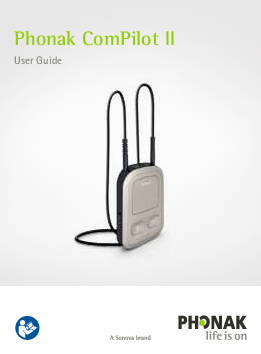
ComPilot II
Phonak ComPilot II - Find the best hearing aid solution
your hearing aids to different listening situations. Please note that your hearing care professional must configure your ComPilot II before it can be used as a remote control for your hearing aids. Bluetooth is a regist…
Phonak ComPilot II
Bluetooth 4.2 Initial pairing to a phone It is only necessary to perform the pairing procedure once with each Bluetooth device, e.g. a phone. ComPilot II will connect automatically to the phone after the initial pairing…
ComPilot II - PhonakPro
ComPilot II acts as an interface between the phone and your ... If this is disturbing, refer to your phone user guide for information ... ting time for your. ComPilot II.
Full PDF Document

If the inline viewer fails, it will open the original document in compatibility mode automatically. You can also open the file directly.
Extracted Text
Phonak ComPilot II
User Guide
64

Contents
1. Welcome
2. Getting to know your ComPilot II 2.1 Legend
3. Getting started 3.1 Setting up the power supply 3.2 Charging the battery 3.3 Switching On / Off 3.4 How to wear 3.5 Sound demonstration
4. Phone calls 4.1 How it works 4.2 Initial pairing to a phone 4.3 Connecting to the phone 4.4 Making a call 4.5 Accepting a call 4.6 Ending a call 4.7 Advanced phone options 4.8 Additional features
2

5

4.9 Using the external phone microphone

24

4.10 Using the protective silicon skin

25

6

7

5. Streaming audio

27

5.1 Streaming audio via a cable

27

8

5.2 Streaming audio via Bluetooth

28

8

5.3 Streaming audio from TV or HiFi

30

10

11

6. Using ComPilot II as a remote control

31

11

6.1 Changing the volume

31

12

6.2 Changing the program

32

6.3 More remote control information

33

14

15

7. Using ComPilot II with Roger / FM

34

14

17

8. More detailed information

36

18

8.1 Main button functionality

36

18

8.2 Locking the buttons

37

19

8.3 Switching off the indicator light

37

20

8.4 Managing multiple inputs

38

23

8.5 Understanding the indicator lights

40

3

Contents

8.6 Deleting paired Bluetooth devices

42

8.7 Caller identification

43

8.8 VoiceAlerts (spoken messages)

44

9. Troubleshooting

46

10. Service and Warranty

55

10.1 Local warranty

55

10.2 International warranty

55

10.3 Warranty limitation

56

11. Compliance information

57

12. Information and explanation of symbols

64

13. Important safety information

68

1. Welcome
Your ComPilot II is a premium-quality product developed by Phonak, one of the world's leading companies in hearing technology.
Please read the user instructions thoroughly in order to benefit from all the possibilities your hearing system offers.
Compatibility information: Check your hearing aid compatibility with your hearing care professional.

Phonak � life is on

www.phonak.com

CE mark applied: 2020

4

5

2. Getting to know your ComPilot II
The intended use of ComPilot II is to wirelessly connect different Bluetooth� devices to your hearing aids. For example, cell phones, MP3 players etc. You can also connect other audio devices directly via a plug. E.g. computers, Roger and FM receivers. ComPilot II can also be used as a remote control to adapt your hearing aids to different listening situations.
Please note that your hearing care professional must configure your ComPilot II before it can be used as a remote control for your hearing aids. Bluetooth� is a registered trademark owned by the Bluetooth SIG, Inc.
6

2.1 Legend

Buttons

L

A Main

B Volume up / down

C Home

D Connect

E On / Off switch

E

Inputs

F Microphones

F

G Audio input 3.5 mm jack

H Roger / FM (Europlug)

M

I Charging input (mini-USB)

Indicator lights J Audio K Power

Others L Neckloop sockets M Neckloop

GHI

J K A B
D C

7

3. Getting started
ComPilot II must be set up and charged before use. 3.1 Setting up the power supply Select the adapter that corresponds to your country.

UK

AUS

US

EU

� Firstly, insert the top round end of the adapter into the round corner of the power supply.
� Click the bottom end of the adapter in to lock it into place.

� To remove, first pull back the tab on the power supply.
� Pull the adapter upwards to remove it.

8

1. 2.
1. 2.

Power supply specification � Power suppl y output voltage: 5.0V DC 1000mA 5W
LPS � Charger input voltage: 100-240V AC 50/60Hz 0.2A � USB cable specifications: length <3m List of accessories: � USB cable (1m) � power supply with wallplug � adapter � pouch (optional)
9

3.2 Charging the battery � Plug the larger end of the
charging cable into the universal power supply. Plug the smaller end into the mini-USB port on ComPilot II. � Plug the power supply into a power outlet.
The power indicator is red during charging and will turn green when charging is complete.
ComPilot II has a non-removable rechargeable battery. Before using ComPilot II for the first time, charge it for at least 3 hours.
10

It is safe to leave ComPilot II connected to the charger overnight.

The full performance of a new battery is achieved only after three complete charge and discharge cycles.

3.3 Switching On and Off

Slide the power switch as shown to turn the ComPilot II On or Off.

Off On

Switch ComPilot II off when not in use.
3.4 How to wear
Before any phone call, music or TV streaming: � Insert the hearing aids into your ears correctly
and switch them on.
� Switch ComPilot II on.

11

� Put the ComPilot II neckloop around your neck.
� Insert both plugs firmly.
3.5 Sound demonstration Wear your hearing aids and ComPilot II correctly and switch them on (see chapter 3.4).
Press and hold the main button while switching on the device. Release the main button. The audio indicator light will turn pink.
audio power
12

The hearing aids will switch to streaming mode and you will hear the ComPilot II sound demonstration.

� Use volume up / down volume.

buttons to adjust the

� The demo will stop after 3 minutes or when the main button is pressed.

Adjusting the volume during the sound demonstration will also set the volume level of the spoken ComPilot II messages (see chapter 8.8).

If you cannot hear the sound demonstration, please consult the troubleshooting section (see chapter 9).

The default language setting of a new ComPilot II is English and can be configured by your hearing care professional.

13

4. Phone calls
4.1 How it works ComPilot II acts as an interface between the phone and your hearing aids. During a call you will hear the caller's voice directly in your hearing aids. ComPilot II picks up your voice through its own microphones. Speak into ComPilot II � not into the phone � when a call is in progress.
Your voice

4.2 Initial pairing to a phone
It is only necessary to perform the pairing procedure once with each Bluetooth device, e.g. a phone. ComPilot II will connect automatically to the phone after the initial pairing.
� On your phone, ensure that Bluetooth is enabled and search for Bluetooth devices in the connectivity setting menu.
� Switch on ComPilot II.
� Press and hold the connect and volume up buttons simultaneously (2 sec) until the audio indicator starts to rapidly blink blue.

Bluetooth

Caller's voice

audio power

14

14

15

� Start the pairing process on the phone within 1 minute according to the phone user guide.
� Your phone shows a list of found Bluetooth devices. Select "Phonak ComPilot II" from this list and enter the code "0000" if prompted.
� ComPilot II requires access to your phone book. When prompted accept the request.
� After successful pairing, the audio indicator will stop blinking blue.
A quick pairing instruction is also shown on the back of ComPilot II.
For more information about Bluetooth pairing instructions specific to some of the most popular phone manufacturers, go to: http://www.phonak.com/compilotII
16

4. Phone calls
4.3 Connecting to the phone
Wear your hearing aids and ComPilot II correctly and switch them on (see chapter 3.4).
After your phone has been paired to ComPilot II, they will automatically connect to each other. If they do not connect automatically, go to your phone's Bluetooth menu and select ComPilot II from the list.
If you are required to connect manually, please refer to your phone's user guide.
Confirmation of successful connection is indicated on ComPilot II by the audio indicator blinking blue.
The connection will be maintained as long as the devices remain on and within range.
ComPilot II can connect to two phones at the same time but only one call at a time is possible.
When pairing to a phone we recommend to disable the phone key tones and SMS alerts.
17

4.4 Making a call
Enter the phone number using the phone keypad and press the dialing button.
Call
You will hear the dialing tone through your hearing aid.
Speak into ComPilot II � not into the phone � when the call is in progress.
4.5 Accepting a call
When a call is received on your cell phone: � ComPilot II audio indicator will show a solid blue
light. � It will take about 2 seconds before you hear the
ringtone through your hearing aids. � Press the main button once you hear the ring-
tone through your hearing aids.
18

4. Phone calls

"click"

If a second call comes in on the same phone: � Press the main button to accept � Press and hold the main button (2 sec) to reject
An incoming call from a second paired phone will be ignored during an active call.
4.6 Ending a call
Press the main button to end the call. You can also end a call on your phone instead of your ComPilot II.

19

You will hear the previously-active program or audio source.
4.7 Advanced phone options
Rejecting a call Press and hold the main button (2 sec) until the ringtone stops. Using your phone to reject the call will have the same effect.
Setting the phone volume Use the phone's volume buttons to adjust the phone volume to a comfortable level.
For better understanding of a call, surrounding sounds picked up by the hearing aids are reduced according to the settings made by the hearing care professional.
Reducing surrounding sounds � Press and hold the volume down button (2 sec)
for more reduction. � Press and hold the volume up button (2 sec) to
return to the default reduction.
20

4. Phone calls Disabling unwanted alerts Some cell phones are configured to play key-press tones, SMS announcements and confirmation beeps. You are able to hear these alerts in your hearing aids. If this is disturbing, refer to your phone user guide for information about disabling these alerts. How to hold ComPilot II during phone calls Note: Maximum distance between ComPilot II and the phone is 5�10 m (15�30 ft). � Wear ComPilot II around the neck during the
phone call.
21

� In very noisy environments, you can move ComPilot II closer to your mouth.
� Avoid covering the microphone openings on the side with your fingers or clothes.
22

4. Phone calls
4.8 Additional features
The following features can be set by your hearing care professional.
Your phone must support these features. Please consult the phone user manual for details.
Caller's name announcement By default, ComPilot II will announce the caller's name as shown on the phone display (caller identification).
The following features can be enabled separately. Press and hold the assigned button (2 sec) to use the feature: 1. Last number redial: This will redial the last dialed
number. 2. Voice dial: Allows you to say the person's name instead
of typing the number. 3. Dial preferred number: Directly dials a pre-defined
number 4. Hold call: While in a phone conversation, this will put
the call on hold. The caller stays on the line but there
23

is no audio transfer and the hearing aids switch to the previously active hearing program. 5. Transfer call: This allows you to forward a phone call to another telephone. Your hearing aids will switch back to the last hearing program.
To transfer the call back to ComPilot II, press and hold the main button. The call will now resume through your hearing aids.
4.9 Using the external phone microphone
Use the optional microphone "MC1" if you wear ComPilot II underneath clothing during a phone call.
� Plug the 3.5 mm microphone plug into the audio input of ComPilot II (the internal microphones on ComPilot II will be disabled).

4. Phone calls
� Use the clip to place the microphone close to your mouth.
� Put the neckloop around your neck and switch ComPilot II on.
Jackets, etc., will not negatively influence the wireless link to your hearing aids.
Use only the recommended external microphone from Phonak.
4.10 Using the protective silicon skin
To protect the ComPilot II when wearing it underneath clothing, use the protective silicon skin.
� Slip the silicon skin onto the back of ComPilot II.

24

25

� Plug the neckloop through the neckloop sockets into ComPilot II.
The protective skin does not guarantee complete resistance against water, moisture or sweat.

5. Streaming audio

Before streaming, wear your hearing aids and ComPilot II correctly and switch them on (see 3.4).

5.1 Streaming audio via a cable

� Insert the audio cable into

AUDIO

ComPilot II.

� Insert the other end of the

audio cable into the headphone

socket on your audio player

and start the player.

The audio streaming will automatically start. Adjust the volume on your audio player.

Press the main button to stop and restart streaming.

"click"

26

27

5.2 Streaming audio via Bluetooth
Streaming audio via cell phone You can stream music wirelessly from your cell phone: � Make sure ComPilot II is connected to your phone
as described in chapter 4.3. � Use your phone music player to play music.
Streaming audio via other devices To use ComPilot II with a Bluetooth enabled audio device (e.g. mp3 player), you must first pair the devices: � Switch on ComPilot II. � Press and hold the connect and volume up
buttons simultaneously (2 sec) until the audio indicator starts to rapidly blink blue.
audio power
� Start the pairing process on the Bluetooth device within 1 minute according to the device's user guide and use code "0000" if prompted.
28

5. Streaming audio

� After successful pairing, the audio indicator will stop rapidly blinking.
� Press play on the Bluetooth device if needed. � Streaming will start automatically and the audio
indicator will turn solid blue indicating a successful connection.

To adjust the volume of the audio signal use the volume on the audio device.

Press the main button to pause and restart streaming.

((click))

To stop Bluetooth streaming completely, press and hold the main button (2 sec), switch the other Bluetooth device off or disable its Bluetooth feature.

Please refer to the device's user guide or dealer support if you cannot complete the pairing procedure with the generic steps described.

ComPilot II streaming time is up to 24 hours with a fully charged battery.

29

5.3 Streaming audio from TV or HiFi It is recommended to use the dedicated and optimized Phonak TVLink II basestation for watching TV or listening to music through it. It offers the following benefits: � Wireless transmission up to 30 meters (90 ft.). � Analog and digital inputs (optical, coaxial). � Charging cradle for ComPilot II.
Refer to the TVLink II user guide for pairing instructions.
30

6. Using ComPilot II as a remote control

Before this functionality can be used, your hearing care professional must enable the remote control in ComPilot II.

6.1 Changing the volume

Press buttons on ComPilot II:

�

to increase the volume

�

to decrease the volume

Adjusting the volume with ComPilot II will have the same effect as adjusting the volume directly on your hearing aids.

Reducing surrounding sounds You can reduce the surrounding sounds with a single button press. This may be helpful during music or phone streaming. The level of reduction is set by your hearing care professional.

� Press and hold the volume down button (>2 sec) for more reduction.

31

� Press and hold the volume up button (>2 sec) to return to the original hearing aid volume.
6.2 Changing the program
Changing hearing aid programs is only possible if no streaming is in progress.
Press the main button to change hearing aid programs.
Press the home button to return to the startup program and volume level of your hearing aids.

6. Using ComPilot II as a remote control
If ComPilot II is used as a handheld remote control (without neckloop): � Max. distance to the
hearing aids is 110 cm / 43". � Hold ComPilot II as shown.
6.3 More remote control information
� Press and hold the home button (>2 sec) to select the favorite hearing program configured by the hearing care professional.
� Both hearing aids are controlled at the same time.

32

33

7. Using ComPilot II with Roger / FM
ComPilot II can be used together with Roger or FM receivers through its direct audio input (Europlug).
� Place the Roger / FM transmitter near the sound source and turn it on.
� Attach your receiver to ComPilot II via the Europlug socket as shown in the picture (turn receiver on if required).
When a signal is detected, you will hear a beep notification through your hearing aids.
� Press main button to accept the signal.
� Press main button again to stop or resume the signal.

7. Using ComPilot II with Roger/FM
After 20 seconds the input will be put on hold automatically if you do not accept it.
As long as a signal is received the hearing aid programs cannot be changed via the main button.
If ComPilot II does not receive a signal through the Europlug for 3 minutes, an alert will be heard.

34

35

8. More detailed information
8.1 Main button functionality The main button has multiple functions: 1. Phone: It accepts and ends a phone call. 2. Stream: It pauses and resumes the streaming from an
audio device. 3. Remote control: It changes the hearing aid
programs (ComPilot II must be configured as a remote control by your hearing care professional).
The hearing programs cannot be changed when: - a phone call is in progress - a Bluetooth device is streaming or paused - a audio cable is plugged in - a direct audio input is available
36

8. More detailed information
8.2 Locking the buttons
To prevent the buttons being accidentally pressed: � Press the connect and home
button simultaneously to lock or unlock the buttons. � The power indicator will triple blink red indicating that the buttons are locked.
Accepting an incoming call is still possible.
The key symbol on the back reminds you of the lock function.
8.3 Switching off the indicator light
If the indicator light is disturbing: � Lock the ComPilot II as described in chapter 8.2 � During locked state the indicator light remains
switched off
A low battery state will be shown.
37

8.4 Managing multiple inputs
When an audio source is connected via ComPilot II, your hearing aids will automatically switch to the special streaming programs.
It is possible to have multiple audio sources connected and in operation with ComPilot II: � Two Bluetooth devices � One 3.5 mm audio plug � One direct audio input (Europlug)
A phone call always has priority. You will hear the ringtone even when listening to other audio sources. If you reject or terminate the call, audio streaming will resume.
If you want to listen to music from your connected mobile phone, you must start the music via your phone initially; it cannot be started from the ComPilot II.

8. More detailed information
Selecting audio sources � One source: Each press of the main button will
pause or resume the source. � Multiple sources: After each press of the main
button, ComPilot II selects the next connected source in a fixed sequence. � If a source is not connected, the ComPilot II will proceed to the next source. � Every connected source has a fixed place in the sequence, as shown in the picture.

Previously-active hearing program

Europlug
3.5 mm plug

Bluetooth music 1
Bluetooth music 2

38

39

8.5 Understanding the indicator lights

audio

Bluetooth pairing

Rapid blink blue

1 Bluetooth device connected

Short blink blue

2 Bluetooth devices connected

Double-blink blue

Phone or music streaming Solid blue via Bluetooth

Plug or Europlug streaming Solid orange

Demo sound playing

Solid pink

40

8. More detailed information

power

Charging Charged and full battery Switching On Switching Off
Battery above 10% <10% battery left. Please charge Charging required. (at least 2 hours) Enable / Disable lock state

Solid Red Solid green Green 2 seconds Blink red then solid for 2 seconds Slow blink green Short blink red
No blinking just after switching On Triple flash red (locked) Triple flash green (unlocked)
41

8.6 Deleting paired Bluetooth devices
If you encounter issues with one of the paired devices, you may consider deleting the pairing to the ComPilot II.
Deleting the pairing of Bluetooth devices removes the ability to connect to any previously paired Bluetooth device.
1. Turn on your ComPilot II. 2. Press and hold the connect and volume up
buttons for 10 seconds until the blue rapid blinking audio indicator stops. 3. Also delete the ComPilot II pairing entries on your mobile phone before any re-pairing. 4. Repeat the pairing procedure as described in chapter 4.2.

8. More detailed information
8.7 Caller identification
The ComPilot II is able to tell you the name of the caller.
ComPilot II will try to access information about the caller from your phone book. It will be spoken through your hearing aids as follows: � The stored name in your phone's phonebook � The number if the name is not known
Your hearing care professional can configure the language setting of your ComPilot II.

42

43

8.8 VoiceAlerts (spoken messages)
Informs you about the different operation modes and status of the ComPilot II using spoken messages.
Your hearing care professional can configure the language setting as well as the speech levels available: � Warnings only: Spoken information about a low
ComPilot II battery and during the Bluetooth pairing process. � Standard: Additional information about switching ComPilot II on or off, start or end charging during streaming, input channel selection and Europlug announcements. � Detailed: Additional information about start or end of charging even if no streaming source is active, external microphone connection, Bluetooth device connect or disconnect and transfer or hold a call.

44

45

9. Troubleshooting
For any problems not listed in this user guide, please contact your hearing care professional.

Causes

What to do

During Bluetooth pairing my other device is prompting me for a code, what do I have to enter?

� The pairing code is required � Enter 0000 (four zeros)

for the initial coupling of

when prompted for a

ComPilot II with your Blue-

code.

tooth device ("pairing").

I hear intermittency during an audio transfer via ComPilot II.

� The Bluetooth device is too � Do not to exceed the maxi-

far away, or worn in a back

mum distance (15-30 ft.)

pocket (body shielding).

and keep Bluetooth

� ComPilot II searches for

devices in front of you.

known

� After 2 minutes, ComPilot

devices for 2 minutes after

II will stop searching and

switching on.

the intermittency will

� A phone connected to other

stop.

devices such as a PC may � When using your Blue-

not be able to continuously

tooth phone as music pla-

stream music.

yer, disconnect it from

other devices such as PCs.

9. Troubleshooting

Causes

What to do

The volume of the music is too loud or too quiet. The volume of phone conversations is not comfortable (too low or too high).

� Different audio sources have � To change the volume of

different outputs.

the phone, or any other

sound source to ComPilot

II, use the volume control

of that external device.

I have difficulties understanding the phone conversation in a noisy environment.

� Your hearing aid microphones are set too high during the call.

� Reduce the hearing aid volume by pressing the button (see chapter 6.1).
� If the sound volume over

the phone (or music) is too

low after this reduction

use the phone volume

button to increase the vo-

lume.

The caller can hear me but I cannot hear the caller.

� The call was transferred to � Make sure the call is

your phone.

transferred back to

ComPilot II via the phone

menu.

46

47

Causes

What to do

ComPilot II is no longer recognized by the phone or other Bluetooth device to which it was previously paired.

� 2 minutes after not finding � Switch ComPilot II off.

a device, ComPilot II will

Wait until the red indica-

stop seeking devices to save

tor switches off, then turn

power.

device on again.

� The devices are too far away � Bring devices within a meter

from each other.

of each other and try again.

� ComPilot II can be paired to � Repeat the pairing bet-

a maximum of 6 different

ween ComPilot II and the

Bluetooth devices. If the

Bluetooth device which

internal memory is full, new

was overwritten.

pairings may overwrite

� Repeat the pairing bet-

previous pairings.

ween ComPilot II and the

� Pairing was deleted.

Bluetooth device which

was deleted.

I am not streaming but the hearing aids keeps switching

between the Bluetooth and the normal hearing aid program.

� Your phone sends sounds to � Disable the system sounds

ComPilot II due to incoming

for reminders, alarms, SMS,

SMS or e-mails.

etc. via your phone menu.

� Phone key tones are

� Switch off phone key tones

switched on.

via your phone menu.

I hear my phone's key-press tones in my hearing aids.

� The key-press tones may be � Deactivate key-press and

enabled on your phone.

confirmation tones on

your phone. Please refer to

the phone's user guide.

48

9. Troubleshooting

Causes

What to do

Every time I switch on my phone, the music player starts.

� For some phones this is normal behavior and not initiated by ComPilot II.

� Some phones can be configured not to start the music player automatically.
� Stop the music player via phone menu after the phone is connected.

Every time I get in my car the ComPilot II connection to my phone behaves unexpectedly.

� The car Bluetooth system connects to your phone.

� Consider disconnecting the car system from your phone.

I accepted the incoming phone call but cannot hear the call

in my hearing aids.

� Some phones, when accepting � Always accept the call

the call through the phone

by pressing the main

button, don't use ComPilot II.

button.

The phone is ringing but the Audio indicator is not solid blue and there is no ringing signal through the hearing aids.

� Bluetooth is disabled in the � Ensure Bluetooth is

phone.

enabled according to your

phone's user guide.

� ComPilot II and your phone

1. Disable the Bluetooth

are not connected to each

functionality in your

other.

phone and turn it on

again.

49

Causes
� ComPilot II is not paired to the phone.
� The distance is too great between ComPilot II and the phone.

What to do
2. Restart ComPilot II by switching it off and then on. The ComPilot II Bluetooth functionality will be automatically reactivated. 3. Activate ComPilot II by selecting it in the phone's "Active device" menu. 4. Reduce the distance between ComPilot II and the phone. � Follow the pairing process
in this guide. � Wear ComPilot II around
your neck. Keep distance to phone <10 m (<30 ft).

The phone is ringing, the Audio indicator is solid blue but there is no ringing signal through the hearing aids.

� ComPilot II is out of range � Wear ComPilot II correctly

of the hearing aids.

around your neck with

both neckloop plugs firmly

plugged in.

� Phone is set to vibrate.

� Enable ring tone on phone.

You are already on a

� Hang up the first phone

phone call and a second

call, then accept the se-

call cannot be recognized.

cond call.

50

9. Troubleshooting

Causes

What to do

My phone rings but the name of the caller is not heard acoustically.

� The Caller identification

� Please refer to the phone's

feature is not available or

user guide to check the

not enabled on your phone.

availability of this feature.

� Two phones are connected � If two phones are con-

to your ComPilot II.

nected Caller identification

is only available on the

phone that was last paired

to ComPilot II.

� Caller identification may be � Please ask your hearing

switched off.

care professional to enable

Caller identification on

your ComPilot II.

During a phone call the other party has difficulty hearing me.

� ComPilot II microphone

� Make sure the microphone

openings may be covered.

openings are not covered

� ComPilot II may not be

by part of your body,

worn

clothing or dirt and debris.

correctly.

� Do not turn ComPilot II

� ComPilot II may rub against

sideways and make sure

clothing.

the neckloop plugs point

towards your mouth as

you speak.

� Reduce movement while

you speak, or consider

using the external micro-

phone (optional).

51

Causes

What to do

� The surrounding noise may � Although ComPilot II fea-

be too loud.

tures noise reduction

technologies, very noisy

environments should be

avoided.

� Suggest to your callers

that they increase the

phone volume.

ComPilot II is unresponsive or there are no light indicators when

switching on.

� ComPilot II may be

� Charge your ComPilot II

completely discharged.

for at least 1 hour.

� It may indicate a software � Unplug any connectors

problem.

from ComPilot II.

� Switch ComPilot II Off and

On again.

� Consider resetting ComPilot II.

� Switch ComPilot II Off,

wait 30 seconds, then

switch On again.

The operating time of your ComPilot II is reduced substantially.

� The battery typically needs � Charge for at least 3

several charging cycles to

hours the first time you

achieve full performance.

charge ComPilot II.

Please consult the datas- � Let a new ComPilot II

heet for the typical opera-

discharge completely

ting time for your

three times.

ComPilot II.

52

9. Troubleshooting

Causes

What to do

I have interruptions while my audio streaming is active.

� The neckloop antenna is � Replace the neckloop.

broken.

� ComPilot II is too far

� Wear the ComPilot II with

away from the hearing

the neckloop around your

aids while streaming.

neck or check if neckloop

cable is plugged in the

ComPilot II correctly.

� Hearing aids are not worn

correctly.

� Bluetooth signal is out of � Wear ComPilot II in up-

range.

right position.

� Bluetooth transmitter is � Keep the Bluetooth device

affected by an obstacle

within the operating ran-

(e.g. cellular phone).

ge.

I cannot hear the demo sound.

� Hearing aids are not worn �

correctly

� ComPilot II is not worn

�

correctly or switched Off

�

� The neckloop is broken

�

Make sure your hearing aids are inserted correctly Wear the ComPilot II with the neckloop around your neck or check if neckloop cable is plugged into the ComPilot II correctly Make sure the ComPilot II is charged and switched on Replace the neckloop

53

Causes

What to do

I cannot hear the call in my hearing aids when using my cordless phone with ComPilot II.

� Some older phones cannot � The connection must be

automatically stream audio

initiated manually.

to ComPilot II.

� Type the number on your

phone.

� Then press the connect

button and wait 5 sec.

Nothing happens when I press a button on the ComPilot II. Only the indicator light tripple flash red.

� The ComPilot II is in locked � Press the connect but-

state.

ton and home button

simultaneously to unlock

or lock ComPilot II.

10. Service and Warranty
10.1 Local warranty
Please ask the hearing care professional, where you purchased your device, about the terms of the local warranty.
10.2 International warranty
Phonak offers a one year limited international warranty, valid as of the date of purchase. This limited warranty covers manufacturing and material defects. The warranty only comes into force if proof of purchase is shown. The international warranty does not affect any legal rights that you might have under applicable national legislation governing sale of consumer goods.

54

55

10.3 Warranty limitation This warranty does not cover damage from improper handling or care, exposure to chemicals, immersion in water or undue stress. Damage caused by third parties or non-authorized service centers renders the warranty null and void. This warranty does not include any services performed by a hearing care professional in their office. Serial number:
Date of purchase:
Authorized hearing care professional (stamp/signature):
56

11. Compliance information
Europe: Declaration of conformity Hereby Phonak AG declares that this Phonak product is in compliance with the essential requirements of the Medical Device Regulation 2017/745 as well as the Radio Equipment Directive 2014/53/EU. The full text of the Declaration of Conformity can be obtained from the manufacturer or the local Phonak representative whose address can be taken from the list on https://www.phonak.com/com/en/certificates.html (Phonak worldwide locations).
Australia/New Zealand:
Indicates a device's compliance with applicable Radio Spectrum Management's (RSM) and Australian Communications and Media Authority (ACMA) regulatory arrangements for the legal sale in New Zealand and Australia. The compliance label R-NZ is for radio products supplied in the New Zealand market under conformity level A1.
FCC ID: KWC-COMPILOT2 IC: 2262A-COMPILOT2
57

Notice 1: This device complies with Part 15 of the FCC Rules and with RSS-210 of Industry Canada. Operation is subject to the following two conditions: 1) this device may not cause harmful interference, and 2) this device must accept any interference received,
including interference that may cause undesired operation.
Notice 2: Changes or modifications made to this device not expressly approved by Phonak may void the FCC authorization to operate this device.
Notice 3: This device has been tested and found to comply with the limits for a Class B digital device, pursuant to Part 15 of the FCC Rules and ICES-003 of Industry Canada. These limits are designed to provide reasonable protection against harmful interference in a residential installation. This device generates, uses and can radiate radio frequency energy and, if not installed and used in accordance with the instructions, may cause harmful interference to radio communications.
58

11. Compliance information
However, there is no guarantee that interference will not occur in a particular installation. If this device does cause harmful interference to radio or television reception, which can be determined by turning the equipment off and on, the user is encouraged to try to correct the interference by one or more of the following measures: � Reorient or relocate the receiving antenna. � Increase the separation between the device and
receiver. � Connect the device into an outlet on a circuit
different from that to which the receiver is connected. � Consult the dealer or an experienced radio / TV technician for help.
Notice 4: Japanese Radio Law and Japanese Telecommunications Business Law Compliance. This device is granted pursuant to the Japanese Radio Law () and the Japanese Telecommunications Business Law (). This device should not be modified (otherwise the granted designation number will become invalid)."
59

Any serious incident that has occurred in relation to the device should be reported to the manufacturer representative and the competent authority of the state of residence. The serious incident is described as any incident that directly or indirectly led, might have led or might lead to any of the following: - the death of a patient, user or other person - the temporary or permanent serious deterioration of a
patient's, user's or other person's state of health - a serious public health threat.
To report an unexpected operation or event, please contact the manufacturer or a representative. Diligent and routine care of your ComPilot II contributes to outstanding performance and a long service life. To ensure a long service life, Phonak AG provides a minimum of a five year service period after phase out of the respective product.
For more information regarding features, benefits, setup, use and maintenance or repairs of your accessories � contact your hearing care professional or manufacturer representative. Additional information can be found in the Data Sheet of your product.
60

For any information regarding the repair service of the hearing aid accessories please contact the hearing care professional.
Intended use The intended use of ComPilot II is to wirelessly connect different Bluetooth� devices to your hearing aids. For example, cell phones, MP3 players etc. You can also connect other audio devices directly via a plug. E.g. computers, Roger and FM receivers. ComPilot II can also be used as a remote control to adapt your hearing aids to different listening situations.
Indication: Presence of hearing loss and use of hearing aids of the Venture and Belong generation Contra-Indication: n.a. Target population: Target group are people with hearing loss wearing wireless capable Phonak Venture or Belong generation hearing instruments. No restrictions on the hearing loss level.
61

ComPilot II is suitable for the home healthcare environment and due to tits portability it may happen that it is used in professional healthcare facility environment like physician offices, dental offices etc.
Emission standards: EN 60601�1-2:2015 , IEC 60601�12:2014, EN 55011:2009 +A1, CISPR11:2009/AMD1:2010 , CISPR22:1997 , CISPR32:2012, ISO 7637-2:2011, CISPR25:2016 , EN 55025:2017
Immunity standards: EN 60601-1-2:2015, IEC 60601-12:2014, EN61000-4-2:2009, IEC 61000-4-2:2008, EN 61000-4-3:2006+A1+A2, IEC61000-4-3:2006+A1+A2, EN 61000-4-4:2012, IEC 61000-4-4:2012, EN 61000-4-5:2014, IEC 61000-4-5:2014, EN 61000-46:2014, IEC 61000-4-6:2013, EN61000-4-8:2010, IEC 61000-4-8:2009, EN 61000-4-11:2004, IEC 61000-411:2004, IEC 60601-1 (� 4.10.2):2005, ISO 7637-2:2011

Loop antenna information Type: Removable, inductive Operation frequency: 10.6 MHz Occupied bandwith (99% BW): 582 kHz Modulation: 8-DPSK Channel: Single channel radio Magnetic field strength @10 m: -18 dBA/m Operating range to hearing aid: 40 cm (15") Wearing option: Worn around neck Use case: Streaming and remote control
Ferrite antenna information: Type: Integrated, inductive Operation frequency: 10.6 MHz Occupied bandwith (99% BW): 556 kHz Modulation: 8-DPSK Channel: Single channel radio Magnetic field strength @10 m: -16 dBA/m Operating range to hearing aid: up to 100cm (39") Wearing option: handheld Use case: remote control only

62

63

12. Information and explanation of symbols
With the CE symbol, Phonak AG confirms that this product - including accessories - meets the requirements of the Medical Device Regulation 2017/745 as well as the Radio Equipment Directive 2014/53/EU. The numbers after the CE symbol correstpond to the code of certified institutions that were consulted under the above-mentioned directives.
This symbol indicates that the products described in these user instructions adhere to the requirements for an applied part of Type B of EN 60601-1. The surface of the device is specified as an applied part of Type B.
This symbol indicates that it is important for the user to read and take into account the relevant information in this user guide.
64

Indicates the medical device manufacturer, as defined in EU Medical Device Regulation 2017/745.
This symbol indicates that it is important for the user to pay attention to the relevant warning notices in these user guides.
Important information for handling and product safety.
The device is a medical device.
Indicates the Authorized representative in the European Community. The EC REP is also the importer to the European Union.
65

12. Information and explanation of symbols
Temperature transport and storage: �20� to +60� Celsius (�4� to +140� Fahrenheit). Temperature operation: 0� to +40� Celsius (+32� to +104� Fahrenheit). Keep dry.
Humidity transportation and storage: <90% (non condensing). Humidity operation: <95% (non condensing). Atmospheric pressure, transportation, storage and operation: 500 hPA to 1060 hPA.
66

The symbol with the crossed-out garbage bin is to make you aware that this device may not be thrown away as normal household waste. Please dispose of old or unused device, at waste disposal sites intended for electronic waste, or give your device to your hearing care professional for disposal. Proper disposal protects the environment and health.
The Bluetooth� word mark and logos are registered trademarks owned by Bluetooth SIG, Inc. and any use of such marks by Phonak is under license. Other trademarks and trade names are those of their respective owners.
Japanese mark for certified radio equipment.
67

13. Important safety information
The following pages contain important safety information.
Hazard warnings
Keep this device out of reach of children aged under 3 years and mentally challenged people or pets.
The following is only applicable for persons with active implantable medical devices (i.e. pacemakers, defibrillators, etc.): - Keep the wireless hearing aid or wireless accessory at least 15 cm (6 inches) away from the active implant. If you experience any interference, do not use the wireless hearing aids and contact the manufacturer of the active implant. Please, note that interference can also be caused by power lines, electrostatic discharge, airport metal detectors etc. - Keep magnets (i.e. battery handling tool, EasyPhone magnet, etc.) at least 15 cm (6 inches) away from the active implant.
68

Do not wear the device around the neck while it is connected to any programming equipment.
Changes or modifications to the device that were not explicitly approved by Phonak are not permitted.
Opening the device might damage it. If problems occur which cannot be resolved by following the remedy guidelines in the troubleshooting section of this user guide, consult your local Phonak representative.
This product has an embedded, non-replaceable battery. Do not attempt to open the product or remove the battery as this may cause injury and damage the product.
External devices may only be connected if they have been tested in accordance with corresponding IEC standards. Only use accessories approved by Phonak AG, to avoid any electrical shock.
Your device operates at 10.6 MHz and between 2.4 GHz-2.48 GHz frequency range. When flying please check if flight operator requires devices to be switched off.
69

13. Important safety information Using the device, its connectors or cables in any way contradictory to their intended purpose as described in this user guide (e.g., wearing the USB cable around the neck) can cause injury. When operating machinery, ensure that no parts get caught in the machine. The mini-USB port is to be used for the described purpose only. For charger, use only EN60950 - and/or EN60601-1 certified equipment with an output rating of 5 VDC, min. 500 mA.
Caution: electric shock. Do not insert plug alone into electrical outlets.
70

Do not use the device in explosive areas (mines or industrial areas with danger of explosions, oxygen rich environments or areas where flammable anesthetics are handled) or where electronic equipment is prohibited.
Use of this equipment adjacent to or stacked with other equipment should be avoided because it could result in improper operation. If such use is necessary, this equipment and the other equipment should be observed to verify that they are operating normally.
Use of accessories, transducers and cables other than those specified or provided by the manufacturer of this equipment could result in increased electromagnetic emissions or decreased electromagnetic immunity of this equipment and result in improper operation.
Portable RF communications equipment (including peripherals such as antenna cables and external antennas) should be used no closer than 30 cm (12 inches) to any part of the ComPilot II including cables specified by the manufacturer. Otherwise, degradation of the performance of this equipment could result."
71

Information on product safety Protect the device from excessive moisture (bathing, swimming), heat (radiator, car dashboard) or direct skin contact when sweating (workout, fitness, sport). Do not drop the device. Dropping onto a hard surface can damage your device. Special medical or dental examination including radiation described below, may adversely affect the correct functioning of your device. Remove and keep it outside the examination room/area before undergoing:
� Medical or dental examination with X-ray (also CT scan).
� Medical examinations with MRI/NMRI scans, generating magnetic fields.
72

13. Important safety information
Protect the device connectors, plugs, charging slot and power supply from dirt and debris.
The digitally-coded, inductive transmission technology used in the device is highly reliable and experiences virtually no interference from other devices. It should be noted, however, that when operating the hearing system near computer equipment, larger electronic installations or other strong electromagnetic fields, it may be necessary to be at least 60 cm (24") away from the interfering device to ensure proper operation.
Keep the device at least 10 cm away from any kind of magnets.
Do not disconnect the neckloop while the device is transmitting signals to your hearing aids.
Do not connect an USB or audio cable exceeding 3 meters (9 ft) in length to the device.
When the device is not in use, turn it off and store it safely.
73

Other important information
High-powered electronic equipment, larger electronic installations and metallic structures may impair and significantly reduce the operating range.
If the hearing aids do not respond to the device because of an unusual field disturbance, move away from the disturbing field.
14. Care and maintenance
Cleaning of the device
Use a lint-free cloth for cleaning. Dry cleaning is preferred. If necessary, the surface can be cleaned with mild soapy water. However, the cloth should be damp and not dripping wet to prevent moisture from entering the device. Do not use aggressive substances such as solvents or paint thinners as these can impair the surface.
74

Notes

Phonak AG Laubisr�tistrasse 28 CH-8712 St�fa Switzerland
www.phonak.com

029-0854-02/V1.00/2020-05/A+W/FO Printed in Switzerland � Phonak AG All rights reserved
 Infinio Hearing Aids | Phonak Rechargeable & Bluetooth Hearing Aids