

GO DIGITALLOCK
Keyless Solution to A Perfect Home
How To Use Digital Door Lock (LH5000F, LH300, LH300MG)
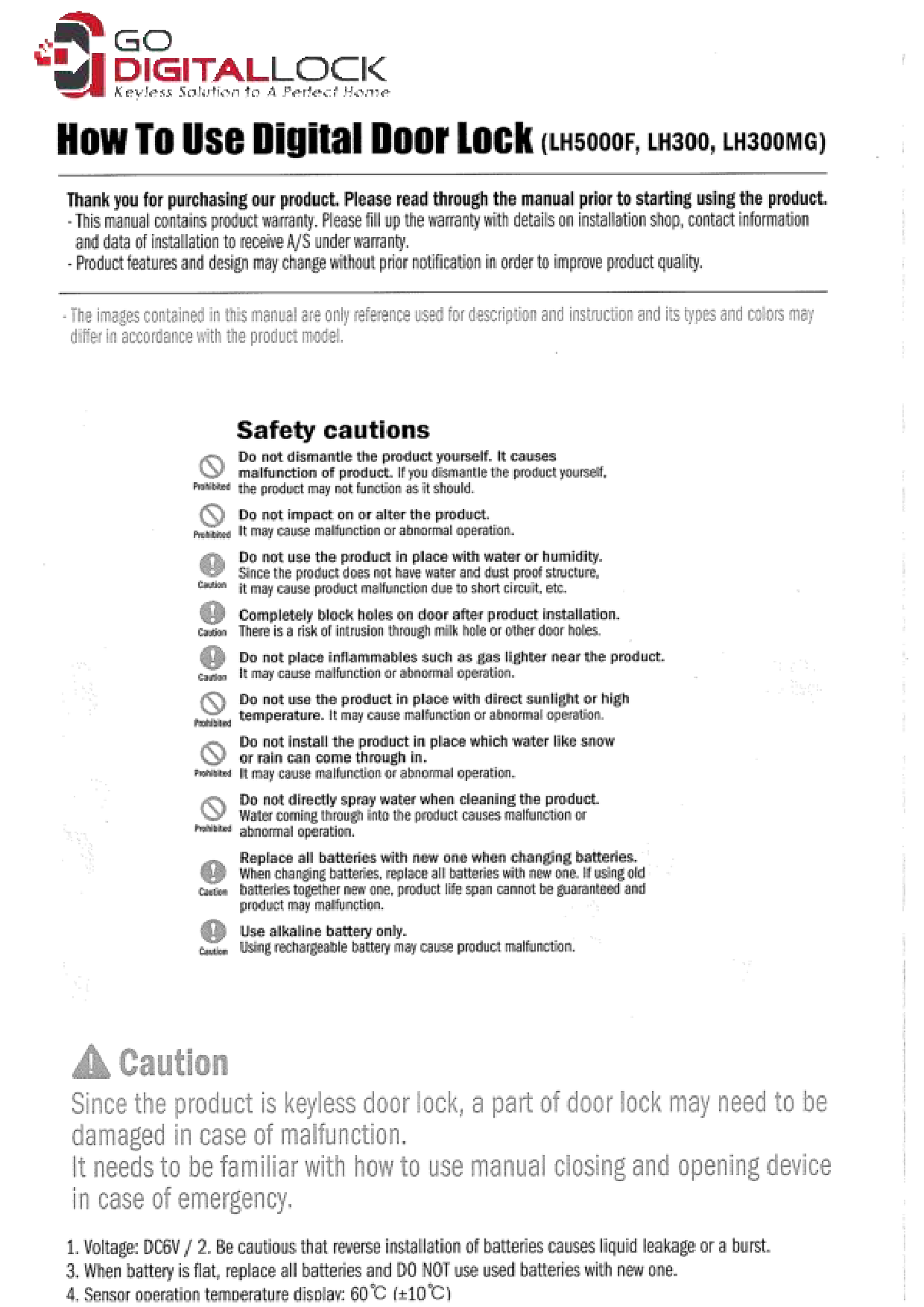
Thank you for purchasing a GO DIGITALLOCK product. Please read through this manual prior to starting use of the product. This manual contains product warranty. Customers should fill up the warranty with details on the installation shop, contact information, and installation data to receive A/S under warranty.
- Product features and design may change without prior notification in order to improve product quality.
- The images contained in this manual are only references used for description and instruction, and their types and colors may differ in accordance with the product model.
Safety Cautions
- Voltage: DC6V.
- Be cautious that reverse installation of batteries causes liquid leakage or a burst.
- When the battery is flat, replace all batteries and DO NOT use used batteries with new ones.
- Sensor operation temperature display: 60°C (±10°C).
LH5000F - Product Structure and Name
Basic Components (Check if your product contains all contents.)
The LH5000F digital door lock system includes the following basic components:
- 1 outdoor body (the external unit with fingerprint scanner, number pad, reset button, 9V power terminal, and handle)
- 1 indoor body (the internal unit with battery cover, input button, and open/close button)
- 1 Mortise (latch)
- 1 Strike box set
- 1 user manual
- 1 installation guide
- 1 caution sticker
- Bolt set
- 4 AA alkaline batteries
Extra Accessories (Applied model with card/key tag)
For models supporting card/key tag functionality, the following extra accessories may be included:
- Anti-metal card
- Card
- Small card (Tag)
- Emergency key
Note: Basic components (and extra accessories) and their quantity may differ depending on the product model and its opening/closing function. Types and colors of Card key (and Remote controller) may change.
Optional Accessory Sold Separately (Applied model with remote controller)
For models supporting remote control, a remote controller and a support plate are available as optional accessories.
Product Specifications
| Type | Specification |
|---|---|
| Outdoor body | 75.6 (W) x 254.6 (H) x 18.5 (D)mm |
| Indoor body | 78 (W) x 232 (H) x 30 (D)mm |
1. Master Mode
Set in Master Mode
Setting Master Control Number
Inputting the master code is required when changing passwords or registering/deleting cards/remotes.
- Press the "Input button" on the indoor body.
- Press "0" and "#" in order.
- Register a new master control password (3~19 digits).
- Press the "*" button to complete.
Note: In Master mode, the device will always make two short beep sounds whenever the "Input button" is pressed.
Registering/Changing User Password In Master Mode
A. Registering User Password
- Press the "Input button" on the indoor body (two short beep sounds).
- Enter the Master control password and the "*" button.
- Register the User password and the "*" button to complete.
B. Changing User Password
Change the password in the same way as described above. When registering a new password, the previous password is automatically deleted.
Registering/Deleting User Card In Master Mode (Applied model)
A. Registering Card
- Press the "Input button" on the indoor body (two short beep sounds).
- Enter the Master control password and the "*" button.
- Contact each Smart card to be registered to the external input part on the outdoor body. Up to 50 cards can be registered.
- Press the "*" button to complete.
B. Deleting Card
- Press the "Input button" on the indoor body (two short beep sounds).
- Enter the Master control password and the "*" button.
- Press the "0" button two times and the "*" button to complete.
Registering/Deleting Remote In Master Mode (Applied model)
A. Registering Remote
- Press the "Input button" on the indoor body (two short beep sounds).
- Enter the Master control password and the "*" button.
- Press one of the two buttons on the Remote. Up to 15 Remotes can be registered.
- Press the "*" button to complete.
B. Deleting Remote
- Press the "Input button" on the indoor body (two short beep sounds).
- Enter the Master control password and the "*" button.
- Press the "5" button two times and the "*" button to complete.
Note: Remote controls can be registered up to 15. The door will close or open within 2~3 seconds after pressing the button.
Registering/Deleting Fingerprint in Master Mode (Applied model)
A. Registration
- Press the "Input button" on the indoor body (two short beep sounds).
- Enter the Master control password and the "*" button.
- Push the scanner cover to the left side and input a fingerprint to be registered on the scanner primarily until the first "beep" sound, then remove the finger.
- Re-input the same fingerprint on the scanner secondarily until the second "beep, beep" sound, then remove the finger.
- Lastly, re-put the same finger again thirdly until a "ding-dong-dang" sound informs successful registration.
- Press the "*" button to complete registration. ("Ding dong" sound when successfully registered, three short "beep" sounds when failed).
B. Deleting Fingerprint
- Press the "Input button" on the indoor body (two short beep sounds).
- Enter the Master control password and the "*" button.
- Press the "0", "1" and the "*" button in order to complete deletion.
- The fingerprints of infants in the developmental stage or some users with unique fingerprints (those which cannot be registered) may not be recognized.
- Scanning foreign substance (sweat and moisture)-stained fingerprints or dry fingerprints may lead to failure to recognize fingerprints.
- Keep the fingerprint input unit clean so it is not stained with foreign substances and do not use a wet finger.
- If fingerprint recognition is not successful, input and use the fingerprints of another finger.
- Registered fingerprints may also be registered in a duplicate manner.
2. Revert to Non-Master mode from Master mode
No need to input the master password when changing passwords or registering/deleting cards/remotes in Non-Master mode.
- Press the "Input button" on the indoor body.
- Input the registered master control password.
- Press the "*", "0", "#", "0", "0", "*" button in order to complete.
Remark: In Non-Master Mode, the device always makes one short beep sound whenever the "Input button" is pressed.
Registering/Changing User Password In Non-Master Mode
A. Setting User-password
- Open the battery cover on the indoor body.
- Press the "Input button" (one short beep sound).
- Input the new password. Up to 4 to 19 digits can be registered.
- Press the "*" button to complete the registration. A "Ding-dong" sound will occur to inform you of successful input.
B. Changing User-password
Change the password in the same way as described above. When registering a new password, the previous password is automatically deleted.
Registering/Deleting User Card In Non-Master Mode (Applied model)
A. Registering User Smart card
- Open the battery cover on the indoor body.
- Press the "Input button" (one short beep sound).
- Contact each Smart card to be registered to the external input part. Up to 1 to 50 keys can be registered.
- Press the "*" button to complete the registration. A "Ding-dong-dang" sound indicates success, while a "Beep" sound indicates failure.
B. Deleting User Smart card
- Open the battery cover on the indoor body and press the "Input button" one time (one short beep sound).
- Press the "0" button two times on the number pad on the outdoor body.
- Press the "*" button to complete the deletion.
Registering/Deleting Remote In Non-Master Mode (Applied model)
A. Registration
- Press the "Input button" on the indoor body (one short beep sound).
- Press one of the two buttons on the Remote. Up to 15 Remotes can be registered.
- Press the "*" button to complete.
B. Delete
- Press the "Input button" on the indoor body (one short beep sound).
- Press the "5" button two times and the "*" button to complete.
Registering/Deleting Fingerprint in Non-Master Mode (Applied model)
A. Registration
- Press the "Input button" on the indoor body (one short beep sound).
- Slide the scanner cover to the left side and place a fingerprint to register on the scanner until the first "beep" sound.
- Place the same fingerprint on the scanner until the second "beep, beep" sound.
- Lastly, place the same finger again until a "ding-dong" sound informs successful registration.
- Press the "*" button to complete registration. ("Ding dong" sound when successfully registered, three short "beep" sounds when failed).
B. Delete
- Press the "Input button" on the indoor body (two short beep sounds).
- Press the "0", "1" and the "*" button in order to complete deletion.
- The fingerprints of infants in the developmental stage or some users with unique fingerprints (those which cannot be registered) may not be recognized.
- Scanning foreign substance (sweat and moisture)-stained fingerprints or dry fingerprints may lead to failure to recognize fingerprints.
- Keep the fingerprint input unit clean so it is not stained with foreign substances and do not use a wet finger.
- If fingerprint recognition is not successful, input and use the fingerprints of another finger.
- Registered fingerprints may also be registered in a duplicate manner.
3. Common Features
Door Opening
Opening from the Outdoor
A. Opening the door using user password from the outdoor
- Press more than 2 numbers on the number pad. (A "Beep" sound occurs and the digit board lights on.)
- Enter the user password and press the "*" button to open the door.
B. Opening the door using the Smart card from the outdoor (Applied model)
Contact the registered Smart card to the input part on the outdoor body. A "Ding-dong" sound will occur and the door will be opened.
C. Opening the door using Fingerprint from the outdoor (Applied model)
Place the registered fingerprint on the scanner. (A "Beep" sound) & Raise down the handle to open the door.
Opening from the Indoor
- RIM LOCK (LH300): Press the "Open/Close button" to open the door.
- MAIN LOCK (LH5000F): Press the "Open/Close button" to open the door or with the handle down, you can open the door easily.
- Metal Gate Lock (LH300MG): Press the remote button to unlock the door. Use the mechanical key for emergency cases.
Door Closing
Closing from the Outdoor
- Auto mode: Close the door, it will lock automatically.
- Manual Mode: Touch more than 2 numbers on the number pad to close the lock.
Closing from the Indoor
- Auto mode: Close the door. It will lock automatically.
- Manual Mode: Press the "Open/Close button" to lock the door or press the remote button to lock the door.
Useful Function
Auto Locking Function
- Manual Mode: Press "Input button" once → "#" button → "Input button" (short one "beep" sound).
- Auto Mode: Press "Input button" once → "#" button → "Input button" (Long "ding-dong" sound).
Note: The setting method is the same. Whenever this process is repeated, it changes from one another. If the lock is set in auto mode, it locks automatically when the door closes.
Auto Lock Time Changeable (2-9 seconds)
Press "Input button" → "8" button → desired times ("2"~"9" buttons) → "*" button.
Indoor Dual Lock Function
If the indoor double locking system is set with the door locked, the door is not opened even though the password is entered or the key is applied from outside.
- Setting: Press the "Open/Close button" for 5 seconds. A "ding-dong-dang" sound indicates success.
- Cancellation: For Main lock, raise down the handle. For Rim lock, press the "Open/Close button" to disable the function and open a door.
Outdoor Dual Lock Function (Burglar Prevention Through a Slot)
When the external dual lock is set, the door does not open in spite of pressing the "Open/Close button" from the indoor.
- Setting: Touch the screen with fingers to light numbers on and touch the "#" button for 5 seconds long. (A "Ding-dong-dang" sound occurs.)
- Cancellation: Open the door lock using the password one time to disable this function.
Password Exposure-Proof Function
Before inputting passwords, press random digit buttons without limitation and then input the password; the password will be concealed.
Lock Error Check
When the door is not closed normally, the machine will try to open the door three times and then a "Beep" sound will occur to inform of an error. The bolt error will be indicated by the external alarm lamp lighting on.
Sound Control Function (Volume Low → High)
Open the battery cover → Press "Input button" → "1" and "3" buttons → "*" button → "1" button several times for small sound and "3" button several times for loud sound → "*" button.
Fire Sensing Function (Built-in Fire Detection Sensor)
When the thermal detection sensor detects heat (60°C±10°C), the door will be automatically opened.
Battery Exchange Time
If the built-in battery voltage gets low, the lamp blinks before 7 days and a saved melody rings. All batteries should be replaced with new spares.
Opening the Door with 9V Spare Battery
In case of emergency or dead batteries, a 9V battery can be used to temporarily power the lock.
A. Opening the Door with the Password:
- Contact a 9V battery to the emergency power terminal.
- Press more than 2 numbers to light on the number pad.
- Input the password and press the "*" button to open the lock.
B. Opening the door with RF card
- Contact a 9V battery to the emergency power terminal.
- Contact a Smart card to the input part to open the lock.
Note: Ensure the battery is properly contacted with the emergency socket when using this function. The external emergency power supply socket does not have polarity. The location of the external emergency power supply socket may differ according to the product model.
Re-set Function
This function allows resetting the program by pressing the Reset button in case of a temporary error rather than product malfunction. Press the Reset button using a sharp object such as a ballpoint pen or toothpick.
Models: LH5000F, LH300, LH300MG, Digital Door Lock
Full PDF Document

If the inline viewer fails, it will open the original document in compatibility mode automatically. You can also open the file directly.