

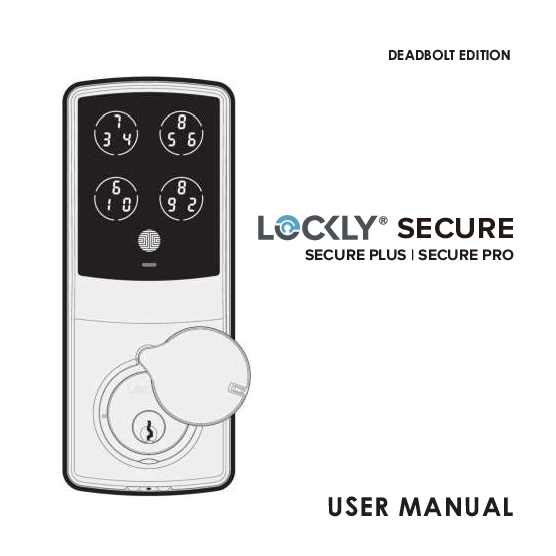
LOCKLY Secure User Manual
Secure Plus | Secure Pro
DEADBOLT EDITION
Table of Contents
This document is structured into the following sections:
- Section 1: Product Highlights
- Section 2: Product Overview
- Section 3: Using Your Smart Lock
- Section 4: Locking and Unlocking
- Section 5: Advanced Features
- Section 6: Re-keying
- Section 7: Important Notes
- Section 8: Cleaning
- Section 9: Safety Precautions
Section 1 - Product Highlights
1.1 Product Features
Patented Anti-Peep PIN Genie® Keypad: Digits are randomly displayed on the keypad, ensuring access codes are undetectable to intruders after repeated use. Numbers are randomly distributed across 4 buttons, with 3 numbers in each button. Users can press any button showing their number. The location of the numbers is always different every time someone uses the keypad, making it hard for prying eyes to guess the correct code.
Multiple Access Codes & Monitoring: Store up to 18 Access Codes for family, friends, and guests, as well as monitor entry and exit records.
Advanced 3D Fingerprint Recognition: Biometric Fingerprint Recognition protocol allows up to 99 registered fingerprints to be used and accepts only actual fingerprints, preventing lifted prints from being used.
Live Monitoring and Voice Control: Through your smartphone, monitor door access from anywhere in the world and securely control who comes and goes. You can also control your LOCKLY® smart lock using your voice with Amazon Alexa or Google Assistant (Included on Secure Pro models).
Complete Privacy: The exterior displayed keypad can be locked and switched off using the simple ON/OFF toggle from the inside panel. The owner can prevent others from inputting the passcode from the outside and entering the home.
Offline Access Code™ (OAC): The Offline Access Code™ allows owners to issue access codes, set the allowed access duration, all without LOCKLY ever connecting to the internet. So, in case of power outage, you can still magically and remotely issue Access Codes without any connection to the web.
Auto-Lock: Users no longer have to worry about forgetting to lock the door. With Auto Lock enabled, LOCKLY will automatically auto-lock the door based on your customized time setting.
Backup Keys and 9V Battery Socket: The door can be opened with physical backup keys. There is also a 9V battery connection socket for emergency power backup to access the keypad in case your smart lock runs out of battery.
Section 2 - Product Overview
2.1 Product Overview - Outside
The exterior view of the LOCKLY Secure smart lock includes:
- Key Hole Cover: Covers the physical keyhole.
- Key Hole: For the physical backup key.
- Keypad Display: Shows numbers for access codes.
- OK Button: Used for confirmation.
- Fingerprint Sensor: For fingerprint recognition.
- Low Battery Alert Indicator: Notifies when battery is low.
- Bluetooth Light: Indicates Bluetooth status.
- Bluetooth Icon: Visual indicator for Bluetooth.
- Restart Pin Hole: For rebooting the lock.
- 9V Battery Emergency Charging Socket: For temporary power backup.
The keypad displays numbers randomly distributed across four buttons, each containing three numbers. For example, one button might show '7 3 4', another '8 5 6', etc.
2.2 Product Overview - Inside
The interior view of the LOCKLY Secure smart lock includes:
- Battery Cover: Secures the battery compartment.
- Battery Compartment: Operated by 4 x AA Batteries.
- Reset Button: Used for resetting the lock.
- Program Button: Used for entering programming mode.
- Beep Alert: Audible indicator.
- Display Keypad Switch: To turn the exterior keypad on/off.
- Thumbturn: For manual locking/unlocking from the inside.
2.3 Understanding Your New Lock
After installation, understanding key functions is important. This manual guides you through resetting, adding/deleting Access Codes and fingerprints, and configuring Offline Access Codes™.
For assistance, visit LOCKLY.com/help.
The LOCKLY Secure works best with its iOS and Android app. Download it by visiting LOCKLY.com/app or by scanning the QR code.
[Description of QR code for App Store and Google Play download links]
2.5 Keypad Display Switch
The exterior keypad screen can be locked and turned off using the ON/OFF switch on the back panel (interior) of the smart lock. When switched off, people outside cannot enter access codes to unlock the door.
[Diagram showing the ON/OFF switch and the keypad display in OFF and ON states]
2.6 Rebooting Your Lock
⚠️ NOTICE: Reboot LOCKLY® in case of dead battery or malfunction. No settings will be changed, and all Access Codes will still be stored within LOCKLY.
To reboot, press and release the reboot button located on the bottom of the exterior side of the lock, between the two 9V battery backup sockets. You will need a small item like a paperclip. Insert the paperclip, press down firmly, and let go. Your screen should restart, and the lock will reboot automatically. The LOCKLY will beep once after reboot. Only reboot when necessary.
[Diagram showing the bottom of the lock with the Reboot Button indicated]
2.7 Low Battery
When the battery is critically low, LOCKLY® will emit continuous beeping sounds and display a flashing low battery icon. Replace batteries immediately to prevent the smart lock from shutting down.
If the low-battery warning alert expires, you have 3 chances to unlock the lock via password, app, or fingerprint. If successful, the warning will be on for 1 minute. After that, the lock enters dead-battery mode, auto-locks in 5 seconds, and displays a low-battery icon.
| Condition | Indicator | Solution |
|---|---|---|
| Low Battery | Battery Icon on the display keypad will light up to indicate low battery. ? | Replace batteries immediately to avoid battery failure. LOCKLY Secure can still operate up to 300 cycles in low battery condition. |
| Dead Battery | When there is no display and sounds; and screen is non-functional. | Replace batteries immediately. Supplied physical backup keys can be used to unlock the door. Alternatively, use a 9V battery as shown below to temporarily activate the lock. |
Your LOCKLY will automatically detect battery polarity. Hold your 9V battery lead in place against the bottom of the LOCKLY to temporarily activate the screen to enter your Access Code. Be sure to hold the 9V battery against the contact points located at the bottom of the lock until you have successfully unlocked your door with your Access Code. Once unlocked, batteries should be replaced immediately.
[Diagram showing the bottom of the lock with 9V battery contacts and a 9V battery with '+' and '-' terminals]
2.8 Changing The Battery
Under normal use, the LOCKLY® battery lasts up to a year. Check battery levels regularly and change batteries when the low battery notification is issued. For best practice, always use new batteries from a major brand.
Open the battery compartment cover by unscrewing the screw located on the top of the cover counter-clockwise. Slide the cover up. Insert four (4) new AA alkaline batteries as shown.
[Diagram showing the battery compartment cover being removed and the battery compartment with four AA batteries being inserted, showing correct orientation with '+' and '-' terminals]
- Make sure the batteries are oriented correctly by matching the orientation displayed.
- Replacing the batteries does not reset stored Access Codes.
- For a list of recommended brands, visit LOCKLY.com/battery.
⚠️ NOTICE: Whenever batteries are replaced, reconnecting the smart lock to your smartphone App is required. If you have not yet downloaded the app, visit: LOCKLY.com/app.
Section 3 - Using Your Smart Lock
3.1 Configuring Access
⚠️ We recommend pairing your lock to your smartphone to manage your access codes. Sections 3.1 - 3.9 refer to locks not paired with a smartphone. Once paired with a smartphone, the Program button will be disabled.
The keypad has five (5) buttons. Each button contains numbers. To enter a digit, simply press the circle where your number is shown; the exact location within the circle suffices. The button on the bottom is the OK button, used to confirm your Access Code.
[Diagram of the keypad showing buttons with numbers like '9 6 2', '0 1 8', '7 5 4', '8 3', and the OK Button]
⚠️ NOTICE: The Default Access Code is 123456.
Your new LOCKLY® Access Code can be any combination of 6 to 8 digits. Once a new Access Code is entered, the Default Access Code of 123456 is deleted. A maximum of 16 sets of Access Codes can be stored. To add more than 16 sets, you must delete an existing code first. If not using the app, you can store up to 18 sets of Access Codes.
3.2 Entering Programming Mode
To enter Programming Mode, remove the battery compartment cover on the interior side of the Secure to expose the Reset and Program buttons (See page 8).
Simply press the Program button to enter programming mode.
[Diagram showing the interior panel with Program and Reset buttons]
Note: Program button will be disabled once synced to a smartphone. Configure all settings via the synced smartphone. Access Codes previously added by Programming mode will be cleared.
To end Programming Mode, press the Program button anytime. Programming Mode will automatically exit if the keypad is inactive for more than thirty (30) seconds.
After entering Programming Mode, the screen will display options:
- 1: Add Access Code
- 2: Delete Access Code
- 3: View Access Code
[Diagram showing keypad display with '1 R0', '2 0E', '3 CH']
3.3 Adding an Access Code
While in Programming Mode, select "1AD" to add an Access Code. If you are not in Programming Mode, see Section 3.2.
After pressing "1AD", press "Pd" to add an Access Code.
[Diagrams showing keypad display with '1 R0', '2 0E', '3 CH' and then '8 P d', '8 F P']
Enter your new 6-8 digit Access Code and press the OK button when finished. You will then re-enter the code to confirm.
Remember, touch the digit you need within the circle around each 3 numbers. For example, to enter "1", touch the upper left button. For "6", touch the upper right button.
[Diagram showing keypad with numbers like '1 2 3', '4 5 6', '7 8 9', '0' and the OK Button]
If you have successfully entered your new Access Code twice, you will see the new code displayed. Press ? (Y) to Confirm or ❌ (N) to cancel.
To exit or cancel, you can always press ? or the OK Button.
If the two entered Access Codes do not match, an error message will appear. Press the OK Button to return to the Programming Screen and try again. See Section 3.3.
[Diagram showing keypad display with '9 6 5', '4 3', '2 1' and then an error screen with 'n n', 'n n']
3.4 Deleting an Access Code
While in Programming Mode, select "2DE" to delete an Access Code. If you are not in Programming Mode, see Section 3.2.
After pressing "2DE", press "Pd" to delete an Access Code.
[Diagrams showing keypad display with '1 R0', '2 0E', '3 CH' and then '8 P d', '8 F P']
Active Access Codes will be displayed on the screen in sequence (left to right, top to bottom). In the example, the Access Code displayed is 135790.
Rotate through different Access Codes by touching any number on the screen. If you find the Access Code you want to delete, simply hold the OK Button for 3 seconds. (Continue on next page)
[Diagram showing keypad display with '1 3', '5 7', '9 0' and the OK Button]
Once you have selected the Access Code, LOCKLY® will ask you to confirm deletion by showing the code you are deleting (e.g., 135790). Press ? (Y) to delete or ❌ (N) to cancel.
NOTE: There are two incidents where your Access Code cannot be deleted:
- There are no Access Codes set. The factory default Access Code cannot be deleted.
- There is only one (1) Access Code saved in the smart lock. At least one code must be registered. Please add another Access Code before attempting to delete the existing code.
[Diagrams showing 'No Access Codes Set' and 'Only one Active Access Code']
3.5 Checking the Access Codes
While in Programming Mode, select "3CH" to check registered Access Codes. If you are not in Programming Mode, see Section 3.2.
Active Access Codes will be displayed on the screen in sequence (left to right, top to bottom). In the example, the Access Code displayed is 135790.
[Diagrams showing keypad display with '1 R0', '2 0E', '3 CH' and then '1 3', '5 7', '9 0' and the OK Button]
Rotate through the different Access Codes by touching any number on the screen. To exit the Check Access Code screen, simply press the OK Button.
If there are no Access Codes registered, Check Access Code mode will be invalid. The default Access Code will not be shown, and a blank screen will appear.
[Diagram showing a blank keypad screen]
3.6 Adding a Fingerprint
Fingerprint registration is available in the LOCKLY® Secure. The advanced biometric sensor provides secure fingerprint authentication, accepting only patterns with cross intersection points.
Please check your fingers before registration. Patterns with no cross intersection points or with scars/worn ridges may not be acceptable.
[Diagrams showing fingerprint patterns: 'Fingerprint Pattern with Cross Intersection Lines' (OK), 'Concentric or Parallel Pattern with no Cross Intersection Lines' (Not OK), 'Fingerprint with Scars or Worn Out Ridges' (Not OK)]
Your smart lock can register up to ninety-nine (99) fingerprints. It is recommended to use the app to add fingerprints. The following sections show how to add/remove fingerprints if you did not pair your lock with a smartphone.
While in Programming Mode*, select "1AD" to add an Access Code. Then press "FP" to register a Fingerprint.
[Diagrams showing keypad display with '1 R0', '2 0E', '3 CH' and then '8 P d', '8 F P']
*Only works when the lock is not paired with a smartphone device.
Upon pressing "FP", you will enter Fingerprint Registration Mode. A green LED will light up on the fingerprint panel.
The keypad will display two numbers: the top is your Fingerprint Registration number (e.g., "1"), and the bottom starts with "6" and counts down.
You must successfully scan your fingerprint six (6) times. The bottom number will change from 6 down to 1. Keep a record of your fingerprint registration number.
[Diagram showing keypad display with '0 1' and '6']
⚠️ NOTICE: Please make sure your fingers are clean from dirt and oils before scanning. Make sure the sensor is also clean by taking a soft cloth and wiping the surface.
Scan your finger until you hear a beep. Lift and repeat until the digit "1" is shown. A successful scan results in a long beep and a flashing green Bluetooth icon. "PASS" will show on the keypad. Press the OK Button to exit.
If registration fails, "FAIL" will show. Press OK Button to return to the previous screen to rescan. For instructions on scanning an optimal fingerprint, proceed to Section 3.7.
[Diagram showing keypad display with 'F A', 'I L' and 'P A', 'S S']
3.7 Fingerprint Scanning Directions
The fingerprint sensor is equipped with powerful algorithms to extract quality features from fingers. Placing your finger correctly on the sensor helps consistency in fingerprint recognition.
Position your finger on the center of the sensor.
[Diagram showing a hand placing a finger on the fingerprint sensor, with a close-up of the sensor showing 'Core' and 'Sensor' labels and a fingerprint]
Top View:
- Correct: Finger covers the sensor surface evenly. ✔️
- Incorrect: Finger is angled or only partially covers the sensor. ❌
Side View:
- Correct: Finger is flat against the sensor. ✔️
- Incorrect: Finger is lifted or angled. ❌
[Diagrams illustrating correct and incorrect finger placement from top and side views, with OK/X labels]
3.8 Fingerprint Scanning Tips & Troubleshoot
Tips for Fingerprint Enrollment and Recognition:
- Place your finger to completely cover the sensor with maximum contact surface.
- Position the center of your finger (core) to the center of the sensor.
- Hold your finger still for more than a second until you hear a beep.
- Scan a finger that is clean and free from dirt. If a finger is cracked and dry, lightly moisten it with hand sanitizer or moisturizer.
- Children ages 12 and under are not recommended due to constant changes in their fingers during growth.
- Elderly with fading fingerprints may have difficulty in recognition.
- If your finger has a cut, scar, or cracked skin due to dryness, try another finger.
Troubleshooting Fingerprints:
In case of poor fingerprint conditions:
- If wet: wipe excess moisture from finger before scanning.
- If dry: moisturize or blow warm breath over finger before scanning.
- If dirty: wipe stains and dirt off from finger before scanning.
- Make sure the sensor is clean from dirt or smudges - wipe sensor with soft cloth regularly.
For more troubleshooting help, visit LOCKLY.com/help.
3.9 Deleting Stored Fingerprints*
While in Programming Mode, select "2DE" to delete a Fingerprint. If you are not in Programming Mode, see Section 3.2.
After pressing "2DE", press "FP" to delete a fingerprint.
Your registered fingerprint numbers will be displayed. Tap a number to rotate to the next registered fingerprint. When you find the fingerprint ID you want to delete, press and hold the OK button for 3 seconds to delete. (Example shown - "02")
[Diagrams showing keypad display with '1 R0', '2 0E', '3 CH' and then '8 P d', '8 F P', and then '0 2']
You will then see a confirmation page displaying ? (Y) and ❌ (N) with the fingerprint number you are deleting displayed in the lower left. Select ? to delete or ❌ to cancel.
Alternatively, while on Programming Mode, select 2DE, then press FP and place the registered fingerprint you want to delete on the fingerprint sensor. Your smart lock will identify the fingerprint and jump to the confirmation page displaying ? and ❌. Select ? to delete or ❌ to cancel.
[Diagram showing keypad display with '0 2' and then '4', '17']
*Only works when lock is not paired with a smartphone device. If paired to a device, please delete your fingerprints from the administrative device paired to your lock.
3.10 Adding Secure Link
LOCKLY® Secure Link adds live status monitoring and voice control capabilities to your LOCKLY Smart Lock. If you purchased a Secure Pro model, the Secure Link is included in your package. For all other LOCKLY products, the Secure Link can be purchased and added anytime.
To set up the LOCKLY Secure smart lock with Secure Link Wi-Fi Hub and Door Sensors, launch the LOCKLY App on your iOS or Android device. From the main menu drop down (upper left), select "Add a New Device" then "Secure Link Wi-Fi Hub". Follow the in-app instructions.
To activate voice commands, you will need Amazon Alexa or Google Assistant. Make sure you enable the LOCKLY Action for Google Assistant or the Amazon Alexa Skill before you can configure your voice to perform voice commands.
[Text indicating 'Included in Secure Pro and sold separately for other models.']
Visit the link below to purchase: https://LOCKLY.com/hub
Section 4 - Locking and Unlocking
4.1 Locking/Unlocking with Access Codes
LOCKLY® Smart Lock can be unlocked using multiple ways: via your stored Access Code, registered fingerprint, smartphone with Bluetooth, the physical key supplied, or voice (Secure Pro only or Secure Plus with Secure Link Wi-Fi Hub installed).
Slide your hand across the screen to activate the keypad.
Enter your 6 to 8 digit Access Code followed by the OK button. Press OK anytime to reset if you entered the wrong digit.
If the Access Code entered is correct, the door will unlock. If incorrect, LOCKLY will flash red light. ?
[Diagram showing hand sliding across keypad and keypad display with numbers like '9 6 2', '0 1 8', '5 4', '3 9' and OK Button]
⚠️ Three consecutive wrong attempts will put LOCKLY in "Safe Mode". (See Section 4.5)
Lock your LOCKLY by pressing the OK Button or by brushing your hand across the screen anytime when the door is closed. The smart lock will also auto-lock after unlocking based on your set auto-lock settings.
You may toggle between two types of keypad displays: the fixed digit version and the PIN Genie® version (Recommended). Press and hold the OK Button for 3 seconds to toggle between them.
[Diagrams showing PIN Genie® keypad ('9 5', '4 3', '0 7', '2 1 6') and Fixed Digit keypad ('1 2 3', '4 5 6', '7 8 9', '0 1 2')]
4.2 Locking/Unlocking LOCKLY® with Fingerprints
Unlocking:
Place a registered finger on the fingerprint scanner located on the exterior side of the lock. To register a fingerprint, see Section 3.6.
If your fingerprint is registered and acknowledged, you will hear a "beep" sound and a Green LED will light up on the fingerprint scanner. You can then open the door. ?
If you see a Red LED, your fingerprint is not recognized. Wait until the red LED is off to try again. ?
For best fingerprint scanning practices, see Section 3.7.
[Diagram showing a finger being placed on the fingerprint scanner]
Locking:
To lock your smart lock, press the OK Button anytime or brush your hand across the screen when the lock is unlocked.
[Diagram showing OK Button and LOCKLY logo]
4.3 Locking/Unlocking LOCKLY® with App
You must have the LOCKLY iOS or Android app installed to lock and unlock with your smartphone and connect with voice assistants like Alexa or Google Assistant. Please download the app by visiting the link below or search "LOCKLY" from the correct app store.
Scan or visit LOCKLY.com/app
[Description of QR code for App Store and Google Play download links]
4.4 Locking/Unlocking with Physical Key
To unlock your lock using the physical key (included), open the key cover on the handle by turning the cover to reveal the keyhole.
Insert your key and turn clockwise or counter-clockwise to lock or unlock the door.
[Diagram showing the exterior view of the lock with the key cover open and a key inserted, and another view with the key turned]
4.5 Locking and Unlocking with Voice Assistants
Once your LOCKLY® Smart Lock and Secure Link Wi-Fi Hub are installed and configured, enable the LOCKLY Action for Google Assistant or the Amazon Alexa Skill before using voice commands.
You can ask questions about door status or request to lock/unlock your door.
Google Assistant Examples:
- "Hey Google, unlock my Back Door"*
- "Hey Google, is my Back Door locked?"
- "Hey Google, lock my Back Door"
- "Hey Google, is my Back Door unlocked?"
Amazon Alexa Examples:
- "Alexa, unlock my Front Door."*
- "Alexa, is my Front Door locked?"
- "Hi Alexa, lock my Front Door."
- "Alexa, is my Front Door unlocked?"
*Unlock requests require additional voice security codes, which can be configured in the settings page.
[Logos for Google Assistant and Amazon Alexa]
[Note: Google, Android and Google Play are trademarks of Google LLC.]
4.6 Safe Mode - Overview
LOCKLY® enters Safe Mode when three (3) consecutive wrong Access Codes are entered within 5 minutes. When in Safe Mode, the lock status icon ? will start to flash. ⚠️
To disable Safe Mode, unlock the door using the correct fingerprint or enter the correct Access Code twice in a row. Activate the keypad by pressing and holding the OK button for 3 seconds.
Once the screen is activated, enter the correct Access Code carefully twice, pressing the OK button after every time.
If you enter the wrong code, the keypad will be disabled for 10 minutes.
Countdown Prompt (Displayed in Minutes):
- Will start with 10 and countdown until 0.
[Diagram showing keypad display with '1 0', '2 0', '3 0' representing countdown prompts]
You will see a "10" on the screen, notifying the number of minutes the keypad is disabled for. After 10 minutes, you may attempt to enter the correct Access Code. After the second incorrect attempt, LOCKLY will disable the keypad for 20 minutes (displaying "20"). After the third wrong attempt, the screen will be disabled for 30 minutes (displaying "30").
Note: To conserve power, the countdown prompt will only be displayed for 3 seconds. You can reactivate the screen by sliding your hand across it.
4.6 Disabling Safe Mode
There are four (4) ways to disable Safe Mode:
- Entering Correct Access Code: Activate the keypad by pressing and holding the OK button for 3 seconds. Enter the correct Access Code twice (2) when the keypad is available, pressing the OK button after every time the Access Code is entered.
- LOCKLY® Bluetooth App: Use the app synced to your LOCKLY to disable Safe Mode by unlocking the door. If you have not downloaded the app, you cannot use this option.
- Physical Key: Use the supplied physical keys to manually unlock the door and disable Safe Mode. See Section 4.4 for details.
- Registered Fingerprint: Use any registered fingerprint to reactivate the keypad. The door will unlock and the keypad will reactivate once a registered fingerprint is used.
Section 5 - Advanced Features
5.1 Offline Access Code™ (OAC)
The Offline Access Code™ (OAC) is a unique feature allowing you to grant access to guests remotely without them needing to download the app.
To use OAC, download the LOCKLY app (iOS or Android) and sync your smart lock. OAC can only be issued by the administrative owner of the lock.
From the app, go to "Access", choose "Add a New User", then select "Offline Access Code™ (OAC)" and follow the on-screen instructions.
Understanding Offline Access Code™ (OAC):
OACs are issued to guests by asking them to enter a 4-12 digit number after a double-click on the keypad. Your LOCKLY randomly generates the Offline Access Code™, which can be shared with guests along with the generated instructions.
After a double-click on the keypad, the touchscreen will display numbers in Fixed-Digit mode, allowing the guest to enter the Offline Access Code™.
[Diagram showing keypad display with numbers '1 2 3', '4 5 6', '7 8 9', '0']
5.2 Sub-Admin Access
Sub-Admin Access can be created to grant others control of your lock and grant access via Bluetooth when within range. Sub-admin permissions are set up through the LOCKLY App by adding a new user.
You can select the Validity Period and User Permissions for the sub-admin.
Sub Admins cannot access the lock remotely but can grant limited access codes to users within Bluetooth range. Once Sub Admin control is set up, the Admin can no longer issue Offline Access Codes™ (OAC).
Sub-Admin access is ideal for long-term property leasing and Airbnb tenants.
Section 6 - Re-keying
6.1 Re-keying
LOCKLY smart locks come with a 6-pin cylinder that can be replaced with a regularly purchased DIY re-keying kit.
If you are not familiar with this process, please contact a professional locksmith. For more information, visit: support.LOCKLY.com/faq/rekeying/
[Diagram showing keys and lock cylinder components]
Section 7 - Important Notes
7.1 Important Notes
Auto Lock Feature: Your lock can be programmed to auto-lock between 5-300 seconds after the door opening via the LOCKLY® App. If auto-lock is not activated and the door is still open, the touchscreen will remain lit; simply press the OK button on the keypad to lock.
One-Touch Locking: You can manually lock your door by touching anywhere on the touchscreen. This feature is activated by default and can be deactivated through the LOCKLY App.
9V Backup Access: When your LOCKLY is out of power, you can temporarily activate the keypad by using a 9V battery against the bottom of the exterior side of the smart lock. Please see Section 2.6 for more info.
Physical Keys: Even though you have fingerprints and Access Codes stored, always carry your physical keys. They are essential if your lock enters Safe Mode for any reason.
Activation Code: You may find an Activation Card with an Activation Code in your package. Do not lose this card, as it is crucial for a master reset if you lose your paired phone and forget your Access Code.
Troubleshooting: Please visit LOCKLY.com/help for troubleshooting and frequently asked questions.
Section 8 - Cleaning
8.1 Cleaning
Keeping your LOCKLY® clean ensures optimal product use. Follow the DOs and DON'Ts below.
DO
- Rinse the touchscreen with warm water prior to cleaning.
- Use soap with a damp, lukewarm cloth.
- Air dry or wipe dry with a soft microfiber cloth to avoid scratches.
DON'T
- Use abrasives, high alkaline cleaners, or gasoline to clean your lock.
- Apply cleaning detergent directly in sunlight or at high temperatures.
- Leave cleaning detergent on the display keypad for long periods; wash immediately.
- Use scrapers, squeegees, or razors.
Section 9 - Safety Precautions
8.1 Safety Precautions
Please read all instructions carefully. Remind all LOCKLY® users of the safety precautions.
Read the following instructions for your own safety:
- Do not attempt to disassemble the smart lock yourself; it can cause product damage, void warranty, and cause injuries.
- Do not use inappropriate tools that can cause damage or malfunction.
- Always ensure your door is securely closed and locked when leaving your house to prevent unwanted entry.
- Keep your Access Codes safe. Restrict access to the back panel and check settings regularly to ensure codes have not been changed without your knowledge.
- Always dispose of used batteries according to local laws. DO NOT BURN.
⚠️ Unauthorized changes and modifications may void your product warranty. If you have questions or problems, contact customer service at help@LOCKLY.com or visit LOCKLY.com/help for technical assistance.
Regulatory Information
FCC Warning:
This device complies with Part 15 of the FCC Rules. Operation is subject to the following two conditions: (1) This device may not cause harmful interference, and (2) this device must accept any interference received, including interference that may cause undesired operation.
NOTE 1: This equipment has been tested and found to comply with the limits for a Class B digital device, pursuant to part 15 of the FCC Rules. These limits are designed to provide reasonable protection against harmful interference in a residential installation. This equipment generates, uses, and can radiate radio frequency energy and, if not installed and used in accordance with the instructions, may cause harmful interference to radio communications. However, there is no guarantee that interference will not occur in a particular installation. If this equipment does cause harmful interference to radio or television reception, which can be determined by turning the equipment off and on, the user is encouraged to try to correct the interference by one or more of the following measures:
- Reorient or relocate the receiving antenna.
- Increase the separation between the equipment and receiver.
- Connect the equipment into an outlet on a circuit different from that to which the receiver is connected.
- Consult the dealer or an experienced radio/TV technician for help.
NOTE 2: Any changes or modifications to this unit not expressly approved by the party responsible for compliance could void the user's authority to operate the equipment.
FCC Radiation Exposure Statement: The Secure Link Wi-Fi Hub complies with FCC radiation exposure limits set forth for an uncontrolled environment. It should be installed and operated with minimum distance 20cm between the radiator & your body.
IC WARNING:
This device contains licence-exempt transmitter(s) that comply with Innovation, Science and Economic Development Canada's licence-exempt RSS(s). Operation is subject to the following two conditions: (1) This device may not cause interference. (2) This device must accept any interference, including interference that may cause undesired operation of the device.
[French text regarding IC compliance]
IC Radiation Exposure Statement: This equipment meets the exemption from the routine evaluation limits in section 2.5 of RSS-102. It should be installed and operated with a minimum distance of 20cm between the radiator and any part of your body.
[French text regarding IC Radiation Exposure Statement]
⚠️ WARNING: This product can expose you to chemicals including Lead, which is known to the State of California to cause cancer. For more information go to www.P65Warnings.ca.gov.
Additional Information
Patents: USA 9 665706 | CHINA 201310487970 | HONG KONG 1194496 | EUROPE 3059689 | AUSTRALIA 2013403169 | RUSSIA 2665222 | TAIWAN 621028 | KOREA 101860096 | INDONESIA 0020160364 | Other Patents Pending
LOCKLY® All Rights Reserved
Product Lineup:
- LOCKLY Secure
- LOCKLY Secure Plus
- LOCKLY Secure Pro
- LOCKLY Secure Lux
- LOCKLY Lux Compact
- LOCKLY Model 6S
- LOCKLY Model 7S
- LOCKLY Secure Link
- LOCKLY Vision™
LOCKLY Secure, Secure Plus, Secure Pro, Secure Lux, Lux Compact, Model 6S, Model 7S and LOCKLY Vision are keyless smartlocks equipped with the patented PIN Genie®, which is a peep proof and hidden camera proof algorithm software. LOCKLY makes your life easier and safer.
For digital versions and instructional videos, please visit the following link: http://LOCKLY.com/help
[Contact information: help@LOCKLY.com]
[Document identifier: UMPGD72820200909]

 Lockly Support Desk - The Most Advanced Smart Lock