

Cox-SIK-Xi6-Instructions-060619
File info: application/pdf · 3 pages · 174.69KB
Cox-SIK-Xi6-Instructions-060619
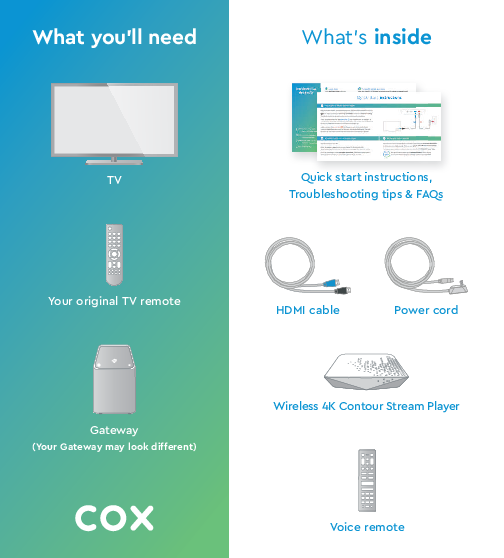
What you'll need What’s inside - Cox Communications
A B Activate your Contour Stream Player C Set up your Voice remote Quick start instructions Plug in your Contour Stream Player Start by turning on your TV. Using the source or input button on your original TV remote, se…
What you'll need What's inside - Cox
What you'll need. What's inside. Wireless 4K Contour Stream Player. Quick start instructions,. Troubleshooting tips & FAQs. Your original TV remote. Generic TV.
Extracted Text
What you'll need
TV FRONT

What's inside

TV
Generic TV
Your original TV remote

Quick start instructions, Troubleshooting tips & FAQs

HDMI cable

Power cord

Gateway
(Your Gateway may look different)

Wireless 4K Contour Stream Player
XR11 + XR15 Generic Voice
Voice remote

Quick start instructions

A Plug in your Contour Stream Player
Before you get started, we recommend you use the new cables included in your kit.
1 First, make sure that your Gateway is installed and that the is internet working. They both need to be up and running before continuing this installation.
Then, plug the blue end of the HDMI cable 2 into the HDMI port on the back of your Contour Stream Player and plug the other black end into the desired HDMI port on your TV. Make note of which TV HDMI port you plug it into.
Lastly, connect the power cord 3 into the power port on the back of your Contour Stream Player and plug the other end into an electrical outlet. This will power it on. Also make sure the electrical outlet isn't connected to a dimmer.

2

3

B Activate your Contour Stream Player
Start by turning on your TV. Using the source or input button on your original TV remote, select the HDMI connection that matches the HDMI port you plugged the cable into earlier. You'll be prompted to follow on�screen instructions. Then hang tight for a few minutes for the activation of your Contour Stream Player to finish.

C Set up your Voice remote

Now that your Contour Stream Player is activated, simply follow the on-screen instructions to set up your new Voice remote. When you see "All Set", press OK on your Voice remote.

For help programming and troubleshooting your remote, visit Cox.com/remote-help.

We're here to
help.

For quick how-to videos, go to Cox.com/support. Check out the enclosed troubleshooting tips and FAQs card for more information.

Troubleshooting tips & FAQs
APP: Cox Connect for 24/7 support and helpful videos
WEB: www.Cox.com/support www.Cox.com/learn
CHAT: text an agent at 54512or live chat on Cox.com/chat
CALL: 1-888-556-1193

i Learn more
� Your Welcome Guide walks you through how to use your Contour Stream Player. We suggest keeping it handy for easy reference.
� For quick access to tutorials, check out the Help screen on your Contour guide by pressing the "A" button on your Voice remote.
� Visit Cox.com/learn for information on getting the most out of your service.
 Did you know
� On DemandSM: lets you watch movies and your favorite shows on your schedule. See the Welcome Guide for details.
� Channel Lineup: Did you subscribe to a package with live channels? If so, you can view your channel lineup at Cox.com  Products  TV Channel Lineup. Bookmark this page or print it for easy reference.
� Gateway: provides the functionality of a WiFi router, internet cable modem and voice modem all in a single device.

? Frequently asked questions
Why am I receiving a "No Input" message on my TV and not seeing a picture? The input/source on your TV might not be set up correctly. Not to worry, there's a quick fix. Just press the "input" or "source" button on your TV remote until you select the HDMI connection that matches the port your HDMI cable is plugged into on your TV.
I'm having trouble reading the guide...Can I make the text larger? Yes, you can. There's an option to change the text size in the settings that come with your Contour Stream Player. Using your Voice remote, press the "B" button and follow these steps: Enhanced Text Readability  press "OK"  toggle the setting on/off by pressing "OK" or "Cancel" to keep it as is. When it's turned on, the Contour Guide will display four rows of guide listings, making the font larger. Seeing is believing.
Why isn't my Voice remote changing the volume on my TV? It could be a couple of things. First, check that the input/source on your TV is set up correctly. If your remote still doesn't control your TV, you may need to set up your remote again: press the "A" button on your Voice remote  Remote Setup  follow the steps on-screen.
Why isn't my Contour Stream Player working? A quick reboot might fix it � just unplug the power cord from the wall, wait about 20 seconds, then plug it back in. It may take up to 10 minutes to fully reset. If rebooting your Contour Stream Player doesn't resolve your issue, try rebooting your Gateway by following the same steps you did when rebooting your Contour Stream Player.
Can I move my Contour Stream Player to a different location? Yes, you can move it as long as it maintains a strong connection to your Gateway. Also ensure that the Contour Stream Player isn't directly exposed to rain and harsh temperatures.