

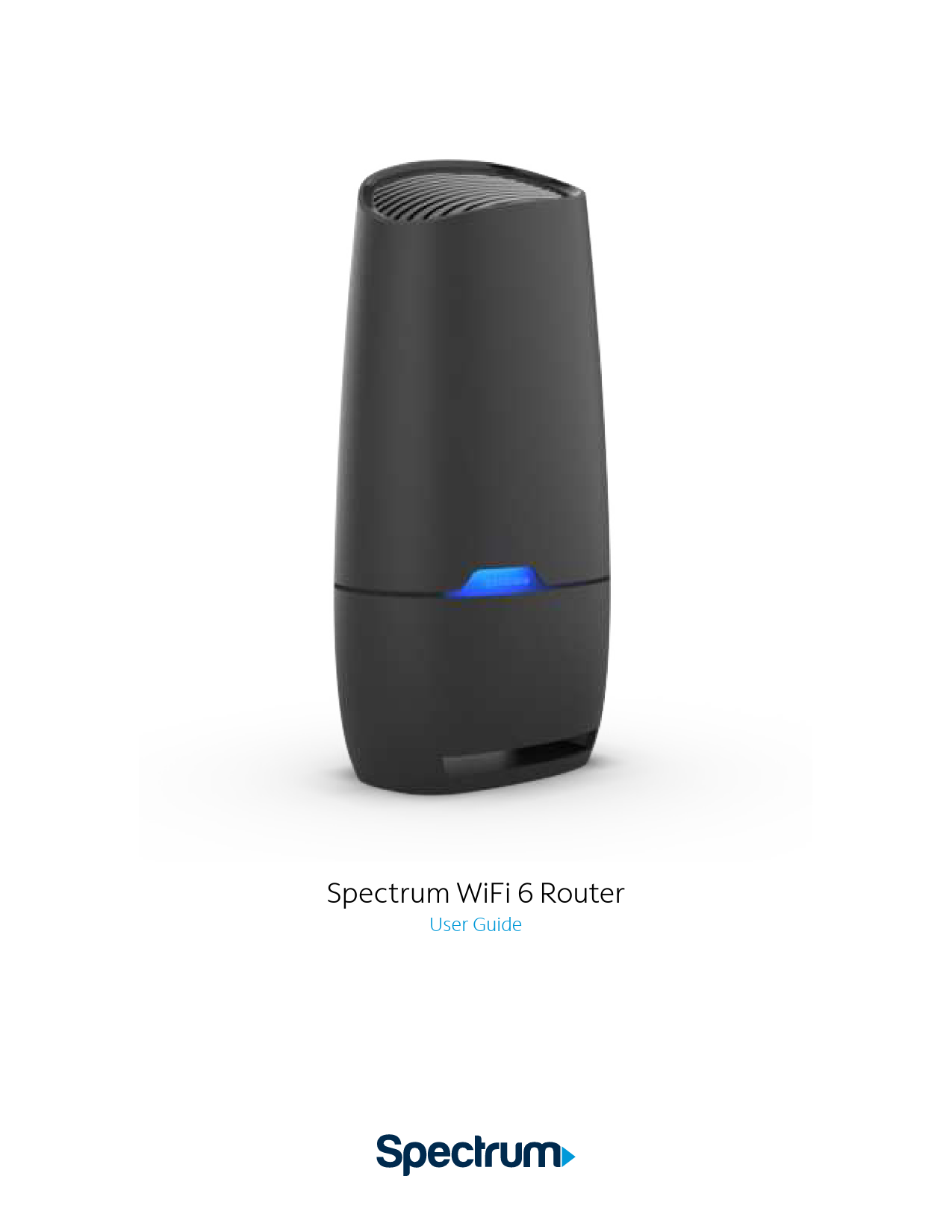
Spectrum WiFi 6 Router User Guide
Your guide to setting up and managing your Spectrum WiFi 6 Router.
Advanced Home WiFi
Advanced Home WiFi is included with your Spectrum WiFi 6 router, providing internet, network security, and personalization, all conveniently managed through the My Spectrum App. Your router features a QR code on its back label to indicate support for this service.
With Advanced Home WiFi, you can:
- Personalize your WiFi network name (SSID) and password.
- View and manage devices connected to your WiFi network.
- Pause or resume WiFi access for individual devices or groups of devices.
- Get port forwarding support for improved gaming performance.
- Enjoy peace of mind with a secure WiFi network.
- Utilize both wireless and Ethernet connectivity.
Get Started with My Spectrum App
To begin, download the My Spectrum App from Google Play or the App Store. Alternatively, you can scan the QR code on the router label with your smartphone camera or visit spectrum.net/getapp.
Image Description: The page displays screenshots of the My Spectrum App interface, showing sections for 'Services & Equipment', 'Equipment Details' (featuring the WiFi 6 Router model), and 'Devices on Your Network'. The 'Devices on Your Network' view lists various connected devices like 'Billies Xbox', 'Living Room TV', and 'Billies iPhone', along with their connection status.
Personalize Your WiFi Network Name and Password
To secure your home network, it is recommended to create a unique network name and an alphanumeric password. This can be done within the My Spectrum App or by visiting Spectrum.net.
Image Description: The page shows screenshots of the 'Edit Network' screen within the My Spectrum App. One screenshot illustrates the option to 'Customize Your WiFi' by creating a personalized name and password. Another shows a 'Save Changes' prompt confirming the update of WiFi network information, advising users to update settings on connected devices.
Troubleshooting Your Internet Service
If you are experiencing slow speeds or losing connection to your WiFi network, consider the following:
- Distance from the WiFi router: Signal strength decreases with distance. Try moving closer to the router.
- Router location: Place your router in a central location for optimal coverage.
Image Description: A screenshot shows a troubleshooting interface within the My Spectrum App, offering a 'Restart Router' option. The text explains that restarting the router can resolve most issues and may briefly interrupt service.
Where to place your router for the best coverage
- Place in a central location.
- Place on a raised surface.
- Place in an open space.
- Avoid placing in a media center or closet.
- Do not place near devices emitting wireless radio signals, such as cordless phones.
- Do not place behind a TV.
Spectrum WiFi 6 Router with Advanced Home WiFi
The router's front panel features a status LED light that indicates the router's progress in establishing your home network. Here are the LED status light meanings:
- Off: Device is off.
- Blue flashing: Device is booting up.
- Blue pulsing: Connecting to the internet.
- Blue solid: Connected to the internet.
- Red pulsing: Connectivity issue (no internet connection).
- Red and Blue alternating: Updating firmware (device will automatically restart).
- Red and White alternating: Device is overheating.
Image Description: An illustration of the Spectrum WiFi 6 Router with its front panel status light. A legend details the meaning of different LED light colors and patterns.
Router Side Panel Features
- Reboot: Press and hold for 4-14 seconds to reboot the router. Your personalized configurations will remain.
- Factory reset: Press and hold for more than 15 seconds to reset the router to factory default settings. Warning: Your personalized configurations will be removed.
- Ethernet (LAN) port: Connect network cables for local area network connections (e.g., PC, game console, printer).
- Internet (WAN) port: Connect a network cable to the modem for wide area network connection.
- Power plug: Connect the provided power supply to a home outlet.
Image Description: An illustration of the side panel of the Spectrum WiFi 6 Router, highlighting the 'Reset' button, 'Ethernet (LAN) port', 'Internet (WAN) port', and 'Power plug' connection.
Router Label Callouts
- Serial Number: The unique serial number of the device.
- MAC Address: The physical address of the device.
- QR Code: Used to scan and download the My Spectrum App.
- Network Name and Password: Used to connect to the WiFi network.
Image Description: An illustration of the label on the Spectrum WiFi 6 Router, pointing out the 'Serial Number', 'MAC Address', 'QR Code', and 'Network Name and Password' fields. It also mentions visiting spectrum.net/getapp to download the app.
Spectrum WiFi 6 Router Technical Specs
| Features | Benefits |
|---|---|
| Concurrent 2.4 GHz and 5 GHz frequency bands | Supports existing client devices and newer devices using higher frequencies. Provides flexible WiFi signal range for the home. |
| 2.4GHz WiFi Radio - 802.11ax 4x4:4 5GHz WiFi Radio - 802.11ax 4x4:4 |
Provides higher throughput and increased range, improving the experience, especially in client-dense environments. Delivers higher data rates and bandwidth for both 2.4 GHz and 5 GHz frequencies. |
| Bandwidths | 2.4GHz - 20/40MHz 5GHz - 20/40/80/160 |
| 802.11ax WiFi 6 chipsets with higher processing power | Supports consistent performance in high-density WiFi environments. Powerful chips enable better network and device management. |
| Industry-standard security (WPA2 personal) | Supports the industry security standard to protect devices on the WiFi network. |
| Three GigE LAN ports | Connect stationary computers, game consoles, printers, media sources, and other devices for high-speed private network service. |
| More specs |
|
Need Help or Have Questions?
For more information about your services or to get support, visit spectrum.net/support or call Spectrum at (855) 632-7020.