

800-26497 PW7K1ICE Installation and Configuration Guide 15042021
File info: application/pdf · 52 pages · 4.58MB
800-26497 PW7K1ICE Installation and Configuration Guide 15042021
PW7K1ICE Installation and Configuration Guide - Honeywell ...
Honeywell Integrated Security appreciates your comments about this manual. Please ... 3-gang stainless steel blank cover: Leviton part number 84033-40.
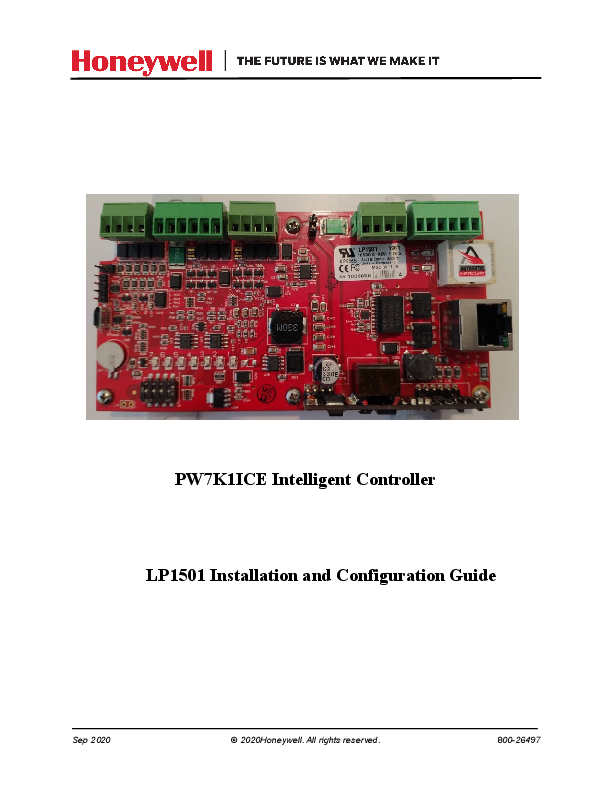
PW7K1ICE Intelligent Controller LP1501 Installation and ...
12 sept. 2020 — (entry/exit) readers. A total of 16 1R1E or1R1E downstream boards can be connected to PW7K1ICE, depends on software compatibility with those boards.
800-26497 PW7K1ICE Installation and Configuration Guide ...
PW7K1ICE Introduction General UL/ULC-Compliance PW7K1ICE Installation and Configuration Guide, 800-26497 7 1.2 General UL/ULC-Compliance
Full PDF Document

If the inline viewer fails, it will open the original document in compatibility mode automatically. You can also open the file directly.
Extracted Text
PW7K1ICE Intelligent Controller LP1501 Installation and Configuration Guide

Sep 2020

� 2020Honeywell. All rights reserved.

800-26497

Copyright � 2020 Honeywell. All rights reserved. Honeywell Integrated Security is a registered trademark of Honeywell International. All other product and brand names are the service marks, trademarks, registered trademarks, or registered service marks of their respective owners. Printed in the United States of America. Honeywell Integrated Security reserves the right to change any information in this document at any time without prior notice. Microsoft and Windows are registered trademarks of Microsoft Corporation. Windows Server is a trademark of Microsoft Corporation. Ordering Information Please contact your local Honeywell Integrated Security representative or visit us on the web at www.honeywellintegrated.com for information about ordering. Feedback Honeywell Integrated Security appreciates your comments about this manual. Please visit us on the web at www.honeywellintegrated.com to post your comments. Discover | Customer Portal Self-Service Product Support and Learning Management System
https://honeywelldiscovertraining.com/login/discover/default.asp
YouTube | Honeywell Help and Support https://www.youtube.com/channel/UCBEL6ouNV_LN5lEpYRujMTg/featured

TABLE OF CONTENTS

Chapter 1 PW7K1ICE Introduction 7
1.1 Overview ............................................................................................................. 8 1.2 General UL-Compliance ..................................................................................... 9 1.3 CE + WEEE Marking ........................................................................................ 10
1.4 Door Control ...................................................................................................... 11 1.5 Access Control ................................................................................................... 12 1.6 Card Formats: .................................................................................................... 13 1.7 Card Readers ..................................................................................................... 14 1.8 Alarm Management ........................................................................................... 15 1.9 Warranty ............................................................................................................ 16 1.10 Liability ........................................................................................................... 17 1.11 FCC Compliance ............................................................................................. 18
Chapter 2 PW7K1ICE Wiring and Setup 13
2.1 PW7K1ICE Hardware ....................................................................................... 14 2.2 LP1501 Wiring and Setup Terminal Connections ............................................. 15 2.3 Jumper Configuration ........................................................................................ 16 2.4 DIP Switch Configuration ................................................................................. 17 2.5 Factory Default Communication Parameters .................................................... 17 2.6 Bulk Erase Configuration Memory ................................................................... 18 2.7 Bulk Erase Steps ................................................................................................ 18 2.8 Input Power ....................................................................................................... 18 2.9 Communication Wiring ..................................................................................... 19 2.10 Reader Wiring ................................................................................................. 19 2.11 Input Circuit Wiring ........................................................................................ 22 2.12 Relay Circuit Wiring ....................................................................................... 22 2.13 Memory Backup Battery ................................................................................. 23 2.14 Status LEDs ..................................................................................................... 24 2.15 IT Security ....................................................................................................... 25 2.16 Specifications .................................................................................................. 25 2.17 Additional Mounting Information ................................................................... 27
Chapter 3 PW7K1ICE System Configuration via Web Interface 31
3.1 Overview ........................................................................................................... 32 Connecting to ACDSM for the First Time ........................................................ 32
3.2 Login .................................................................................................................. 33 Security Certificate ............................................................................................ 34
3.3 Web Server Configuration ................................................................................. 37 Home Screen ..................................................................................................... 37 Network Settings Screen ................................................................................... 38 Host Communication Screen ............................................................................. 39

PW7K1ICE Installation and Configuration Guide, Document 800-26497

iii

Device Info Screen ............................................................................................ 40 Users Screen ...................................................................................................... 41 Auto Save Screen .............................................................................................. 42 Restore Default Screen ...................................................................................... 42 Load Certificate Screen ..................................................................................... 43 3.4 Initializing the System and Performing a System Download ............................ 44 3.5 Logout ................................................................................................................ 46

iv

www.honeywell.com

PW7K1ICE Introduction
In this chapter...
1.1 Overview 1.2 General UL-Compliance 1.3 CE + WEEE Marking 1.5 Access Control 1.6 Card Formats: 1.8 Alarm Management 1.9 Warranty 1.10 Liability 1.11 FCC Compliance

1
6 7 8 10 11 13 14 15 16

PW7K1ICE Installation and Configuration Guide, Document 800-26497

5

PW7K1ICE Introduction Overview
1.1 Overview
The PW7K1ICE intelligent controller provides decision making, event reporting, and database storage for the Honeywell hardware platform. Two reader interfaces configured as paired or alternate readers provide control for one door.
Host communication is via the on-board 10-BaseT/100Base-TX Ethernet port.
Note: For UL compliance, the Power Sourcing Equipments (PSE), including PoE, or POE+ enable network switch and /or POE, or POE+ power injectors must be listed UL. Listed under UL-294 and or UL-294 B.
One (1) physical barrier can be controlled with the PW7K1ICE, using single or paired (entry/exit) readers.
A total of 16 1R1E or1R1E downstream boards can be connected to PW7K1ICE, depends on software compatibility with those boards. A maximum of 17 total readers is possible.
The first reader port can accommodate that utilize Wiegand, magnetic stripe, or 2wire RS-485 electrical signaling(such as an OSDP reader standards, one or two wire LED controls, and buzzer control (one wire LED mode only). This port can also utilize multiple RS-485 multi-dropped devices.
The second reader port can accommodate readers that utilizes Wiegand or magnetic stripe signaling, one or two wire LED controls, and buzzer control (one wire LED mode only).
Two form-C relay outputs may be used for strike control or alarm signaling. The relay contacts are rated at 2A @ 30VDC, dry contact configuration.
Two inputs are provided for monitoring the door contact, exit push button or alarm contact and may be supervised or unsupervised.
The PW7K1ICE requires Power over Ethernet (PoE, or PoE+) or 12VDC for power.
The PW7K1ICE may be mounted in a 3-gang switch box; a mounting plate is supplied with the unit.
The PW7K1ICE may be mounted in an enclosure.
The encryption between PW6101 and its down-stream I/O board 1R1E is built-in and automatic.
Terminology: "PW7K1ICE" is the product number. "PW6K101" is the product name. Both refer to the same controller board.
Terminology: "1R1E" will be used to refer to both "1R1E and 1R1E".

6

www.honeywell.com

PW7K1ICE Introduction General UL/ULC-Compliance
1.2 General UL/ULC-Compliance
A UL-compliant installation requires the following: � The PW7K1ICE panel must be installed within the protected area. � The PW7K1ICE is installed for indoor use only. � The PW7K1ICE must be installed with the provided tamper switch, mounted to the enclosure cover. � The fail secure locking mechanism shall only be installed where is allowed by the local authority having jurisdiction (AHJ), and it shall not impair the operation of panic hardware and emergency egress. � Shielded cable shall be employed for all Input/Output wiring.
Note: The PW7K1ICE panel is not UL Listed for burglary installations.
Note: The following applies to installations that require UL or ULC compliance:
� Only UL/ULC Listed readers with standard Wiegand data output communication format (protocol) have been evaluated for use with this system.
� This product is intended to be installed indoors, within the protected premises. � Access Control System, Model PRO4200, and Controller, Model PRO42IC
meet the requirements for CAN/ULC-S319-05 Equipment Class 1. � This product's compliance to ULC-S319, Electronic Access Control Systems,
will be considered invalidated through the use of any add-on, expansion, memory or other module manufactured or supplied by the manufacturer or manufacturer's representative, unless specifically evaluated by ULC. � All unused conduit holes must be properly plated or incorporate a Listed plug to fill any voids.
Note: Total current draw for all included assemblies shall not exceed 4A, including input rating and output load current.
� Suitable for S319, Class I � Suitable for the following UL293/UL294 Performance Levels: � Endurance: IV � Standby: I � Line Security: I � Attack: I � Suitable panic or exit hardware shall be employed for fail secure applications.
For UL293 applications, the Sys Fault contacts of the power supply and the door held, door forced shall be monitored by suitable audible device.

PW7K1ICE Installation and Configuration Guide, Document 800-26497

7

PW7K1ICE Introduction CE + WEEE Marking
1.3 CE + WEEE Marking
Description of the used symbol. CE -Standard -Logo. This product complies with the harmonized Regulation of the EU
WEEE symbol.It indicates this product is to be recycling and not been thrown in the dustbin
Stick the CE label from accessories onto the enclosure

8

www.honeywell.com

PW7K1ICE Introduction Door Control
1.4 Door Control
One (1) physical barrier can be controlled using single or paired readers. Two reader ports: Mag, Wiegand, or RS-485 (RS-485 on one reader port capable of supporting two readers.) Two supervised inputs, two relays. Diagnostic LEDs. Dedicated tamper input.

PW7K1ICE Installation and Configuration Guide, Document 800-26497

9

PW7K1ICE Introduction Access Control
1.5 Access Control
� 240,000 Cardholders, 50,000 Transaction buffer (software configurable). � 12 to 32 Access Levels per cardholder (software configurable). � Card Number: 19 digit (64-bit) User Id with 15 digit PIN numbers MAX. � Activation/Deactivation Dates. � Macro capability using IF/(and)/THEN logic. � Anti Passback support � with Nested Area, and Hard, Soft, or Timed Forgiveness.

10

www.honeywell.com

PW7K1ICE Introduction Card Formats:
1.6 Card Formats:
� 8 active card formats per PW7K1ICE. PIV-II, CAC, TWIC card compatible.

PW7K1ICE Installation and Configuration Guide, Document 800-26497

11

PW7K1ICE Introduction Card Readers

1.7 Card Readers
The Pro-Watch PW7K1ICE controller and 1R1E input/output board have been tested for use with the following Listed (ALVY) card readers:

Manufacturer HID
Honeywell

Model ProxPro ProxPro II ProxPro K MiniProx ThinLine II
OM40
OM41
OM55
OP-10
OP-30
OP-40

Part Number HU/5355AGN00 HU/5455BGN00 HU/5355AGK00 HU/5365EGP00 HU/5395CB100 HU/5395CG100 HU/5395CK100 OM40BHONC OM40GHONC OM41BHONC OM41GHONC OM55BHONB OM55GHONB OP10GENR OP10HONR OP30GENR OP30HONR OP40GENR OP40HONR

12

www.honeywell.com

PW7K1ICE Introduction Alarm Management
1.8 Alarm Management
� Normally open/Normally closed, unsupervised, supervised. � Standard or custom end-of-line resistances.

PW7K1ICE Installation and Configuration Guide, Document 800-26497

13

PW7K1ICE Introduction Warranty
1.9 Warranty
Honeywell Security Access warrants that the product is free from defects in material and workmanship under normal use and service with proper maintenance for one year from the date of factory shipment.
Honeywell Security Access assumes no responsibility for products damaged by improper handling or installation. This warranty is limited to the repair or replacement of the defective unit.
There are no expressed warranties other than set forth herein. Honeywell Security Access does not make, nor intends, nor does it authorize any agent or representative to make any other warranties, or implied warranties, and expressly excludes and disclaims all implied warranties of merchantability or fitness for a particular purpose.
Returned units are repaired or replaced from a stock of reconditioned units. Returns must be accompanied by a Returned Merchandise Authorization number (RMA) obtained from customer service, and prepaid postage and insurance.

14

www.honeywell.com

PW7K1ICE Introduction Liability
1.10 Liability
The Interface should only be used to control exits from areas where an alternative method for exit is available. This product is not intended for, nor is rated for operation in life-critical control applications. Honeywell Security Access is not liable under any circumstances for loss or damage caused by or partially caused by the misapplication or malfunction of the product. Honeywell Security Access's liability does not extend beyond the purchase price of the product.

PW7K1ICE Installation and Configuration Guide, Document 800-26497

15

PW7K1ICE Introduction FCC Compliance
1.11 FCC Compliance
This device complies with part 15 of the FCC Rules. Operation is subject to the following two conditions: (1) This device may not cause harmful interference, and (2) this device must accept any interference received, including interference that may cause undesired operation.

16

www.honeywell.com

PW7K1ICE Wiring and Setup

2

In this chapter...

2.1 PW7K1ICE Hardware

18

2.2 LP1501 Wiring and Setup Terminal Connections

19

2.3 Jumper Configuration

20

2.4 DIP Switch Configuration

21

2.5 Factory Default Communication Parameters

21

2.6 Factory Default Details

22

2.8 Input Power

22

2.9 Communication Wiring

23

2.10 Reader Wiring

23

2.11 Input Circuit Wiring

26

2.12 Relay Circuit Wiring

26

2.13 Memory Backup Battery

27

2.14 Status LEDs

28

2.16 Specifications

29

2.17 Additional Mounting Information

32

PW7K1ICE Installation and Configuration Guide, Document 800-26497

17

PW7K1ICE Wiring and Setup PW7K1ICE Hardware
2.1 PW7K1ICE Hardware
Figure 2-1: PW7K1ICE Control Board

18

www.honeywell.com

PW7K1ICE Wiring and Setup LP1501 Wiring and Setup Terminal Connections

2.2 LP1501 Wiring and Setup Terminal Connections
n

Table 2-1: PW7K1ICE Terminal Connections

Terminal Acronym Description

TB1-1

IN1

Input 1

TB1-2

IN1

TB1-3

IN2

Input 2

TB1-4

IN2

TB2-1

VO

Reader 1 Power Output - 12VDC

TB2-2

LED

Reader 1 LED Output

TB2-3

BZR

Reader 1 Buzzer Output

TB2-4

CLK

Reader 1 CLK/Data 1/TR + (B) See Note 1

TB2-5

DAT

Reader 1 DAT/Data 0/TR - (A) See Note 1

TB2-6

GND

Reader 1 Ground

TB3-1

LED

Reader 2 LED Output

TB3-2

BZR

Reader 2 Buzzer Output

TB3-3

CLK

Reader 2 CLK/Data 1 Input

TB3-4

DAT

Reader 2 DAT/Data 0 Input

TB4-1

VO

Auxiliary Power Output - 12VDC

TB4-2

GND

Auxiliary Power Output Ground

TB4-3

VIN

Input Power - 12VDC (from local power supply)

TB4-4

GND

Input Power Ground

TB5-1

NO

Relay K1 - Normally Open Contact

TB5-2

1-C

Relay K1 - Common Contact

TB5-3

NC

Relay K1 - Normally Closed Contact

TB5-4

NO

Relay K2 - Normally Open Contact

TB5-5

2-C

Relay K2 - Common Contact

TB5-6

NC

Relay K2 - Normally Closed Contact

Note: Terms A & B are from the RS-485 standard

PW7K1ICE Installation and Configuration Guide, Document 800-26497

19

PW7K1ICE Wiring and Setup Jumper Configuration
2.3 Jumper Configuration
Figure 2-2: J3 Jumper Location

Table 2-2: Jumper Settings

Jumper J1 J3
J4 J5 J6 J7 J8

Set at Description

N/A Factory Use Only

PoE PW7K1ICE powered from the Ethernet connection

12V PW7K1ICE powered from an external 12VDC power source connected to TB4-3 (VIN), TB4-4 (GND)

N/A Factory Use Only

N/A

Micro USB Port(2.0)

N/A 10 Base-T/100Base-Tx Ethernet Connection (Port 0)

Cabinet Tamper: normally open switch

N/A Micro SD Card

20

www.honeywell.com

PW7K1ICE Wiring and Setup DIP Switch Configuration

2.4 DIP Switch Configuration
The four switches on S1 DIP switch configure the operating mode of the LP1501 processor. DIP switches are read on power up except where noted. read on powerup except where noted.

Table 2-3: DIP Switch Settings

1

2

3

4

Description

OFF OFF X OFF Normal operating mode.

ON X

X

X After initialization, enable default User Name (admin)

and Password (password). The switch is read on the

fly, no need to re-boot. See IT security section for

additional information.

OFF ON

X OFF Use factory default communication parameters.

ON ON

X OFF Use OEM default communication parameters. Contact system manufacture for details. See Bulk Erase below.

ON ON OFF OFF Bulk Erase prompt mode at power up. See Bulk Erase below.

X

X

X ON Makes the LP1501 report and function like an

PW6K1ICE ( EP1501). To be used in situations where

the host software has not been updated to support the

LP series product line

All other switch settings are unassigned and are reserved for future use.
2.5 Factory Default Communication Parameters

Table 2-4: Factory Default Communication Parameters

Parameter Network static IP address Communication address Host port Interface 1 (NIC1) Subnet Mask Default Gateway DNS Server

Default Value 192.168.0.251 0 IP server, no encryption, port 3001
255.255.0.0 192.168.0.1 192.168.0.1

PW7K1ICE Installation and Configuration Guide, Document 800-26497

21

PW7K1ICE Wiring and Setup Factory Default Details

Table 2-4: Factory Default Communication Parameters

Parameter Primary Host Port
Alternate Host Port

Default Value
IP server, Data Security: TLS if Available, port 3001, communication address:
Disabled

2.6 Factory Default Details
The bulk erase function can be used for the following purposes: � Erase all configuration and cardholder database (sanitize/default board) � Update OEM default parameters after OEM code has been changed � Recover from database corruption causing LP1501 board to continuously reboot
Note: If clearing the memory does not correct the initialization problem, contact Honeywell technical support.

2.7 Factory Default Steps
Do not remove power during steps 2-8
1. Set S1 DIP switches to: 1 & 2 "ON", and 3 & 4 "OFF".
2. Apply power to the LP1501 board. LED 1 will be on for about 15 seconds while LP1501 boots up.
3. After the LP1501 boots up, watch for LEDs 1 & 2 and 3 & 4 to alternately flash at a 0.5 second rate.
4. Within 10 seconds after the above pattern starts, change switches 1 or 2 to "OFF". If these switches are not changed, the LP1501 board will power up using the OEM default communication parameters
5. LED 2 will flash indicating that the configuration memory is being erased
6. Full memory erase takes up to 60 seconds, usually a lot less
7. When complete, only LEDs 1 & 4 will flash for about 3 seconds
8. The LP1501 board will complete its initialization in 2 seconds after LEDs 1 & 4 stop flashing
Note: When erasing memory, LED 2 flashes at a 2 second rate; DO NOT CYCLE POWER. It takes less than 60 seconds to erase the memory. LEDs 1 and 4 flash for 10 seconds after the memory has been erased. The PW7K1ICE then reboots.
2.8 Input Power
The PW7K1ICE(LP1501) is powered by one of two ways (jumper selected, J3):

22

www.honeywell.com

PW7K1ICE Wiring and Setup Communication Wiring
� Power is supplied via the Ethernet connection using PoE or PoE+. � Or Local 12VDC power supply, TB4-3 (VIN), TB4-4 (GND).
2.9 Communication Wiring
The PW7K1ICE (LP1501) controller communicates to the host via the on-board 10BaseT/100Base-TX Ethernet interface (port 0).
2.10 Reader Wiring
Reader port 1 supports TTL (D1/D0, Clock/Data), F/2F, or 2-wire RS-485 device(s). Reader port 2 supports TTL (D1/D0, Clock/Data), or F/2F. Power to reader port 1 is 12 VDC at 300 mA maximum. The reader connected to reader port 2 may be powered from the 12 VDC auxiliary power supply output; TB4-1 and TB4- 2. Readers that require different voltage or have high current requirements should be powered separately. Refer to the reader manufacture specifications for cabling requirements. In the 2-wire LED mode, the buzzer output is used to drive the second LED. Reader port configuration is set via the host software.
Reader port 1 can support up to eight 2-wire RS-485 remote serial I/O devices using MSP1 protocol or up to two OSDP devices. If two OSDP devices are used, reader port 2 will not support a third reader. If only one OSDP device is configured, then reader port 2 is available for a second reader. The maximum cable length is 2000 ft. (610 m). Do not terminate any RS-485 devices connected to reader port 1.
Figure 2-3: Reader Wiring Diagram

PW7K1ICE Installation and Configuration Guide, Document 800-26497

23

PW7K1ICE Wiring and Setup Reader Wiring

� Inputs on supervised F/2F readers may be unsupervised or supervised shown)

Caution: Jumper D1 and LED on supervised F/2F readers.

24

www.honeywell.com

PW7K1ICE Wiring and Setup Reader Wiring

PW7K1ICE Installation and Configuration Guide, Document 800-26497

25

PW7K1ICE Wiring and Setup Input Circuit Wiring
2.11 Input Circuit Wiring
Typically, these inputs are used to monitor door position, request to exit, or alarm contacts. Input circuits can be configured as unsupervised or supervised. When unsupervised, reporting consists of only the open or closed states. When configured as supervised, the input circuit will report not only open and closed, but also open circuit, shorted, grounded, and foreign voltage.
Note: Grounded and foreign voltage states are not a requirement of UL 294 and therefore not verified by UL. A supervised input circuit requires two resistors be added to the circuit to facilitate proper reporting. The standard supervised circuit requires 1K Ohm, 1% resistors and should be located as close to the sensor as possible. Custom end of line (EOL) resistances may be configured via the host software.
Note: Grounded and foreign voltage states are not a requirement of UL 294 and therefore not verified by UL
The input circuit wiring configurations shown are supported but may not be typical:
Figure 2-4: Input Circuit Wiring

2.12 Relay Circuit Wiring
Two Form-C contact relays are provided for controlling door lock mechanisms or alarm signaling devices. The relay contacts are rated at 2 A @ 30 VDC, dry contact configuration. Each relay has a Common pole (C), a Normally Open pole (NO) and a

26

www.honeywell.com

PW7K1ICE Wiring and Setup Memory Backup Battery

Normally Closed pole (NC). When you are controlling the delivery of power to the door strike, the Normally Open and Common poles are used. When momentarily removing power to unlock the door, as with a mag lock, the Normally Closed and Common poles are used. Check with local building codes for proper egress door installation.
Door lock mechanisms can generate EMF feedback to the relay circuit that can cause damage and premature failure of the relay plus affect the operation of the LP1501. For this reason, it is recommended that either a diode or MOV (metal oxide varistor) be used to protect the relay. Wire should be of sufficient gauge to avoid voltage loss.
Caution: From the Auxiliary output, the LP1501 can provide 12 VDC power for external devices provided that the maximum current is not exceeded. See the specifications section for details. If a local power supply is used, it must be UL Listed Class 2 rated
Figure 2-5: Relay Circuit Wiring Diagram

Diode Selection:

� Diode current rating: 1x

O

strike count

� Diode breakdown voltage:

-+

4x strike voltage

1
TB6

NO

� For 12VDC or 24VDC

1-C NC

strike, diode 1N4002

NO 2-C

(100V/1A) typical

NC

MOV Selection: � Clamp voltage: 1.5x VAC
RMS � For 24VAC strike,
Panasonic ERZC07DK470 typical
NO 1-C NC NO
2-C NC

1
TB6

2.13 Memory Backup Battery
The SRAM is backed up by a rechargeable battery when input power is removed. This battery should retain the data for about 2 weeks. If data in the SRAM is determined to be corrupt after power up, all data, including flash memory, is considered invalid and are erased. All configuration data must be re-downloaded.
Note: The initial charge of the battery may take up to 48 hours to be fully charged.

PW7K1ICE Installation and Configuration Guide, Document 800-26497

27

PW7K1ICE Wiring and Setup Status LEDs

2.14 Status LEDs
Power-up: All LEDs OFF.
Initialization: After power is applied, LED 1 is ON for about 15 seconds, then LED's 2 through 7 are flashed once at the beginning of initialization. LEDs 5, 6 and 7 are turned ON for approximately 1 second after the hardware initialization has completed, then the application code is initialized. The amount of time the application takes to initialize depends on the size of the database, about 1 second without a card database. Each 10,000 cards will add about 2 seconds to the application initialization. When LED's 1 through 4 flash at the same time, data is being read from or written to flash memory, do not cycle power when in this state.
If the sequence stops or repeats, perform the Bulk Erase Configuration Memory procedure described in Factory Default Details, page 22, see section 4. If clearing the memory does not correct the initialization problem, contact technical support.
Running: After initialization is complete, the meaning of the various ways in which the LEDs flash is described in Table 2-5. At power up, LEDs 2 through 7 are first turned ON, then OFF, in sequence.

Table 2-5: LED Descriptions

LED 1
2 3
4
5
6 7 D9 D10 YEL GRN

DESCRIPTION Off-Line / On-Line and Battery Status Off-Line = 20% ON, On-Line = 80% ON Double Flash if Battery is Low Host Communication Activity Readers (Combined) Reader 1: Clock/Data or D1/D0 Mode = Flashes when Data is Received, Either Input. RS-485 Mode = Flashes when Transmitting Data F/2F Mode = Flashes when Data/Acknowledgment is Received Input IN1 Status: OFF = Inactive, ON = Active, Flash = Trouble (Fault) See Note 1 Input IN2 Status: OFF = Inactive, ON = Active, Flash = Trouble (Fault) See Note 1 Cabinet Tamper Reserved for Fault Use Relay K1: ON = Energized
Relay K2: ON = Energized
Ethernet Speed: OFF = 10 Mb/S, ON = 100 Mb/S
OFF = No Link, ON = Good Link, Flashing = Ethernet Activity

28

www.honeywell.com

PW7K1ICE Wiring and Setup IT Security
Note: If this input is defined, every three seconds the LED is pulsed to its opposite state for 0.1 seconds, otherwise, the LED is off.

2.15 IT Security
When installing the LP1501, it is important to ensure that it is done in a secure manner.
Upon installation, the user accounts to the web configuration page should be created with secure passwords, and that all DIP switches are in the off position for the normal operating mode. The LP1501 is shipped from the factory with a default login account, which is enabled when DIP 1 is moved from OFF to ON. The default login user name and password will be available for five minutes once enabled. Therefore, it is important that at least one user account is defined, and the DIP switches are set to OFF before the LP1501 is commissioned. It is also highly recommended not to configure the LP1501 with an IP address that is accessible from the public Internet.
To further enhance network security, options are available to disable SNMP, Zeroconf discovery, as well as the web configuration module itself. Additionally, data encryption can also be enabled over the host communication port.

2.16 Specifications
The interface is for use in low voltage, class 2 circuits only. The installation of this device must comply with all local fire and electrical codes.

Power Input
Power Output Power Output
� Micro USB Port

� PoE Power Input 12.95W, compliant to IEEE 802.3af - OR -
� PoE+ (25 W), compliant to IEEE 802.3at or 12 VDC+_10%, 1.8 A maximum
� 12VDC @ 625mA including reader and AUX output
� PoE+ or external 12 VDC: 12 VDC @ 1.25 A including reader and Auxiliary Power output
� 5 VDC maximum (deduct 270 mA from reader and Auxiliary Power output)

PW7K1ICE Installation and Configuration Guide, Document 800-26497

29

PW7K1ICE Wiring and Setup Specifications

� Note: For UL installations, PoE powered devices shall not be used. Power for these devices must be provided by an UL 294-listed source (12VDC). This conflicts with the information in PWLP1501_INSTALL.PDF which states the PoE is acceptable to meet UL-294B.
� PoE power is to be supplied by a Listed ITE or Access Control System Unit (ALVY), power limited, PoE+ injector or PoE+ Ethernet switch providing 42.5 � 57 VDC, 25.5W for maximum output.

SRAM Backup � Rechargeable battery Battery

Micro SD Card � Format micro SD or SDHC;28 GB

Host Communication

� Ethernet: 10BaseT/100Base-TX and Micro USB port (2.0) with optional adapter: pluggable model USB2-OTGE100

Inputs

� 2 supervised, Programmable End of Line resistors, 1k/2k - ohm 1% 1/ 4W watt standard, and dedicated tamper input

Relays

� 2 outputs, Form-C contacts: 2A @ 30VDC

Reader Interface

Reader Power:

� PoE: 12 VDC 10% or local power supply (12VDC) (PTC limited 300mA max)

Reader Data Inputs

� Two TTL reader ports or one 2wire RS-485 reader port capable of supporting two readers compatible or F/2F

RS-485 Mode

� 9600 bps � Asynchronous � Half-duplex � 1 start bit � 8 data bits � 1 stop bit � Maximum cable length: 4000'
(1,200m)

LED Output

� TTL compatible � High > 3V � Low < 0.5V � 5mA source/sink maximum

Buzzer Output

� Open collector � 12VDC open circuit maximum � 40mA sink maximum

Cable requirements

30

www.honeywell.com

Power
Ethernet RS-485
Alarm Input
Reader data (TTL) � Reader data (F/2F): � Reader data � (RS-485)
� Output Environmental
Temperature Humidity

PW7K1ICE Wiring and Setup Specifications
� 1 twisted pair, 18 AWG when using local 12 VDC power supply
� CAT-5 (minimum) � 24AWG, 4,000ft (1,200m)
maximum � Twisted pair(s) with an overall
shield � 1 twisted pair per input � 30-ohm maximum loop
resistance � 18AWG � 6 conductors � 500-foot (152 m) maximum � 4-conductor, 18 AWG, 500 ft.
(152 m) maximum � 24AWG � 120-ohm impedance � Twisted pair with shield � 2000-foot (610 m) maximum
� As required for the load
� 0 to 70�C, operating � -55 to +85�C, storage � 5 to 95% RHNC

Mechanical

Dimensions

Weight

� 5.5" (140mm)W x 2.75" (70mm)L x 0.96" (24mm)H without bracket
� 5.5" (140mm)W x 3.63" (92mm)L x 1.33" (34mm)H with bracket
� 3.6 oz. (103g) without bracket � 4.3 oz. (125.28g) with bracket

PW7K1ICE Installation and Configuration Guide, Document 800-26497

31

PW7K1ICE Wiring and Setup Additional Mounting Information
2.17 Additional Mounting Information
Sources for the optional items are shown below: � 3-gang stainless steel blank cover: Leviton part number 84033-40. Available from Graybar, part number 88158404. � Magnetic switch set: G.R.I. part number: 505.
Figure 2-6: Stainless Steel Blank Cover

32

www.honeywell.com

PW7K1ICE Wiring and Setup Additional Mounting Information

Figure 2-7: Mounting Plate Dimensions

�0.16 [�4.0] 3-GANG MGT HOLES
4PL

�0.16 [�4.0] MR50 MGT HOLES
4PL

2.35 [59.7] 3.30 [83.8] 3.63 [92.1]

3.63 [92.1] 3.85 [97.8] 5.50 [139.7]

PW7K1ICE Installation and Configuration Guide, Document 800-26497

33

PW7K1ICE Wiring and Setup Additional Mounting Information
(This page is left blank intentionally for double-sided printing.)

34

www.honeywell.com

3 PW7K1ICE System Configuration
via Web Interface

In this chapter...

3.1 Overview

36

3.1.1 Connecting to ACDSM for the First Time

36

3.2 Login

37

3.2.1 Security Certificate

38

3.3 Web Server Configuration

41

3.3.1 Home Screen

41

3.3.3 Host Communication Screen

43

3.3.4 Device Info Screen

44

3.3.5 Users Screen

45

3.3.6 Auto Save Screen

46

3.3.7 Restore Default Screen

46

3.3.8 Load Certificate Screen

47

3.4 Initializing the System and Performing a System Download

48

PW7K1ICE Installation and Configuration Guide, Document 800-26497

35

PW7K1ICE System Configuration via Web Interface Overview
3.1 Overview
PW7K1ICE comes with Access Control Device Server Manager (ACDSM); i.e., a built-in web server through which the users can configure their network and other system settings.
Note: The default factory-set TCP/IP address for the built-in system configuration web server is 192.168.0.251
3.1.1 Connecting to ACDSM for the First Time
1. Use the factory default controller IP address 192.168.0.251. 2. Set the DIP switches to S4=OFF, S3=OFF, S2=ON, S1=OFF. 3. Connect the computer to host the web server via Ethernet Port 0. Connection
should be via crossover Ethernet cable or by the regular Ethernet cables connected via the hub. 4. Set the host computer to the static IP address 192.168.0.250 to be able to connect to the factory-default PW7K1ICE controller at address 192.168.0.251. 5. Power up the PW7K1ICE controller.

36

www.honeywell.com

PW7K1ICE System Configuration via Web Interface Login
3.2 Login
1. Launch your web browser. Type the IP address in the browser's URL field and press Enter.
2. Click the "Click Here to Login" link to display the User Name and Password fields.
Figure 3-1: Configuration Manager Login Screen

If DIP Switch #1 is ON, then set � Default Username to "admin" and � Default Password to "password".
This switch is read on the fly. There is no need to reboot the controller. � If the security certificate of your server is not valid continue with the next step "Security Certificate" on page 38. � If the security certificate of your server is valid, jump to "Web Server Configuration" on page 41.

PW7K1ICE Installation and Configuration Guide, Document 800-26497

37

PW7K1ICE System Configuration via Web Interface Login
3.2.1 Security Certificate
If there is a problem with your security certificate, the system will display the following message: Figure 3-2: Security Certificate Warning Screen
If the security certificate of your server is not valid, the system will display the following warning message: Figure 3-3: Security Certificate Invalid Message

38

www.honeywell.com

PW7K1ICE System Configuration via Web Interface Login
1. To download a valid security certificate, click the About Certificate Errors link and display the certificate properties screen: Figure 3-4: Security Certificate Information Screen
2. Click Install Certificate to launch the Certificate Import Wizard: Figure 3-5: Security Certificate Import Wizard

PW7K1ICE Installation and Configuration Guide, Document 800-26497

39

PW7K1ICE System Configuration via Web Interface Login
3. Click Next to display the Certificate Store screen: Figure 3-6: Certificate Store Screen
4. Select "Automatically Select the certificate store based on the type of certificate" option button and click Next to display the completion screen: Figure 3-7: Security Certificate Import Completion Screen
5. Click Finish to display the Login Enabled confirmation message: Figure 3-8: Login Enabled Confirmation Screen

40

www.honeywell.com

PW7K1ICE System Configuration via Web Interface Web Server Configuration
6. Click OK to log in to the configuration screen and resume the configuration process.
3.3 Web Server Configuration
Complete the login by entering your User Name and Password.
3.3.1 Home Screen
The system will display the Home screen which has all the available configuration links on the left navigation bar:
Figure 3-9: Configuration Manager Screen

PW7K1ICE Installation and Configuration Guide, Document 800-26497

41

PW7K1ICE System Configuration via Web Interface Web Server Configuration
3.3.2 Network Settings Screen
1. Click the Network link on the navigation bar to display the Network Settings screen where you can configure the IP address and hostname information:
Figure 3-10: Network Settings Screen

2. Click the Use Static IP Configuration option button to assign a static IP address, and enter the following information in the appropriate fields: � IP Address � Subnet Mask � Default Gateway
3. Enter the appropriate IP address for the DNS Server field. 4. Click Accept to save the settings.

42

www.honeywell.com

PW7K1ICE System Configuration via Web Interface Web Server Configuration
3.3.3 Host Communication Screen
1. Click the Host Comm link on the navigation bar to display the Host Communication Settings screen where you can configure the communication port information:
Figure 3-11: Host Communication Screen

2. From the Communication Address drop-down list, select one of the eight (0 to 7) available communication addresses for the PW7K1ICE board.
3. For the Primary Host Port, make the following selections:
a. Connection Type. Select IP Server.
b. Data Security. Select one of the following values from the drop-down list: None, Password/AES.
c. Port Number. Enter the port number through which the host computer can communicate with the PW7K1ICE board.
d. Select either Allow All or the Authorized IP Address Required option button.
� Allow All, as the label suggests, allows all IP addresses to communicate with the PW7K1ICE.
� If you select the Authorized IP Address Required option, also enter in the Authorized IP Addresses fields all the IP addresses that would be allowed to communicate with the PW7K1ICE.

PW7K1ICE Installation and Configuration Guide, Document 800-26497

43

PW7K1ICE System Configuration via Web Interface Web Server Configuration
4. For the Alternate Host Port, make the following selections: a. Connection Type. Select one of the following values from the dropdown list: IP Server, IP Client. b. Data Security. Select one of the following values from the drop-down list: None, Password/AES. c. Select a Baud Rate from the drop-down list. d. Select a Flow Control from the drop-down list.
5. Click Accept to save the settings.
3.3.4 Device Info Screen
1. Click the Device Info link on the navigation bar to display the read-only Device Information screen where you can view all the device information:
Figure 3-12: Device Information Screen

44

www.honeywell.com

PW7K1ICE System Configuration via Web Interface Web Server Configuration
3.3.5 Users Screen
1. Click the Users link on the navigation bar to display the Users screen where you can configure all the user-related settings:
Figure 3-13: Users Configuration Screen

Password Strength Criteria The password strength in the IP Web server can be set to Low, Medium, or High.
Low Password Strength � minimum of 6 characters
Medium Password Strength � minimum of 6 characters and passes two of the password strength tests.
High Password Strength � minimum of 8 characters, passes three of the password strength tests, and password not based on user name
The following strong password requirements are based on Microsoft guidelines for creating strong passwords.
Password Strength Tests � contains characters from any of the following categories: � Uppercase alphabet characters (A�Z) � Lowercase alphabet characters (a�z) � Arabic numerals (0�9) � Symbol characters (`! $? ^ * () _ - + = {[}]:; @ ' ~ # | <, >. /)
Example:
If the password strength is set to "Medium", the password Gertrude is valid because it has more than 6 characters and is a combination of upper and lower case.

PW7K1ICE Installation and Configuration Guide, Document 800-26497

45

PW7K1ICE System Configuration via Web Interface Web Server Configuration
If the password strength is set to "High", the password Gertrude8 is valid as long as the user name is not Gertrude.
2. Click New User to add a user. 3. Click Edit to edit an existing user. 4. Click Delete to delete an existing user. 5. Click Save to save the changes.
3.3.6 Auto Save Screen
1. Click the Auto-Save link on the navigation bar to display the Auto Save screen:
Figure 3-14: Auto-Save Configuration Screen

2. Select one of the following option buttons in case you lose changes made prior to reset: � Restore from the last saved settings � Clear all settings and force a full download
3. Select Enable for Auto Save and select a Delay Before Save time value from the drop-down list.
4. Click Save Settings.
3.3.7 Restore Default Screen
1. Click the Restore Default link on the navigation bar to display the Restore Default screen where you can restore the default configuration values for the PW7K1ICE settings:

46

www.honeywell.com

PW7K1ICE System Configuration via Web Interface Web Server Configuration
Figure 3-15: Restore Default Screen
2. Click Restore Default to reload the default factory settings for all the configuration variables.
3. Click Restore Current to reload the current operational settings for all the configuration variables.
3.3.8 Load Certificate Screen
1. Click the Load Certificate link on the navigation bar to display the Load Certificate screen: Figure 3-16: Load Certificate Screen

2. Locate the Certificate File and Private Key File by clicking the respective Browse buttons.
3. Click Load Certificate Files.

PW7K1ICE Installation and Configuration Guide, Document 800-26497

47

PW7K1ICE System Configuration via Web Interface Initializing the System and Performing a System Download
3.4 Initializing the System and Performing a System Download
After creating the PW6KICE (EP1501) panel, initialize the system and perform a system download.
1. Right click on the panel and select Download:
2. Clear the Download System check box (see Figure 3-17 on page 49) and select the Initialize check box.
3. Click Download (see Figure 3-17 on page 49).

48

www.honeywell.com

PW7K1ICE System Configuration via Web Interface Initializing the System and Performing a System Download
Figure 3-17: Panel Download

4. Right click on the panel again and select Download. This time keep Download System checked and click Download.
The panel will be initialized and Pro-Watch will trigger a system download. After you add a PW6K1R1E downstream board to the PW6KICE, you must set the panel's MAC address and IP address (see Figure 3-18).
Note: MAC address octets must be separated by a colon.

PW7K1ICE Installation and Configuration Guide, Document 800-26497

49

PW7K1ICE System Configuration via Web Interface Logout
Figure 3-18: Setting MAC address and IP address
3.5 Logout
Click Log Out to complete the web server configuration process and log out.

50

www.honeywell.com

(This page is left blank intentionally for double-sided printing.)

Discover | Customer Portal Self-Service Product Support and Learning Management System
https://honeywelldiscovertraining.com/login/discover/default.asp
YouTube | Honeywell Help and Support https://www.youtube.com/channel/UCBEL6ouNV_LN5lEpYRujMTg/featured

For more information: www.honeywellintegrated.com

Honeywell Integrated Security 135 W. Forest Hill Avenue Oak Creek, WI 53154 414-766-1700 414-766-1798 Fax

European Office Boblingerstrasse 17 D-71101 Schonaich Germany 49-7031-637-782 49-7031-637-769 Fax www.honeywell.com

Specifications subject to change without notice.
� Honeywell. All rights reserved. 800-26497