

Foxi Finder Systems INFINITY IoT Smart Watch User Manual
File info: application/pdf · 26 pages · 995.83KB
שעון פוקסי מדריך למשתמש
38
User manual
Foxi Finder Systems LTD INFINITY-WATCH Infinity IoT 2A2GUINFINITY-WATCH 2A2GUINFINITYWATCH infinity watch
Full PDF Document

If the inline viewer fails, it will open the original document in compatibility mode automatically. You can also open the file directly.
Extracted Text
INFINITY IoT
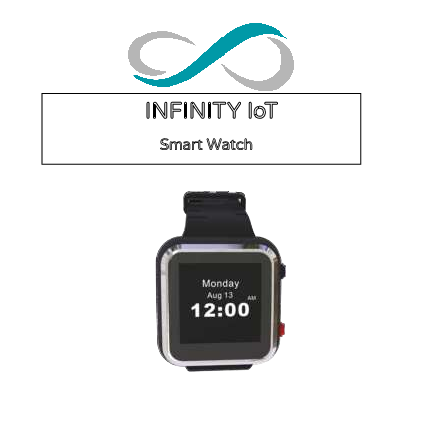
Smart Watch

Package Contents
� Infinity Watch � Global SIM card, already inside the device � USB charging cable (for Infinity Watch) � Wall Charger � User Manual
2

Welcome
The device and all accessories included in this package have undergone significant software and mechanical testing to verify the quality of your device. For any questions or concerns, please do not hesitate to contact the local store from which you purchased this product. While this user manual pertains to both the and the Infinity Watch, you should consider only the information relevant to the device you purchased.
3

Table of Contents

Paragraph 1 1.1 1.2 1.3 1.4 1.5 1.6 2 3 4 5 6 6.1 6.2 6.3 6.4 6.5

Subject Product Overview General Information
Main Features Infinity Watch Illustration
Powering On Powering Off
Charging Hardware � Infinity Watch
Software Before You Start Device Operation Emergency SOS Device Medical Gateway Device Assets Tracking
VoIP Open Source and Build Your Own
Important Things

Page 5 5 6 7 8 8 8 9 10 11 12 13 14 16 18 19 21

4

1. Product Overview
1.1 General Information
Congratulations! You are holding an Infinity IoT device, the all-in-one IoT device for multiple purposes. The device is a stand-alone mobile phone equipped with GPS, Bluetooth, WIFI and the Android 4.4.4 operating system. Whether you are looking for a device to use as an emergency SOS button, as a medical Bluetooth gateway, or even just to learn Android and Java language, the Watch will support you for every goal.
5

1.2 Main Features

 A button for short press  WIFI for location and

or long press clicks

internet use

 4G(LTE)/3G/2G

 Incoming/outgoing phone

connectivity, global SIM calls using VoIP

card included

 Easy charging

 GPS chip

 SensorHUB technology

 Bluetooth 4.0 for external for movement detection

device connection

 IP67 waterproof

6

1.3 Infinity Watch Illustration
7

1.4 Powering On
You can turn on the device by connecting it to the charger (auto boot) or by pressing the power button (for Infinity Watch) for a few seconds.
1.5 Powering Off
To turn off the Infinity Watch, press and hold the power button for a few seconds. The watch will then shutdown.
1.6 Charging
To charge the Infinity Watch, press the watch into the charging tray until you hear it click, making sure that the metal bars are touching.
8

9

2. Hardware � Infinity Watch

Name

Parameter

The Chip CPU Modules Memory & Storage
Cellular Bands
Battery Size & Weight Charging Sensors Sound Screen

SC9820E by Unisoc
1.3GHz quad-core 64-bit ARM Cortex-A53 FPS GPS/Galileo/GLONASS with AGPS WIFI 802.11 b/g/n 2.4GHz, BLE 4.0 ROM: 4 GB, RAM: 512 MB, Storage: 2.56 GB 2G: 850/900/1800/1900 MHz 3G: 900/1900/2100 MHz 4G(LTE): B1/B2/B3/B4/B7/B17/B20 670mAh Lithium Ion 3.7V Size 3.3" X 4.9". Weight: 1.58 Ounce 5V DC G-Sensor, Drop, Gyroscope, Accelerometer, Vibration, SensorHUB, Heart Rate Speaker and Microphone included
Size: TFT LCD 1.54", Resolution: 240X240

9

4. Software

Name
Operating System Access Level Tracking System
Medical System

Parameter
Android 4.4.4, API Level 19
Root Access The tracking system allows GPS/Wi-Fi location together with the SOS button to locate a person in danger. Clicking the button will initiate an alarm in the mobile app and start dialing the pre-set numbers. This device feature enables the connection to medical equipment for remote tele-medicine usage using Bluetooth. It supports the following tests: Blood pressure, heart rate, ECG, blood oxygen, glucose, HRV, temperature and fall detection.

VoIP

The VoIP app feature allows you to call any country in the world for a low cost.

Your APP

Install your own app onto the Infinity IoT!

10

5. Before You Start
Please read the following instructions prior to first use:
 Charge the battery at least 2 hours before initial use. The device will turn on automatically while charging.
 The device has IP67 water protection level, but it is always better to avoid any contact with water.
 Do not use any detergents to clean the device. Use only a dry cloth.
 Do not expose the device and/or the charger to high temperatures.
 The USB plug should only be connected to the wall charger supplied in the box or to any PC/Mac.
 If you notice any exposed wires, do not try to replace it yourself; you could be electrocuted. Instead, contact customer service immediately.
 The device has a built in SIM card that can work in 120 countries. You do not need to insert or change the SIM card.
11

6. Device Operation
Since the Infinity device is designed to use as a multipurpose IoT device, this manual will cover only the following five main features for which the device can be used:
- As an emergency SOS device - As a medical gateway device - As an asset tracking device - As a VoIP calls device - As an open-source device (build your own app!) Your Infinity device has the pre-set configuration to work as one or more of the features mentioned above, depending on the settings configured for you when you purchased the device. Please contact your local provider for more information.
12

6.1 Emergency SOS Device

Green LED indicator

LED operation on for 3 seconds and then off for 3
seconds on for 1 second and then off for 3
seconds
indicator is off
one short click on the middle SOS button
on and off fast for 6 seconds

Explanation
2G/3G/4G/WIFI network is not found, the device is looking for network network is found, but server
connection is off. Trying to connect to server....
the device operates normal when the green LED is off.
the LED will turn on for a moment. This indicator allows you to know the device is turned on.
location is found and sent to the server

Download the Mobile App

First, download the mobile app from Google Play/Apple Store. Contact your local provider for guidance on how to download the app and to provide you with username & password access to control your Infinity device from your phone.

13

The Main Screen
On login page, you can choose the language of the app and insert the username and password. You will then be redirected to the main screen.
The emergency SOS app allows you to view multiple Infinity Boxes and Infinity Watches on the same map, locate them (using GPS and WiFi), show their location history, make phone calls, change the inner settings, set a safe zone to get alarms and navigate to the device in case of an emergency. All in one app.
14

6.2 Medical Gateway Device
The Infinity device can work as a medical gateway, transferring all the data from nearby medical devices to your doctor for remote monitoring. If you purchased the Watch along with an external medical device, turn on the medical device to start the test.
The medical data is automatically transferred; you do not need to take any action. Your doctor is already receiving the data.
SOS Button In case of an emergency, press and hold the SOS button (if you are using the Infinity Watch) for 3 seconds until you hear a signal tone and feel the device vibrate. This will send an alarm to the medical center.
Drop Detection The device has drop detection in case a fall is detected.
15

Medical Devices Our external medical devices database is expanding every day. We support the following products:
 Contour ONE o Glucose measurement
 FORA TN'G BP o Blood Pressure
 VitalPatch from Vital-Connect o ECG o Heart Rate o Heart Rate Variability o Respiratory Rate o Body Temperature o Pedometer
 HeartBook by ECG o ECG o Heart Rate o Heart Rate Variability o Respiratory Rate
 Cosinuss ONE o Temperature o Heart Rate & Heart Rate Variability
16

6.3 Assets Tracking
Assets tracking on the device is done using a special app installed on the Infinity device together with the Bluetooth function. To use the assets feature, follow these steps:
1. Go to the Infinity IoT platform to map your assets. 2. Stick all the Bluetooth stickers (beacons) on your important
items (suitcase, computer, bag, etc.). 3. Turn on the
beacons. 4. Run a scan
from the Infinity IoT platform. After the scan is done, the platform will show you all the beacons found in range.
17

6.4 VoIP
The VoIP (Voice Over IP) system allows you to receive and initiate phone calls using the internet of your SIM card. Every minute of a call uses 0.5 MB of data. VoIP with the Infinity Watch Making a Call Using the mobile app or the online platform, you can set up to 3 contacts for speed dialing. Clicking the middle button (for three seconds) will initiate a phone call to the first contact. If the first contact does not pick up, the device will try the second contact and then the third contact. Click the middle button again to end the call.
(You may not have the exact same icons as the image above)
18

Receiving a Call Contact your local provider if you did not receive the phone number of your Infinity Watch. When there is an incoming call, the Infinity Watch will ring. Press the screen to answer the phone call.
19

6.5 Open Source and Build Your Own
One of the greatest features of the Infinity device is that it can act as an IoT device for any use. In the Infinity IoT platform, you can find our Infinity SDK that will allow you to build your own app in Java or Kotlin and install the app onto the device. Using the root access, you can control just about everything, such as the following:

� GPS

� Sockets

� Vibration

� WiFi

� Music

� Green LED

� BLE

� VoIP

� Drop Detection

� TTS

� Button

� Smart Alexa/Google

� Linux

� Heart Rate

� SensorHUB

20

Installing Apps You can use ADB tools to install the APK file, or download a thirdparty software named "Vysor" that allows you to view the screen inside the Infinity Watch and control it with your keyboard like a normal Android phone. When using the software, the inside of the Infinity device will look like this:
21

7. Important Things
� More features and apps will be added during the ongoing development of the Infinity Watch.
� Your SIM card has a limited amount of internet usage per month. Make sure you contact your local provider to check the amount remaining.
� Your VoIP package has a limited number of minutes for outgoing calls. Make sure you contact your local provider to check the amount remaining.
� The device is open for use in 120 countries worldwide. Check the website for the countries list.
� The mobile app needed to operate the Infinity device depends on the local provider you purchased the device from. For that reason, the app name does not appear in this user manual.
22

INFINITY
IoT Made Simple
� All rights reserved to Infinity IoT � �The hardware and software of this product was designed and built
by Foxi Finder Systems LTD �
23

FCC Caut i on.
Thi s devi ce compl i es wi t h par t 15 of t he FCC Rul es. Oper at i on i s subj ect t o t he f ol l owi ng t wo condi t i ons: ( 1) Thi s devi ce may not cause har mf ul i nt er f er ence, and ( 2) t hi s devi ce must accept any i nt er f er ence r ecei ved, i ncl udi ng i nt er f er ence t hat may cause undesi r ed oper at i on. Any Changes or modi f i cat i ons not
expr essl y appr oved by t he par t y r esponsi bl e f or compl i ance coul d voi d t he user ' s aut hor i t y t o oper at e t he equi pment .
Not e: Thi s equi pment has been t est ed and f ound t o compl y wi t h t he l i mi t s f or a Cl ass B di gi t al devi ce, pur suant t o par t 15 of t he FCC Rul es. These l i mi t s ar e desi gned t o pr ovi de r easonabl e pr ot ect i on agai nst har mf ul i nt er f er ence i n a r esi dent i al i nst al l at i on. Thi s equi pment gener at es uses and can r adi at e r adi o f r equency ener gy and, i f not i nst al l ed and used i n accor dance wi t h t he i nst r uct i ons, may cause har mf ul i nt er f er ence t o r adi o communi cat i ons. However , t her e i s no guar ant ee t hat i nt er f er ence wi l l not occur i n a par t i cul ar i nst al l at i on. I f t hi s equi pment does cause har mf ul i nt er f er ence t o r adi o or t el evi si on r ecept i on, whi ch can be det er mi ned by t ur ni ng t he equi pment of f and on, t he user i s encour aged t o t r y t o cor r ect t he i nt er f er ence by one or mor e of t he f ol l owi ng measur es: - Reor i ent or r el ocat e t he r ecei vi ng ant enna. - I ncr ease t he separ at i on bet ween t he equi pment and r ecei ver . - Connect t he equi pment i nt o an out l et on a ci r cui t di f f er ent f r om t hat t o whi ch t he r ecei ver i s connect ed. - Consul t t he deal er or an exper i enced r adi o/ TV t echni ci an f or hel p.

Speci f i c Absor pt i on Rat e ( SAR) i nf or mat i on:
This Smart Watch meets the government's requirements for exposure to radio waves. The guidelines are based on standards that were developed by independent scientific organizations through periodic and thorough evaluation of scientific studies. The standards include a substantial safety margin designed to assure the safety of all persons regardless of age or health. SAR limits is used against the head or on the wrist. The SAR limit is 1.6 watts per kilogram averaged over 1 gram of tissue for use against the head and 4.0 watts per kilogram averaged over 10 grams of tissue for use on the wrist. During testing, the device radios are set to their highest transmission levels and placed in positions that simulate use against the head, with 10mm separation, and on the wrist, with no separation. When placing the device near your face, keep at least 10mm of separation to ensure exposure levels remain at or below the as-tested levels.
next-tomouth SAR: 0.32 W/Kg Wrist SAR: 1.99 W/Kg simultaneous SAR: 2.77W/Kg