

Ideal Heating Halo: Changing Wi-Fi Password or Router
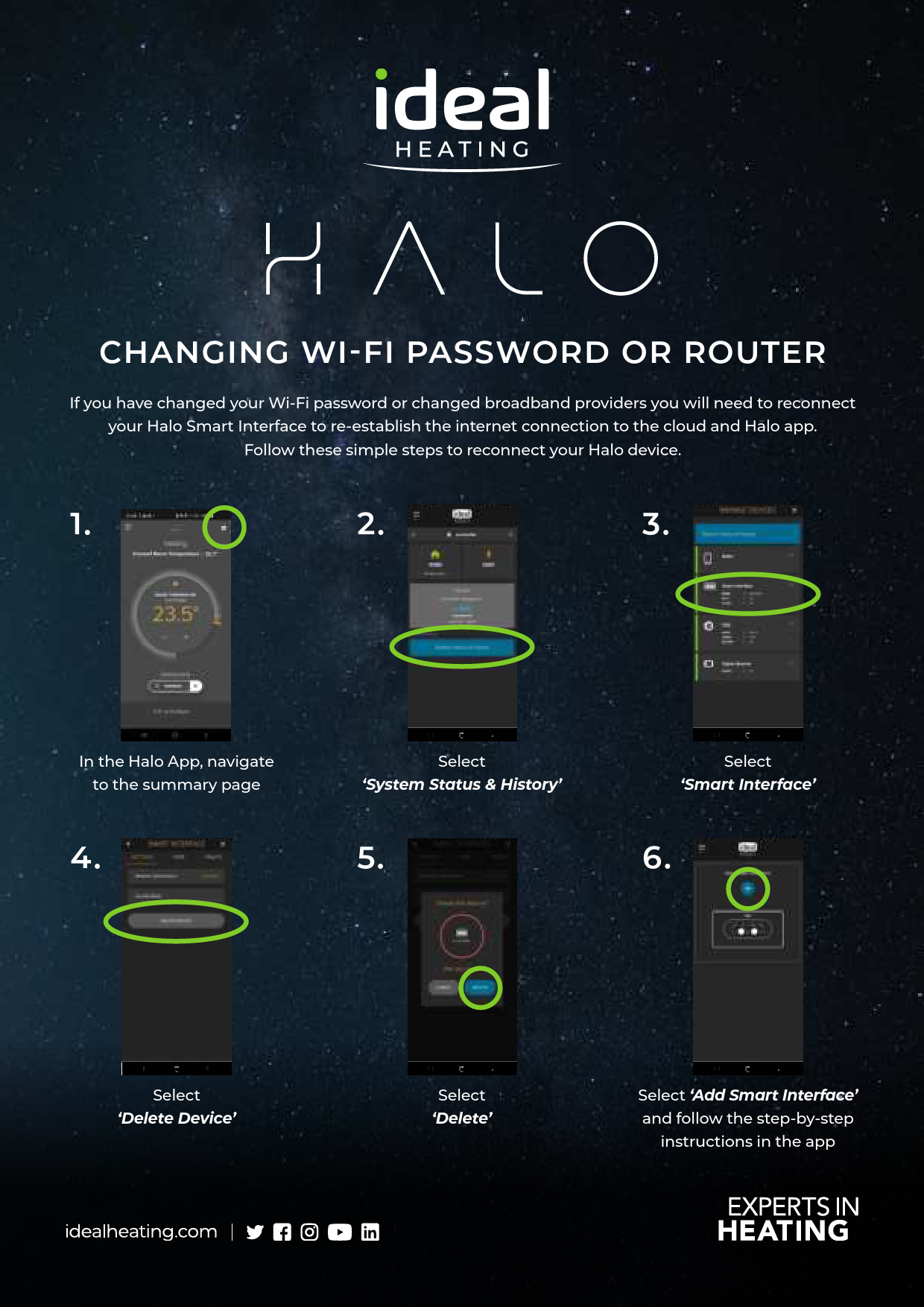
If you have changed your Wi-Fi password or changed broadband providers, you will need to reconnect your Halo Smart Interface to re-establish the internet connection to the cloud and Halo app. Follow these simple steps to reconnect your Halo device.
Steps to Reconnect Your Halo Device
-
Step 1
In the Halo App, navigate to the summary page. The screen shows the current room temperature and target temperature.
-
Step 2
Select 'System Status & History'. The screen displays system status information.
-
Step 3
Select 'Smart Interface'. This action leads to the interface settings.
-
Step 4
Select 'Delete Device'. This option is found within the settings menu.
-
Step 5
Confirm the deletion by selecting 'Delete'. A confirmation prompt will appear.
-
Step 6
Select 'Add Smart Interface' and follow the step-by-step instructions in the app to complete the reconnection process.
Contact Information
Customer Service: 01482 498660
Technical Help: 01482 498663
Ideal Heating, PO Box 103, National Avenue, Kingston upon Hull, East Yorkshire, HU5 4JN
