

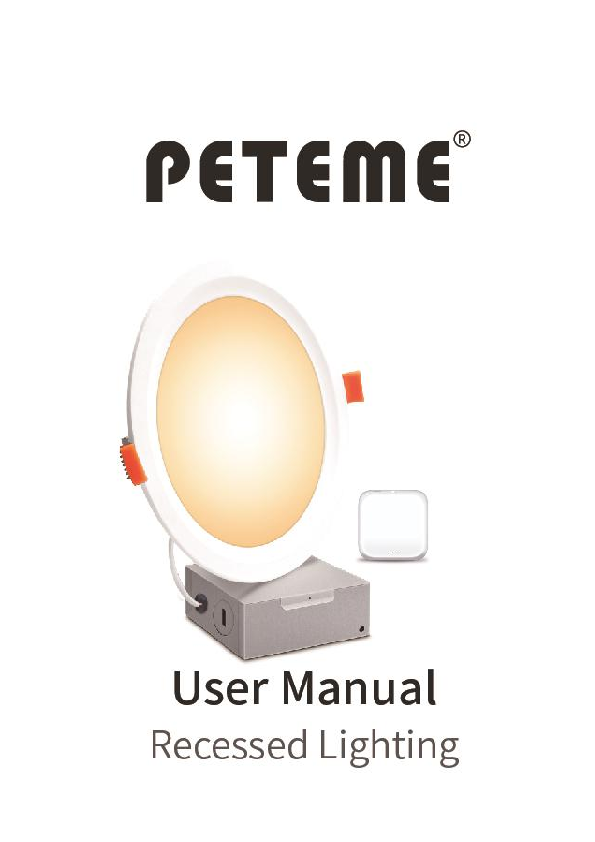
PETEME SG-SML Smart LED Downlight User Manual
File info: application/pdf · 38 pages · 1.53MB
User Manual
Shenzhen Sogood Opto Electronic Industry Co.,Ltd SG-SML Smart LED Downlight 2A2PA-SG-SML 2A2PASGSML sg sml
Full PDF Document

If the inline viewer fails, it will open the original document in compatibility mode automatically. You can also open the file directly.
Extracted Text
ENGLISH

Contents

BLE-1

1.After sales service & Warm tips....................................................... 2 2.Cautions............................................................................................ 3 3.Setting Smart Life APP.....................................................................3 4.Hub Setting....................................................................................... 4 5.How to set up with Peteme Recessed Lighting................................8 6.How to control Recessed Lighting with Siri...................................9 7.How to authorize family to control Recessed Lighting................. 14 8.How to control multiple Recessed Lighting at the same time...... 16 9.Voice Control Guide......................................................................19 10.How to create a group..................................................................31 11.Warning.........................................................................................35

1

BLE-1
1.After sales service & Warm tips
Dear Customer: We are truly grateful that you have chosen PETEME
products. You are one of our most valued customers and it has been a sincere pleasure serving you.
Your suggestions and feedback will help us improving our service to perfectly match your needs. Again, thank you so much for choosing PETEME. Please note that products purchased from PETEME are covered by 1 year warranty.
Let us know if there is anything we can do to assist you further. Please email us (Peteme@kxg.com) with your Amazon order ID. We promise that we will provide best service for our customers.
If there are any suggestions for our products, please feel free to contact us too. We will be willing to improve our items to satisfy your needs.
Best Regards, PETEME Team
2

BLE-1
2.Cautions
2.1 In order to protect yourself from electric shock, please cut the power before installing. 2.2 Screw the Recessed Lighting into the socket and turn on the power.
3. Setting Smart Life APP
Smart Life APP will be updated constantly, app interface might look different from this manual. Please don't hesitate to contact us by Peteme@kxg.com if you have any problems.
Step 1: Scan the QR code or search "Smart Life" on App store or Google Play to download and install the Smart Life APP. Step 2: Launch the Smart Life App and register. Enter your phone number or email to set up your account. Step 3: After you have registered in Smart Life APP, now you can start to add your smart devices into your account.
3

BLE-1
4. Hub Setting
4.1 SIG Mesh Hub 4.1.1 This Hub can only support 2.4G WIFI network and cannot work with 5.0G network, please make sure your WIFI router has 2.4G frequency. 4.1.2 Turn on WIFI and Bluetooth on your smart phone when configuring this Hub. Further more, connect your phone to WIFI, and make sure this SIG Mesh Hub is not far from the WIFI router. 4.1.3 Press and hold the Reset Button for 9 seconds, wait until the blue and red led indicators go out, release the button the led will back on again, and the red Led will start to blink.
4

BLE-1 4.1.4 Open the "Smart Life" app and click the "+" at the upper right corner, the Hub will automatically pop up and waiting to be added.
5

BLE-1
4.2 SIG Mesh Recessed Lighting 4.2.1 Add Recessed Lighting by Mesh Hub After the Bluetooth SIG Mesh Hub is successfully added, you can add SIG Mesh devices by the Hub. Choose the Hub in you devices list, and use "Search for new device" at the right bottom corner.
6

BLE-1
4.2.2 Add Recessed Lighting Directly These Lighting can be connect and control by smart phone through Bluetooth. If you do not have the SIG Mesh Hub, you can add this Lighting at the main page of Smart Life APP. Trigger the Recessed Lighting into configuring mode (Switch ON and OFF for 3 times and the Recessed Lighting will turn into flashing or breathing mode). Click the "+" at the upper right corner, new Lighting will be detected and ready to be configured. Late on, if you have add a SIG Mesh Hub into your account, you can also add these Lighting to the Hub in the Hub interface. Adding the Lighting to the hub will enable you to remote control of the Recessed Lighting by using Smart Life APP.
7

BLE-1
5. How to set up with Peteme Recessed Lighting
1. Download the smart life app. 2. Turn on WiFi and Bluetooth on your phone. 3. Tap "Add Devices" on home page and the hub will pop up to be added immediately. 4. Enter the WiFi password to connect your phone with the hub password does not include symbols). 5. Click on the hub and tap "search new device". 6. Turn the Recessed Lighting on and off 3 times when you finally see the Recessed Lighting to light on each cycle (breathing mode) till it brightens. 7. Click "Comfirm" and select the "Auto Scan" and wait for the Recessed Lighting to pop up so that you can add them.
8

BLE-1
6. How to control Recessed Lighting with Siri
6.1 The current shortcut function of the system with IOS 13.0 can realize the control of intelligent products. The operation modes are as follows: 6.1.1 Open the app, enter the scene creation page, edit the scene name, add the execution action, and click "Add to Siri", select the scene you want on the Siri shortcut page to add.
9

BLE-1 6.1.2 Fill the phrase in the box under "When I say", and then Siri can use it to tell your app to run this shortcut. For example, you can create a phrase: Back home.
10

BLE-1 6.1.3 You can say to siri: Back home. The mobile phone will pop up the scene that has been set, and the device set in the scene will perform the corresponding action.
11

BLE-1 6.2 The function of the system with IOS 12.0 can realize the control of intelligent products. The operation modes are as follows: 6.2.1 Open the app, enter the scene creation page, edit the scene name, add the execution action, and click "Add to Siri", select the scene you want on the Siri shortcut page to add.
12

BLE-1
6.2.2 Record your personalized phrase and then Siri can use it to tell your app to run this shortcut.
13

BLE-1 6.2.3 You can say to Siri: I am sleeping. The mobile phone will pop up the scene that has been set, and the device set in the scene will perform the corresponding action.
7. How to authorize family to control Recessed Lighting
1. Enter the Smart Life APP and click "Me". 2. Click on "Home Management".
3. Then enter the family that needs to be set up. 14

4. Click "My Home".

BLE-1

5. Click "Add Member".

15

6. Finally enter family account information.

BLE-1

8. How to control multiple Recessed Lighting at the same time
1. Click on the "Home" page. 2. Choose one of the Recessed Lighting you want to control.
16

3. Click the "..." option in the top right corner.

BLE-1

4. Click "Create Group".

17

BLE-1 5. Choose all the Recessed Lighting you want to control.
18

BLE-1
9.Voice Control Guide
9.1 Control Your Smart Device with Google Home Step 1 Complete product networking configuration on the App. Step 2 Complete device's networking configuration according to the prompts on the App. Step 3 Configure Google Home device. (If you have already configured Google Home, you can ignore this step. The following instructions are based on the iOS client.) Step 4 Make sure your Google Home device is powered on and connected to a Wi-Fi network. Step 5 Open the Google Home App on your phone. After login successfully, tap on the menu ("+") in the upper left corner and select "SET UP" -- "works with google".
19

BLE-1 20

Step 6 Find the Smart life App on the list and open it.

BLE-1

21

BLE-1 Step 7 Enter your App account and password, and tap "Link Now".
Note: On the App, change the name of the device to an easily identifiable name such as Google Assistant; names are usually in
22

BLE-1 English, such as "bed light". You can control your device (such as your bedroom light) with the following commands: Ok Google, turn on/off the bedroom light. Ok Google, set bedroom light to 50 percent. Ok Google, brighten the bedroom light. Ok Google, set the bedroom light to red.
9.2 Control Your Smart Device with Amazon Alexa
WAY 1 Step 1 Complete product networking configuration on the App. Step 2 Complete device's networking configuration according to the prompts on the App. (If you have already configured Amazon Echo, you can ignore this step. The following instructions are based on the iOS client.) Step 3 Make sure your Amazon Echo device is powered on and connected to a Wi-Fi network. Step 4 Open the Alexa App on your phone. After successfully login, tap on the "+" on the Home page, tap "Add Device" to set up the Amazon Echo. Choose your Amazon Echo device type
23

BLE-1 and language for connecting. Press and hold the small dot on the device until the light turns yellow. Then tap "Continue" to connect to the hotspot.
24

BLE-1 Step 5 After connecting to the Amazon Echo hotspot, return to the page. At this point, the connection is successful. Tap "Continue" to proceed to the next step. Choose a Wi-Fi network to connect to. Amazon Echo will take a few minutes to try to connect to the network.
25

BLE-1 Step 6 After succcessfully connect to network, tap "Continue" to turn to the Alexa Home page. You have now completed Amazon Echo's configuration process. Key step ---- Link Skill Tap on "Skills" on the Alexa App menu.
26

BLE-1 Then search for "Smart life". Tap "Launch" to enable the Skill.
27

BLE-1 Enter the App account and password, and then tap "Link Now" to link your App account to enable the Skill. Now you can start your smart home journey.
Note: On the App, change the name of the device to an easily identifiable name such as Alexa; names are usually in English, such as "bed light". Common commands Control the device via voice commands, now you can control your smart device with Echo. You can control your device (such as your bedroom light) with the following commands: Alexa, turn on/off the bedroom light. (Turn on/off the light) Alexa set the bedroom light to 50 percent. (Set the light to any
28

BLE-1 brightness) Alexa, brighten/dim bedroom light. (Increase/weaken the brightness of the light) Alexa set the bedroom light to green. (Adjust the color of the light) WAY 2 Step 1 Log in to the Smart life App, click "Me" at the bottom of the screen. Step 2 Click "Alexa" in Third-party Control. Step 3 Sign in with your Alexa account.
29

Step 4 Click "Link".

BLE-1

Step 5 After linked successfully, turn to the Alexa home page and just say "Alexa, discover new device", all your devices will be showed on the list in a moment.
30

BLE-1
10.How to Create a Group?
Step1.When you have connected to the HUB(MESH (SIG)), you could click on the HUB.
Step2. Search new device. Step3.find the "Ceiling light". Step4.Confirm the light has flashed or breathed.(Switch
on-off-on-off-on). Step5.Wait for Search Device (10~30 seconds). And then Click
on "Done". (2 devices have been successfully added.) Step6. Click on "Done".(Added) Step7. Click on one of the lights, and then click edit. Step8.Create Group. Step9.Add lights to a group. Step10.Click on "Save". Step11. You could turn them on/off together as a group.
31

Please refer to the steps in the following picture.

BLE-1

32

BLE-1 33

BLE-1 34

BLE-1
11.Warning
1. Please do not unplug the middle interface when the power is on. If you need to unplug, please unplug the power in advance. 2. Turn power off from the electrical panel prior to installation. 3. Determine the location for installation and cut ceiling hole in accordance with cut-hole dimensions. The hole size is: 105mm. 4. Open the junction box cover and remove the appropriate knockout(s) on the side panel. The junction box cover is best to face up. 5. Using quick-connect push-in terminals, connect the ground wire to the same terminal; connect the black wire to the same terminal; connect the white wire to the same terminal. 6. Place all wiring and connections back in to the box and close the cover. Connect the driver to the light panel. 7. Insert junction box through the mounting hole. 8. Push spring-loaded clips on the fixture upwards and insert fixture base in to the mounting hole. Release the clips and fixture will be pulled flush to the ceiling.
35

BLE-1  For any other technical questions, please scan the code for
inquiry.
 Facebook https://www.facebook.com/Peteme.Smart.Electronic
36

BLE-1
Specification: Rating: AC 100-240V, 50/60HZ 50-100mA Dimming method: Bluetooth V5.0 BLE Rated power:14W
This device complies with Part 15 of the FCC Rules. Operation is subject to the following two conditions: (1)This device may not cause harmful interference. (2)This device must accept any interference received, including interference that may cause undesired operation. 2. Changes or modifications not expressly approved by the party responsible for compliance could void the user's authority to operate the equipment. Note:This equipment has been tested and found to comply with the limits for a class B digital device,pursuant to Part 15 of the FCC Rules. These limits are designed to provide reasonable protection against harmful interference in a residential installation.
This equipment generates uses and can radiate radio frequence energy and,if not installed and used in accordance with the instructions,may cause harmful interference to radio communications.However,there is no guarantee that interference will not occur in a particular installation.if this equipmemt does cause harmful interference to radio or television reception,which can be determined by turning the equipment off and on,the user is encouraged to try to correct the interference by one or more of the following measures: - Reorient or relocate the receiving antenna. - Increase the separation between the equipment and receiver. - Connect the equipment into an autlet on a circuit different from that to which the receiver is connected. - Consult the dealer or an experienced radio/TV technician for help. This equipment should be installed and operated with a minumum distance of 20 cm between the radiator and your body.
37