

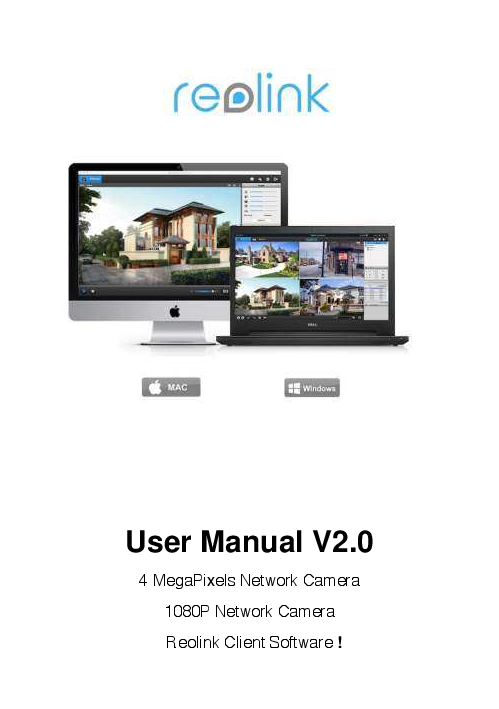
Reolink Network Camera User Manual V2.0
This manual covers the Reolink 4 MegaPixels Network Camera, 1080P Network Camera, and Reolink Client Software.
Getting Started
Thank you for purchasing the Reolink Network Camera. For the latest User Manual, Product Updates, and more information, please visit our website at: https://reolink.com/
CAUTION: RISK OF ELECTRIC SHOCK. DO NOT OPEN.
CAUTION: TO REDUCE THE RISK OF ELECTRIC SHOCK, DO NOT REMOVE COVER. NO USER SERVICEABLE PARTS INSIDE. REFER SERVICING TO QUALIFIED SERVICE PERSONNEL.
⚠️ The lightning flash with arrowhead symbol, within an equilateral triangle, is intended to alert the user to the presence of uninsulated "dangerous voltage" within the product's enclosure that may be of sufficient magnitude to constitute a risk of electric shock.
❗ The exclamation point within an equilateral triangle is intended to alert the user to the presence of important operating and maintenance (servicing) instructions in the literature accompanying the appliance.
WARNING: TO PREVENT FIRE OR SHOCK HAZARD, DO NOT EXPOSE THIS UNIT TO RAIN OR MOISTURE.
CAUTION: TO PREVENT ELECTRIC SHOCK, MATCH WIDE BLADE OF THE PLUG TO THE WIDE SLOT AND FULLY INSERT.
Getting Started Resources
We have developed user-friendly products and documentation. You may download the software and manual from https://reolink.com/software-and-manual/
If you have any questions, you may refer to https://reolink.com/faqs/
For technical support, please contact us at service@reolink.com or support@reolink.com
You may download Firmware from https://reolink.com/firmware/
Notices
FCC Verification
Note: This equipment has been tested and found to comply with the limits for Class B digital device, pursuant to part 15 of the FCC Rules. These limits are designed to provide reasonable protection against harmful interference in a residential installation. This equipment generates, uses, and can radiate radio frequency energy and, if not installed and used in accordance with the instructions, may cause harmful interference to radio or television reception. The user is encouraged to try to correct the interference by one or more of the following measures:
- Reorient or relocate the receiving antenna
- Increase the separation between the equipment and the receiver
- Connect the equipment into an outlet on a circuit different from that to which the receiver is connected
- Consult the dealer or an experienced radio/TV technician for help
These devices comply with part 15 of the FCC Rules. Operation is subject to the following two conditions:
- These devices may not cause harmful interference, and
- These devices must accept any interference received, including interference that may cause undesired operation.
Important Note
All jurisdictions have specific laws and regulations relating to the use of cameras. Before using any camera for any purpose, it is the buyer's responsibility to be aware of all applicable laws and regulations that prohibit or limit the use of cameras and to comply with the applicable laws and regulations.
FCC Regulation (for USA): Prohibition against eavesdropping
Except for the operations of law enforcement officers conducted under lawful authority, no person shall use, either directly or indirectly, a device operated pursuant to the provisions of this Part for the purpose of overhearing or recording the private conversations of others unless such use is authorised by all of the parties engaging in the conversation.
WARNING: Modifications not approved by the party responsible for compliance could void user's authority to operate the equipment.
IMPORTANT SAFETY INSTRUCTIONS
- Make sure product is fixed correctly and stable if fastened in place
- Do not operate if wires and terminals are exposed
- Do not cover vents on the side or back of the Camera and allow adequate space for ventilation
RoHS
This product is fully compliant with the European Union Restriction of the Use of Certain Hazardous Substances in Electrical and Electronic Equipment ("RoHS") Directive (2002/95/EC). The RoHS directive prohibits the sale of electronic equipment containing certain hazardous substances such as lead, cadmium, mercury, and hexavalent chromium, PBB, and PBDE in the European Union.
BATTERY INFORMATION
This product contains a removable battery. If you need to replace or dispose of the internal battery, the battery is located on the main board of the Camera. It is a primary lithium CR2032 button cell. To access, remove, and/or replace the battery:
- Ensure the Camera is turned OFF. NEVER open the Camera's case while power is connected.
- Remove the five screws holding the cover on the Camera.
- If replacing the battery, ensure that it is an exact match for size, type, and capacity.
- Be sure to safely dispose of the battery. The process for battery disposal/recycling varies from location to location; please check with the relevant local authority for the method.
BATTERY SAFETY INSTRUCTIONS
- Do NOT attempt to open, puncture, disassemble, or modify the battery in any way.
- Do NOT subject it to sudden shock or heat.
- Do NOT dispose of battery in fire.
Connection Diagram
This page shows how the Camera connects to the Network System.
Steps for Initial Setup:
- Connect Network Cable to the Camera, and the other end to the POE Switch or Router.
- Connect Power adapter to the camera and turn on the power.
- You may use your Mobile devices or PC to set up the camera.
You may view the camera from the local network or the Internet after successful set-up.
Setting Up Your PC with Reolink Client Software
The Reolink software will allow you to:
- View images from your Camera real-time.
- Playback recorded footage.
- Copy footage to your local PC.
- Adjust settings and configure the Camera.
The Reolink software is powerful enough that you don't need to connect a monitor to the Camera. You only need a computer on the same local network where the Reolink camera is connected. For quick and easy configuration of the Camera's settings, recording quality, and schedule, we suggest using the remote interface in Reolink.
How to install Reolink Software:
- Insert the included CD into your computer.
- Locate the file called Reolink and run it.
- You may be asked by UAC (User Account Control) to allow Reolink to "make changes" to your system. Select Allow or Continue.
- An installation wizard will appear. Simply follow the procedure to install the software.
- Once the Reolink software is installed, it should automatically detect your Camera on your network.
Minimum PC Requirements:
- 2.0GHz or faster CPU
- 2 GB or more RAM
- 10/100Mbps Network
- Internet connection
- 1024x768 resolution
Supported Operating Systems
- Microsoft Windows XP, Microsoft Windows Vista, Microsoft Windows 7
Client Software - Live View
Log on to Reolink
After installing the software, you will see the screen below.
Steps to connect from your PC to your Camera:
- Click the Add Device button on the top right.
- Click Scan Device in LAN.
- Double-click the device you want to add; then device info will be displayed.
- Input the password (default password is Blank). If you already created a password on the Reolink App, you need to use that password to log in.
- Then click OK to Log in.
Ensure your Camera is on and all connections are okay.
IP Address Connection
- If your Camera is in the same LAN network with your PC, you can click Search to automatically get the IP address.
- Then, enter your Username (default is 'admin') and Password (default is blank). You need to use the password you created on Mobile or create a new password here to continue, then click Login. After a few seconds, you will see your cameras live on your PC.
UID Connection
- If your camera is not in the same LAN network with your PC, you can use UID connect mode.
- You can manually type the UID found under the UID QR code on the body of the camera in the UID field.
- Then, enter your Username (default is 'admin') and Password (default is blank). You need to use the password you created on Mobile or create a new password here to continue, then click Login. After a few seconds, you will see your cameras live on your PC.
Client Software - Live View Screen
Live View is the default mode for the Camera.
- 1. Live View: Shows the live view of the camera.
- 2. Playback: Remotely playback video recorded to Camera or PC or NVR.
- 3. RAM/CPU: Place your mouse over the RAM icon to see memory loading performance. Place your mouse over the CPU icon to see CPU loading performance.
- 4. Local Setting: Set the record/Download/Capture path of the file.
- 5. Device List: Shows the devices connected to the software.
- 6. PTZ: Set the Pan/Tilt/Zoom Parameters.
- 7. Basic Settings: Set OSD/Encode/Image parameters.
- 8. Display Layout: Choose 1/4 and multi-channel view up to 32 Channels.
- 9. Sound: Enable/disable sound and adjust its volume.
- 10. Play Control: Choose to play Clear/Balanced/Fluent/Auto Live video.
- 11. Previous and Next Page: Choose which group of channels to display during multichannel view.
- 12. Snap/Record:
- Snap: Capture the image of the Channel you choose.
- Record: Initiates manual recording, and stops recording.
More details will be explained in the next pages.
Client Software - Preview
Click ?️ to compress the image to center or click ?️ to stretch the image to full window.
Click ? to show the digital zoom page. Here you can click ? to choose the zoom region.
- Zoom In ➕
- Zoom Out ➖
- Restore zoom back to default setting ?
- Exit Digital zoom ➡️
Click ? Capture button to take a snapshot of the image.
Click ▶️ Record Button to manually start or stop recording of the selected channel. During recording, on the Device Tree area, the status icon next to the device name will show a record icon ? on the device.
Click ▶️ to start Live View.
Click ⏹️ to Stop Live View.
This Symbol ? shows your camera has WIFI Functions.
Client Software - Local Settings
Click the ⚙️ Gear Icon for the Local Settings button on the upper right of the screen. The local Settings screen is where you can customize how Reolink will store and process footage on the local PC when you download it from the Camera.
Download Path
Where Reolink will save footage that you've downloaded from the Camera.
Convert to AVI
When selected, Reolink will use your PC to transcode footage from the Camera's native format (H.264) into AVI file.
Capture Path
Where Reolink will save still images captured using the snapshot function.
After finished setting, click Save. A popup box will note "Save Succeed"!
Record Path
Where Reolink will save recordings if you select Record from the Preview screen. You may set the Recording File duration, folder size, Recording Schedule, the stream File Type, and choose the record file time length from this page.
After finished setting, click Save. A popup box will note "Save Succeed"!
User Permissions
Double-click the user you want to set. Then you will see the Modify user information window. You can set the password for the user and set the permission for this user. Click OK, then click Save to keep the settings.
Client Software - Local Settings (H.264 to AVI Conversion)
This page allows you to transfer H.264 files to AVI format.
- Click Browse to set the Save Path.
- Click Add to add the file you want to transcode to AVI format.
- Choose the file, then click Transcode. On Status, it will show Start and Finish after transcode succeeds.
Client Software - Device Settings
Right-click the Device to show the setting window. Right-click Remote Config to see the below window and set the related parameters.
Display -> Camera Settings (OSD)
Click the ?️ OSD icon, you will see the settings below.
- Channel Name: Enable/Disable channel name; you may also rename the Channel name here.
- Position Settings: Set the Channel name position (upper left, lower left, upper right, lower right, top center, or bottom center).
- Date/Time: Enable or disable to show the date and time on the screen.
- Mask (Check Box): Turns on/off the masking function.
- Mask (Setup): Creates a black privacy overlay which masks part of your images. This will affect recordings.
Click OK to keep the settings. You can also copy the above settings to other channels by choosing the checkbox on the copy-to window, then click OK.
On the bottom of the window, it will show "Channel Setting Succeed".
Recording -> Encode Settings
The Recording: Encode menu allows you to alter and customize how the Camera records footage and "encodes" the files. You can choose and alter:
- The resolution (per channel).
- The frame rate (how many images per second the Camera records).
- The data-rate of each video stream. The higher the data rate, the "better" your images will look.
Stream Type
Choose whether you are editing parameters for the mainstream or the sub-stream.
- Clear (Main-Stream): The video feed that the Camera will record and display. This is the higher-quality stream.
- Fluent (Sub-Stream): The video stream that the Camera will send to remote devices via a network or the Internet. It is the lower-quality stream; a reduction in video size makes it easier to send over a network.
Other Settings
- Record Audio: Enables recording with audio.
- Resolution: Determines the number of "pixels" that make up your image.
- Frame Rate: The number of frames per second (fps) the Camera will record. Reducing the number of fps may improve the data-rate per frame.
- Max. BitRate (Kbps): The actual amount of data the Camera will use to record video. Higher bitrates result in better quality but require more storage space.
- H.264 Profile: Reolink supports Baseline, Main, and High profiles.
- Baseline: Basic image, short delay, less competitive.
- Main: Main image with high encoding.
- High: Super image, used for streaming applications.
The main-stream uses a variable bitrate; more movement in the video results in a higher bitrate. The sub-stream uses a constant bitrate for easier streaming over a network or the Internet.
Note: Both main-stream and sub-stream operate simultaneously; the sub-stream is part of the main-stream. Options affect output quality but not which stream is used.
Recording - Option (For cameras with Built-in SD card only)
SD Card Options
- Overwrite: When enabled, the SD card will record over the oldest files first.
- Pre-record: Records a few seconds before an event occurs.
- Post-record: Specifies how long after an event occurs the camera will continue to record.
Record Schedule for Motion Detection
SD cards can only store Motion Detection alarms, not continuous recording. The SD card will record only when motion is detected in front of the camera.
Network -> General Settings
Network Access
Choose between three network connection types:
- DHCP: A system where a router automatically assigns IP addresses to connected devices.
- STATIC: Requires manual definition of IP addresses for all devices.
- PPPoE: An advanced protocol for direct connection via a DSL modem (for advanced users).
IP Address
An IPv4 address identifies the camera on the network, consisting of four numbers (0-255) separated by periods (e.g., "192.168.1.24").
Subnet Mask
Defines the network subnet, similar in format to an IP address (e.g., "255.255.255.0").
Gateway
The IP address of the "way to the Internet," typically similar to the camera's IP address (e.g., "192.168.1.254").
DNS Settings
- Auto DNS / Static DNS: Choose how DNS servers are defined. Auto configuration is recommended.
- Auto DNS: The camera automatically chooses a DNS server.
- Static DNS: Manually define a DNS server (for advanced users).
DNS Server Information
- Preferred DNS Server: Associates domain names (e.g., "www.exampledomainname.com") with IP addresses.
- Alternate DNS Server: A backup DNS server for redundancy.
MAC Address
The unique Media Access Control address, pre-set when the camera ships out.
Note: Many networking settings are not required when using Reolink P2P for remote access.
Network -> Advanced Settings
- DDNS: Configure automatic updates for a dynamic DNS service, necessary for remote internet access.
- NTP: Network Time Protocol for automatic time synchronization with an online server.
- Email Settings: Configure the camera to work with an email account for alerts.
- FTP: File Transfer Protocol for transferring files between the camera and computers.
Media Port
The server port used by the camera. UPnP on your router should be enabled to automatically open necessary ports. If UPnP is not supported, manual port forwarding may be required. The default port is 9000.
HTTP Port
The port for logging into the camera via its HTTP interface. The default is 85. Ensure this port is forwarded properly. If 85 is taken, try 86 or 87. Avoid common ports like 80, 81, 82, 88, 90, 99.
RTSP Port
Real Time Streaming Protocol port, default is 554.
UPnP Enable
UPnP simplifies network configuration. Requires a router that supports UPnP. If not enabled, manual port forwarding is needed. This feature is not required if using Reolink P2P.
UID
The Camera's Unique Identifier code for P2P. Can be sent to your email account by clicking the "Send UID" button.
Network -> Advanced -> DDNS Setup
Configure DDNS settings. If your ISP provides a dynamic IP address, DDNS is essential for consistent remote access. You can check your IP address at www.whatismyip.com.
- DDNS Type: Select your DDNS server.
- Server Domain Name: Enter the hostname set up with your DDNS service.
- Username and Password: Enter your DDNS server credentials (suggested to be different from camera/router credentials for security).
- Confirm Password: Retype the password.
If a test is unsuccessful, check your network setup or DDNS account credentials.
Network -> Advanced -> NTP Setup
Configure NTP (Network Time Protocol) settings for automatic time synchronization.
- NTP Server: The server to access current date and time (default: pool.ntp.org).
- NTP Port: The port the NTP server uses (default: 123).
- Enable Auto-Synchronize: Checkbox to enable automatic syncing.
- Synchronize Every: Set the sync interval time.
Important: Set the time zone correctly. Be aware that some NTP servers may not be fully compatible with DST (Daylight Savings Time), potentially causing time discrepancies. Adjust time zone or disable DST if issues arise.
Network -> Advanced -> E-mail Setup
Configure email settings for the camera's auto-mail function. Gmail is recommended for ease of setup.
- Enable SSL or TSL: Enable for secure email server connections.
- SMTP Server: Enter your email provider's SMTP server address (e.g., smtp.gmail.com).
- SMTP Port: The SMTP port used by your provider.
- Sender Address: Your email address (username@emailserver.com).
- Sender Password: The password for your outgoing email account.
- Recipient Address: The email address where alerts will be sent.
- Attachment: Option to attach a picture or video to email alerts.
- Interval: Set the time delay between sending email alerts to avoid excessive notifications.
Device Setting -> Network -> FTP Setup
Configure FTP settings for file transfer between the camera and computers.
- FTP Server: Your FTP server address (IP or link) and port number.
- Anonymous: Check if no username/password is required.
- Upload Directory: Specify the upload folder name.
- Maximum File Length: Manage FTP storage file size (default: 100MB/file).
- FTP Schedule: Set the FTP schedule time.
Click Testing to verify FTP settings. If failed, check your configuration.
Device Setting -> Network -> Status
View network information for the camera:
- IP Address
- Subnet Mask
- Gateway
- Preferred DNS
- Alternate DNS
Refer to Device Setting -> Network -> General for more details.
Network -> WIFI Settings
Configure the camera's WIFI settings. This function is only valid for WiFi Cameras.
- Click Scan Button to show available WiFi SSIDs and signal strengths.
- Choose the WIFI you want to join; select a signal showing "Great" or "OK" for better performance.
- Input the WIFI password. You can click Show Password to verify.
- Click WiFi Test Button to test the settings. "WiFi Test Succeed" will appear if successful, otherwise "WiFi Test Failed".
If WiFi Test Failed, double-check:
- SSID password correctness.
- Antenna connection on the WiFi Camera.
- WiFi Router functionality.
Alarm -> Motion Detection
How Motion Detection Works
The camera compares consecutive frames to detect differences, interpreting significant changes as motion. This can be triggered by movement, but also by changes in lighting (e.g., lights turning on/off, lightning flashes). Avoid using PTZ systems and motion detection simultaneously, as camera movement might be misinterpreted as motion.
Motion detection is suggested as the most practical recording method for most circumstances. Once enabled, it registers as a "Motion Event", which can trigger recording via the schedule.
Motion Detection Settings
- Enable: Enable or disable motion detection for each channel independently.
- Sensitivity: Adjust sensitivity to avoid frequent recording (too high) or missed events (too low). Sensitivity can be set differently for day and night periods.
- Schedule: Set the motion detection schedule time (one box represents 1 hour).
- Action: Define actions upon motion detection, such as Audio Warning or sending an email.
Note: The "Copy-To" feature does not copy Action settings; they must be set independently for each channel.
Motion Detect Setup
- Full Screen: Define the motion detection area by dragging a box on the grid.
- Clear Area: Removes the defined motion detection area.
Alarm -> Motion -> Sensitivity Settings
The Sensitivity setting ranges from 0 to 50; lower numbers are more sensitive. Four time periods can be defined for different sensitivity values, allowing adjustment based on lighting conditions.
Daytime: Values between 5-10 are recommended.
Nighttime: Higher sensitivity (e.g., 25-30) may be needed due to increased "noise" from infrared night vision. Adjust sensitivity to balance detection and false triggers.
The day is divided into four default periods: 00:00-06:00, 06:00-12:00, 12:00-18:00, 18:00-00:00. These can be shifted.
False Triggers
High sensitivity (4 or lower) increases false alarms. Low sensitivity (20 or higher) risks missing significant events.
Weather Impact
Dramatic weather can trigger motion detection. Fog or mist can obscure motion. Adjust Image Settings for brightness and contrast. Limit motion-sensitive areas to where targets are likely to appear.
Note: Motion detection may seem more sensitive at night. Test settings during both day and night.
Alarm -> Motion -> Schedule & Action
Motion Detection Schedule
Set the schedule time for 7 days a week, 24 hours a day. A red box indicates when motion detection is active and will trigger an alarm.
Action
Define the action taken when motion occurs. This is similar to actions for other events.
- Send Email: The camera will send an auto-email alert when the selected event type occurs.
Motion Detection Area Setup
Clicking the setup icon displays a grid of white boxes. Outlined boxes mark areas sensitive to motion; areas without outlines are not sensitive. Click to select or de-select areas. Drag to define multiple areas. Click Clear Area to reset.
Device Setting -> System -> General
- Video Standard: Choose between PAL (Western Europe, Australia) and NTSC (US, Canada, Japan). Incorrect settings can cause black and white or flickering images.
- Time Zone: Essential if NTP is enabled. Set to your local time zone (e.g., GMT+10:00 for Eastern Australia, GMT-05:00 for US/Canada Eastern Time).
- Date Format: Set the desired date format (e.g., DD/MM/YYYY).
- System Time: Manually edit or set to update automatically via NTP.
- Synchronize Local time: Syncs camera time with local PC time.
- DST Setting: Configure Daylight Saving Time settings manually based on your locality.
- Enable Password: Require a password for access, even for local users.
- Device Name: Differentiates your camera from other devices on the network.
Note: Some NTP servers may not be fully compatible with DST, potentially causing time errors. Adjust time zone or disable DST if needed.
Device Setting -> System -> Information
The System Information screen provides details often used by Technical Support. This includes:
- Device Name: The name the camera uses to register its IP address with the DHCP host.
- Model and build numbers help track issues and identify firmware versions.
Device Setting -> System -> Maintenance
Regular rebooting is recommended for camera stability. You can set the camera to reboot automatically.
- Enable auto reboot: Automatically shut down and restart the camera at a set time.
- Auto reboot at: Choose a time when camera activity is unlikely.
- Firmware Upgrade: Update the camera's firmware as instructed by Reolink Technical Support. Remember to export your configuration first.
- Default Settings: Loads factory default settings. This should be done after a firmware upgrade for proper operation. Retain settings by using the Import/Export Configuration function before upgrading.
- Configuration: Creates a file of your customized settings.
Device Setting -> System -> Performance
The System performance page shows CPU loading, bit rate, and Ethernet Port Throughput for the connected camera.
Device Setting -> System -> Reboot
To shut down or reboot the camera, or log out, click the Shutdown menu accessible via the Main Menu.
Device Setting -> Device -> SD Card
View Micro SD card information. This function is only valid for devices with built-in SD card slots.
To delete all recording files from the SD card, click Init and then OK.
User Management
Online User
View the number of online users and disconnect them from viewing the camera.
Add User
Add new users and set their authorities and permissions.
Manager User
Edit existing users by modifying passwords and setting permission authorities.
Preview -> Basic Setting
Basic Settings for OSD and Encode refer to Device Setting -> Display -> Camera and Recording -> Encode respectively.
Basic Setting Image Adjustments
- Brightness: Adjusts image lightness.
- Contrast: Increases the difference between black and white in the image.
- Saturation: Alters color intensity; higher saturation means more vivid colors.
- Hue: Changes the color mix of the image.
- Sharpen: Enhances image clarity by increasing the Signal Noise Ratio.
- Mirroring: Horizontally reverses the image orientation.
- Rotation: Turns the image upside down.
Notice: Image settings will affect your recordings.
Preview -> Advanced Setting
Adjust various camera settings according to the environment where the camera is installed.
- Anti-flicker: Use if TV screens or lights are flickering. Set to 60Hz for USA/Canada, 50Hz for Australia/UK. Outdoor mode is also available.
- Exposure Mode: Select exposure level (e.g., Manual for shutter speed and gain).
- Contextual: Adjusts white balance (Auto, Day, Night, or Manual).
- Day/Night: Sets camera color mode (AGC, Colour, Black&White, or CDS).
- Backlight: Optimizes brightness and contrast for high contrast situations (using BLC or WDR mode).
- 3D-NR: 3D-Noise Ratio; enables noise reduction in the image.
Warranty Information
Reolink warrants this product against defects in workmanship and material for a period of one (1) year from the original purchase date. Proof of purchase is required for warranty validation. Defective units will be repaired or replaced at Reolink's discretion, free of charge for parts or labor.
The end user is responsible for all freight and shipping charges incurred when sending the product to Reolink's repair center or when shipping from/to countries other than the country of origin.
The warranty does not cover incidental, accidental, or consequential damages. Costs associated with fitting or removal by a tradesperson are the end user's responsibility. This warranty applies only to the original purchaser and is non-transferable. Unauthorized modifications or evidence of misuse will void the warranty.
Some countries may not allow limitations on certain exclusions. Where applicable, local laws, regulations, and legal rights will take precedence.

 Your request has been blocked. This could be due to several reasons.
  What Is My IP? Best Way To Check Your Public IP Address
  Reolink Firmware Download Center - Reolink