

Planar Electromagnetic (EM) Simulation in ADS - Chapter 4
File info: application/pdf · 27 pages · 2.03MB
Planar Electromagnetic (EM) Simulation in ADS - Chapter 4
eesof,eda,university,educators,mobile app,app,engineering app,mw app,pcb app,pathwave,pathwave ads,ads2020,advanced design system,product release,software version,software download,software
electromagnetic, planar, em, layout, band-pass, filter, bpf, simulation, ads, eesof
Planar Electromagnetic (EM) Simulation in ADS - Keysight
Simulation in ADS. PathWave Advanced Design System (ADS). Background. Electromagnetic (EM) simulation is a key consideration for many ...
Full PDF Document

If the inline viewer fails, it will open the original document in compatibility mode automatically. You can also open the file directly.
Extracted Text
Chapter 4
Planar Electromagnetic (EM) Simulation in ADS
PathWave Advanced Design System (ADS)
Background
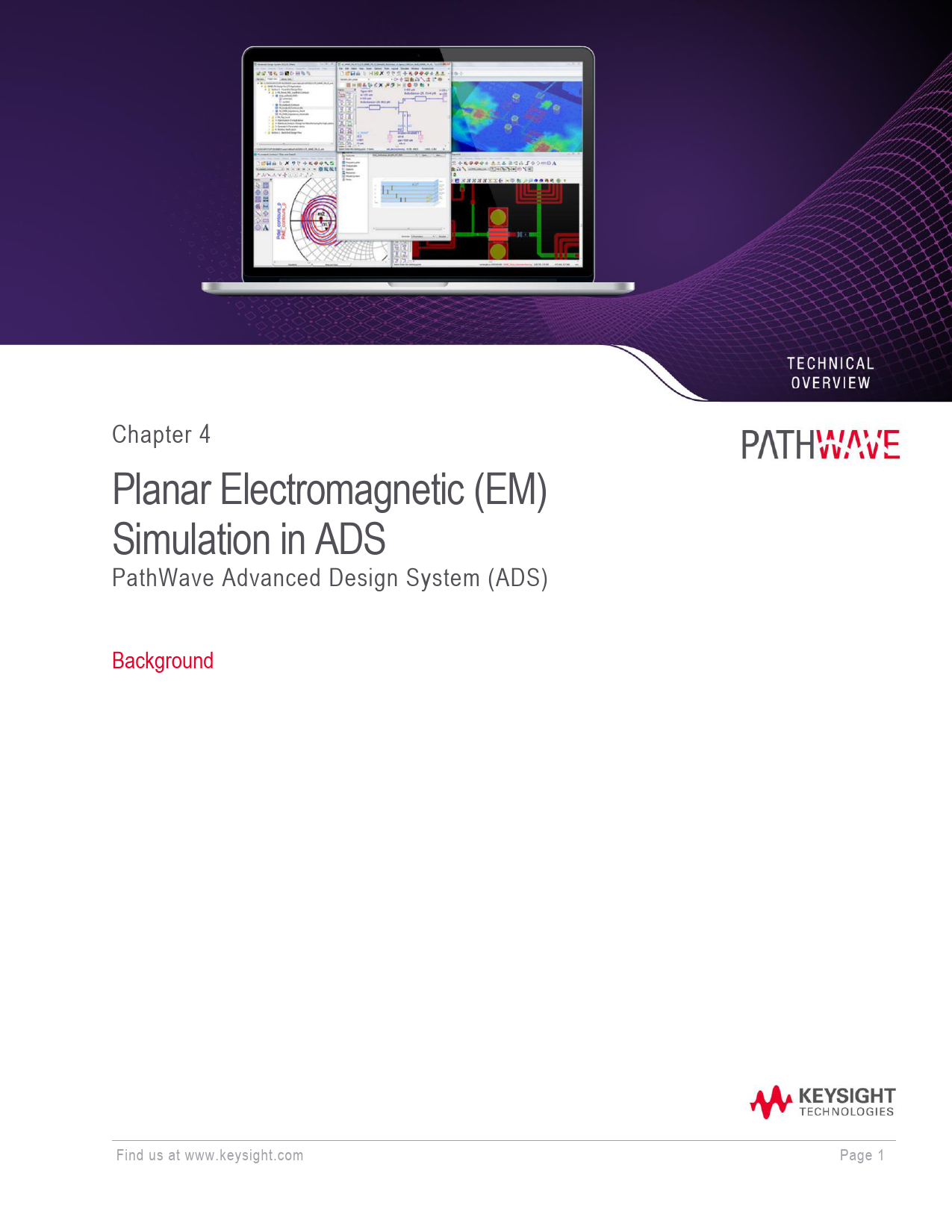
Electromagnetic (EM) simulation is a key consideration for many circuits. EM simulation has always been an important part of the RF design process. However, as next-generation technologies (i.e. PCIe Gen 5) require high throughput, EM simulation is becoming more important in areas where it has traditionally been neglected. Additionally, EM and electrical simulation have typically required different design environments, which has not only increased complexity of the design process but has also introduced significant potential for error. Keysight ADS provides two key electromagnetic simulators integrated within its environment, making it convenient for the designers to perform EM simulations on their designs. Unlike circuit simulators, EM simulators are used on layout. Additionally, ADS is capable of EM and circuit co-simulation, reducing the need to use multiple design environments. This chapter illustrates the flow that can be used to perform EM simulations using ADS. Towards the end of the chapter, EM/circuit co-simulation is explored.
Find us at www.keysight.com

Page 1

Case Study 1: Microstrip Bandpass Filter
Step 1: Creating the Schematic Design for a BPF
Create a new workspace and select units as "mil." Create a new schematic cell and place components for a coupled line bandpass filter topology as shown in Figures 1 and 2. This section will walk through component selection and design considerations.

Figure 1. Setup of Components
Figure 2. Schematic of Microstrip Bandpass Filter
Find us at www.keysight.com

Page 2

In order to prepare this 5-section Coupled Line BPF, do the following: 1. Place Components
a. Place five MCFILs (Coupled Filter Section) from the TLines-Microstrip library palette onto the schematic.
b. Place two Terms (Port Impedance Termination for S-Parameters) from the TLinesMicrostrip library palette onto the schematic.
c. Place one S_Param block (S-Parameter Simulation) from the Simulation-S_Parameters library palette onto the schematic.
d. Place one MSUB (Microstrip Substrate) from the TLines-Microstrip library palette onto the schematic.
e. Place one VAR (Variable Equation) onto the schematic. f. Place a ground at the end of each Term block. 2. Arrange the components as shown in Figure 2. 3. Edit Component Values a. Define the lengths for the MCFIL components:
1st and 5th sections: 245 mils 2nd and 4th sections: 195 mil 5th sections: 237 mil b. Define the output terminal value of the Term blocks: Z = 50 . c. Define the frequencies on the S-Params block: Start Frequency: 3 GHz Stop Frequency: 7 GHz Step Size: 0.01 GHz d. Define the following values on the MSUB block: H = 25 mil (Height of the dielectric) Er = 9.9 (Relative Dielectric Constant) Cond = 4.1E7 (Metal Conductivity, in this Case it is Set for Gold) T = 0.7 mil (Metal Thickness) TanD = 0.0009 (Loss Tangent)

Find us at www.keysight.com

Page 3

e. Define the values in the VAR block. To do this, double click on the block. In the window, enter a name and value for the variable. Press Add to create the variable as seen in Figure 3.
w1 = 10.2 w2 = 24 w3 = 28 s1 = 10 s2 = 17.4 s3 = 27.7

Figure 3. Directions on how to Change the VAR Value
4. Run the simulation and observe the results by plotting S(1,1) and S(2,1). The bandpass filter should look like what is shown in Figure 4.

Find us at www.keysight.com

Page 4

Figure 4. Output Graph of Bandpass Filter
Step 2: Creating the Layout from the Schematic
1. To generate the layout of your schematic from the schematic window, go to Layout > General/Update Layout, as shown in Figure 5. Click OK on the next screen that appears.

Figure 5. How to Open the Layout Tab
Find us at www.keysight.com

Page 5

2. ADS will generate a layout based on schematic. The layout should look like what is shown in Figure 6. The layout view will be added to the view list under the cell name. This can be verified in the ADS main window.

Figure 6. Filter Layout
Step 3: Setup and Run EM Simulation
Several things need to be setup before EM simulation can be run. As a brief outline, the following things need to be done: 1. Connect the pins in the layout, which will be defined as Ports in the EM Setup window.
NOTE: We do not need to convert Pins to Ports where we don't need to see the results. 2. Select the right simulator � Momentum (Method of Moments) or FEM (Finite Element
Method). 3. Define the proper substrate. 4. Define the simulation frequency plan. 5. Define the conductor meshing properties. 6. Create EM module and symbol � This is an optional step. This is only needed if you are going to perform
EM/Circuit co-simulation. This will be explained in a later section.
Now, let's begin the EM simulation setup for the bandpass filter. 1. Connect the pins at the input and output of the filter structure. This is outlined in Figures 7 and 8.

Figure 7. How to Add a Pin
Find us at www.keysight.com

Page 6

Figure 8. Where to Place Pin
2. Click the EM setup form the EM simulation toolbar on the layout page as shown in Figure 9.
Figure 9. How to Open EM Simulation
3. In the box that appears, name the New EM Setup View emSetup and click the button that says Create EM Setup View. This is shown in Figure 10. a. The EM setup window is as shown in Figure 11. You can note the `!' indicating that there is something missing from the setup. Hovering the mouse over the warning will show that there is missing information in the substrate because we have not defined the substrate yet.
4. In the emSetup box that appears, select the Substrate tab, and click New. After naming the substrate, click Create Substrate to accept the 25 mil Alumina template. We can modify the properties of the same to suit our applications. This window is shown in Figure 12.

Figure 10. How to Save EM Setup View
Find us at www.keysight.com

Page 7

Figure 11. Substrate Properties Window

Figure 12. Create New Substrate Window
5. The substrate editor below will be opened. Click the Alumina dielectric layer and then click the "..." button, as shown in Figure 13.

Find us at www.keysight.com

Page 8

Figure 13. Substrate Editor window
a. In the Dielectrics tab, modify Alumina to have Er = 9.9 and TanD = 0.0009, as shown in Figure 14. These are the same parameters that were used in the schematic design.

Figure 14. Edit Dielectric Properties
b. In the Conductors tab, go to Add from Database and select Gold from the list. The database is shown in Figure 15. Click OK. After defining the dielectric and conductor properties, click OK.

Find us at www.keysight.com

Page 9

Figure 15. Material database, showing conductors
c. From the main substrate definition window, select the conductor layer from graphic window. Select Gold from the material dropdown and define the thickness as 0.7 mil.

Figure 16. Modify substrate
d. Click Save and close the substrate editor window.
6. Click Ports in the EM setup window to inspect that there are two ports defined (one for each Pin placed in layout) as shown in Figure 17. You might need to drag down the bottom border of the S-Parameter Ports (view only) box to see Port 2.

Find us at www.keysight.com

Page 10

Figure 17. Edit substrate ports
7. In the Frequency Plan section, define the Sweep Type to be Adaptive. Fstart = 3 GHz Fstop = 7 GHz Npts = 101

Figure 18. Adjust Frequency
Find us at www.keysight.com

Page 11

8. In the Options section, go to the Mesh tab. Enable Edge Mesh, and select Auto-determine edge width. Leave the other fields as default. This is shown in Figure 19.

Figure 19. Adjust Simulation Options
9. Click the Save button and click the Simulate button at the bottom right-hand side of the EM setup window.
10. Once the simulation has started, the following two windows will appear: Job Manager and Momentum Simulation Status. a. Job Manager window (Figure 20): Displays simulation job status. Its status turns to "Done" once the simulation is finished. A completed simulation is shown in Figure 22.

Figure 20. View Jobs in Job Manager
b. Momentum Simulation Status window (Figure 21): Displays simulation status. It shows the time when simulation finishes and displays the frequency points used to achieve the converged results. This is because the sweep type was set to adaptive. Adaptive sweeps automatically stop once the results converge.
Find us at www.keysight.com

Page 12

Figure 21. Momentum Simulation Status Window
11. The Momentum simulation data display will open automatically. Delete all the graphs and insert a new rectangular graph. Select S(1,1) and S(2,1) to be plotted in dB. The simulation results are shown in Figure 22.

Figure 22. Graph of Momentum Simulation
Find us at www.keysight.com

Page 13

Note: When we perform Adaptive frequency sweep, ADS generates 2 dataset files; one for the points which are simulated (in our case: 15 freq points) and the other one with "_a" suffix indicating the adaptive rational polynomial fitted curve as illustrated. The dataset with "_a" suffix is recommended to be used for display purposes.
Comparison of Schematic and EM Simulation Results
The last step is to compare results. In order to see both the results on the same graph, double-click the graph from the Momentum simulation (from step 3). Click on the drop-down list to locate the dataset for the schematic-based simulation. It should have the same cell name but will not contain `_MomUW' (for example, `Lab4_Mstrip_Filter'). Plot both S(1,1) and S(2,1) in dB. Observe the response for both circuit simulation as well as Momentum simulation. In Figure 23, the results from the momentum simulation are shown in red and blue; the results from the schematic simulation is shown in green and black. Notice that the results are generally in agreement. The bandwidth of the filters is nearly identical. There is slight difference in S(1,1). This has several possible causes, such as coupling between the microstrips and edge effects, which are be taken into consideration in the Momentum simulation but not the schematic simulation.

Figure 23. EM and Schematic Graph
Find us at www.keysight.com

Page 14

Case Study 2: Design and Simulation of a Patch Antenna
Theory
A microstrip antenna in its simplest configuration consists of a radiating patch on one side of a dielectric substrate, which has a ground plane on the other side. The patch conductors are usually made of copper or gold and can be any shape. However, conventional shapes are normally used to simplify analysis and performance prediction. The radiating elements and feed lines are usually photo etched on the dielectric substrate. The basic configuration of a microstrip patch antenna is shown in Figure 24.

Figure 24. Microstrip Patch Antenna
The radiating patch may be square, rectangular, circular elliptical, or any other configuration. Square, rectangular and circular shapes are the most common because of the ease of analysis and fabrication. Some of the advantages of microstrip antennas compared to conventional microwave antennas are: � Low weight, low volume � Low fabrication cost � Easy mass production � Linear and circular polarization are possible with simple feeds � Easily integrated with MIC � Feed lines and matching networks can be fabricated simultaneously with antenna structures
Patch antennas find various applications from military to commercial because of their many benefits. Patch arrays are extensively used in phased array radar applications and in applications requiring high directivity and narrow beam width.
Objective
Design a patch antenna at 2.4 GHz and simulate the performance using ADS.

Find us at www.keysight.com

Page 15

Step 1: Calculating Patch Antenna Dimensions
Select an appropriate substrate thickness (h) and dielectric constant (r) for the design of the patch antenna. In this case, we will use the following Dielectric for design:
Height = 1.6 mm Metal Thickness = 0.7 mil (1/2 oz. Copper) r = 4.6 TanD = 0.001 Conductivity = 5.8E7 s/m Calculate the physical parameters of the patch antenna as shown in the geometry in Figure 25 using the given formula.

Figure 25. Dimensions of Patch Antenna

The width and length of the radiating surface is given by:

c

W = L =

= 29.2 mm

(2fr)

where

Velocity of light, c = 3 x 10⁸ m/s

Frequency, f = 2.4 GHz

Relative Permittivity, r = 4.6

The depth of the feed into the patch is given by:

H = 0.822L / 2 = 12 mm

The other dimensions are

Y = W / 5 = 5.8 mm

X = Z = 2W / 5 = 11.7 mm

Find us at www.keysight.com

Page 16

Step 2: Creating Patch Antenna Geometry
1. Open ADS and create a new workspace. Name it Lab5_PatchAntenna_wrk.
2. Open the new layout cell and name it Patch_Antenna
3. Use Insert > Polygon and Insert > Coordinate Entry commands to enter (x,y) coordinates to enter the required points to construct the Patch Antenna geometry according to the calculations. The patch antenna is shown in Figure 26.

Figure 26. Dimensions of Patch Antenna
Step 3: Antenna Simulation
1. Connect a pin at the feed point of the antenna shown in Figure 27.

Figure 27. Feed point for microstrip antenna
Find us at www.keysight.com

Page 17

2. Go to the EM Setup window. In the Substrate section, click New. Create a new substrate with the 25 mil Alumina as the template. Define the substrate with the parameters (substrate height, r, and TanD) from step 1. Define the material as Copper (select it from Add from Database list). The definition is shown in Figures 28, 29, and 30.
Figure 28. Substrate definition

Figure 29. Material definitions for conductor layer

Figure 30. Material definitions for dielectrics

3. Set the Simulation Frequency range as 2.1 GHz to 2.7 GHz (adaptive sweep). Add a new Single Point of 2.4 GHz. The frequency definition is shown in Figure 31.
4. In the Output Plan section, select User Specified Frequencies under `Save Currents For'. This will ensure that the currents are saved at the specified frequencies. These will be needed to see the far field.

Find us at www.keysight.com

Page 18

Figure 31. Frequency setup for simulation
5. Run the simulation. The results are shown in Figure 35.

Figure 32. Output of antenna simulation

Step 4: Antenna Radiation Pattern
1. For the far field antenna pattern, go to EM > Post Processing > Far Field. This is shown in Figure 33. The visualization will open in another window.
Find us at www.keysight.com

Page 19

Figure 33. Opening the far field display
2. Far field results will be displayed in a separate window, shown in Figure 34. If the window layout does not match the figure, you can use Window > Tile. To see the antenna parameters, go to Plot Properties (from the bottom tabs). Go to the Far Field tab (in the middle) and select Antenna Parameters to see all the required data. If the frequency is not set to 2.4 GHz, go to the Solution Setup tab and select 2.4 GHz.

Figure 34. Far field visualization window
Find us at www.keysight.com

Page 20

3. In the Plot Properties tab, go to the Far Field Cut tab (in the middle). Click Enable and enter the desired Phi. Click Display Cut in Data Display.

Figure 35. Edit Far Field Cut window
4. The results, shown in Figure 36, will open in a new window.

Figure 36. Antenna radiation patterns shown in data display
Find us at www.keysight.com

Page 21

Results and Conclusions
From Figure 32, the patch antenna is shown to have a narrow bandwidth centered around 2.4 GHz, which matches expectations. In the far field visualization, only the 2.4 GHz frequency selection shows gain. Neither 2.1 GHz nor 2.7 GHz show gain, which is to be expected based on the S parameters. If you were to look at the radiation pattern closer to 2.4 GHz, you would notice that the gain is negligible until get within the antenna's bandwidth (about 2.37 GHz to 2.42 GHz).
Case Study 3: EM/Circuit Co-Simulation
What is EM/Circuit Co-Simulation?
Often, there is a requirement of having discrete components such as resistors, inductors, capacitors, transistors, etc. in the layout. However, EM solvers cannot simulate these discrete components directly. In this case, we use co-simulation, where we create a layout component and place it into the schematic, where the discrete components are connected.
Typical Process for EM/Circuit Co-Simulation
1. Connect pins in the layout where we need to make connections for discrete components. 2. Define the substrate and other EM settings (such as mesh, simulation frequency range, etc.). 3. Create an EM model and symbol for this layout component. 4. Place this layout component in the schematic and connect the required discrete components. 5. Set up the appropriate simulation in the schematic. 6. If it hasn't been done, Momentum/FEM simulation will be performed. Otherwise, the most
recent data will be used.
Step 1: Create Layout
1. Create the layout manually using MLIN and MTEE components (from the TLines-Microstrip palette). The layout should be similar to what was shown in Figure 37. To match the results shown at the end of the section, the transmission line widths are 5 mm, and the lengths are 20 mm. For the two transmission lines connected to the top of the MTEE components, the lengths are 10 mm. In the rectangle at the bottom (using the polygon tool), make sure the add VIAs. This will be connected to ground.

Find us at www.keysight.com

Page 22

Figure 37. Layout of circuit with MLIN and MTEE
2. Place pins wherever we need to make connections or assemble discrete parts along with layout. 3. In this case we have used the "cond" layer for conductors and a "hole" layer for VIA to provide a path
to ground. To insert the hole layer, right click on the dielectric and select Map Conductor Via. 4. Create a substrate using the 25 mil Alumina template, with Er = 9.9 and TanD = 0.0009. Define the
conductor layer as Gold with conductivity of 4.1E7 and thickness of 0.7 mil. The "hole" layer will also have Gold conductivity as shown in Figure 38.

Figure 38. Substrate overview
5. Setup the frequency plan as needed for schematic simulation, e.g. in this case we will keep it from 0.01 GHz to 1 GHz with 101 points.
Step 2: Create EM/Circuit Co-Simulation Component and Symbol
1. To set up EM/circuit co-simulation, a model will need to be created. Go to EM > Component > Create EM Model and Symbol. Select both options and press OK. This is shown in Figure 39.
2. Click Simulate to begin the Momentum simulation.

Find us at www.keysight.com

Page 23

Figure 39. Creating the emModel and symbol
Step 3: Simulation and Database Generation Process
1. When the simulation is finished, the Momentum data display will be opened, but we do not need to see it right now as the discrete components are not part of the simulation.
2. Observe the ADS main window and we will notice `emModel' and `symbol' now appearing under the cell on which the simulation is being performed...we will use `emModel' for EM/Circuit co-simulation. This is shown in Figure 40.

Figure 40. emModel and symbol shown in main window
3. Open a new schematic cell, drag and drop the emModel from the Main Window on this schematic cell. From the tool bar, click Choose view for simulation and select emModel from the list as shown in Figure 41.

Find us at www.keysight.com

Page 24

Figure 41. emModel shown in the new schematic
4. To change the size of the symbol, open the symbol file from the main window. When in the edit window, select all components. Under Edit > Scale/Oversize, select Scale. Change the values to the scale (for example, 0.5) and click OK. When returning to the schematic view, you may need to update the symbol. Go to Edit > Component > Update Component Definitions. Click OK.
5. Place the desired discrete components on the schematic and connect them to the layout component as shown in Figure 42.

Figure 42. Discrete components connected to the emModel
Find us at www.keysight.com

Page 25

6. Run the simulation. 7. In the data display, insert a rectangular plot to observe S(1,1) and S(2,1) as shown in Figure 43.
Figure 43. S(1,1) and S(2,1) plot for emModel with discrete components
Results and Conclusions
This exercise was not focused on creating a specific circuit (i.e. a bandpass filter). Instead, the focus of this lab was to become familiar with the process of EM/circuit co-simulation. The layout was first constructed using MLIN and and MTEE components, with pins added where the discrete components would be placed. The layout model was then placed into a schematic view where discrete components were connected. This simulation method allows for discrete components to be added into an EM simulation.

Find us at www.keysight.com

Page 26

Conclusion
Congratulations! You have completed Planar Electromagnetic (EM) Simulation in ADS! Check out more examples: www.keysight.com/find/eesof-ads-rfmw-examples.

Learn more at: www.keysight.com
For more information on Keysight Technologies' products, applications or services, please contact your local Keysight office. The complete list is available at: www.keysight.com/find/contactus
Find us at www.keysight.com
This information is subject to change without notice. � Keysight Technologies, 2016 - 2021, Published in USA, March 18, 2021, 5992-1479EN

Page 27