

File info: application/pdf · 25 pages · 2.25MB
MKGW1 Gateway Datasheet - MOKOSmart
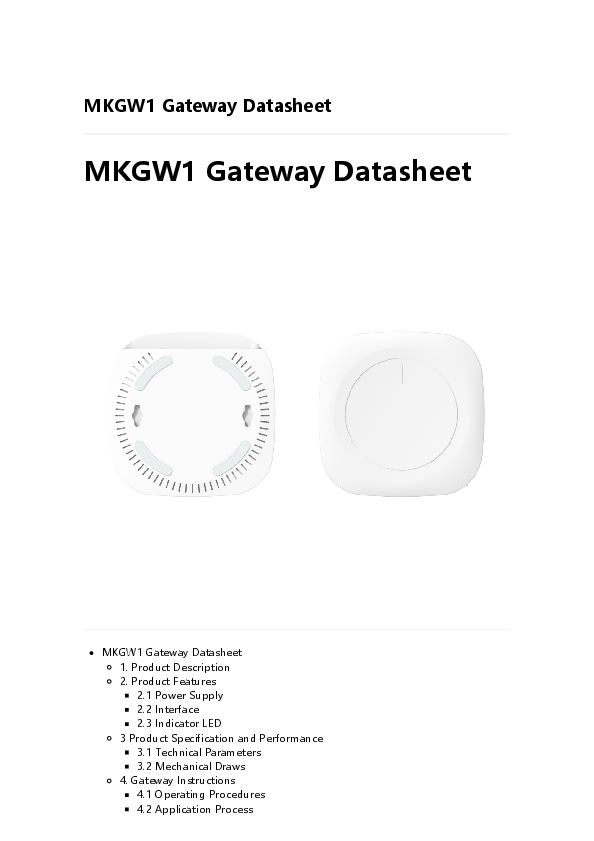
MKGW1 Bluetooth gateway is mainly used for the MOKO BLE series Beacon products. It is convenient for users to get the data of the MOKO ...
MKGW1 Gateway Datasheet - MOKOSmart #1 Smart Device ...
10/12/2019 ShowDoc doc.mokotechnology.com/index.php?s=/page/108 3/25 2. Product Features 2.1 Power Supply Power Supply Block Diagram 2.2 Interface
MKGW1 Gateway Datasheet
Extracted Text
10/12/2019

ShowDoc

MKGW1 Gateway Datasheet
MKGW1 Gateway Datasheet

MKGW1 Gateway Datasheet

1. Product Description

2. Product Features

2.1 Power Supply

2.2 Interface

2.3 Indicator LED

3 Product Specification and Performance

3.1 Technical Parameters

3.2 Mechanical Draws

4. Gateway Instructions

4.1 Operating Procedures

4.2 Application Process

doc.mokotechnology.com/index.php?s=/page/108

1/25

10/12/2019

4.3 Default Parameters 4.4 Connect And Login 4.5 Gateway Status 4.6 Internet Setting 4.7 WIFI Setting 4.8 LAN IP Setting 4.9 Server Access
4.9.1 MQTT 4.9.2 HTTP/HTTPS 4.10 BLE Option 4.11 Device Setting 4.11.1 Modify Login Password 4.11.2 Time Configuration 4.11.3 Restart 4.11.4 Log File 4.11.5 LED Configuration 4.12 Backup & Upgrade 4.12.1 Backup 4.12.2 Upgrade 5. Declaration 6. Contact Information Revision History

ShowDoc

1. Product Description
MKGW1 Bluetooth gateway is mainly used for the MOKO BLE series Beacon products. It is convenient for users to get the data of the MOKO series Beacon, and advertising raw data of any Bluetooth device. It can upload the data to the server via MQTT or HTTP(S) protocol.
MKGW1 can connect the standard MQTT Broker, Aws IOT, Azure IOT HUB, Aliyun IOT.
PoEDC and USB power supply.
The WIFI data rate of MKGW1 can be 150Mbps.
User can modify the gateway parameters on the web UI.
Support Ethernet and WIFI internet access.

doc.mokotechnology.com/index.php?s=/page/108

2/25

10/12/2019

ShowDoc

2. Product Features
2.1 Power Supply

Power Supply Block Diagram
2.2 Interface

doc.mokotechnology.com/index.php?s=/page/108

3/25

10/12/2019

ShowDoc

No.

Interface Function

Remark

1

Reset

1. Reset to factory

1. Long press for over

Button

setting

5seconds until the gateway

2. System upgrade

restarts to reset

2. Short press to upgrade

the system

2

USB Port Insert a USB flash drive The name of upgrade file is

with upgrade file for

required to be:

system upgrade

MKGW-BW-Upgrade.bin

3

PoE Port 1. PoE power supply

Power Specification: 48V/1A

2. Ethernet Access

4

Micro USB USB power supply

Power Specification: 5V/1A

5

DC Power DC power supply

Power Specification: 9V/1A

Port

6

Switch

Power On / Power Off

-

Button

2.3 Indicator LED

doc.mokotechnology.com/index.php?s=/page/108

4/25

10/12/2019

No. 1

2

3

Name

Function

ShowDoc

Power LED Display system status

Network LED

Display network status

Data LED

Display Bluetooth and server communication status

Device Status
System works normally
System works abnormally
System ugrade
No network
ETH connection
WIFI connection
Network abnormally
Bluetooth COMM  Server COMM �
Bluetooth COMM � Server COMM
Bluetooth COMM  Server COMM
Bluetooth COMM � Server COMM �

LED Status GREEN
RED
GREEN (Blinking) YELLOW BLUE GREEN RED BLUE
YELLOW
GREEN
RED

Note: All LEDs display yellow when the system starts up.

3 Product Specification and Performance

3.1 Technical Parameters

doc.mokotechnology.com/index.php?s=/page/108

5/25

10/12/2019

No. 1

2

3 4

5 6 7 8 9 10 11

12 13 14
15

Item

Value

ShowDoc

Remark

Colour

White

Other colors can be customized

Dimension

120mm x 120mm x 22.5mm

Refer to mechanical draws for details

Net Weight

138.2g

Interface

PoE Port DC Power Port Micro USB Port RJ45 Network Port USB Upgrade Port

Operating Temperature

0 ~ 55�C

Storage Temperature

20 ~ 30�C

Wireless Standard IEEE 802.11b/g/n

WIFI Data Rate

150Mbps

Maximum

WLAN Transmit power

18dBm

WIFI coverage

300m

MaximumIn the open space

Wireless encryption type

WPA1PSKWPA2PSK/TKIPAES WPA1PSKWPA2PSK/AES WPA2PSK/TKIPAES WPA2PSK/AES WPA2PSK/TKIP WPAPSK/TKIPAES WPAPSK/AES WPAPSK/TKIP WEP

Bluetooth Standard

BLE 5.0

Chip model:nRF52832

Bluetooth Scanning Range

120m

MaximumIn the open space

Maximum Scanning Capability

300/s

Server Protocol

MQTT(TCP/SSL)

-

HTTP/HTTPS

doc.mokotechnology.com/index.php?s=/page/108

6/25

10/12/2019 3.2 Mechanical Draws

ShowDoc

All units is mm.
4. Gateway Instructions
4.1 Operating Procedures
Step 1. Search for and connect to the gateway using mobile phone or PC with WIFI Step 2. Connect the gateway to the Internet through Ethernet or WIFI Step 3. Configure the gateway to upload data to the server (MQTT, HTTP/HTTPS) and check the communication status Step 4. Select the Beacon type for Bluetooth scanning and configure the scanning parameters.
4.2 Application Process

doc.mokotechnology.com/index.php?s=/page/108

7/25

10/12/2019

ShowDoc

Application Block Diagram
Remark 1. The Bluetooth module on the gateway scans the advertising data of surrounding Beacons 2.The Bluetooth module sends the advertising data of Beacons to the WIFI module 3. The gateway uploads the Beacon data to the server in json format according to the established network communication protocol.

4.3 Default Parameters

No.

Item

Value

Remark

1

WLAN SSID MKGW-BW- XXXX is the last 2 bytes of the

XXXX

gateway MAC address

2

WLAN

Moko4321

Password

3

LAN IP

192.168.22.1

4

User Name Admin

Unmodifiable

5

Password admin

6

Time Zone Asia/Shanghai -

4.4 Connect And Login

Step 1. Power on the gateway

doc.mokotechnology.com/index.php?s=/page/108

8/25

10/12/2019

Step 2. Use PC or mobile phone, open WIFI toSsheoawrDcohc gateway SSID (Default: MKGWBW-XXXX), verify the password (Default: Moko4321) and connect to the gateway

Step 3. Use a browser to open the link http://192.168.22.1 (http://192.168.22.1) (Default
Step 4. Enter the password (Default: admin) to go to the gateway configuration web UI. Note that the configuration web UI will be automatically logged out if there is no operation within 1 hour.

 It is recommended to use the latest version of the mainstream browsers such as IE11 Chrome Firefox Safari etc.
4.5 Gateway Status
After logging in, you can view the current configuration status of the gateway. See the figure below for details. You can refresh the current status by clicking the "REFRESH" button on the right.

doc.mokotechnology.com/index.php?s=/page/108

9/25

10/12/2019

ShowDoc

STATUS Device information description

No.

Item

Description

Remark

1

User

Username of the Admin

Name

configuration

web UI

2

Gateway Gateway WLAN Default: MKGW-BW-XXXX.

SSID

SSID

XXXX is the last 2 bytes of the

gateway MAC address

3

MAC

Gateway MAC

Address

Address

4

Firmware Gateway

Version

Firmware Version

5

Local Time System time

The time zone is configurable.

Press the "REFRESH" button to

refresh

6

Uptime

Run time after the Press the "REFRESH" button to

gateway is started refresh

7

CPU

Device CPU usage Press the "REFRESH" button to

Usage

refresh

8

Memory System memory Press the "REFRESH" button to

Usage

usage

refresh

Network information description

No.

Item

Description

1

Wireless Standard WIFI wireless

network standard

Remark IEEE 802.11b/g/n

doc.mokotechnology.com/index.php?s=/page/108

10/25

10/12/2019

No. 2

3
4 5 6

Item

ShowDoc
Description

Remark

Internet Mode

Network connection mode. Two modes: ETH and WIFI.
Display N/A when no network connection.

The red mark indicates abnormal network connection or no network; The green mark indicates that the network connection is normal.

WAN IP

IP of the gateway

-

WAN port.

Display N/A when no network connection.

LAN IP

LAN IP of the gateway

Configurable

Channel/Frequency

The channel and frequency of the current network

There are 13 channels in total. The current channel is related to the uplink network channel.

Service Access

Network communication protocol for uploading data to the server.
Display N/A when there is no communication.

Support MQTT(TCP/SSL) HTTP/HTTPS.
The red mark indicates that the server connection is abnormal or no connection; The green mark indicates that the server connection is normal.

4.6 Internet Setting
The gateway can access the Internet through Ethernet(ETH) or WIFI, and can access the network by Automatic IP or Static IP. Static IP requires WAN IP, subnet mask, gateway IP, DNS, etc. After the network configuration is completed, wait for the gateway to access the network. You can check the network status in gateway STATUS.

Ethernet -- Use a network cable to connect to the PoE port of the gateway and connect the gateway to a Network Switch that is connected to the Internet.
doc.mokotechnology.com/index.php?s=/page/108

11/25

10/12/2019

ShowDoc

Ethernet / Automatic IP

Ethernet / Static IP
WIFI -- Connect to a Wireless Router via WLAN to access the internet. Select a wireless router and connect. After the configuration is complete, the gateway will restart.

WIFI / Automatic IP
doc.mokotechnology.com/index.php?s=/page/108

12/25

10/12/2019

ShowDoc
WIFI / Static IP

Select a Wireless Router
4.7 WIFI Setting
You can configure the SSID of the gateway, whether to hide the SSID, encryption mode, and password. After the configuration is complete, the gateway will be restarted for the configuration to take effect.

doc.mokotechnology.com/index.php?s=/page/108

13/25

10/12/2019

Supported encryption methods: WPA1PSKWPA2PSK/TKIPAESDefault WPA1PSKWPA2PSK/AES WPA2PSK/TKIPAES WPA2PSK/AES WPA2PSK/TKIP WPAPSK/TKIPAES WPAPSK/AES WPAPSK/TKIP WEP NONE(No encryption)

ShowDoc

4.8 LAN IP Setting
You can configure the gateway LAN IP and subnet mask. After the configuration is complete, the gateway will be restarted for the configuration to take effect.

Remark: Gateway LAN IP and uplink LAN IP cannot be on the same network segment The DHCP server generally chooses YES.

4.9 Server Access

Users can choose MQTT (TCP/SSL) or HTTP/HTTPS to upload data to the server. The communication takes effect immediately after the configuration is completed.
4.9.1 MQTT
MQTT is designed as a lightweight messaging protocol that uses doc.mokotechnology.cpoumb/inlidsehx./pshup?bss=c/praibgee/1o08perations to exchange data between client and MQTT broker;

14/25

10/12/2019

In MQTT the process of sending messages SishocwaDlloecd publishing, and to receive messages an MQTT client must subscribe to an MQTT topic.
In MQTT, the word topic refers to an UTF-8 string that the broker uses to filter messages for each connected client. The topic consists of one or more topic levels. Each topic level is separated by a forward slash "/" (topic level separator). Also you can refer to the default design of the MKGW1 gateway.
The gateway publishes Bluetooth advertising data to the MQTT broker in Json format

Gateway publishes data through MQTT MQTT TCP

MQTT TCP

Configuration instructions

No.

Item

doc.mokotechnology.com/index.php?s=/page/108

Description Remark

15/25

10/12/2019

No. 1

2

3 4 5

6
7 8

Item

ShowDoc
Description Remark

Upload Interval

Time interval for uploading data

Unit: s Input must be a positive integer

Host/IP Port

The HOST or IP address of the MQTT broker

MQTT port

MQTT is an application-level protocol. It works over TCP/IP, using 1883 port by default. If SSL is used, the TCP port is 8883.

Client ID QoS

Client identifier of gateway

The Client ID identifies each MQTT client that connects to the MQTT broker.

Quality of service in MQTT messaging

There are three levels of QoS: 1. QoS=0, at most once. This is the fastest method and requires only 1 message. It is also the most unreliable transfer mode.

2. QoS=1, at least once. This level guarantees that the message will be delivered at least once, but may be delivered more than once.

Username Client username

Password
Gateway Publish Topic

Client password
Client publish topic

3. QoS=2, exactly once. This level guarantees that the message will be delivered only once.
The username states your identity and entry of the password authenticates you as the rightful owner of that identity. MQTT authentication with username/password. The MQTT protocol provides username and password fields in the CONNECT message for authentication. The client has the option to send a username and password when it connects to an MQTT broker. Username can be empty.
Reference to the above. Password can be empty.
Default/gw/pub/304a2650b971
The last level is the MAC address of the lowercase character of the device.

doc.mokotechnology.com/index.php?s=/page/108

16/25

10/12/2019

No. 9

10

11

12

Item

ShowDoc
Description Remark

Gateway Subscribe Topic

Client subcribe topic

Unused, reserved for subscribing topic from MQTT broker.

Gateway Manage Publish Topic

Client publish topic 2

Unused, reserved for configuring the gateway.

Gateway Manage Subscribe Topic

Client subcribe topic 2

Unused, reserved for configuring the gateway.

HeartBeat Heartbeat packet

Used by the MQTT broker to determine whether the client is online. It can be turned on and off.

MQTT SSL
Secure Sockets Layer (SSL) provides a secure communication channel between a client and a server. At the core, SSL is cryptographic protocols which use a handshake mechanism to negotiate various parameters to create a secure connection between the client and the server. After the handshake is complete, an encrypted communication between client and server is established and no attacker can eavesdrop any part of the communication. Servers provide a X509 certificate (typically issued by a trusted authority) that clients use to verify the identity of the server.
MQTT relies on the TCP transport protocol. By default, TCP connections do not use an encrypted communication. To encrypt the whole MQTT communication, many MQTT brokers allow use of SSL instead of plain TCP. If you use the username and password fields of the MQTT CONNECT packet for authentication and authorization mechanisms, you should strongly consider using SSL.
Port 8883 is standardized for a secured MQTT connection. The standardized name at IANA is "secure-mqtt". Port 8883 is exclusively reserved for MQTT over SSL.

doc.mokotechnology.com/index.php?s=/page/108

17/25

10/12/2019

ShowDoc

MQTT SSL

The user has to load certificate file, client key file. The configure items is the same as MQTT TCP type.
Supporting to verify the certification ways as following form:

No.

Item

File

Remark

1

CA certificate

CA Certificate File One-way authentication.

2

CA signed server

-

certificate

One-way authentication.

3

Self signed certificates CA File

Mutual

Client Certiflcate authentication.

File

Client Key File

4.9.2 HTTP/HTTPS
Gateway collect bluetooth advertising data, then publish it to the server via HTTP/HTTPS, data format is the same as MQTT (json format).
MKGW1 gateway just supports one-way authentication mechanism for verifying the certificate issued by the server.

doc.mokotechnology.com/index.php?s=/page/108

18/25

10/12/2019

ShowDoc

Configuration instructions

HTTP/HTTPS

No.

Item

Description

1

Upload

Time interval for

Interval

uploading data

2

URL

HTTP/HTTPS server

address for data

publishing

3

Username Login username

4

Password Login password

Remark
Unit: s Input must be a positive integer
Deafult Port Number: HTTP -- 80 HTTPS -- 443
Username and password upload with json format. Username can be empty.
Username and password upload with json format. Password can be empty.

When need to verify username and password, the URL verification address uses "login" to replace the last level of the entered URL. If there is no last level in the entered URL, the URL verification address will add "login" after the entered URL.Refer to the following:

If the URL is: http://192.168.1.223/cgi-bin/cgitest.cgi Then Login path should be: http://192.168.1.223/cgi-bin/login
If the URL is: http://192.168.1.223 Then Login path should be: http://192.168.1.223/login

4.10 BLE Option
doc.mokotechnology.com/index.php?s=/page/108

19/25

10/12/2019

User can select the type of Bluetooth advertisinSghowdDaotca that needs to be uploaded, and can filter the data by BLE name, MAC address, and RSSI.

Configuration instructions

BLE Option

No.

Item

Description Remark

1

BLE

Turn

Scanning

On/Off BLE

scanning

2

RSSI Filter Filter by

Scan devices with RSSI no less than

RSSI

input data.

3

BLE

Filter by

Scan devices with Bluetooth name or

Name&MAC Bluetooth MAC address containing the input

Filter

Name and keywords.

MAC

address

4

Cache time The length When the device has no

of time to communication with the server, the

cache data, Bluetooth scanning data of the

ranging

specified duration can be cached.

from 0 to Maximum support for storing 256

60 seconds Bluetooth advertising data.

5

BLE data

Filter

Multiple-choice. Currently the

format

advertising advertising data format that can be

data format filted is as follows:

Raw Data

iBeacon

MkiBeacon

MkiBeacon&3Axis

BeaconX Pro-3Axis

BeaconX Pro-T&H

Eddystone-UID

Eddystone-TLM

Eddystone-URL

doc.mokotechnology.com/index.php?s=/page/108

20/25

10/12/2019 Advertising data format

ShowDoc

No.

Item

Description

Remark

1

Raw Data

Bluetooth advertising source data. It has not parsed according to a certain format.

Upload all scanned advertising data.

2

iBeacon

Standard iBeacon

-

format

3

MkiBeacon

Standard iBeacon

Upload standard

format & MkiBeacon

iBeacon frame data

response packet format and MkiBeacon

response packet

frame data

4

MkiBeacon&3Axis Standard iBeacon

Upload standard

format & MkiBeacon

iBeacon frame data

with 3-axis

and MkiBeacon with

accelerometer response 3-axis

packet format

accelerometer

sensor response

packet frame data

5

BeaconX Pro-3Axis BeaconX Pro with 3-

-

axis accelerometer

sensor advertising data

format

6

BeaconX Pro-H&T BeaconX Pro with

-

Temperature&Humidity

sensor advertising data

format

7

Eddystone-UID

Standard Eddystone-

-

UID format

8

Eddystone-TLM

Standard Eddystone-

Unencrypted TLM

TLM format

9

Eddystone-URL

Standard Eddystone-

-

URL format

The Bluetooth advertising data scanned by the gateway is uploaded to server in "json" format. If you need more information about the advertising data format of the MOKO series Beacon, please refer to http://doc.mokotechnology.com/index.php?s=/page/105 (http://doc.mokotechnology.com/index.php?s=/page/105)

 The advertising data frame with the response packet will broadcast the advertising packet and the response

packet separately. The gateway also will upload advertising packet and response packet separately. Developers

need to merge advertising and response packets as needed.

The advertising packets of MkiBeacon and MkiBeacon&3Axis are both standard iBeacon frames.
doc.mokotechnology.com/index.php?s=/page/108

21/25

10/12/2019
4.11 Device Setting

ShowDoc

4.11.1 Modify Login Password
User can modify the password for logging in configuration web UI The login user name is "Admin"(Unmodifiable) The length of password is 1-64 characters and needs to be verified with the old password.

4.11.2 Time Configuration
User selects the time zone, and then checks "Set Automatically". The NTP server follows the default settings and automatically updates to the current time in the time zone
If the user needs to set the time to match the local browser time, close "Set Automatically" and click "Sync With Browser" to update to the current browser time.

4.11.3 Restart
Click "Restart" and the gateway will restart immediately;
The user can turn on the "Automatic Restart" function (Closed by default) and set the time for the gateway to automatically restart each day. This operation can free up system RAM and ensures that the system runs smoothly and steadily.

doc.mokotechnology.com/index.php?s=/page/108

22/25

10/12/2019

ShowDoc

4.11.4 Log File
Once the user finds the device abnormal during use, the system log file can be downloaded to the local. Please send the log file to MOKO to check the system error.
4.11.5 LED Configuration
User can turn off the device LED. After saving, the operation takes effect immediately In the state of turning off the LED, if the system is abnormal or the system is upgraded, the LED will still be enabled.

4.12 Backup & Upgrade
4.12.1 Backup
User can download the configured parameter file of the gateway to the local; User can directly import the configured file into the current system. After the device is restarted, the configuration will take effect.

No.

Item

Description

doc.mokotechnology.com/index.php?s=/page/108

Remark

23/25

10/12/2019

No. 1

2

3

Item

Description

ShowDoc
Remark

Download Backup

Download the configured parameter file

Download all currently configured parameters to the local.

Restore Backup

Restore gateway parameters according to backup file

You need to upload the saved local backup file.

Reset to Defaults

Restore the gateway to the factory default configuration

This feature is consistent with the following actions: Press and hold the gateway "RESET" button for over 5 seconds until the gateway restarts.

4.12.2 Upgrade
User can upgrade the system by uploading Upgrade File. You can check "Whether to save the configuration" to ensure that the upgraded system parameters are consistent with the current system configuration parameters.

USB upgrade method
Step1. Copy the upgrade file named "MKGW-BW-Upgrade.bin" to the USB flash drive;
Step2. Insert the USB flash drive into the gateway USB Port, short press the RESET button, and the device will automatically upgrade. With USB upgrade, the gateway will automatically save the current system configuration parameters.

5. Declaration
The contents of this document are subject to change without prior notice for further improvement. MOKO team reserves all the rights for the final explanation. Please contact MOKO sales team or visit https://www.mokosmart.com/ (https://www.mokosmart.com/) to get more related information if needed.

doc.mokotechnology.com/index.php?s=/page/108

24/25

10/12/2019 6. Contact InformatioShonwDoc
MOKO TECHNOLOGY CO. LTD Address : 4F,Buidling2, Guanghui Technology Park, MinQing Rd, Longhua, Shenzhen, Guangdong, China Telephone : 86-75523573370 Fax : 86-75523573370-808 Website : https://www.mokosmart.com/ (https://www.mokosmart.com/)

Revision History

Revision V1.0

Description of changes Initial Release

Approved Kevin

Revision Date 2019.08.27

showdoc (https://www.showdoc.cc/)

doc.mokotechnology.com/index.php?s=/page/108

25/25