

File info: application/pdf · 23 pages · 395.17KB
Smart Fitness Tracker - Etekcity
noncompliant with the user manual or any additional safety or use warnings included in the product packaging and manual. Product Smart Fitness Tracker Model EST00 Warranty Period 1 year For your own reference, we strong…
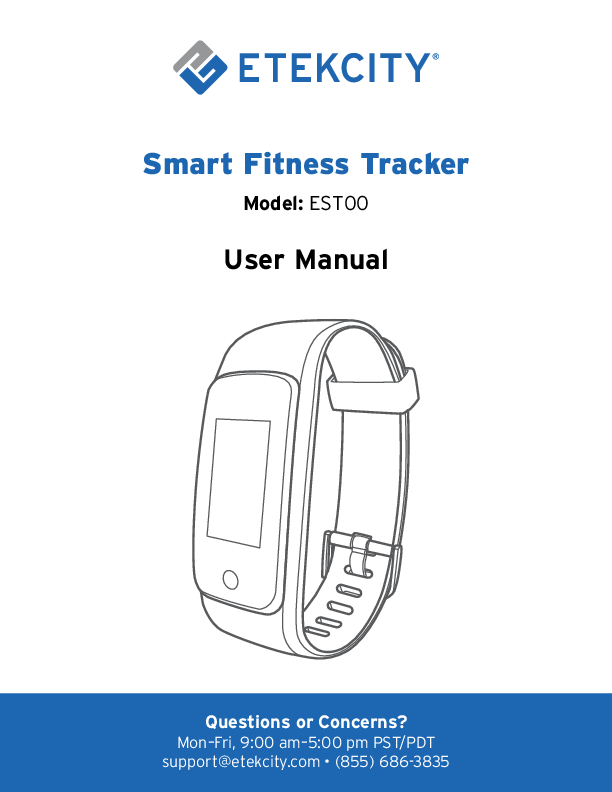
1. Smart Fitness Tracker. Model: EST00. Questions or Concerns? Mon–Fri, 9:00 am–5:00 pm PST/PDT support@etekcity.com • (855) 686-3835. User Manual ...
Full PDF Document

If the inline viewer fails, it will open the original document in compatibility mode automatically. You can also open the file directly.
Extracted Text
Smart Fitness Tracker
Model: EST00
User Manual
Questions or Concerns?
Mon�Fri, 9:00 am�5:00 pm PST/PDT support@etekcity.co1m � (855) 686-3835

Thank you for purchasing the Smart Fitness Tracker by Etekcity.
If you have any questions or concerns, please reach out to our helpful Customer Support Team at
support@etekcity.com. We hope you enjoy your new smart fitness tracker!
Become an Etekcitizen
Exclusive deals, giveaways, and product registration. Better products for better living. Find us at etekcity.com
2

Package Contents
1 x Fitness Tracker 1 x Quick Start Guide

Specifications

Voltage 4.35V

Maximum Transmit Power 0.72dBm

Weight 0.8 oz / 22 g

Battery

90mAh lithium-ion polymer batteries

Battery Life Approx. 7 days / 168 hr

Charging Time 1�2 hr

Display

0.96 in / 2.44 cm LCD touchscreen

IP Rating IP68

Sync Bluetooth� 4.2

Frequency Band 2402�2480 MHz

Operating Environment -4��104�F / -20��40�C

4

Function Diagram
A

B

C

A. USB Charger (Built-In) B. Tracker C. Wristband
5

Before First Use
The fitness tracker must be charged before you first use it. While charging, the tracker will automatically power on.
1. Flip the wristband over and remove the tracker from the end that says "OPEN." [Figure 1.1]
2. Connect the built-in USB charger to a DC 5V, 0.5A adapter. [Figure 1.2]
Note: You can also charge the tracker using a powered USB outlet.
3. Once the tracker is fully charged, insert the tracker back into the tracker wristband.

Figure 1.1

Figure 1.2
Back to Table of Contents
6

Using Your Fitness Tracker
1. Adjust the length of the wristband on your wrist. Make sure it is snug but not too tight.
2. Tap the ring to wake up the display. 3. Tap on the time to access your heart rate and daily data.
Keep tapping in the center of the screen to cycle through data. 4. Swipe up or down to cycle through the other main pages: Training, Mindfulness Training, Notification, and More. 5. Tap the ring to go back. Note:
� If you cannot swipe next on a function or if there is no content for a function, the screen will shake and the tracker will vibrate.
� Product features and operation may vary due to updates and improvements.
7

Training Modes
Your fitness tracker comes with 8 default training modes: Walk, Run, Bike, Hike, Treadmill, Workout, Basketball, and Badminton. There are 6 additional modes you can add in the VeSync app (see More, page 36): Tennis, Football, Climb, Spinning, Yoga, and Dance. 1. On the Training page, tap to select a training mode, and press
and hold until the countdown ends. 2. To pause a training mode, tap the ring. To continue, tap .
To stop, press and hold until the countdown ends. 3. If the session is less than 5 minutes, the fitness tracker will
ask if you would like to save the tracked results. Tap X to resume the training mode or tap to save the data and see the final results. Note: Depending on the training mode selected, the content displayed will be slightly different from other training modes.
8

Mindfulness Training
Your fitness tracker comes with a mindfulness training program. Tap Mindfulness Training and follow the on-screen steps. Tap to repeat as many times as desired and tap to complete the training. Tap the ring to go back at any time.

More

Tap More on the fitness tracker to access:

�

Stopwatch

�

Clock Screen

�

Alarms

�

Find My Phone

�

Product Information

�

Reboot the Fitness Tracker

9

Reminders
Call Reminder
� To set up phone call notifications, see Call (page 30). � To end a call reminder, tap or press the ring.
Message Reminder
� To set up message notifications, see APP Notify (page 31). � Tap the screen to switch to the next page. � Slide up or down to switch to the next message.
Note: � The screen will turn off after 5 seconds. � Only the 5 latest messages will be shown.
Alarm Clock
� To set an alarm, see Alarm Clock (page 35). � The alarm will turn off automatically after 10 seconds. Wake-
up alarms will turn off automatically after 45 seconds. � To end an alarm, tap the ring or slide your finger up or down
on the screen.
10

Sedentary Reminder � If you haven't moved in a set amount of time, the tracker will
give you a reminder. To set up this reminder, see Sedentary (page 32). � To end the reminder, tap the ring or slide your finger up or down on the screen. � The reminder will turn off automatically after 15 seconds.
Back to Table of Contents
11

VeSync App Setup
Note: Due to continuing updates and improvements, the VeSync app may appear slightly different. In case of any differences, follow the in-app instructions. 1. To download the VeSync app, scan the QR code, or search
"VeSync" in the Apple App Store� or Google PlayTM Store. Note: For AndroidTM users, you must select "Allow" (when prompted) to use VeSync.
2. Open the VeSync app. If you already have an account, tap Log In. To create a new account, tap Sign Up.
Note: Make sure your phone's operating system is running on iOSTM 9.0+ or AndroidTM 5.0+.
12

Configuration
To pair the tracker with VeSync: 1. Tap + to add your fitness tracker. 2. Tap Fitness Trackers.
1
2
13

3. Select Etekcity Fitness Tracker (EST00). 4. Make sure your phone's Bluetooth� is on in your phone
settings. Tap Next.
Note: Wake the fitness tracker if you are using it for the first time.
3
4
14

5. Follow the in-app instructions to add your fitness tracker.
Note: After setup is complete, you can change the name and icon at any time by going to the fitness tracker screen and tapping .
Back to Table of Contents
15

Using the App
Creating a User
If you are a new user, you will need to enter your physical information so the tracker can monitor your body metrics.
Note: � Entering inaccurate information will affect the accuracy of the tracker's calorie, step size, and other functions. � If you don't identify with the available gender options, or are unsure, pick the choice that you think best physically matches you. This choice is used for physical measurements, such as calories, step size, and other indicators.
16

Maintenance
Cleaning
Regularly clean your wrist and the fitness tracker of any sweat or dirt, especially after sweating from exercise or using soap or detergent that can attach itself to the wristband. To clean the wristband, use a soapless detergent and rinse thoroughly. Then, wipe with a soft towel or cloth. For difficult spots or stains, scrub with alcohol, then clean as normal.
Note: Do not clean the fitness tracker or the wristband with household cleansers.
Back to Table of Contents
39

Troubleshooting
The fitness tracker doesn't connect with the VeSync app. � Make sure your phone's operating system is running on iOSTM 9.0+ or AndroidTM 5.0+. � Close and relaunch the VeSync app. Make sure you're using the latest version. � Turn on Bluetooth on your phone. � Make sure your fitness tracker and phone are within 1.6 ft / 0.5 m of each other. � Make sure the scale is not currently connected to any other phone or app. � Make sure the fitness tracker is fully charged.
The fitness tracker keeps disconnecting from the VeSync app.
� If your phone restarts, it will temporarily disconnect from your fitness tracker. This is normal.
� Restart your phone or Bluetooth.
Back to Table of Contents
40

FCC Statement
This device complies with Part 15 of the FCC Rules. Operation is subject to the following two conditions: (1) This device may not cause harmful interference, and (2) This device must accept any interference received, including interference that may cause undesired operation. Any changes or modifications not expressly approved by the party responsible for compliance could void the user's authority to operate this equipment. This equipment has been tested and found to comply with the limits for a Class B digital device, pursuant to Part 15 of the FCC Rules. These limits are designed to provide reasonable protection against harmful interference in a residential installation. This equipment generates, uses and can radiate radio frequency energy and, if not installed and used in accordance with the instructions, may cause harmful interference to radio communications. However, there is no guarantee that interference will not occur in a particular installation. If this equipment does cause harmful interference to radio or television reception, which can be determined by turning the equipment off and on, the user is encouraged to try to correct the interference by one of the following measures:
� Reorient or relocate the receiving antenna. � Connect the equipment into an outlet on a circuit different from that to which the receiver
is connected. � Increase the separation between the equipment and receiver. � Consult the dealer or an experienced radio/TV technician for help.
FCC Radiation Exposure Notice
This equipment complies with FCC radiation exposure limits set forth for an uncontrolled environment. End users must follow the specific operating instructions for satisfying RF exposure compliance. To maintain compliance with FCC RF exposure compliance requirements, please follow operation instructions as documented in this manual. This transmitter must not be colocated or operating in conjunction with any other antenna or transmitter. This equipment should be installed and operated with a minimum distance of 20 cm between the radiator and your body. The availability of some specific channels and/or operational frequency bands are country dependent and are firmware programmed at the factory to match the intended destination. The firmware setting is not accessible by the end user.
Back to Table of Contents
41

Warranty Information
Product Smart Fitness Tracker Model EST00
Default Warranty Period 1 year For your own reference, we strongly recommend that you record your order ID
and date of purchase.
Terms & Policy
Etekcity Corporation warrants all products to be of the highest quality in material, craftsmanship, and service, effective from the date of purchase to the end of the warranty period. Etekcity Corporation will replace any product found to be defective due to manufacturer flaws based on eligibility. Refunds are available within the first 30 days of purchase. Refunds are only available to the original purchaser of the product. This warranty extends only to personal use and does not extend to any product that has been used for commercial, rental, or any other use for which the product is not intended. There are no warranties other than the warranties expressly set forth with each product. This warranty is non-transferrable. Etekcity Corporation is not responsible in any way for any damages, losses, or inconveniences caused by equipment failure or by user negligence, abuse, or use noncompliant with the user manual or any additional safety or use warnings included in the product packaging and manual.
42

This warranty does not apply to the following: � Damage due to abuse, accident, alteration, misuse, tampering, or vandalism. � Improper or inadequate maintenance. � Damage in return transit. � Unsupervised use by children under 18 years of age.
Etekcity Corporation and its subsidiaries assume no liability for damage caused by the use of the product other than for its intended use or as instructed in the user manual. Some states do not allow this exclusion or limitation of incidental or consequential losses so the foregoing disclaimer may not apply to you. This warranty gives you specific legal rights and you may also have other rights which may vary from state to state.
ALL EXPRESSED AND IMPLIED WARRANTIES, INCLUDING THE WARRANTY OF MERCHANTABILITY, ARE LIMITED TO THE PERIOD OF THE LIMITED WARRANTY.
Additional 1-Year Warranty You can extend your 1-year warranty by an additional year. Log onto www.etekcity.com/warranty to register your new product for the extended warranty.
Please fill out all required fields and include your order ID, place of purchase, and purchase date, if applicable.
Defective Products & Returns If you discover your product is defective within the specified warranty period, please contact Customer Support via support@etekcity.com with a copy of your invoice and order ID. DO NOT dispose of your product before contacting us. Once our Customer Support Team has approved your request, please return the product with a copy of the invoice and order ID.
Back to Table of Contents
43

Customer Support
If you have any questions or concerns about your new product, please contact our helpful Customer Support Team. Etekcity Corporation 1202 N. Miller St., Suite A Anaheim, CA 92806 Email: support@etekcity.com Toll-Free: (855) 686-3835
Support Hours Mon�Fri, 9:00 am�5:00 pm PST/PDT *Please have your invoice and order ID ready before contacting Customer Support.
Back to Table of Contents
44

Connect with us @Etekcity
45

Building on better living.
AU0919MC-M2.1_0719EST00