

DST Setting / Module : 3405
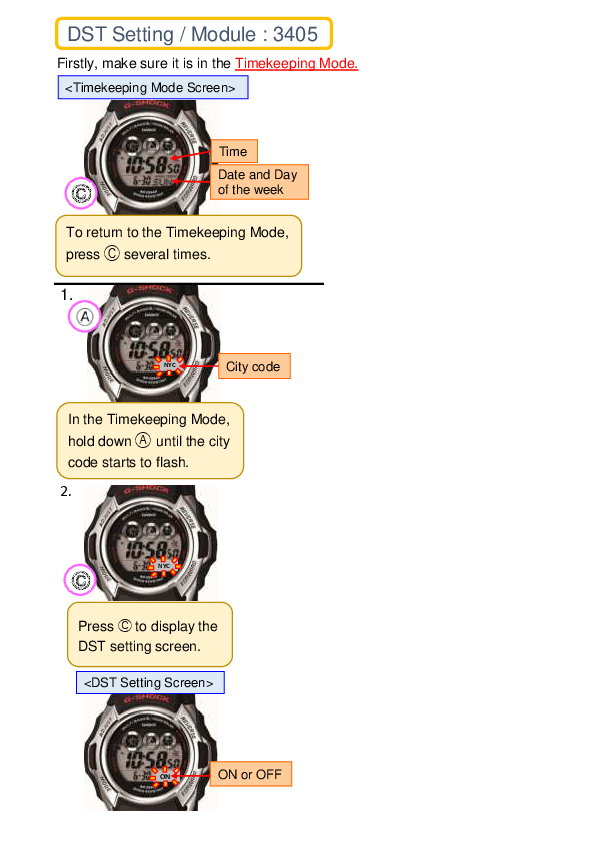
Firstly, ensure the watch is in the Timekeeping Mode.
[Image: A Casio G-Shock watch displaying the current time (e.g., 10:58:50) and the date/day (e.g., 6-30 SUN). Labels indicate "Time" and "Date and Day of the week".]
To return to the Timekeeping Mode from other modes, press [Button A] several times.
Step 1: Select City Code
[Image: A Casio G-Shock watch in Timekeeping Mode. The display shows a city code (e.g., NYC) flashing, indicating it is ready for selection. A label points to "City code".]
In the Timekeeping Mode, hold down [Button A] until the city code starts to flash.
Step 2: Access DST Setting Screen
[Image: A Casio G-Shock watch display showing the "DST Setting Screen". A label indicates the current DST status, such as "ON" or "OFF".]
Press [Button A] to display the DST setting screen.
Step 3: Adjust DST Setting
[Image: A Casio G-Shock watch display showing the DST setting options: "OFF", "ON", or "AUTO". A label points to "ON or OFF".]
Press [Button D] to cycle through the DST settings: "ON", "OFF", or "AUTO".
Step 4: Return to Timekeeping Mode
[Image: A Casio G-Shock watch display showing the selected DST setting, for example, "ON".]
Press [Button A] to confirm the setting and return to the Timekeeping Mode.
