

File info: application/pdf · 8 pages · 1.52MB
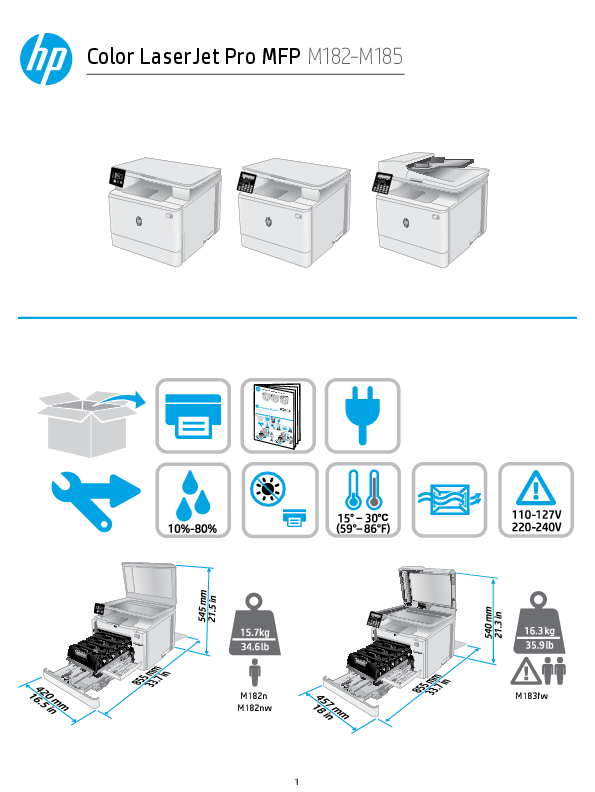
Color LaserJet Pro MFP M182-M185 - HP
Manual Duplex. Load tray 1. Press OK to continue. Press the OK button when ready. • Supply problem. • Install cartridge.
DOWNLOAD
HP Color LaserJet Pro MFP M183fw Driver Software Download
HP COLOR LASERJET PRO MFP M185 (01) PDF MANUAL
Extracted Text
Color LaserJet Pro MFP M182-M185

Color LaserJet Pro MFP M182-M185

w�LewCawoep.hysprti.ogcohpmtr2wim0w1e9wrHo.hPpD.ecovemlo/psmuepnptoCrotm/lpjMan1y8, L2.MP.FP

www.register.hp.com **GG33QQ7744--9900997788**

Color LaserJet Pro MFP M182-M185 �LwewaCwoep.shwtyoprwi.gpcwohrimt.mh2pe0.rc1oo9mH/PsuDpepvoerlto/pljwMmw1e8nw2t.rMCeoFgmPisptearn.**hyp,GGL.c.33Po.mQQ7744--9900997788**

0Q 0QZ
1

0IZ

1 1.1

1.2

1.3

1.4

2

3

123.hp.com

?

hp.com/support/printer-setup

Trouble getting started? Find setup information and videos online. 2

Color LaserJet Pro MFP M182-M185 Reference Guide

Need Help? - FAQ
For frequently asked questions, go to www.hp.com/support/ljM182MFPFAQ or scan the QR code.
LED control panel view
2-line LCD control panel view

1 Control panel LED display 2 Up arrow button 3 Down arrow button 4 Start Color Copy / OK button 5 Start Mono Copy button 6 Copy Setup button 7 Cancel button 8 Attention LED 9 Ready LED 10 Supplies LEDs

1 2-line control panel display 2 Left arrow button 3 OK button
4 Right arrow button 5 Cancel button 6 Start Mono Copy button 7 Start Color Copy button 8 Number of Copies button 9 Lighter/Darker button

10 Copy Menu button 11 Alphanumeric keypad 12 Fax Redial button
(fax models only) 13 Start Fax button
(fax models only) 14 Setup button 15 Wireless button
(wireless model only) 16 Back arrow button 17 Ready LED 18 Attention LED

3

Control panel light patterns

Lights

Description

Ready

Toner cartridge is at end of life

Fatal error

Solution
No action to take. A Supplies light blinks when a supply error occurs, and it glows without blinking when the supply is very low.
Power cycle. If error still appears, call HP customer service.

Processing
Error/Manual Feed/Manual Duplex/Out of paper/ Door open/Jam

No action to take.
� Manual Feed/Manual Duplex - Press the OK button when ready. � Out of paper - Insert paper. � Door open - Secure all doors. � Error/Jam - Refer to User Guide.

Control panel error message

Error Message

Solution

Load Paper
� Initializing... � Cleaning... � Printing... Cool down mode
Door is open
� Jam in tray 1. Clear jam and then press OK. � Jam in cartridge area. Open top cover and remove cartridge. Clear jam.
� Manual Feed. Plain, Letter. Or press OK to use available media. � Manual Duplex. Load tray 1. Press OK to continue.
� Supply problem. � Install cartridge. � Incompatible cartridge. � Protected cartridge. � Unauthorized cartridge.
� Cartridge is very low. � Used or counterfeit cartridge in use.

Insert paper. No action to take. Secure all doors. Refer to User Guide. Press the OK button when ready.
Take out and reinsert the toner cartridge. If error still appears, go to www.hp.com/support/ljM182MFP.
Replace with a new cartridge.

Download and install the software
NOTE: Do not connect the USB cable until you are prompted to do so.
Method 1: Download from 123.hp.com/laserjet
1. Go to 123.hp.com/laserjet (Windows) or 123.hp.com (OS X), and click Download.
2. Follow the onscreen instructions and then prompts to save the file to the computer.
3. Launch the software file from the folder where the file was saved. 4. Follow the onscreen instructions to install the software. 5. When prompted to select a connection type, select the appropriate option
for the type of connection.

Method 2: Download from printer support website (Windows)
1. Go to www.hp.com/support/ljM182MFP. 2. Select Software and Drivers. 3. Download the software for your printer model and operating system. 4. Launch the software file from the folder where the file was saved. 5. Follow the onscreen instructions to install the software. 6. When prompted to select a connection type, select the appropriate option
for the type of connection.

4

Mobile printing

Method 1: HP Smart
Use the HP Smart app to set up, print, and more. 1. Scan the QR code or go to 123.hp.com. 2. Install the HP Smart app. 3. Run the HP Smart app and follow the onscreen instructions to connect, set
up, print, and more.

Method 2: Wi-Fi Direct (wireless models only)
Wi-Fi Direct allows Wi-Fi capable devices, such as smart phones, tablets, or computers, to make a wireless network connection directly to the printer without using a wireless router or access point. Connect to the printer's Wi-Fi Direct signal the same way Wi-Fi capable devices are connected to a new wireless network or hotspot.
Enable Wi-Fi Direct To set up Wi-Fi Direct from the control panel, complete the following steps:
1. On the printer control panel, press the Setup button, and then open the Network Setup menu.
2. Open the following menus:
� Wi-Fi Direct
� On/Off
3. Touch the On menu item.

Discover the printer 1. From the mobile device, turn on the Wi-Fi, and search for wireless
networks. 2. Select the printer as shown on the printer control panel.
Example printer name: Direct-bb-HP M182 Laserjet
Learn more about mobile printing
For further information about these and other operating systems (Chrome/Google Cloud Print), go to www.hp.com/go/LaserJetMobilePrinting or scan the QR code.

Use the scan feature

Use the HP Scan software on your computer to start a scan job at the printer.
Windows
Click Start, select Programs or All Programs, select HP, and then select HP Scan.

OS X
Go to the Applications folder and open HP Smart.

Troubleshooting
Wireless connection troubleshooting
Verify that the printer is within the range of the wireless network. For most networks, the printer must be within 30 m (100 ft) of the wireless access point (wireless router). A USB cable might be required for temporary connection between the printer and the computer. To ensure that the wireless setup information synchronizes correctly, do not connect the USB cable until prompted to do so.

Follow these steps to restore the network settings: 1. Remove the USB cable from the printer. 2. Press and hold the Wireless button on the printer control panel. When the Ready LED and the Attention
the Wireless button. Printer will restore network default automatically and restart. 3. When the Ready LED is on, continue to install the software.

LED start blinking simultaneously, release

User guide and additional support resources The user guide includes printer usage and troubleshooting information. It is available on the web: Go to www.hp.com/support/ljM182MFP. Check for firmware updates 1. Go to www.hp.com/support/ljM182MFP. 2. Select a printer or category from the list, and then click Drivers. 3. Select the operating system, and click the Next button. 4. Select Firmware, and click the Download button.

Wireless printing
For more information about wireless printing and wireless setup, go to www.hp.com/go/wirelessprinting.

5

6

7

� Copyright 2020 HP Development Company, L.P.
Reproduction, adaptation or translation without prior written permission is prohibited, except as allowed under the copyright laws.
The information contained herein is subject to change without notice.
The only warranties for HP products and services are set forth in the express warranty statements accompanying such products and services. Nothing herein should be construed as constituting an additional warranty. HP shall not be liable for technical or editorial errors or omissions contained herein.
Trademark Credits
Windows� is a U.S. registered trademark of Microsoft Corporation.
Apple and the Apple logo are trademarks of Apple Inc., registered in the U.S. and other countries.
App Store is a service mark of Apple Inc.Android, Google Play, and the Google Play logo are trademarks of Google Inc.
OS X is a trademark of Apple Inc., registered in the U.S. and other countries.
AirPrint is a trademark of Apple Inc., registered in the U.S. and other countries.

www.register.hp.com
EN Printed in Vietnam � Copyright 2020 HP Development Company, L.P.

Printed on recycled paper
*7KW54-90011* *7KW54-90011*
7KW54-90011