

msi Z590 PRO WIFI (CEC) Motherboard User Guide
File info: application/pdf · 233 pages · 6.69MB
Contents
MSI Z590 PRO WIFI (CEC) Manual Multi-Language
Z590-PRO-WIFI-CEC | Motherboard | mb | mb/M7D09v2.0
Full PDF Document

If the inline viewer fails, it will open the original document in compatibility mode automatically. You can also open the file directly.
Extracted Text
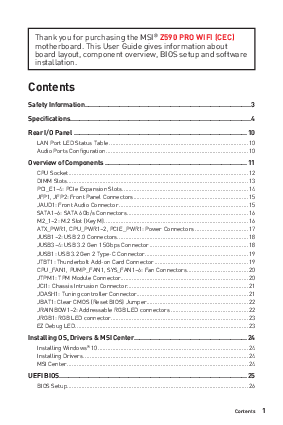
Thank you for purchasing the MSI� Z590 PRO WIFI (CEC) motherboard. This User Guide gives information about board layout, component overview, BIOS setup and software installation.
Contents
Safety Information........................................................................................... 3
Specifications................................................................................................... 4
Rear I/O Panel ............................................................................................... 10 LAN Port LED Status Table ......................................................................................10 Audio Ports Configuration ........................................................................................10
Overview of Components .............................................................................. 11 CPU Socket ...............................................................................................................12 DIMM Slots................................................................................................................13 PCI_E1~4: PCIe Expansion Slots..............................................................................14 JFP1, JFP2: Front Panel Connectors.......................................................................15 JAUD1: Front Audio Connector ................................................................................15 SATA1~6: SATA 6Gb/s Connectors...........................................................................16 M2_1~2: M.2 Slot (Key M) .........................................................................................16 ATX_PWR1, CPU_PWR1~2, PCIE_PWR1: Power Connectors .................................17 JUSB1~2: USB 2.0 Connectors.................................................................................18 JUSB3~4: USB 3.2 Gen 1 5Gbps Connector .............................................................18 JUSB1: USB 3.2 Gen 2 Type-C Connector................................................................19 JTBT1: Thunderbolt Add-on Card Connector ..........................................................19 CPU_FAN1, PUMP_FAN1, SYS_FAN1~6: Fan Connectors......................................20 JTPM1: TPM Module Connector...............................................................................20 JCI1: Chassis Intrusion Connector...........................................................................21 JDASH1: Tuning controller Connector.....................................................................21 JBAT1: Clear CMOS (Reset BIOS) Jumper...............................................................22 JRAINBOW1~2: Addressable RGB LED connectors ................................................22 JRGB1: RGB LED connector.....................................................................................23 EZ Debug LED...........................................................................................................23
Installing OS, Drivers & MSI Center.............................................................. 24 Installing Windows� 10.............................................................................................24 Installing Drivers ......................................................................................................24 MSI Center ................................................................................................................24
UEFI BIOS....................................................................................................... 25 BIOS Setup................................................................................................................26
Contents 1
Entering BIOS Setup.................................................................................................26 BIOS User Guide .......................................................................................................26 Resetting BIOS..........................................................................................................27 Updating BIOS...........................................................................................................27
2 Contents
Safety Information
The components included in this package are prone to damage from electrostatic discharge (ESD). Please adhere to the following instructions to ensure successful computer assembly. Ensure that all components are securely connected. Loose connections may cause the computer to not recognize a component or fail to start. Hold the motherboard by the edges to avoid touching sensitive components. It is recommended to wear an electrostatic discharge (ESD) wrist strap when handling the motherboard to prevent electrostatic damage. If an ESD wrist strap is not available, discharge yourself of static electricity by touching another metal object before handling the motherboard. Store the motherboard in an electrostatic shielding container or on an anti-static pad whenever the motherboard is not installed. Before turning on the computer, ensure that there are no loose screws or metal components on the motherboard or anywhere within the computer case. Do not boot the computer before installation is completed. This could cause permanent damage to the components as well as injury to the user. If you need help during any installation step, please consult a certified computer technician. Always turn off the power supply and unplug the power cord from the power outlet before installing or removing any computer component. Keep this user guide for future reference. Keep this motherboard away from humidity. Make sure that your electrical outlet provides the same voltage as is indicated on the PSU, before connecting the PSU to the electrical outlet. Place the power cord such a way that people can not step on it. Do not place anything over the power cord. All cautions and warnings on the motherboard should be noted. If any of the following situations arises, get the motherboard checked by service personnel:
Liquid has penetrated into the computer. The motherboard has been exposed to moisture. The motherboard does not work well or you can not get it work according to user guide. The motherboard has been dropped and damaged. The motherboard has obvious sign of breakage. Do not leave this motherboard in an environment above 60�C (140�F), it may damage the motherboard.
Safety Information 3
Specifications
Supports 10th Gen Intel� CoreTM Processors, 11th Gen Intel� CoreTM Processors, Pentium� Gold and Celeron� Processors*
CPU
Processor socket LGA1200
* Please go to intel.com for compatibility information
Chipset
Intel� Z590 chipset
Memory
4x DDR4 memory slots, support up to 128GB* Supports 1R 2133/ 2666/ 2933 MHz for 10th Gen Intel� CPU (by JEDEC & POR) Supports 1R 2133/ 2666/ 2933/ 3200 MHz for 11th Gen Intel� CPU (by JEDEC & POR) Max overclocking frequency:
1DPC 1R Max speed up to 5333 MHz 1DPC 2R Max speed up to 4700+ MHz 2DPC 1R Max speed up to 4400+ MHz 2DPC 2R Max speed up to 4000+ MHz Supports Dual-Channel mode Supports non-ECC, un-buffered memory Supports Intel� Extreme Memory Profile (XMP) *Please refer www.msi.com for more information on compatible memory
Expansion Slots
4x PCIe x16 slots Support x16/ x1/ x4/ x1 PCI_E1 (from CPU) Supports up to PCIe 4.0 for 11th Gen Intel� CPU Supports up to PCIe 3.0 for 10th Gen Intel� CPU PCI_E2 & PCI_E4 (from Z590 chipset) Supports up to PCIe 3.0 x1 PCI_E3 (from Z590 chipset) Supports up to PCIe 3.0 x4
Audio
Realtek� ALC897 Codec 7.1-Channel High Definition Audio
Multi-GPU
Supports 2-Way AMD CrossFireTM Technology
Continued on next page
4 Specifications
Continued from previous page
Onboard Graphics
1x HDMI 2.0b with HDR port, supports a maximum resolution of 4K 60Hz */** 1x DisplayPort 1.4 port, supports a maximum resolution of 4K 60Hz */** * Available only on processors featuring integrated graphics. ** Graphics specifications may vary depending on the CPU installed.
LAN
1x Intel� I225-V 2.5Gbps LAN controller
Wireless LAN & Bluetooth�
Intel� Wi-Fi 6E AX210 The Wireless module is pre-installed in the M.2 (Key-E) slot Supports MU-MIMO TX/RX, 2.4GHz/ 5GHz/ 6GHz* (160MHz) up to 2.4Gbps Supports 802.11 a/ b/ g/ n/ ac/ ax Supports Bluetooth� 5.2**, FIPS, FISMA * Wi-Fi 6E 6GHz may depend on every country's regulations and will be ready in WIN10 21H1. ** Bluetooth 5.2 will be ready in WIN10 21H1.
Storage
6x SATA 6Gb/s ports (from Z590 chipset)* 2x M.2 slots (Key M)
M2_1 slot (from CPU) Available only on 11th Gen Intel� CPU Supports up to PCIe 4.0x4 Supports 2242/ 2260/ 2280/ 22110 storage devices
M2_2 slots (from Z590 chipset)* Support up to PCIe 3.0x4 Support up to SATA 6Gb/s Support 2242/ 2260/ 2280 storage devices Intel� OptaneTM Memory Ready**
Support Intel� Smart Response Technology for Intel CoreTM processors * SATA5 & SATA 6 will be unavailable when installing M.2 SSD in the M2_2 slot. ** Before using Intel� OptaneTM memory modules, please ensure that you have updated the drivers and BIOS to the latest version from MSI website.
Continued on next page
Specifications 5
RAID USB
Internal Connectors
6 Specifications
Continued from previous page
Supports RAID 0, RAID 1, RAID 5 and RAID 10 for SATA storage devices Supports RAID 0 and RAID 1 for M.2 NVMe storage devices
Intel� Z590 Chipset 1x USB 3.2 Gen 2x2 20Gbps Type-C port on the back panel 2x USB 3.2 Gen 2 10Gbps ports (1 Type-C internal connector and 1 Type-A port on the back panel) 6x USB 3.2 Gen 1 5Gbps ports (2 Type-A ports on the back panel, and 4 ports available through the internal USB 3.2 Gen 1 5Gbps connectors)
USB 2.0 Hubs GL850G 4x USB 2.0 Type-A ports on the back panel 4x USB 2.0 ports available through the internal USB 2.0 connectors
1x 24-pin ATX main power connector 1x 8-pin ATX 12V power connector 1x 4-pin ATX 12V power connector 1x 6-pin ATX PCIe power connector 6x SATA 6Gb/s connectors 2x M.2 slots (M-Key) 1x USB 3.2 Gen 2 10Gbps Type-C port 2x USB 3.2 Gen 1 5Gbps connectors (supports additional 4 USB 3.2 Gen 1 5Gbps ports) 2x USB 2.0 connectors (supports additional 4 USB 2.0 ports) 1x 4-pin CPU fan connector 1x 4-pin water-pump fan connector 6x 4-pin system fan connectors 1x Front panel audio connector 2x System panel connectors 1x Chassis Intrusion connector 1x Clear CMOS jumper 1x TPM module connector 1x Tuning controller connector 1x TBT connector (Supports RTD3)
Continued on next page
LED Features
Back Panel Connectors
I/O Controller Hardware Monitor Form Factor BIOS Features
Software
Continued from previous page
1x 4-pin RGB LED connector 2x 3-pin RAINBOW LED connectors 4x EZ Debug LED
1x Flash BIOS Button 1x PS/2 keyboard/ mouse combo port 4x USB 2.0 Type-A ports 1x DisplayPort 1x HDMI port 1x LAN (RJ45) port 2x USB 3.2 Gen 1 5Gbps Type-A ports 1x USB 3.2 Gen 2 10Gbps Type-A port 1x USB 3.2 Gen 2x2 20Gbps Type-C port 2x Wi-Fi Antenna connectors 6x audio jacks
NUVOTON NCT6687-R Controller Chip
CPU/ System/ Chipset temperature detection CPU/ System/ Pump fan speed detection CPU/ System/ Pump fan speed control
ATX Form Factor 12 in. x 9.6 in. (30.5 cm x 24.4 cm)
1x 256 Mb flash UEFI AMI BIOS ACPI 6.2, SMBIOS 3.0 Multi-language
Drivers MSI Center Intel� Extreme Tuning Utility CPU-Z MSI GAMING Google ChromeTM, Google Toolbar, Google Drive NortonTM Internet Security Solution
Continued on next page
Specifications 7
MSI Center Features
Special Features
Continued from previous page
Mystic Light LAN Manager User Scenario Hardware Monitor Frozr AI Cooling True Color Live Update Speed Up Smart Tool Super Charger
Audio Audio Boost
Network 2.5G LAN LAN Manager Intel WiFi
Cooling Extended Heatsink Design M.2 Shield Frozr K7 thermal pad Choke pad Pump Fan Smart Fan Control
LED Mystic Light Extension (RAINBOW/RGB) Mystic Light SYNC EZ LED Control EZ DEBUG LED
Continued on next page
8 Specifications
Special Features
Continued from previous page
Performance Lightning Gen 4 PCI-E Slot Lightning Gen 4 M.2 Multi GPU-CrossFire Technology DDR4 Boost Core Boost Lightning USB 20G USB 3.2 Gen 2 10G USB with Type A+C Front USB Type-C Dual CPU Power Supplemental PCIE Power Connector 2oz Copper thickened PCB
Protection PCI-E Steel Armor
Experience MSI Center Frozr AI Cooling Click BIOS 5 Flash BIOS Button
Specifications 9
Rear I/O Panel
PS/2 Combo port
USB 2.0 Type-A 2.5 Gbps LAN
DisplayPort
Audio Ports
Flash BIOS Port
Flash BIOS Button USB 2.0 Type-A
USB 3.2 Gen 1 5Gbps Type-A
Wi-Fi Antenna connectors
USB 3.2 Gen 2x2 20Gbps Type-C
USB 3.2 Gen 2 10Gbps Type-A
LAN Port LED Status Table
Link/ Activity LED
Status Description
Off
No link
Yellow
Linked
Blinking Data activity
Speed LED
Status Description
Off
10 Mbps connection
Green
100/ 1000 Mbps connection
Orange
2.5 Gbps connection
Audio Ports Configuration
Audio Ports
Channel 2468
Line-Out/ Front Specker Out
Line-In
Rear Speaker Out
Center/ Subwoofer Out
Side Speaker Out
Mic In (: connected, Blank: empty)
10 Rear I/O Panel
Overview of Components
Processor Socket
DIMMA1
CPU_PWR2 CPU_PWR1
CPU_FAN1
DIMMA2 DIMMB1 DIMMB2
JRAINBOW2 PUMP_FAN1 SYS_FAN6
M2_1 SYS_FAN1
PCI_E1
PCI_E2 JBAT1 PCI_E3 M2_2
JCI1 JDASH1 PCI_E4
JAUD1
50.77mm*
ATX_PWR1
JUSB4 JUSB5
JUSB3
JTPM1 SATA12
SATA34
JFP2 SYS_FAN5
JRGB1 SYS_FAN2
SYS_FAN3 JRAINBOW1 JTBT1
SYS_FAN4
JFP1 SATA6 SATA5 JUSB2 JUSB1
PCIE_PWR1
* Distance from the center of the CPU to the nearest DIMM slot. Overview of Components 11
CPU Socket
Please install the CPU into the CPU socket as shown below.
2
1 3
7
8
5 4
6
9
Important
Always unplug the power cord from the power outlet before installing or removing the CPU. Please retain the CPU protective cap after installing the processor. MSI will deal with Return Merchandise Authorization (RMA) requests if only the motherboard comes with the protective cap on the CPU socket. When installing a CPU, always remember to install a CPU heatsink. A CPU heatsink is necessary to prevent overheating and maintain system stability. Confirm that the CPU heatsink has formed a tight seal with the CPU before booting your system. Overheating can seriously damage the CPU and motherboard. Always make sure the cooling fans work properly to protect the CPU from overheating. Be sure to apply an even layer of thermal paste (or thermal tape) between the CPU and the heatsink to enhance heat dissipation. Whenever the CPU is not installed, always protect the CPU socket pins by covering the socket with the plastic cap. If you purchased a separate CPU and heatsink/ cooler, Please refer to the documentation in the heatsink/ cooler package for more details about installation.
12 Overview of Components
DIMM Slots
Please install the memory module into the DIMM slot as shown below.
1
3
2
2
1
3
Memory module installation recommendation
DIMMA2
DIMMA2 DIMMB2
DIMMA1 DIMMA2 DIMMB1 DIMMB2
Overview of Components 13
Important
Always insert memory modules in the DIMMA2 slot first. To ensure system stability for Dual channel mode, memory modules must be of the same type, number and density. Some memory modules may operate at a lower frequency than the marked value when overclocking due to the memory frequency operates dependent on its Serial Presence Detect (SPD). Go to BIOS and find the DRAM Frequency to set the memory frequency if you want to operate the memory at the marked or at a higher frequency. It is recommended to use a more efficient memory cooling system for full DIMMs installation or overclocking. The stability and compatibility of installed memory module depend on installed CPU and devices when overclocking. Please refer www.msi.com for more information on compatible memory.
PCI_E1~4: PCIe Expansion Slots
PCI_E1: PCIe 4.0/ 3.0 x16 (From CPU)
PCI_E2: PCIe 3.0 x1 (From Z590 chipset) PCI_E3: PCIe 3.0 x4 (From Z590 chipset)
PCI_E4: PCIe 3.0 x1 (From Z590 chipset)
Important
When adding or removing expansion cards, always turn off the power supply and unplug the power supply power cable from the power outlet. Read the expansion card's documentation to check for any necessary additional hardware or software changes. If you install a large and heavy graphics card, you need to use a tool such as MSI Gaming Series Graphics Card Bolster to support its weight to prevent deformation of the slot. For a single PCIe x16 expansion card installation with optimum performance, using the PCI_E1 slot is recommended.
14 Overview of Components
JFP1, JFP2: Front Panel Connectors
These connectors connect to the switches and LEDs on the front panel.
Power LED Power Switch
1
HDD LED +
2 Power LED +
3
HDD LED -
4 Power LED -
-
+
-
+
2
10
1
9
5 Reset Switch 6 Power Switch
+
-
-
+
Reserved 7 Reset Switch 8 Power Switch
HDD LED Reset Switch
9
Reserved
10
No Pin
HDD LED RESET SW
JFP2 1
+ -
+
JFP1
HDD LED POWER LED
HDD LED HDD LED +
POWER LED POWER LED +
Buzzer 1 Speaker 3
Speaker Buzzer -
2
Buzzer +
4
Speaker +
JAUD1: Front Audio Connector
This connector allow you to connect audio jacks on the front panel.
1
MIC L
2
Ground
2
10
3
MIC R
4
NC
5
Head Phone R
6
1
9
7
SENSE_SEND
8
MIC Detection No Pin
9
Head Phone L
10 Head Phone Detection
Overview of Components 15
SATA1~6: SATA 6Gb/s Connectors
These connectors are SATA 6Gb/s interface ports. Each connector can connect to one SATA device.
SATA6 SATA5
SATA2
SATA1 SATA4 SATA3
Important
SATA5 & SATA 6 will be unavailable when installing M.2 SSD in the M2_2 slot. Please do not fold the SATA cable at a 90-degree angle. Data loss may result during transmission otherwise. SATA cables have identical plugs on either sides of the cable. However, it is recommended that the flat connector be connected to the motherboard for space saving purposes.
M2_1~2: M.2 Slot (Key M)
Please install the M.2 solid-state drive (SSD) into the M.2 slot as shown below.
3 Supplied M.2 screw
1 Standoff
2 30�
16 Overview of Components
ATX_PWR1, CPU_PWR1~2, PCIE_PWR1: Power Connectors
These connectors allow you to connect an ATX power supply.
1
+3.3V
13
2
+3.3V
14
12
24
3
Ground
15
4
+5V
16
5
Ground
17
6
ATX_PWR1
7
+5V
18
Ground
19
8
PWR OK
20
1
13
9
5VSB
21
10
+12V
22
11
+12V
23
12
+3.3V
24
+3.3V -12V Ground PS-ON# Ground Ground Ground Res +5V +5V +5V Ground
8
5
1
Ground
5
2
Ground
6
CPU_PWR1
3
Ground
7
41
4
Ground
8
+12V +12V +12V +12V
4
3 CPU_PWR2
1
Ground
3
2
1
2
Ground
4
+12V +12V
13
1
PCIE_PWR1
2
46
3
+12V +12V +12V
4
Ground
5
Ground
6
Ground
Important
Make sure that all the power cables are securely connected to a proper ATX power supply to ensure stable operation of the motherboard.
Overview of Components 17
JUSB1~2: USB 2.0 Connectors
These connectors allow you to connect USB 2.0 ports on the front panel.
2
10
1
9
1
VCC
2
3
USB0-
4
5
USB0+
6
7
Ground
8
9
No Pin
10
VCC USB1USB1+ Ground
NC
Important
Note that the VCC and Ground pins must be connected correctly to avoid possible damage. In order to recharge your iPad,iPhone and iPod through USB ports, please install MSI Center utility.
JUSB3~4: USB 3.2 Gen 1 5Gbps Connector
This connector allows you to connect USB 3.2 Gen 1 5Gbps ports on the front panel.
10
11
1
20
1
Power
11
2
USB3_RX_DN
12
3
USB3_RX_DP
13
4
Ground
14
5 USB3_TX_C_DN 15
6 USB3_TX_C_DP 16
7
Ground
17
8
USB2.0-
18
9
USB2.0+
19
10
Ground
20
USB2.0+ USB2.0Ground USB3_TX_C_DP USB3_TX_C_DN Ground USB3_RX_DP USB3_RX_DN Power No Pin
Important
Note that the Power and Ground pins must be connected correctly to avoid possible damage.
18 Overview of Components
JUSB1: USB 3.2 Gen 2 Type-C Connector
This connector allows you to connect USB 3.2 Gen 2 Type-C connector on the front panel. The connector possesses a foolproof design. When you connect the cable, be sure to connect it with the corresponding orientation.
JUSB1
USB Type-C Cable
USB Type-C port on the front panel
JTBT1: Thunderbolt Add-on Card Connector
This connector allows you to connect the add-on Thunderbolt I/O card.
1
TBT_Force_PWR
2 TBT_S0IX_Entry_REQ
3 TBT_CIO_Plug_Event# 4 TBT_S0IX_Entry_ACK
5
SLP_S3#_TBT
6 TBT_PSON_Override_N
2
16
7
SLP_S5#_TBT
8
No pin
1
15 9
Ground
10
SMBCLK_VSB
11
DG_PEWake
12
SMBDATA_VSB
13 TBT_RTD3_PWR_EN 14
Ground
15 TBT_Card_DET_R# 16
PD_IRQ#
Overview of Components 19
CPU_FAN1, PUMP_FAN1, SYS_FAN1~6: Fan Connectors
Fan connectors can be classified as PWM (Pulse Width Modulation) Mode or DC Mode. PWM Mode fan connectors provide constant 12V output and adjust fan speed with speed control signal. DC Mode fan connectors control fan speed by changing voltage.
Connector CPU_FAN1 PUMP_FAN1 SYS_FAN1~6
Default fan mode PWM mode PWM mode DC mode
Max. current 2A 3A 1A
Max. power 24W 36W 12W
1 PWM Mode pin definition
1 Ground 2
+12V
3 Sense 4 Speed Control Signal
1 DC Mode pin definition
1 Ground 2 Voltage Control
3 Sense 4
NC
Important
You can adjust fan speed in BIOS > HARDWARE MONITOR.
JTPM1: TPM Module Connector
This connector is for TPM (Trusted Platform Module). Please refer to the TPM security platform manual for more details and usages.
1
SPI Power
2
SPI Chip Select
2
3 12
Master In Slave Out (SPI Data)
4
Master Out Slave In (SPI Data)
5
Reserved
6
SPI Clock
1
11
7
9
Ground
8
Reserved
10
SPI Reset No Pin
11
Reserved
12
Interrupt Request
20 Overview of Components
JCI1: Chassis Intrusion Connector
This connector allows you to connect the chassis intrusion switch cable.
Normal (default)
Trigger the chassis intrusion event
Using chassis intrusion detector 1. Connect the JCI1 connector to the chassis intrusion switch/ sensor on the
chassis. 2. Close the chassis cover. 3. Go to BIOS > SETTINGS > Security > Chassis Intrusion Configuration. 4. Set Chassis Intrusion to Enabled. 5. Press F10 to save and exit and then press the Enter key to select Yes. 6. Once the chassis cover is opened again, a warning message will be displayed on
screen when the computer is turned on.
Resetting the chassis intrusion warning 1. Go to BIOS > SETTINGS > Security > Chassis Intrusion Configuration. 2. Set Chassis Intrusion to Reset. 3. Press F10 to save and exit and then press the Enter key to select Yes.
JDASH1: Tuning controller Connector
This connector is used to connect an optional Tuning Controller module.
26 15
1
No pin
2
NC
3
MCU_SMB_SCL_M
4
MCU_SMB_SDA_M
5
VCC5
6
Ground
Overview of Components 21
JBAT1: Clear CMOS (Reset BIOS) Jumper
There is CMOS memory onboard that is external powered from a battery located on the motherboard to save system configuration data. If you want to clear the system configuration, set the jumpers to clear the CMOS memory.
Keep Data (default)
Clear CMOS/ Reset BIOS
Resetting BIOS to default values 1. Power off the computer and unplug the power cord. 2. Use a jumper cap to short JBAT1 for about 5-10 seconds. 3. Remove the jumper cap from JBAT1. 4. Plug the power cord and power on the computer.
JRAINBOW1~2: Addressable RGB LED connectors
The JRAINBOW connectors allow you to connect the WS2812B Individually Addressable RGB LED strips 5V.
1
1
+5V
2
Data
3
No Pin
4
Ground
CAUTION
Do not connect the wrong type of LED strips. The JRGB connector and the JRAINBOW connector provide different voltages, and connecting the 5V LED strip to the JRGB connector will result in damage to the LED strip.
Important
The JRAINBOW connector supports up to 75 LEDs WS2812B Individually Addressable RGB LED strips (5V/Data/Ground) with the maximum power rating of 3A (5V). In the case of 20% brightness, the connector supports up to 200 LEDs. Always turn off the power supply and unplug the power cord from the power outlet before installing or removing the RGB LED strip. Please use MSI's software to control the extended LED strip.
22 Overview of Components
JRGB1: RGB LED connector
The JRGB connector allows you to connect the 5050 RGB LED strips 12V.
1
1
+12V
2
G
3
R
4
B
Important
The JRGB connector supports up to 2 meters continuous 5050 RGB LED strips (12V/G/R/B) with the maximum power rating of 3A (12V). Always turn off the power supply and unplug the power cord from the power outlet before installing or removing the RGB LED strip. Please use MSI's software to control the extended LED strip.
EZ Debug LED
These LEDs indicate the status of the motherboard.
CPU - indicates CPU is not detected or fail. DRAM - indicates DRAM is not detected or fail. VGA - indicates GPU is not detected or fail. BOOT - indicates booting device is not detected or fail.
Overview of Components 23
Installing OS, Drivers & MSI Center
Please download and update the latest utilities and drivers at www.msi.com
Installing Windows� 10
1. Power on the computer. 2. Insert the Windows� 10 installation disc/USB into your computer. 3. Press the Restart button on the computer case. 4. Press F11 key during the computer POST (Power-On Self Test) to get into Boot
Menu. 5. Select the Windows� 10 installation disc/USB from the Boot Menu. 6. Press any key when screen shows Press any key to boot from CD or DVD...
message. 7. Follow the instructions on the screen to install Windows� 10.
Installing Drivers
1. Start up your computer in Windows� 10. 2. Insert MSI� Drive disc into the optical drive. 3. Click the Select to choose what happens with this disc pop-up notification,
then select Run DVDSetup.exe to open the installer. If you turn off the AutoPlay feature from the Windows Control Panel, you can still manually execute the DVDSetup.exe from the root path of the MSI Drive disc. 4. The installer will find and list all necessary drivers in the Drivers/Software tab. 5. Click the Install button in the lower-right corner of the window. 6. The drivers installation will then be in progress, after it has finished it will prompt you to restart. 7. Click OK button to finish. 8. Restart your computer.
MSI Center
MSI Center is an application that helps you easily optimize game settings and smoothly use content creation softwares. It also allows you to control and synchronize LED light effects on PCs and other MSI products. With MSI Center, you can customize ideal modes, monitor system performance, and adjust fan speed.
MSI Center User Guide If you would like to know more information about MSI Center, please refer to http://download.msi.com/manual/mb/MSICENTER.pdf or scan the QR code to access.
Important
Functions may vary depending on the product you have.
24 Installing OS, Drivers & MSI Center
UEFI BIOS
MSI UEFI BIOS is compatible with UEFI (Unified Extensible Firmware Interface) architecture. UEFI has many new functions and advantages that traditional BIOS cannot achieve, and it will completely replace BIOS in the future. The MSI UEFI BIOS uses UEFI as the default boot mode to take full advantage of the new chipset's capabilities.
Important
The term BIOS in this user guide refers to UEFI BIOS unless otherwise noted. UEFI advantages Fast booting - UEFI can directly boot the operating system and save the BIOS selftest process. And also eliminates the time to switch to CSM mode during POST. Supports for hard drive partitions larger than 2 TB. Supports more than 4 primary partitions with a GUID Partition Table (GPT). Supports unlimited number of partitions. Supports full capabilities of new devices - new devices may not provide backward compatibility. Supports secure startup - UEFI can check the validity of the operating system to ensure that no malware tampers with the startup process.
Incompatible UEFI cases 32-bit Windows operating system - this motherboard supports only 64-bit Windows 10 operating system. Older graphics card - the system will detect your graphics card. When display a warning message There is no GOP (Graphics Output protocol) support detected in this graphics card.
Important
We recommend that you to replace with a GOP/UEFI compatible graphics card or using integrated graphics from CPU for having normal function. How to check the BIOS mode? 1. Power on your computer. 2. Press Delete key, when the Press DEL key to enter Setup Menu, F11 to enter
Boot Menu message appears on the screen during the boot process. 3. After entering the BIOS, you can check the BIOS Mode at the top of the screen.
BIOS Mode: UEFI
UEFI BIOS 25
BIOS Setup
The default settings offer the optimal performance for system stability in normal conditions. You should always keep the default settings to avoid possible system damage or failure booting unless you are familiar with BIOS.
Important
BIOS items are continuously update for better system performance. Therefore, the description may be slightly different from the latest BIOS and should be for reference only. You could also refer to the HELP information panel for BIOS item description. The BIOS screens, options and settings will vary depending on your system.
Entering BIOS Setup
Press Delete key, when the Press DEL key to enter Setup Menu, F11 to enter Boot Menu message appears on the screen during the boot process.
Function key F1: General Help F2: Add/ Remove a favorite item F3: Enter Favorites menu F4: Enter CPU Specifications menu F5: Enter Memory-Z menu F6: Load optimized defaults F7: Switch between Advanced mode and EZ mode F8: Load Overclocking Profile F9: Save Overclocking Profile F10: Save Change and Reset* F12: Take a screenshot and save it to USB flash drive (FAT/ FAT32 format only). Ctrl+F: Enter Search page * When you press F10, a confirmation window appears and it provides the modification information. Select between Yes or No to confirm your choice.
BIOS User Guide
If you'd like to know more instructions on setting up the BIOS, please refer to http://download.msi.com/manual/mb/Intel500BIOS.pdf or scan the QR code to access.
26 UEFI BIOS
Resetting BIOS
You might need to restore the default BIOS setting to solve certain problems. There are several ways to reset BIOS: Go to BIOS and press F6 to load optimized defaults. Short the Clear CMOS jumper on the motherboard.
Important
Be sure the computer is off before clearing CMOS data. Please refer to the Clear CMOS jumper section for resetting BIOS.
Updating BIOS
Updating BIOS with M-FLASH Before updating: Please download the latest BIOS file that matches your motherboard model from MSI website. And then save the BIOS file into the USB flash drive. Updating BIOS: 1. Insert the USB flash drive that contains the update file into the USB port. 2. Please refer the following methods to enter flash mode.
Reboot and press Ctrl + F5 key during POST and click on Yes to reboot the system. Reboot and press Del key during POST to enter BIOS. Click the M-FLASH button and click on Yes to reboot the system. 3. Select a BIOS file to perform the BIOS update process. 4. When prompted click on Yes to start recovering BIOS. 5. After the flashing process is 100% completed, the system will reboot automatically.
UEFI BIOS 27
Updating the BIOS with MSI Center Before updating: Make sure the LAN driver is already installed and the internet connection is set properly. Please close all other application software before updating the BIOS. To update BIOS: 1. Install and launch MSI Center and go to Support page. 2. Select Live Update and click on Advance button. 3. Select the BIOS file and click on Install button. 4. The installation reminder will appear, then click the Install button on it. 5. The system will automatically restart to update BIOS. 6. After the flashing process is 100% completed, the system will restart
automatically. Updating BIOS with Flash BIOS Button 1. Please download the latest BIOS file that matches your motherboard model from
the MSI� website. 2. Rename the BIOS file to MSI.ROM, and save it to the root of your USB flash drive. 3. Connect the power supply to CPU_PWR1 and ATX_PWR1. (No need to install
CPU and memory.) 4. Plug the USB flash drive that contains the MSI.ROM file into the Flash BIOS Port
on the rear I/O panel. 5. Press the Flash BIOS Button to flash BIOS, and the LED starts flashing. 6. The LED will be turned off when the process is completed.
28 UEFI BIOS
MSI� Z590 PRO WIFI (CEC) . , , BIOS .
.......................................................................................................... 3
................................................................................................................... 4
I/O ................................................................................................... 10 LAN LED ............................................................................................10 .................................................................................................10
...................................................................................................... 11 CPU ...................................................................................................................12 DIMM .................................................................................................................13 PCI_E1~4: PCIe .........................................................................................14 JFP1, JFP2: ....................................................................................15 JAUD1: ........................................................................................15 SATA1~6: SATA 6Gb/s ...................................................................................16 M2_1~2: M.2 (Key M).........................................................................................16 ATX_PWR1, CPU_PWR1~2, PCIE_PWR1: .................................................17 JUSB1~2: USB 2.0 .........................................................................................18 JUSB3~4: USB 3.2 Gen 1 5Gbps ....................................................................18 JUSB1: USB 3.2 Gen 2 Type-C ......................................................................19 JTBT1: ..............................................................................19 CPU_FAN1, PUMP_FAN1, SYS_FAN1~6: .................................................20 JTPM1: TPM ...........................................................................................20 JCI1: ...............................................................................................21 JDASH1: ..................................................................................21 JBAT1: CMOS (Reset BIOS) ...................................................................22 JRAINBOW1~2: RGB LED ...................................................22 JRGB1: RGB LED ...........................................................................................23 EZ LED ...........................................................................................................23
OS, & ................................................................... 24 Windows� 10 ...............................................................................................24 ......................................................................................................24 MSI ....................................................................................................................24
UEFI BIOS....................................................................................................... 25 BIOS () ..................................................................................................26
1
BIOS ..................................................................................................................26 BIOS ..................................................................................................................27 BIOS() ............................................................................................27
2
(ESD) . . , . . ESD . ESD , . . . . , . . . . . PSU PSU . . . . , .
. . . . . 60�C(140�F) . .
3
CPU
-GPU 4
10 � TM , 11 � TM , � � * LGA1200 * intel.com .
� Z590
DDR4 4, 128GB* 1R 2133/ 2666/ 2933 MHz (10 � CPU)(by JEDEC & POR) 1R 2133/ 2666/ 2933/ 3200 MHz (11 � CPU)(by JEDEC & POR) :
1DPC 1R 5333 MHz 1DPC 2R 4700+ MHz 2DPC 1R 4400+ MHz 2DPC 2R 4000+ MHz non-ECC, un-buffered � (XMP)
* http://www.msi.com .
4x PCIe x16 x16/ x1/ x4/ x1 PCI_E1 (CPU) PCIe 4.0 (11 � CPU) PCIe 3.0 (10 � CPU) PCI_E2 & PCI_E4 (Z590 ) PCIe 3.0 x1 PCI_E3 (Z590 ) PCIe 3.0 x4
Realtek� ALC897 7.1- HD
2-Way AMD CrossFireTM
LAN LAN & �
1x HDR HDMI 2.0b, 4K 60Hz */** 1x 1.4 , 4K 60Hz */** * . ** CPU .
1x � I225-V 2.5Gbps LAN
� Wi-Fi 6E AX210 M.2 (Key-E) . MU-MIMO TX/RX, 2.4GHz/ 5GHz/ 6GHz* (160MHz) 2.4Gbps 802.11 a/ b/ g/ n/ ac/ ax � 5.2**, FIPS, FISMA * Wi-Fi 6E 6GHz WIN10 21H1 . ** 5.2 WIN10 21H1 .
6x SATA 6Gb/s (Z590 )* 2x M.2 (Key M)
M2_1 (CPU) 11 � CPU PCIe 4.0 x4 2242/ 2260/ 2280/ 22110
M2_2 (Z590 )* PCIe 3.0 x4 SATA 6Gb/s 2242/ 2260/ 2280 � OptaneTM Memory Ready**
� Smart Response Technology ( TM ) * M2_2 M.2 SSD SATA5 SATA6 . ** � OptaneTM MSI BIOS .
5
RAID USB
RAID 0, RAID 1, RAID 5 RAID 10 (SATA ) RAID 0 RAID 1 (M.2 NVMe )
� Z590 1x USB 3.2 Gen 2x2 20Gbps Type-C 2x USB 3.2 Gen 2 10Gbps (Type-C 1 Type-A 1) 6x USB 3.2 Gen 1 5Gbps ( Type-A 2 USB 3.2 Gen 1 5Gbps 4)
USB 2.0 Hubs GL850G 4x USB 2.0 Type-A 4x USB 2.0 USB 2.0
1x 24 ATX 1x 8 ATX 12V 1x 4 ATX 12V 1x 6 ATX PCIe 6x SATA 6Gb/s 2x M.2 (M-Key) 1x USB 3.2 Gen 2 10Gbps Type-C 2x USB 3.2 Gen 1 5Gbps ( 4 USB 3.2 Gen 1 5Gbps ) 2x USB 2.0 ( 4 USB 2.0 ) 1x 4 CPU 1x 4 6x 4 1x 2x 1x 1x CMOS 1x TPM 1x 1x TBT (RTD3 )
6
LED
I/O BIOS
1x 4 RGB LED 2x 3 RAINBOW LED 4x EZ LED
1x BIOS 1x PS/2 / 4x USB 2.0 Type-A 1x 1x HDMI 1x LAN (RJ45) 2x USB 3.2 Gen 1 5Gbps Type-A 1x USB 3.2 Gen 2 10Gbps Type-A 1x USB 3.2 Gen 2x2 20Gbps Type-C 2x Wi-Fi 6x
NUVOTON NCT6687-R
CPU// CPU// CPU//
ATX 12 in. x 9.6 in. (30.5 cm x 24.4 cm)
1x 256 Mb UEFI AMI BIOS ACPI 6.2, SMBIOS 3.0
MSI � CPU-Z MSI : TM, , TM
7
MSI
LAN AI True Color
2.5G LAN LAN WiFi
M.2 K7 Choke
LED (RAINBOW/RGB) EZ LED EZ LED
8
Gen 4 PCI-E Gen 4 M.2 GPU � DDR4 USB 20G USB 3.2 Gen 2 10G USB A+C USB Type-C CPU PCIE 2oz Copper thickened PCB
PCI-E
MSI AI BIOS 5 BIOS
9
I/O
PS/2
USB 2.0 Type-A 2.5 Gbps LAN
BIOS
BIOS USB 2.0 Type-A
USB 3.2 Gen 1 5Gbps Type-A
Wi-Fi
USB 3.2 Gen 2x2 20Gbps Type-C
USB 3.2 Gen 2 10Gbps Type-A
LAN LED
/ LED
. . LAN .
LED
10 Mbps .
100/ 1000 Mbps .
2.5 Gbps .
10 I/O
/ / (: , : )
2468
DIMMA1
CPU_PWR2 CPU_PWR1
CPU_FAN1
DIMMA2 DIMMB1 DIMMB2
JRAINBOW2 PUMP_FAN1 SYS_FAN6
M2_1 SYS_FAN1
PCI_E1
PCI_E2 JBAT1 PCI_E3 M2_2
JCI1 JDASH1 PCI_E4
JAUD1
50.77mm*
ATX_PWR1
JUSB4 JUSB5
JUSB3
JTPM1 SATA12
SATA34
JFP2 SYS_FAN5
JRGB1 SYS_FAN2
SYS_FAN3 JRAINBOW1 JTBT1
SYS_FAN4
JFP1 SATA6 SATA5 JUSB2 JUSB1
PCIE_PWR1
* CPU DIMM .
11
CPU
CPU CPU .
2
1 3
7
8
5 4
6
9
CPU .
, CPU . CPU MSI (RMA) .
CPU , CPU . CPU .
CPU .
CPU CPU . CPU ( ) .
CPU , CPU .
CPU / , / .
12
DIMM
DIMM .
1
3
2
1
2 3
()
DIMMA2
DIMMA2 DIMMB2
DIMMA1 DIMMA2 DIMMB1 DIMMB2
13
DIMMA2 . . Serial Presence Detect (SPD) . () BIOS DRAM Frequency . DIMM . CPU . www.msi.com .
PCI_E1~4: PCIe
PCI_E1: PCIe 4.0/ 3.0 x16 (CPU)
PCI_E2: PCIe 3.0 x1 (Z590 ) PCI_E3: PCIe 3.0 x4 (Z590 )
PCI_E4: PCIe 3.0 x1 (Z590 )
. . , MSI . PCIe x16 PCI_E1 .
14
JFP1, JFP2:
LED .
LED
1
HDD LED +
2 Power LED +
3
HDD LED -
4 Power LED -
-
+
-
+
2
10
1
9
5 Reset Switch 6 Power Switch
+
-
-
+
Reserved 7 Reset Switch 8 Power Switch
HDD LED
9
Reserved
10
No Pin
HDD LED RESET SW
JFP2 1
+ -
+
JFP1
HDD LED POWER LED
HDD LED HDD LED +
POWER LED POWER LED +
Buzzer 1 Speaker 3
Speaker Buzzer -
2
Buzzer +
4
Speaker +
JAUD1:
.
1
MIC L
2
Ground
2
10
3
MIC R
4
NC
5
Head Phone R
6
1
9
7
SENSE_SEND
8
MIC Detection No Pin
9
Head Phone L
10 Head Phone Detection
15
SATA1~6: SATA 6Gb/s
SATA 6Gb/s . SATA .
SATA6 SATA5
SATA2
SATA1 SATA4 SATA3
M2_2 M.2 SSD SATA5 SATA6 .
SATA 90 . , .
SATA . .
M2_1~2: M.2 (Key M)
M.2 solid-state drive (SSD) M.2 .
3 M.2
1
2 30�
16
ATX_PWR1, CPU_PWR1~2, PCIE_PWR1:
ATX .
1
+3.3V
13
2
+3.3V
14
12
24
3
Ground
15
4
+5V
16
5
Ground
17
6
ATX_PWR1
7
+5V
18
Ground
19
8
PWR OK
20
1
13
9
5VSB
21
10
+12V
22
11
+12V
23
12
+3.3V
24
+3.3V -12V Ground PS-ON# Ground Ground Ground Res +5V +5V +5V Ground
8
5
1
Ground
5
2
Ground
6
CPU_PWR1
3
Ground
7
41
4
Ground
8
+12V +12V +12V +12V
4
3 CPU_PWR2
1
Ground
3
2
1
2
Ground
4
+12V +12V
13
1
PCIE_PWR1
2
46
3
+12V +12V +12V
4
Ground
5
Ground
6
Ground
ATX .
17
JUSB1~2: USB 2.0
USB 2.0 .
2
10
1
9
1
VCC
2
3
USB0-
4
5
USB0+
6
7
Ground
8
9
No Pin
10
VCC USB1USB1+ Ground
NC
VCC .
USB iPad,iPhone iPod MSI� .
JUSB3~4: USB 3.2 Gen 1 5Gbps
USB 3.2 Gen 1 5Gbps .
10
11
1
20
1
Power
11
2
USB3_RX_DN
12
3
USB3_RX_DP
13
4
Ground
14
5 USB3_TX_C_DN 15
6 USB3_TX_C_DP 16
7
Ground
17
8
USB2.0-
18
9
USB2.0+
19
10
Ground
20
USB2.0+ USB2.0Ground USB3_TX_C_DP USB3_TX_C_DN Ground USB3_RX_DP USB3_RX_DN Power No Pin
.
18
JUSB1: USB 3.2 Gen 2 Type-C
USB 3.2 Gen 2 C . (foolproof ) .
JUSB1
USB Type-C
USB Type-C
JTBT1:
I/O .
1
TBT_Force_PWR
2 TBT_S0IX_Entry_REQ
3 TBT_CIO_Plug_Event# 4 TBT_S0IX_Entry_ACK
5
SLP_S3#_TBT
6 TBT_PSON_Override_N
2
16
7
SLP_S5#_TBT
8
No pin
1
15 9
Ground
10
SMBCLK_VSB
11
DG_PEWake
12
SMBDATA_VSB
13 TBT_RTD3_PWR_EN 14
Ground
15 TBT_Card_DET_R# 16
PD_IRQ#
19
CPU_FAN1, PUMP_FAN1, SYS_FAN1~6:
PWM (Pulse Width Modulation) DC . PWM 12V . DC .
CPU_FAN1 PUMP_FAN1 SYS_FAN1~6
PWM PWM DC
2A 3A 1A
24W 36W 12W
1 PWM
1 Ground 2
+12V
3 Sense 4 Speed Control Signal
1 DC
1 Ground 2 Voltage Control
3 Sense 4
NC
BIOS > Hardware Monitor( ) .
JTPM1: TPM
TPM (Trusted Platform Module) . TPM .
1
SPI Power
2
SPI Chip Select
2
3 12
Master In Slave Out (SPI Data)
4
Master Out Slave In (SPI Data)
5
Reserved
6
SPI Clock
1
11
7
9
Ground
8
Reserved
10
SPI Reset No Pin
11
Reserved
12
Interrupt Request
20
JCI1:
.
( )
1. JCI1 / . 2. . 3. BIOS > SETTINGS > Security > Chassis Intrusion Configuration( )
. 4. Chassis Intrusion ( ) Enabled() . 5. F10 . Enter Yes . 6. .
1. BIOS > SETTINGS > Security > Chassis Intrusion Configuration . 2. Chassis Intrusion ( ) Reset () . 3. F10 . Enter Yes .
JDASH1:
.
26 15
1
No pin
2
NC
3
MCU_SMB_SCL_M
4
MCU_SMB_SDA_M
5
VCC5
6
Ground
21
JBAT1: CMOS (Reset BIOS)
CMOS . CMOS .
( )
CMOS / BIOS
BIOS 1. . 2. JBAT1 5-10 . 3. JBAT1 . 4. .
JRAINBOW1~2: RGB LED
JRAINBOW WS2812B RGB LED 5V .
1
1
+5V
2
Data
3
No Pin
4
Ground
LED . JRGB JRAINBOW , 5V LED JRGB LED .
JRAINBOW 3A(5V) 75 LED WS2812B RGB LED (5V/Data/Ground) . 20% 200 LED .
RGB LED .
MSI LED .
22
JRGB1: RGB LED
JRGB 5050 RGB LED 12V .
1
1
+12V
2
G
3
R
4
B
JRGB 3A (12V) 2 5050 RGB LED (12V/G/R/B) .
RGB LED .
MSI LED .
EZ LED
LED .
CPU -CPU . DRAM -DRAM . VGA - GPU . BOOT - .
23
OS, &
www.msi.com .
Windows� 10
1. . 2. Windows� 10 /USB . 3. Restart . 4. POST (Power-On Self Test) F11
. 5. Windows� 10 /USB . 6. Press any key to boot from CD or DVD...
. 7. Windows� 10 .
1. Windows� 10 . 2. MSI� . 3. Select to choose what happens with this disc , Run
DVDSetup.exe . MSI DVDSetup.exe . 4. Drivers/Software . 5. Install . 6. . . 7. OK . 8. .
MSI
MSI . PC MSI LED . MSI , , .
MSI MSI http://download.msi.com/manual/mb/MSICENTER.pdf QR .
.
24 OS, &
UEFI BIOS
MSI UEFI BIOS UEFI(Unified Extensible Firmware Interface) . UEFI BIOS BIOS . MSI UEFI BIOS UEFI .
`BIOS' `UEFI BIOS' .
UEFI - UEFI BIOS . POST CSM . 2TB . GUID (GPT) 4 . . . . - UEFI .
UEFI 32 Windows - 64 Windows 10 . - . GOP (Graphics Output Protocol) .
GOP/UEFI CPU .
BIOS ? 1. . 2. DEL , F11
Delete . 3. BIOS , BIOS .
BIOS Mode: UEFI
UEFI BIOS 25
BIOS ()
. BIOS , .
BIOS . BIOS . BIOS HELP() .
BIOS , .
BIOS
DEL , F11 Delete .
F1:
F2: /
F3:
F4: CPU F5: Memory-Z(-Z)
F6:
F7: EZ
F8:
F9:
F10: F12:
* USB (FAT/ FAT32 ).
Ctrl+F:
* F10 . Yes() No() .
BIOS
BIOS http://download.msi.com/manual/mb/Intel500BIOSkr.pdf QR .
26 UEFI BIOS
BIOS
BIOS . BIOS . BIOS F6 . CMOS .
CMOS . BIOS CMOS / .
BIOS()
M-FLASH BIOS : BIOS MSI� BIOS USB . BIOS : 1. USB USB . 2. .
POST Ctrl + F5 Yes . BIOS() POST Del . M-FLASH Yes . 3. BIOS BIOS . 4. Yes BIOS . 5. 100% .
UEFI BIOS 27
MSI BIOS : LAN . BIOS , . BIOS : 1. MSI Support . 2. Live Update Advance . 3. BIOS Install . 4. Install . 5. BIOS . 6. BIOS 100% , . BIOS BIOS 1. BIOS MSI� . 2. BIOS MSI.ROM USB . 3. CPU_PWR1 ATX_PWR1 . (
.) 4. MSI.ROM USB I/O BIOS
. 5. BIOS BIOS LED . 6. LED .
28 UEFI BIOS
Merci d'avoir achet� la carte m�re MSI� Z590 PRO WIFI (CEC). Ce guide d'utilisation fournit des informations sur le sch�ma, la vue d'ensemble des composants, la configuration du BIOS et l'installation des logiciels.
Table des mati�res
Informations de s�curit�................................................................................. 3
Sp�cifications................................................................................................... 4
Panneau arri�re Entr�e/Sortie..................................................................... 11 Tableau explicatif de l'�tat de la LED du port LAN..................................................11 Configuration des ports audio..................................................................................11
Vue d'ensemble des composants ................................................................. 12 Socket Processeur ...................................................................................................13 Slot DIMM ................................................................................................................14 PCI_E1~4 : Slots d'extension PCIe...........................................................................15 JFP1, JFP2 : Connecteurs de panneau avant ..........................................................16 JAUD1 : Connecteur audio avant..............................................................................16 SATA1~6 : Connecteurs SATA 6 Gb/s.......................................................................17 M2_1~2 : Slots M.2 (Touche M) ................................................................................17 ATX_PWR1, CPU_PWR1~2, PCIE_PWR1 : Connecteurs d'alimentation .................18 JUSB1~2 : Connecteurs USB 2.0..............................................................................19 JUSB3~4 : Connecteurs USB 3.2 Gen 1 5 Gb/s ......................................................19 JUSB1 : Connecteur USB 3.2 Gen 2 Type-C.............................................................20 JTBT1 : Connecteur de carte additionnelle Thunderbolt ........................................20 CPU_FAN1, PUMP_FAN1, SYS_FAN1~6 : Connecteurs de ventilateur ..................21 JTPM1 : Connecteur de module TPM.......................................................................21 JCI1 : Connecteur intrusion ch�ssis ........................................................................22 JDASH1 : Connecteur du contr�leur de r�glages....................................................22 JBAT1 : Cavalier Clear CMOS (R�initialiser le BIOS)...............................................23 JRAINBOW1~2 : Connecteurs LED RGB adressables .............................................23 JRGB1 : Connecteur LED RGB .................................................................................24 EZ Debug LED...........................................................................................................24
Installer OS, Pilotes et MSI Center ............................................................... 25 Installer Windows� 10 ..............................................................................................25 Installer les pilotes...................................................................................................25 MSI Center ................................................................................................................26
UEFI BIOS....................................................................................................... 27 Configuration du BIOS ..............................................................................................28
Table des mati�res 1
Entrer dans la configuration du BIOS ......................................................................28 Guide d'utilisation du BIOS.......................................................................................28 R�initialiser le BIOS .................................................................................................29 Mettre le BIOS � jour ................................................................................................29
2 Table des mati�res
Informations de s�curit�
Les composants dans l'emballage peuvent �tre endommag�s par des d�charges �lectrostatiques (ESD). Pour vous assurer de correctement monter votre ordinateur, veuillez vous r�f�rer aux instructions ci-dessous. Assurez-vous de bien connecter tous les composants. En cas de mauvaise connexion, il se peut que l'ordinateur ne reconnaisse pas le composant et que le d�marrage �choue. Veuillez tenir la carte m�re par les bords pour �viter de toucher les composants sensibles. Il est recommand� de porter un bracelet antistatique lors de la manipulation de la carte m�re pour pr�venir tout dommage. Si vous n'avez pas de bracelet antistatique, touchez un objet m�tallique reli� � la terre avant de manipuler la carte m�re afin de vous d�charger de votre charge statique. Touchez r�guli�rement l'objet m�tallique pendant toute la manipulation. Tant que la carte m�re n'est pas install�e, conservez-la dans un r�cipient prot�g� contre les ondes �lectrostatiques ou sur une couche antistatique. Avant de d�marrer l'ordinateur, v�rifiez si toutes les vis et les composants m�talliques sont bien fix�s sur la carte m�re ou ailleurs dans le bo�tier de l'ordinateur. Ne d�marrez pas l'ordinateur avant d'avoir termin� l'installation. Ceci peut endommager les composants ou vous blesser. Si vous avez besoin d'aide pendant l'installation, veuillez consulter un technicien informatique certifi�. Avant d'installer les composants d'ordinateur, veuillez toujours mettre hors tension et d�brancher le cordon d'alimentation. Gardez ce manuel pour r�f�rences futures. Prot�gez ce manuel contre l'humidit�. Avant de brancher le bloc d'alimentation sur la sortie �lectrique, veuillez vous assurer que la tension de la sortie �lectrique est bien �gale � celle du bloc d'alimentation. Placez le cordon d'alimentation de fa�on � �viter que l'on marche dessus. Ne posez rien sur le cordon d'alimentation. Veuillez pr�ter attention � toutes les alertes et remarques indiqu�es sur la carte m�re. Dans un cas comme ci-dessous, faites appel au service autoris� pour v�rifier votre carte m�re :
Un liquide a p�n�tr� dans l'ordinateur. La carte m�re a �t� expos�e � l'humidit�. La carte m�re ne fonctionne pas comme indiqu� dans les instructions. La carte m�re est tomb�e par terre et a �t� endommag�e. La carte m�re est cass�e. Ne pas mettre la carte m�re dans un environnement dont la temp�rature est sup�rieure � 60 �C (140 �F) sous peine de l'endommager.
Informations de s�curit� 3
Sp�cifications
CPU Chipset
M�moire
Support des processeurs Intel� CoreTM de 10�me g�n�ration, Intel� CoreTM de 11�me g�n�ration, Pentium� Gold et Celeron�* Socket LGA1200 * Veuillez vous au site intel.com pour plus d'informations de compatibilit�.
Chipset Intel� Z590
4 x slots pour m�moire DDR4, support jusqu'� 128 Go* Support 1R 2133/ 2666/ 2933 MHz pour processeur Intel� de 10�me g�n�ration (parJEDEC et POR) Support 1R 2133/ 2666/ 2933/ 3200 MHz pour processeur Intel� de 11�me g�n�ration (parJEDEC et POR) Fr�quence d'overclocking maximale :
La fr�quence maximale en mode 1DPC 1R monte jusqu'� 5333 MHz La fr�quence maximale en mode 1DPC 2R monte jusqu'� 4700+ MHz La fr�quence maximale en mode 2DPC 1R monte jusqu'� 4400+ MHz La fr�quence maximale en mode 2DPC 2R monte jusqu'� 4000+ MHz Support mode double canal Support non-ECC, m�moire un-buffered Support Intel� Extreme Memory Profile (XMP) * Veuillez vous r�f�rer au site www.msi.com pour plus d'informations sur la m�moire compatible.
Suite du tableau sur la page suivante
4 Sp�cifications
Slots d'extension
Audio Multi-GPU
Sorties vid�o int�gr�es
LAN
Wireless LAN et Bluetooth�
Suite du tableau sur la page pr�c�dente
4 x slots PCIe x16 Support x16/ x1/ x4/ x1 PCI_E1 (depuis CPU) Support jusqu'� PCIe 4.0 pour processeur Intel� de 11�me g�n�ration Support jusqu'� PCIe 3.0 pour processeur Intel� de 10�me g�n�ration PCI_E2 et PCI_E4 (depuis Chipset Z590) Support jusqu'� PCIe 3.0 x1 PCI_E3 (depuis Chipset Z590) Support jusqu'� PCIe 3.0 x4
Realtek� ALC897 Codec Audio haute d�finition 7.1
Support de la technologie AMD CrossFireTM 2-Way
1 x port HDMI 2.0b avec HDR, supportant une r�solution maximum de 4K 60 Hz */** 1 x port DisplayPort 1.4, supportant une r�solution maximum de 4K 60 Hz */** * Disponible uniquement pour le processeur avec puce graphique int�gr�e. ** Les caract�ristiques des cartes graphiques peuvent varier en fonction du processeur install�.
1 x contr�leur Intel� I225-V 2,5 Gb/s LAN
Intel� Wi-Fi 6E AX210 Le module sans-fil est pr�-install� dans le slot M.2 (Touche E) Support MU-MIMO TX/RX, 2,4 GHz / 5 GHz / 6 GHz* (160 MHz) jusqu'� 2,4 Gb/s Support 802.11 a/ b/ g/ n/ ac/ ax Support Bluetooth� 5.2**, FIPS, FISMA * La norme Wi-Fi 6E 6 GHz peut d�pendre des r�glementations de chaque pays et sera disponible dans Windows 10 21H1. ** La norme Bluetooth 5.2 sera disponible dans Windows 10 21H1.
Suite du tableau sur la page suivante
Sp�cifications 5
Stockage
RAID USB 6 Sp�cifications
Suite du tableau sur la page pr�c�dente
6 x ports SATA 6 Gb/s (depuis Chipset Z590)* 2 x slots M.2 (Touche M)
Le slot M2_1 (depuis CPU) Disponible uniquement sur les processeurs Intel� de 11�me g�n�ration Support jusqu'� PCIe 4.0x4 Support des p�riph�riques de stockage 2242/ 2260/ 2280/ 22110
Le slot M2_2 (depuis Chipset Z590)* Support jusqu'� PCIe 3.0x4 Support jusqu'� SATA 6 Gb/s Support des p�riph�riques de stockage 2242/ 2260/ 2280 Intel� OptaneTM Memory Ready**
Support technologie Intel� Smart Response pour les processeurs Intel CoreTM * Les connecteurs SATA5 et SATA6 sont indisponibles lorsqu'un SSD M.2 est install� dans le slot M2_2. ** Avant d'utiliser les modules de m�moire Intel� OptaneTM, veuillez vous assurer d'avoir mis � jour les pilotes et le BIOS avec la derni�re version disponible sur le site officiel MSI.
Support RAID 0, RAID 1, RAID 5 et RAID 10 pour les p�riph�riques de stockage SATA Support RAID 0 et RAID 1 pour les p�riph�riques de stockage M.2 NVMe
Chipset Intel� Z590 1 x port USB 3.2 Gen 2x2 20 Gb/s Type-C sur le panneau arri�re 2 x ports USB 3.2 Gen 2 10 Gb/s (1 connecteur interne Type-C et 1 port Type-A sur le panneau arri�re) 6 x ports USB 3.2 Gen 1 5 Gb/s (2 ports Type-A sur le panneau arri�re et 4 ports disponibles par l'interm�diaire des connecteurs USB 3.2 Gen 1 5 Gb/s internes)
USB 2.0 Hubs GL850G 4 x ports USB 2.0 Type-A sur le panneau arri�re 4 x ports USB 2.0 disponibles par l'interm�diaire des connecteurs USB 2.0 internes
Suite du tableau sur la page suivante
Connecteurs internes
Fonctions LED
Suite du tableau sur la page pr�c�dente
1 x connecteur d'alimentation principal ATX � 24 broches 1 x connecteur d'alimentation ATX 12 V � 8 broches 1 x connecteur d'alimentation ATX 12 V � 4 broches 1 x connecteur d'alimentation ATX PCIe � 6 broches 6 x connecteurs SATA 6 Gb/s 2 x slots M.2 (Touche M) 1 x port USB 3.2 Gen 2 10 Gb/s Type-C 2 x connecteurs USB 3.2 Gen 1 5 Gb/s (support de 4 autres ports USB 3.2 Gen 1 5 Gb/s) 2 x connecteurs USB 2.0 (support de 4 autres ports USB 2.0) 1 x connecteur de ventilateur CPU � 4 broches 1 x connecteur de ventilateur � 4 broches pour la pompe � eau 6 x connecteurs de ventilateur syst�me � 4 broches 1 x connecteur audio avant 2 x connecteurs de panneau syst�me 1 x connecteur intrusion ch�ssis 1 x cavalier Clear CMOS 1 x connecteur de module TPM 1 x connecteur du contr�leur de r�glages 1 x connecteur TBT (Support RTD3)
1 x connecteur LED RGB � 4 broches 2 x connecteurs LED RAINBOW � 3 broches 4 x EZ Debug LED
Suite du tableau sur la page suivante
Sp�cifications 7
Connecteurs sur le panneau arri�re
Contr�leur E/S Moniteur syst�me Dimensions Fonctions BIOS
Logiciel
Suite du tableau sur la page pr�c�dente
1 x bouton Flash BIOS 1 x port combo souris/clavier PS/2 4 x ports USB 2.0 Type-A 1 x DisplayPort 1 x port HDMI 1 x port LAN (RJ45) 2 x ports USB 3.2 Gen 1 5 Gb/s Type-A 1 x port USB 3.2 Gen 2 10 Gb/s Type-A 1 x port USB 3.2 Gen 2x2 20 Gb/s Type-C 2 x connecteurs d'antenne Wi-Fi 6 x jacks audio
Contr�leur NUVOTON NCT6687-R
D�tection de la temp�rature du CPU, du syst�me et du Chipset D�tection de la vitesse du ventilateur du CPU, du syst�me et de la pompe Contr�le de la vitesse du ventilateur du CPU, du syst�me et de la pompe
Format ATX 30,5 cm x 24,4 cm (12" x 9,6")
1 x flash 256 Mb UEFI AMI BIOS ACPI 6.2, SMBIOS 3.0 Multilingue
Pilotes MSI Center Intel� Extreme Tuning Utility CPU-Z MSI GAMING Google ChromeTM, Google Toolbar, Google Drive NortonTM Internet Security Solution
Suite du tableau sur la page suivante
8 Sp�cifications
Fonctions MSI Center
Fonctions sp�ciales
Suite du tableau sur la page pr�c�dente
Mystic Light LAN Manager User Scenario Hardware Monitor Frozr AI Cooling True Color Live Update Speed Up Smart Tool Super Charger
Audio Audio Boost
Network 2,5 G LAN LAN Manager Intel WiFi
Cooling Extended Heatsink Design M.2 Shield Frozr K7 thermal pad Choke pad Pump Fan Smart Fan Control
LED Mystic Light Extension (RAINBOW/RGB) Mystic Light SYNC EZ LED Control EZ DEBUG LED
Suite du tableau sur la page suivante
Sp�cifications 9
Fonctions sp�ciales
Suite du tableau sur la page pr�c�dente
Performance Lightning Gen 4 PCI-E Slot Lightning Gen 4 M.2 Technologie Multi GPU-CrossFire DDR4 Boost Core Boost Lightning USB 20 G USB 3.2 Gen 2 10 G USB de Type A+C Front USB Type-C Dual CPU Power Supplemental PCIE Power Connector 2oz Copper thickened PCB
Protection PCI-E Steel Armor
Exp�rience MSI Center Frozr AI Cooling Click BIOS 5 Bouton Flash BIOS
10 Sp�cifications
Panneau arri�re Entr�e/Sortie
Port combo PS/2
USB 2.0 Type-A 2,5 Gb/s LAN
DisplayPort
Ports audio
Port Flash BIOS
Bouton Flash BIOS USB 2.0 Type-A
USB 3.2 Gen 1 5 Gb/s Type-A
Connecteurs d'antenne Wi-Fi
USB 3.2 Gen 2x2 20 Gb/s Type-C
USB 3.2 Gen 2 10 Gb/s Type-A
Tableau explicatif de l'�tat de la LED du port LAN
LED indiquant la connexion et l'activit�
�tat
Description
�teint
Pas de connexion
Jaune
Connexion correcte
Clignote Activit� en cours
LED indiquant la vitesse
�tat
Description
�teint
10 Mb/s
Vert
100 / 1000 Mb/s
Orange
2,5 Gb/s
Configuration des ports audio
Ports audio
Canal 2 468
Sortie Ligne / Sortie casque avant
Entr�e Ligne
Sortie audio haut-parleur arri�re
Sortie centre / Caisson de basse
Sortie audio haut-parleur c�t�
Entr�e Microphone ( : connect�, Espace : vide)
Panneau arri�re Entr�e/Sortie 11
Vue d'ensemble des composants
CPU_PWR2 CPU_PWR1
Socket processeur DIMMA1
CPU_FAN1
DIMMA2 DIMMB1 DIMMB2
JRAINBOW2 PUMP_FAN1 SYS_FAN6
M2_1 SYS_FAN1
PCI_E1
PCI_E2 JBAT1 PCI_E3 M2_2
JCI1 JDASH1 PCI_E4
JAUD1
50.77mm*
ATX_PWR1
JUSB4 JUSB5
JUSB3
JTPM1 SATA12
SATA34
JFP2 SYS_FAN5
JRGB1 SYS_FAN2
SYS_FAN3 JRAINBOW1 JTBT1
SYS_FAN4
JFP1 SATA6 SATA5 JUSB2 JUSB1
PCIE_PWR1
* Distance entre le centre du CPU et le slot DIMM le plus proche. 12 Vue d'ensemble des composants
Socket Processeur
Installer le processeur dans le socket comme indiqu� ci-dessous.
2
1 3
7
8
5 4
6
9
Important
Avant d'installer ou de retirer le processeur du socket, veillez � toujours d�brancher le c�ble d'alimentation de la prise �lectrique. Veuillez garder le capot de protection du processeur apr�s l'installation du processeur. Selon les exigences de RMA (Return Merchandise Authorization), MSI n'acceptera pas les cartes m�re dont le capot de protection aura �t� retir�. Lors de l'installation d'un processeur, n'oubliez pas d'installer un ventilateur pour processeur. Un ventilateur de processeur est n�cessaire pour prot�ger le processeur contre la surchauffe et maintenir la stabilit� du syst�me. Assurez-vous de l'�tanch�it� entre le ventilateur et le processeur avant de d�marrer votre syst�me. La surchauffe peut facilement endommager le processeur et la carte m�re. Assurez-vous toujours que le syst�me de refroidissement fonctionne correctement pour prot�ger le processeur de la surchauffe. Assurez-vous d'appliquer une couche de p�te thermique (ou adh�sif thermique) entre le processeur et le syst�me de refroidissement afin d'am�liorer la dissipation de la chaleur. Quand le processeur n'est pas install�, prot�gez toujours les broches de l'emplacement du processeur avec le couvercle d�di�. Si vous avez achetez un processeur ind�pendamment du ventilateur, veuillez vous r�f�rer � la documentation dans le paquet du ventilateur pour plus d'informations concernant l'installation.
Vue d'ensemble des composants 13
Slot DIMM
Ins�rer le module de m�moire dans le slot DIMM comme indiqu� ci-dessous.
1
3
2
2
1
3
Installation recommand�e de module m�moire
DIMMA2
DIMMA2 DIMMB2
14 Vue d'ensemble des composants
DIMMA1 DIMMA2 DIMMB1 DIMMB2
Important
Veillez � toujours ins�rer un module de m�moire dans l'emplacement DIMMA2 en premier. Pour garantir la stabilit� du syst�me au mode de double canal, assurez-vous d'installer les modules de m�moire du m�me type, du m�me nombre et de la m�me densit�. Certaines m�moires peuvent fonctionner � une fr�quence r�duite par rapport � la valeur indiqu�e lors de l'overclocking car la fr�quence d'op�ration de m�moire d�pend du Serial Presence Detect (SPD). Rendez-vous sur le BIOS et choisissez la fonction DRAM Frequency pour r�gler la fr�quence de m�moire si vous voulez faire fonctionner la m�moire � la fr�quence indiqu�e ou � une fr�quence plus �lev�e. Il est recommand� d'utiliser un syst�me de refroidissement qui sera capable de refroidir toutes les barrettes m�moire et d'offrir de bonnes performances lors d'un overclocking. La stabilit� et la compatibilit� du module de m�moire lors de l'overclocking d�pendent du processeur et des p�riph�riques install�s. Veuillez vous r�f�rer au site www.msi.com pour plus d'informations sur la m�moire compatible.
PCI_E1~4 : Slots d'extension PCIe
PCI_E1 : PCIe 4.0 / 3.0 x16 (CPU)
PCI_E2 : PCIe 3.0 x1 (Chipset Z590) PCI_E3 : PCIe 3.0 x4 (Chipset Z590)
PCI_E4 : PCIe 3.0 x1 (Chipset Z590)
Important
Veillez � toujours mettre l'ordinateur hors tension et � d�brancher le cordon d'alimentation avant d'installer les cartes d'extension. R�f�rez-vous � la documentation des cartes pour v�rifier si un composant ou un logiciel doit �tre modifi�. Si vous installez une carte graphique lourde, il vous faut utiliser un outil comme la barre de support MSI Gaming Series pour supporter son poids et pour �viter la d�formation du slot. Si vous choisissez d'installer une seule carte d'extension PCIe x16, nous vous recommandons d'utiliser le slot PCI_E1 pour profiter de performances optimales.
Vue d'ensemble des composants 15
JFP1, JFP2 : Connecteurs de panneau avant
Ces connecteurs se lient aux interrupteurs et indicateurs LED du panneau avant.
Power LED Power Switch
1
HDD LED +
2 Power LED +
3
HDD LED -
4 Power LED -
-
+
-
+
2
10
1
9
5 Reset Switch 6 Power Switch
+
-
-
+
Reserved 7 Reset Switch 8 Power Switch
HDD LED Reset Switch
9
Reserved
10
No Pin
HDD LED RESET SW
JFP2 1
+ -
+
JFP1
HDD LED POWER LED
HDD LED HDD LED +
POWER LED POWER LED +
Buzzer 1 Speaker 3
Speaker Buzzer -
2
Buzzer +
4
Speaker +
JAUD1 : Connecteur audio avant
Ce connecteur se lie aux jacks audio du panneau avant.
1
MIC L
2
2
10
3
MIC R
4
5
Head Phone R
6
1
9
7
SENSE_SEND
8
9
Head Phone L
10
Ground NC
MIC Detection No Pin
Head Phone Detection
16 Vue d'ensemble des composants
SATA1~6 : Connecteurs SATA 6 Gb/s
Ces connecteurs utilisent une interface SATA 6 Gb/s. Chaque connecteur peut �tre reli� � un appareil SATA.
SATA6 SATA5
SATA2
SATA1 SATA4 SATA3
Important
Les connecteurs SATA5 et SATA6 sont indisponibles lorsqu'un SSD M.2 est install� dans le slot M2_2. Veuillez ne pas plier les c�bles SATA � 90� car cela pourrait entra�ner une perte de donn�es pendant la transmission. Les c�bles SATA disposent de prises identiques sur chaque c�t�. N�anmoins, il est recommand� de connecter la prise plate sur la carte m�re pour un gain d'espace.
M2_1~2 : Slots M.2 (Touche M)
Installer le SSD M.2 dans le slot M.2 comme indiqu� ci-dessous.
3
Vis M.2
1 Entretoise
2 30�
Vue d'ensemble des composants 17
ATX_PWR1, CPU_PWR1~2, PCIE_PWR1 : Connecteurs d'alimentation
Ces connecteurs vous permettent de relier une alimentation ATX.
1
+3.3V
13
2
+3.3V
14
12
24
3
Ground
15
4
+5V
16
5
Ground
17
6
ATX_PWR1
7
+5V
18
Ground
19
8
PWR OK
20
1
13
9
5VSB
21
10
+12V
22
11
+12V
23
12
+3.3V
24
+3.3V -12V Ground PS-ON# Ground Ground Ground Res +5V +5V +5V Ground
8
5
1
Ground
5
2
Ground
6
CPU_PWR1
3
Ground
7
41
4
Ground
8
+12V +12V +12V +12V
4
3 CPU_PWR2
1
Ground
3
2
1
2
Ground
4
+12V +12V
13
1
PCIE_PWR1
2
46
3
+12V +12V +12V
4
Ground
5
Ground
6
Ground
Important
Veuillez vous assurer que tous les c�bles d'alimentation sont branch�s aux connecteurs ad�quats afin garantir une op�ration stable de la carte m�re.
18 Vue d'ensemble des composants
JUSB1~2 : Connecteurs USB 2.0
Ces connecteurs vous permettent de relier des ports USB 2.0 sur le panneau avant.
2
10
1
9
1
VCC
2
3
USB0-
4
5
USB0+
6
7
Ground
8
9
No Pin
10
VCC USB1USB1+ Ground
NC
Important
Notez que les broches VCC et Terre doivent �tre branch�es correctement afin d'�viter tout dommage sur la carte m�re. Pour recharger votre iPad, iPhone et iPod par l'interm�diaire d'un port USB, veuillez installer l'utilitaire MSI Center.
JUSB3~4 : Connecteurs USB 3.2 Gen 1 5 Gb/s
Ces connecteurs vous permettent de relier des ports USB 3.2 Gen 1 5 Gb/s sur le panneau avant.
10
11
1
20
1
Power
11
2
USB3_RX_DN
12
3
USB3_RX_DP
13
4
Ground
14
5 USB3_TX_C_DN 15
6 USB3_TX_C_DP 16
7
Ground
17
8
USB2.0-
18
9
USB2.0+
19
10
Ground
20
USB2.0+ USB2.0Ground USB3_TX_C_DP USB3_TX_C_DN Ground USB3_RX_DP USB3_RX_DN Power No Pin
Important
Notez que les c�bles d'alimentation et de terre doivent �tre branch�s correctement afin d'�viter d'endommager la carte.
Vue d'ensemble des composants 19
JUSB1 : Connecteur USB 3.2 Gen 2 Type-C
Ce connecteur vous permet de relier un connecteur USB 3.2 Gen 2 Type-C sur le panneau avant. Pour plus de s�curit�, ce connecteur a �t� con�u pour offrir une excellente robustesse. Quand vous connectez le c�ble, assurez-vous de le brancher dans le bon sens.
JUSB1
C�ble USB Type-C
Port USB Type-C sur le panneau avant
JTBT1 : Connecteur de carte additionnelle Thunderbolt
Ce connecteur vous permet de relier une carte additionnelle Thunderbolt E/S.
1
TBT_Force_PWR
2 TBT_S0IX_Entry_REQ
3 TBT_CIO_Plug_Event# 4 TBT_S0IX_Entry_ACK
5
SLP_S3#_TBT
6 TBT_PSON_Override_N
2
16
7
SLP_S5#_TBT
8
No pin
1
15 9
Ground
10
SMBCLK_VSB
11
DG_PEWake
12
SMBDATA_VSB
13 TBT_RTD3_PWR_EN 14
Ground
15 TBT_Card_DET_R# 16
PD_IRQ#
20 Vue d'ensemble des composants
CPU_FAN1, PUMP_FAN1, SYS_FAN1~6 : Connecteurs de ventilateur
Les connecteurs de ventilateur peuvent �tre utilis�s en mode PWM (Pulse Width Modulation) et en mode DC. En mode PWM, les connecteurs fournissent une sortie de 12 V constante et ajustent la vitesse du ventilateur avec un signal de contr�le de vitesse. En mode DC, les connecteurs contr�lent la vitesse du ventilateur en modifiant la tension.
Connecteur
CPU_FAN1 PUMP_FAN1 SYS_FAN1~6
Mode ventilateur par d�faut
Mode PWM Mode PWM Mode DC
Courant maximum
2 A 3 A 1 A
Puissance maximum
24 W 36 W 12 W
1
D�finition des broches en mode PWM
1
D�finition des broches en mode DC
1 Ground 2
+12V
3 Sense 4 Speed Control Signal
1 Ground 2 Voltage Control
3 Sense 4
NC
Important
Vous pouvez ajuster la vitesse du ventilateur dans BIOS > HARDWARE MONITOR.
JTPM1 : Connecteur de module TPM
Ce connecteur est reli� � un module TPM (Trusted Platform Module). Veuillez vous r�f�rer au manuel du module TPM pour plus d'informations.
1
SPI Power
2
SPI Chip Select
2
3 12
Master In Slave Out (SPI Data)
4
Master Out Slave In (SPI Data)
5
Reserved
6
SPI Clock
1
11
7
9
Ground
8
Reserved
10
SPI Reset No Pin
11
Reserved
12
Interrupt Request
Vue d'ensemble des composants 21
JCI1 : Connecteur intrusion ch�ssis
Ce connecteur est reli� � un c�ble d'interrupteur intrusion ch�ssis.
Normal (d�faut)
Commencer l'activit� instrusion ch�ssis
Utilisation du d�tecteur d'intrusion ch�ssis 1. Reliez le connecteur JCI1 � l'interrupteur ou au capteur d'intrusion ch�ssis situ�
sur le bo�tier du PC. 2. Fermez le couvercle du bo�tier. 3. Allez dans BIOS > SETTINGS (R�glages) > Security (S�curit�) > Chassis Intrusion
Configuration (Configuration intrusion ch�ssis). 4. R�glez Chassis Intrusion (Intrusion ch�ssis) sur Enabled (Activ�). 5. Appuyez sur F10 pour sauvegarder et quitter. Ensuite appuyez sur la touche
Enter (Entr�e) pour choisir Yes (Oui). 6. D�sormais, si le bo�tier du PC est ouvert quand l'ordinateur est allum�, vous
recevrez un message d'alerte � l'�cran.
R�initialisation de l'alerte intrusion ch�ssis 1. Allez dans BIOS > SETTINGS (R�glages) > Security (S�curit�) > Chassis Intrusion
Configuration (Configuration intrusion ch�ssis). 2. R�glez Chassis Intrusion (intrusion ch�ssis) sur Reset (R�initialiser). 3. Appuyez sur F10 pour sauvegarder et quitter. Ensuite appuyez sur la touche
Enter (Entr�e) pour choisir Yes (Oui).
JDASH1 : Connecteur du contr�leur de r�glages
Ce connecteur est utilis� pour connecter un contr�leur de r�glage (selon mod�le).
26 15
1
No pin
2
NC
3
MCU_SMB_SCL_M
4
MCU_SMB_SDA_M
5
VCC5
6
Ground
22 Vue d'ensemble des composants
JBAT1 : Cavalier Clear CMOS (R�initialiser le BIOS)
Une m�moire CMOS est int�gr�e et est aliment�e en externe par une batterie situ�e sur la carte m�re afin de conserver les donn�es de configuration syst�me. Si vous souhaitez nettoyer la configuration du syst�me, r�glez le cavalier pour effacer la m�moire CMOS.
Conserver les donn�es (d�faut)
Effacer le CMOS/ R�initialiser le BIOS
R�initialiser le BIOS aux valeurs par d�faut 1. �teignez l'ordinateur et d�branchez le c�ble d'alimentation de la prise �lectrique. 2. Utilisez un couvercle de cavalier pour fermer JBAT1 pendant 5 � 10 secondes. 3. Enlevez le couvercle de cavalier du JBAT1. 4. Branchez de nouveau le c�ble d'alimentation � votre ordinateur et allumez-le.
JRAINBOW1~2 : Connecteurs LED RGB adressables
Le connecteur JRAINBOW vous permet de connecter un ruban � LED RGB WS2812B adressable individuellement 5 V.
1
1
+5V
2
Data
3
No Pin
4
Ground
Attention
Faites attention � bien connecter le bon type de ruban LED. Le connecteur JRGB et le connecteur JRAINBOW fournissent des tensions diff�rentes. La connexion d'un ruban LED 5 V au connecteur JRGB peut endommager le ruban.
Important
Le connecteur JRAINBOW supporte jusqu'� des rubans 75 LEDs WS2812B adressables individuellement (5 V/Data/Ground) avec une puissance nominale maximale de 3 A (5 V). Dans le cas d'une luminosit� de 20 %, le connecteur supporte jusqu'� 200 LED. Avant d'installer ou de retirer le ruban LED RGB, veillez � toujours �teindre l'alimentation et � d�brancher le c�ble d'alimentation de la prise �lectrique. Veuillez utiliser un logiciel MSI d�di� pour contr�ler le ruban d'extension LED.
Vue d'ensemble des composants 23
JRGB1 : Connecteur LED RGB
Le connecteur JRGB vous permet de connecter un ruban LED RGB de type 5050 12 V.
1
1
+12V
2
G
3
R
4
B
Important
Le connecteur JRGB supporte des rubans LED RGB (12 V/G/R/B) de type 5050 d'une longueur de 2 m�tres maximum avec une puissance nominale maximale de 3 A (12 V). Avant d'installer ou de retirer le ruban LED RGB, veillez � toujours �teindre l'alimentation et � d�brancher le c�ble d'alimentation de la prise �lectrique. Veuillez utiliser un logiciel MSI d�di� pour contr�ler le ruban d'extension LED.
EZ Debug LED
Ces LEDs indiquent l'�tat de d�bogage de la carte m�re.
CPU - indique que le CPU n'est pas d�tect� ou que son initialisation a �chou�. DRAM - indique que la m�moire DRAM n'est pas d�tect�e ou que son
initialisation a �chou�. VGA - indique que le GPU n'est pas d�tect� ou que son initialisation a �chou�. BOOT - indique que le p�riph�rique de d�marrage n'est pas d�tect� ou que
son initialisation a �chou�.
24 Vue d'ensemble des composants
Installer OS, Pilotes et MSI Center
Veuillez vous r�f�rer au site www.msi.com pour t�l�charger et mettre � jour les derniers utilitaires et pilotes.
Installer Windows� 10
1. Allumez l'ordinateur. 2. Ins�rez le disque ou la cl� USB d'installation de Windows� 10 dans votre
ordinateur. 3. Appuyez sur le bouton Red�marrer (Restart) du bo�tier de l'ordinateur. 4. Appuyez sur la touche F11 pendant le POST (Power-On Self Test) du syst�me
pour entrer dans le menu de d�marrage. 5. Choisissez le disque ou la cl� USB d'installation de Windows� 10 dans le menu
de d�marrage. 6. Appuyez sur n'importe quelle touche lorsqu'appara�t le message [Appuyez sur
n'importe quelle touche pour d�marrer du CD ou du DVD] (Press any key to boot from CD or DVD). 7. Suivez les instructions � l'�cran pour installer Windows� 10.
Installer les pilotes
1. Allumez l'ordinateur sous Windows� 10. 2. Ins�rez le disque MSI� Drive Disc dans le lecteur optique. 3. Cliquez sur la fen�tre popup Choisir quoi faire avec ce disque (Select to choose
what happens with this disc), puis choisissez Lancer DVDSetup.exe (Run DVDSetup.exe) pour ouvrir l'outil d'installation. Si vous d�sactivez la fonction AutoPlay dans le panneau de configuration Windows, vous pouvez quand m�me ex�cuter manuellement DVDSetup.exe � partir du chemin d'acc�s depuis la racine du disque de pilotes MSI. 4. L'outil d'installation trouvera et listera tous les pilotes dont vous avez besoin dans l'onglet Pilotes/Logiciels (Drivers/Software). 5. Cliquez sur le bouton Installer (Install) dans le coin inf�rieur droit de la fen�tre. 6. L'installation des pilotes commence. Une fois termin�e, il vous sera demand� de red�marrer. 7. Cliquez sur le bouton OK pour terminer. 8. Red�marrez votre ordinateur.
Installer OS, Pilotes et MSI Center 25
MSI Center
MSI Center est une application qui vous aide � optimiser facilement les param�tres de jeu et � utiliser les logiciels de cr�ation de contenu de mani�re intuitive. Elle vous permet �galement de contr�ler et de synchroniser les effets de lumi�re LED sur les PC et autres produits MSI. Avec MSI Center, vous pouvez personnaliser les modes selon vos envies, surveiller les performances du syst�me et r�gler la vitesse du ventilateur. Guide d'utilisation de MSI Center
Si vous souhaitez en savoir plus sur MSI Center, veuillez vous r�f�rer au fichier http://download.msi.com/manual/mb/MSICENTER.pdf ou scannez le code QR pour y acc�der.
Important
Les fonctions peuvent varier en fonction du produit que vous poss�dez.
26 Installer OS, Pilotes et MSI Center
UEFI BIOS
Le BIOS UEFI de MSI est compatible avec l'architecture UEFI (Unified Extensible Firmware Interface). Le BIOS UEFI pr�sente de nombreuses nouvelles fonctionnalit�s et avantages qui ne sont pas propos�s par le BIOS traditionnel. Le BIOS UEFI est ainsi vou� � totalement remplacer le BIOS traditionnel � l'avenir. Le BIOS UEFI de MSI utilise UEFI comme mode de d�marrage par d�faut pour profiter au maximum des capacit�s du nouveau chipset.
Important
Dans ce guide d'utilisation, le terme BIOS se r�f�re au BIOS UEFI, sauf indication contraire.
Avantages de l'UEFI D�marrage rapide - L'UEFI peut d�marrer directement le syst�me d'exploitation et enregistrer le processus d'autotest du BIOS. Il �limine �galement le temps � attendre pour passer en mode CSM pendant le POST. Prend en charge des partitions de disque dur sup�rieures � 2 To. Prend en charge plus de 4 partitions principales avec une table de partition GUID (GPT). Prend en charge un nombre illimit� de partitions. Prend en charge toutes les capacit�s de nouveaux appareils - les nouveaux appareils peuvent ne pas fournir de compatibilit� descendante. Prend en charge le d�marrage s�curis� - L'UEFI peut v�rifier la validit� du syst�me d'exploitation pour s'assurer qu'aucun malware ne perturbe le processus de d�marrage.
Cas d'incompatibilit� avec l'UEFI Syst�me d'exploitation Windows 32 bits - cette carte m�re supporte uniquement le syst�me d'exploitation Windows 10 64 bits. Carte graphique ancienne - le syst�me d�tectera votre carte graphique. Un message d'avertissement appara�t si aucun support GOP (Graphics Output Protocol) n'est d�tect� sur cette carte graphique.
Important
Nous vous recommandons de remplacer votre carte graphique par un mod�le compatible GOP/UEFI ou d'utiliser la puce graphique int�gr�e � votre processeur pour profiter d'un fonctionnement normal.
Comment v�rifier le mode BIOS ? 1. Allumez votre ordinateur. 2. Pendant le d�marrage, lorsqu'appara�t le message Press DEL key to enter Setup
Menu, F11 to enter Boot Menu sur l'�cran, veuillez appuyer sur la touche Suppr. 3. Apr�s �tre entr� dans le BIOS, vous pouvez v�rifier le Mode BIOS en haut de
l'�cran.
BIOS Mode: UEFI
UEFI BIOS 27
Configuration du BIOS
Les r�glages par d�faut fournissent une performance optimale pour la stabilit� du syst�me en conditions normales. Veillez � toujours garder les r�glages par d�faut pour �viter d'endommager le syst�me ou tout probl�me au d�marrage, sauf si vous �tes familier avec le BIOS.
Important
Le BIOS est constamment mis � jour afin d'offrir de meilleures performances syst�me. Par cons�quent, la description peut diff�rer selon la version de BIOS utilis�e et n'est donc donn�e qu'� titre de r�f�rence. Vous pouvez aussi vous r�f�rer � l'onglet Help (Aide) pour obtenir la description des fonctions du BIOS. Les �crans, les options et les param�tres du BIOS peuvent varier selon votre syst�me.
Entrer dans la configuration du BIOS
Pendant le d�marrage, lorsqu'appara�t le message Press DEL key to enter Setup Menu, F11 to enter Boot Menu sur l'�cran, veuillez appuyer sur la touche Suppr.
Touches de fonction F1 : Aide g�n�rale F2 : Ajouter ou supprimer un �l�ment favori F3 : Entrer dans le menu Favoris F4 : Entrer dans le menu de caract�ristiques du processeur F5 : Entrer dans le menu Memory-Z F6 : Charger les r�glages par d�faut F7 : Alterner entre le mode avanc� et le mode simplifi� F8 : Charger le profil d'overclocking F9 : Sauvegarder le profil d'overclocking F10 : Sauvegarder les modifications et r�glages* F12 : Prendre une capture d'�cran et la conserver dans la cl� USB (au format FAT/
FAT32 uniquement) Ctrl+F : Entrer dans la page de recherche
* Lorsque vous appuyez sur F10, une fen�tre de confirmation appara�t et fournit l'information de modification. Choisissez entre Oui et Non pour confirmer.
Guide d'utilisation du BIOS
Si vous souhaitez en savoir plus sur la configuration du BIOS, veuillez vous r�f�rer au fichier http://download.msi.com/manual/mb/Intel500BIOSfr.pdf ou scannez le code QR pour y acc�der.
28 UEFI BIOS
R�initialiser le BIOS
Il se peut que vous ayez besoin de r�cup�rer les r�glages BIOS par d�faut pour r�soudre des probl�mes. Pour r�initialiser les r�glages du BIOS, veuillez suivre l'une des m�thodes suivantes : Allez dans le BIOS et appuyez sur F6 pour charger les r�glages par d�faut. Court-circuitez le cavalier Clear CMOS sur la carte m�re.
Important
Assurez-vous que l'ordinateur est �teint avant d'effacer les donn�es CMOS. Veuillez vous r�f�rer � la section cavalier Clear CMOS pour en savoir plus sur la r�initialisation du BIOS.
Mettre le BIOS � jour
Mettre le BIOS � jour avec M-FLASH Avant la mise � jour : Veuillez t�l�charger la derni�re version du BIOS compatible � votre carte m�re sur le site MSI. Ensuite, veuillez sauvegarder le profil BIOS sur la cl� USB. Mettre le BIOS � jour : 1. Connectez la cl� USB contenant le profil au port USB. 2. Veuillez vous r�f�rer aux m�thodes suivantes pour passer en mode flash.
Red�marrez et appuyez sur la touche Ctrl + F5 pendant le processus de POST et cliquez sur Yes (Oui) pour red�marrer le syst�me. Red�marrez et appuyez sur la touche Del pendant le processus de POST pour entrer dans le BIOS. Cliquez le bouton M-FLASH et cliquez sur Yes (Oui) pour red�marrer le syst�me. 3. Choisissez un profil BIOS pour commencer la mise � jour du BIOS. 4. Lorsque vous y �tes invit�, cliquez sur Yes (Oui) pour lancer la restauration du BIOS. 5. Une fois la mise � jour termin�e, le syst�me red�marrera automatiquement.
UEFI BIOS 29
Mettre le BIOS � jour avec MSI Center Avant la mise � jour : Assurez-vous que le lecteur LAN est bien install� et que l'ordinateur est correctement connect� � internet. Veuillez d�sactiver tous les autres logiciels d'application avant de mettre � jour le BIOS. Mettre le BIOS � jour : 1. Installez et lancez MSI Center et acc�dez � la page Support. 2. Choisissez Live Update et cliquez sur le bouton Avanc�. 3. Choisissez le profil BIOS et cliquez sur le bouton Installer. 4. Le rappel d'installation appara�t. Cliquez ensuite sur le bouton Installer. 5. Le syst�me red�marrera automatiquement pour la mise � jour du BIOS. 6. Une fois la mise � jour termin�e, le syst�me red�marrera automatiquement. Mettre le BIOS � jour avec Bouton Flash BIOS 1. Veuillez t�l�charger la derni�re version du BIOS compatible � votre carte m�re
sur le site MSI�. 2. Renommez le profil BIOS en MSI.ROM et enregistrez-le � la racine de la cl� USB. 3. Connectez l'alimentation aux connecteurs CPU_PWR1 et ATX_PWR1. (Pas
besoin d'installer le processeur et la m�moire.) 4. Branchez la cl� USB contenant le fichier MSI.ROM au Port Flash BIOS situ� sur
le panneau arri�re Entr�e/Sortie. 5. Appuyez sur le bouton Flash BIOS pour flasher le BIOS. Le voyant LED
commencera alors � clignoter. 6. Une fois le processus termin�, la LED s'�teint.
30 UEFI BIOS
Danke, dass Sie sich f�r das MSI� Z590 PRO WIFI (CEC)PRO 12VO Motherboard entschieden haben. Dieses Handbuch gibt informationen �ber Motherboard-Layout, Komponenten�bersicht, BIOS-Setup und Softwareinstallation.
Inhalt
Sicherheitshinweis ................................................................................ 3
Spezifikationen...................................................................................... 4
R�ckseite E/A ...................................................................................... 10 LAN Port LED Zustandstabelle ................................................................................10 Konfiguration der Audioanschl�sse.........................................................................10
�bersicht der Komponenten................................................................ 11 CPU Sockel ...............................................................................................................12 DIMM Steckpl�tze.....................................................................................................13 PCI_E1~4: PCIe Erweiterungssteckpl�tze ...............................................................14 JFP1, JFP2: Frontpanel-Anschl�sse .......................................................................15 JAUD1: Audioanschluss des Frontpanels................................................................15 SATA1~6: SATA 6Gb/s Anschl�sse...........................................................................16 M2_1~2: M.2 Steckplatz (Key M) ..............................................................................16 ATX_PWR1, CPU_PWR1~2, PCIE_PWR1: Stromanschl�sse...................................17 JUSB1~2: USB 2.0 Anschl�sse.................................................................................18 JUSB3~4: USB 3.2 Gen 1 5Gbit/s Anschluss............................................................18 JUSB1: USB 3.2 Gen 2 Typ-C Anschluss..................................................................19 JTBT1: Anschluss f�r Thunderbolt-Erweiterungskarte..........................................19 CPU_FAN1, PUMP_FAN1, SYS_FAN1~6: Stromanschl�sse f�r L�fter ..................20 JTPM1: TPM Anschluss............................................................................................20 JCI1: Geh�usekontaktanschluss..............................................................................21 JDASH1: Tuning Controller-Anschluss ...................................................................21 JBAT1: Clear CMOS Steckbr�cke (Reset BIOS).......................................................22 JRAINBOW1~2: Adressierbarer RGB-LED-Streifen Anschl�sse ............................22 JRGB1: RGB LED Anschluss ....................................................................................23 EZ DEBUG LED .........................................................................................................23
Installation von OS, Treibern & MSI Center ......................................... 24 Installation von Windows� 10 ...................................................................................24 Installation von Treibern ..........................................................................................24 MSI Center ................................................................................................................25
UEFI BIOS ............................................................................................ 26 BIOS Setup................................................................................................................27
Inhalt 1
�ffnen des BIOS Setups ...........................................................................................27 BIOS-Benutzerhandbuch .........................................................................................27 Reset des BIOS .........................................................................................................28 Aktualisierung des BIOS...........................................................................................28 Hinweis .....................................................................................................................30
2 Inhalt
Sicherheitshinweis
Die im Paket enthaltene Komponenten sind der Besch�digung durch elektrostatischen Entladung (ESD). Beachten Sie bitte die folgenden Hinweise, um die erfolgreichen Computermontage sicherzustellen. Stellen Sie sicher, dass alle Komponenten fest angeschlossen sind. Lockere Steckverbindungen k�nnen Probleme verursachen, zum Beispiel: Der Computer erkennt eine Komponente nicht oder startet nicht. Halten Sie das Motherboard nur an den R�ndern fest, und verhindern Sie die Ber�hrung der sensiblen Komponenten. Um eine Besch�digung der Komponenten durch elektrostatische Entladung (ESD) zu vermeiden, sollten Sie eines elektrostatischen Armbands w�hrend der Handhabung des Motherboards tragen. Wenn kein elektrostatischen Handgelenkband vorhanden ist, sollten Sie Ihre statische Elektrizit�t ableiten, indem Sie ein anderes Metallobjekt ber�hren, bevor Sie das Motherboard anfassen. Bewahren Sie das Motherboard in einer elektrostatische Abschirmung oder einem Antistatiktuch auf, wenn das Motherboard nicht installiert ist. �berpr�fen Sie vor dem Einschalten des Computers, dass sich keine losen Schrauben und andere Bauteile auf dem Motherboard oder im Computergeh�use befinden Bitte starten Sie den Computer nicht, bevor die Installation abgeschlossen ist. Dies k�nnte permanente Sch�den an den Komponenten sowie zu das Verletzung des Benutzers verursachen. Sollten Sie Hilfe bei der Installation ben�tigen, wenden Sie sich bitte an einen zertifizierten Computer-Techniker. Schalten Sie die Stromversorgung aus und ziehen Sie das das Stromkabel ab, bevor Sie jegliche Computer-Komponente ein- und ausbauen. Bewahren Sie die Bedienungsanleitung als k�nftige Referenz auf. Halten Sie das Motherboard von Feuchtigkeit fern Bitte stellen Sie sicher, dass Ihre Netzspannung den Hinweisen auf dem Netzteil vor Anschluss des Netzteils an die Steckdose entspricht Verlegen Sie das Netzkabel so, dass niemand versehentlich darauf treten kann. Stellen Sie nichts auf dem Netzkabel ab. Alle Achtungs- und Warnhinweise auf dem Motherboard m�ssen befolgt werden. Falls einer der folgenden Umst�nde eintritt, lassen Sie bitte das Motherboard von Kundendienstpersonal pr�fen:
Fl�ssigkeit ist in dem Computer eingedrungen. Das Motherboard wurde Feuchtigkeit ausgesetzt. Das Motherboard funktioniert nicht richtig oder Sie k�nnen es nicht wie in der Bedienungsanleitung beschrieben bedienen. Das Motherboard ist heruntergefallen und besch�digt. Das Motherboard weist offensichtlich Zeichen eines Schadens auf. Nutzen und lagern Sie das Ger�t nicht an Stellen, an denen Temperaturen von mehr als 60�C herrschen - das Motherboard kann in diesem Fall Schaden nehmen.
Sicherheitshinweis 3
Spezifikationen
CPU Chipsatz
Speicher
Erweiterunganschl�sse
Audio Multi-GPU 4 Spezifikationen
Unterst�tzt Intel� CoreTM der 10. Generation Prozessoren, Intel� CoreTM der 11. Generation Prozessoren, Pentium� Gold und Celeron� Prozessoren* Prozessor Sockel LGA1200 Weitere Kompatibilit�tsinformationen finden Sie unter www.intel.com
Intel� Z590 Chipsatz
4x DDR4 Speicherpl�tze, aufr�stbar bis 128 GB* Unterst�tzt 1R 2133/ 2666/ 2933 MHz f�r 10. Gen Intel� CPU (durch JEDEC & POR) Unterst�tzt 1R 2133/ 2666/ 2933/ 3200 MHz f�r 11. Gen Intel� CPU (durch JEDEC & POR) Maximale �bertaktfrequenz
1DPC 1R max. �bertragungsraten bis zu 5333 MHz 1DPC 2R max. �bertragungsraten bis zu 4700+ MHz 2DPC 1R max. �bertragungsraten bis zu 4400+ MHz 2DPC 2R max. �bertragungsraten bis zu 4000+ MHz Dual-Kanal-Speicherarchitektur Unterst�tzt non-ECC, ungepufferte Speicher Unterst�tzt Intel� Extreme Memory Profile (XMP) Weitere Informationen zu kompatiblen Speicher finden Sie unter: www.msi.com 4x PCIe x16 Steckpl�tze Unterst�tzt x16/ x1/ x4/ x1 PCI_E1 (von CPU)
Unterst�tzt bis zu PCIe 4.0 f�r Intel� CPU der 11. Generation Unterst�tzt bis zu PCIe 3.0 f�r Intel� CPU der 10. Generation PCI_E2 & PCI_E4 Steckplatz (von Z590 Chipsatz) Unterst�tzt bis zu PCIe 3.0 x1 PCI_E3 Steckplatz (von Z590 Chipsatz) Unterst�tzt bis zu PCIe 3.0 x4
Realtek� ALC897 Codec 7.1-Kanal-HD-Audio
Unterst�tzt 2-Wege AMD CrossFireTM Technologie
Fortsetzung auf der n�chsten Seite
Fortsetzung der vorherigen Seite
Onboard-Grafik
1x HDMI 2.0b mit HDR Anschluss, Unterst�tzung einer maximalen Aufl�sung von 4K 60Hz*/** 1x DisplayPort 1.4 Anschluss, Unterst�tzung einer maximalen Aufl�sung von 4K 60Hz*/** * Es ist verf�gbar f�r den Prozessor mit integrierter Grafik. ** Die Grafikkarten-Spezifikationen k�nnen abh�ngig von der installierten CPU variieren.
LAN
1x Intel� I225-V 2.5Gbit/s LAN Controller
Wireless LAN & Bluetooth�
Intel� Wi-Fi 6E AX210 Das Wireless-Modul ist im M.2 (Key-E) Steckplatz vorinstalliert Unterst�tzt MU-MIMO TX/RX, 2,4GHz/ 5GHz/ 6GHz* (160MHz) mit Datenraten bis zu 2,4Gbit/s Unterst�tzt 802.11 a/ b/ g/ n/ ac/ ax Unterst�tzt Bluetooth� 5.2**, FIPS, FISMA * Wi-Fi 6E 6GHz kann von den Vorschriften jedes Landes abh�ngen und wird in WIN10 21H1 bereit sein. ** Bluetooth 5.2 wird in WIN10 21H1 bereit sein.
Speicher
6x SATA 6Gb/s Anschl�sse (von Z590 Chipsatz)* 2x M.2 Steckpl�tze (Key M)
M2_1 Steckplatz (von CPU) Nur unter 11. Gen Intel� CPU verf�gbar Unterst�tzt bis zu PCIe 4.0x4 Unterst�tzt 2242/ 2260/ 2280/ 22110 Speicherger�te
M2_2 Steckplatz (von Z590 Chipsatz)* Unterst�tzt bis zu PCIe 3.0x4 Unterst�tzt bis zu SATA 6Gb/s Unterst�tzt 2242/ 2260/ 2280 Speicherger�te Intel� OptaneTM Memory Ready**
Unterst�tzt Intel� Smart Response Technologie f�r Intel CoreTM Prozessoren * Die SATA5 und SATA 6 Anschl�sse werden nicht zur Verf�gung stehen, wenn Sie eine M.2 SSD im M2_2 Steckplatz installieren. ** Bevor Sie Intel� OptaneTM Speichermodule verwenden, stellen Sie bitte �ber Downloads von der MSI Website sicher, dass die Treiber und das BIOS auf dem neuesten Stand sind.
Fortsetzung auf der n�chsten Seite
Spezifikationen 5
RAID USB
Interne Anschl�sse
6 Spezifikationen
Fortsetzung der vorherigen Seite
Unterst�tzt RAID 0, RAID 1, RAID 5 und RAID 10 f�r SATA Speicherger�te Unterst�tzt RAID 0 und RAID 1 f�r M.2 NVMe Speicherger�te
Intel� Z590 Chipsatz 1x USB 3.2 Gen 2x2 20Gbit/s Typ-C Anschluss an der r�ckseitigen Anschlussleiste 2x USB 3.2 Gen 2 10Gbit/s Anschl�sse (1 Typ-C interner Anschluss und 1 Typ-A Anschluss an der r�ckseitigen Anschlussleiste) 6x USB 3.2 Gen 1 5Gbit/s Anschl�sse (2 Typ-A Anschl�sse an der r�ckseitigen Anschlussleiste und 4 Anschl�sse stehen durch die internen USB 3.2 Gen1 5Gbit/s Anschl�sse zur Verf�gung)
USB 2.0 Hubs GL850G 4x USB 2.0 Typ-A Anschl�sse an der r�ckseitigen Anschlussleiste 4x USB 2.0 Anschl�sse stehen durch die internen USB 2.0 Anschl�sse
1x 24-poliger ATX Stromanschluss 1x 8-poliger ATX 12V Stromanschluss 1x 4-poliger ATX 12V Stromanschluss 1x 6-poliger ATX Stromanschluss 6x SATA 6Gb/s Anschl�sse 2x M.2 Steckpl�tze (Key M) 1x USB 3.2 Gen 2 10Gbit/s Typ-C Anschluss 2x USB 3.2 Gen 1 5Gbit/s Anschl�sse (unterst�tzt zus�tzliche 4 USB 3.2 Gen 1 5Gbit/s Anschl�sse) 2x USB 2.0 Anschl�sse (unterst�tzt zus�tzliche 4 USB 2.0 Anschl�sse) 1x 4-poliger CPU-L�fter-Stromanschluss 1x 4-poliger Anschluss f�r die Wasserpumpe 6x 4-polige System-L�fter-Anschl�sse 1x Audioanschluss des Frontpanels 2x System-Panel-Anschl�sse 1x Geh�usekontaktschalter 1x Clear CMOS Steckbr�cke 1x TPM Anschluss 1x Tuning Controller-Anschluss 1x TBT Anschluss (Unterst�tzt RTD3)
Fortsetzung auf der n�chsten Seite
Fortsetzung der vorherigen Seite
LED Funktionen
1x 4-poliger RGB LED Anschluss 2x 3-polige RAINBOW LED Anschl�sse 4x EZ Debug LED
Hintere Ein-/ und Ausg�nge
1x Flash BIOS Taste 1x PS/2 Tastatur/ Maus-Combo-Anschluss 4x USB 2.0 Typ-A Anschl�sse 1x DisplayPort 1x HDMI Anschluss 1 x LAN (RJ45) Anschluss 2x USB 3.2 Gen 1 5Gbit/s Typ-A Anschl�sse 1x USB 3.2 Gen 2 10Gbit/s Typ-A Anschluss 1x USB 3.2 Gen 2x2 20Gbit/s Typ-C Anschluss Wi-Fi Antennenanschl�sse 6x Audiobuchsen
E/A Anschluss NUVOTON NCT6687-R Controller Chip
Hardware Monitor
CPU/System/Chipsatz Temperaturerfassung CPU/ System/ Pump-L�fter Geschwindigkeitserfassung CPU/ System/ Pump-L�fter Drehzahlregelung
Formfaktor
ATX Formfaktor 12 Zoll x 9,6 Zoll (30,5 cm x 24,4 cm)
BIOS Funktionen
1x 256 Mb Flash UEFI AMI BIOS ACPI 6.2, SMBIOS 3.0 Mehrsprachenunterst�tzung
Software
Treiber MSI Center Intel� Extreme Tuning Utility CPU-Z MSI GAMING Google ChromeTM, Google Toolbar, Google Drive NortonTM Internet Security Solution
Fortsetzung auf der n�chsten Seite
Spezifikationen 7
MSI Center Funktionen
Besondere Funktionen
Fortsetzung der vorherigen Seite
Mystic Light LAN Manager Benutzer-Szenario Hardware Monitor Frozr AI K�hlung True Color Live Update Speed Up Smart Tool Super Charger
Audio Audio Boost
Netzwerk 2.5G LAN LAN Manager Intel WiFi
K�hlung Erweitertes K�hlk�rperdesign M.2 Shield Frozr K7 Thermalpad Choke-Pad Pump-L�fter Smart-L�ftersteuerung
LED Mystic Light Extension (RAINBOW/RGB) Mystic Light SYNC EZ LED Steuerung EZ DEBUG LED
Fortsetzung auf der n�chsten Seite
8 Spezifikationen
Besondere Funktionen
Fortsetzung der vorherigen Seite
Leistung Lightning Gen 4 PCI-E Steckplatz Lightning Gen 4 M.2 Multi GPU-CrossFire Technologie DDR4 Boost Core Boost Lightning USB 20G USB 3.2 Gen 2 10G USB Anschluss mit Typ A+C Front USB Typ-C Dual-CPU-Power Zus�tzlicher PCIE-Stromanschluss 2oz Kupfer verdicktes PCB
Schutz PCI-E Steel Armor
Erfahrung MSI Center Frozr AI K�hlung Click BIOS 5 Flash BIOS Taste
Spezifikationen 9
R�ckseite E/A
PS/2 Combo-Anschluss USB 2.0 Typ-A
DisplayPort
2,5 Gbit/s LAN
Audioanschl�sse
Flash BIOS Anschluss
Flash BIOS Taste USB 2.0 Typ-A
USB 3.2 Gen 1 5Gbit/s Typ-A
Wi-Fi Antennenanschl�sse
USB 3.2 Gen 2x2 20Gbit/s Typ-C
USB 3.2 Gen 2 10Gbit/s Typ-A
LAN Port LED Zustandstabelle
Verbindung/ Aktivit�t LED
Zustand Bezeichnung
Aus
Keine Verbindung
Gelb
Verbindung
Blinkt
Datenaktivit�t
Geschwindigkeit LED
Zustand Bezeichnung
Aus
10 Mbit/s Verbindung
Gr�n
100/1000 Mbit/s Verbindung
Orange
2,5 Gbit/s Verbindung
Konfiguration der Audioanschl�sse
10 R�ckseite E/A
Audioanschl�sse
Line-Out/ Vorderer Lautsprecher Line-In
Kanal 2468
Hinterer Lautsprecher
Mitte-/ Subwoofer-Ausgang
Seitliche Lautsprecher
Mic In (: Verbindet, Blank: Leer)
�bersicht der Komponenten
Prozessor Sockel
DIMMA1
CPU_PWR2 CPU_PWR1
CPU_FAN1
DIMMA2 DIMMB1 DIMMB2
JRAINBOW2 PUMP_FAN1 SYS_FAN6
M2_1 SYS_FAN1
PCI_E1
PCI_E2 JBAT1 PCI_E3 M2_2
JCI1 JDASH1 PCI_E4
JAUD1
50.77mm*
ATX_PWR1
JUSB4 JUSB5
JUSB3
JTPM1 SATA12
SATA34
JFP2 SYS_FAN5
JRGB1 SYS_FAN2
SYS_FAN3 JRAINBOW1 JTBT1
SYS_FAN4
JFP1 SATA6 SATA5 JUSB2 JUSB1
PCIE_PWR1
* Abstand zwischen der Mitte der CPU und dem n�chsten DIMM-Steckplatz. �bersicht der Komponenten 11
CPU Sockel
Installieren Sie bitte die CPU in den CPU Sockel, wie unten aufgezeigt.
2
1 3
7
8
5 4
6
9
Wichtig
Ziehen Sie das Netzkabel ab, bevor Sie die CPU ein- und ausbauen. Bitte bewahren Sie die CPU Schutzkappe nach der Installation des Prozessors auf. MSI wird RMA (Return Merchandise Authorization) Anfragen nur dann behandeln, wenn die Schutzklappe auf dem CPU-Sockel des Motherboards sitzt. Wenn Sie eine CPU einbauen, denken sie bitte daran, einen CPU-K�hler zu installieren. Ein CPU-K�hlk�rper ist notwendig, um eine �berhitzung zu vermeiden und die Systemstabilit�t zu gew�hrleisten. Stellen Sie sicher, dass Ihr K�hlk�rper eine feste Verbindung mit der CPU hergestellt hat, bevor Sie Ihr System starten. �berhitzung besch�digt die CPU und das System nachhaltig. Stellen Sie stets eine korrekte Funktionsweise des CPU K�hlers sicher, um die CPU vor �berhitzung zu sch�tzen. Stellen Sie sicher, dass eine gleichm��ige Schicht thermischer Paste oder thermischen Tapes zwischen der CPU und dem K�hlk�rper vorhanden ist, um die W�rmeableitung zu erh�hen. Sch�tzen Sie den CPU-Sockel immer mit der Plastikabdeckung, wenn keine CPU installiert ist. Verwenden Sie bitte die Installationsanweisung des K�hlk�rpers/K�hlers, falls Sie eine seperate CPU oder einen K�hlk�rper/ K�hler erworben haben.
12 R�ckseite E/A
DIMM Steckpl�tze
Setzen Sie bitte ein Speichermodul wie untern gezeigt in den DIMM-Steckplatz ein.
1
3
2
2
1
3
Speichermodul-Installationsempfehlung
DIMMA2
DIMMA2 DIMMB2
DIMMA1 DIMMA2 DIMMB1 DIMMB2
R�ckseite E/A 13
Wichtig
Um einen sicheren Systemstart zu gew�hrleisten, best�cken Sie immer DIMMA2 zuerst. Stellen Sie im Dual-Kanal-Modus bitte sicher, dass Sie Module des gleichen Typs und identischer Speicherdichte in den DIMM Slots unterschiedlicher Kan�le verwenden. Einige Speichermodule k�nnen beim �bertakten auf einer niedrigeren Frequenz arbeiten, als der festgelegte Wert - abh�ngig von dem SPD (Serial Presence Detect). Stellen Sie im BIOS-Setup mit DRAM Frequency die Speicherfrequenz ein, wenn Sie mit der festgelegten oder einer h�heren Speicherfrequenz arbeiten m�chten. Es wird empfohlen, ein effizienteres Speicherk�hlsystem bei einer Vollbest�ckung des DIMMs oder beim �bertakten zu verwenden. Die Stabilit�t und Kompatibilit�t beim �bertakten der installierten Speichermodule sind abh�ngig von der installierten CPU und den installierten Ger�ten. Weitere Informationen zu kompatiblen Speicher finden Sie unter: www.msi.com
PCI_E1~4: PCIe Erweiterungssteckpl�tze
PCI_E1: PCIe 4.0/ 3.0 x16 (von CPU)
PCI_E2: PCIe 3.0 x1 (von Z590 Chipsatz) PCI_E3: PCIe 3.0 x4 (von Z590 Chipsatz)
PCI_E4: PCIe 3.0 x1 (von Z590 Chipsatz)
Wichtig
Achten Sie darauf, dass Sie den Strom abschalten und das Netzkabel aus der Steckdose herausziehen, bevor Sie eine Erweiterungskarte installieren oder entfernen. Lesen Sie bitte auch die Dokumentation der Erweiterungskarte, um notwendige zus�tzliche Hardware oder Software-�nderungen zu �berpr�fen. Wenn Sie eine gro�e und schwere Grafikkarte einbauen, ben�tigen Sie einen Grafikkarten-Stabilisator (Graphics Card Bolster) der MSI Gaming Serien der das Gewicht tr�gt und eine Verformung des Steckplatzes vermeidet. F�r die Installation einer einzelnen PCIe x16 Erweiterungskarte mit optimaler Leistung, empfehlen wir den PCI_E1 Steckplatz zu verwenden.
14 R�ckseite E/A
JFP1, JFP2: Frontpanel-Anschl�sse
Diese Anschl�sse verbinden die Schalter und LEDs des Frontpanels.
Power LED Power Switch
1
HDD LED +
2 Power LED +
3
HDD LED -
4 Power LED -
-
+
-
+
2
10
1
9
5 Reset Switch 6 Power Switch
+
-
-
+
Reserved 7 Reset Switch 8 Power Switch
HDD LED Reset Switch
9
Reserved
10
No Pin
HDD LED RESET SW
JFP2 1
+ -
+
JFP1
HDD LED POWER LED
HDD LED HDD LED +
POWER LED POWER LED +
Buzzer 1 Speaker 3
Speaker Buzzer -
2
Buzzer +
4
Speaker +
JAUD1: Audioanschluss des Frontpanels
Dieser Anschluss erm�glicht den Anschluss von Audiobuchsen eines Frontpanels.
1
MIC L
2
Ground
2
10
3
MIC R
4
NC
5
Head Phone R
6
1
9
7
SENSE_SEND
8
MIC Detection No Pin
9
Head Phone L
10 Head Phone Detection
R�ckseite E/A 15
SATA1~6: SATA 6Gb/s Anschl�sse
Dieser Anschluss basiert auf der Hochgeschwindigkeitsschnittstelle SATA 6 Gb/s. Pro Anschluss kann ein SATA Ger�t angeschlossen werden.
SATA6 SATA5
SATA2
SATA1 SATA4 SATA3
Wichtig
Die SATA5 und SATA 6 Anschl�sse werden nicht zur Verf�gung stehen, wenn Sie eine M.2 SSD im M2_2 Steckplatz installieren. Knicken Sie das SATA-Kabel nicht in einem 90� Winkel. Datenverlust k�nnte die Folge sein. SATA-Kabel haben identische Stecker an beiden Enden. Es wird empfohlen den flachen Stecker auf dem Motherboard einstecken.
M2_1~2: M.2 Steckplatz (Key M)
Bitte installieren Sie das M.2 Solid-State-Laufwerke (SSD) in den M.2 Steckplatz (siehe unten).
3 Mitgelieferte M.2-Schraube
1 Abstandshalter
2 30�
16 R�ckseite E/A
ATX_PWR1, CPU_PWR1~2, PCIE_PWR1: Stromanschl�sse
Mit diesen Anschl�ssen verbinden Sie die ATX Stromstecker.
1
+3,3V
13
2
+3,3V
14
12
24
3
Ground
15
4
+5V
16
5
Ground
17
6
ATX_PWR1
7
+5V
18
Ground
19
8
PWR OK
20
1
13
9
5VSB
21
10
+12V
22
11
+12V
23
12
+3,3V
24
+3,3V -12V Ground PS-ON# Ground Ground Ground Res +5V +5V +5V Ground
8
5
1
Ground
5
2
Ground
6
CPU_PWR1
3
Ground
7
41
4
Ground
8
+12V +12V +12V +12V
4
3 CPU_PWR2
1
Ground
3
2
1
2
Ground
4
+12V +12V
13
1
PCIE_PWR1
2
46
3
+12V +12V +12V
4
Ground
5
Ground
6
Ground
Wichtig
Stellen Sie sicher, dass alle Anschl�sse mit den richtigen Anschl�ssen des Netzteils verbunden sind, um einen stabilen Betrieb der Hauptplatine sicherzustellen
R�ckseite E/A 17
JUSB1~2: USB 2.0 Anschl�sse
Mit diesen Anschl�ssen k�nnen Sie die USB 2.0 Anschl�sse auf dem Frontpanel verbinden.
2
10
1
9
1
VCC
2
3
USB0-
4
5
USB0+
6
7
Ground
8
9
No Pin
10
VCC USB1USB1+ Ground
NC
Wichtig
Bitte beachten Sie, dass Sie die mit VCC (Stromf�hrende Leitung) und Ground (Erdung) bezeichneten Pins korrekt verbinden m�ssen, ansonsten kann es zu Sch�den kommen. Um ein iPad, iPhone und einen iPod �ber USB-Anschl�sse aufzuladen, installieren Sie bitte die MSI� Center-Dienstprogramm.
JUSB3~4: USB 3.2 Gen 1 5Gbit/s Anschluss
Mit diesem Anschluss k�nnen Sie die USB 3.2 Gen 1 5Gbit/s Anschl�sse auf dem Frontpanel verbinden.
10
11
1
20
1
Power
11
2
USB3_RX_DN 12
3
USB3_RX_DP
13
4
Ground
14
5 USB3_TX_C_DN 15
6 USB3_TX_C_DP 16
7
Ground
17
8
USB2.0-
18
9
USB2.0+
19
10
Ground
20
USB2.0+ USB2.0Ground USB3_TX_C_DP USB3_TX_C_DN Ground USB3_RX_DP USB3_RX_DN Power No Pin
Wichtig
Bitte beachten Sie, dass Sie die mit ,,Stromf�hrende Leitung" und ,,Erdleitung" bezeichneten Pins korrekt verbinden m�ssen, ansonsten kann es zu Sch�den kommen
18 R�ckseite E/A
JUSB1: USB 3.2 Gen 2 Typ-C Anschluss
Mit diesem Anschluss k�nnen Sie den USB 3.2 Gen 2 Typ-C Anschluss auf dem Frontpanel verbinden. Der Anschluss verf�gt �ber ein besonders sicheres Design. Wenn Sie das Kabel anschlie�en, m�ssen Sie es in der entsprechenden Ausrichtung verbinden.
JUSB1
USB Typ-C Kabel
USB Typ-C Anschluss auf dem Frontpanel
JTBT1: Anschluss f�r Thunderbolt-Erweiterungskarte
Mit diesem Anschluss k�nnen Sie eine Ein-/Ausgang der ThunderboltErweiterungskarte anschlie�en.
1
TBT_Force_PWR
2 TBT_S0IX_Entry_REQ
3 TBT_CIO_Plug_Event# 4 TBT_S0IX_Entry_ACK
5
SLP_S3#_TBT
6 TBT_PSON_Override_N
2
16
7
SLP_S5#_TBT
8
No pin
1
15 9
Ground
10
SMBCLK_VSB
11
DG_PEWake
12
SMBDATA_VSB
13 TBT_RTD3_PWR_EN 14
Ground
15 TBT_Card_DET_R# 16
PD_IRQ#
R�ckseite E/A 19
CPU_FAN1, PUMP_FAN1, SYS_FAN1~6: Stromanschl�sse f�r L�fter
Diese Anschl�sse k�nnen im PWM (Pulse Width Modulation) Modus oder Spannungsmodus betrieben werden. Im PWM-Modus bieten die L�fteranschl�sse konstante 12V Ausgang und regeln die L�ftergeschwindigkeit per Drehzahlsteuersignal. Im DC-Modus bestimmen die L�fteranschl�sse die L�ftergeschwindigkeit durch �ndern der Spannung.
Anschluss
CPU_FAN1 PUMP_FAN1 SYS_FAN1~6
Standardl�ftermodus
PWM Modus PWM Modus DC Modus
Max. Strom
2A 3A 1A
Max. Leistung
24W 36W 12W
1
1
Pin-Belegung des PWM-Modus
Pin-Belegung des DCModus
1 Ground 2
+12V
3 Sense 4 Speed Control Signal
1 Ground 2 Voltage Control
3 Sense 4
NC
Wichtig
Sie k�nnen unter BIOS > HARDWARE MONITOR die L�fterdrehzahl �ndern.
JTPM1: TPM Anschluss
Dieser Anschluss wird f�r das TPM Modul (Trusted Platform Module) verwendet. Weitere Informationen �ber den Einsatz des optionalen TPM Modules entnehmen Sie bitte dem TPM Plattform Handbuch.
1
SPI Power
2
SPI Chip Select
2
3 12
Master In Slave Out (SPI Data)
4
Master Out Slave In (SPI Data)
5
Reserved
6
SPI Clock
1
11
7
Ground
8
SPI Reset
9
Reserved
10
No Pin
11
Reserved
12
Interrupt Request
20 R�ckseite E/A
JCI1: Geh�usekontaktanschluss
Dieser Anschluss wird mit einem Kontaktschalter verbunden
Normal (Standardwert)
L�se den Geh�useeingriff aus
Geh�usekontakt-Detektor verwenden 1. Schlie�en Sie den JCI1 -Anschluss am Geh�usekontakt-Schalter/ Sensor am
Geh�use an. 2. Schlie�en Sie die Geh�useabdeckung. 3. Gehen Sie zu BIOS > SETTINGS > Security > Chassis Intrusion Configuration. 4. Stellen Sie Chassis Intrusion auf Enabled. 5. Dr�cken Sie F10 zum Speichern und Beenden und dr�cken Sie dann die Enter-
Taste, um Ja auszuw�hlen. 6. Bei eingeschaltetem Computer wird eine Warnmeldung auf dem Bildschirm
angezeigt, wenn die Geh�useabdeckung wieder ge�ffnet wird.
Geh�usekontakt-Warnung zur�cksetzen 1. Gehen Sie zu BIOS > SETTINGS > Security > Chassis Intrusion Configuration. 2. Stellen Sie Chassis Intrusion auf Reset. 3. Dr�cken Sie F10 zum Speichern und Beenden und dr�cken Sie dann die Enter-
Taste, um Ja auszuw�hlen.
JDASH1: Tuning Controller-Anschluss
An diesem Anschluss wird ein optionales Tuning Controller-Modul angeschlossen.
26 15
1
No pin
2
NC
3
MCU_SMB_SCL_M
4
MCU_SMB_SDA_M
5
VCC5
6
Ground
R�ckseite E/A 21
JBAT1: Clear CMOS Steckbr�cke (Reset BIOS)
Der Onboard CMOS Speicher (RAM) wird durch eine externe Spannungsversorgung durch eine Batterie auf dem Motherboard versorgt, um die Daten der Systemkonfiguration zu speichern. Wenn Sie die Systemkonfiguration l�schen wollen, m�ssen Sie die Steckbr�cke f�r kurze Zeit umsetzen.
Daten beibehalten (Standardwert)
Clear CMOS/ Reset BIOS
R�cksetzen des BIOS auf Standardwerte 1. Schalten Sie den Computer ab und ziehen Sie das Netzkabel ab. 2. Verwenden Sie eine Steckbr�cke, um JBAT1 f�r 5-10 Sekunden kurzzuschlie�en. 3. Entfernen Sie die Steckbr�cke von JBAT1. 4. Stecken Sie das Kabel Ihres Computers in die Steckdose hinein und schalten Sie
den Computer ein.
JRAINBOW1~2: Adressierbarer RGB-LED-Streifen Anschl�sse
JRAINBOW erm�glicht den Anschluss von WS2812B einzeln adressierbaren RGBLED-Streifen (5 V).
1
1
+5V
2
Data
3
No Pin
4
Ground
ACHTUNG
Schlie�en Sie nur passende LED-Streifen an. Der JRGB- und der JRAINBOWAnschluss verf�gen �ber unterschiedliche Spannungen. Der Anschluss eines 5 V LED-Streifens an den JRGB-Anschluss f�hrt zu einer Besch�digung des LEDStreifens.
Wichtig
Der JRAINBOW Anschluss unterst�tzt bis zu 75 LEDs WS2812B einzeln adressierbare RGB-LED-Streifen (5 V/ Daten/ Erdung) mit der maximalen Leistung von 3 A (5 V). Bei einer Helligkeit von 20 Prozent unterst�tzt dieser Anschluss bis zu 200 LEDs. Schalten Sie die Stromversorgung aus und ziehen Sie das Netzkabel ab, bevor Sie die RGB-LED-Streifen ein- und ausbauen. Bitte verwenden Sie die MSI-Software zur Steuerung des LED-Leuchtstreifens.
22 R�ckseite E/A
JRGB1: RGB LED Anschluss
Mit dem JRGB Anschluss k�nnen Sie den 5050 RGB-LED-Streifen (12 V) anschlie�en.
1
1
+12V
2
G
3
R
4
B
Wichtig
Der JRGB Anschluss unterst�tzt bis zu 2 Metern 5050 RGB LED-Streifen (12V/G/ R/B) mit der maximalen Leistung von 3 A (12 V) Schalten Sie die Stromversorgung aus und ziehen Sie das Netzkabel ab, bevor Sie die RGB-LED-Streifen ein- und ausbauen. Bitte verwenden Sie die MSI-Software zur Steuerung des LED-Leuchtstreifens.
EZ DEBUG LED
Diese LEDs zeigen den Debug-Status des Motherboards an.
CPU - CPU wird nicht erkannt oder ist fehlerhaft. DRAM - DRAM wird nicht erkannt oder ist fehlerhaft. VGA - GPU wird nicht erkannt oder ist fehlerhaft BOOT - Boot-Ger�t wird nicht erkannt oder ist fehlerhaft.
R�ckseite E/A 23
Installation von OS, Treibern & MSI Center
Laden Sie die neuesten Treiber und Dienstprogramme von www.msi.com herunter und aktualisieren Sie sie.
Installation von Windows� 10
1. Schalten Sie den Computer ein. 2. Legen Sie die Windows� 10-Installations-Disk oder das USB-Flashlaufwerk in
das optisches Laufwerk. 3. Dr�cken Sie die Taste Restart auf dem Computergeh�use. 4. Dr�cken Sie die F11-Taste w�hrend des POST-Vorgangs (Power-On Self Test),
um das Bootmenu zu �ffnen. 5. W�hlen Sie die Windows� 10-Installations-Disk oder USB aus dem Bootmenu. 6. Wenn eine entsprechende Meldung Press any key to boot from CD or DVD...
angezeigt wird, dr�cken Sie eine beliebige Taste 7. Folgen Sie den Anweisungen auf dem Bildschirm, um das Dienstprogramm
,,Windows� 10" zu installieren.
Installation von Treibern
1. Starten Sie Ihren Computer mit Windows� 10. 2. Legen Sie die MSI� Treiber Disk in das optische Laufwerk. 3. Klicken Sie auf die Pop-up-Meldung W�hlen Sie eine Aktion f�r
Wechseldatentr�ger aus , und w�hlen Sie DVDSetup.exe starten aus, um den Installer zu �ffnen. Wenn Sie die AutoPlay-Funktionen in der WindowsSystemsteuerung ausschalten, k�nnen Sie das Programm DVDSetup.exe im Hauptverzeichnis des MSI Treiber CD auch manuell ausf�hren. 4. Der Installer wird findet eine Liste aller ben�tigten Treiber auf der Treiber/ Software-Registerkarte. 5. Klicken Sie auf Install in der rechten unteren Ecke des Fensters. 6. Die Treiber-Installation l�uft. Wenn die Installation abgeschlossen ist, werden Sie dazu aufgefordet, den Computer neu zu starten. 7. Klicken Sie zum Beenden auf OK. 8. Starten Sie Ihren Computer neu.
24 Installation von OS, Treibern & MSI Center
MSI Center
MSI Center ist eine Anwendung, mit der Sie die Spieleinstellungen einfach optimieren und die Software zur Erstellung von Inhalten einstellen k�nnen. Au�erdem k�nnen Sie LED-Lichteffekte in PCs und anderen MSI-Produkten steuern und synchronisieren. Mit MSI Center k�nnen Sie ideale Modi einstellen, die Systemleistung �berwachen und die L�ftergeschwindigkeit anpassen. MSI Center Benutzerhandbuch
Wenn Sie weitere Informationen zu MSI Center w�nschen, besuchen Sie bitte http://download.msi.com/manual/mb/MSICENTER.pdf oder scannen Sie den QR-Code.
Wichtig
Die Funktionen k�nnen je nach Produkt variieren.
Installation von OS, Treibern & MSI Center 25
UEFI BIOS
Das MSI UEFI-BIOS ist mit der UEFI-Architektur (Unified Extensible Firmware Interface) kompatibel. Das UEFI-BIOS hat viele neue Funktionen und besitzt Vorteile, die das traditionelle BIOS nicht bieten kann. Es wird zuk�nftige PCs und Ger�te, die der UEFI-Firmware-Architektur entsprechen, vollst�ndig unterst�tzen. Das MSI UEFI-BIOS verwendet UEFI als Standard-Startmodus, um die Funktionen des neuen Chipsatzes voll auszunutzen.
Wichtig
Der Begriff ,,BIOS" bezieht sich in diesem Benutzerhandbuch auf das UEFI-BIOS, sofern nicht anders angegeben.
Vorteile von UEFI Schnelles Booten - UEFI kann das Betriebssystem direkt booten und den BIOSSelbsttestprozess speichern. Au�erdem entf�llt die Zeit, um w�hrend des POST in den CSM-Modus zu wechseln. Unterst�tzt Festplattenpartitionen, die gr��er als 2 TB sind. Unterst�tzt mehr als 4 prim�re Partitionen mit einer GUID-Partitionstabelle (GPT). Unterst�tzt eine unbegrenzte Anzahl an Partitionen. Unterst�tzt den vollen Funktionsumfang neuer Ger�te � neue Ger�te bieten m�glicherweise keine Abw�rtskompatibilit�t. Unterst�tzt sicheren Start � UEFI kann die G�ltigkeit des Betriebssystems �berpr�fen, um sicherzustellen, dass keine Malware den Startvorgang beeintr�chtigt.
Inkompatible UEFI-F�lle 32-Bit-Windows-Betriebssystem - Dieses Motherboard unterst�tzt nur das 10-Bit-Windows 10-Betriebssystem. �ltere Grafikkarten - Das System erkennt Ihre Grafikkarte. Bei Erkennung einer nicht kompatiblen Grafikkarte wird die Warnmeldung ,,Auf dieser Grafikkarte wurde keine GOP-Unterst�tzung (Graphics Output Protocol) erkannt" angezeigt.
Wichtig
Wir empfehlen Ihnen, eine GOP / UEFI-kompatible Grafikkarte zu nutzen oder eine CPU mit integrierter Grafikeinheit zu verwenden, um eine normale Funktion des Systems zu gew�hrleisten.
Wie �berpr�fe ich den BIOS-Modus? 1. Schalten Sie den Computer ein. 2. W�hrend des BOOT-Vorgangs dr�cken Sie die Taste ENTF, wenn die Meldung
Press DEL key to enter Setup Menu, F11 to enter Boot Menu erscheint. 3. Nach dem Aufrufen des BIOS k�nnen Sie den BIOS-Modus oben auf dem
Bildschirm �berpr�fen.
26 UEFI BIOS
BIOS Mode: UEFI
BIOS Setup
Die Standardeinstellungen bieten die optimale Leistung f�r die Systemstabilit�t unter Normalbedingungen. Sie sollten immer die Standardeinstellungen behalten, um m�gliche Sch�den des Systems oder Boot-Fehler zu vermeiden, au�er Sie besitzen ausreichende BIOS Kenntnisse.
Wichtig
BIOS Funktionen werden f�r eine bessere Systemleistung kontinuierlich aktualisiert. Deswegen k�nnen die Beschreibungen leicht von der letzten Fassung des BIOS abweichen und sollten demnach nur als Anhaltspunkte dienen. F�r eine Beschreibung der BIOS Funktionen rufen Sie die HELP Informationstafel aus. Die BIOS-Bildschirme, -Optionen und -Einstellungen variieren je nach System.
�ffnen des BIOS Setups
W�hrend des BOOT-Vorgangs dr�cken Sie die Taste ENTF, wenn die Meldung Press DEL key to enter Setup Menu, F11 to enter Boot Menu erscheint.
Funktionstasten F1: Allgemeine Hilfe F2: Hinzuf�gen/Entfernen eines Favoritenpunkts F3: �ffnen des Favoriten Men�s F4: �ffnen des Men�s CPU-Spezifikationen F5: �ffnen des Memory-Z Men�s F6: Laden der urspr�nglichen Setup-Standardwerte F7: Wechselt zwischen dem Erweiterten-Modus und EZ-Modus F8: OC-Profil wird vom USB-Stick geladen F9: OC-Profil wird auf einem USB-Stick gespeichert F10: Speichern oder Zur�cksetzen der �nderungen* F12: Macht einen Screenshot und speichert auf einen FAT/FAT32-USB-Laufwerk. Strg+F: �ffnet die Suchseite * Beim Dr�cken der F10 Taste wird das Fenster zum Speichern der Einstellungen angezeigt. W�hlen Sie Yes, um die Wahl zu best�tigen, oder No, um die derzeitige Einstellung beizubehalten.
BIOS-Benutzerhandbuch
Wenn Sie weitere Anweisungen zur BIOS-Einrichtung w�nschen, lesen Sie bitte http://download.msi.com/manual/mb/Intel500BIOSde.pdf oder scannen Sie den QR-Code.
UEFI BIOS 27
Reset des BIOS
Sie k�nnen die Werkseinstellung wieder herstellen, um bestimmte Probleme zu l�sen. Es gibt verschiedene M�glichkeiten, um das BIOS zur�ckzusetzen: �ffnen Sie das BIOS und dr�cken Sie F6, um optimierten Einstellungen zu laden. Schlie�en Sie die Clear CMOS Steckbr�cke an das Motherboard an.
Wichtig
Stellen Sie sicher, dass Ihr Computer ausgeschaltet ist, bevor Sie die CMOS-Daten l�schen. Bitte lesen Sie f�r Informationen zum BIOS-Reset im Bereich ,,Clear CMOS Steckbr�cke" nach.
Aktualisierung des BIOS
Aktualisierung des BIOS mit dem M-FLASH-Programm Vorbereitung: Laden Sie bitte die neueste BIOS Version, die dem Motherboard-Modell entspricht, von der offiziellen MSI Website herunter. und speichern Sie die BIOS-Datei auf USBFlash-Laufwerk. BIOS-Aktualisierungsschritte: 1. Schlie�en das USB-Flashlaufwerk mit der BIOS-Datei an den Computer. 2. Bitte folgen Sie den nachfolgenden Schritten, um in den Blitz-Modus zu schalten.
Beim Neustart dr�cken Sie w�hrend des POST-Vorgangs die Taste Ctrl + F5 und klicken Sie auf Yes (Ja), tum das System neu zu starten. Beim Neustart dr�cken Sie w�hrend des POST-Vorgangs die Taste Del (Entf) w�hrend des POST-Vorgangs die Taste. Klicken Sie die Taste M-FLASH und klicken Sie auf Yes (Ja), tum das System neu zu starten. 3. W�hlen Sie die BIOS-Datei zur Durchf�hrung des BIOS-Aktualisierungsprozesses aus. 4. Klicken Sie auf Ja, wenn Sie dazu aufgefordert werden, um die Wiederherstellung des BIOS zu starten. 5. Nachdem das Flashen des BIOS vollst�ndig ist, startet das System automatisch neu.
28 UEFI BIOS
Aktualisierung des BIOS mit MSI Center Vorbereitung: Stellen Sie sicher, dass zuvor die LAN-Treiber installiert wurden und eine Internetverbindung eingerichtet ist. Bitte schlie�en Sie jegliche andere Anwendungssoftware, bevor Sie das BIOS aktualisieren. Schritte zur Aktualisierung des BIOS: 1. Installieren und starten Sie ,,MSI Center" und gehen Sie zur Support-Seite. 2. W�hlen Sie Live Update aus und klicken Sie auf die Schaltfl�che Advance. 3. W�hlen Sie die BIOS-Datei aus und klicken Sie auf das Install-Symbol. 4. Die Installationsanweisung wird angezeigt, klicken Sie daraufhin auf die
Schaltfl�che Install. 5. Das System wird automatisch neu gestartet, um das BIOS zu aktualisieren. 6. Nachdem das Flashen des BIOS vollst�ndig ist, startet das System automatisch
neu. Aktualisierung des BIOS mit Flash BIOS Taste 1. Laden Sie bitte die neueste BIOS Version, die das Modell des Motherboards
entspricht, von der offiziellen MSI� Website. 2. Benennen die BIOS-Datei im MSI.ROM um und speichern Sie die Datei im Root-
Verzeichnis des USB-Flash-Speichers. 3. Verbinden Sie die Stromversorgung an dem CPU_PWR1 und ATX_PWR1-
Stecker. (Sie ben�tigen keine CPU und keinen Speicher zu installieren) 4. Stecken Sie das USB-Flashlaufwerk, das die MSI.ROM-Datei enth�lt, in dem
Anschluss des Flash BIOS auf der R�ckseite E/A des Panels ein. 5. Dr�cken Sie die Taste Flash BIOS, um das BIOS zu flashen, nun beginnt die Flash
BIOS LED zu blinken. 6. Nachdem das Flashen des BIOS vollst�ndig ist, erlischt die Flash BIOS LED.
UEFI BIOS 29
Hinweis
30 UEFI BIOS
MSI� Z590 PRO WIFI (CEC). , . , BIOS .
....................................................... 3
....................................................................... 4
/ ....................................................... 10 LAN...........................................................10 ..................................................................................10
............................................................... 11 ...............................................................................................12 DIMM .............................................................................................................13 PCI_E1~4: PCIe .......................................................................14 JFP1, JFP2: ................................................................15 JAUD1: ................................................................15 SATA1~6: SATA 6/...............................................................................16 M2_1~2: M.2 ( M) .............................................................................16 ATX_PWR1, CPU_PWR1~2, PCIE_PWR1: .................................17 JUSB1~2: USB 2.0 ....................................................................................18 JUSB3~4: USB 3.2 Gen 1 5/ ................................................................18 JUSB1: USB 3.2 Gen 2 Type-C ....................................................................19 JTBT1: Thunderbolt...........................19 CPU_FAN1, PUMP_FAN1, SYS_FAN1~6: ........................20 JTPM1: ...................................................................................20 JCI1: ...............................................................21 JDASH1: ..............................................................21 JBAT1: CMOS ( BIOS) .........................................22 JRAINBOW1~2: RGB LED........................................................22 JRGB1: RGB LED.........................................................................................23 EZ..........................................................................................23
, MSI Center ...................................................... 24 Windows� 10 ...........................................................................................24 ..............................................................................................24 MSI Center ................................................................................................................24
1
UEFI BIOS....................................................................................................... 25 BIOS .......................................................................................................26 BIOS............................................................................................26 BIOS ..............................................................................26 BIOS ...............................................................................................................27 BIOS.....................................................................................................27
2
, . , , .
, . , .
.
. , , , .
, , .
, .
, . , .
, , .
.
.
.
, , .
, . .
, .
:
.
.
.
.
.
60�C (140�F), .
3
Multi-GPU
Intel� CoreTM 10- , Intel� CoreTM 11- , Pentium� Gold Celeron� *
LGA1200
* , intel.com
Intel� Z590
4x DDR4 128* 1R 2133/ 2666/ 2933 Intel� 10- ( JEDEC POR) 1R 2133/ 2666/ 2933/ 3200 Intel� 11- ( JEDEC POR) :
1DPC 1R . 5333 1DPC 2R . 4700+ 2DPC 1R . 4400+ 2DPC 2R . 4000+ non-ECC, Intel� Extreme Memory Profile (XMP) * - www.msi.com
4x PCIe x16 x16/ x1/ x4/ x1 PCI_E1 ( ) PCIe 4.0 Intel� 11- PCIe 3.0 Intel� 10- PCI_E2 PCI_E4 ( Z590) PCIe 3.0 x1 PCI_E3 ( Z590) PCIe 3.0 x4
Realtek� ALC897 Codec
7.1- High Definition Audio
2-Way AMD CrossFireTM
4
LAN
WiFi Bluetooth�
1x HDMI 2.0b HDR, 4K 60*/**
1x DisplayPort 1.4, 4K 60*/**
* . ** .
1x 2.5- Intel� I225-V
IIntel� Wi-Fi 6E AX210
M.2 ( E)
MU-MIMO TX/RX, 2.4/ 5/ 6 * (160) 2.4/
802.11 a/ b/ g/ n/ ac/ ax
Bluetooth� 5.2**, FIPS, FISMA
* Wi-Fi 6E 6 WIN10 21H1. ** Bluetooth 5.2 WIN10 21H1.
6x SATA 6/ ( Z590)* 2x M.2 ( M)
M2_1 ( ) Intel� 11- PCIe 4.0x4 2242/ 2260 /2280/ 22110
M2_2 ( Z590)* PCIe 3.0x4 SATA 6/ 2242/ 2260 /2280 Intel� OptaneTM**
Intel� Smart Response Intel CoreTM * SATA5 SATA6 M.2 SATA SSD M2_2. ** Intel� OptaneTM , BIOS - MSI.
5
RAID USB
RAID 0, RAID 1, RAID 5 RAID 10 SATA RAID 0 RAID 1 M.2 NVMe
Intel� Z590 1x USB 3.2 Gen 2x2 20/ Type-C 2x USB 3.2 Gen 2 10/ (1 Type-C 1 Type-A ) 6x USB 3.2 Gen 1 5/ (2 Type-A , 4 USB 3.2 Gen 1 5/)
USB 2.0 GL850G 4x USB 2.0 Type-A 4x USB 2.0 USB 2.0
1x 24- ATX 1x 8- ATX 12 1x 4- ATX 12 1x 6- ATX PCIe 6x SATA 6/ 2x M.2 ( M) 1x USB 3.2 Gen 2 10/ Type-C 2x USB 3.2 Gen 1 5/ ( 4- USB 3.2 Gen 1 5/) 2x USB 2.0 ( 4- USB 2.0) 1x 4- 1x 4- Water Pump 6x 4- 1x 2x 1x 1x CMOS 1x TPM 1x 1x TBT ( RTD3)
6
-
-
BIOS
1x 4- RGB LED 2x 3- RAINBOW LED 4x EZ
1x Flash BIOS 1x PS/2 / 4x USB 2.0 Type-A 1x DisplayPort 1x HDMI 1x LAN (RJ45) 2x USB 3.2 Gen 1 5/ Type-A 1x USB 3.2 Gen 2 10/ Type-A 1x 3.2 Gen 2x2 20/ Type-C 2x Wi-Fi 6x
NUVOTON NCT6687-R
// / /Pump fan / /Pump fan
ATX - 12 x 9.6 (30.5 x 24.4 )
1x 256 UEFI AMI BIOS ACPI 6.2, SMBIOS 3.0
7
MSI Center
MSI Center Intel� Extreme Tuning Utility CPU-Z MSI GAMING Google ChromeTM, Google Toolbar, Google Drive NortonTM Internet Security Solution
Mystic Light LAN Manager User Scenario
Frozr AI Cooling True Color Live Update Speed Up Smart Tool Super Charger
Audio Boost
LAN 2.5/ LAN Manager Intel WiFi
Extended Heatsink Design M.2 Shield Frozr K7 thermal pad Choke pad Pump Fan Smart Fan Control
Mystic Light Extension (RAINBOW/RGB) Mystic Light SYNC EZ LED Control EZ DEBUG LED
8
Lightning Gen 4 PCI-E Lightning Gen 4 M.2 Multi GPU-CrossFire Technology DDR4 Boost Core Boost Lightning USB 20G USB 3.2 Gen 2 10G USB Type A+C USB Type-C Dual CPU Power Supplemental PCIE Power Connector 2oz Copper thickened PCB
PCI-E Steel Armor
MSI Center Frozr AI Cooling Click BIOS 5 Flash BIOS
9
/
PS/2 USB 2.0 Type-A LAN 2.5 /
DisplayPort
Flash BIOS
Flash BIOS
USB 2.0 Type-A
USB 3.2 Gen 1 5/ Type-A
Wi-Fi
USB 3.2 Gen 2x2 20/ Type-C
USB 3.2 Gen 2 10/ Type-A
LAN
/
.
.
10 / 100/1000 / 2.5 /
/
2468
/
(: , : ) 10 /
DIMMA1
CPU_PWR2 CPU_PWR1
CPU_FAN1
DIMMA2 DIMMB1 DIMMB2
JRAINBOW2 PUMP_FAN1 SYS_FAN6
M2_1 SYS_FAN1
PCI_E1
PCI_E2 JBAT1 PCI_E3 M2_2
JCI1 JDASH1 PCI_E4
JAUD1
50.77*
ATX_PWR1
JUSB4 JUSB5
JUSB3
JTPM1 SATA12
SATA34
JFP2 SYS_FAN5
JRGB1 SYS_FAN2
SYS_FAN3 JRAINBOW1 JTBT1
SYS_FAN4
JFP1 SATA6 SATA5 JUSB2 JUSB1
PCIE_PWR1
* DIMM. 11
, , .
2
1 3
7
8
5 4
6
9
!
, .
, . , , MSI� , .
. , , .
.
. . ( ) .
, .
, . .
12 /
DIMM
, DIMM, .
1
3
2
2
1
3
DIMMA2
DIMMA2 DIMMB2
DIMMA1 DIMMA2 DIMMB1 DIMMB2
/ 13
!
DIMMA2. , , . , , SPD (Serial Presence Detect). BIOS DRAM Frequency, . , , . . - www.msi.com.
PCI_E1~4: PCIe
PCI_E1: PCIe 4.0/ 3.0 x16 ( CPU)
PCI_E2: PCIe 3.0 x1 ( Z590) PCI_E3: PCIe 3.0 x4 ( Z590)
PCI_E4: PCIe 3.0 x1 ( Z590)
!
, . . , , MSI Gaming Series Graphics Card Bolster . PCIe x16 PCI_E1.
14 /
JFP1, JFP2:
, .
Power LED Power Switch
1
HDD LED +
2 Power LED +
3
HDD LED -
4 Power LED -
-
+
-
+
2
10
1
9
5 Reset Switch 6 Power Switch
+
-
-
+
Reserved 7 Reset Switch 8 Power Switch
HDD LED Reset Switch
9
Reserved
10
No Pin
HDD LED RESET SW
JFP1
HDD LED POWER LED
HDD LED HDD LED +
POWER LED POWER LED +
JFP2 1
+ -
+
Buzzer 1 Speaker 3
Speaker Buzzer -
2
Buzzer +
4
Speaker +
JAUD1:
.
1
MIC L
2
Ground
2
10
3
MIC R
4
NC
5
Head Phone R
6
MIC Detection
1
9
7
SENSE_SEND
8
No Pin
9
Head Phone L
10 Head Phone Detection
/ 15
SATA1~6: SATA 6/
SATA 6/. SATA.
SATA6 SATA5
SATA2
SATA1 SATA4 SATA3
!
SATA5 SATA6 M.2 SATA SSD M2_2.
SATA . , .
SATA . , .
M2_1~2: M.2 ( M)
M.2 (SSD) M.2, .
3 M.2
1
2 30�
16 /
ATX_PWR1, CPU_PWR1~2, PCIE_PWR1:
ATX.
1
+3.3V
13
2
+3.3V
14
12
24
3
Ground
15
4
+5V
16
5
Ground
17
6
ATX_PWR1
7
+5V
18
Ground
19
8
PWR OK
20
1
13
9
5VSB
21
10
+12V
22
11
+12V
23
12
+3.3V
24
+3.3V -12V Ground PS-ON# Ground Ground Ground Res +5V +5V +5V Ground
8
5
1
Ground
5
2
Ground
6
CPU_PWR1
3
Ground
7
41
4
Ground
8
+12V +12V +12V +12V
4
3 CPU_PWR2
1
Ground
3
2
1
2
Ground
4
+12V +12V
13
1
PCIE_PWR1
2
46
3
+12V +12V +12V
4
Ground
5
Ground
6
Ground
!
.
/ 17
JUSB1~2: USB 2.0
USB 2.0 .
1
VCC
2
VCC
2
10
3
USB0-
4
USB1-
1
9
5
USB0+
6
7
Ground
8
USB1+ Ground
9
No Pin
10
NC
!
, , VCC .
, iPad, iPhone iPod USB, , MSI Center.
JUSB3~4: USB 3.2 Gen 1 5/
USB 3.2 Gen 1 5/ .
1
Power
11
USB2.0+
10
11
2
USB3_RX_DN
12
USB2.0-
3
USB3_RX_DP
13
Ground
4
Ground
14 USB3_TX_C_DP
5 USB3_TX_C_DN 15 USB3_TX_C_DN
1
20
6 USB3_TX_C_DP 16
7
Ground
17
8
USB2.0-
18
9
USB2.0+
19
Ground USB3_RX_DP USB3_RX_DN
Power
10
Ground
20
No Pin
!
, , .
18 /
JUSB1: USB 3.2 Gen 2 Type-C
3.2 Gen 2 Type-C . . , .
JUSB1
USB Type-C
USB Type-C
JTBT1: Thunderbolt
Thunderbolt.
1
TBT_Force_PWR
2
3 TBT_CIO_Plug_Event# 4
TBT_S0IX_Entry_REQ TBT_S0IX_Entry_ACK
5
SLP_S3#_TBT
6 TBT_PSON_Override_N
2
16
7
SLP_S5#_TBT
8
No pin
1
15 9
Ground
10
SMBCLK_VSB
11
DG_PEWake
12
SMBDATA_VSB
13 TBT_RTD3_PWR_EN 14 15 TBT_Card_DET_R# 16
Ground PD_IRQ#
/ 19
CPU_FAN1, PUMP_FAN1, SYS_FAN1~6:
: PWM (Pulse Width Modulation) . PWM 12, . , .
CPU_FAN1 PUMP_FAN1 SYS_FAN1~6
PWM PWM DC
.
2 3 1
.
24 36 12
1
PWM
1 Ground 2
+12V
3 Sense 4 Speed Control Signal
1
DC
1 Ground 2 Voltage Control
3 Sense 4
NC
!
BIOS > HARDWARE MONITOR .
JTPM1:
(Trusted Platform Module). . .
1
SPI Power
2
SPI Chip Select
2
3 12
Master In Slave Out (SPI Data)
4
Master Out Slave In (SPI Data)
5
Reserved
6
SPI Clock
1
11
7
9
Ground
8
Reserved
10
SPI Reset No Pin
11
Reserved
12
Interrupt Request
20 /
JCI1:
.
( )
1. JCI1.
2. . 3. BIOS > SETTINGS > Security > Chassis Intrusion Configuration. 4. Chassis Intrusion Enabled. 5. F10, ,
Enter, Yes.
6. .
1. BIOS > SETTINGS > Security > Chassis Intrusion Configuration. 2. Chassis Intrusion, Reset. 3. F10, ,
Enter, Yes.
JDASH1:
().
26 15
1
No pin
2
NC
3
MCU_SMB_SCL_M
4
MCU_SMB_SDA_M
5
VCC5
6
Ground
/ 21
JBAT1: CMOS ( BIOS)
CMOS . ( CMOS ), .
( )
/ BIOS
BIOS 1. . 2. , JBAT1
5-10 . 3. JBAT1. 4. .
JRAINBOW1~2: RGB LED
JRAINBOW RGB WS2812B (5) .
1
1
+5V
2
Data
3
No Pin
4
Ground
!
. JRGB JRAINBOW , 5 JRGB .
!
JRAINBOW RGB WS2812B (5/Data/Ground) 3 (5), 75. 20%, 200 .
RGB, .
MSI .
22 /
JRGB1: RGB LED
JRGB 5050 RGB 12.
1
1
+12V
2
G
3
R
4
B
!
JRGB 5050 RGB (12/G/R/B) 2 3 (12). RGB, . MSI .
EZ
.
CPU - .
DRAM - DRAM .
VGA - .
BOOT - .
/ 23
, MSI Center
: www.msi.com
Windows� 10
1. . 2. Windows� 10
USB USB -, Windows� 10. 3. Restart . 4. F11 POST (Power-On Self Test) , . 5. / USB - . 6. , Press any key to boot from CD or DVD... 7. , Windows� 10.
1. Windows� 10. 2. MSI� Drive Disc . 3. Select to choose what happens with this disc
Run DVDSetup.exe, . Windows , DVDSetup.exe MSI Drive disc. 4. Drivers/Software. 5. Install . 6. . . 7. OK . 8. .
MSI Center
MSI Center . MSI Center MSI, , .
MSI Center MSI Center,
http://download.msi.com/manual/mb/MSICENTER.pdf
QR- -.
!
.
24 , MSI Center
UEFI BIOS
MSI UEFI BIOS UEFI (Unified Extensible Firmware Interface). UEFI , BIOS. UEFI BIOS . , MSI UEFI BIOS UEFI.
!
BIOS UEFI BIOS, .
UEFI - UEFI BIOS. CSM POST. 2 . 4 GUID (GPT). . - . - UEFI , , .
UEFI 32- Windows - 64- Windows 10. - �There is no GOP (Graphics Output protocol) support detected in this graphics card�.
!
, GOP/UEFI, .
BIOS? 1. . 2. Delete, Press DEL
key to enter Setup Menu, F11 to enter Boot Menu . 3. BIOS BIOS .
BIOS: UEFI
UEFI BIOS 25
BIOS
. BIOS, . , .
!
, BIOS . BIOS . - BIOS, HELP. , BIOS .
BIOS
Delete, Press DEL key to enter Setup Menu, F11 to enter Boot Menu .
F1: F2: / F3: F4: F5: Memory-Z F6: F7: EZ F8: F9: F10: * F12: USB - ( FAT / FAT32
).
Ctrl+F:
* F10 . Yes No, .
BIOS
BIOS, http://download.msi.com/manual/mb/Intel500BIOSru.pdf
QR- -.
26 UEFI BIOS
BIOS
BIOS . : BIOS F6 . CMOS .
!
, CMOS. BIOS, CMOS.
BIOS
BIOS M-FLASH : , BIOS MSI, . BIOS USB. BIOS: 1. - USB, USB
. 2. .
Ctrl+F5 POST, Yes . Del POST BIOS. M-FLASH Yes . 3. BIOS BIOS. 4. Yes BIOS. 5. , .
UEFI BIOS 27
BIOS MSI Center : , . BIOS . BIOS: 1. MSI Center, Support. 2. Live Update Advance. 3. BIOS Install. 4. , Install. 5. BIOS. 6. ,
. BIOS Flash BIOS 1. , BIOS MSI�,
. 2. BIOS MSI.ROM,
- USB . 3. CPU_PWR1 ATX_PWR1. (
.) 4. USB -, MSI.ROM Flash BIOS
/ . 5. Flash BIOS BIOS
. 6. BIOS .
28 UEFI BIOS
MSI� Z590 PRO WIFI (CEC) BIOS
........................................................................................................... 3
.................................................................................................................. 4
I/O .................................................................................................. 10 LAN LED ...............................................................................................10 ............................................................................................................10
......................................................................................................... 11 CPU ...................................................................................................................12 DIMM ................................................................................................................13 PCI_E1~4: PCIe .........................................................................................14 JFP1, JFP2: ........................................................................................15 JAUD1: ...............................................................................................15 SATA1~6: SATA 6Gb/s ......................................................................................16 M2_1~2: M.2 (M ) ..........................................................................................16 ATX_PWR1, CPU_PWR1~2, PCIE_PWR1: .................................................17 JUSB1~2: USB 2.0 ............................................................................................18 JUSB3~4: USB 3.2 Gen 1 5Gbps .......................................................................18 JUSB1: USB 3.2 Gen 2 Type-C .........................................................................19 JTBT1: Thunderbolt ..............................................................................19 CPU_FAN1, PUMP_FAN1, SYS_FAN1~6: .................................................20 JTPM1: TPM ..............................................................................................20 JCI1: ...........................................................................................21 JDASH1: .........................................................................................21 JBAT1: CMOS ( BIOS) ........................................................................22 JRAINBOW1~2: RGB LED ........................................................................22 JRGB1: RGB LED ..............................................................................................23 LED .......................................................................................................23
MSI Center ......................................................... 24 Windows� 10.....................................................................................................24 ...................................................................................................................24 MSI Center ................................................................................................................24
UEFI BIOS....................................................................................................... 25 BIOS ..................................................................................................................26
1
BIOS ..........................................................................................................26 BIOS ..........................................................................................................26 BIOS..................................................................................................................27 BIOS..................................................................................................................27
2
(ESD) (ESD) ESD
60 ( 140 )
3
CPU
GPU
Intel� CoreTM Intel� CoreTM Pentium� Gold Celeron� * LGA 1200 * intel.com Intel� Z590
4 DDR4 128GB* Intel� CPU 1R 2133/ 2666/ 2933 MHz ( JEDEC POR) Intel� CPU 1R 2133/ 2666/ 2933/ 3200 MHz ( JEDEC POR)
1DPC 1R 5333 Mhz 1DPC 2R 4700+ MHz 2DPC 1R 4400+ MHz 2DPC 2R 4000+ MHz -ECC- Intel� (XMP) * www.msi.com 4 PCIe x16 x16/ x1/ x4/ x1 PCI_E1 ( CPU)
Intel� CPU PCIe 4.0 Intel� CPU PCIe 3.0 PCI_E2 PCI_E4 ( Z590 ) PCIe 3.0 x1 PCI_E3 ( Z590 ) PCIe 3.0 x4
Realtek� ALC897 7.1-
2-Way AMD CrossFireTM
4
LAN �
1 HDR HDMI 2.0b 4K 60Hz */** 1 DisplayPort 1.4 4K 60Hz */** * ** CPU
1 Intel� I225-V 2.5Gbps
Intel� Wi-Fi 6E AX210 M2 (E-) MU-MIMO TX/RX2.4GHz/ 5GHz/ 6GHz* (160MHz) 2.4Gbps 802.11 a/ b/ g/ n/ ac/ ax � 5.2**, FIPS, FISMA * Wi-Fi 6E 6GHz / WIN10 21H1 ** WIN10 21H1 5.2
6 SATA 6Gb/s ( Z590 )* 2 M.2 (M )
M2_1 ( CPU) Intel� CPU PCIe 4.0x4 2242/ 2260/ 2280/ 22110
M2_2 ( Z590 )* PCIe 3.0x4 SATA 6Gb/s 2242/ 2260/ 2280 � (Optane)TM **
Intel CoreTM Intel� * M2_2 M.2 SATA5 SATA6 ** � (Optane)TM MSI BIOS
5
RAID USB
SATA RAID 0RAID 1RAID 5 RAID 10 M.2 NVMe RAID 0 RAID 1 Intel� Z590
1 USB 3.2 Gen 2x2 20Gbps Type-C 2 USB 3.2 Gen 2 10Gbps (1 Type-C 1 Type-A ) 6 USB 3.2 Gen 1 5Gbps (2 Type-A USB 3.2 Gen 1 5Gbps 4 ) USB 2.0 Hubs GL850G 4 USB 2.0 Type-A 4 USB 2.0 USB 2.0 1 24-pin ATX 1 8-pin ATX 12V 1 4-pin ATX 12V 1 6-pin ATX PCIe 6 SATA 6Gb/s 2 M.2 (M-) 1 USB 3.2 Gen 2 10Gbps Type-C 2 USB 3.2 Gen 1 5Gbps ( 4 USB 3.2 Gen 1 5Gbps ) 2 USB 2.0 ( 4 USB 2.0 ) 1 4-pin CPU 1 4-pin 6 4-pin 1 2 1 1 CMOS 1 TPM 1 1 TBT ( RTD3)
6
LED
I/O BIOS
1 4-pin RGB LED 2 3-pin LED 4 LED 1 BIOS 1 PS/2 / 4 USB 2.0 Type-A 1 DisplayPort 1 HDMI 1 LAN (RJ45) 2 USB 3.2 Gen 1 5Gbps Type-A 1 USB 3.2 Gen 2 10Gbps Type-A 1 USB 3.2 Gen 2x2 20Gbps Type-C 2 Wi-Fi 6
NUVOTON NCT6687-R
CPU/ / CPU/ / CPU/ / ATX 12 x 9.6 (30.5 x 24.4 ) 1 256 Mb flash UEFI AMI BIOS ACPI 6.2, SMBIOS 3.0 MSI Center � MSI GAMING CPU-Z Google TMGoogle Google TM
7
MSI Center
RGB LED True Color Live Update
2.5G LAN Intel WiFi
M.2 K7
LED (RAINBOW/RGB) LED LED
8
Lightning Gen 4 PCI-E Lightning Gen 4 M.2 -CrossFire DDR4 Lightning () USB 20G USB 3.2 Gen 2 10G USB Type A+C USB Type-C CPU PCIE 2PCB
PCI-E
MSI Center BIOS BIOS
9
I/O
PS/2
USB 2.0 Type-A
DisplayPort
2.5 Gbps LAN
BIOS
BIOS USB 2.0 Type-A
USB 3.2 Gen 1 5Gbps Type-A
Wi-Fi
USB 3.2 Gen 2x2 20Gbps Type-C
USB 3.2 Gen 2 10Gbps Type-A
LAN LED
/
10 Mbps 100/ 1000 Mbps 2.5 Gbps
10 I/O
/ / ()
2468
CPU_PWR2 CPU_PWR1
DIMMA1
CPU_FAN1
DIMMA2 DIMMB1 DIMMB2
JRAINBOW2 PUMP_FAN1 SYS_FAN6
M2_1 SYS_FAN1
PCI_E1
PCI_E2 JBAT1 PCI_E3 M2_2
JCI1 JDASH1 PCI_E4
JAUD1
50.77*
ATX_PWR1
JUSB4 JUSB5
JUSB3
JTPM1 SATA12
SATA34
JFP2 SYS_FAN5
JRGB1 SYS_FAN2
SYS_FAN3 JRAINBOW1 JTBT1
SYS_FAN4
JFP1 SATA6 SATA5 JUSB2 JUSB1
PCIE_PWR1
* CPU DIMM
11
CPU
CPU CPU
2
1 3
7
8
5 4
6
9
CPU
CPU (RMA) CPU
CPU CPU CPU
CPU CPU
CPU CPU CPU ( )
CPU CPU
CPU / /
12
DIMM
DIMM
1
3
2
2
1
3
DIMMA2
DIMMA2 DIMMB2
DIMMA1 DIMMA2 DIMMB1 DIMMB2
13
DIMMA2 (SPD) BIOS DRAM Frequency DIMM CPU www.msi.com
PCI_E1~4: PCIe
PCI_E1: PCIe 4.0/ 3.0 x16 ( CPU)
PCI_E2: PCIe 3.0 x1 ( Z590 ) PCI_E3: PCIe 3.0 x4 ( Z590 )
PCI_E4: PCIe 3.0 x1 ( Z590 )
MSI PCIe x16 PCI_E1
14
JFP1, JFP2:
LED
Power LED Power Switch
1
HDD LED +
3
HDD LED -
-
+
-
+
2
10
1
9
5 Reset Switch
+
-
-
+
Reserved 7 Reset Switch
HDD LED Reset Switch
9
Reserved
2 Power LED +
4 Power LED -
6 Power Switch
8 Power Switch
10
No Pin
HDD LED RESET SW
JFP2 1
+ -
+
JFP1
HDD LED POWER LED
HDD LED HDD LED +
POWER LED POWER LED +
Buzzer 1 Speaker 3
Speaker Buzzer -
2
Buzzer +
4
Speaker +
JAUD1:
1
MIC L
2
10
3
MIC R
5
Head Phone R
1
9
7
SENSE_SEND
9
Head Phone L
2
Ground
4
NC
6
MIC Detection
8
No Pin
10 Head Phone Detection
15
SATA1~6: SATA 6Gb/s
SATA 6Gb/s SATA
SATA6 SATA5
SATA2
SATA1 SATA4 SATA3
M2_2 M.2 SATA5 SATA6 SATA 90 SATA
M2_1~2: M.2 (M )
M.2 (SSD) M.2
3 M.2
1
2 30�
16
ATX_PWR1, CPU_PWR1~2, PCIE_PWR1:
ATX
1
+3.3V
13
2
+3.3V
14
12
24
3
4
5
6
ATX_PWR1
7
Ground
15
+5V
16
Ground
17
+5V
18
Ground
19
8
PWR OK
20
1
13
9
5VSB
21
10
+12V
22
11
+12V
23
12
+3.3V
24
+3.3V -12V Ground PS-ON# Ground Ground Ground Res +5V +5V +5V Ground
8
5
1
Ground
5
CPU_PWR1
2
Ground
6
3
Ground
7
41
4
Ground
8
4
3 CPU_PWR2
1
Ground
3
2
1
2
Ground
4
13
1
+12V
4
PCIE_PWR1
2
+12V
5
46
3
+12V
6
+12V +12V +12V +12V
+12V +12V
Ground Ground Ground
ATX
17
JUSB1~2: USB 2.0
USB 2.0
2
10
1
9
1
VCC
2
3
USB0-
4
5
USB0+
6
7
Ground
8
9
No Pin
10
VCC USB1USB1+ Ground
NC
VCC
iPadiPhone iPod USB MSI Center
JUSB3~4: USB 3.2 Gen 1 5Gbps
USB 3.2 Gen 1 5Gbps
10
11
1
20
1
Power
11
2
USB3_RX_DN
12
3
USB3_RX_DP
13
4
Ground
14
5 USB3_TX_C_DN 15
6 USB3_TX_C_DP 16
7
Ground
17
8
USB2.0-
18
9
USB2.0+
19
10
Ground
20
USB2.0+ USB2.0Ground USB3_TX_C_DP USB3_TX_C_DN Ground USB3_RX_DP USB3_RX_DN Power No Pin
18
JUSB1: USB 3.2 Gen 2 Type-C
USB 3.2 Gen 2 Type-C
JUSB1
USB Type-C
USB Type-C
JTBT1: Thunderbolt
Thunderbolt I/O
1
TBT_Force_PWR
2 TBT_S0IX_Entry_REQ
3 TBT_CIO_Plug_Event# 4 TBT_S0IX_Entry_ACK
2
16 5
SLP_S3#_TBT
6 TBT_PSON_Override_N
7
SLP_S5#_TBT
8
No pin
1
9 15 11
Ground DG_PEWake
10
SMBCLK_VSB
12
SMBDATA_VSB
13 TBT_RTD3_PWR_EN 14
Ground
15 TBT_Card_DET_R# 12
PD_IRQ#
19
CPU_FAN1, PUMP_FAN1, SYS_FAN1~6:
PWM () DC PWM 12V DC
CPU_FAN1 PUMP_FAN1 SYS_FAN1~6
PWM PWM DC
2A 3A 1A
24W 36W 12W
1 PWM
1 Ground 2
+12V
3 Sense 4 Speed Control Signal
1 DC
1 Ground 2 Voltage Control
3 Sense 4
NC
BIOS > HARDWARE MONITOR
JTPM1: TPM
TPM () TPM
1
SPI Power
2
SPI Chip Select
2
12
3
Master In Slave Out (SPI Data)
4
Master Out Slave In (SPI Data)
5
Reserved
6
SPI Clock
1
11
7
9
Ground
8
Reserved
10
SPI Reset No Pin
11
Reserved
16
Interrupt Request
20
JCI1:
()
1. JCI1 2. 3. BIOS > SETTINGS > Security > Chassis Intrusion Configuration 4. Chassis Intrusion Enabled 5. F10 Enter Yes 6.
1. BIOS > SETTINGS > Security > Chassis Intrusion Configuration 2. Chassis Intrusion Reset 3. F10 Enter Yes
JDASH1:
26 15
1
No pin
2
NC
3
MCU_SMB_SCL_M
4
MCU_SMB_SDA_M
5
VCC5
6
Ground
21
JBAT1: CMOS ( BIOS)
CMOS CMOS
()
CMOS/ BIOS
BIOS 1. 2. JBAT1 5-10 3. JBAT1 4.
JRAINBOW1~2: RGB LED
JRAINBOW WS2812B RGB LED 5V
1
1
+5V
2
Data
3
No Pin
4
Ground
LED JRGB JRAINBOW 5V LED JRGB LED
JRAINBOW 75 LED WS2812B RGB LED (5V/Data/ Ground) 3A (5V) 20% 200 LED
RGB LED
MSI LED
22
JRGB1: RGB LED
JRGB 5050 RGB LED 12V
1
1
+12V
2
G
3
R
4
B
JRGB 2 5050 RGB LED (12V/G/R/B) 3A (12V)
RGB LED
MSI LED
LED
LED
CPU - CPU DRAM - DRAM VGA - GPU BOOT -
23
MSI Center
www.msi.com
Windows� 10
1. 2. Windows� 10 / USB 3. Restart 4. POST () F11 5. Windows� 10 /U 6. Press any key to boot from CD or DVD... 7. Windows� 10
1. Windows� 10 2. MSI� 3. Select to choose what happens with this disc Run
DVDSetup.exe Windows AutoPlay MSI DVDSetup.exe 4. Drivers/Software 5. Install 6. 7. OK 8.
MSI Center
MSI Center PC MSI LED MSI Center
MSI Center MSI Center http://download.msi.com/manual/mb/MSICENTERCS.pdf QR
24 MSI Center
UEFI BIOS
MSI UEFI BIOS UEFI (Unified Extensible Firmware Interface) UEFI BIOS BIOSMSI UEFI BIOS UEFI
BIOS UEFI BIOS UEFI - UEFI BIOS POST CSM 2 TB GUID (GPT) 4 - - UEFI
UEFI 32 Windows - 64 Windows10 - There is no GOP (Graphics Output protocol) support detected in this graphics card GOP (Graphics Output protocol)
GOP / UEFI CPU BIOS ? 1. 2. Press DEL key to enter Setup Menu, F11 to enter
Boot Menu Delete 3. BIOS BIOS
BIOS : UEFI
UEFI BIOS 25
BIOS
BIOS
BIOS BIOS BIOS
BIOS
Press DEL key to enter Setup Menu, F11 to enter Boot Menu Delete
F1: F2: / F3: Favorites F4: CPU F5: Memory-Z F6: F7: EZ F8: F9: F10: * F12: U (FAT/ FAT32 ) Ctrl+F: * F10 Yes No
BIOS
BIOS http://download.msi.com/manual/mb/Intel500BIOSsc.pdf QR
26 UEFI BIOS
BIOS
BIOS BIOS BIOS F6 CMOS
CMOS CMOS BIOS
BIOS
M-FLASH BIOS MSI BIOS BIOS U BIOS 1. U USB 2. flash
POST Ctrl + F5 Yes POST Del BIOS M-FLASH Yes 3. BIOS BIOS 4. Yes BIOS 5. 100%
UEFI BIOS 27
MSI Center BIOS LAN BIOS BIOS 1. MSI Center Support 2. Live Update Advanced 3. BIOS Install 4. Install 5. BIOS 6. BIOS 100% BIOS BIOS 1. MSI� BIOS 2. BIOS MSI.ROM U (FAT32 ) 3. CPU_PWR1 ATX_PWR1( CPU ) 4. MSI.ROM U I/O BIOS 5. BIOS BIOSLED 6. LED
28 UEFI BIOS
MSI� Z590 PRO WIFI (CEC) BIOS
........................................................................................................... 3
.................................................................................................................. 4
I/O .......................................................................................................... 10 LED ........................................................................................10 ........................................................................................................10
......................................................................................................... 11 CPU ...................................................................................................................12 ................................................................................................................13 PCI_E1~4: PCIe .........................................................................................14 JFP1, JFP2: ........................................................................................15 JAUD1: ...............................................................................................15 SATA1~6: SATA 6Gb/s ......................................................................................16 M2_1~2: M.2 (M ) ..........................................................................................16 ATX_PWR1, CPU_PWR1~2, PCIE_PWR1: .................................................17 JUSB1~2: USB 2.0 ............................................................................................18 JUSB3~4: USB 3.2 Gen 1 5Gbps .......................................................................18 JUSB1: USB 3.2 Gen 2 Type-C .........................................................................19 JTBT1: Thunderbolt ..............................................................................19 CPU_FAN1, PUMP_FAN1, SYS_FAN1~6: ..........................................20 JTPM1: TPM ..............................................................................................20 JCI1: ...................................................................................................21 JDASH1: .........................................................................................21 JBAT1: CMOS ( BIOS) ................................................................22 JRAINBOW1~2: RGB LED .....................................................................22 JRGB1: RGB LED ..............................................................................................23 LED .......................................................................................................23
MSI Center ......................................................... 24 Windows� 10.....................................................................................................24 ............................................................................................................24 MSI Center ................................................................................................................24
UEFI BIOS....................................................................................................... 25 BIOS ..................................................................................................................26
1
BIOS ..........................................................................................................26 BIOS .......................................................................................................26 BIOS..................................................................................................................27 BIOS..................................................................................................................27
2
(ESD)
60�C (140�F)
3
10 11 Intel� CoreTMPentium� Gold Celeron� * LGA1200 * intel.com Intel� Z590
4 DDR4 128GB* 10 Intel� 1R 2133/ 2666/ 2933 MHz ( JEDEC & POR) 11 Intel� 1R 2133/ 2666/ 2933/ 3200 MHz ( JEDEC & POR)
1DPC 1R 5333 MHz 1DPC 2R 4700+ MHz 2DPC 1R 4400+ MHz 2DPC 2R 4000+ MHz non-ECC Intel� Extreme Memory Profile (XMP) * www.msi.com 4 PCIe x16 x16/ x1/ x4/ x1 PCI_E1 ( CPU)
11 Intel� PCIe 4.0 10 Intel� PCIe 3.0 PCI_E2&PCI_E4 ( Z590 ) PCIe 3.0x1 PCI_E3 ( Z590 ) PCIe 3.0x4
Realtek� ALC897 7.1
2-Way AMD� CrossFireTM
4
LAN & Bluetooth�
1 HDR HDMI 2.0b 4K 60Hz */** 1 DisplayPort 1.4 4K 60Hz*/** * **
1 Intel� I225V 2.5Gbps
Intel� Wi-Fi 6E AX210 M.2 (E ) MU-MIMO TX/RX, 2.4GHz/ 5GHz/ 6GHz* (160MHz) 2.4Gbps 802.11 a/ b/ g/ n/ ac/ ax Bluetooth� 5.2**, FIPS, FISMA * Wi-Fi 6E 6GHz / WIN10 21H1 ** Bluetooth 5.2 WIN10 21H1
6 SATA 6Gb/s ( Z590 )* 2 M.2 (M )
M2_1 ( CPU) 11 Intel� PCIe 4.0 x4 2242/ 2260/ 2280/ 22110
M2_2 ( Z590 )* PCIe 3.0x4 SATA 6Gb/s 2242/ 2260/ 2280 Intel� OptaneTM Memory Ready**
Intel CoreTM Intel� * M2_2 M.2 SSD SATA 5 SATA 6 ** Intel� OptaneTM BIOS MSI
5
RAID USB
SATA RAID 0, RAID 1 , RAID 5 RAID 10 M.2 NVMe RAID 0 RAID 1
Intel� Z590 1 USB 3.2 Gen 2x2 20Gbps Type-C 2 USB 3.2 Gen 2 10Gbps (1 Type-C 1 Type-A ) 6 USB 3.2 Gen 1 5Gbps (2 Type-A 4 USB 3.2 Gen 1 5Gbps )
USB 2.0 Hubs GL850G 4 USB 2.0 Type-A 4 USB 2.0 USB 2.0
1 24-pin ATX 1 8-pin ATX 12V 1 4-pin ATX 12V 1 6-pin ATX PCIe 6 SATA 6Gb/s 2 M.2 (M ) 1 USB 3.2 Gen 2 10Gbps Type-C 2 USB 3.2 Gen 1 5Gbps ( 4 USB 3.2 Gen 1 5Gbps ) 2 USB 2.0 ( 4 USB 2.0 ) 1 4-pin CPU 1 4-pin 6 4-pin 1 2 1 1 CMOS 1 TPM 1 1 TBT ( RTD3)
6
LED
I/O BIOS
1 4-pin RGB LED 2 3-pin RAINBOW LED 4 EZ LED
1 BIOS 1 PS/2 / 4 USB 2.0 Type-A 1 DisplayPort 1 HDMI 1 LAN (RJ45) 2 USB 3.2 Gen 1 5Gbps Type-A 1 USB 3.2 Gen 2 10Gbps Type-A 1 USB 3.2 Gen 2x2 20Gbps Type-C 2 Wi-Fi 6
NUVOTON NCT6687-R
CPU// CPU// CPU// ATX 12 x 9.6 (30.5 x 24.4 )
1 256 Mb flash UEFI AMI BIOS ACPI 6.2, SMBIOS 3.0
MSI Center Intel� Extreme Tuning Utility CPU-Z MSI GAMING Google ChromeTM, Google , Google NortonTM Internet Security Solution
7
MSI Center
Mystic Light
User Scenario Hardware Monitor Frozr AI Cooling True Color Live Update Speed Up Smart Tool Super Charger
2.5G Intel WiFi
M.2 Shield Frozr K7
LED (RAINBOW/RGB) EZ LED LED
8
Lightning Gen 4 PCI-E Lightning Gen 4 M.2 -CrossFire DDR4 Lightning USB 20G USB 3.2 Gen 2 10G USB Type A+C USB Type-C CPU Power PCIE 2 PCB
PCI-E
MSI Center Frozr AI Cooling BIOS BIOS
9
I/O
PS/2
USB 2.0 Type-A
2.5 Gbps
DisplayPort
BIOS
BIOS USB 2.0 Type-A
USB 3.2 Gen 1 5Gbps Type-A
Wi-Fi
USB 3.2 Gen 2x2 20Gbps Type-C
USB 3.2 Gen 2 10Gbps Type-A
LED
/
10 Mbps 100/ 1000 Mbps 2.5 Gbps
10 I/O
2468
/
/
(: , : )
CPU_PWR2 CPU_PWR1
DIMMA1
CPU_FAN1
DIMMA2 DIMMB1 DIMMB2
JRAINBOW2 PUMP_FAN1 SYS_FAN6
M2_1 SYS_FAN1
PCI_E1
PCI_E2 JBAT1 PCI_E3 M2_2
JCI1 JDASH1 PCI_E4
JAUD1
50.77mm*
ATX_PWR1
JUSB4 JUSB5
JUSB3
JTPM1 SATA12
SATA34
JFP2 SYS_FAN5
JRGB1 SYS_FAN2
SYS_FAN3 JRAINBOW1 JTBT1
SYS_FAN4
JFP1 SATA6 SATA5 JUSB2 JUSB1
PCIE_PWR1
* CPU DIMM
11
CPU
CPU CPU
2
1 3
7
8
5 4
6
9
CPU CPU Return Merchandise Authorization (RMA)
CPU CPU
CPU
CPU CPU CPU
CPU CPU
/ /
12
DIMM
1
3
2
1
2 3
DIMMA2
DIMMA2 DIMMB2
DIMMA1 DIMMA2 DIMMB1 DIMMB2
13
DIMMA2 Serial Presence Detect (SPD) BIOS DRAM Frequency CPU www.msi.com
PCI_E1~4: PCIe
PCI_E1: PCIe 4.0/ 3.0 x16 ( CPU)
PCI_E2: PCIe 3.0 x1 ( Z590 ) PCI_E3: PCIe 3.0 x4 ( Z590 )
PCI_E4: PCIe 3.0 x1 ( Z590 )
MSI Gaming Series PCIe x16 PCI_E1
14
JFP1, JFP2:
LED
Power LED Power Switch
1
HDD LED +
3
HDD LED -
-
+
-
+
2
10
1
9
5 Reset Switch
+
-
-
+
Reserved 7 Reset Switch
HDD LED Reset Switch
9
Reserved
2 Power LED +
4 Power LED -
6 Power Switch
8 Power Switch
10
No Pin
HDD LED RESET SW
JFP2 1
+ -
+
JFP1
HDD LED POWER LED
HDD LED HDD LED +
POWER LED POWER LED +
Buzzer 1 Speaker 3
Speaker Buzzer -
2
Buzzer +
4
Speaker +
JAUD1:
1
MIC L
2
10
3
MIC R
5
Head Phone R
1
9
7
SENSE_SEND
9
Head Phone L
2
Ground
4
NC
6
MIC Detection
8
No Pin
10 Head Phone Detection
15
SATA1~6: SATA 6Gb/s
SATA 6Gb/s SATA
SATA6 SATA5
SATA2
SATA1 SATA4 SATA3
M2_2 M.2 SSD SATA5 SATA6 SATA 90 SATA
M2_1~2: M.2 (M )
M.2 M.2
3 M.2
1
2 30�
16
ATX_PWR1, CPU_PWR1~2, PCIE_PWR1:
ATX
1
+3.3V
13
2
+3.3V
14
12
24
3
Ground
15
4
+5V
16
5
Ground
17
6
ATX_PWR1
7
+5V
18
Ground
19
8
PWR OK
20
1
13
9
5VSB
21
10
+12V
22
11
+12V
23
12
+3.3V
24
+3.3V -12V Ground PS-ON# Ground Ground Ground Res +5V +5V +5V Ground
8
5
1
Ground
5
2
Ground
6
CPU_PWR1
3
Ground
7
41
4
Ground
8
+12V +12V +12V +12V
4
3 CPU_PWR2
1
Ground
3
2
1
2
Ground
4
+12V +12V
13
1
PCIE_PWR1
2
46
3
+12V +12V +12V
4
Ground
5
Ground
6
Ground
ATX
17
JUSB1~2: USB 2.0
USB 2.0
2
10
1
9
1
VCC
2
3
USB0-
4
5
USB0+
6
7
Ground
8
9
No Pin
10
VCC USB1USB1+ Ground
NC
VCC USB iPadiPhone iPod MSI Center
JUSB3~4: USB 3.2 Gen 1 5Gbps
USB 3.2 Gen 1 5Gbps
10
11
1
20
1
11
2
USB3_RX_DN
12
3
USB3_RX_DP
13
4
Ground
14
5 USB3_TX_C_DN 15
6 USB3_TX_C_DP 16
7
Ground
17
8
USB2.0-
18
9
USB2.0+
19
10
Ground
20
USB2.0+ USB2.0Ground USB3_TX_C_DP USB3_TX_C_DN Ground USB3_RX_DP USB3_RX_DN
No Pin
18
JUSB1: USB 3.2 Gen 2 Type-C
USB 3.2 Gen2 Type-C
JUSB1
USB Type-C
USB Type-C
JTBT1: Thunderbolt
Thunderbolt I/O
1
TBT_Force_PWR
2 TBT_S0IX_Entry_REQ
3 TBT_CIO_Plug_Event# 4 TBT_S0IX_Entry_ACK
5
SLP_S3#_TBT
6 TBT_PSON_Override_N
2
16
7
SLP_S5#_TBT
8
No pin
1
15 9
Ground
10
SMBCLK_VSB
11
DG_PEWake
12
SMBDATA_VSB
13 TBT_RTD3_PWR_EN 14
Ground
15 TBT_Card_DET_R# 16
PD_IRQ#
19
CPU_FAN1, PUMP_FAN1, SYS_FAN1~6:
(PWM) DC PWM 12V DC
CPU_FAN1 PUMP_FAN1 SYS_FAN1~6
PWM PWM DC
2A 3A 1A
24W 36W 12W
1 PWM
1 Ground 2
+12V
3 Sense 4 Speed Control Signal
1 DC
1 Ground 2 Voltage Control
3 Sense 4
NC
BIOS > HARDWARE MONITOR
JTPM1: TPM
(TPM) TPM
1
SPI Power
2
SPI Chip Select
2
3 12
Master In Slave Out (SPI Data)
4
Master Out Slave In (SPI Data)
5
Reserved
6
SPI Clock
1
11
7
9
Ground
8
Reserved
10
SPI Reset No Pin
11
Reserved
12
Interrupt Request
20
JCI1:
()
1. JCI1 2. 3. BIOS > SETTINGS > Security > Chassis Intrusion Configuration. 4. Chassis Intrusion Enabled 5. F10 Enter Yes 6.
1. BIOS > SETTINGS > Security > Chassis Intrusion Configuration. 2. Chassis Intrusion Reset 3. F10 Enter Yes
JDASH1:
26 15
1
No pin
2
NC
3
MCU_SMB_SCL_M
4
MCU_SMB_SDA_M
5
VCC5
6
Ground
21
JBAT1: CMOS ( BIOS)
CMOS CMOS
()
CMOS/ BIOS
BIOS 1. 2. JBAT1 5-10 3. JBAT1 4.
JRAINBOW1~2: RGB LED
JRAINBOW WS2812B RGB LED 5V
1
1
+5V
2
Data
3
No Pin
4
Ground
LED JRGB JRAINBOW 5V LED JRGB LED
JRAINBOW 75 LED WS2812B RGB LED (5V/ Data/Ground) 3A (5V) 20% LED 200
RGB LED
MSI LED
22
JRGB1: RGB LED
JRGB 5050 RGB LED (12V)
1
1
+12V
2
G
3
R
4
B
JRGB 2 5050 RGB LED (12V/G/R/B) 3A (12V)
RGB LED
MSI LED
LED
LED
CPU - CPU DRAM - VGA - BOOT -
23
MSI Center
www.msi.com
Windows� 10
1. 2. Windows� 10 / USB 3. 4. (POST) F11 5. 6. Press any key to boot from CD or DVD... 7. Windows� 10
1. Windows� 10 2. MSI� 3. DVDSetup.exe
Windows MSI DVDSetup.exe 4. / 5. 6. 7. 8.
MSI Center
MSI Center MSI LED MSI Center
MSI Center MSI Center http://download.msi.com/manual/mb/MSICENTERCT.pdf
24 MSI Center
UEFI BIOS
MSI UEFI BIOS UEFI Unified Extensible Firmware InterfaceUEFI BIOS BIOSMSI UEFI BIOS UEFI
BIOS UEFI BIOS UEFI - UEFI BIOS POST CSM 2 TB GUID (GPT) - - UEFI
UEFI 32 Windows - 64 Windows 10 - There is no GOP (Graphics Output protocol) support detected in this graphics card. GOP (Graphics Output protocol)
GOP/UEFI CPU BIOS ? 1. 2. Delete F11
Delete 3. BIOS BIOS
BIOS Mode: UEFI
UEFI BIOS 25
BIOS
BIOS
BIOS BIOS HELP BIOS BIOS
BIOS
DEL F11 Delete
F1: F2: / F3: F4: CPU F5: Memory-Z F6: F7: EZ F8: F9: F10: * F12: USB FAT/ FAT32 Ctrl+F: * F10
BIOS
BIOS http://download.msi.com/manual/mb/Intel500BIOStc.pdf
26 UEFI BIOS
BIOS
BIOS BIOS BIOS F6 CMOS
CMOS CMOS BIOS
BIOS
M-FLASH BIOS MSI BIOS BIOS USB BIOS: 1. USB USB 2.
POST Ctrl + F5 POST Del BIOS M-FLASH 3. BIOS BIOS 4. Yes BIOS 5. 100%
UEFI BIOS 27
MSI Center BIOS BIOS BIOS 1. MSI Center Support 2. Live Update Advance 3. BIOS Install 4. Install 5. BIOS 6. 100% Flash BIOS BIOS 1. MSI� BIOS 2. BIOS MSI.ROM MSI.ROM USB
3. CPU_PWR1 ATX_PWR1( CPU ) 4. MSI.ROM USB I/O Flash BIOS 5. Flash BIOS BIOS LED
6. LED
28 UEFI BIOS
MSI� Z590 PRO WIFI (CEC) BIOS
..................................................................................... 3
.................................................................................................................. 4
I/O................................................................................................. 10 LANLED ...............................................................................................10 .............................................................................................10
.................................................................................... 11 CPU...............................................................................................................12 DIMM ............................................................................................................13 PCI_E1~4: PCIe.....................................................................................14 JFP1JFP2: .....................................................................15 JAUD1: .......................................................................15 SATA1~6: SATA 6Gb/s .............................................................................16 M2_1~2: M.2 (Key M)....................................................................................16 ATX_PWR1CPU_PWR1~2PCIE_PWR1: .......................................17 JUSB1~2: USB 2.0 ...................................................................................18 JUSB3~4: USB 3.2 Gen 1 5Gbps .............................................................18 JUSB1: USB 3.2 Gen 2 Type-C ................................................................19 JTBT1: Thunderbolt ...............................................................19 CPU_FAN1PUMP_FAN1SYS_FAN1~6: .....................................20 JTPM1: TPM............................................................................20 JCI1: .........................................................................21 JDASH1: ......................................................21 JBAT1: CMOS (BIOS) ............................................................22 JRAINBOW1~2: RGB LED.............................................................22 JRGB1: RGB LED .....................................................................................23 EZ Debug LED...........................................................................................................23
OSMSI Center........................................... 24 Windows� 10......................................................................................24 ..........................................................................................24 MSI Center ................................................................................................................24
UEFI BIOS....................................................................................................... 25 BIOS ...............................................................................................................26
1
BIOS .....................................................................................26 BIOS...............................................................................................26 BIOS ..........................................................................................................27 BIOS ...........................................................................................27
2
(ESD)PC (ESD) ESD PC PC PC PCPC
PC 60OC (140OF)
3
CPU
GPU
10Intel� CoreTM11Intel� CoreTM Pentium� GoldCeleron�* LGA1200 * intel.com Intel� Z590
DDR44128GB* 10Intel� CPU1R 2133/ 2666/ 2933 MHz (JEDEC & POR) 11Intel� CPU1R 2133/ 2666/ 2933/ 3200 MHz (JEDEC & POR) :
1DPC 1R5333 MHz 1DPC 2R4700+ MHz 2DPC 1R4400+ MHz 2DPC 2R4000+ MHz non-ECCun-buffered Intel� Extreme Memory Profile (XMP) *www.msi.com
PCIe x16 x4 x16/ x1/ x4/ x1 PCI_E1 (CPU) 11Intel� CPUPCIe 4.0 10Intel� CPUPCIe 3.0 PCI_E2 & PCI_E4 (Z590) PCIe 3.0 x1 PCI_E3 (Z590) PCIe 3.0 x4
Realtek� ALC897 7.1HD
2-Way AMD CrossFireTM
4
LAN LAN & Bluetooth�
HDRHDMI 2.0b x14K 60Hz */**
DisplayPort 1.4 x14K 60Hz*/**
* GPU ** CPU
Intel� I225-V 2.5Gbps LAN x1
Intel� Wi-Fi 6E AX210
M.2 (Key-E)
MU-MIMO TX/RX, 2.4GHz/ 5GHz/ 6GHz* (160MHz) 2.4Gbps
802.11 a/ b/ g/ n/ ac/ ax
Bluetooth� 5.2**FIPSFISMA
* Wi-Fi 6E 6GHzWIN10 21H1 ** Bluetooth 5.2WIN10 21H1
SATA 6Gb/s x6 (Z590)*
M.2 x2 (Key M)
M2_1 (CPU)
11Intel� CPU
PCIe 4.0x4
2242/ 2260/ 2280/ 22110
M2_2 (Z590)*
PCIe 3.0 x4
SATA 6Gb/s
2242/ 2260/ 2280
Intel� OptaneTM**
Intel CoreTM (Intel� Smart Response Technology)
* M.2 SSDM2_2SATA5SATA6 ** Intel� OptaneTMMSI BIOS
5
RAID USB
SATARAID 0RAID 1RAID 5RAID 10 M.2 NVMeRAID 0RAID 1
Intel� Z590 USB 3.2 Gen 2x2 20Gbps Type-C x1 USB 3.2 Gen 2 10Gbps x2 (1 Type-C1 Type-A) USB 3.2 Gen 1 5Gbps x6 (2 Type-A USB 3.2 Gen 1 5Gbps4 )
USB 2.0 Hubs GL850G USB 2.0 Type-A x4 USB 2.0 x4USB 2.0
24ATX x1 8ATX 12V x1 4ATX 12V x1 6ATX PCIe x1 SATA 6Gb/s x6 M.2 x2 (M-Key) USB 3.2 Gen 2 10Gbps Type-C x1 USB 3.2 Gen 1 5Gbps x2 (4USB 3.2 Gen 1 5Gbps) USB 2.0 x2 (4USB 2.0) 4CPU x1 4 x1 4 x6 x1 x2 x1 CMOS x1 TPM x1 x1 TBT x1 (RTD3)
6
LED
I/O BIOS
4RGB LED x1 3RAINBOW LED x2 EZ Debug LED x4 Flash BIOS x1 PS/2/ x1 USB 2.0 Type-A x4 DisplayPort x1 HDMI x1 LAN (RJ45) x1 USB 3.2 Gen 1 5Gbps Type-A x2 USB 3.2 Gen 2 10Gbps Type-A x1 USB 3.2 Gen 2x2 20Gbps Type-C x1 Wi-Fi x2 x6
NUVOTON NCT6687-R
CPU/ / CPU/ / CPU/ / ATX 12 in. x 9.6 in. (30.5 cm x 24.4 cm) 256 Mb x1 UEFI AMI BIOS ACPI 6.2, SMBIOS 3.0 MSI Center Intel� Extreme Tuning Utility CPU-Z MSI GAMING Google ChromeTM, Google Toolbar, Google Drive NortonTM Internet Security Solution
7
MSI Center
MSI
Mystic Light LAN Manager User Scenario Hardware Monitor Frozr AI Cooling True Color Live Update Speed Up Smart Tool Super Charger
Audio Boost
2.5G LAN LAN Manager Intel WiFi
M.2 Shield Frozr K7
LED Mystic Light (RAINBOW/RGB) Mystic Light SYNC EZ LED EZ DEBUG LED
8
MSI
Lightning Gen 4 PCI-E Lightning Gen 4 M.2 GPU-CrossFire DDR4 Boost Core Boost Lightning USB 20G USB 3.2 Gen 2 10G Type A+CUSB USB Type-C CPU PCIe 2PCB
PCI-E Steel Armor
MSI Center Frozr AI Click BIOS 5 Flash BIOS
9
I/O
PS/2
USB 2.0 Type-A 2.5 Gbps LAN
DisplayPort
Flash BIOS
Flash BIOS USB 2.0 Type-A
USB 3.2 Gen 1 5Gbps Type-A
Wi-Fi
USB 3.2 Gen 2x2 20Gbps Type-C
USB 3.2 Gen 2 10Gbps Type-A
LANLED
/ LED
Off
LED
Off
10 Mbps 100/1000 Mbps 2.5 Gbps
10 I/O
/
2468
/
(: : )
DIMMA1
CPU_PWR2 CPU_PWR1
CPU_FAN1
DIMMA2 DIMMB1 DIMMB2
JRAINBOW2 PUMP_FAN1 SYS_FAN6
M2_1 SYS_FAN1
PCI_E1
PCI_E2 JBAT1 PCI_E3 M2_2
JCI1 JDASH1 PCI_E4
JAUD1
50.77mm*
ATX_PWR1
JUSB4 JUSB5
JUSB3
JTPM1 SATA12
SATA34
JFP2 SYS_FAN5
JRGB1 SYS_FAN2
SYS_FAN3 JRAINBOW1 JTBT1
SYS_FAN4
JFP1 SATA6 SATA5 JUSB2 JUSB1
PCIE_PWR1
* CPUDIMM
11
CPU
CPUCPU
2
1 3
7
8
5 4
6
9
CPU
CPUCPUCPU CPUCPU
CPUCPUCPU
CPUCPU
CPUCPU CPU CPUCPU
CPUCPU
CPUCPUCPU
12
DIMM
DIMM
1
3
2
2
1
3
DIMMA2
DIMMA2 DIMMB2
DIMMA1 DIMMA2 DIMMB1 DIMMB2
13
DIMMA2 SPD BIOSDRAM Frequency DIMM CPU www.msi.com
PCI_E1~4: PCIe
PCI_E1: PCIe 4.0/ 3.0 x16 (CPU)
PCI_E2: PCIe 3.0 x1 (Z590) PCI_E3: PCIe 3.0 x4 (Z590)
PCI_E4: PCIe 3.0 x1 (Z590)
MSI Gaming Series Graphics Card Bolster PCIe x16PCI_E1
14
JFP1JFP2:
LED
Power LED Power Switch
1
HDD LED +
2 Power LED +
3
HDD LED -
4 Power LED -
-
+
-
+
2
10
1
9
5 Reset Switch 6 Power Switch
+
-
-
+
Reserved 7 Reset Switch 8 Power Switch
HDD LED Reset Switch
9
Reserved
10
No Pin
HDD LED RESET SW
JFP2 1
+ -
+
JFP1
HDD LED POWER LED
HDD LED HDD LED +
POWER LED POWER LED +
Buzzer 1 Speaker 3
Speaker Buzzer -
2
Buzzer +
4
Speaker +
JAUD1:
1
MIC L
2
Ground
2
10
3
MIC R
4
NC
5
Head Phone R
6
1
9
7
SENSE_SEND
8
MIC Detection No Pin
9
Head Phone L
10 Head Phone Detection
15
SATA1~6: SATA 6Gb/s
SATA 6Gb/s SATA
SATA6 SATA5
SATA2
SATA1 SATA4 SATA3
M.2 SSDM2_2SATA5SATA6 SATA90 SATA
M2_1~2: M.2 (Key M)
M.2 (SSD)M.2
3 M.2
1
2 30�
16
ATX_PWR1CPU_PWR1~2PCIE_PWR1:
ATX
1
+3.3V
13
2
+3.3V
14
12
24
3
Ground
15
4
+5V
16
5
Ground
17
6
ATX_PWR1
7
+5V
18
Ground
19
8
PWR OK
20
1
13
9
5VSB
21
10
+12V
22
11
+12V
23
12
+3.3V
24
+3.3V -12V Ground PS-ON# Ground Ground Ground Res +5V +5V +5V Ground
8
5
1
Ground
5
2
Ground
6
CPU_PWR1
3
Ground
7
41
4
Ground
8
+12V +12V +12V +12V
4
3 CPU_PWR2
1
Ground
3
2
1
2
Ground
4
+12V +12V
13
1
PCIE_PWR1
2
46
3
+12V +12V +12V
4
Ground
5
Ground
6
Ground
ATX
17
JUSB1~2: USB 2.0
USB 2.0
2
10
1
9
1
VCC
2
3
USB0-
4
5
USB0+
6
7
Ground
8
9
No Pin
10
VCC USB1USB1+ Ground
NC
VCC
USBiPadiPhoneiPodMSI Center
JUSB3~4: USB 3.2 Gen 1 5Gbps
USB 3.2 Gen 1 5Gbps
10
11
1
20
1
Power
11
2
USB3_RX_DN
12
3
USB3_RX_DP
13
4
Ground
14
5 USB3_TX_C_DN 15
6 USB3_TX_C_DP 16
7
Ground
17
8
USB2.0-
18
9
USB2.0+
19
10
Ground
20
USB2.0+ USB2.0Ground USB3_TX_C_DP USB3_TX_C_DN Ground USB3_RX_DP USB3_RX_DN Power No Pin
18
JUSB1: USB 3.2 Gen 2 Type-C
USB 3.2 Gen 2 Type-C
JUSB1
USB Type-C
USB Type-C
JTBT1: Thunderbolt
Thunderbolt I/O
1
TBT_Force_PWR
2 TBT_S0IX_Entry_REQ
3 TBT_CIO_Plug_Event# 4 TBT_S0IX_Entry_ACK
5
SLP_S3#_TBT
6 TBT_PSON_Override_N
2
16
7
SLP_S5#_TBT
8
No pin
1
15 9
Ground
10
SMBCLK_VSB
11
DG_PEWake
12
SMBDATA_VSB
13 TBT_RTD3_PWR_EN 14
Ground
15 TBT_Card_DET_R# 16
PD_IRQ#
19
CPU_FAN1PUMP_FAN1SYS_FAN1~6:
PWM ()DCPWM 12V DC
CPU_FAN1 PUMP_FAN1 SYS_FAN1~6
PWM PWM DC
2A 3A 1A
24W 36W 12W
1 PWM
1 DC
1 Ground 2
+12V
3 Sense 4 Speed Control Signal
1 Ground 2 Voltage Control
3 Sense 4
NC
BIOS > HARDWARE MONITOR
JTPM1: TPM
TPM (Trusted Platform Module)TPM
1
SPI Power
2
SPI Chip Select
2
3 12
Master In Slave Out (SPI Data)
4
Master Out Slave In (SPI Data)
5
Reserved
6
SPI Clock
1
11
7
9
Ground
8
Reserved
10
SPI Reset No Pin
11
Reserved
12
Interrupt Request
20
JCI1:
()
1. JCI1/
2.
3. BIOS > SETTINGS > Security > Chassis Intrusion Configuration
4. Chassis IntrusionEnabled 5. F10Enter
Yes
6.
1. BIOS > SETTINGS > Security > Chassis Intrusion Configuration 2. Chassis IntrusionReset 3. F10Enter
Yes
JDASH1:
26 15
1
No pin
2
NC
3
MCU_SMB_SCL_M
4
MCU_SMB_SDA_M
5
VCC5
6
Ground
21
JBAT1: CMOS (BIOS)
CMOS CMOS
()
CMOS/ BIOS
BIOS 1. PC 2. JBAT15-10 3. JBAT1 4.
JRAINBOW1~2: RGB LED
JRAINBOW WS2812BRGB LED5V
1
1
+5V
2
Data
3
No Pin
4
Ground
LEDJRGBJRAINBOW 5V LEDJRGB LED
RAINBOW3A (5V)75 LEDs WS2812B RGB LED (5V/Data/Ground)20% 200 LED
RGB LED
MSI LED
22
JRGB1: RGB LED
JRGB5050 RGB LED12V
1
1
+12V
2
G
3
R
4
B
RGB 2m3A (12V) 5050 RGB LED(12V/G/R/B)
RGB LED
MSI LED
EZ Debug LED
LED
CPU - CPU DRAM - DRAM VGA - GPU BOOT -
23
OSMSI Center
www.msi.com
Windows� 10
1. PC 2. Windows� 10 3. PCRestart 4. POST (Power-On Self Test)F11 5. 6. Press any key to boot from CD or DVD...
(Enter) 7. Windows� 10
1. Windows� 10 2. MSI� 3. Select to choose what happens with this disc
Run DVDSetup.exeWindows MSI DVDSetup.exe 4. / 5. Install 6. 7. OK 8. PC
MSI Center
MSI Center PCMSILED MSI Center
MSI Center MSI Center http://download.msi.com/manual/mb/MSICENTER.pdf
QR
24 OSMSI Center
UEFI BIOS
MSI UEFI BIOSUEFI (Unified Extensible Firmware Interface) UEFIBIOS BIOSMSI UEFI BIOS UEFI
BIOSUEFI BIOS
UEFI - UEFIBIOS POSTCSM 2 TB GUID Partition TableGPT4 - - UEFI
UEFI 32Windows - 64Windows 10 - GOP ( Graphics Output Protocol )
GOP / UEFICPU
BIOS 1. PC 2. Press DEL key to enter Setup Menu, F11 to enter Boot Menu
Delete 3. BIOSBIOS
BIOS Mode: UEFI
UEFI BIOS 25
BIOS
BIOS BIOS
BIOSBIOS BIOS HELP BIOS
BIOS
Press DEL key to enter Setup Menu, F11 to enter Boot Menu Delete
F1: F2: Favorites/ F3: Favorites F4: CPU F5: Memory-Z F6: optimized defaults F7: EZ F8: OC F9: OC F10: * F12: USB (FAT/ FAT32
) Ctrl+F:
* F10Yes No
BIOS
BIOS http://download.msi.com/manual/mb/Intel500BIOSjp.pdf QR
26 UEFI BIOS
BIOS
BIOSBIOS BIOS<F6>optimized defaults CMOS
CMOSPCBIOS COMS
BIOS
M-FLASHBIOS : MSIWEBBIOSUSB BIOS: 1. BIOSUSBUSB
2.
POST<Ctrl + F5>Yes POST<Delete>BIOSM-FLASH Yes 3. BIOSBIOS 4. Yes BIOS 5.
UEFI BIOS 27
MSI CenterBIOS : LAN BIOS: 1. MSI CENTERSupport 2. Live UpdateAdvanced 3. BIOSInstall 4. Install 5. BIOS 6. Flash BIOSBIOS 1. MSIWEBBIOS 2. BIOSMSI.ROMUSB
3. CPU_PWR1ATX_PWR1(
) 4. MSI.ROMUSBFlash BIOS
5. Flash BIOSBIOSLED 6. BIOSLED
28 UEFI BIOS
Regulatory Notices
FCC Compliance Statement
Note: This equipment has been tested and found to comply with the limits for a Class B digital device, pursuant to part 15 of the FCC Rules. These limits are designed to provide reasonable protection against harmful interference in a residential installation. This equipment generates, uses and can radiate radio frequency energy and, if not installed and used in accordance with the instructions, may cause harmful interference to radio communications. However, there is no guarantee that interference will not occur in a particular installation. If this equipment does cause harmful interference to radio or television reception, which can be determined by turning the equipment off and on, the user is encouraged to try to correct the interference by one or more of the following measures: Reorient or relocate the receiving antenna. Increase the separation between the
equipment and receiver. Connect the equipment into an outlet on
a circuit different from that to which the receiver is connected. Consult the dealer or an experienced radio/TV technician for help. Caution: Changes or modifications not expressly approved by the party responsible for compliance could void the user's authority to operate the equipment.
Tested to comply with FCC standards FOR HOME OR OFFICE USE
This device complies with part 15 of the FCC Rules. Operation is subject to the following two conditions: (1) This device may not cause harmful interference, and (2) this device must accept any interference received, including interference that may cause undesired operation.
CE Conformity
Products bearing the CE marking comply with one or more of the following EU Directives as may be applicable: RED 2014/53/EU; Low Voltage Directive 2014/35/ EU; EMC Directive 2014/30/EU; RoHS Directive 2011/65/EU. Compliance with these directives is assessed using applicable European Harmonized Standards. The point of contact for regulatory matters is MSI, MSI-NL Eindhoven 5706 5692 ER Son.
C-Tick Compliance
KC
: () : : 20-7D09 : 2021 R-R-MSI-20-7D09 : MSI/
B
VCCI-B
Battery Information
European Union: Batteries, battery packs, and accumulators should not be disposed of as unsorted household waste. Please use the public collection system to return, recycle, or treat them in compliance with the local regulations.
Taiwan:
For better environmental protection, waste batteries should be collected separately for recycling or special disposal.
California, USA: The button cell battery may contain perchlorate material and requires special handling when recycled or disposed of in California. For further information please visit:
http://www.dtsc.ca.gov/hazardouswaste/ perchlorate/ CAUTION: There is a risk of explosion, if battery is incorrectly replaced. Replace only with the same or equivalent type recommended by the manufacturer.
Regulatory Notices i
WEEE (Waste Electrical and Electronic Equipment) Statement
ENGLISH To protect the global environment and as an environmentalist, MSI must remind you that... Under the European Union ("EU") Directive on Waste Electrical and Electronic Equipment, Directive 2002/96/EC, which takes effect on August 13, 2005, products of "electrical and electronic equipment" cannot be discarded as municipal wastes anymore, and manufacturers of covered electronic equipment will be obligated to take back such products at the end of their useful life. MSI will comply with the product take back requirements at the end of life of MSI-branded products that are sold into the EU. You can return these products to local collection points.
DEUTSCH Hinweis von MSI zur Erhaltung und Schutz unserer Umwelt Gem�� der Richtlinie 2002/96/EG �ber Elektro- und Elektronik-Altger�te d�rfen Elektro- und Elektronik-Altger�te nicht mehr als kommunale Abf�lle entsorgt werden. MSI hat europaweit verschiedene Sammel- und Recyclingunternehmen beauftragt, die in die Europ�ische Union in Verkehr gebrachten Produkte, am Ende seines Lebenszyklus zur�ckzunehmen. Bitte entsorgen Sie dieses Produkt zum gegebenen Zeitpunkt ausschliesslich an einer lokalen Altger�tesammelstelle in Ihrer N�he.
FRAN�AIS En tant qu'�cologiste et afin de prot�ger l'environnement, MSI tient � rappeler ceci... Au sujet de la directive europ�enne (EU) relative aux d�chets des �quipement �lectriques et �lectroniques, directive 2002/96/EC, prenant effet le 13 ao�t 2005, que les produits �lectriques et �lectroniques ne peuvent �tre d�pos�s dans les d�charges ou tout simplement mis � la poubelle. Les fabricants de ces �quipements seront oblig�s de r�cup�rer certains produits en fin de vie. MSI prendra en compte cette exigence relative au retour des produits en fin de vie au sein de la communaut� europ�enne. Par cons�quent vous pouvez retourner localement ces mat�riels dans les points de collecte.
MSI
,
, ....
()
( WEEE 2002/96/
EC), 13 2005 ,
,
,
,
. MSI
,
MSI
EC,
.
.
ESPA�OL MSI como empresa comprometida con la protecci�n del medio ambiente, recomienda: Bajo la directiva 2002/96/EC de la Uni�n Europea en materia de desechos y/o equipos electr�nicos, con fecha de rigor desde el 13 de agosto de 2005, los productos clasificados como "el�ctricos y equipos electr�nicos" no pueden ser depositados en los contenedores habituales de su municipio, los fabricantes de equipos electr�nicos, est�n obligados a hacerse cargo de dichos productos al termino de su per�odo de vida. MSI estar� comprometido con los t�rminos de recogida de sus productos vendidos en la Uni�n Europea al final de su periodo de vida. Usted debe depositar estos productos en el punto limpio establecido por el ayuntamiento de su localidad o entregar a una empresa autorizada para la recogida de estos residuos.
NEDERLANDS Om het milieu te beschermen, wil MSI u eraan herinneren dat.... De richtlijn van de Europese Unie (EU) met betrekking tot Vervuiling van Electrische en Electronische producten (2002/96/EC), die op 13 Augustus 2005 in zal gaan kunnen niet meer beschouwd worden als vervuiling. Fabrikanten van dit soort producten worden verplicht om producten retour te nemen aan het eind van hun levenscyclus. MSI zal overeenkomstig de richtlijn handelen voor de producten die de merknaam MSI dragen en verkocht zijn in de EU. Deze goederen kunnen geretourneerd worden op lokale inzamelingspunten.
ii Regulatory Notices
SRPSKI Da bi zastitili prirodnu sredinu, i kao preduzee koje vodi racuna o okolini i prirodnoj sredini, MSI mora da vas podesti da... Po Direktivi Evropske unije ("EU") o odbacenoj ekektronskoj i elektricnoj opremi, Direktiva 2002/96/EC, koja stupa na snagu od 13. Avgusta 2005, proizvodi koji spadaju pod "elektronsku i elektricnu opremu" ne mogu vise biti odbaceni kao obican otpad i proizvoaci ove opreme bie prinueni da uzmu natrag ove proizvode na kraju njihovog uobicajenog veka trajanja. MSI e postovati zahtev o preuzimanju ovakvih proizvoda kojima je istekao vek trajanja, koji imaju MSI oznaku i koji su prodati u EU. Ove proizvode mozete vratiti na lokalnim mestima za prikupljanje.
POLSKI Aby chroni nasze rodowisko naturalne oraz jako firma dbajca o ekologi, MSI przypomina, e... Zgodnie z Dyrektyw Unii Europejskiej ("UE") dotyczc odpad�w produkt�w elektrycznych i elektronicznych (Dyrektywa 2002/96/EC), kt�ra wchodzi w ycie 13 sierpnia 2005, tzw. "produkty oraz wyposaenie elektryczne i elektroniczne " nie mog by traktowane jako mieci komunalne, tak wic producenci tych produkt�w bd zobowizani do odbierania ich w momencie gdy produkt jest wycofywany z uycia. MSI wypelni wymagania UE, przyjmujc produkty (sprzedawane na terenie Unii Europejskiej) wycofywane z uycia. Produkty MSI bdzie mona zwraca w wyznaczonych punktach zbiorczych.
T�RK�E �evreci �zelliiyle bilinen MSI d�nyada �evreyi korumak i�in hatirlatir: Avrupa Birlii (AB) Kararnamesi Elektrik ve Elektronik Malzeme Atii, 2002/96/EC Kararnamesi altinda 13 Austos 2005 tarihinden itibaren ge�erli olmak �zere, elektrikli ve elektronik malzemeler dier atiklar gibi �pe atilamayacak ve bu elektonik cihazlarin �reticileri, cihazlarin kullanim s�releri bittikten sonra �r�nleri geri toplamakla y�k�ml� olacaktir. Avrupa Birlii'ne satilan MSI markali �r�nlerin kullanim s�releri bittiinde MSI �r�nlerin geri alinmasi istei ile ibirlii i�erisinde olacaktir. �r�nlerinizi yerel toplama noktalarina birakabilirsiniz.
CESKY
Z�lez� n�m na ochran zivotn�ho prosted� -
spolecnost MSI upozoruje...
Podle smrnice Evropsk� unie ("EU") o likvidaci
elektrick�ch a elektronick�ch v�robk 2002/96/ EC platn� od 13. srpna 2005 je zak�z�no likvidovat "elektrick� a elektronick� v�robky"
v bzn�m komun�ln�m odpadu a v�robci
elektronick�ch v�robk, na kter� se tato
smrnice vztahuje, budou povinni odeb�rat
takov� v�robky zpt po skoncen� jejich zivotnosti.
Spolecnost MSI spln� pozadavky na odeb�r�n�
v�robk znacky MSI, prod�van�ch v zem�ch
EU, po skoncen� jejich zivotnosti. Tyto v�robky
mzete odevzdat v m�stn�ch sbrn�ch.
MAGYAR Annak �rdek�ben, hogy k�rnyezet�nket
megv�dj�k, illetve k�rnyezetv�dk�nt fell�pve az MSI eml�kezteti �nt, hogy ... Az Eur�pai Uni� (,,EU") 2005. augusztus 13-�n
hat�lyba l�p, az elektromos �s elektronikus berendez�sek hullad�kair�l sz�l� 2002/96/ EK ir�nyelve szerint az elektromos �s elektronikus berendez�sek t�bb� nem
kezelhetek lakoss�gi hullad�kk�nt, �s az ilyen elektronikus berendez�sek gy�rt�i k�teless� v�lnak az ilyen term�kek visszav�tel�re azok hasznos �lettartama v�g�n. Az MSI betartja a term�kvisszav�tellel kapcsolatos k�vetelm�nyeket az MSI m�rkan�v alatt az EU-n bel�l �rt�kes�tett term�kek eset�ben, azok �lettartam�nak v�g�n. Az ilyen term�keket a
legk�zelebbi gyjthelyre viheti.
ITALIANO Per proteggere l'ambiente, MSI, da sempre amica della natura, ti ricorda che.... In base alla Direttiva dell'Unione Europea (EU) sullo Smaltimento dei Materiali Elettrici ed Elettronici, Direttiva 2002/96/EC in vigore dal 13 Agosto 2005, prodotti appartenenti alla categoria dei Materiali Elettrici ed Elettronici non possono pi� essere eliminati come rifiuti municipali: i produttori di detti materiali saranno obbligati a ritirare ogni prodotto alla fine del suo ciclo di vita. MSI si adeguer� a tale Direttiva ritirando tutti i prodotti marchiati MSI che sono stati venduti all'interno dell'Unione Europea alla fine del loro ciclo di vita. � possibile portare i prodotti nel pi� vicino punto di raccolta
Regulatory Notices iii
JIS C 0950
JIS C 0950200671 https://storage-asset.msi.com/html/popup/csr/ cemm_jp.html
India RoHS
This product complies with the "India E-waste (Management and Handling) Rule 2011" and prohibits use of lead, mercury, hexavalent chromium, polybrominated biphenyls or polybrominated diphenyl ethers in concentrations exceeding 0.1 weight % and 0.01 weight % for cadmium, except for the exemptions set in Schedule 2 of the Rule.
T�rkiye EEE y�netmelii
T�rkiye Cumhuriyeti: EEE Y�netmeliine Uygundur
, 3 2008 1057.
Vit Nam RoHS
K t ng�y 01/12/2012, tt c c�c sn phm do c�ng ty MSI sn xut tu�n th Th�ng t s 30/2011/TT-BCT quy nh tm thi v gii hn h�m lng cho ph�p ca mt s h�a cht c hi c� trong c�c sn phm in, in t"
Environmental Policy
The product has been designed to enable proper reuse of parts and recycling and should not be thrown away at its end of life.
Users should contact the local authorized point of collection for recycling and disposing of their end-of-life products.
Visit the MSI website and locate a nearby distributor for further recycling information.
Users may also reach us at gpcontdev@ msi.com for information regarding proper Disposal, Take-back, Recycling, and Disassembly of MSI products.
iv Regulatory Notices
Chemical Substances Information
In compliance with chemical substances regulations, such as the EU REACH Regulation (Regulation EC No. 1907/2006 of the European Parliament and the Council), MSI provides the information of chemical substances in products at: https://storage-asset.msi.com/html/popup/csr/ evmtprtt_pcm.html
Wireless Radio Use
This device is restricted to indoor use when operating in the 2.4GHz, 5GHz frequency band.
Cet appareil doit �tre utilis� � l'int�rieur.
.
2.4GHz, 5GHz
NCC
2.4GHz, 5GHz
Products with radio functionality (EMF)
This product incorporates a radio transmitting and receiving device. For computers in normal use, a separation distance of 20 cm ensures that radio frequency exposure levels comply with EU requirements. Products designed to be operated at closer proximities, such as tablet computers, comply with applicable EU requirements in typical operating positions. Products can be operated without maintaining a separation distance unless otherwise indicated in instructions specific to the product.
Restrictions for products with radio functionality
CAUTION: IEEE 802.11x wireless
LAN with 5.15�5.35 GHz frequency band is restricted for indoor use only in all European Union member states, EFTA (Iceland, Norway, Liechtenstein), and most other European countries (e.g., Switzerland, Turkey, Republic of Serbia). Using this WLAN application outdoors might lead to interference issues with existing radio services.
Radio frequency bands and maximum power levels
Features
:802.11 a/b/g/n/ac/ax, BT
Frequency Range :2.4GHz, 5GHz, 6GHz
Modulation
:FHSS, DSSS, OFDM
Power Output
:10, 20, 23
Channel Band Width:1, 5, 20 ,40 , 80, 160MHz
MS-7D09
*
(Pb)
(Hg)
(Cd)
(Cr(VI))
(PBB)
(PBDE)
**
SJ/T 11364 : GB/T 26572 : GB/T 26572 RoHS * : **
()MS-7D09
(Pb)
(Hg)
(Cd)
(Cr+6)
(PBB)
(PBDE)
1. "0.1 wt %" "0.01 wt %"
2. ""
3. ""
Copyright
Micro-Star Int'l Co.,Ltd. Copyright � 2021 All rights reserved.
The MSI logo used is a registered trademark of Micro-Star Int'l Co., Ltd. All other marks and names mentioned may be trademarks of their respective owners. No warranty as to accuracy or completeness is expressed or implied. MSI reserves the right to make changes to this document without prior notice.
Revision History
Version 2.0, 2021/05, First release.
Technical Support
If a problem arises with your system and no solution can be obtained from the user guide, please contact your place of purchase or local distributor. Alternatively, please try the following help resources for further guidance. Visit the MSI website for technical guide,
BIOS updates, driver updates, and other information: http://www.msi.com Register your product at: http://register.
msi.com
Regulatory Notices v