

ELEPHAS W13 Mini Projector for iPhone User Manual
File info: application/pdf · 1 pages · 4.17MB
W13 elephas 同屏版 说明书 转曲 202001028
Please make sure that the WiFi router's transmit frequency band is 2.4G (Projector's transmit frequency band is 2.4G) If not, you could not connect the projector to your WiFi router. 2.6-14.5Feet 9 20. Title: W1…
Mini Projector for iPhone, ELEPHAS 2021 Upgrade WiFi Movie Projector with Synchronize Smartphone Screen, 1080P HD Portable Projector Suppor…
W13 User Manual (PDF) ELEPHAS ELEPHAS Mini,Projector,for,iPhone,,ELEPHAS,2021,Upgrade,WiFi,Movie,Projector,with,Synchronize,Smartphone,Screen,,1080P,HD,Portable,Projector,Supported,200",Screen,,Compatible,with,Android/i…
User Manual (PDF)
Amazon.com: Mini Projector for iPhone, ELEPHAS 2023 WiFi Movie Projector with Synchronize Smartphone Screen, 1080P HD Portable Projector Supported 200" Screen, Compatible with Android/iOS/HDMI/USB/SD/VGA : Electronics
Extracted Text
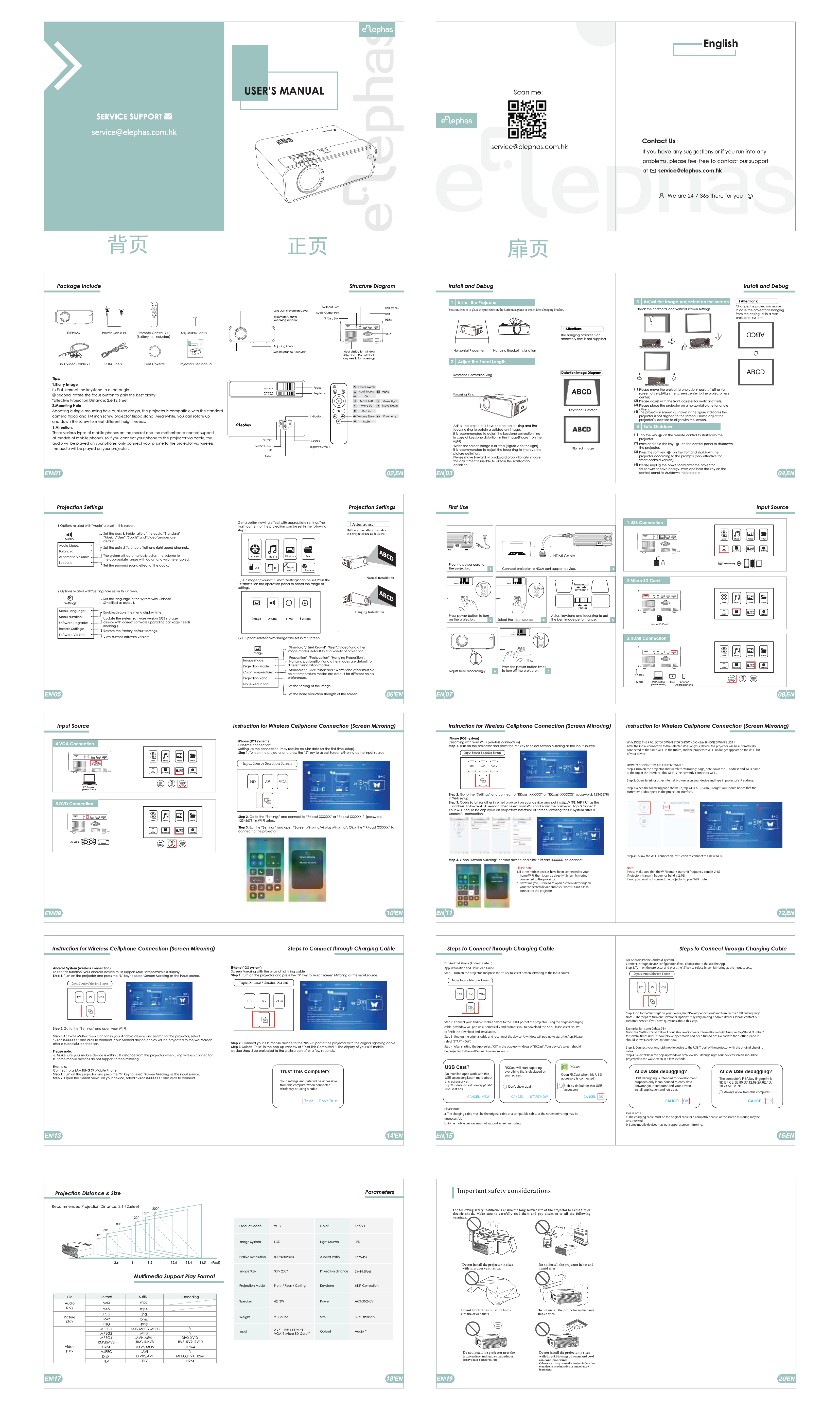
Trust This Computer?
Your settings and data will be accessible from this computer when connected wirelessly or using a cable
Trust Don't Trust

WHY DOES THE PROJECTOR'S WI-FI STOP SHOWING ON MY IPHONE'S WI-FI'S LIST After the initial connection to the selected Wi-Fi on your device, the projector will be automatically connected to the same Wi-Fi in the future, and the projector's Wi-Fi no longer appears on the Wi-Fi list of your device.
HOW TO CONNECT TO A DIFFERENT WI-FI Step 1.Turn on the projector and switch to "Mirroring" page, note down the IP address and Wi-Fi name at the top of the interface. This Wi-Fi is the currently connected Wi-Fi.
Step 2. Open Safari (or other internet browsers) on your device and type in projector's IP address.
Step 3.When the following page shows up, tap Wi-Fi AP--Scan--Forget. You should notice that the current Wi-Fi disappear in the projection interface.

Please note: a. If other mobile devices have been connected to your
home WiFi, then it can be directly "Screen Mirroring" connected to the projector. b. Next time you just need to open "Screen Mirroring" on your connected device and click "RKcast-XXXXXX" to connect to the projector.

Step 4: Follow the Wi-Fi connection instruction to connect to a new Wi-Fi.
Note: Please make sure that the WiFi router's transmit frequency band is 2.4G (Projector's transmit frequency band is 2.4G) If not, you could not connect the projector to your WiFi router.

For Android Phone (Android system) App Installation and Download Guide Step 1. Turn on the projector and press the "S" key to select Screen Mirroring as the input source.


For Android Phone (Android system)

Connect through device configuration Step 1. Turn on the projector and press

if you choose the "S" key to

not to select

Sthcree uenseMthireroArpinpg

as

the

input

source.

Step 2. Connect your Android mobile device to the USB-T port of the projector using the original charging cable. A window will pop up automatically and prompts you to download the App. Please select "VIEW" to finish the download and installation. Step 3. Unplug the original cable and reconnect the device. A window will pop up to start the App. Please select "START NOW". Step 4. After starting the App, select "OK" in the pop-up windows of "RKCast". Your device's screen should be projected to the wall/screen in a few seconds.

USB Cast?
No installed apps work with this USB accessory.Learn more about this accessory at http://update.rkcast.com/app/usb/ UsbCast.apk
CANCEL VIEW

RKCast will start capturing everything that's displayed on your screen
Don't show again
CANCEL START NOW

RKCast
Open RkCast when this USB accessory is connected
Usb by default for this USB accessory
CANCEL OK

Please note: a. The charging cable must be the original cable or a compatible cable, or the screen mirroring may be unsuccessful. b. Some mobile devices may not support screen mirroring.

Step 2. Go to the "Settings" on your device, find "Developer Options" and turn on the "USB Debugging." NoteThe steps to turn on "Developer Options" may vary among Android devices. Please contact our customer service if you have questions about this step.
Example: Samsung Galaxy S8+ Go to the "Settings" and follow About Phone--Software Information--Build Number. Tap "Build Number" for several times until it shows "Developer mode had been turned on". Go back to the "Settings" and it should show "Developer Options" now.
Step 3. Connect your Android mobile device to the USB-T port of the projector with the original charging cable. Step 4. Select "OK" in the pop-up windows of "Allow USB debugging?". Your device's screen should be projected to the wall/screen in a few seconds.

Allow USB debugging?
USB debugging is intended for development purposes only.It can beused to copy data between your computer and your device, install application,and log data.
CANCEL OK

Allow USB debugging?
The computer's RSA key fingerprint is: 9D:BF:CE:3E:80:D7:12:89:2A:6E:1D: 30:74:5E:34:7B
Always allow from this computer
CANCEL OK

Please note: a. The charging cable must be the original cable or a compatible cable, or the screen mirroring may be unsuccessful. b. Some mobile devices may not support screen mirroring.

2.6-145Feet

18

9

20
 Download