

DL-WFM-CAM90 FINAL
File info: application/pdf · 6 pages · 1.04MB
DL-WFM-CAM90 FINAL
DL-WFH-CAM90
DL-WFH-CAM90 Quick Install Guide - Full Compass Systems
Aug 28, 2020 —
Extracted Text
DL-WFH-CAM90 Quick Install Guide

Rev 200604

11675 Ridgeline Drive

Phone: 719-260-0061

DL-WFH-CAM90 Quick Guide
Product Overview
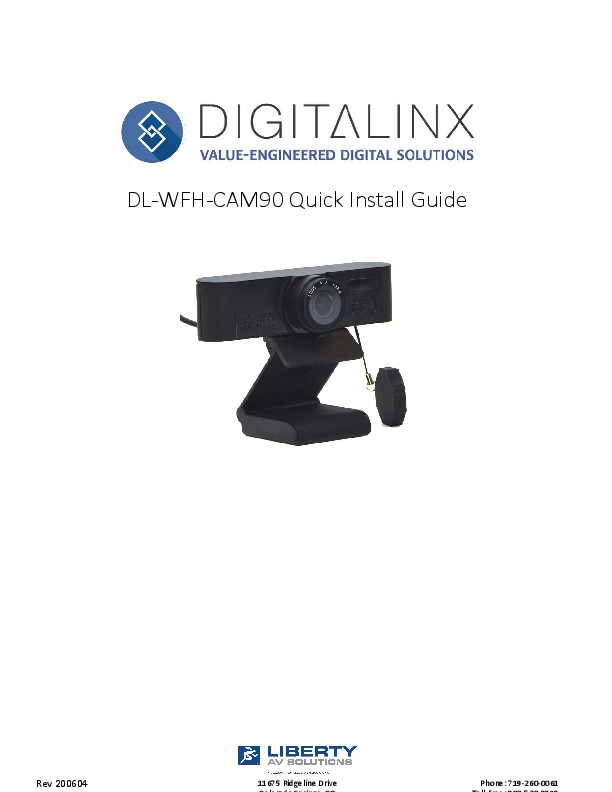
The DigitaLinx webcam DL-WFH-CAM90 is a leading USB 2.0 peripheral intended to capture audio and video for tasks such as video conferencing, streaming, webinars, on-line classes and personal cha ng. Being truly plugand-play, no driver is required when using so ware pla orms such as Zoom, Teams, Youtube, Face me and other messaging applica ons. Features include 1080p/30fps image sensor with a 90 degree field of view lens, tripod mount, security cap and built in microphone. For advanced se ngs, download so ware from the Liberty AV website for image adjustments.
Package Contents

(x1) Camera

(x1) Quick Start Guide

(x1) Quality Card

FRONT VIEW

Product Layout
BOTTOM VIEW

Start Guide 1. Lens 2. Flexible Clip-base 3. Noise reduc on Microphone 4. Ac vity LED 5. Tripod A achment- 1/4" thread for securing camera
screw to mount or tripod 6. Security cover 7. USB cable with USB-A connector

ISOMETRIC VIEW

DL-WFH-CAM90 Quick Guide
Se ng up your webcam
Requirements- A computer with an audio output, preferably a speaker. Install the video conferencing desktop client such as Zoom, Teams, Google meet onto the computer. Note: verify your preferred video calling applica on requirements Placement- When the monitor thickness is less than or equal to 45mm, the camera can by mounted above the
Connec vity- Locate the DL-WFH-CAM90 webcam and plug into the USB port of the computer. If the length of the USB cable is not long enough, use a TYPE A USB 2.0 extension cable or hub. Naviga on- se ngs>privacy>camera or similar within your PC and turn on `let apps use my camera' Close all other applica ons that may use the DL-WFH-CAM90 webcam. Run the preferred so ware to use with the webcam. Navigate to the "audio & video se ngs" within the so ware Select "LibAV Cam90"in the Microphone drop down menu to receive excellent audio quality. Select "LibAV Cam90"in the Camera drop down menu to receive excellent video quality LED lights on the camera will light up to indicate the camera is running.

DL-WFH-CAM90 Quick Guide
Maintenance and Troubleshoo ng
Maintenance � If the camera is not in long-term use, please disconnect the power switch a er use. � Use so cloth or co on paper to remove dust from the camera housing. � When cleaning the camera lens, please use dry so cloth to wipe, if dirt is serious, use neutral
cleaner gently. Do not use strong or corrosive detergent, lest the lens scratch, affect the image effect.
Avoid � Poin ng the lens to the background of a large bright color, bright areas or reflec ve objects. � The camera should not work under unstable ligh ng condi ons, otherwise the image may flash. � Do not use around facili es that can transmit high-power radio waves, such as television sta on
or radio-transmi ng sta on.
Troubleshoo ng � If you find the image to be out of focus, wave your hand in front of the camera, the camera will
automa cally adjust the focus to the new state � Computer so ware doesn't detect the webcam-
Step 1: make sure that any other applica ons that are using the camera are fully closed Step 2: within the so ware of your choice, go into the "audio & video se ngs"
Select "LibAV Cam90"in the Microphone drop down menu Select "USB Live Camera"in the Camera drop down menu. Step 3: make sure the USB drivers on your computer are up to date � Computer hardware doesn't detect the webcamStep 1: reconnect the cameras USB cable to your computer Step 2: restart your computer

DL-WFH-CAM90 Quick Guide

Technical Specifica ons

Camera Sensor Scanning Mode Lens Mount Lens 1

1/2.7'', CMOS, Effec ve Pixel: 2.07M Progressive M12 Focus: f=3.2mm, FOV: 90�

Lens 2

Focus: f=3.5mm, FOV: 84� (Supports Autofocus)

Minimal Illumina on 0.5 Lux @ (F2.0, AGC ON)

Shu er

1/30s ~ 1/10000s

White Balance

Auto, Manual, VAR

Camera bracket

Bracket with damper

Digital Noise Reduc on 2D, 3D digital noise reduc on Back-light Compensa on Support Features

Operate System

Windows�7 (1080p and under only), Windows 8.1, Windows 10 or

higher macOSTM 10.10 or higher GoogleTM ChromebookTM Version

29.0.1547.70 or higher Linux

Video Format

1080p@30fps/25fps, 720p@30fps/25fps, 960x540p@30fps/25fps,

640x360p@30fps/25fps

Color / Compression MJPEG/YUY2/H.264

Resolu on

MJPEG: 1920x1080 (default), 1600x896, 160x120, 176x144, 320x240,

352x288, 640x480, 720x576, 1280x720, 1024x768, 1024x576, 960x540, 848x480, 800x600, 800x448, 640x360, 480x272, 424x240, 320x180

YUY2: 1920x1080 (default), 160x120, 176x144, 320x240, 352x288, 640x480, 1280x720, 960x540, 640x360, 480x272, 424x240, 320x180

H.264: 1920x1080 (default), 1600x896, 160x120, 176x144, 320x240, 352x288, 640x480, 720x576, 1280x720, 1024x768, 1024x576, 960x540, 848x480, 800x600, 800x448, 640x360, 480x270, 424x240, 320x180

USB Communica on Protocol Input/Output Interface USB Interface Physical Parameter Input Voltage Current Consump on Opera ng Temperature Storage Temperature Power Consump on Dimension (W*H*D) Net Weight MTBF Cer fica on

UVC 1.1
1 x USB 2.0: Type A
5V (USB power supply) 200mA 0�C ~ 40�C (32�F ~ 104�F) -40�C ~ 60�C (-40�F ~ 140�F) 1W 118mm x 37.2mm x 30.8mm (without bracket) 93 Kg (without bracket) >30000h CE, FCC, RoHS

Thank you for your purchase. For Technical Support please call our toll free number at
800-530-8998 or email us at supportlibav@libav.com www.libav.com
Digitalinx is a brand of:
11675 Ridgeline Drive Colorado Springs, Colorado 80921 USA Phone: 719-260-0061 Fax: 719-260-0075 Toll-Free: 800-530-8998