

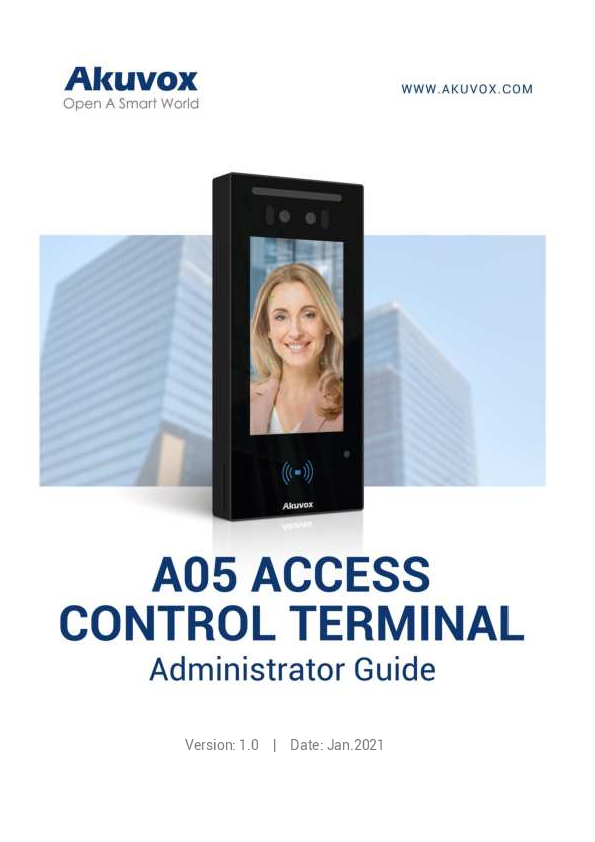
Akuvox A05 series Access Control Terminal Installation Guide
File info: application/pdf · 77 pages · 2.38MB
a05-admin-guide
Index of /wp-content/uploads/2021/05/
Version:1.0 | Date:Jan - Akuvox
AboutThisManual Thank you for choosing Akuvox A05 series access control terminal. This manualisintendedfortheadministratorswhoneedtoproperlyconfigurethe
AK-5000 Akuvox A05 Series Access Control Terminal Admin Guide V1.0 20210423
Akuvox – A05C IP Access Control Reader with Facial Recognition, Bluetooth, RFID & QR Code Reader – TDIGroup
Full PDF Document

If the inline viewer fails, it will open the original document in compatibility mode automatically. You can also open the file directly.
Extracted Text
Version: 1.0 | Date: Jan.2021

About This Manual
Thank you for choosing Akuvox A05 series access control terminal. This manual is intended for the administrators who need to properly configure the access control terminal. This manual applies to 105.30.1.17 version, and it provides all the configurations for the functions and features of A05 series access control terminals. Please visit Akuvox forum or consult technical support for any new information or the latest firmware.

Introduction of Icons and Symbols
Warning:  Always abide by this information in order to prevent the persons
from injury.
Caution:  Always abide by this information in order to prevent the damages to
the device.
Note:  Informative information and advice from the efficient use of the
device.
Tip:  Useful information for the quick and efficient use of the device.

Related Documentation
You are advised to refer to the related documents for more technical information via the link below:
http://wiki.akuvox.com

Table of Contents
1. Product Overview....................................................................................................1 2. Change Log..............................................................................................................2 3. Model Specification............................................................................................... 3 4. Introduction to Configuration Menu....................................................................5 5. Access the Device...................................................................................................7 6. Time and Language Setting.................................................................................. 9
6.1. Language Setting........................................................................................ 9 6.2. Time Setting................................................................................................. 9 6.3. LED Setting.........................................................................................................11 6.3.1. Configure Card Reader LED Setting.................................................... 11 6.3.2. Configure LED White Light Setting...................................................... 11 6.4. Screen Display configuration.......................................................................... 12 6.4.1. Configure Screensaver.......................................................................... 12 6.5. Upload Screensaver.................................................................................. 13 6.6. Configure Access Screen Display Mode................................................14 6.7. Volume and Tone Configuration..................................................................... 15 6.7.1. Volume Configuration........................................................................... 15 6.7.2. Upload Open Door Tone........................................................................ 16 6.8. Configure Door Access Prompt Text......................................................16 7. Network Setting....................................................................................................17 7.1. Configure Device Network....................................................................... 17 7.2. Configure Device Deployment in Network.............................................18 7.3. Relay Setting...................................................................................................... 19
7.3.1. Relay switch setting...................................................................... 19 7.4. Web Relay Setting..................................................................................... 21
7.4.1. Configure Web Relay on the Web Interface................................21 8. Door Access Schedule Management................................................................ 23
8.1. Configure Door Access Schedule........................................................... 23 8.1.1. Create Door Access Schedule......................................................23 8.1.2. Import and Export Door Access Schedule................................. 24 8.1.3. Edit the Door Access Schedule....................................................25
9. Door Unlock Configuration................................................................................. 26 9.1. Configure RF Card for Door Unlock........................................................ 26 9.1.1. Configure RF Card on the Web Interface.................................... 26 9.1.1.1. Configure RF Card Code Format...............................................27 9.1.2. Configure Facial Recognition on Web Interface........................27 9.2. Configure Door Access Using Configured Files................................... 28 9.3. Editing the User(s)-specific door access data..................................... 29 9.3.1. Unlock by QR Code................................................................................ 29

9.3.2. Unlock by Bluetooth.............................................................................. 29 9.3.3. Unlock by HTTP Command on Web Browser.................................... 30 9.3.4. Unlock by Exit Button by the Door.......................................................31 9.3.5. Body Temperature Measurement for Door AccessOptional... 33
9.3.5.1. Body Temperature Measurement Configuration................... 33 9.3.5.2. Ambient Temperature Configuration...............................34
10. Security................................................................................................................36 10.1. Tamper Alarm Setting.............................................................................36 10.2. Security Notification Setting................................................................. 37 10.2.1. Email Notification Setting...........................................................37 10.2.2. FTP Notification setting..............................................................38 10.2.3. TFTP Notification Setting........................................................... 39 10.3. Web Interface Automatic Log-out........................................................62
11. Monitor and Image.............................................................................................40 11.1. MJPEG Image Capturing........................................................................40 11.2. Live Stream.............................................................................................. 41 11.3. RTSP Stream Monitoring....................................................................... 42 11.3.1. RTSP Basic Setting......................................................................42 11.3.2. RTSP Stream Setting...................................................................43 11.4. ONVIF........................................................................................................ 44
12. Logs......................................................................................................................46 12.1. Door Logs................................................................................................. 46 12.2. Temperature Log..................................................................................... 47
13. Debug................................................................................................................... 48 13.1. System Log for Debugging....................................................................48 13.2. PCAP for Debugging............................................................................... 49
14. Firmware Upgrade..............................................................................................50 15. Backup................................................................................................................. 51 16. Auto-provisioning via Configuration File....................................................... 52
16.1. Provisioning Principle............................................................................ 52 16.2. Configuration Files for Auto-provisioning.......................................... 53 16.3. AutoP Schedule....................................................................................... 53 16.4. DHCP Provisioning Configuration........................................................ 54 16.5. Static Provisioning Configuration........................................................ 56 17. Integration with Third Party Device................................................................ 59 17.1. Integration via Wiegand......................................................................... 59 17.2. Integration via RS485............................................................................. 60 17.3. OSDP Setting........................................................................................... 61 18. Password Modification..................................................................................... 62 19. System Reboot and Reset................................................................................ 63 19.1. Reboot.......................................................................................................63 19.2. Reset......................................................................................................... 63 20. Abbreviations......................................................................................................65 21. FAQ....................................................................................................................... 67

22. Contact Us...........................................................................................................70

1. Product Overview

A05 Admin Guide

Akuvox A05 series is a Linux-based access control door phone with a display screen. It incorporates access control and video surveillance. Its finely tuned SmartPlus and AI-based communication technology allow featured customization to better suit your operation habit. A05 series has multiple ports, such as RS485 and Wiegand ports, can be used to easily integrate external digital systems, such as elevator controller and fire alarm detector, helping to create a holistic control of building entrance and its surroundings and giving you a great sense of security via a variety of access such as card access, NFC, QR code and newly added door access in an accompaniment with body temperature measurement. A05 series access control terminal applies to residential buildings, office buildings, and their complex.

AKUVOX SMART INTERCOM www.akuvox.com

1

2. Change Log

A05 Admin Guide

The change log will be updated here along with the changes in new software version.

AKUVOX SMART INTERCOM www.akuvox.com

2

3. Model Specification
Model &
Feature

A05 Admin Guide A05S

Display Touch Screen
Button Housing Material
Relay Out Alarm In RS485
PoE Resolution Brightness
RAM ROM Card Reader Wi-Fi Bluetooth IP Rating Temperature Detection Face recognition LTE USB
External SD Card

5" IPS X X
Plastic 1 1
1280x720 500cd/m2
1GB 8GB 13.56MHz
X Optional
IP65
Optional
 X X
X

AKUVOX SMART INTERCOM www.akuvox.com

3

Wall Mounting
Flush Mounting
Desk Mounting POE Stand by
Power POE Full Load Consumption
Power Adapter Standby Power Power Adapter Full
Load Consumption
Color Option

 X X 5.5W 9.8W
5.5W

A05 Admin Guide

10W Black

AKUVOX SMART INTERCOM www.akuvox.com

4

A05 Admin Guide
4. Introduction to Configuration Menu
 Status: this section gives you basic information such as product information, Network Information, and account information etc.
 Network: this section mainly deals with DHCP&Static IP setting, and device deployment etc.
 Surveillance: this section includes audio&video related settings such as Live stream, RTSP, ONVIF, MJPEG.
 Access Control: this section includes input type setting, relay setting, door access control in terms private PIN code, Facial recognition, RF card, and BLE setting as well, log related configurations such as door log and temperature log.
 Setting: this second deals with time &language setting, security notification settings and door prompt text setting.
 Upgrade: this section covers Firmware upgrade, device reset&reboot, configuration file auto-provisioning, PCAP.
 Security: this section is for Password modification, tamper alarm, and web interface automatic logout.
 Device: this section concerns LED light setting, ODSP Setting, screen saver setting, sound&volume setting and third-party integration in terms of integration via Wiegand, RS485.

 Tool selection

Akuvox has many configuration tools for you to set up devices more conveniently. Here we list some common tools, please contact your administrator to get the tool if you need them.

1. SDMC: SDMC is suitable for the management of Akuvox devices large communities, including access control, resident information, remote device control, etc.

2. Akuvox Upgrade tool: Upgrade Akuvox devices in batch on a LAN (Local

AKUVOX SMART INTERCOM

www.akuvox.com

5

Area Network).

A05 Admin Guide

3. Akuvox PC Manager: Distribute all configuration items in batch on a LAN.

4. IP scanner: it is used to search Akuvox device IP addresses on a LAN.

5. FacePro: Manage face data in batch for the access control terminal on a LAN.

AKUVOX SMART INTERCOM

www.akuvox.com

6

5. Access the Device

A05 Admin Guide

Before configuring Akuvox A05, please make sure the device is installed correctly and connect a normal network. Using Akuvox IP scanner tool to search the device IP address in the same LAN. Then use the IP address to login in the web browser by user name and password admin and admin.

Tip:
 Please refer to the URL below for the IP scanner application instructions: http://wiki.akuvox.com/doku.php?id=tool:ip_scanner&s[]=ip&s[]= scanner

AKUVOX SMART INTERCOM

www.akuvox.com

7

A05 Admin Guide
Note:
 Google Chrome browser is strongly recommended.  The Initial user name and password are "admin" and please be
case-sensitive to the user names and passwords entered.

AKUVOX SMART INTERCOM

www.akuvox.com

8

A05 Admin Guide
6. Time and Language Setting
6.1. Language Setting
When you first set up the device, you might need to set the language to your need. You can select the language display the device web Setting > Time/Lang > LCD Language interface.
6.2. Time Setting
Time setting on the web interface allows you to set up time and date manually while allowing you to use NTP server address that you obtained to automatically synchronize your time and date. And when your time zone is selected, the device will automatically notify the NTP server of its time zone so that the NTP server can synchronize the time zone setting in your device. To configure the configuration on the device web Setting > Time/Lang > Time interface

AKUVOX SMART INTERCOM

www.akuvox.com

9

A05 Admin Guide

Parameter Set-up:
 Time Zone: select the specific time zone depending on where the device is used and then press Confirm tab for the confirmation. The default time zone is GMT+0.00.
 Primary Server: enter the primary NTP server you obtained in the NTP Server field.
 Secondary Server: enter the secondary NTP server you obtained in the NTP Server field to be used as a backup.
 Update Interval: set the automatic time update via NTP server.
Note:
 When the check box is unticked, the parameters related to NTP server will become not editable.

AKUVOX SMART INTERCOM

www.akuvox.com

10

6.3. LED Setting

A05 Admin Guide

6.3.1. Configure Card Reader LED Setting
You can enable or disable the LED lighting on the card reader area as needed on the web interface. Meanwhile, If you do not want to have the LED light on the card reader area to stay on, you can also set the timing for the exact time span during which the LED light can be disabled in order to reduce the electrical power consumption. To configure the configuration on web Setting > Time/Lang > Time Interface.

Parameter Set-up:  Enabled: Tick the check box if want to enable the card reader LED lighting
and vice versa.  Start Time - End Time (H): enter the time span for the LED lighting to be
valid, e.g., if the time span is from 18-22 it means LED light will stay on during the time span from 6:00 pm to 10:00 pm in one day (24 hours).
6.3.2. Configure LED White Light Setting
LED White light is used to reinforce the lighting for facial recognition as well as for the QR code access as needed in the dark environment. To configure the configuration on web Device > Light > White Light interface

AKUVOX SMART INTERCOM

www.akuvox.com

11

A05 Admin Guide

Parameter Set-up:
 Mode: select "Auto" or "OFF". If you select "Auto" then the white light will turn on for 5 minutes for facial recognition and QR code scan. And if you select "Off" then the white light will be turned off.
 Max White Light Value: set the white light value from 1-5, and the default white light value is "3". The greater value it is, the brighter the light will be.
Note:
 IR LED light should be triggered first before the white light can be valid in the facial recognition, however IR LED light does not need to be triggered for the white light function in the QR code scan.

6.4. Screen Display configuration

A05 series access control terminals allow you to enjoy a variety of screen displays to enrich your visual and operational experience through the customized setting to your preference.

6.4.1. Configure Screensaver

Await screen is mainly a function for the screen protection. You can make the device to go into idle status for a predefined time span when there is no operation on the device, or no one is detected approaching.

AKUVOX SMART INTERCOM

www.akuvox.com

12

A05 Admin Guide To configure the configuration on web Device > LCD > Standby Interface Display interface.
Parameter Set-up  ScreenSaver Mode: tick the check box to enable the screen saver
function.  Sleep: set the screen saver start time range from "5" seconds to "30"
minutes, for example, if you set it as "15 seconds" then the device will go into screen saver mode in 15 second when there is no operation on the device or no one is detected approaching
6.5. Upload Screensaver
You can upload screensaver pictures separately or in batch to the device and to the device web interface for publicity purpose or for a greater visual experience. To configure the configuration on web Device > LCD > Upload ScreenSaver interface. You can upload a maximum of 5 pictures, and each picture will be displayed in rotation according to the ID order with specific time duration (Time Interval) you set.

AKUVOX SMART INTERCOM

www.akuvox.com

13

A05 Admin Guide

Note:  The pictures uploaded should be in JPG format with 2M pixel
maximum.
6.6. Configure Access Screen Display Mode
You can select two types of access screen display mode on the home screen, namely, Default mode for facial recognition and QR code. To configure the configuration on web Device > LCD > Theme interface.

Parameter Set-up:
 Mode: There are two mode Default and QR Code. If you choose QR code, the main screen shows "Please scan your QR code" as default to remind

AKUVOX SMART INTERCOM

www.akuvox.com

14

A05 Admin Guide you unlock by QR code. If you choose Default, the main screen shows " Please look at the screen" as default to remind you unlock by face recognition.
 QR Code Recognition Interval(Sec): this interval is only available when you choose QR Code mode. It is recognition of the interval between two QR codes.
6.7. Volume and Tone Configuration
Volume and tone configuration in A05 access control terminal refers to Tamper alarm volume, Mic volume and open-door tone configuration. Moreover, you can upload the tone you like to enrich your personalized user experience.
6.7.1. Volume Configuration
You can configure the Mic volume according to your need for open-door notification. Moreover, you can also set up the tamper alarm volume when unwanted removal of the access control terminal occurs. To configure the configuration on web Device > Voice > Volume Control interface.

Parameter Set-up:
 Ring Volume: set the ring volume from 0-15 according to your need. The default volume is 8.
 Tamper Alarm Volume: set the tamper alarm volume from 0-15 according to your need. The default volume is 8.

AKUVOX SMART INTERCOM

www.akuvox.com

15

6.7.2. Upload Open Door Tone

A05 Admin Guide

You can upload the Open-Door Tone on the device web interface.To configure the configuration on web Device > Voice > Open Door Tone Setting interface.

6.8. Configure Door Access Prompt Text
You can enable or disable the door access prompt to be shown on the access control terminal screen for door open failure and success. To configure the configuration on web Setting > Door > Open Door Succeeded Text Prompt interface.

Parameter Set-up:
 Open Door Success: Tick the check box if you want to see the text prompt after the door open success and vice versa.
 Open Door Failed: Tick the check box if you want to see the prompt words after the door open failure and vice versa.

AKUVOX SMART INTERCOM

www.akuvox.com

16

7. Network Setting

A05 Admin Guide

7.1. Configure Device Network
You can configure the default DHCP mode (Dynamic Host Configuration Protocol) and static IP connection. Moreover, you can set up IP address, Subnet Mask, Default Gateway, LAN DNS1 & LAN DNS2. To configure the configuration on web Network > Ethernet > LAN Port interface.

Parameter Set-up:
 DHCP: select the DHCP mode by checking off the DHCP box. DHCP mode is the default network connection. If the DHCP mode is selected, then the access control terminal will be assigned by the DHCP server with IP address, subnet mask, default gateway, and DNS server address automatically.
 Static IP: select the static IP mode by checking off the DHCP check box. When static IP mode is selected, then the IP address, subnet mask, default gateway, and DNS servers address must be manually configured according to your actual network environment.
 IP Address: set up the IP Address if the static IP mode is selected.

AKUVOX SMART INTERCOM

www.akuvox.com

17

A05 Admin Guide  Subnet Mask: set up the subnet mask according to your actual network
environment.
 Default Gateway: set up the correct gateway default gateway according to the IP address of the default gateway.
 DNS1/DNS2: set up DNS1/ DNS2 (Domain Name Server) according to your actual network environment. DNS1 is the primary DNS server address while the DNS2 is the secondary server address, and the access control terminal connects to DNS2 server when the primary DNS server is unavailable.
7.2. Configure Device Deployment in Network
Access control terminals should be deployed before they can be properly configured in the network environment in terms of their location, operation mode, address and extension numbers as opposed to other devices for the device control and the convenience of the management. To configure the configuration on web Network > Advanced > Connect Setting interface.

Parameter Set-up:
 Server Mode: It is automatically set up according to the actual device connection with a specific server in the network such as SDMC or Akuvox SmartPlus and None. None is the default factory setting indicating the device is not in any server type, therefore you are allowed to choose Cloud, SMDC in discovery mode.

AKUVOX SMART INTERCOM

www.akuvox.com

18

A05 Admin Guide  Discovery Mode: click "Enabled" to turn on the discovery mode of the
device so that it can be discovered by other devices in the network and click "Disabled" if you want to conceal the device so as not to be discovered by other devices.
 Device Address: specify the device address by entering device location information from the left to the right: Community, Unit, Stair, Floor, Room in sequence.
 Device extension: enter the device extension number for the device you installed
 Device Location: enter the location in which the device is installed and used.
7.3. Relay Setting
You can configure the relay switch(es) and DTMF for the door access on the web interface.
7.3.1.Relay switch setting
To configure the configuration on web Access Control > Relay > Relay interface.

AKUVOX SMART INTERCOM

www.akuvox.com

19

A05 Admin Guide

Parameter Set-up:
 Trigger Delay (Sec): set the relay trigger delay timing (Ranging from 1-10 Sec.) For example, if you set the delay time as "5" sec. then the relay will not be triggered until 5 seconds after you press "unlock" tab.
 Hold Delay (Sec): set the relay hold delay timing (Ranging from 1-10 Sec.) For example, if you set the hold delay time as "5" Sec. then the relay will be delayed for 5 after the door is unlocked.
 Relay Status: relay status is low by default which means normally closed (NC) If the relay status is high, then it is in Normally Open status (NO).
 Relay Name: name the relay switch according to your need. For example, you can name the relay switch according to where the relay switch is located for the convenience.
Note:
 Only the external devices connected to the relay switch needs to be powered by power adapters as relay switch does not supply power.

AKUVOX SMART INTERCOM

www.akuvox.com

20

7.4. Web Relay Setting

A05 Admin Guide

In additional to the relay that is connected to the access control terminal, you can also control the door access using the network-based web relay on the device and on the device web interface.

7.4.1.Configure Web Relay on the Web Interface

Web relay needs to set up on the web interface where you are required to fill in such information as relay IP address, password, web relay action etc. Before you can achieve the door access via web relay. To configure the configuration on web Access Control > Web Relay interface.

Parameter Set-up:
 Type: select among three options Disabled, WebRelay and Both. Select WebRelay to enable the web relay. Select Disable to disable the web relay. Select Both to enable both local relay and web relay.

AKUVOX SMART INTERCOM

www.akuvox.com

21

A05 Admin Guide
 IP Address: enter the web relay IP address provided by the web relay manufacturer.
 User Name: enter the User name provided by the web relay manufacturer.
 Password: enter the password provided by the web relay manufacturer. The password is authenticated via HTTP and you can define the passwords using "http get" in Action.
 Web Relay Action: enter the specific web relay action command provided by the web manufacturer for different actions by the web relay.
http://admin:admin@192.168.1.2/state.xml?relayState=2.
After the web relay is set up, you can configure the specific web relay to be triggered based on the relay location for the door access. To configure the configuration on web Access Control > User interface.

AKUVOX SMART INTERCOM

www.akuvox.com

22

A05 Admin Guide
8. Door Access Schedule Management
You are required to configure and make schedule for the user-based door access via RF card, Private PIN and Facial recognition.
8.1. Configure Door Access Schedule
You can create door access schedules so that they can be later conveniently applied to the door access control intended for individual user or a group of users created. Moreover, you can edit your door access schedule if needed.
8.1.1.Create Door Access Schedule
You can create the door access schedule on the daily or monthly basis, and you can also create schedule that allows you to plan for a longer period of time in addition to running the door access schedule on the daily or monthly basis. To configure the configuration on web Access Control > Schedule Setting interface.
To create a weekly schedule, select Schedule Type as Weekly.

AKUVOX SMART INTERCOM

www.akuvox.com

23

A05 Admin Guide To create a longer period schedule, select Schedule Type as Normal.

8.1.2.Import and Export Door Access Schedule
In addition to creating door access schedule separately, you can also conveniently import or export the schedules in order to maximize your door access schedule management efficiency. To configure the configuration on web Access Control > Schedule Setting> Import/Export Schedule(.xml) interface.

AKUVOX SMART INTERCOM

www.akuvox.com

24

A05 Admin Guide Note:  It only supports .xml format file for importing and exporting the schedule.
8.1.3.Edit the Door Access Schedule
If you want to edit or delete your door access schedule you created, you can edit or delete the configured schedule separately or in batch on the web Access Control > Schedule Setting> Schedule Management interface.

AKUVOX SMART INTERCOM

www.akuvox.com

25

A05 Admin Guide
9. Door Unlock Configuration
A05 series access control terminal offer you three types of door access via QR code, RF card and Facial recognition. You can configure them on web interface. Moreover, you can import or exporting the configured files to maximize your RF card configuration efficiency.
9.1. Configure RF Card for Door Unlock
9.1.1.Configure RF Card on the Web Interface
To configure the configuration on web Access Control > User interface.

Note:  Please refer to PIN code access schedule selection for the RF card
user(s)-specific door access.
Note:  RF card with 13.56 MHz and 125 KHz can be applicable to the
access control terminal for the door access.

AKUVOX SMART INTERCOM

www.akuvox.com

26

A05 Admin Guide
9.1.1.1. Configure RF Card Code Format
If you want to integrate with the third-party intercom system in terms of RF card door access, you can change the RF card code format to be identical with that applied in the third-party system. To configure the configuration on web Access Control > CardSetting interface.

Parameter Set-up:  IC-Card Display Mode: select the card format for the ID Card for the door
access among five format options: 8H10D; 6H3D5D(W26); 6H8D; 8HN; 8HR. The card code format is 8HN by default in the access control terminal.
9.1.2.Configure Facial Recognition on Web Interface
To configure the configuration on web Access Control > User interface.

Parameter Set-up:
 Status: It will show "Registered" when the picture uploaded conforms to the format and standard otherwise it would show "Unregistered" as the default. However, the status will be changed back to "Unregistered" if the

AKUVOX SMART INTERCOM

www.akuvox.com

27

A05 Admin Guide picture uploaded is cleared when you press the Reset tab.  Photo(jpg/png): select the picture with jpg or png format to be uploaded to the device and press if you want to clear the picture uploaded.
Note:  Pictures to be uploaded should be in jpg or png format.
9.2. Configure Door Access Using Configured Files.
A05 series access control terminals allow you to speedily configure user(s)-specific door access in batch by importing the configured all-in-one door access control files incorporating user information, door access type, door access schedule etc., thus all the door access setting can be done at one stop, saving your time and effort from configuring the door access for users separately when users are large in number. To configure the configuration on web Access Control > User interface.

Note:
 Configured file for facial recognition and the other types of configured door access file are separated with different file forms.

AKUVOX SMART INTERCOM

www.akuvox.com

28

A05 Admin Guide
9.3. Editing the User(s)-specific door access data
You can search user(s)-specific door access and edit the door access data on the web Access Control > User interface.

9.3.1. Unlock by QR Code
QR code is another option for door access. If you want to apply QR code access, you need to enable the QR code function. To configure the configuration on web Access Control > Relay > Open Relay via QR Code interface.

Note:
 The function should work with Akuvox SmartPlus. For more information, please contact Akuvox technical support.

9.3.2. Unlock by Bluetooth

You can also gain the door access by mobile phone with Bluetooth which is

AKUVOX SMART INTERCOM

www.akuvox.com

29

A05 Admin Guide used together with Akuvox SmartPlus. You can shake the mobile phone closer to the access control terminal for the door access. To configure the configuration on web Access Control > BLE > BLE interface.

Parameter Set-up:
 Enabled: enable or disable the Bluetooth function. Bluetooth is turned off by default.
 Rssi Threshold: select the signal receiving strength from -85~-50db in absolute terms. The higher value it is, the greater strength it has. The default value is 72db in absolute terms.
 Open Door Interval: select the time interval between every two Bluetooth door accesses.
9.3.3. Unlock by HTTP Command on Web Browser
You can unlock the door remotely without approaching the device physically for the door access by typing in the created the HTTP command (URL) on the web browser to trigger the relay when you are not available by the door for the door access. To configure the configuration on web Access Control > Relay > Open Relay via HTTP interface.

AKUVOX SMART INTERCOM

www.akuvox.com

30

A05 Admin Guide

Parameter Set-up:  Enable: enable the HTTP command unlock function by clicking on Enable
field.  User Name: enter the user name of the device web interface, for example:
"Admin".  Password: enter the password for the HTTP command. For example:
"12345". Please refer to the following example: http://192.168.35.127/fcgi/do?action=OpenDoor&UserName=admin&Passw ord=12345&DoorNum=1
Note:  DoorNum in the HTTP command above refers to the relay number #1
to be triggered for the door access.
9.3.4. Unlock by Exit Button by the Door
When you need to open the door from inside using the exit button installed by the door, you can configure the access control terminal Input to trigger the relay for the door access. To configure the configuration on web Access Control > Input > Input interface.

AKUVOX SMART INTERCOM

www.akuvox.com

31

A05 Admin Guide

Parameter Set-up:
 Trigger Electrical Level: select the trigger electrical level options between "High" and "Low" according to the actual operation on the exit button.
 Action to execute: set actions to be triggered by the input. FTP, TFTP, Email and HTTP URL actions are supported.
 HTTP URL: to set HTTP URL.
 Action Delay: set the action delay timing (Ranging from 1-300 Sec.) For example, if you set the delay time as "5". then the action will not be triggered until 5 seconds after input status changed.
 Execute Relay: set up relays to be triggered by the input.
 Door Status: display the status of input signal.

AKUVOX SMART INTERCOM

www.akuvox.com

32

A05 Admin Guide
9.3.5. Body Temperature Measurement for Door AccessOptional
A05 series provide you with an optional body temperature measurement function designed to be applied in the situation where the measurement becomes necessary for the safety of the residents and visitors etc. Residents and visitors are required to go through temperature measurement along with optional mask detection check before they are allowed for the door access.
9.3.5.1. Body Temperature Measurement Configuration
You can configure the body temperature measurement function in terms of defining the normal temperature as well as making schedule for the validity of the function etc. To configure the configuration on web Access Control > Body Temperature > Measuring Body Temperature interface.

Parameter Set-up:
 Mode: select either "Disabled" Mode or "Wrist" Mode for temperature measurement according to your need. The device can be installed with digital forehead temperature detector therefore you are required to set the mode properly according to your application.
 Mask Detection: select "Enable" or" Disable" to turn on or turn off the mask detection. When enabled, the device will check if the visitor is

AKUVOX SMART INTERCOM

www.akuvox.com

33

A05 Admin Guide wearing a mask or not while reminding the visitor with the announcement "Please wear a mask" while visitors wearing mask will be prompted either "Keep face in the frame" or "Keep wrist close to the sensor" depending on the mode that is selected. Warning alarm will be triggered when the body temperature measured is detected higher than the defined normal body temperature.
 Normal Body Temperature: set the body temperature to the predefined body temperature as the measuring basis in either Fahrenheit or Celsius. For example, if you set the temperature 37.3 degree Celsius as the normal temperature, then any body temperature measured higher than 37.3 degree Celsius will be deemed as abnormal temperature, while the temperature lower than 34 degree Celsius will be deemed as low body temperature.
9.3.5.2. Ambient Temperature Configuration
In order to offset the minor variations on the temperature as affected by the ambient temperature in the different places where the device is installed or in the different time of a day, you are required to configure the temperature setting on the basis of time segments during a day. To configure the configuration on web Access Control > Body Temperature > Ambient Temperature Setting interface.

Parameter Set-up:

 Start Time/End Time: select the start time and end time temperature by referring to the actual temperature measured at the time segments ranging from 10- 40degree Celsius. For example, when you divide the

AKUVOX SMART INTERCOM

www.akuvox.com

34

A05 Admin Guide time into four-time segments, then each of the time segments will be six hours (24 hours a day), while the end time of one segment should be the start time of the next time segment. You can divide the time segments according to your need.
 Ambient Temperature: enter the ambient temperature degree. Accuracy can be ensured for the actual temperature value within the range from 10- 40 degree Celsius.

AKUVOX SMART INTERCOM

www.akuvox.com

35

10. Security

A05 Admin Guide

10.1.Tamper Alarm Setting
Tamper alarm function serves as a protection against any unauthorized removal of the devices by triggering off the temper alarm on the device. To configure the configuration on web Security > Basic > Temper Alarm interface.

Parameter Set-up:
 Enable: tick the check box to enable the temper alarm function. When the temper alarm goes off, you can press the Disarm tab beside the check box to clear the alarm.
 Key Status: temper alarm will not be triggered unless the key status is shifted from "Low" to "High" status.
Note:
 Disarm tab will turn gray when the temper alarm is cleared.  The round rubber button at the back of the device must be in
press-down status otherwise the alarm will not be fired.

AKUVOX SMART INTERCOM

www.akuvox.com

36

A05 Admin Guide Note:  The round rubber button at the back of the device must be in press-down status otherwise the alarm will not be fired.
10.2.Security Notification Setting
10.2.1. Email Notification Setting
If you want to receive the security notification via email, you can configure the Email notification on the web interface properly. To configure the configuration on web Setting > Action > Email Notification interface.

Parameter Set-up:  Sender's Email Name: enter the name of the email sender.

AKUVOX SMART INTERCOM

www.akuvox.com

37

A05 Admin Guide  Sender's email address: enter the sender's email address from which the
email notification will be sent out.  Receiver's email address: enter the receiver's email address.  Receiver's Email Name: enter the name of the email receiver.  SMTP server address: enter the SMTP server address of the sender.  Port: enter the port number from which the email is sent out.  SMTP user name: enter the SMTP user name, which is usually the same
with sender's email address.  SMTP password: configure the password of SMTP service, which is same
with sender's email address.  Email subject: enter the subject of the email.  Email content: compile the emails contents according to your need.
10.2.2. FTP Notification setting
If you want to receive the security notification via FTP, you can configure the FTP notification on the web interface properly. To configure the configuration on web Setting > Action > FTP Notification interface.

Parameter Set-up:
 FTP server: enter the address (URL) of the FTP server for the FTP notification.

AKUVOX SMART INTERCOM

www.akuvox.com

38

 FTP User Name: enter the FTP server user name.

A05 Admin Guide

 FTP Password: enter the FTP server password.

 FTP Path: enter the folder name you created in FTP server.

10.2.3. TFTP Notification Setting
If you want to receive the security notification via TFTP, you can configure the FTP notification on the web interface properly. To configure the configuration on web Setting > Action > TFTP Notification interface.

Parameter Set-up:
 TFTP Server: enter the address (URL) of the TFTP server for the TFTP notification

AKUVOX SMART INTERCOM

www.akuvox.com

39

11. Monitor and Image

A05 Admin Guide

11.1.MJPEG Image Capturing
A05 series allow you to capture the Mjpeg format monitoring image if needed. You can enable the MJPEG function and set the image quality on the web interface. To configure the configuration on web Surveillance > MJPEG > MJPEG Server interface.

Parameter Set-up:
 Enabled: tick the check box to enable or disable the MJPEG service.
 Image Quality: select the quality for the image capturing among seven options: QCIF, QVGA, CIF, VGA, 4CIF, 720P, 1080P.
After the MJPEG service is enabled, you can capture the image from the access control terminal using following three types of URL format:
 http:// device ip:8080/picture.cgi  http://device ip:8080/picture.jpg  http://device ip:8080/jpeg.cgi
For example, if you want to capture the jpg format image of access control terminal with the IP address: 192.168.1.104, you can Enter "http://192.168.1.104:8080/picture.jpg" on the web browser.

AKUVOX SMART INTERCOM

www.akuvox.com

40

11.2.Live Stream

A05 Admin Guide

If you want to check the real-time video from the A05 series access control terminal, you can go to the device web interface to obtain the real-time video or you can also enter the correct URL on the web browser to obtain it directly. To see the live stream on web Surveillance > Live Stream interface.

To check the real time video using URL, you can enter the correct URL (http://IP_address:8080/video.cgi) on the web browser if you want to obtain the real-time video directly with going to the web interface.

AKUVOX SMART INTERCOM

www.akuvox.com

41

11.3.RTSP Stream Monitoring

A05 Admin Guide

A05 series access control terminal support RTSP stream that allows intercom devices such as indoor monitor or the monitoring unit from the third party to monitor or obtain the the real time audio/ video (RTSP stream) from the access control terminal using the correct URL.

11.3.1. RTSP Basic Setting

You are required to set up RTSP function in terms of RTSP Authorization, authentication, and password etc., before you are able to use the function. To configure the configuration on web Surveillance > RTSP > RTSP Basic interface.

Parameter Set-up:
 Enabled: tick the check box to turn on or turn off the RTSP function.
 Authorization Enabled: tick the check box to enable the RTSP authorization. If you enable the RTSP Authorization, you are required to enter RTSP Authentication Type, RTSP Username, RTSP Password on the intercom device such as indoor monitor for authorization.
 RTSP Authentication Type: select RTSP authentication type between "Basic" and "Digest". "Basic "is the default authentication type.
 User Name: enter the name used for RTSP authorization.

AKUVOX SMART INTERCOM

www.akuvox.com

42

A05 Admin Guide  Password: enter the password for RTSP authorization.
11.3.2. RTSP Stream Setting
You can select the video codec format for the RTSP stream for the monitoring and you can also configure video resolution and bitrate etc. which based on your actual network environment on the web interface. To configure the configuration on web Surveillance > RTSP > H.264 Video Parameters interface.

Parameter Set-up:
 Video Resolution: select video resolutions among seven options: "QCIF", "QVGA", "CIF", "VGA", "4CIF", "720P,", and " 1080P". The default video resolution is "720P. and the video from the access control terminal might not be able to be shown in the indoor monitor if the resolution is set higher than "720P".
 Video Framerate: "25fps" is the video frame rate by default.
 Video Bitrate: select video bitrate among six options: "128 kbps", "256kbps", "512 kbps", "1024 kbps", "2048 kbps", "4096 kpbs" according to your network environment. The default video bitrate is "2048 kpbs".
 2nd Video Resolution2: select video resolution for the second video stream channel. While the default video solution is "VGA".

AKUVOX SMART INTERCOM

www.akuvox.com

43

A05 Admin Guide  2nd Video Framerate: select the video framerate for the second video
stream channel. "25fps" is the video frame rate by default for the second video stream channel.
 2nd Video Bitrate: select video bitrate among the six options for the second video stream channel. While the second video stream channel is "512 kpbs" by default.
Note:
 A05 series supports two video stream channels for H.264 codec video stream.
11.4. ONVIF
Real-time video from the A05 series access control terminal camera can be searched and obtained by the Akuvox indoor monitor or by the third-party devices such as NVR (Network Video Recorder) you can configure the ONVIF function in the access control terminal so that other device will be able to see the video from the access control terminal. To configure the configuration on web Intercom > ONVIF interface.

Parameter Set-up:
 Discoverable: tick the check box to turn on the ONVIF mode. If you select video from the access control terminal camera can be searched by other devices. ONVIF mode is Discoverable by default.

AKUVOX SMART INTERCOM

www.akuvox.com

44

A05 Admin Guide  User Name: enter the user name. The user name is admin by default.  Password: enter the password. The password is admin by default. After the setting is complete, you can enter the ONVIF URL on the third-party device to view the video stream. For example: http://IP address:80/onvif/device_service
Note:  Fill in the specific IP address of the access control terminal in the
URL.

AKUVOX SMART INTERCOM

www.akuvox.com

45

12. Logs

A05 Admin Guide

12.1.Door Logs
If you want to search and check on door access history, you can search and check the door logs on the device web Access > Door log interface.

Parameter Set-up:
 Save Door Log Enabled: Tick the check box to turn on or turn off the door log function.
 Status: select between "Success" and "Failed" options to search for successful door accesses or Failed door accesses.
 Time: select the specific time select the specific time span of the door logs you want to search, check or export.
 Name/Code: select the "Name" and "Code" options to search door log by the name or by the PIN code.

AKUVOX SMART INTERCOM

www.akuvox.com

46

12.2.Temperature Log

A05 Admin Guide

To check temperature log on web Access Control > Temperature Log interface.

AKUVOX SMART INTERCOM

www.akuvox.com

47

13. Debug

A05 Admin Guide

13.1.System Log for Debugging
System log in the access control terminal can be used for debugging purpose. If you want to export the system out to a local PC or to a remote server for debugging, you can set up the function on the web Upgrade > Advanced > System Log interface.

Parameter Set-up:
 LogLevel: select log levels from 1 to 7 levels. You will be instructed by Akuvox technical staff about the specific log level to be entered for debugging purpose. The default log level is 3, the higher the level is 5, the more complete the log is 7.
 Export Log: click the Export tab to export temporary debug log file to a local PC.
 Remote System Log: select Enable or Disable if you want to enable or disable the remote system log.
 Remote System Server: enter the remote server address to receive the device log. And the remote server address will be provided by Akuvox technical support.

AKUVOX SMART INTERCOM

www.akuvox.com

48

13.2.PCAP for Debugging

A05 Admin Guide

PCAP in A05 series access control terminal is used to capture the data package going in and out of the devices for debugging and troubleshooting purpose. You can set up the PCAP on the device web Upgrade > Advanced > PCAP interface properly before using it.

Parameter Set-up:
 Specific Port: select the specific ports from 1-65535 so that only the data packet from the specific port can be captured. You can leave the field blank by default.
 PCAP: click Start tab and Stop tab to capture a certain range of data packets before clicking Export tab to export the data packets to your Local PC.
 PCAP Auto Refresh: select Enable or Disable to turn on or turn off the PCAP auto fresh function. If you set it as "Enable" then the PCAP will continue to capture data packet even after the data packets reached its 50M maximum in capacity. If you set it as Disable the PCAP will stop data packet capturing when the data packet captured reached the maximum capturing capacity of 1MB.

AKUVOX SMART INTERCOM

www.akuvox.com

49

14. Firmware Upgrade

A05 Admin Guide

Firmware of different versions for A05 series access control terminal can be upgraded on the device web Upgrade > Basic interface.

Note:  Firmware files should be .rom format for upgrade.

AKUVOX SMART INTERCOM

www.akuvox.com

50

15. Backup

A05 Admin Guide

Configuration files can be imported to or exported out of the device to your local PC on the device web Upgrade > Advanced > Others interface if needed.

AKUVOX SMART INTERCOM

www.akuvox.com

51

A05 Admin Guide
16. Auto-provisioning via Configuration File
Configurations and upgrading on A05 series access control terminal can be done on the web interface via one-time auto-provisioning and scheduled auto- provisioning via configuration files, thus saving you from setting up configuration needed one by one manually on the access control terminal.
16.1.Provisioning Principle
Auto-provisioning is a feature used to configure or upgrade the devices in batch via third party servers. DHCP, PNP, TFTP, FTP, HTTPS are the protocols used by the Akuvox intercom devices to access the URL of the address of the third-party server which stores configuration files and firmware, which will then be used to update the firmware and the corresponding parameters on the access control terminal.

AKUVOX SMART INTERCOM

www.akuvox.com

52

A05 Admin Guide
16.2. Configuration Files for Auto-provisioning
Configuration files have two formats for the auto-provisioning. one is the general configuration files used for the general provisioning and other one is the MAC-based configuration provisioning.
The difference between the two types of configuration files is shown as below:
 General configuration provisioning: a general file is stored in a server from which all the related devices will be able to download the same configuration file to update parameters on the devices. For example  r000000000083.cfg.
 MAC-based configuration provisioning: MAC-based configuration files is used for the auto-provisioning on a specific device as distinguished by its unique MAC number. And the configuration files named with device MAC number will be matched automatically with the device MAC number before being downloaded for the provisioning on the specific device.
Note:
 If a server has these two types of configuration files, then IP devices will first access the general configuration files before accessing the MAC-based configuration files.
16.3.AutoP Schedule
Akuvox provides you with different Autop methods that enable the access control terminal to perform provisioning for itself in a specific time according to your schedule. To configure the configuration on web Upgrade > Advanced > Automatic Autop interface.

AKUVOX SMART INTERCOM

www.akuvox.com

53

A05 Admin Guide

Parameter Set-up:
 Power On: select "Power on", if you want the device to perform Autop every time it boots up.
 Repeatedly: select "Repeatedly", if you want the device to perform autop according to the schedule you set up.
 Power On + Repeatedly: select "Power On + Repeatedly" if you want to combine Power On mode and Repeatedly mode that will enable the device to perform Autop every time it boots up or according to the schedule you set up.
 Hourly Repeat: select "Hourly Repeat" if you want the device to perform Autop every hour.
16.4.DHCP Provisioning Configuration
Auto-provisioning URL can also be obtained using DHCP option which allows device to send a request to a DHCP server for a specific DHCP option code. If you want to use Custom Option as defined by users with option code range from 128-255), you are required to configure DHCP Custom Option on the web interface. To set up DHCP AutoP with "Custom Option" and "Power on" mode, on web Upgrade > Advanced > Automatic Autop interface. Click Export tab in Export Autop Template to export Autop template. Then set up DHCP Option on DHCP server.

AKUVOX SMART INTERCOM

www.akuvox.com

54

A05 Admin Guide

Note:
 The custom Option type must be a string. The value is the URL of TFTP server.

Parameter Set-up:

 Custom Option: enter the DHCP code that matched with corresponding URL so that device will find the configuration file server for the

AKUVOX SMART INTERCOM

www.akuvox.com

55

configuration or upgrading.

A05 Admin Guide

 DHCP Option 66: If none of the above is set, the device will automatically use DHCP Option 66 for getting the upgrade server URL. This is done within the software and the user does not need to specify this. To make it work, you need to configure the DHCP server for the option 66 with the update server URL in it.

 DHCP Option 43: If the device does not get an URL from DHCP Option 66, it will automatically use DHCP Option 43. This is done within the software and the user does not need to specify this. To make it work, you need to configure the DHCP server for the option 43 with the update server URL in it.

Note:
 The general configuration file for the in-batch provisioning is with the format "r0000000000xx.cfg" taking A05 as an example "r000000000105.cfg (10 "zeros" in total while the MAC-based configuration file for the specific device provisioning is with the format", MAC_Address of the device.cfg, for example "0C110504AE5B.cfg."

16.5.Static Provisioning Configuration
You can manually set up a specific server URL for downloading the firmware or configuration file. If an autop schedule is set up, the access control terminal will perform the auto provisioning on a specific timing according to autop schedule you set up. In addition, TFTP, FTP, HTTP, and HTTPS are the protocols that can be used for upgrading the device firmware and configuration. To download the Autop template on Upgrade > Advanced > Automatic Autop , and setup Autop server on Upgrade > Advanced > Manual Autop interface.

AKUVOX SMART INTERCOM

www.akuvox.com

56

A05 Admin Guide

Parameter set-up:
 URL: set up tftphttphttpsftp server address for the provisioning.
 User Name: set up a user name if the server needs an user name to be accessed to otherwise leave it blank.
 Password: set up a password if the server needs a password to be accessed to otherwise leave it blank.
 Common AES Key: set up AES code for the intercom to decipher general Auto Provisioning configuration file.
 AES Key (MAC): set up AES code for the intercom to decipher the MAC-based auto provisioning configuration file.

AKUVOX SMART INTERCOM

www.akuvox.com

57

A05 Admin Guide
Note:  AES is one type of encryption, it should be configured only when the
config file is encrypted with AES, otherwise leave the field blank.
Note: Server Address format:  TFTP: tftp://192.168.0.19/  FTP: ftp://192.168.0.19/ (allows anonymous login)  ftp://username:password@192.168.0.19/(requires a user name
and password)  HTTP: http://192.168.0.19/ (use the default port 80)  http://192.168.0.19:8080/ (use other ports, such as 8080)  HTTPS: https://192.168.0.19/ (use the default port 443)
Tip:  Akuvox do not provide user specified server.  Please prepare TFTP/FTP/HTTP/HTTPS server by yourself.

AKUVOX SMART INTERCOM

www.akuvox.com

58

A05 Admin Guide
17. Integration with Third Party Device
17.1.Integration via Wiegand
If you want to integrate the A05 series access control terminal with the third-party devices via Wiegand, you can configure the Wiegand on the web Device > Wiegand > Wiegand interface.

Parameter Set-up:
 Wiegand Display Modeselect Wigand Card code format among 8H10D; 6H3D5D; 6H8D; 8HN; 8HR; RAW.
 Wiegand Card Reader Mode: set the Wiegand data transmission format among three options: Wiegand 26, Wiegand 34, Wiegand 58. The transmission format should be identical between the access control terminal and the device to be integrated.
 Wiegand Transfer Mode: set the transfer mode between Input or Output if the access control terminal is used as a receiver, then set it as "Input" for the access control terminal and vice versa.
 Wiegand Input Data Orderset the Wiegand input data sequence between Normal and Reversed if you select Reversed then the input card number

AKUVOX SMART INTERCOM

www.akuvox.com

59

will be reversed an vice versa.

A05 Admin Guide

 Wiegand Output Data Order: set the Wiegand output data sequence between Normal and Reversed if you select Reversed then the input card number will be reversed an vice versa.

 Wiegand Output CRC: tick to enable the parity check function to ensure that signal-based data can be transmitted correctly according to the established data transmission format.

17.2. Integration via RS485

RS485 integration mode should be configured properly on the access control terminal's web interface before you can implement the integration between the access control terminal and the third-party devices. To configure the configuration on web Device > RS485 > RS485 List interface.

Parameter Set-up:
 RS485 List: select integration mode between two options: None, OSDP, the detail for the two options will be provided in the following chart.

NO. Integration Mode

Description

1

None

2

OSDP

If you select None then the RS485 integration will be disabled.
If you Select OSDP Mode, then the integration communication between the A05 series access control terminal and the third-party device is via OSDP protocol. You are required to check for the device integration protocol and make sure if that they use the same integration protocol.

AKUVOX SMART INTERCOM

www.akuvox.com

60

17.3. OSDP Setting

A05 Admin Guide

If you choose OSDP integration mode, you can not only check for OSDP status but also obtain the authentication from the third-party devices for various applications such as door access etc. To configure the configuration on web Device > RS485 > OSDP Advance Setting interface.

Parameter Set-up:
 Connect Status: indicate OSDP based communication status.
 Send by: select in what way you want to send out the card number among three options: OSDP, Wiegand and None. if you select OSDP then the card number will be sent out to the third-party devices via RS485. if you select "Wiegand" then the card number will be sent out via wiegand. If you select "None" then the card number will not be sent out but retained in the system.
Note:
 Dummy card numbers cannot be sent if "OSDP" is not selected in the RS485 list field.

AKUVOX SMART INTERCOM

www.akuvox.com

61

18. Password Modification

A05 Admin Guide

18.1.Modify the Password
On the device web interface, you can set and change password for accessing the web Security > Basic > Web Password Modify interface. In addition, you can also select the user role when setting passwords.

18.2.Web Interface Automatic Log-out
You can set up the web interface automatic log-out timing, requiring re-login by entering the user name and the passwords for the security purpose or for the convenience of operation. To configure the configuration on web Security > Basic > Session Time Out interface.

Parameters Set-up:

 Session Time Out Value: if there is no operation over the time, you need to login the website again.

AKUVOX SMART INTERCOM

www.akuvox.com

62

A05 Admin Guide
19. System Reboot and Reset
19.1.Reboot
If you want to restart the device, you can operate it on the device web Upgrade > Basic interface as well. Moreover, you can set up schedule for the device to be restarted.

To set up the device restart schedule on web Upgrade > Advanced > Reboot Schedule interface

19.2.Reset

If you want to reset the device system to the factory setting, you can it on the web Upgrade > Basic interface.

AKUVOX SMART INTERCOM

www.akuvox.com

63

A05 Admin Guide

AKUVOX SMART INTERCOM

www.akuvox.com

64

20. Abbreviations

A05 Admin Guide

ACS: Auto Configuration Server Auto: Automatically AEC: Configurable Acoustic and Line Echo Cancelers ACD: Automatic Call Distribution Autop: Automatic Provisioning AES: Advanced Encryption Standard BLF: Busy Lamp Field COM: Common CPE: Customer Premise Equipment CWMP: CPE WAN Management Protocol DTMF: Dual Tone Multi-Frequency DHCP: Dynamic Host Configuration Protocol DNS: Domain Name System DND: Do Not Disturb DNS-SRV: Service record in the Domain Name System FTP: File Transfer Protocol GND: Ground HTTP: Hypertext Transfer Protocol HTTPS: Hypertext Transfer Protocol Secure Socket Layer IP: Internet Protocol ID: Identification IR: Infrared LCD: Liquid Crystal Display LED: Light Emitting Diode MAX: Maximum POE: Power Over Ethernet

AKUVOX SMART INTERCOM

www.akuvox.com

65

PCMA: Pulse Code Modulation A-Law PCMU: Pulse Code Modulation �-Law PCAP: Packet Capture PNP: Plug and Play RFID: Radio Frequency Identification RTP: Real-time Transport Protocol RTSP: Real Time Streaming Protocol MPEG: Moving Picture Experts Group MWI: Message Waiting Indicator NO: Normal Opened NC: Normal Connected NTP: Network Time Protocol NAT: Network Address Translation NVR: Network Video Recorder ONVIF: Open Network Video Interface Forum SIP: Session Initiation Protocol SNMP: Simple Network Management Protocol STUN: Session Traversal Utilities for NAT SNMP: Simple Mail Transfer Protocol SDMC: SIP Devices Management Center TR069: Technical Report069 TCP: Transmission Control Protocol TLS: Transport Layer Security TFTP: Trivial File Transfer Protocol UDP: User Datagram Protocol URL: Uniform Resource Locator VLAN: Virtual Local Area Network WG: Wiegand

A05 Admin Guide

AKUVOX SMART INTERCOM

www.akuvox.com

66

21. FAQ

A05 Admin Guide

Q1: How to obtain IP address of R2X A1:  For devices with single button - E21/ R20/ R23/ R26: While E21/ R20/ R23/ R26 power up normally, hold the call button for 5 seconds after the statue LED turns blue and it will enter IP announcement mode. In announcement mode, the IP address will be announced repeatedly. Press call button again to quit the announcement mode.
 For devices with multiple numeric keyboard - R27: While R27 power up normally, press "*2396#" to enter home screen and press "1" to go to system Information screen to check the IP address.
 For devices with touch screen - R29: While R29 power up normally, in the dial interface, press "9999", "Dial key", "3888" and "OK" to enter the system setting screen. Go to info screen to check the IP address.
Common method: Using Akuvox IP Scanner to search Akuvox devices in the same LAN network.
Q2: Do Akuvox devices support opus codec? A2: For now, only Akuvox Android video IP phone R48G can support Opus audio codec.
Q3: What is the supported temperature range for akuvox door phone? A3: R20/E21/R26/R23/Standard R27/Standard R29 -- 14� to 112�F (-10� to 45�C) R27/R29 with heating supporting --- 40 degrees R28 -- (-40�C~55�C) Indoor phone -- 14� to 112�F (-10� to 45�C) IPPhone -- 32�~104�F(0~40�C)

Q4: Do Akuvox devices support Modbus protocol? A4: No.

Q5Failure in importing the R29 face data to another R29 using the exported face data . A5Please confirm the following steps The import format is zip; 1. After you export , you need to unzip the .tgz folder , then make the unziped

AKUVOX SMART INTERCOM

www.akuvox.com

67

folder into .zip again.

A05 Admin Guide

Q55: Which version of ONVIF does R20 and R29 support? A55: Onvif 18.04 profiles

Q6: Do access control terminals support these card types? Prox, Legacy iClass, iClassSE, HID Mifare, HID DESFire, and HID SEOS A6: Sorry, they are not supported. They need to be implemented via hardware modifications.
Q7: How to confirm whether my device is hardware version 1 or hardware version 2?
A7: 1.Label
 Hardware version 1

 Hardware version 2

AKUVOX SMART INTERCOM

www.akuvox.com

68

A05 Admin Guide
 Firmware Version The firmware is different between hardware version1 and hardware version 2. Go to Web-Status -Firmware Version. 20.X.X.X is hardware version 1. 220.X.X.X is hardware version 2.  Hardware version The firmware is different between hardware version1 and hardware version 2. Go to Web-Status -Firmware Version. If the hardware version is 220.x, then the device is hardware version 2.

AKUVOX SMART INTERCOM

www.akuvox.com

69

22. Contact Us

A05 Admin Guide

For more information about the product, please visit us at www.akuvox.com or feel free to contact us by Sales email: sales@akuvox.com Technical support email: support@akuvox.com Telephone: +86-592-2133061 ext.7694/8162
We highly appreciate your feedback about our products.

AKUVOX SMART INTERCOM

www.akuvox.com

70