

File info: application/pdf · 12 pages · 1.62MB
Inkjet printer UJF-3042MkII/3042MkII EX/6042MkII Requests ...
ation Manual) 1 Open the maintenance cover on the station side. • Refer to the Operation Manual, Chapter 4 "Nozzle Wash (when using PR-200 maintenance liquid)" steps 1 to 4 and perform the operation. 2 Clean the wiper.…
UJF-3042,6042MkII Care and Maintenance - Mimaki
equipment, ("When the Machine Is Not Used for a Long Time (CUSTODY WASH)" Chapter 5 of. Operation Manual) and put off the power switch on the front, only ...
Full PDF Document

If the inline viewer fails, it will open the original document in compatibility mode automatically. You can also open the file directly.
Extracted Text
Inkjet printer UJF-3042MkII/3042MkII EX/6042MkII
Requests for Daily Care and Maintenance
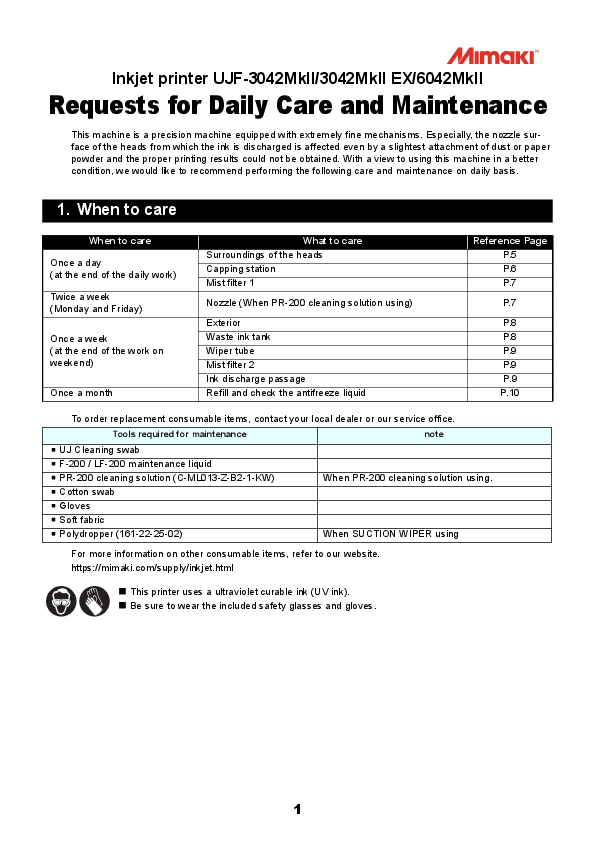
This machine is a precision machine equipped with extremely fine mechanisms. Especially, the nozzle surface of the heads from which the ink is discharged is affected even by a slightest attachment of dust or paper powder and the proper printing results could not be obtained. With a view to using this machine in a better condition, we would like to recommend performing the following care and maintenance on daily basis.

1. When to care

When to care
Once a day (at the end of the daily work)
Twice a week (Monday and Friday)
Once a week (at the end of the work on weekend)
Once a month

What to care Surroundings of the heads Capping station Mist filter 1
Nozzle (When PR-200 cleaning solution using)
Exterior Waste ink tank Wiper tube Mist filter 2 Ink discharge passage Refill and check the antifreeze liquid

Reference Page P.5 P.6 P.7
P.7
P.8 P.8 P.9 P.9 P.9 P.10

To order replacement consumable items, contact your local dealer or our service office.

Tools required for maintenance

note

 UJ Cleaning swab

 F-200 / LF-200 maintenance liquid

 PR-200 cleaning solution (C-ML013-Z-B2-1-KW)

When PR-200 cleaning solution using.

 Cotton swab

 Gloves

 Soft fabric

 Polydropper (161-22-25-02)

When SUCTION WIPER using

For more information on other consumable items, refer to our website. https://mimaki.com/supply/inkjet.html

 This printer uses a ultraviolet curable ink (UV ink).  Be sure to wear the included safety glasses and gloves.

1

2. Safety Precautions

CAUTION

Be sure to wear the included safety glasses and gloves.
To secure the stability of the ink discharge, when the printer is not used (output) for an extended period of time, it could become necessary to discharge periodically a small amount of ink (flushing), depending on the kinds of the ink. When not using for an extended period of time, execute the [CUSTODY WASH] function of this equipment, ("When the Machine Is Not Used for a Long Time (CUSTODY WASH)" Chapter 5 of Operation Manual) and put off the power switch on the front, only. Leave the main power switch at the side of the equipment on and keep the cable socket inserted into the plug.
Make maintenance after the LED UV has been sufficiently cooled, or burn injury may occur.
Never disassemble this machine. It could cause electrical shock, fire and breakage.
Keep away the moisture from the inside of this machine. If the inside is moistened, it could cause electrical shock, fire and breakage.
Perform the maintenance and care after switching off the power and taking off the power cable. Otherwise, it could cause unexpected accidents.
Avoid using benzine, thinner, and chemicals containing abrasive compounds. The surface of the cover could be degenerated or deformed.
Do not supply lubricant oil etc. to the inside this machine. It could cause the breakdown of this machine. Aggregates will occur when the UV curing ink(UV ink) is mixed with water or alcohol. Please be careful not to adhere water or alcohol to not only the nozzle surface, but also the head and around the cap, wiper etc.
]
3. Installation environment
� Use this printer as much as possible in a dust-free environment. Fans and air-blowers could cause the dustspewing.
� The using environment of this printer is from 20 to 30�C (68�F to 86�F) in temperature and from 35 to 65 % in relative humidity. Avoid the use of this printer at a temperature and humidity higher or lower than the indicated ranges.

2

4. Notes for working environment

Performing frequency of the print setting or maintenance is greatly influenced by the printing environment or the condition of the media used. Use this machine with a full understanding of the followings.

Working environment
When the head gap is set wide because fibers stick out of media
When the media that reflects UV light well is used such as glasses or glazed metal
When there is an infrequentlyused ink (print head)
When printing on the media on which static can be charged
When printing in a dry place (such as in winter)
When printing on a markedly uneven media (or object)

Consideration
 UV light can expose the nozzle when there is a lot of scattered mist. Raise the refreshing level for drawing (Operation Manual Chapter 3 "Setting of REFRESH"), and set the automatic maintenance ( Operation Manual Chapter 4 "Automatic Maintenance").
 Increase performing frequency of every maintenance.
 An infrequently-used print head can be unstable to discharge ink comparing with the other print heads. Raise the refreshing level for drawing (Operation Manual Chapter 3 "Setting of REFRESH") to raise the usage rate of the head.
 Please take a sufficient antistatic such as using the optional ionizer or putting a humidifier. Static may collect mist or dust around the printing area or the head. To print continuously for a long time, set the automatic maintenance. (Operation Manual Chapter 4 "Automatic Maintenance")
 To keep the head gap the same, please fill the gap by setting media which do not use where a printing media is set. Leaving the head that has been degraded by reflected light may cause failure that needs replacing of the head.

5. Storage of media
Media should be stored in the little dust area, and not in direct sunlight. Avoid storing the media in the area with high temperature and high humidity.

6. Storage of ink bottle
Be careful of the followings to store. � Store the ink bottle in no direct sunlight, and no high humidity. � As it's a delicate product, do not drop it. � Ink IC should not be contaminated and discharged static electricity. � Be sure to store the ink bottle and the ink IC together.

Ink bottle and Ink IC

3

7. Maintenance when needed
A proper maintenance schedule is determined by the operator who observes throughout a period of use of the printer. � Some media need maintenance every time of printing. � The maintenance schedule differs depending on the image to be printed. For example, when the image is
almost filled, perform maintenance frequently.
(1) Cleaning of the LED UV unit
Remove ink or dust attached to the LED UV periodically. � Clean the LED UV with care in order not to scratch an irradiation part on the bottom of the unit. If there is a certain amount of dirt or a light shielding object on the irradiation part, ink may not cure well and it may cause banding. � Please replace the part if the stain is too strong.
(2) Removal of ink attached to the table
If necessary, remove ink attached to the table with an alcohol-impregnated cloth. Be careful not to scratch the table face when removing cured ink.
Caution when using solvent � Leaving the table after attachment of ink may make the ink removal hard with alcohol only. When using a
special solvent, contact our office before use. It may cause a failure of the machine.
(3) Removal of the vacuum hole clogging on the table
The vacuum holes on the table can be clogged with ink. Remove the ink in the vacuum holes when needed. Be careful not to leave a part of cured ink on the table.
(4) Cleaning of the bottom of the carriage
Remove ink attached to the bottom of the carriage.
4

8. Daily care
� When possible, use the UJ Cleaning swab for cleaning around the head/ capping station/ wiper. Using the other cotton bud may attach lint, then it may damage the machine.
� Be sure to perform maintenance for the ink cap and the wiper of capping station every day. If you leave it dirty, dirt may adhere to the nozzle surface, or, dust and dry ink may be rubbed against the nozzle. It may cause discharge defect.
� Clean the bottom of carriage every day so that it will not get dirt from inks or dusts. If you leave it dirty, dust and dry ink may be rubbed against the nozzle at wiping operation when performing head cleaning.
� When you clean the carriage bottom surface, fully be careful not to rub the nozzle surface.
(1) Surroundings of the heads ("Cleaning the Head and the Area around It" Chapter 4 of the Operation Manual)
� The heads and their surroundings are the parts most liable to be tainted in this machine and if tainted, it could cause adverse effects to the functions of the machine and the results of the printings. Moreover, as the head itself uses very fine mechanisms, sufficient precautions are required for the care and maintenances.
1 Move the carriage to the left and open the maintenance cover. � Refer to the Step 1 to 5 of Chapter 4 "Cleaning the Head and the Area around It" of the user's manual to perform the operation.
2 Soak the UJ Cleaning swab or the waste cloth in the maintenance cleaning liquid and wipe off an accumulated ink on the side of the head and on the bottom surface of the slider. � Scrape them off with clean swab etc. In this case, never rub the nozzle portion of the head. Clean the side surface of the head (shown in deep gray) with a cleaning swab. The nozzle part (Never touch it.)
Clean with a cleaning swab or a waste cloth.
5

(2) Capping Station ("Cleaning the Wiper and Cap" Chapter 4 of the Operation Manual)
The surrounding area of the cap is also liable to be stained by the dust and ink. It is recommended to clean the head frequently using the cleaning liquid for maintenance suitable for the ink used to avoid the stains on the head.
� F-200 / LF-200 maintenance liquid
1 Move the carriage and open the right front cover.
� Refer to the Step 1 to 4 of Chapter 4 "Cleaning around the wiper" of the user's manual to perform the operation.

2 (When using rubber wiper) Clean the wiper.

(1) Remove the wiper.

(2) Clean the wiper and bracket.

Protrusion

Wiper

(3) Set the wiper at the original position.

Bracket
3 (When using suction wiper) Clean on or around the wiper.

4 Clean the cap.
� Dip the UJ Cleaning swab into the cleaning liquid for maintenance and wipe off the cap.
Wipe off so that cleaning solution for maintenance will not remain.
6

5 Clean the mist filter 1.("Cleaning the mist filter" Chapter 4 of the Operation Manual) � If the stain is strong, please replace the filter referring to the Operation Manual Chapter 4 "Replacing the mist filter".
9. Periodically care (Twice a week / for models with PR-200 maintenance liquid only)
To maintain the accuracy of this machine for a long time, clean it twice a week.
(1) Nozzle ("Nozzle Wash (When PR-200 cleaning solution using)" Chapter 4 of the Operation Manual)
1 Open the maintenance cover on the station side.
� Refer to the Operation Manual, Chapter 4 "Nozzle Wash (when using PR-200 maintenance liquid)" steps 1 to 4 and perform the operation.
2 Clean the wiper.
� Include F-200 / LF-200 maintenance liquid in the clean stick and clean. � Wipe off F-200 / LF-200 maintenance liquid so that no maintenance liquid remains. � Refer to the Operation Manual, "Chapter 8 (2) Capping Station" steps 2 to 3 and perform the operation.
3 Clean the cap rubber of the PR-200 head.
Use the F-200 / LF-200 maintenance liquid always to clean the wiper, bracket, and cap rubber, and do not use the PR-200 maintenance liquid.
4 Fill the cap of PR-200 head completely with the PR-200 maintenance liquid (C-ML013-Z-B2-1KW). � Fill up the PR-200 maintenance liquid just before it overflows from the cap. To prevent nozzle clogging, do not use PR-200 maintenance liquid other than the cap of the PR-200 head.
5 Close the ma intenance cover, and press the key.
6 Set the time to one minute for the maintenance liquid to be left as it is and press the key. � The nozzle washing is started.
7

7 After washing the nozzles, perform the head cleaning (hard) for the PR-200 head. 8 Check the nozzle status with a test print.
10. Periodically care (Once a week)
Users are advised to perform the maintenance works described below once a week so that the printer will keep its high performance and accuracy over an extended period of its life.
(1) Exterior ("Cleaning the Exterior Surfaces" "Cleaning the table" Chapter 4, Operation Manual)
Depending on the using environment, the dusts or sand powder could stick to the exterior of the main unit. To avoid the entry of the dusts into the moving part of the head, wipe them off with soft cloth dipped into water and squeezed tightly.
(2) Waste ink tank ("If a Waste Ink Tank Confirmation Message Appears" Chapter 4 of the Operation Manual)
Check whether the waste ink tank is full or not. Take care so that the waste ink never overflows the tank.
To prevent nozzle clogging, do not use PR-200 maintenance liquid other than the cap of the PR-200 head.
(3) (When using suction wiper) Wiper waste ink tank ("If Check Wiper Waste Ink tank Warning Appears" Chapter 4 of the Operation Manual)
Check the waste ink level in the waste ink tank frequently. Continuing to use the machine without disposing of the waste ink may result in waste ink overflowing from the waste ink tank.

8

(4) (When using suction wiper) Wiper tube ("Cleaning the Wiper and Cap" Chapter 4 of the Operation Manual)

� Use a dropper to fill with the cleaning solution through the mouth of suction wiper.

Dropper

(5) Clean the mist filter 2. ("Cleaning the mist filter" Chapter 4 of the Operation Manual)
If the stain is strong, please replace the filter referring to the Operation Manual Chapter 4 "Replacing the mist filter".

(6) Ink Discharge Passage ("Washing the Ink Discharge Passage" Chapter 4 of the Operation Manual)
Wash the ink discharge passage (DISWAY WASH) regularly (about once a week) to prevent the head nozzles from clogging due to ink coagulation inside the passage.

1 Select "MAINTENANCE" menu  "STATION"  "DISWAY WASH".
� Refer to the Step 1 to 3 of Chapter 4 "Washing the Ink Discharge Passage" of the user's manual to perform the operation.
� The carriage will move onto the platen.

2 Press

key.

� Dry suction operation is performed repeatedly until the washing work is completed.

3 Open the right front cover.

4 Fill up the cap with cleaning solution for maintenance.
� Suck maintenance solution into a dropper and fill up the cap with it.

5 Press the

key.

9

11. Periodically care (once a month)
(1) Refill and check the antifreeze mixed water ("Refilling antifreeze mixed water" Chapter 4 of the Operation Manual)
It is recommended that check the amount of antifreeze liquid about once a month to keep the machine itself in good working order. When antifreeze liquid is a little, refill the antifreeze liquid.
12. The examples of defective printing
These following examples indicate improper head (nozzle) firing by dust, which effect printing. Confirm the nozzle condition periodically before or during outputting not to use in such as this condition. The nozzle condition can be confirmed with [test printing] in this plotter. (Operation manual Chapter 2 "Test Printing")

Deflection

Nozzle out

Ink dropping

Satellite

13. Recovery method of defective nozzle discharge

When this printer has not been used for an extended period of time, or depending on the environmental temperature, the discharge at the nozzles could become unstable. In such a case, the following methods may be taken to recover the status of the nozzles.
1. Daily maintenance and care
 Perform the cleaning of the parts described in this document.

2. Performing Head Cleaning (normal). Refer to Chapter 2 of Operation Manual.
 After having performed the care and maintenance stated in step 1, perform the cleaning of the heads in accordance with the procedures stated in Operation Manual.

Perform test printing and check (Chapter 2 of Operation Manual)

In the event nozzle missing etc. have not been improved

10

3. Performing Head Cleaning (hard). Refer to Chapter 2 of Operation Manual.
 If the nozzle missing does not disappear even after repeating the head cleaning (normal) several times, reset the cleaning mode to "hard" and perform the cleaning again.

Perform test printing and check (Chapter 2 of Operation Manual)

In the event nozzle missing etc. have not been improved

4. Performing Head Cleaning (urtora). Refer to Chapter 2 of Operation Manual.

Perform test printing and check (Chapter 2 of Operation Manual)

In the event nozzle missing etc. have not been improved

5. Performing sub-tank maintenance. Refer to Chapter 4 of Operation Manual.

Perform test printing and check (Chapter 2 of Operation Manual)

In the event nozzle missing etc. have not been improved

6. Performing nozzle wash. Refer to Chapter 4 of Operation Manual.

Perform test printing and check (Chapter 2 of Operation Manual)

In the event nozzle missing etc. have not been improved

7. (When using rubber wiper) Replacing the wiper. Refer to Chapter 4 of Operation Manual.

Perform test printing and check (Chapter 2 of Operation Manual)

In the event nozzle missing etc. have not been improved

8. Set the nozzle recovery function. Refer to Chapter 4 of Operation Manual.
 Set the nozzle recovery function.

Perform test printing and check (Chapter 2 of Operation Manual)

In the event a large number of white missing nozzles etc. have not been restored

9. Set the white maintenance. Refer to Chapter 4 of Operation Manual.

Perform test printing and check (Chapter 2 of Operation Manual)

If the nozzle missing has not been improved even with the above operations, please call us or your sales agent from whom you purchased this printer.

14. Supplies

To order replacement consumable items, contact your local dealer or our service office.

Product Name F-200 / LF-200 maintenance liquid
F-200/LF-200 CLEANING KIT
PR-200 maintenance Liquid
Wiper kit 300TS Mist filter set LED glass
W ABSORBER SET Bottle tightening jig kit Waste ink tank 1.6L

Product No. SPC-0568 SPC-0569 C-ML013-ZB2-1-KW SPA-0271 SPC-0819 SPA-0290 SPC-0830 SPA-0232 SPA-0173

Product Name UJ Cleaning swab
UV Goggle
Anti freezing liquid
Nozzle Swab KIM TOWEL MAINTENANCE CLOTH Bottle wipe filter set Cap absorber Waste ink tank absorber

For more information on other consumable items, refer to our website. https://mimaki.com/supply/inkjet.html

Product No. SPC-0386 SPC-0387
SPC-0394
SPC-0421 SPC-0499 SPC-0574 SPC-0820 SPC-0822 SPC-0658

11

You can also download the latest manual from our website.
 2016 MIMAKI ENGINEERING CO., LTD. D203045-19-30032021

AT FW :5.0