

Falcon BMS 4.38 Performance Recommendations and Configuration Guide
Key Considerations for Hardware
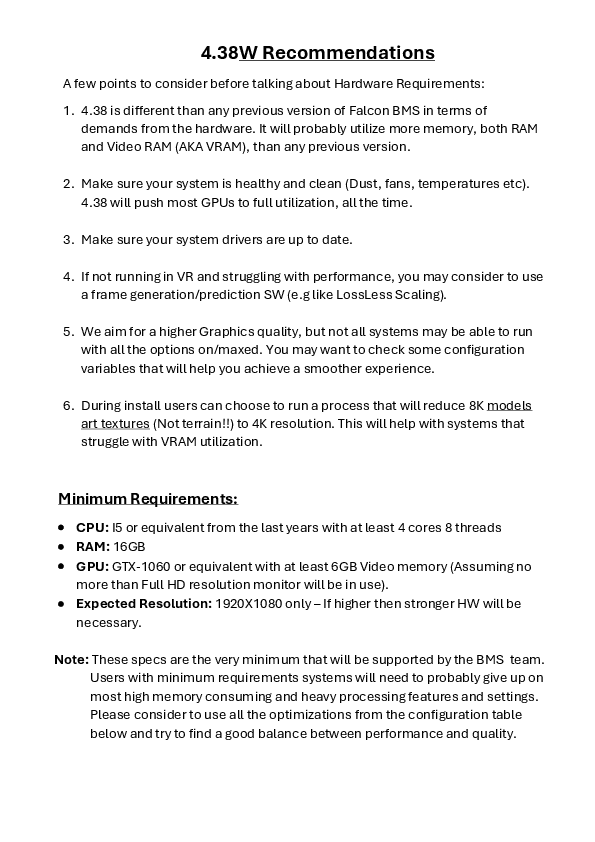
- Falcon BMS 4.38 has increased hardware demands compared to previous versions, utilizing more RAM and VRAM.
- Ensure your system is clean and well-maintained (e.g., dust, fan performance, temperatures) as 4.38 will push GPUs to full utilization.
- Keep system drivers up to date.
- For VR users struggling with performance, consider frame generation/prediction software (e.g., LossLess Scaling).
- While aiming for higher graphics quality, not all systems can run with maximum settings. Experiment with configuration variables for a smoother experience.
- During installation, an option exists to reduce 8K model art textures to 4K resolution, which aids systems with VRAM limitations.
Minimum System Requirements
- CPU: i5 or equivalent from recent years with at least 4 cores and 8 threads.
- RAM: 16GB.
- GPU: GTX-1060 or equivalent with at least 6GB Video memory (for Full HD resolution monitors).
- Expected Resolution: 1920x1080. Higher resolutions require stronger hardware.
Note: These are the minimum specifications supported by the BMS team. Users with minimum requirements may need to disable memory-intensive and heavy processing features. It is recommended to utilize optimizations from the configuration table to find a balance between performance and quality.
Recommended System Requirements
- CPU: Top-tier i7/i9 or equivalent with maximum available cores/threads.
- RAM: 32GB recommended; more can be beneficial.
- GPU: Dependent on resolution and VR usage:
- Full HD (1080P): GTX-1070 or equivalent/better with at least 8GB VRAM.
- 2560x1440: RTX-3060TI or equivalent/better; more VRAM is preferable.
- 4K and Wide screens: RTX-3080 or equivalent/better, ideally with 12-16GB VRAM.
- VR: The best available; aim for at least 16GB VRAM, though lower VRAM cards may function.
Performance Configuration Variables
Note: Configuration variables should be added to the User\Config\Falcon BMS User.cfg file. Default values are used if the file or variables are absent.
Graphics Performance Settings:
| Config Setting | Effect | Importance for Performance |
|---|---|---|
set g_bShadowMapping 0 | Disables all shadow mapping. | Very high |
set g_fNewTerrainTessellationFactor 0.35 | Reduces terrain mesh tessellation distance. | Medium-High (Terrain focus) |
set g_bNewTerrainPhotorealForce4KTiles 1 (Or skip 16K tiles) | Uses lower resolution terrain photoreal quality. | High (VRAM intensive) |
set g_fNewTerrainProceduralDistance 0 (Default 12 KM) | Disables procedural texturing; close-up terrain appears basic. | Very high (Low/medium altitude terrain performance) |
set g_nPrefilterENVSampling 32 (Default 256) | Lowers ENV mapping quality (reduces texture sampling). | Low-Medium |
set g_bNewTerrainUseHiresTiles 0 | Disables high-resolution tiles in specific areas like airbases. | Low-Medium |
set g_bNewTerrainRenderShrubs 0 | Disables rendering of shrubs, bushes, and rocks. | Medium |
set g_bHdrLighting 0 (Not recommended) | Disables bloom effects and tone mapping. | Medium |
set g_bRenderNewTerrainToENVMap 0 (Not recommended) | Prevents terrain rendering into the ENV map, resulting in a fog/blue colored area. | Medium |
set g_bNewTerrainProceduralUse1024Textures 1 | Uses lower resolution procedural tiles. | Medium |
CPU and Multi-threading Performance Settings:
set g_nObjListWorkSizeHint XDefault: 1500. Range: 100-3000. Adjust for parallelism.
- 100: Maximum parallelism (more threads).
- 3000: Minimum parallelism (fewer threads).
The default of 1500 offers a good balance. Lower values (e.g., 280-350) may improve performance on some systems.
set g_nAdditionalWorkers xDefault: 0. Used for two purposes:
- a. Reduce HT core utilization (e.g., use -8 to exclude 8 threads on an 8-core/16-thread CPU).
- b. Add threads (e.g., use 2).
VR Performance Settings:
| Config Setting | Effect | Importance for Performance |
|---|---|---|
set g_bVRNoPresent 1 | Prevents VR image display on the monitor. | Low-Medium |
set g_bVREnableFFR 1 | Enables FFR (details in manual). | Very High |
set g_fVRInnermostRadiiFFR 0.6set g_fVRMiddleRadiiFFR 0.9set g_fVRPeripheralRadiiFFR 1.3 | VR FFR radius settings (Nvidia GPUs only, subject to change). |
Additional Performance Settings:
| Config Setting | Effect | Details |
|---|---|---|
set g_bDetailedFrameRate 0 | Displays FPS as a simple yellow number instead of detailed text. | Useful for VR and flat-screen displays if preferred. |
