

File info: application/pdf · 27 pages · 2.99MB
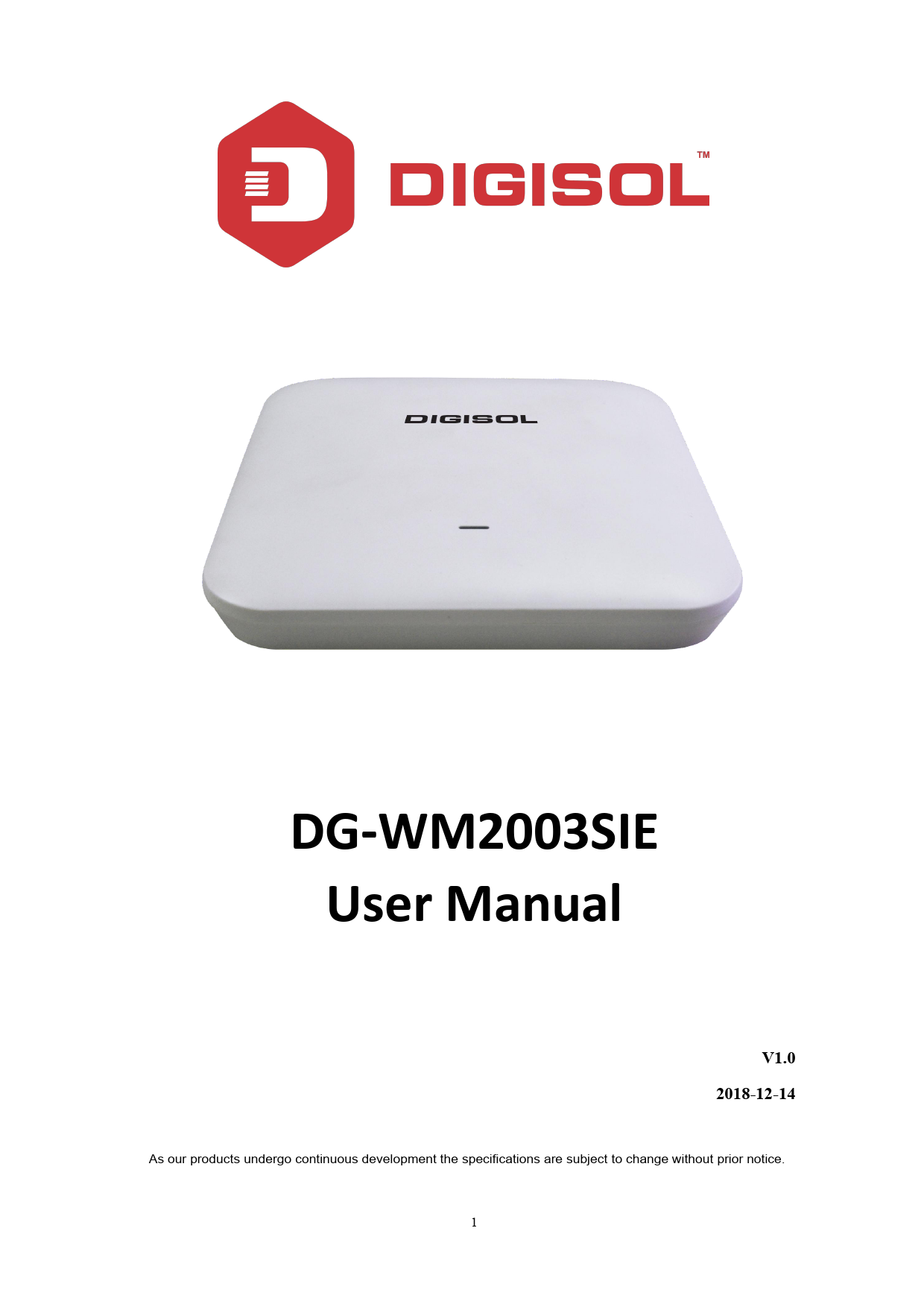
DG-WM2003SIE UserManual - Digisol
DG-WM2003SIEUserManual 5 1.3.PowerSupply 1.3.1PoEAdapterPowerSupply: TheconnectiondiagramshownasP1,internetcableconnecttoPoEadapter’sLANPort,Ceiling
DG-WM2003SIE User Manual - DIGISOL
1.3.1 PoE Adapter Power Supply: The connection diagram shown as P1, internet cable connect to PoE adapter's LAN Port, Ceiling. AP's WAN ...
Full PDF Document

If the inline viewer fails, it will open the original document in compatibility mode automatically. You can also open the file directly.
Extracted Text
DG-WM2003SIE User Manual
V1.0 2018-12-14
As our products undergo continuous development the specifications are subject to change without prior notice. 1

DG-WM2003SIE User Manual
COPYRIGHT
Copyright 2019 by Digisol Systems Ltd. All rights reserved. Company has an ongoing policy of upgrading its products and it may be possible that information in this document is not up-to-date. Please check with your local distributors for latest information. No part of this document can be copied or reproduced in any form without written consent from the company.
Trademark
DIGISOL TM is a trademark of Digisol Systems Ltd. All other trademarks are the property of the respective manufacturers.
2

DG-WM2003SIE User Manual
INDEX
1. Hardware and Operation Mode Instruction..........................................................................................4 1.1. LED indicator:...............................................................................................................................4 1.2. AP Interface:.................................................................................................................................4 1.3. Power Supply:...............................................................................................................................5 1.3.1. PoE Adapter Power Supply:..............................................................................................5 1.3.2. PoE Switch Power Supply...............................................................................................5 1.4. AP installation:....................................................................................................................6
2. Connect Wireless AP with PC:..................................................................................................................7 3. Login............................................................................................................................................................8 4. WEB GUI interface Setting:....................................................................................................................10
4.1. Home..........................................................................................................................................10 4.2. Wizard Configuration:...............................................................................................................12
4.2.1. Gateway Mode:..............................................................................................................12 4.2.2. WiFi Repeater mode......................................................................................................14 4.2.3. WISP Operation mode:..................................................................................................15 4.2.4. AP Operation mode:.......................................................................................................17 4.3. WiFi:..............................................................................................................................................18 4.4. Network:.......................................................................................................................................21 4.5. Manage:........................................................................................................................................22 5. Share Internet and Obtain IP address automatically............................................................................25 Trouble Shooting............................................................................................................................................26
3

DG-WM2003SIE User Manual
1. Hardware and Operation Mode Instruction

Package Contents Before using this access point, please check if there is anything missing in the package, and contact your dealer of purchase to claim for missing items:
 DG-WM2003SIE Ceiling Mount Access Point  DC 12V Power Adapter  Patch Cord  Installation Guide  User Manual CD  Mounting Screws
1.1. LED Indicator
Green:- Power Indicator Blue:- WiFi Indicator
1.2. AP Interface

RST Reset Button, it make AP revert to default settings after pressing it for 15 seconds.

WAN

WAN Port, connect with ADSL modem or Internet mainly. It will be LAN port under Wireless AP and WiFi Repeater operation mode

LAN LAN Port to end users

LED LED Indicator for WAN port and LAN port

DC DC power connector

4

1.3. Power Supply

DG-WM2003SIE User Manual

1.3.1 PoE Adapter Power Supply: The connection diagram shown as P1, internet cable connect to PoE adapter's LAN Port, Ceiling AP's WAN port connect to PoE adapter's PoE Port, then PC will access into ceiling AP through cable or wireless. The wireless AP support 48V IEEE802.3af PoE, so PoE adapter should be 48V IEEE802.3af PoE standard.

P1
1.3.2. PoE Switch Power Supply The connection diagram shown as P2, Internet cable from PoE Switch to Ceiling AP's WAN Port, then PC access into ceiling AP via wired/wireless. Pls note the wireless AP support 48V IEEE802.3af PoE, the PoE switch should comply with 48V IEEE802.3af PoE standard.

P2

5

DG-WM2003SIE User Manual
1.4. AP Installation
For the Ceiling Wireless AP, will be installed under ceiling based on following steps:
6

DG-WM2003SIE User Manual
2. Connect Wireless AP with PC
You can connect the PC with wireless AP by Wireless SSID and LAN cable: The diagram of wireless connection showed as follow: Pls note: the default SSID is DG-WM2003SIE, SSID's password is blank
P3. Connect the PC to AP using WiFi as shown above
P4. Connect the PC to AP using LAN cable as shown above
7

3. Login

DG-WM2003SIE User Manual

1. Connect the Ceiling AP with computer by wired or wireless
2. The default IP address of this wireless AP is 192.168.1.200. Configure the PC's local connection IP address as 192.168.1.X (X is number from 2 to 254), subnet mask is 255.255.255.0.

P5

P6
8

DG-WM2003SIE User Manual
3. Input 192.168.1.200 into browser, login page will appear, the default login password: admin. P7: Login Page
9

DG-WM2003SIE User Manual
4. WEB GUI interface Setting
4.1. Home
After login, the Device Status and home page will be showed
P8: Home This page will show the device default operation mode, Device Information, Device Description, LAN Information, 2G WiFi, Flow (2G WiFi) bps and Hardware/Firmware version. In this wireless AP, the default operation mode is AP mode. In Device Information you can find the CPU and Memory Usage of the AP as shown in P9
P9: Device Information In Device Description you can add the APs description by clicking on Click Settings as shown in P10
10

DG-WM2003SIE User Manual
P10: Device Description In LAN Information you can find the IP Mode, IP and MAC Address of the AP as shown in P11
P11: Lan Information In WiFi Information you can find the Status, SSID, Channel, Encryption and MAC Address of AP as shown in P12
P12: WiFi Information In Flow (2G Wifi) bps you can find the AP's Upstream and Downstream as shown in P13
P13: Flow (2G Wifi) bps
11

DG-WM2003SIE User Manual
4.2. Wizard Configuration
Wizard: It instruct users to configure wireless AP's operation mode based on needs, there are four operation mode including Gateway, Repeater, WISP, Wireless AP. Please confirm the operation mode first before starting the configuration. Clicking Wizard in Status page will pop up following page to configure the operation mode and there are explanation for each operation mode for better application.
P14: Wizard Configuration 4.2.1 Gateway Mode Before Clicking the Gateway mode, confirm your internet will be Static IP, PPPoE, or DHCP. Then clicking on the Gateway mode will pop up the below image. Please choose the right WAN setting mode, then click next to continue. Then configure the wireless parameters and click next.
P15: WAN setting in Gateway Mode
12

DG-WM2003SIE User Manual
P16: Wireless setting in Gateway mode Clicking next will complete the Gateway mode setting and show following picture: Please Note: The equipment will restart for the changes to take effect.
P17: Settings complete in Gateway mode When return to Home page, will show Wireless router's SSID, Internet connection, LAN connection status shown as below.
13

DG-WM2003SIE User Manual
P18: Status in Gateway mode 4.2.2. WiFi Repeater mode 1. Login the Web management page, click "Wizard" then "WiFi Repeater" 2. Scan AP and select the AP's SSID want to bridge then input the AP's key, click next to complete.
P19: Repeater mode
P20: Wireless Setting in Repeater mode
14

DG-WM2003SIE User Manual
Clicking next will complete the Gateway mode setting and show following picture: Please Note: The equipment will restart for the changes to take effect. When return to Home page, it shows Repeater mode data, will show fail or success, and user can configure this data if required.
P21: Status in Repeater mode 4.2.3. WISP Operation mode Click WISP operation mode in Wizard, then will pop up the configure page, please set the WISP operation mode based on the steps shown in picture:
P22: WISP Mode
15

DG-WM2003SIE User Manual
Select the appropriate wireless AP and configure the correct WAN setting in WISP operation mode, then next to complete.
P23: WAN setting in WISP mode
P24: Wireless setting in WISP mode In next step configure the SSID then complete and back to home, will show the connection fail or success, where you can configure the data based on request: Please Note: The equipment will restart for the changes to take effect.
16

DG-WM2003SIE User Manual
P25: Status in WISP mode 4.2.4. AP Operation mode Configure the LAN setting and in the next tab set the wireless SSID, follow the screenshot below:
P26: LAN setting in AP mode
17

DG-WM2003SIE User Manual
P27: Wireless setting in AP mode Clicking next will complete the AP mode setting and show following picture: Please Note: The equipment will restart for the changes to take effect.
P28: Status in AP mode
4.3. WiFi Setting
In WiFi setting you can set the 2.4G, MAC ACL, Wifi Timer off and Advanced settings. Let's see more in detail in the following pages:
18

DG-WM2003SIE User Manual
2G Wifi In this part, will show the 2.4G Basic Setting and Virtual AP setting as shown below
P29: 2G WiFi setting WiFi Status: On mean SSID on, Off mean SSID off. WiFi Analyzer: Mainly to analyze the AP's signal strength and channel, to make user more easy to choose the channel with less wireless AP and to avoid the Wireless Interference.
P30: WiFi Analyzer Virtual AP: There are 3 virtual AP in 2.4G and in 5G wireless, for use of multi SSID, then users can configure it as shown in following picture.
P31: Virtual AP Setting
19

DG-WM2003SIE User Manual
MAC ACL: Allow or deny the users access into this device based on MAC address.
P32: MAC ACL Setting WiFi Timer Off: Enable WiFi Timer Off to turn off the SSID in the specified time.
P33: WiFi Timer Off Advanced: This page, will show the regional info, mode, RF Power, Max user access, etc.
P34: Advanced Setting
20

DG-WM2003SIE User Manual
4.4. Network
In network, you can configure LAN setting,tag VLAN and setup Cloud Server as follow: LAN Settings mainly includes Static IP, Get IP from AC and Get IP from Gateway.
P35: LAN Setting In VLAN part, you need a VLAN switch and make sure the multi SSID is enable, then input the VLAN ID to different SSID.
P36: VLAN Setting In Cloud Server Setting you need to enter the Cloud Server URL and Binding code so that the AP can be managed over the Cloud.
21

DG-WM2003SIE User Manual
P37: Cloud Server Settings
4.5. Manage
It shows the Configure part, Reboot part, Modify password, System time, Logs, Upgrade firmware. Configure:- You can save the config or restore the previously saved config or reset the device to its default config and enable Telnet.
P38: Configure Reboot: Can reboot/restart the AP on a schedule.
22

DG-WM2003SIE User Manual
P39: Reboot Modify Password: Can modify the password. Default password is admin.
P40: Modify Password Upgrade: Browse the firmware file and click on upgrade. Wait till the upgrade is successful. The device will reboot automatically after successful firmware upgrade.
23

DG-WM2003SIE User Manual
P41: Firmware Upgrade Time: Here you can check the system time, enable NTP Server and select the Time Zone.
P42: Time Log: Here you can find the AP's log, you can also enable Remote Log Service.
P43: Log
24

DG-WM2003SIE User Manual
5. Share Internet and Obtain IP address automatically
Set computer's TPC/IP as Obtain an IP address automatically, Obtain DNS server address automatically as following picture showed. The computer will obtain the IP address from router or base station to get Internet.
P44
25

DG-WM2003SIE User Manual

Troubleshooting

The Failure phenomenon and solution.

If the problems are not listed, please contact the local service or call the Toll Free service. We are

willing to offer the service.

Failure phenomenon

Solution

SYS Indicator off

Pls make sure the PoE module connection is right. POE Port connect with AP, LAN port connect with computer

Pls check the IP address of computer and Wireless AP to

see whether they are in same networking segment, The

method is click "start"-"Run" input"cmd"  ping

192.168.1.200 to test the Wireless AP connectivity.

Reset Wireless AP and load it again;

Can't land to Wireless AP through Pls make sure the IP address 192.168.1.200 is not

Web page

occupied by other device in Wireless AP's networking;

Check computer and cable problem, recommend to use

10/100M UTP unshielded cable;

Clean up Arp binding from "Start"-"Run" input"cmd" arp

�d

Clean the IE Brower's temporary files and Cache file

Try to scan the avaliable wireless networking again

Make sure the Wireless AP's wireless standard is correct

(2.4Ghz signal should connect 2.4Ghz, 5.8Ghz signal

Wireless AP can't connect with AP should connect 5.8Ghz signal; )

(the status display unconnected The Security and passwords are matched between

Wireless AP and AP.

The signal strength of AP is too weak to connect, should

be more than -75dBm

Scan it several times more

If using 5Ghz to scan, please make sure there are 5G

Can't scan the wireless AP

signal existed.

Reset the Wireless AP, scan it again after Wireless AP

restart

The connection of Wireless AP and AP is success, but the computer can't share internet

Pls Check the computer's IP address and DNS setting. If it is dynamic, set the network card as automatically obtain. If it is static IP, pls contact with ISP for correct IP address and DNS address.

Press the "Reset" button more than 15 seconds after

How to Reset Wireless AP

power on. The Wireless AP will restore factory default

after the Wireless AP restart.

This product comes with three Years warranty. For further details about warranty policy and product registration, please visit support section of www.digisol.com
26

DG-WM2003SIE User Manual
27