

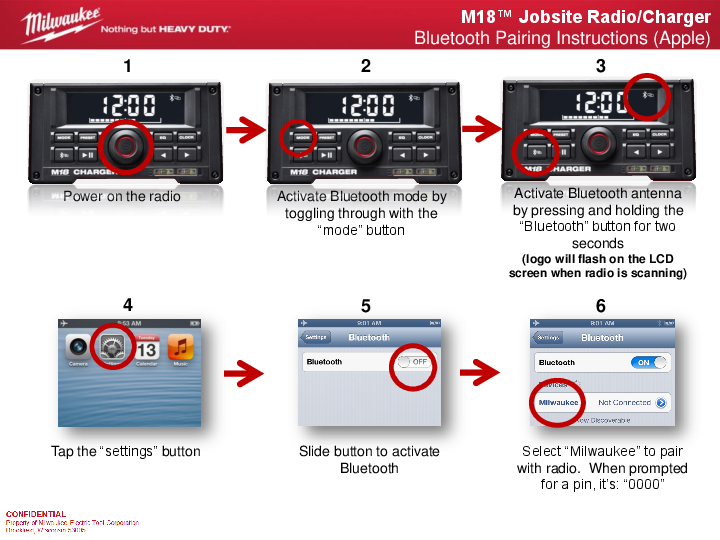
Milwaukee M18 Jobsite Radio/Charger Bluetooth Pairing Guide
Pairing with Apple Devices
Power on the radio. The display shows the time '12:00'.
Activate Bluetooth mode by toggling through options using the "mode" button.
Activate the radio's Bluetooth antenna by pressing and holding the "Bluetooth" button for two seconds. The Bluetooth logo [bluetooth logo ?] will flash on the LCD screen, indicating the radio is scanning for devices.
On your Apple device, tap the "Settings" icon [settings icon ⚙️].
In the Settings menu, tap "Bluetooth" and then slide the toggle button to activate Bluetooth [toggle switch ON ?].
Select "Milwaukee" from the list of available devices to pair with the radio. If prompted for a PIN, enter "0000".
Pairing with Android Devices
Power on the radio. The display shows the time '12:00'.
Activate Bluetooth mode by toggling through options using the "mode" button.
Activate the radio's Bluetooth antenna by pressing and holding the "Bluetooth" button for two seconds. The Bluetooth logo [bluetooth logo ?] will flash on the LCD screen, indicating the radio is scanning for devices.
On your Android device, tap the "Settings" icon [settings icon ⚙️].
In the Settings menu, tap "Bluetooth" to enter its settings.
Ensure Bluetooth is turned on. Press the "scan" button [scan icon ▶️] at the bottom of the screen. Select "Milwaukee" from the list of available devices to pair with the radio. If prompted for a PIN, enter "0000".
