

dataton WATCHPAX 40 Media Server User Guide
File info: application/pdf · 26 pages · 13.92MB
WATCHPAX 40 (updated November 2021)
Manuals for WATCHOUT, WATCHPAX media servers, plus other… | Dataton
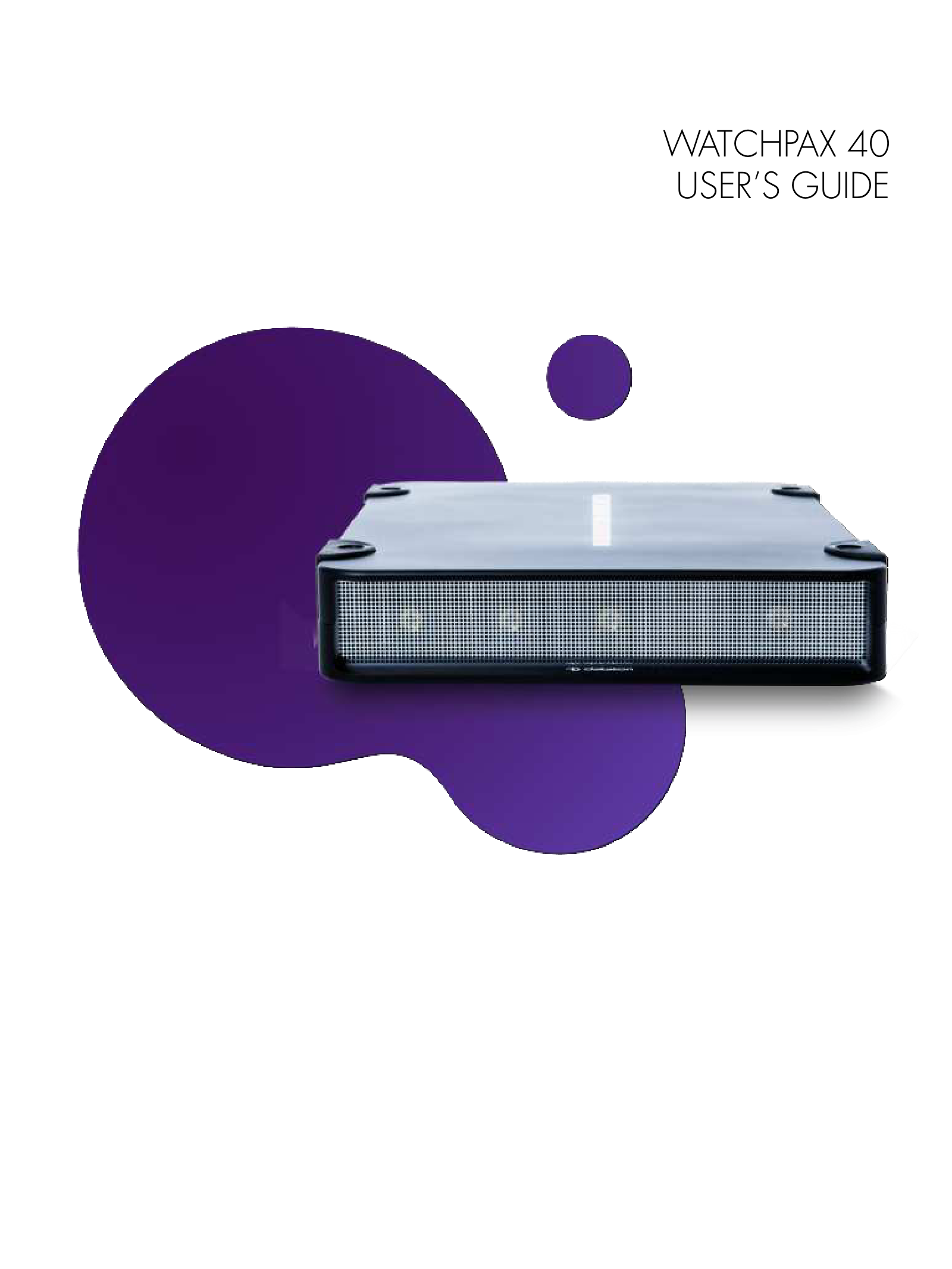
WATCHPAX 40 USER'S GUIDE
PDF Watchpax 40
1. INTRODUCTION What's WATCHOUT? System Overview WATCHPAX 40 In Your Rig Display Devices Start up Screen Accessories Connectors Dimensions Power Environmental Media Server...
Extracted Text
WATCHPAX 40 USER'S GUIDE
1.3

DATATON WATCHPAX 40 � USER'S GUIDE

1. INTRODUCTION

3

What's WATCHOUT?

3

System Overview

4

WATCHPAX 40 In Your Rig

4

Display Devices

4

Start up Screen

4

Accessories

5

Connectors

5

Dimensions

6

Power

6

Environmental

6

Media Server Operating System

6

2. INSTALLATION AND OPERATION 7

Before Using Your WATCHPAX 40

7

Safety First

7

Ventilation

8

Installation

8

General

8

Standalone Installation

9

Installation in 19-inch Rack

9

Power On

9

First Power On

9

Power Off

9

Reset WATCHPAX 40

10

Reset and Keep User Data

10

Reset to Factory Settings

10

Reset Procedure

10

Delete Files

12

Rebuild Show Cache

13

3. QUICKSTART GUIDE

14

The Basics

14

Manage Network Settings

14

Set Native Resolution

15

Auto Start

15

4. EDID MANAGEMENT

16

Access EDID Management Settings

16

Output Mapping

18

Export EDID

19

Load EDID

20

Unload EDID

21

DATATON WATCHPAX 40 � USER'S GUIDE

5. SUPPORTED FORMATS

22

Adapters

22

HDCP

22

Playback Formats

Hardware Accelerated Video Formats

22

6. WARRANTY, CONFORMITY AND

DISPOSAL

23

Limited Warranty

23

FCC Notice

24

Declaration Of Conformity

25

Disposal

26

This manual is � Copyright 2019, 2021, DATATON AB ("Dataton"). All rights reserved. Dataton, the Dataton logo, WATCHPAX, WATCHOUT are registered trademarks/trademarks of DATATON AB. All other company and product names are trademarks or registered trademarks of their respective owners. Use of a term in this publication should not be regarded as affecting the validity of any trademark. The information in this manual has been checked and is believed to be accurate. However, Dataton assumes no responsibility for any inaccuracies or errors in this manual or the products described. In no event will Dataton be liable for direct, indirect, special, incidental, or consequential damages resulting from any defect or omission in this manual, even if advised of the possibility of such damages. The technical information contained herein regarding features and specifications is subject to change without notice. Products and manufacturers mentioned do not constitute a recommendation or endorsement by Dataton. Document number: 3793/2.0
Dataton AB, Teknikringen 22, 583 30 Link�ping, Sweden
This manual refers to the "WATCHOUT USER'S GUIDE, see: dataton.com/support/user-guides
TABLE OF CONTENTS

1. INTRODUCTION
WATCHPAX 40 is a dedicated media server with four DisplayPort video outputs and a built-in Dataton WATCHOUT license. The server is designed solely with WATCHOUT shows in mind and offers built-in EDID, as well as smart restore/reset. WATCHPAX 40 is a locked-down unit, preconfigured for playback of WATCHOUT shows only. Multiple units can be installed together in a rig or combined with Dataton's other media servers. WATCHPAX 40 weighs just under 3 kg and is a handy lettersize format making it easy to transport. Other practical details include rubber bumpers, Kensington security slot and a strap handle for carrying. Two units may also be mounted together and then installed in a 19-inch rack.

WHAT'S WATCHOUT? Dataton WATCHOUT is the leading multi-display production and playback software. Use WATCHOUT to orchestrate images, video, lighting, 3D and interactivity into a single impressive show. The essential components of a WATCHOUT show are the software, media servers (such as WATCHPAX 40) and display devices (projectors, LED displays, etc), running on a standard network. In an operational setup, a WATCHOUT license key is required for the production computer running the show and each media server. All Dataton-branded media servers, including the WATCHPAX 40, have the license key built in. WATCHOUT shows can be presented with multiple projectors for large, seamless images or used with monitors, LED walls or other creative screen arrangements. WATCHOUT also has a strong set of projection and pixel-mapping features for applying content to complex three-dimensional objects. Download WATCHOUT for free from the Dataton website: www.dataton.com

INTRODUCTION

3

SYSTEM OVERVIEW WATCHPAX 40 is used as part of a WATCHOUT multi-display system.
Production computer

WATCHPAX 4 (media server)
Network switch
A small WATCHOUT system with WATCHPAX 40 In the schematic above, there is a laptop (production computer) running WATCHOUT software and equipped with a WATCHOUT license key. This connects to a network switch which, in turn, connects to a Dataton WATCHPAX 40 media server. The WATCHPAX unit connects and manages the display devices. In the example, these consist of four LED screens.
WATCHPAX 40 IN YOUR RIG The WATCHPAX has four DisplayPort outputs. Used as is, it will manage four display devices in your presentation. Splitters may also be used to increase the number of display devices managed. The system is scalable � if you want to increase the number of display devices, add more media servers to your rig. All Dataton media servers have a built-in WATCHOUT license but you will need an additional license key for your production computer. If you are not using a Dataton media server (WATCHPAX or WATCHMAX) you will need a WATCHOUT license key for each media server/display computer.
DISPLAY DEVICES In the illustration above, four LED screens are used as the display devices. However, WATCHOUT can be used with virtually any display device that can be connected to a computer (such as projectors, LCD panels, LED walls etc).
START UP SCREEN This is shown on all display devices connected to the WATCHPAX 40 at start-up, or if WATCHOUT has been re-launched. There are three lines of information: First line: Computer and cluster name (if this has been set in the WATCHOUT Production software Network window � please see the "Network Window" section in Chapter 3: Windows, "Dataton WATCHOUT User's Guide" for more information), IP address for the media server.

INTRODUCTION

4

Second line: Version number of the WATCHOUT Display software that is currently installed on the media server. Third line: Media server model type, serial number, firmware version

WATCHOUT start-up screen ACCESSORIES Included: Power cord included with media server. Available separately: Rack kit for mounting two units in a 19" rack.
CONNECTORS

Ethernet port Audio out

Power connector

USB3 ports

Display outputs

INTRODUCTION

5

DIMENSIONS Width 214 mm Height 43 mm Depth 276 mm Weight 2950 g
POWER IEC C14 power inlet Input voltage 85 to 264 VAC, 50 to 60 Hz Power consumption max 250 W (internal 3.14 A fuse) Unit contains a 3 V coin-cell battery to power the RTC (real-time clock) circuitry
ENVIRONMENTAL Temperature range
Optimal ambient temperature range for operation 21 �C to 23 �C Operating 0 �C to +40 �C Storage and transportation -20 �C to +40 �C
Relative humidity Optimal 45% to 50% Operating 20% to 85 % (non-condensing) Storage and transportation 10% to 90% (non-condensing)
Altitude Operating, maximum 2000 meters above sea level
MEDIA SERVER OPERATING SYSTEM The operating system in WATCHPAX 40 has been optimized and licensed for this specific media server configuration. Do not install or attempt to install any software on the locked-down media server (such as drivers, software updates, security updates, virus protection, etc). Doing so will automatically void the unit's warranty. For security reasons, media servers should always be installed and operate on a separate network, without access to other networks.

INTRODUCTION

6

2. INSTALLATION AND OPERATION

BEFORE USING YOUR WATCHPAX 40 Please read the manual thoroughly before operation. Always check that the unit has not been damaged in transit when you take delivery.
IMPORTANT: The WATCHPAX 40 is a plug-and-play unit. Do not open, modify or repair the unit yourself. Opening, modifying (software or hardware) or repairing the unit yourself willl invalidate the warranty and presents a risk for the user.
SAFETY FIRST
This product must be grounded. Ensure you connect the power plug to a grounded power socket.
� Insert the power plug all the way in, so it is not loose. � Do not place the power cord or product near heat sources. � Do not suspend the unit using the strap handle and do not use the strap as an anchor point. � Caution: shock hazard if handled carelessly or inaccurately. � Do not remove cover. Refer all servicing to Dataton. The unit shall be connected to a grounded
outlet. � Do not use a damaged power cord or plug. � Do not touch the power plug with wet hands. � Do not install the product in a narrow space and/or where there is bad ventilation. Do not block the
ventilation in any way when operated. Always keep front and back of unit clear, minimum 200 mm. � Always keep plastic packaging away from children. � Do not install the product on an unstable or vibrating surface. � Install the unit in a clean, dry area without excessive particles or dust, in the air (preferably in an
air-conditioned server room). Do not install the product in a place where it is exposed to high temperature, chemicals, dust, moisture, oil or smoke as this may seriously affect its performance and lifetime. � Take care not to drop the product when moving it. � When installing the product on a shelf, ensure the bottom edge of the product does not protrude to avoid tipping, for example. � To move the product, first disconnect all the cables from it. � The wall socket should be easily accessible for pluggable equipment. � High voltage runs through the product. Do not attempt to disassemble, repair, or modify the product on your own. To move the product, first disconnect all the cables from it. � If the product generates a burning smell, or smoke, remove the power cords immediately and contact Dataton. � If the product falls, or the exterior is damaged, power off the product, remove the power cords and contact Dataton. � If there is a risk of thunderstorm or lightning strike, turn off the power and disconnect all cables.

INSTALLATION AND OPERATION

7

� Do not insert a metallic object or inflammable object into any opening of the product. � Only use the screws and brackets (as supplied in the rack kit) for mounting in a 19-inch rack. � Unplug this product from the AC power supply before cleaning. Do not use liquid or aerosol clean-
ers on the product. Use a microfiber cloth for cleaning. � After storage in cold conditions, let the product adapt to normal temperature for two hours before
powering on.
VENTILATION Airflow is critical for the correct operation of WATCHPAX 40. There are four built-in fans which maintain airflow and cooling during operation. Air flows from the front of the unit to the rear. Keep therefore both front and rear panels clear of obstruction at all times. In an installation, there should be a minimum of 200 mm clear space at front and 200 mm at back of the unit.
Air outlet: do not block. Keep a minimum 200 mm clear space at rear of unit

Air inlet: do not block. Keep a minimum 200 mm clear space at front of unit
INSTALLATION GENERAL � This equipment is for professional use for installation at locations where only adults are normally
present. Check the "Safety First" list before use. � The WATCHOUT 40 must be connected to a properly grounded wall socket (a socket-outlet with
protective earth connection in the building). � The serial number is located on the base of the unit.
IMPORTANT: Only use the power cord supplied with the WATCHPAX 40 unit, otherwise Dataton AB cannot guarantee full functionality.

INSTALLATION AND OPERATION

8

STANDALONE INSTALLATION Place the unit flat on its base. The base is the side of the unit showing the serial number and Dataton logo.
INSTALLATION IN 19-INCH RACK The WATCHPAX 40 unit may be mounted in a 19-inch rack by using the rack kit, "Rack Mounting Kit" (product number 9784) which is available separately. Using the kit, two WATCHPAX 40 units are joined and can then be inserted into a 19-inch rack. IMPORTANT: The two WATCHPAX 40 units are attached with brackets at the front of the rack. The rack must therefore be equipped with a shelf at the back to support the units. � Using a hex key, remove the rubber bumpers on both units and retain the screws. Save the bumpers
in case you wish to re-mount them at a later date. � Place the two WATCHPAX units side-by-side and join them in the middle with the connection discs.
Using the screws from the bumpers, first mount two discs on the top of the units. Carefully turn the unit over and mount the remaining two discs along the center line on the underside of the units. � IMPORTANT: Always mount all four discs to ensure the units are safely joined together. � Attach the two rack brackets (or ears) on the front corners of the joined units. These can be fitted facing forward or backward, depending on the airflow, and cabling.
Connection discs, four in total

POWER ON There is no on/off switch on a WATCHPAX 40. The unit is turned on by inserting the power cord.
FIRST POWER ON The first time you power up a WATCHPAX 40 (after delivery or after a reset) the system will finalize installation and reboot several times. This procedure will typically take about 5 minutes to complete.
IMPORTANT: Do not interrupt this procedure.
POWER OFF Powering down should be initiated from within WATCHOUT production software. When the power-off sequence is complete, the fans will turn off, and the power cord may be removed. There are three ways to power off from WATCHOUT, as described in the "Manage Display Computer" section in Chapter 3: Windows, in the "Dataton WATCHOUT User's Guide."

INSTALLATION AND OPERATION

9

� Use Manage Display Computer > Power Down found in the Stage main menu. � Use the Manage Display Computer context menu when a display is selected on the Stage. � Use the Remote Access to initiate shutdown directly from the media server.
NOTE: If you need to perform a forced shutdown, unplug the power cord to turn off the unit.

RESET WATCHPAX 40 There are occasions when you may want to reset a WATCHPAX 40, for example, if the unit has been corrupted, or if it's a rental unit and user-specific info has to be removed between rentals. There are two levels of reset: � Reset and keep user data. This resets the operating system, display, GPU and capture settings but
retains user data, such as shows and media. � Reset to factory settings. The takes the unit all the way back to the original factory settings, you lose
all user data.
IMPORTANT: A reset, regardless of level, is an advanced measure. Make sure you are fully aware of what data you lose when you reset!
RESET AND KEEP USER DATA This option resets the system partitions but keeps all user data such as: � Shows � Media � WATCHOUT settings � Startup script
- Network settings - Timecode settings Driver-related settings will be reset to default factory settings such as: � Display settings - Display mode - EDID caching
RESET TO FACTORY SETTINGS This resets all partitions to factory settings and all user data will be lost. This level of reset is suitable when you want to remove all settings between projects.
RESET PROCEDURE The reset menu is hidden by design in order to avoid accidental resets or misuse. To reset your WATCHPAX 40 device, follow these 10 steps: 1. Power off the WATCHPAX 40. 2. Disconnect all USB devices. 3. Insert a keyboard into one of the two USB ports. 4. Connect at least one display device to a DisplayPort output.

INSTALLATION AND OPERATION

10

5. Power on the WATCHPAX 40. 6. During startup, you will see a five-second countdown in the top left corner of the display. Press Esc during this countdown.
5
NOTE: If you don't see a counter, it means the display device is slow to lock to the output using DisplayPort. Press Esc repeatedly after power-on to move to the menu below. 7. Select the desired reset option in the menu that appears, and press Enter.
8. IMPORTANT: There will be no confirmation: the reset process starts immediately, providing some visual feedback.

INSTALLATION AND OPERATION

11

9. The WATCHPAX 40 will restart several times in order to configure the operating system and hardware.
IMPORTANT: Do not power off the device during the configuration process! 10. WATCHOUT will start when the process is complete. The system image version will be appended after the serial number (r14 in this example).

DELETE FILES To remove unused files from the WATCHPAX unit, open WATCHOUT on the production computer on the network. Go to the Stage menu, as below:
Stage > Manage Display Computer > Delete Other Shows
This deletes files from online display computers for all shows, with the exception of the current (open) show.

INSTALLATION AND OPERATION

12

REBUILD SHOW CACHE WATCHOUT usually manages the cached data associated with the current (open) show automatically. This ensures that the files stored on your WATCHPAX 40 reflect the latest version of the show. If the files on the WATCHPAX 40 have been corrupted in some way, you may want to force the show cache to rebuild. Open WATCHOUT on the production computer on the network. Go to the Stage menu, as below:
Stage > Manage Display Computer > Re-build Show Cache This removes and rebuilds all cached data associated with the current show.

INSTALLATION AND OPERATION

13

3. QUICKSTART GUIDE
THE BASICS � Connect displays to the WATCHPAX 40 using the DisplayPort outputs and adapters. � Connect the WATCHPAX 40 to the network using the Ethernet port. � Power up the WATCHPAX 40 (see "Power On"). � Start WATCHOUT software on the production computer which is on the same network. Make sure
you are using WATCHOUT version 6.4 or higher. � The WATCHPAX and any WATCHOUT display computers on the local network will be listed in
Window > Network. Assign display and cluster names (if required) by double-clicking an item in the list, see screenshot.
MANAGE NETWORK SETTINGS WATCHPAX automatically retrieves an IP address via a DHCP server. If no DHCP server is available, the WATCHPAX will get a self-assigned IP address in the range 169.254.x.y

WATCHPAX 40 on the network
If you are using a control system, you may want to use a fixed IP address for WATCHPAX. Still in WATCHOUT, assign a fixed IP through the WATCHOUT protocol command "setIP" in the Startup Script as shown below: authenticate 2 setIP 192.168.0.32 Make sure you choose an IP address in the correct subnet range. To remove the fixed IP number, use the same command but with an empty string parameter, as below: authenticate 2 setIP

QUICKSTART GUIDE

14

The WATCHPAX 40 may also be addressed by name and/or cluster. Please see the "Network Window" section in Chapter 3: Windows, "WATCHOUT User's Guide" for more information about this feature.
SET NATIVE RESOLUTION Double-click the display in the Stage window and set the native resolution of your screen or projector, see screenshot.

AUTO START A WATCHOUT production computer has to be connected when you compose or create your show. Once you have composed your show, you can replace the production computer with an external control system, or auto-start the WATCHPAX by using the built-in Startup Script.
NOTE: Use Edit Startup Script in WATCHOUT to define initial WATCHPAX settings. This lets you load shows and perform other WATCHOUT protocol commands. For more information, please see the section on"Display Software," Command Line Options, "WATCHOUT User's Guide".

QUICKSTART GUIDE

15

4. EDID MANAGEMENT
Extended Display Identification Data (EDID) is a standardized data format for a display, such as a projector, screen or monitor, to describe its performance capability to a video source (in this case, WATCHPAX 40). The information exchanged in an EDID handshake includes the resolution, refresh rates and timings available in the display. This section is a walkthrough on how to manage EDID on a WATCHPAX 40 using NVIDIA's control panel. The following functionality is provided: � Export EDID from a display to file. � Load EDID from file in order to emulate EDID on one or multiple outputs. This makes it possible to
output a signal whether a display is connected or not. � Unload the emulated EDID in order to switch to the EDID of a connected display device. HINT: For fixed installations it's recommended to emulate EDID for a more robust operation. This makes the WATCHPAX independent of the power state of the connected display device(s).
ACCESS EDID MANAGEMENT SETTINGS To configure and setup EDID, access each media server locally. Do this either by a Remote Access (from the WATCHOUT production computer) or connect a USB keyboard/mouse and screen to your WATCHPAX 40. Connecting by Remote Access will automatically bring up the WATCHOUT Display window (WATCHPOINT). If you are using a local keyboard/mouse and screen, enter Ctrl-W to bring up this window. You'll find more on this in the "Dataton WATCHOUT User's Guide" in the section on "Display Devices" (Chapter 2: Installation) and "Remote Access" (Chapter 4: Commands). Follow this procedure to access EDID management settings: 1. In the menu select File >GPU Settings.

EDID MANAGEMENT

16

2. Navigate to the Workstation >View System Topology (figure 2).

Figure 2
3. All outputs are listed within the Quadro P3000/P4000 section. Please note that the topology in the NVIDIA control panel does not match the unit's actual port assignment, see illustration below.
4. Select the EDID Link beside one of the DisplayPorts. This will open the "Manage EDID" page (fig. 3).

EDID MANAGEMENT

Figure 3
17

OUTPUT MAPPING When you enter the unit's NVIDIA system topology settings ("4. EDID Management"), you will see that five DisplayPort outputs are listed although there are only four physical connectors on the unit.
The outputs are mapped as below:
2 3 54
IMPORTANT: "DisplayPort (1)" in NVIDIA system topology settings is not used by WATCHPAX, please see warning at "Load EDID". Do not load EDID on this output!

EDID MANAGEMENT

18

EXPORT EDID It's possible to export EDID files to external USB devices or to store them locally on the W:\ drive. Files stored on the system (C:\) might be overwritten.
1. To export EDID from a display, select an active display and the Export tab (figure 4).

2. Select Export EDID - you will be prompted to save the EDID. Note: The EDID will be saved in a clear text file as a string of hex characters.

Figure 4

EDID MANAGEMENT

Figure 5
19

LOAD EDID You can emulate an EDID on selected display/s from file. Note: EDID generators use proprietary file formats. Externally generated EDID files should therefore be converted to plain text before import. This is also true for AMD as their driver exports to .bin files. Copy the raw EDID (the window that shows hexadecimal pairs) from the driver and save as .txt file before import.
IMPORTANT: Do not load any EDID settings on DisplayPort 1 as it is inactive, see "Output Mapping". If you load EDID on this, you will occupy a port in the NVIDIA system and effectively deactivate one of your other ports. This can only be resolved with a factory reset!

Figure 6
1. Select the "Load" tab. Select the EDID you want to load using the "Browse" button. 2. Select the port or ports(s) you want to load the EDID to. 3. Press the "Load EDID" button. 4. On-screen confirmation is shown.

Figure 7

EDID MANAGEMENT

20

UNLOAD EDID You can also remove (unload) the EDID on selected displays.
1. Select the Unload tab.

2. Select the display to unload and press Unload EDID. 3. You will see an on-screen confirmation.

EDID MANAGEMENT

21

5. SUPPORTED FORMATS
DISPLAYPORT OUTPUT FORMATS WATCHPAX 40 complies with DisplayPort version 1.4.
ADAPTERS The usage of passive adapters is not recommended as it may result in a lower maximum resolution.
HDCP High-bandwidth digital content protection (HDCP) is not supported by WATCHOUT.

PLAYBACK FORMATS
SUPPORTED PLAYBACK FORMATS
MPEG-2/H.262 AVC/H.264 HAP HAP Q HAP Alpha Prores 422 Proxy Prores 422 LT Prores 422 Prores 422 HQ TGA TGA + Alpha TIFF TIFF + Alpha

HARDWARE ACCELERATED VIDEO FORMATS WATCHPAX 40 supports GPU-accelerated video decoding. Hardware acceleration is enabled by default in WATCHOUT and this property can be changed by the user per media item. The codecs supported are listed below.

CODEC

MAX COLOR

AVC/H.264 8-bit

MPEG-2/H.262 8-bit

MAX RESOLUTION MAX LEVEL

4096 � 4096

5.2

4080 � 4080

n/a

MAX PROFILE High n/a

FORMAT 4:2:0 4:2:0

SUPPORTED FORMATS

22

6. WARRANTY, CONFORMITY AND DISPOSAL
LIMITED WARRANTY DATATON AB ("Dataton") DATATON AB ("Dataton") warrants this hardware product against defects in materials and workmanship for a period of seven hundred and thirty (730) days from the date of original retail purchase. If you discover a defect, Dataton will, at its option, repair, replace, or refund the purchase price of this product at no charge to you, provided you return it during the warranty period, in the original packaging, transportation charges pre-paid, to the authorized Dataton vendor from whom you purchased it, any other authorized Dataton sales point in the country of the original retail purchase or to Dataton itself. More information is available from Dataton AB, see address. When returning an item, you are advised to first contact the vendor or Dataton. You should then fill in the RMA (Return Merchandise Authorization) form available on www.dataton.com stating your name, address, contact details, a description of the problem, serial numbers and point of purchase. Dataton also requires a copy of the bill of sale or packing list bearing the appropriate Dataton serial numbers (where applicable) as proof of the date of original retail purchase. This warranty applies only to hardware products manufactured by Dataton AB which are labeled with the Dataton logo and returned in the original packaging. This warranty does not apply if the product has been damaged by accident, abuse, misuse or misapplication, nor if the product has been opened or modified without the written permission of Dataton, nor if any serial number has been removed or defaced. All implied warranties, including implied warranties of merchantability and fitness for a particular purpose, are limited in duration to seven hundred and thirty (730) days from the date of original retail purchase of this product. The warranty and remedies set forth above are exclusive and in lieu of all others, oral, written, express or implied. No Dataton dealer, agent or employee is authorized to make any modification, extension or addition to this warranty. Dataton is not responsible for special, incidental or consequential damages resulting from any breach of warranty, or under any legal theory, including lost profits, downtime, goodwill, damage to or replacement of equipment and property, and any costs of recovering, reprogramming or reproducing any program or data stored in or used with Dataton products. Dataton AB Teknikringen 22 SE 583 30 LINK�PING Sweden Email: warranty@dataton.se

WARRANTY, CONFORMITY AND DISPOSAL

23

FCC NOTICE This device complies with Part 15 of the FCC Rules. Operation is subject to the following conditions: (1) This device may not cause harmful interference, and (2) this device must accept any interference received, including interference that may cause undesired operation. Note: This equipment has been tested and found to comply with the limits for a Class B digital device, pursuant to Part 15 of the FCC Rules. These limits are designed to provide reasonable protection against harmful interference in a residential installation. This equipment generates, uses and can radiate radio frequency energy and, if not installed and used in accordance with the instructions, may cause harmful interference to radio communications. However, there is no guarantee that interference will not occur in a particular installation. If this equipment does cause harmful interference to radio or television reception, which can be determined by turning the equipment off and on, the user is encouraged to try to correct the interference by one or more of the following measures: � Reorient or relocate the receiving antenna. � Increase the separation between the equipment and receiver. � Connect the equipment into an outlet on a circuit different from that to which the receiver is
connected. � Consult the dealer or an experienced radio / TV technician for help. Use of a shielded Ethernet cable is required to comply with class B limits in Subpart B of Part 15 of FCC Rules. Do not make any changes or modifications to the equipment unless otherwise specified in the instructions. If such changes or modifications should be made, you could be required to stop operation of the equipment.

WARRANTY, CONFORMITY AND DISPOSAL

24

DECLARATION OF CONFORMITY Model number: 3364 Description: Media player/display server Responsible manufacturer: Dataton AB Address: Teknikringen 22, SE-583 30 Link�ping, Sweden
Dataton AB hereby declares that the product listed above, to which this Declaration of Conformity relates, adheres to the directives below:
RoHS 2011/64/EU, with exception of a non rechargeable lithium battery (ML2430HJ) powering the RTC (real time clock) circuitry WEEE 2012/19/EU European Chemicals Regulation (REACH) 1907/2006/EC LVD 2014/35/EU EMC 2014/30/EU
All conformity testing has been done by an independent third-party testing body. The following harmonized standards have been practiced:
EN (CISPR) 55022:2010 EN (CISPR) 55024:2010 EN (CISPR) 55032:2012 IEC 60950-1:2005+A1+A2 (EN 60950-1:2006+A11+A1+A12+A2)
47 CFR, FCC Part 15, Subpart B, Class B equipment
Link�ping, November 28, 2016
Bj�rn Sandlund Chairman of the Board

WARRANTY, CONFORMITY AND DISPOSAL

25

DISPOSAL Only for European Union and EEA (Norway, Iceland and Liechtenstein)
This symbol indicates that this product is not to be disposed of with your household waste, according to the WEEE Directive (2012/19/EU), the Battery Directive (2006/66/EC) and/ or national legislation implementing those Directives. If a chemical symbol is printed beneath the symbol shown above, in accordance with the Battery Directive, this indicates that a heavy metal (Hg = Mercury, Cd = Cadmium, Pb = Lead) is present in this battery or accumulator at a concentration above an applicable threshold specified in the Battery Directive. This product should be handed over to a designated collection point, e.g., on an authorized one-forone basis when you buy a new similar product or to an authorized collection site for recycling waste electrical and electronic equipment (EEE) and batteries and accumulators. Improper handling of this type of waste could have a possible impact on the environment and human health due to potentially hazardous substances that are generally associated with EEE. Your cooperation in the correct disposal of this product will contribute to the effective usage of natural resources. For more information about the recycling of this product, please contact your local city office, waste authority, approved scheme or your household waste disposal.

WARRANTY, CONFORMITY AND DISPOSAL

26
 WATCHOUT and media servers for multi-display | Dataton