

Dell Premier Multi Device Wireless Keyboard and Mouse
KM7321W
Quick Start Guide
Getting Started
This guide will help you set up your Dell Premier Multi-Device Wireless Keyboard and Mouse.
Mouse Setup:
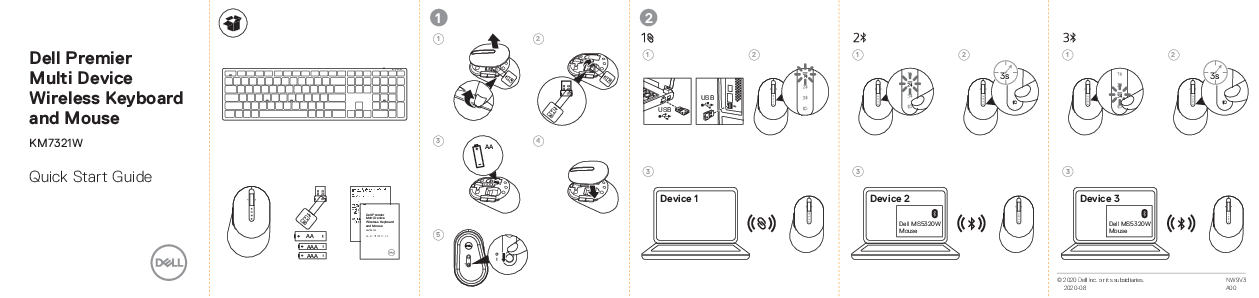
- Open the battery compartment cover on the mouse.
- Insert two AA batteries, observing polarity.
- Close the battery compartment cover.
- Remove the USB receiver from its storage slot.
- Connect the USB receiver to a USB port on your computer.
Keyboard Setup:
- Open the battery compartment cover on the keyboard.
- Insert two AAA batteries, observing polarity.
- Close the battery compartment cover.
- Connect the USB receiver to a USB port on your computer.
Connecting to Devices
This keyboard and mouse can connect to up to three devices.
Connecting to Device 1 (via USB Receiver):
- Ensure the USB receiver is connected to your computer.
- Press the power button on the mouse/keyboard to turn it on.
- The device should automatically connect.
Connecting to Device 2 (via Bluetooth):
- Press and hold the Bluetooth pairing button on the mouse/keyboard for 3 seconds (indicated by a flashing light).
- On your computer, go to Bluetooth settings and select "Dell MS5320W Mouse" or "Dell KB7221W Keyboard" to pair.
Connecting to Device 3 (via Bluetooth):
- Press and hold the Bluetooth pairing button on the mouse/keyboard for 3 seconds (indicated by a flashing light).
- On your computer, go to Bluetooth settings and select "Dell MS5320W Mouse" or "Dell KB7221W Keyboard" to pair.
Software Installation
For advanced features and customization, download the Dell Peripheral Manager:
- Visit: https://www.dell.com/support/drivers
- Search for "Dell Peripheral Manager".
Additional Resources
- For support: https://www.dell.com/support/drlava
- For regulatory compliance: https://www.dell.com/regulatory_compliance

 Regulatory Compliance | Dell USA