

Smartmi Air Purifier P1 Quick Start Guide
1. Downloading the Smartmi Link App
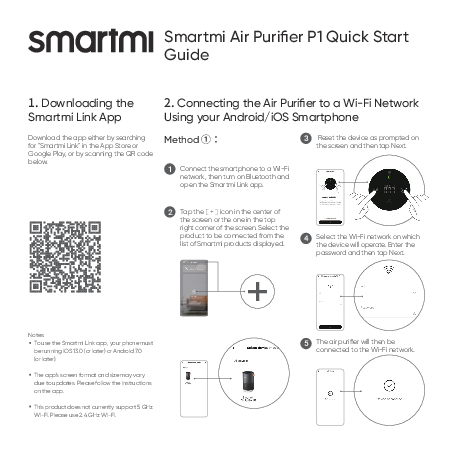
Download the app either by searching for "Smartmi Link" in the App Store or Google Play, or by scanning the QR code below.
[QR code for downloading the Smartmi Link App]
Notes:
- To use the Smartmi Link app, your phone must be running iOS 13.0 (or later) or Android 7.0 (or later).
- The app's screen format and size may vary due to updates. Please follow the instructions on the app.
- This product does not currently support 5 GHz Wi-Fi. Please use 2.4 GHz Wi-Fi.
2. Connecting the Air Purifier to a Wi-Fi Network Using your Android/iOS Smartphone
Method ①:
- Connect the smartphone to a Wi-Fi network, then turn on Bluetooth and open the Smartmi Link app.
- Tap the [plus icon] in the center of the screen or the one in the top right corner of the screen. Select the product to be connected from the list of Smartmi products displayed. [Visual: Smartphone screen showing the Smartmi Link app interface for adding a device, with 'Smartmi Air Purifier P1' listed].
- Reset the device as prompted on the screen and then tap Next. [Visual: Smartphone screen showing a device reset prompt].
- Select the Wi-Fi network on which the device will operate. Enter the password and then tap Next. [Visual: Smartphone screen showing Wi-Fi network selection and password input].
- The air purifier will then be connected to the Wi-Fi network. [Visual: Smartphone screen showing 'Device connected' confirmation].
Method ②:
- Connect the smartphone to a Wi-Fi network, then turn on Bluetooth and open the Smartmi Link app.
- Tap the [menu icon] in the top right corner of the screen. Find and select the Smartmi product to be connected. [Visual: Smartphone screen showing the Smartmi Link app interface for adding a device, with 'Smartmi Air Purifier P1' listed].
- Select the Wi-Fi network on which the device will operate. Enter the password and then tap Next. [Visual: Smartphone screen showing Wi-Fi network selection and password input].
- The air purifier will then be connected to the Wi-Fi network. [Visual: Smartphone screen showing 'Device connected' confirmation].
Troubleshooting
What should I do if the device does not connect to the Wi-Fi network?
- For a Bluetooth device, ensure the device is powered on and mobile Bluetooth is activated.
- Hold the smartphone close to the device, and ensure surrounding networks are not transmitting any strong interference.
- In the event of an incorrect Wi-Fi password, reset Wi-Fi on the device and enter the correct password.
How should I reset Wi-Fi on the device?
Press and hold the "Mode" and "Timer" buttons on the screen for 5 seconds. The [Wi-Fi icon] will blink, indicating the Wi-Fi has been reset successfully. [Visual: Smartphone screen showing 'Device connected' confirmation with a checkmark icon]
If the device still won't connect after you reset the Wi-Fi and enter the correct password, ensure Wi-Fi on both your smartphone and the app has been turned.