

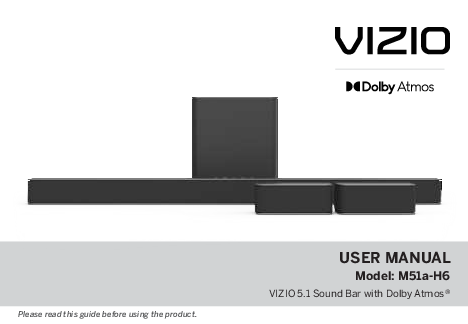
VIZIO M51a-H6 5.1 Sound Bar with Dolby Atmos® User Manual
Please read this guide before using the product.
Important Safety Instructions
Your VIZIO unit is designed and manufactured to operate within defined design limits. Misuse may result in electric shock or fire. To prevent damage, observe the following rules for installation, use, and maintenance. Keep these instructions in a safe place for future reference.
- Read and keep these instructions.
- Heed all warnings and follow all instructions.
- Do not use near water; clean only with a dry cloth.
- Do not block ventilation openings.
- Do not install near heat sources.
- Do not defeat the safety purpose of polarized or grounding-type plugs.
- Protect power cords from being walked on or pinched.
- Use only manufacturer-specified attachments/accessories.
- Use caution when moving any cart/apparatus combination to avoid tip-over injuries.
- Unplug during lightning storms or when unused for long periods.
- Refer servicing to qualified personnel.
- Switch off power before connecting other components.
- Unplug the power cord before cleaning; use a damp cloth only.
- Always use manufacturer-recommended accessories for compatibility.
- Allow for condensation to dissipate before turning on the unit when moving between temperature extremes.
- Ensure ventilation openings are not blocked.
- Never push objects into slots or openings, or place objects on top of the unit.
- Do not block subwoofer ports; allow 1-2 inches of space for ventilation.
- WARNING: Exposure to loud sounds can damage hearing.
- To totally disconnect power, unplug the power cord.
- Do not overload power strips and extension cords.
- Ensure the wall socket is near and easily accessible.
- Keep the unit away from moisture; unplug and contact dealer if water penetrates.
- Do not use if any abnormality occurs (smoke, odor); do not attempt self-repair.
- Avoid using dropped or damaged appliances.
- Do not install in areas with heavy dust or high humidity.
- Ensure cables are unplugged before moving the unit.
- When unplugging, hold the plug, not the cord.
- Do not touch connectors with wet hands.
- Insert remote batteries according to instructions, minding polarity.
- WARNING: Equipment is not waterproof; do not place liquid containers near it.
- CAUTION: Danger of explosion or fire if batteries are mistreated. Replace only with the same or specified type.
- No naked flame sources should be placed on the apparatus.
- Ventilation should not be impeded.
- Use equipment at a maximum ambient temperature of 35°C.
- WARNING: To reduce the risk of fire or electric shock, do not expose this apparatus to rain or moisture.
⚠️ CAUTION: RISK OF ELECTRIC SHOCK DO NOT OPEN The lighting flash with arrowhead symbol within an equilateral triangle is intended to alert the user to the presence of dangerous voltage.
The exclamation point within an equilateral triangle is intended to alert the user to important operating and servicing instructions.
Warning: This equipment is a Class II or double insulated electrical appliance.
Package Contents
The VIZIO M51a-H6 system includes:
- VIZIO Sound Bar
- Wireless Subwoofer
- 2 x Surround Speakers
- Remote Control with 2x AAA Batteries
- Stereo RCA to 3.5mm Audio Cable
- 3.5mm to 3.5mm Audio Cable
- 2 x Power Cables
- HDMI Cable
- 2 x Surround Speaker Audio Cables
- Digital Optical Cable
- 4 x Cable Ties
- 2 x Wall Mount Brackets (Surround Speakers)
- 2 x Wall Mount Brackets (Sound Bar)
- Wall Mount Template
- User Manual
- 4 x Wall Mount Screws
For quick setup and connection guides, visit vizio.com/QR/M51a-H6 or contact VIZIO Customer Service via phone at (844) 254-8087, text at (205) 301-3729, or online at support.vizio.com.
Controls & Connections
Back of Sound Bar
The back of the sound bar features the following ports:
- Power Port: Connect the power cable here.
- AUX In (Analog Audio In, Stereo 3.5mm): For connecting analog audio sources.
- AUX VA (Analog Audio In, Stereo 3.5mm): Specifically for connecting a Voice Assistant device.
- HDMI In: For connecting HDMI sources.
- HDMI Out (eARC) to TV: Connect this to your TV's HDMI ARC/eARC port.
- Digital Optical Audio In: For connecting digital optical audio sources.
- USB In: Supports .WAV and .MP3 file format playback only.
Top of Sound Bar
The top panel includes controls for basic operation:
- Power: Press to turn the sound bar on or off.
- Input: Press to cycle through audio sources. A long press initiates Auto Input Search.
- Bluetooth Input: Press to enter Bluetooth mode. Hold for 5 seconds to initiate pairing mode.
- Volume +/-: Increase or decrease the audio loudness.
Back of Subwoofer
The subwoofer has the following connections and indicators:
- Power Port (AC IN): Connect the power cable here.
- Surround Speaker Ports (L/R): Connect the left surround speaker with the blue cable and the right surround speaker with the grey cable.
- LED Indicator: Shows the status of the subwoofer.
- Power Button: Used for pairing and power functions.
Back of Surround Speaker
Each surround speaker has a Surround Speaker Port to connect to the subwoofer.
First-time Setup
Follow these steps for initial setup:
-
Connect to TV: Choose the best possible connection cable type (HDMI ARC is recommended, followed by Digital Optical, then 3.5mm to RCA) and connect it to your TV. Ensure the TV port is an audio output. Do not use HDMI In for first-time setup; use HDMI Out (eARC) to TV.
Note: Not all TVs have the audio outputs shown. Refer to your device's user manual for connecting other devices.
- Connect Power to Sound Bar: Connect the power cable to the sound bar's AC IN port and plug it into an electrical outlet.
- Connect Surround Speakers: Use the included surround speaker audio cables to connect the speakers to the subwoofer. Match the color-coded cables (blue for left, grey for right) to the corresponding speaker ports on the subwoofer. Cable ties are provided for managing excess cable length.
- Connect Power to Subwoofer: Connect the power cable to the subwoofer's AC IN port and plug it into an electrical outlet.
- Subwoofer Linking: The subwoofer should automatically power on and link to the sound bar when plugged in. A solid LED indicator confirms the link.
- Remote Setup: Remove the battery cover from the remote by sliding it away. Insert the two included AAA batteries, then slide the cover back into place. VIZIO recommends Duracell 'AAA' alkaline batteries for replacement.
-
Power On and Auto Detect: Turn on both your TV and sound bar. The sound bar will automatically search for an active input, indicated by cycling LED colors. This auto-detect function occurs only once during initial setup. To re-enable it, perform a factory reset or press and hold the INPUT button for 3 seconds.
Tip: Pressing the INPUT button will stop the auto-detect function.
- Select Input: You can press the INPUT button to switch between audio sources. For example, if you connected your TV via HDMI (ARC), set the sound bar to HDMI-ARC.
Using the Remote
The remote control allows you to manage all sound bar functions:
- Display: Shows sound bar settings.
- Input: Changes the audio source. Long press for Auto Input Search.
- Bluetooth: Enters Bluetooth mode. Long press for Pairing Mode.
- Previous/Next: Skips tracks in Bluetooth mode or changes audio settings in menus.
- Up/Down: Cycles through settings and options.
- EQ Settings: Adjusts equalizer presets (Movie, Music, Direct, Game).
- Level Settings: Adjusts audio leveling (Bass, Treble, Dialogue, Center, Subwoofer).
- Mute: Mutes or unmutes audio. Long press to toggle the LED power indicator on/off.
- Power: Turns the sound bar on or off.
- OK: Selects an option, plays or pauses audio. Long press for info.
- Volume +/-: Increases or decreases the audio volume.
- Setup Settings: Accesses various setup options.
- Effect Settings: Adjusts audio effect settings (Surround, TruVolume, Virtual:X, Night Mode).
Specific inputs are indicated by LED colors: AUX In (Green), HDMI In (Yellow), AUX VA (Violet), Bluetooth (Blue), Digital Optical (Red), USB (Orange), HDMI (ARC) (Magenta).
Proper Placement
For optimal surround sound, position the sound bar, subwoofer, and surround speakers as follows:
- Sound Bar: Place it centered below your TV, close to ear level.
- Subwoofer: Place it in the room, ensuring the subwoofer port is not blocked.
- Surround Speakers: Position them to the sides or slightly behind the listening position for immersive audio.
Front Surround Mode: If ideal placement is not possible, you can place surround speakers closer to the sound bar. This mode utilizes DTS Virtual:X for a virtual surround sound experience.
Mode & Level Settings
Use the remote's SETUP, EQ, LEVEL, and EFFECT buttons along with the Up/Down and Next/Previous buttons to adjust settings. The LCD display on the remote and LED indicators on the sound bar provide feedback.
Equalizer (EQ) Settings
Select from preset equalizer modes:
- Movie: Default setting for cinematic audio.
- Music: Optimized for music playback.
- Direct: Bypasses EQ processing for pure audio.
- Game: Enhances gaming audio cues.
Level Adjustments (LEVEL Button)
Adjust the following levels using Next/Previous buttons:
- Bass Level: Controls low-frequency output.
- Treble Level: Controls high-frequency output.
- Dialogue Level: Adjusts the clarity of spoken dialogue.
- Center Level: Controls the presence of dialogue in the center channel.
- Subwoofer Level: Adjusts the bass output from the subwoofer. Decreasing to minimum turns off the subwoofer.
- Surround Level: Adjusts the volume of the surround speakers. Must be ON to adjust.
- Surround Balance: Adjusts the balance between left and right surround speakers.
Effect Settings (EFFECT Button)
Configure various sound effects:
- Surround Sound: Enable/disable surround sound (On/Off) or select Front/Dual modes. Front mode is for speakers placed next to the sound bar; Dual mode plays the same content on both surround speakers.
- TruVolume: Provides consistent volume levels across different content.
- Virtual:X: Enables virtual sound technology to simulate overhead sound.
- Night Mode: Lowers bass frequencies for quieter listening, ideal for late-night use. This setting resets to Off after a power cycle.
Other Settings (SETUP Button)
- Info: Verbally announces current input and audio type.
- Auto VA: Connects to a Voice Assistant via Bluetooth (BT) or AUX. Options: Both, BT, AUX, Off.
- Eco Power Mode: Enables standby mode after inactivity to save power. Options: On/Off.
- Input Search: Initiates automatic input detection.
- Program Remote Learn: Allows programming of a TV remote to control volume and mute functions of the sound bar.
- Power LED: Enables or disables the power LED on the front of the sound bar.
- AV Delay: Adjusts audio delay for lip-sync correction.
- Reset Audio / Reset All: Resets audio settings or all settings (including Bluetooth pairings and programmed remotes).
- Speaker Test: Plays a test tone for each speaker to verify connections.
Using Button Combinations
Certain functions are accessed via button combinations on the sound bar:
- Factory Reset: Press and hold the Bluetooth and Volume Down (-) buttons for 5 seconds. All LEDs will flash 3 times. This erases all settings and preferences.
- VIZIO TV Remote Control: Press and hold the Power and Volume Up (+) buttons for 5 seconds to enable/disable VIZIO TV remote control for volume and mute.
- Eco Power Mode: Press and hold the Power and Volume Down (-) buttons for 5 seconds to enable/disable Eco Power Mode.
Programming the Sound Bar
You can program your sound bar to accept TV remote IR commands. Navigate to 'Prg Remote' via the SETUP button, then use Next/Previous to select Learn Vol -, Learn Vol +, or Learn Mute. Press OK to enter learning mode, then press the corresponding button on your TV remote. All LEDs will blink twice to confirm learning.
Point both remotes towards the sound bar and turn off your TV speakers during programming.
Bluetooth Pairing
To pair a Bluetooth device:
- Press and hold the Bluetooth button on the sound bar or remote for 5 seconds.
- Search for "VIZIO M51a" on your Bluetooth device.
- Play audio from your device. Volume can be controlled by either device.
The LED indicators on the sound bar will light up sequentially during pairing and stop flashing once connected. A Bluetooth signal has a range of up to 30 feet. For optimal quality, minimize obstructions and interference from other wireless devices.
Your sound bar does not have a microphone and cannot operate as a hands-free device.
Connecting to a Voice Assistant
Connect your sound bar to a Voice Assistant (VA) device via an AUX VA port or Bluetooth. The sound bar will then act as the VA speaker.
Using the AUX VA Port to Connect
Use a 3.5mm audio cable to connect the sound bar's AUX VA port to your VA device's AUX port. This offers a simple connection.
Using Bluetooth to Connect
Pair your VA device via Bluetooth as described in the Bluetooth Pairing section. This allows for more flexible placement of the VA device.
Features and Benefits
- Voice Assistant Dedicated Input: VA audio can play over other sound bar inputs.
- Auto Muting: VA audio temporarily mutes the sound bar's current audio for up to 10 seconds.
Setup Tips
- Ensure the sound bar is ON and Eco Power Mode is OFF.
- Adjust VA audio volume from the VA device if too low.
- Enable "Start of Request" in your VA app settings if VA responses are cut off.
- Turn Auto VA to OFF via the remote to disable the VA function.
Advanced Setup
The sound bar supports various connection types for different devices:
- 3.5mm to RCA Cable: Connects analog audio sources.
- HDMI Cable: Connects to TVs or other HDMI devices.
- USB Drive: Supports .WAV and .MP3 file playback.
- Digital Optical Cable: Connects digital audio sources.
Examples of devices that can be connected include Tablets, MP3 Players, Laptops, Media Players, and Game Consoles.
Connecting with HDMI ARC
HDMI Audio Return Channel (ARC) allows your TV to send audio back to the sound bar using a single HDMI cable.
To connect using HDMI ARC:
- Connect an ARC-compatible HDMI cable from your TV's HDMI ARC port to the sound bar's HDMI (ARC) port.
- On your TV's AUDIO menu, set Digital Audio Setting to Dolby Digital or Bitstream.
- On your TV's SYSTEM menu, enable CEC and ARC (SAC) functions.
- From the CEC menu, select Device Discovery to register the sound bar with the TV.
To use your TV remote for sound bar volume control, enable System Audio Control from the CEC menu.
Note: Steps may vary by TV manufacturer. Consult your TV's user manual.
Connecting a Subwoofer
Pairing: Pairing means wirelessly connecting the subwoofer to the sound bar. Your subwoofer is pre-paired. If no sound is coming from the subwoofer, it may need re-linking.
To re-link the subwoofer:
- Ensure the subwoofer's power LED is illuminated.
- Press and hold the ON/OFF button on the back of the subwoofer for 5 seconds until its LED blinks.
- Press and hold the Power button on the top of the sound bar for 5 seconds. The sound bar's front LEDs will flash 3 times, indicating the subwoofer is now linked.
Wall-mounting
Follow these steps to wall-mount your sound bar and surround speakers:
Sound Bar Wall-Mounting:
- Place the included wall mounting template against the wall under your TV. Mark the two bracket holes with a pencil.
- Attach the L-shaped bracket to the wall using appropriate screws (not included). Ensure screws are secured into wood studs, drywall anchors, or concrete anchors. Suggested bracket screw size: 3.5 mm diameter, 1.63" minimum length.
- Place the sound bar onto the bracket and secure it using the included bracket screws (M4 x 8L).
Do not use any included screws for wall mounting; they are not intended for this purpose.
Surround Speaker Wall-Mounting:
- Attach a wall mount screw (M4 x 8L, included) to the back of each surround speaker.
- Secure a wall mount bracket to the wall using appropriate screws (not included).
- Slide the speaker onto the bracket, ensuring the screw is secured within the bracket grooves.
If you are unfamiliar with power tools or wall wiring, consult a professional installer.
Register Your Product & Customer Service
Register your product at VIZIO.COM/PRODUCT-REGISTRATION for customized support, news, offers, and safety updates.
Find help and troubleshooting at SUPPORT.VIZIO.COM.
Contact VIZIO Customer Service:
- Phone: (877) 698-4946
- Text Message: (205) 301-3729 (SMS/MMS only, message/data rates may apply)
- Live Chat: Available online at support.vizio.com
Se habla Español • Nous parlons Français
Help & Troubleshooting
No Power:
- Press the POWER button on the remote or sound bar.
- Ensure the power cord is securely connected.
- Test the electrical outlet with a different device.
No Sound:
- Increase volume and ensure MUTE is not active.
- Press INPUT to select the correct audio source.
- For Digital Optical input: Set TV output to PCM or connect directly to the source; some TVs do not pass digital audio.
- On digital inputs, rapid LED flashing may indicate an unsupported format.
- Set TV audio output to FIXED or STANDARD, not VARIABLE.
- If using Bluetooth, ensure volume is up on the source device and it is not muted.
Buzzing or Humming:
- Ensure all cables are securely connected.
- Connect a different source device to test if the buzzing persists.
- Try connecting your device to a different input on the sound bar.
Remote Not Working:
- Replace remote batteries with new ones.
- Point the remote directly at the sound bar's center.
- Some Bluetooth streaming applications may not support all remote buttons.
Limited Warranty
VIZIO warrants this product against defects in materials and workmanship for one (1) year from the original purchase date for non-commercial use, and ninety (90) days for commercial use. This warranty applies to the original purchaser and is valid only in the country of purchase.
To Obtain Service: Visit www.vizio.com for troubleshooting or contact VIZIO Customer Support at support.vizio.com or by phone: (US) 877-698-4946; (Canada) 877-878-4946. Pre-authorization is required before sending products for service. Proof of purchase may be needed.
What is NOT Covered: Cosmetic damage, normal wear and tear, improper operation, improper voltage, signal issues, shipping damage, acts of God, misuse, unauthorized modifications or repairs, unreadable serial numbers, products sold "AS IS", etc.
Binding Arbitration Agreement (U.S. Residents): For U.S. residents, disputes are settled by binding arbitration, with exceptions for small claims court or opting out in writing within 60 days of purchase.
Exclusions and Limitations: VIZIO is not responsible for loss of use, data, commercial loss, or indirect/consequential damages. Limitations on implied warranties may vary by state/province.
This warranty grants specific legal rights, which may vary by location.
Legal & Compliance
FCC Class B Radio Interference Statement
This equipment complies with Part 15 of the FCC Rules. Operation is subject to two conditions: it must not cause harmful interference, and it must accept any interference received. Measures to correct interference include reorienting antennas, increasing separation, connecting to a different circuit, or consulting a dealer.
FCC RF Radiation Exposure Statement
This transmitter must not be co-located or operated with any other antenna or transmitter. Equipment should be installed and operated with a minimum distance of 20cm between the radiator and your body.
Battery Disposal and Recycling
Dispose of this product separately from household waste according to local laws and regulations. Visit vizio.com/environment for more information.
Software Licenses & Terms of Service
Use of VIZIO products is subject to software license agreements, VIZIO's Terms of Service, and Privacy Policy, available at vizio.com/terms and vizio.com/privacy.
Export Regulations
Products are subject to U.S. and other countries' customs and export control laws.
Trademarks
VIZIO, VIZIO logo, V logo, Dolby, Dolby Vision, Dolby Atmos, DTS, DTS:X, DTS Digital Surround, Virtual:X, TruVolume, and HDMI are trademarks or registered trademarks of their respective owners.
Specifications
| Component | Specifications |
|---|---|
| Sound Bar Drivers | 1.66" x 3.48" Full Range Driver (x3), 0.79" Tweeter (x3) |
| Surround Speakers Drivers | 1.61" x 2.22" Full Range Driver (x2) |
| Subwoofer Driver | 6" Driver |
| Connections | 3.5mm Stereo Audio, Optical (Toslink), HDMI (eARC), HDMI In, 3.5mm AUX VA, Bluetooth, USB (.WAV/.MP3 only) |
| Sound Pressure Level (System) | 102 dB |
| Frequency Response (System) | 45 Hz - 20 KHz |
| Voltage | 100-240Vac, 50/60Hz |
| Compliances | cTUVus / FCC Class B / CEC |

 VIZIO Support
  Home
Home  Product Registration
  American Arbitration Association | Arbitration & ADR Services
  Home
Home