

ZHIYUN SMOOTH-Q3 User Guide
Model: SM113
Introduction
Welcome to the ZHIYUN SMOOTH-Q3 User Guide. This document provides comprehensive instructions for setting up, operating, and maintaining your SMOOTH-Q3 smartphone gimbal stabilizer.
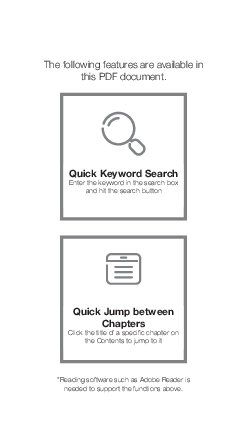
This PDF document offers features like Quick Keyword Search and Quick Jump between Chapters. Reading software such as Adobe Reader is needed to support these functions.
Product Contents
Before using this product, please check carefully that all the following items are included in the product package. In case that any item is found missing, please contact ZHIYUN or your local selling agent.
- SMOOTH-Q3 x 1
- Tripod x 1
- USB Type-C Cable x 1
- Quick Start Guide x 1
- Protective Bag x 1*
- Wrist Strap x 1*
- VIP Card x 1* (*Only in SMOOTH-Q3 Combo)
Get to Know SMOOTH-Q3
Familiarize yourself with the components of your SMOOTH-Q3:
- Fill Light
- Phone Clamp
- Indicator Lights
- MODE Button
- Zoom Rocker
- Handle
- Vertical Arm Screw
- Joystick
- Photo/Video Button
- Tilt Axis Motor
- Tilt Axis Fixing Buckle
- Power Button
- Type-C Charging/Firmware Update Port
- Trigger Button
- Wrist Strap Hole
- 1/4" Threaded Hole
- Roll Axis Motor
- Roll Axis Fixing Buckle
- Pan Axis Motor
- Contact Points
- Fill Light Switch/Brightness Switch
Battery Charging Instruction
The SMOOTH-Q3 has a built-in battery. For first-time use, fully charge the battery to activate it and ensure proper stabilizer function.
Charging Method: Use the provided Type-C cable to connect a 5V/2A rated power adapter (not included) to the charging port on the stabilizer. Indicator lights will flash green during charging. Four solid green indicator lights indicate charging is complete.
[Battery Charging Diagram: Shows the stabilizer with a Type-C cable connected to a power source, and four indicator lights.]
Installation and Balance Adjustment
Mounting the Phone
- Loosen the vertical arm screw counterclockwise.
- To ensure good contact with the contact points, pull the pan axis motor to the bottom of the vertical arm while holding the roll and pan axes motors until you hear a "click" sound. Tighten the vertical arm screw clockwise.
The vertical arm cannot be completely locked by the vertical arm screw; this screw adjusts the smoothness of the slide slot.
[Diagram: Illustrates loosening and tightening the vertical arm screw and engaging the pan axis motor.]
- Rotate the tilt axis arm along the outer edge as shown. Please rotate in the correct direction to prevent damage to the fixing buckle of the tilt axis.
- Rotate the phone clamp 90° clockwise to the position shown. (The direction shown is for when the phone clamp is tightened).
[Diagram: Shows rotating the tilt axis arm and then rotating the phone clamp 90 degrees.]
When putting the stabilizer back into the box, rotate the phone clamp to the storage state.
[Diagram: Shows the stabilizer in storage state and phone clamp tightened state.]
There are fixing buckles for the tilt axis and the roll axis. Please rotate in the correct direction to prevent the fixing buckle from damaging.
- Extend the phone clamp and place the phone into it. Ensure the phone camera is on the outer side of the clamp to avoid blocking the camera.
[Diagram: Shows extending the phone clamp and placing a phone with its camera facing outwards.]
SMOOTH-Q3 requires a smartphone mounted and balanced before powering on. If no smartphone is mounted, the motor will make a sound and enter standby mode automatically.
Balancing the Phone
Landscape Mode: Adjust the phone's position left or right until it is steady and almost level with the ground.
Portrait Mode: Move the phone clamp left or right until the phone is steady and almost level with the ground.
[Diagram: Shows a phone balanced on the gimbal in both landscape and portrait orientations.]
When mounting the smartphone, ensure it is fixed firmly in the phone clamp.
The balanced state of the smartphone affects the runtime of SMOOTH-Q3. An unbalanced gimbal will still function but consume more battery power and weaken motor strength.
How to Use
Indicator Lights and Buttons Description
Power Button: Single press to check battery level; press and hold for 3 seconds to power on/off; press 8 times to reset Bluetooth.
Trigger Button: Single press to turn on/off Smart Follow; double press for reposition; triple press to switch between Landscape Mode and Portrait Mode; press and hold to enter PhoneGo Mode.
Indicator Lights: Indicate stabilizer modes (F for PhoneGo, POV for Vortex). In standby mode, they flash slowly. During upgrade, they flash one by one from left to right. Battery level is indicated by green lights: 1 light (0-25%), 2 lights (25-50%), 3 lights (50-75%), 4 lights (75-100%).
MODE Button: Single press to switch stabilizer modes; double press to go back to the previous mode; press and hold to enter/exit standby mode.
Zoom Rocker: In the ZY Cami app, toggle up/down to control zoom.
Photo/Video Button: Single press to take a picture (Photo Mode) or start/end recording (Video Mode); double press to switch between Photo/Video modes; triple press to switch between front/rear cameras; press and hold to take multiple photos.
Joystick: Push up/down and left/right to control stabilizer movement.
Fill Light Switch/Brightness Switch: Single press to adjust brightness (3 levels); press and hold for 1.5s to turn on/off the fill light.
[Diagram: Shows the SMOOTH-Q3 with numbered buttons and indicator lights.]
Button Combo: Press and hold Trigger + MODE + Photo/Video buttons simultaneously for 2 seconds to reset Bluetooth if connection fails.
When connected via Bluetooth, SMOOTH-Q3 can control the native phone camera without the ZY Cami app, provided the phone supports camera control via volume button. No password is required for Bluetooth connection.
Stabilizer Mode Description
Single or double press the MODE button to switch between modes:
- Lock Mode (L): All three motors are locked.
- Follow Mode (F): Roll axis motor is locked; tilt and pan axes follow handle movement.
- Pan Follow Mode (PF): Tilt and roll axis motors are locked; pan axis follows handle movement. Push joystick up/down/left/right to control tilt and pan axes.
- Point of View Mode (POV): All three motors follow handle movement.
- Vortex Mode (V): All three motors follow handle movement.
- PhoneGo Mode (GO): Press and hold the trigger button. Camera pans and tilts at fast speed; roll axis is locked; joystick does not function.
[Diagrams: Illustrate the movement of axes for each stabilizer mode.]
Motors circled in red follow movement; motors circled in grey are locked.
Switch Between Landscape Mode & Portrait Mode
Triple press the trigger button.
[Diagram: Shows the stabilizer with a phone in landscape and portrait orientations.]
Fill Light Adjustment
Rotate the fill light as needed. Maximum rotation angle is 180°.
[Diagram: Shows rotating the fill light.]
Please rotate in the correct direction. Adjust brightness according to the environment and avoid staring directly at the light. Due to structural limitations, the fill light cannot be used with the front camera in portrait mode.
Manual Angle Lock
Under pan follow, lock, and follow modes, rotate the smartphone by hand to a desired angle for 2 seconds and release. The smartphone will be fixed at that angle.
[Diagram: Shows manually adjusting the angle of the phone on the gimbal.]
This function only adjusts the tilt and pan axes. Rotate the device with appropriate strength.
Standby Mode
- When powered on, rotate the roll axis or tilt axis manually to its fixing buckle to enter Standby Mode. Unlock the buckles to wake the SMOOTH-Q3.
- SMOOTH-Q3 automatically enters Standby Mode if the vertical arm is retracted and contact points are separated. When the arm is extended and contact points touch, operation resumes.
How to Use the App
Download the App
Scan the QR code (for Android 7.0+ or iOS 10.0+) or search "ZY Cami" in the App Store or Google Play to download the app.
Users can make better use of SMOOTH-Q3 functions with the dedicated "ZY Cami" app. The app is subject to updates without notice; always refer to the latest version.
[QR Code Placeholder: Represents the QR code shown in the PDF for app download.]
Connect with "ZY Cami" APP
- Power on SMOOTH-Q3 and turn on Bluetooth on your smartphone.
- Launch the "ZY Cami" app. Tap the icon in the upper left corner to open the device list and select your SMOOTH-Q3 (Bluetooth name can be found on the side of the tilt axis, e.g., USER ID: XXXX).
- Activation via the ZY Cami app is required for first-time use to access advanced features. An internet connection is necessary.
- After successful activation, you can enter the ZY Cami app's camera interface.
[Diagrams: Show app interface for device connection and camera view.]
Main App Features
- SmartFollow
- SMART Mode
- Timelapse
- Video and photo taking
- ZY Cami Editor
- Firmware Upgrade
For more feature introductions, visit the official ZHIYUN website (www.zhiyun-tech.com) and check video tutorials for SMOOTH-Q3.
Calibration and Firmware Upgrade
When to Calibrate the Stabilizer
Calibrate the stabilizer when necessary:
| Calibration Reason | How to calibrate |
|---|---|
| 1. Slight deviation in tilt angle (level position after power-on). 2. Slight deviation in roll angle (level position after power-on). 3. Frequent small angle correction when stationary. |
Stabilizer auto-calibration |
| 1. Slight deviation in level position after auto-calibration. 2. Stabilizer not used for a long time. 3. Significant temperature difference. |
Six-side calibration |
Auto-Calibration
- Install SMOOTH-Q3 onto a tripod and connect to the ZY Cami App.
- Go to app settings and select "auto-calibration". The SMOOTH-Q3 will calibrate automatically. Check progress in the app.
[Diagram: Shows SMOOTH-Q3 mounted on a tripod, ready for auto-calibration.]
Before calibration, ensure the stabilizer is placed straight on a flat surface. Do not touch the stabilizer during calibration.
Six-side Calibration
Use "Zhiyun Gimbal Tools" for six-side calibration.
- Visit www.zhiyun-tech.com, go to the product page, click "Download", and install the calibration upgrade tool and USB driver.
- Connect SMOOTH-Q3 to the computer.
- Power on SMOOTH-Q3 and enter standby mode.
- Open "Zhiyun Gimbal Tools", click "Open", then "IMU Calibration". Follow prompts to place SMOOTH-Q3 correctly for calibration.
[Diagram: Shows USB connection to computer and a monitor displaying "calibration".]
[Diagrams: Illustrate the six steps of placing the gimbal on a flat surface for six-side calibration.]
After calibration, restart the stabilizer. In essence, six-side calibration involves placing all six sides of the phone clamp vertically onto a level surface.
SMOOTH-Q3 Firmware Upgrade
You can use "Zhiyun Gimbal Tools" or the "ZY Cami" App to upgrade the firmware.
When upgrading, extend the SMOOTH-Q3 to ensure good contact with the contact points.
Method One (Zhiyun Gimbal Tools):
- Visit www.zhiyun-tech.com, download the firmware and calibration tool, and install.
- Connect SMOOTH-Q3 to the computer.
- Power on SMOOTH-Q3 and enter standby mode.
- Open "Zhiyun Gimbal Tools", click "Open", then "Firmware Upgrade". Click "Browse" to select the firmware file (.ptz) and click "Upgrade". The stabilizer will turn off upon completion.
[Diagram: Shows USB connection and firmware update interface.]
Method Two (ZY Cami App):
- Connect SMOOTH-Q3 to the ZY Cami App. If prompted, proceed with the firmware upgrade. An internet connection is required.
Before upgrading, ensure SMOOTH-Q3 has more than 50% battery power. Do not exit the app interface during the process. Pay attention to app prompts.
Product Specifications
Product model: SM113
| Parameter | Min. | Standard | Max. | Remark |
|---|---|---|---|---|
| Operation Voltage | 6.5V | 7.4V | 8.4V | |
| Operation Current | 70mA | - | 2500mA | |
| Charging Voltage | 4.5V | 5V | 5.5V | |
| Charging Current | - | - | 1200mA | |
| Following Deviation in Static State | ±0.01° | - | ±0.04° | |
| Following Deviation in Motion State | ±0.05° | ±0.1° | ±0.3° | |
| Tilt Mechanical Range | -260° | - | 80° | |
| Roll Mechanical Range | -170° | - | 170° | |
| Pan Mechanical Range | -150° | - | 150° | |
| Operation Temperature | -10°C | 25°C | 45°C | |
| Charging Temperature | 0°C | 25°C | 40°C | |
| Battery Capacity | - | 1300mAh | - | |
| Battery Runtime | - | 7h | 15h | Lab Data¹ |
| Charging Time | - | 3h | - | Lab Data² |
| Valid Payload | 150g | - | 280g | |
| Mounting Clamp Supporting Range | 55mm | - | 90mm | |
| Smartphone Thickness | 7mm~10mm | |||
| Bluetooth | Bluetooth 4.2 | |||
| Equivalent isotropically radiated power(EIRP) | <3dBm | |||
| Operation Frequency | 2.402GHz~2.480GHz | |||
| Compatible Models | Smartphones that their width is within the holder's capable width. | |||
Lab Data 1: Data collected under 25°C, with a balanced iPhone XR mounted. Active state test time: 7 hours. Standby state test time: 15 hours.
Lab Data 2: Test conducted with a 5V/2A power adapter at 25°C. Actual charging time varies with environmental factors; lower temperatures may increase charging time. All data is from ZHIYUN internal experiments and may vary.
Disclaimer and Warnings
Reading Tips
Legends:
- ℹ️ Hints and Tips
- ⚠️ Important
Warnings
Read the ENTIRE User Guide to become familiar with the product's features before operating. Failure to operate correctly can result in damage to the product, personal property, or cause serious injury.
This is a sophisticated product requiring caution, common sense, and basic mechanical ability. Improper operation could result in injury or damage. This product is not intended for use by children without direct adult supervision.
DO NOT use incompatible components or use the product in ways not instructed in ZHIYUN documents. The safety guidelines herein contain instructions for safety, operation, and maintenance. It is essential to read and follow all instructions and warnings prior to assembly, setup, or use to operate correctly and avoid damage or serious injury.
Safe Operation Guidelines
WARNING:
- Never allow the product to contact liquid or immerse it in water. Avoid use in rain or humid environments, as corrosion may occur, potentially causing battery ignition or explosion.
- In case of fire, use water mist, sand, fire blanket, dry powder, or CO2 extinguisher.
- Use in environments between -10°C and 45°C.
- Do not disassemble the product. Piercing the battery during disassembly can cause electrolyte leakage, fire, or explosion.
- Avoid mechanical impact, rolling, or throwing. Do not place heavy objects on the product.
- Do not heat the product or place it in a microwave oven or pressure cooker.
- Keep away from heat sources (stoves, heaters). Do not store in environments above 45°C; ideal storage is 22°C to 28°C.
- Do not store the battery fully discharged for extended periods to prevent damage and loss of usability.
BE CAREFUL:
- SMOOTH-Q3 is a high-precision device; drops or external force can cause damage and malfunction.
- Ensure stabilizer axes are not blocked by external force when powered on.
- SMOOTH-Q3 is not waterproof. Avoid contact with liquids or cleaners; use a dry cloth for cleaning.
- Protect from dust and sand during use.
CAUTION:
- After charging, disconnect the product from the charger.
- If not using for over 10 days, charge/discharge the battery to 40%-65% for storage to extend battery life.
- Recharge and discharge every 3 months to keep the battery active.
- Keep the handle stable when powering on SMOOTH-Q3; shakiness may prevent startup.
Warranty Card
Warranty Period
Customers are entitled to replacement or free repair for quality deficits within 15 days of receipt.
Free repair service from ZHIYUN is available for products proven defective in material or workmanship during normal consumer usage within the valid warranty period (12 months from sale date). Warranty may vary by component and country. Contact ZHIYUN after-sales service or place of purchase for details.
Warranty Exclusions
- Unauthorized repair, misuse, collision, neglect, mishandling, soaking, accident, or alteration.
- Improper use or altered labels/security tags.
- Expired warranty.
- Damage due to force majeure (fire, flood, lightning, etc.).
Warranty Claim Procedure
- For issues after purchase, contact a local agent or ZHIYUN customer service via email (info@zhiyun-tech.com) or website (www.zhiyun-tech.com).
- Your local agent or ZHIYUN service will guide you through the procedure. ZHIYUN reserves the right to reexamine damaged or returned products.
Customer Information:
Customer Name: [Input Field]
Phone Number: [Input Field]
Address: [Input Field]
Sales Information:
Sales date: [Input Field]
Product Serial Number: [Input Field]
Distributor Name: [Input Field]
Distributor's Contact Number: [Input Field]
First Maintenance Record:
Service Date: [Input Field]
Repairman Signature: [Input Field]
Cause of Problem: [Input Field]
Service Result:
Contact Card
Social Media & Platforms:
- Website: www.zhiyun-tech.com
- Vimeo
- Google+
- Facebook (Zhiyun Support)
- Facebook (Zhiyun Tech)
- Youku
- YouTube: YouTube
Contact Information:
Tel: +86 400 900 6868
USA Hotline: +1 808-319-6137 (9:00-18:00 GMT-7, Mon-Fri)
Europe Hotline: +49(0)61018132180 (10:00-17:00 GMT+1, Mon-Fri)
E-mail: info@zhiyun-tech.com
Address: 09 Huangtong Road, Tieshan Industrial Zone, Qixing District, Guilin, 541004, Guangxi, China
Certificate of Quality:
This product is confirmed to meet quality standards and permitted for sale after strict inspection.
QC Inspector: [Signature/Stamp Area]
For full product information, please visit ZHIYUN's official website. Content on www.zhiyun-tech.com is subject to update without notice.
ZHIYUN™ is a trademark of ZHISHEN. All product names or brands referred to herein may be trademarks or registered trademarks of their respective holders.
Copyright © 2021 ZHISHEN. All rights reserved.
 Home Page