

NETGEAR N600 WiFi Cable Modem Router C3700v2 Quick Start Guide
Model: C3700v2
Support and Community
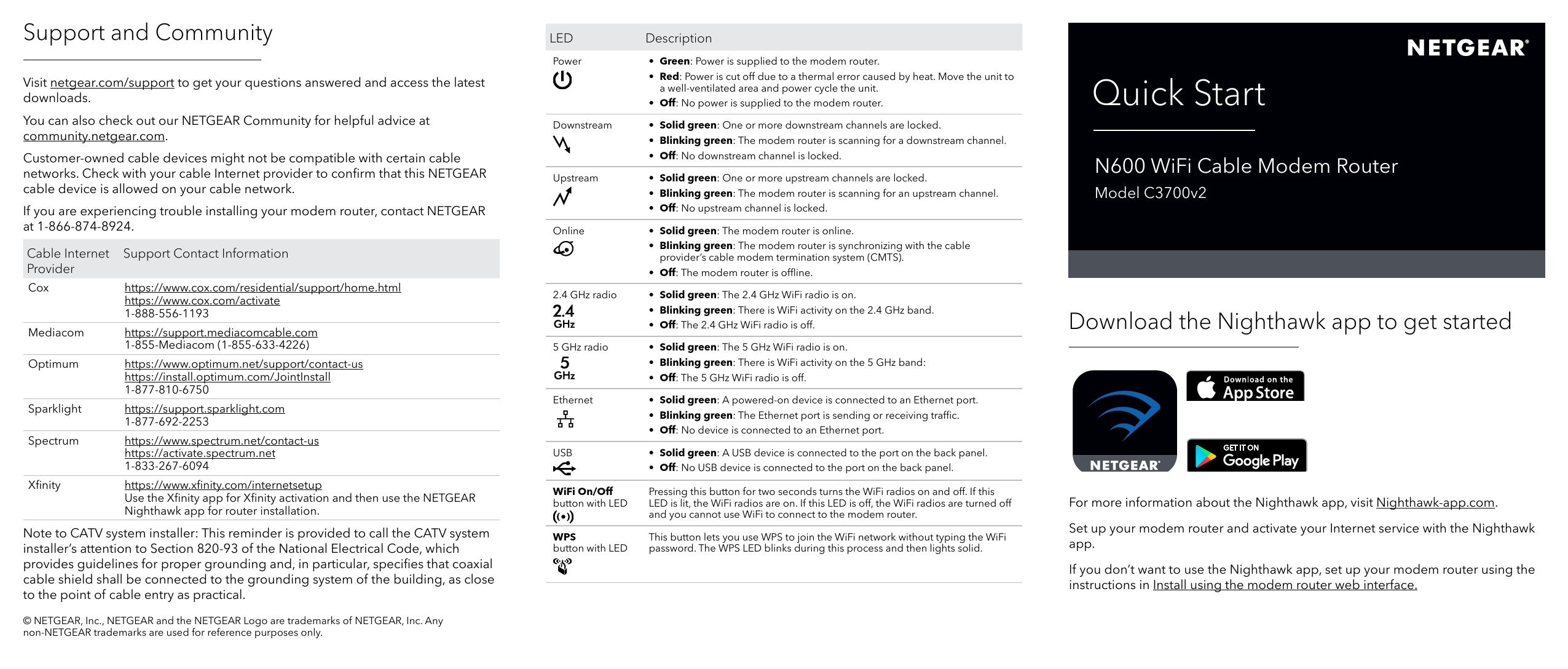
For support, downloads, and community advice, visit:
- netgear.com/support
- NETGEAR Community: community.netgear.com
If experiencing installation trouble, contact NETGEAR at 1-866-874-8924.
Note to CATV system installer: This reminder is provided to call attention to Section 820-93 of the National Electrical Code, which provides guidelines for proper grounding, specifying that coaxial cable shield shall be connected to the building's grounding system as close to the point of cable entry as practical.
Cable Internet Provider Support Contact Information
| Provider | Support Website | Activation Website | Phone Number |
|---|---|---|---|
| Cox | cox.com/residential/support/home.html | cox.com/activate | 1-888-556-1193 |
| Mediacom | support.mediacomcable.com | N/A | 1-855-Mediacom (1-855-633-4226) |
| Optimum | optimum.net/support/contact-us | install.optimum.com/JointInstall | 1-877-810-6750 |
| Sparklight | support.sparklight.com | N/A | 1-877-692-2253 |
| Spectrum | spectrum.net/contact-us | activate.spectrum.net | 1-833-267-6094 |
| Xfinity | N/A | xfinity.com/internetsetup (Use Xfinity app for activation, then NETGEAR Nighthawk app for router installation) | N/A |
LED Indicators
| LED | Description |
|---|---|
| Power |
|
| Downstream |
|
| Upstream |
|
| Online |
|
| 2.4 GHz radio |
|
| 5 GHz radio |
|
| Ethernet |
|
| USB |
|
| WiFi On/Off button with LED | Pressing this button for two seconds turns WiFi radios on/off. LED lit means WiFi is on; LED off means WiFi is off. |
| WPS button with LED | Allows joining the WiFi network without a password. LED blinks during the process and then lights solid. |
Quick Start
N600 WiFi Cable Modem Router
Model: C3700v2
Download the Nighthawk app to get started:
[App Store] [Google Play]
For more information about the Nighthawk app, visit nighthawk-app.com.
Set up your modem router and activate your Internet service with the Nighthawk app. Alternatively, use the instructions in "Install using the modem router web interface".
Package Contents
- Modem router
- Ethernet cable
- Power adapter
A sticker on your modem router displays the preset WiFi network name (SSID) and network key (password).
Install using the modem router web interface
Before you begin:
- Collect your cable Internet service provider (ISP) account information: mobile phone number, username, password, and account number.
- Collect modem router information: Model number (C3700v2), MAC address, and serial number from the modem router label.
- If using Xfinity, download the Xfinity app from the App Store or Google Play™. Ensure it's updated to the latest version.
Connect your modem router
- Turn off and disconnect existing modems and routers. If replacing a modem, unplug it and plug the new modem router into the same outlet.
- Connect a coaxial cable from the modem router's coaxial connector to the cable wall outlet. Ensure it is tightly connected. (Recommendation: Connect directly to the wall outlet. If sharing, use a 3.5dB (1 to 2) splitter.)
- Connect the power adapter to the modem router and plug it into an electrical outlet. The startup procedure takes about one minute. The Power LED should light solid green. If not, check the Power On/Off switch on the back panel.
- Wait for the Online LED to light solid green. This process may take up to ten minutes. The Online LED stops blinking and lights solid green for at least a minute when the cable modem is online.
Set up and activate your modem router with Xfinity
- If your current modem is leased from Xfinity, call Xfinity support to remove it from your service.
- Ensure your mobile device uses an LTE Internet connection (do not connect to WiFi).
- Open the Xfinity app and sign in with your Xfinity ID.
- Follow the on-screen steps to get online. The activation process takes about five minutes.
- On your mobile device, launch a web browser and enter routerlogin.net or 192.168.0.1.
- Follow the prompts to agree to terms, change admin credentials, set up security questions, and review WiFi network name and password.
Set up your modem router with another cable Internet service provider
- Connect your computer or mobile device to the modem router via WiFi or Ethernet:
- WiFi: Use the WiFi network name (SSID) and password from the modem router label.
- Ethernet: Use an Ethernet cable to connect a computer to an Ethernet port on the modem router (computer must have an Ethernet port).
- Launch a web browser and enter routerlogin.net or 192.168.0.1.
- Follow the prompts to agree to terms, change admin credentials, set up security questions, and review WiFi network name and password.
When the Basic Home page displays, you are ready to activate your Internet service. Contact your cable Internet service provider.
Regulatory and Legal
- For regulatory compliance information, including the EU Declaration of Conformity, visit netgear.com/about/regulatory/.
- See the regulatory compliance document before connecting the power supply.
- For NETGEAR's Privacy Policy, visit netgear.com/about/privacy-policy/.
- By using this device, you agree to NETGEAR's Terms and Conditions at netgear.com/about/terms-and-conditions/. Return the device if you do not agree.
- Note for 6 GHz devices: Operation is prohibited on oil platforms, cars, trains, boats, and aircraft, except in large aircraft above 10,000 feet. Operation of transmitters in the 5.925-7.125 GHz band is prohibited for control of or communications with unmanned aircraft systems.

 Category: Welcome to the NETGEAR Community | NETGEAR Communities
  netgear.com/support
  Router Login & Setup | NETGEAR
  Spectrum - Activation Home
  Optimum | Internet Self-Install
  MediacomCable – Mediacom Communications
  Pardon Our Interruption
  Regulatory | Regulatory/Export Compliance | About Us | NETGEAR
  Optimum Customer Service | Support for Your TV, Phone, and Internet
  How To Activate Your Xfinity Internet and Voice Services - Xfinity Support