

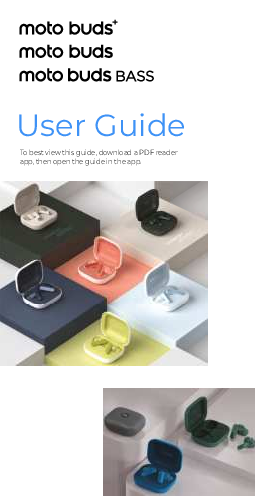
Motorola Moto Buds User Guide
To best view this guide, download a PDF reader app, then open the guide in the app.
Get started
Meet your earbuds
Let's get started. This guide will take you on a tour to explore your earbuds. Your moto buds+ (XT2441-1) and moto buds/moto buds bass (XT2443-1) are wireless earbuds that allow you to control your media, manage your calls, or activate voice assistant while on the go with just a few simple gestures.
Note: Product images are for illustration purposes only and may differ from the actual products you purchase.
Charging case
moto buds+ (XT2441-1)
Diagram of the moto buds+ charging case showing:
- Charging port
- Charging contacts
- Function button
- LED indicator
moto buds/moto buds bass (XT2443-1)
Diagram of the moto buds/moto buds bass charging case showing:
- Charging port
- Charging contacts
- Function button
- LED indicator
Earbuds and eartips
moto buds+ (XT2441-1)
Diagram of moto buds+ earbuds showing:
- Replaceable eartips*
- Touch areas
moto buds/moto buds bass (XT2443-1)
Diagram of moto buds/moto buds bass earbuds showing:
- Replaceable eartips*
- Touch areas
*The earbuds come with pre-installed eartips. Additional eartips of different sizes are included in the package for your convenience. Please select the eartips that offer the best comfort and fit for you.
Microphones
Each earbud has a triple-microphone system that captures audio from three different points, resulting in better ambient noise suppression and echo cancellation.
moto buds+ (XT2441-1)
Diagram of a moto buds+ earbud showing microphone locations:
- Speaker and feedback microphone*
- Talk microphone
- Feedforward microphone*
moto buds/moto buds bass (XT2443-1)
Diagram of a moto buds/moto buds bass earbud showing microphone locations:
- Feedforward microphone*
- Speaker and feedback microphone*
- Talk microphone
*Feedforward and feedback microphones are used for noise control modes. For more, see Set the noise control modes.
Note: To ensure the microphones function normally, always keep the mesh and outlets around them clean and unobstructed. For more, see Clean the earbuds.
Wear your earbuds
To get the right fit, gently press the earbuds in your ears and rotate until they feel tight and secure.
Caution: Stop using your product and seek medical advice if you experience skin irritation. ⚠️
Diagram illustrating how to wear the earbuds correctly.
Tip: To see which of the included eartips provide the best seal, install the Moto Buds app on your Android device and run a fit test by tapping Moto Buds > More > Fit test. Follow the on-screen instructions to complete the test.
Charge your earbuds
Note: Before charging your product, remove any protective film from the earbuds and case.
For moto buds+ (XT2441-1) and moto buds/moto buds bass (XT2443-1), charge your case using a USB-C® cable.
Alternatively, charge the case of your moto buds+ (XT2441-1) using a Qi-certified wireless charger (sold separately). To achieve the best charging performance, align the wireless charging area on the bottom of your charging case with the wireless charger, or place your charging case in the location recommended by the charger manufacturer.
Wired charging
Diagram showing a USB-C cable connecting to the charging port.
Wireless charging for moto buds+ (XT2441-1)
Diagram showing the charging case placed on a wireless charging pad, with an arrow indicating the wireless charging area on the bottom of the case.
Note: Only the moto buds+ (XT2441-1) charging case can be charged wirelessly.
Tips
- To maximize usage time and battery life, store the earbuds in the charging case when not in use. Otherwise, the sensors will remain active, draining the battery.
- Your earbuds will automatically charge when they're in the charging case, provided the case is charged.
- On some Motorola phones paired with the earbuds, you may view the battery levels for earbuds and the charging case by swiping up from the home screen and tapping ⚙️ or ⚙️ Settings > Connected devices > Settings next to your earbud name. For more, see Moto Buds app and LED indicator status.
Pair and connect
Your wireless earbuds are designed to be compatible with a wide range of devices that support Bluetooth and audio features, including smartphones, tablets, laptops, and any other devices with Bluetooth connectivity and audio output capabilities. The earbuds use Bluetooth technology to connect wirelessly, allowing you to enjoy audio playback without a wired connection. Whether you're using your phone to stream music, your tablet to watch a video, or your laptop for a conference call, these wireless earbuds will provide a seamless and comfortable audio experience.
Note: If you see a flashing orange LED (see LED indicator status), your earbuds have a low battery and are not ready to pair. Charge the charging case sufficiently (see Charge your earbuds).
Fast pairing
You can quickly pair your earbuds with Motorola mobile devices running Android 12 or later, as well as other Android smartphones and tablets compatible with Google Fast Pair.
Tip: Consult the manufacturer of your Android device for information on Google Fast Pair.
Note: Full access to Google Fast Pair requires a device set up with a Google account.
- Turn on ? Bluetooth on the device you want to pair.
Tip: To turn on Bluetooth on a Motorola phone, swipe up from the home screen and tap ⚙️ or ⚙️ Settings > Connected devices > Pair new device. Or, to quickly turn on or open Bluetooth settings, swipe the status bar down and tap ? Bluetooth. Touch and hold it to open Bluetooth settings. - With earbuds in the open case, they will enter Bluetooth pairing mode automatically once the LED indicator (see Charging case for LED indicator location) flashes blue. A pop-up window will then appear.
Note: If the LED indicator does not flash blue, press and hold the function button (see Charging case for button location) for 2 seconds. If the pop-up window does not appear, refer to Manual pairing.
Screenshots illustrating the connection process on a Motorola device, showing options to 'Connect' for moto buds+, moto buds, and moto buds bass.
Manual pairing
You can manually pair your earbuds with Bluetooth-compatible devices, including phones, tablets, and laptops running different operating systems like Android, iOS, Windows, and more.
- Turn on ? Bluetooth on the device you want to pair with and open the list of available Bluetooth devices.
Tip: To turn on Bluetooth on a Motorola phone, swipe up from the home screen and tap ⚙️ or ⚙️ Settings > Connected devices > Pair new device. Or, to quickly turn on or open Bluetooth settings, swipe the status bar down and tap ? Bluetooth. Touch and hold it to open Bluetooth settings. - With earbuds in the open case, press and hold the function button (see Charging case for button location) for 2 seconds until the LED indicator flashes blue.
Tip: If a pop-up window prompting you to connect appears on your device before you press the function button, follow Fast pairing to pair your earbuds.
Diagrams showing the manual pairing process for moto buds+ and moto buds/moto buds bass, indicating a 2-second press on the function button.
Select moto buds+, moto buds, or moto buds bass in Bluetooth settings on the device you want to pair. Follow the on-screen instructions to complete the pairing.
Dual connection, Audio switch and Multipoint
You can connect your earbuds to two devices via the dual connection feature in the Moto Buds app. Additionally, your moto buds bass can be connected to two devices via the Audio switch and Multipoint features on your Android device. Turn on dual connection, Audio switch, and Multipoint so you don't have to manually switch connections.
Dual connection
Dual connection is off by default. Follow these steps to enable dual connection:
- Install the Moto Buds app on your Android device.
- Make sure your earbuds are connected to your Android device (see Pair and connect).
- Tap ? Moto Buds, then tap the switch next to Dual connection to turn it on.
- Follow the steps in Pair and connect to connect with a second device.
Tip: If you are unable to make a dual connection, try restarting your earbuds (see Unpair, restart, or reset your earbuds).
Audio switch and Multipoint
Your moto buds bass supports Audio switch and Multipoint, allowing you to seamlessly switch connections between devices without downloading the Moto Buds app.
- Audio switch: Android devices running Google Play services and Android 8+ and connected to the same Google Account can switch seamlessly when both devices are fast-paired with your moto buds bass. To turn on or off Audio switch on a Motorola phone, go to ⚙️ Settings > Connected devices > Settings next to your earbud name > Audio switch > Use audio switch.
- Multipoint: Your moto buds bass can connect to two Bluetooth devices at the same time with Multipoint turned on. To turn on or off Multipoint on a Motorola phone, go to ⚙️ Settings > Connected devices > Settings next to your earbud name > Multipoint > Use Multipoint.
Notes:
- When your earbuds are paired with two devices, you can only hear audio from one device at a time. Audio playback is prioritised as follows: incoming calls take precedence over media playback (music and videos), and both take precedence over an idle device. For instance, if your earbuds are connected to both a tablet and a smartphone, and you receive a call on the smartphone while watching a video on the tablet, the audio will automatically switch to the smartphone.
- When your earbuds are connected with two devices (device A and device B), and device A is playing media, you can play media on device B, but the audio from device B will be paused or muted. Audio from device B will be heard through earbuds only when media is paused on device A.
Use your earbuds by touch
To use your earbuds, perform the following actions on your earbud's touch areas (see Earbuds and eartips for the touch areas):
Diagrams showing touch areas on moto buds+ and moto buds/moto buds bass earbuds.
- ×2 Tap either earbud's touch area twice to play or pause music, or answer or end a call.
- ×3 Tap Right Earbud Tap the right earbud's touch area three times to play the next track.
- ×3 Tap Left Earbud Tap the left earbud's touch area three times to play the previous track.
- 3s Tap LR Press and hold the left earbud's touch area for 3 seconds to launch voice assistant (see Wake up your voice assistant). Press and hold the right earbud's touch area for 3 seconds to switch between noise control modes (see Set the noise control modes). When a call comes in, press and hold either earbud's touch area for 3 seconds to reject the call.
Tip: When using the earbuds with Android devices, download the Moto Buds app to Personalise touch gestures.
LED indicator status
When the LED indicator (see Charging case for LED indicator position) is:
| LED Indicator | Status |
|---|---|
| ● flashing blue | earbuds are pairing |
| ● flashing green twice | earbuds are paired |
| ● flashing orange or ● solid orange | case is charging or battery is low |
| ● in solid green | charging of case is completed or case battery is over 60% |
| ● flashing white | earbuds are reset (see Unpair, restart, or reset your earbuds) |
Moto Buds app
Download and install the app
Get the ? Moto Buds app at www.motorola.com/mymotobuds. Or, scan the QR code below to download the app on Google Play™ Store.
Note: The Moto Buds app is for Android devices only.
Tip: On some Motorola phones, you may also get the app by swiping up from the home screen and tapping ⚙️ Settings > Connected devices > Settings next to your earbud name > Install companion app.
Once the earbuds are paired and connected with your Android device (see Pair and connect), you can use the Moto Buds app to view detailed battery levels, switch between noise control modes, change sound settings, customize gestures, and more.
Find it: From your Android device, tap ? Moto Buds and select moto buds+, moto buds, or moto buds bass.
Note: Your screen may look different.
Screenshots of the Moto Buds app interface, showing options to change earbud name, view battery levels, control noise, sound, gestures, and dual connection.
Additional app features include:
- Device name: To edit your earbud name, tap ✏️ or ✏️ Edit in the top right of the screen.
Tip: On Motorola phones, you may also edit your earbud name by swiping up from the home screen and tapping ⚙️ or ⚙️ Settings > Connected devices > Settings next to your earbud name > ✏️ Edit. - Battery levels: To view the battery levels of both the charging case and earbuds, put both earbuds into the case.
Tip: On some Motorola phones, you may also view the battery levels for earbuds and the charging case by swiping up from the home screen and tapping ⚙️ or ⚙️ Settings > Connected devices > Settings next to your earbud name. - Firmware update: To get the latest firmware, tap More > Firmware update.
Set the noise control modes
With both earbuds in your ears, you can block out the world around you or stay aware of your surroundings when listening with different noise cancellation modes.
Caution: In some circumstances, using the earbuds may distract you or impact your awareness of your surroundings. Always remain aware of your environment during use. ⚠️
- Wear both earbuds, and make sure they're connected to your Android device (see Pair and connect).
- Tap ? Moto Buds on the Android device.
- Select a noise control mode or turn off noise control:
- Off: Tap ? to turn off all noise control modes.
- Transparency: Tap ? to hear the sounds around you.
- Adaptive: Tap ? to automatically adjust the level of noise control based on the changing noise conditions in your environment.
Note: Adaptive mode is only supported to turn on in the ? Moto Buds app. - Noise Cancellation: Tap ? to block out external noise to help you focus.
Tip: You may also touch the earbud's touch areas (see Use your earbuds by touch) to switch modes.
Change earbud sound settings
You can select from different sound options and enjoy music or play games with unique sound settings.
- Make sure your earbuds are connected to your Android device (see Pair and connect).
- Tap ? Moto Buds on your Android device.
- Tap Sound, and customize the sound of your earbuds:
- Tap Spatial audio to enjoy spatial audio with head tracking, or select a stereo audio option like Smart audio, Music, Movie, Game, Podcast, or Custom. Each mode is designed for a unique listening experience. To change mode settings, tap ✏️ Edit next to the audio mode.
Note: Spatial audio is supported on moto buds+ (XT2441-1) and moto buds/moto buds bass (XT2443-1). Head tracking is supported on moto buds+ (XT2441-1) only. For more, see Listen with spatial audio and head tracking. - Tap Equaliser to tune your earbuds to your preferred audio. Choose from Presets such as Bass boost, Brilliant treble, Vocal boost, and Flat, or manually adjust the Bass-to-Treble curve.
- Turn on Hi-Res mode for superior audio clarity.
- Turn on Gaming mode to minimize latency and immerse yourself in the game.
- Turn on Volume boost to experience powerful sound.
Note: Certain options may not be available on all devices or in all regions.
- Tap Spatial audio to enjoy spatial audio with head tracking, or select a stereo audio option like Smart audio, Music, Movie, Game, Podcast, or Custom. Each mode is designed for a unique listening experience. To change mode settings, tap ✏️ Edit next to the audio mode.
Listen with spatial audio and head tracking
Spatial audio is an immersive audio experience that puts you at the center of the action, making content sound more realistic. Head tracking adjusts the direction of spatial audio based on the position and orientation of the head. When listening to supported audio, you may turn on spatial audio and head tracking, if your device supports these Dolby® features.
Note: Spatial audio is supported on moto buds+ (XT2441-1) and moto buds/moto buds bass (XT2443-1). Head tracking is supported on moto buds+ (XT2441-1) only. Not all devices paired with your earbuds support spatial audio and head tracking.
Tip: The following steps for spatial audio and head tracking, using Motorola Edge 50 Pro paired with moto buds+ (XT2441-1), may not apply to other devices or earbuds.
- Make sure your earbuds are connected to your Android device (see Pair and connect).
- Make sure that the nearby devices permission for Dolby Atmos is granted on your Android device.
Tip: On Motorola phones, you may swipe up from the home screen and tap ⚙️ or ⚙️ Settings > Sound & vibration > Dolby Atmos, then tap Allow when prompted for permission. Or, swipe up from the home screen and tap ⚙️ or ⚙️ Settings > Apps > Dolby Atmos > Permissions > Nearby devices, then tap Allow to get the permission. - Tap ? Moto Buds on your Android device.
- Tap Sound > Spatial audio > ✏️ Edit next to Spatial audio, then tap the switch next to Head tracking to turn it on.
Tip: On Motorola phones that support spatial audio and head tracking, you can also swipe up from the home screen and tap ⚙️ or ⚙️ Settings > Sound & vibration > Dolby Atmos > ⚙️ Settings > Edit next to Spatial audio, then tap the switch next to Head tracking to turn it on.
Note: Dolby Atmos® and Dolby Head Tracking™ require a compatible Motorola phone and compatible content.
Personalise touch gestures
You can customize your earbud gestures for calls, music, and voice assistant.
- Make sure your earbuds are connected to your Android device (see Pair and connect).
- Tap ? Moto Buds on your Android device.
- Tap Gestures > Left or Right earbud, and personalize your gestures:
- Tap Double-tap: Then select an option like Play/Pause, Next, Previous, Volume up, Volume down, or None.
- Tap Triple-tap: Then select an option like Play/Pause, Next, or Previous.
- Tap Long Tap or Press and hold: Then select an option like Noise control (see Set the noise control modes), Voice assistant (see Wake up your voice assistant), or None.
Note: Gesture names may differ on devices and change depending on the device and earbud software.
Tip: The gestures Double-tap, Triple-tap, and Long Tap or Press and hold are on by default. To turn off a gesture, tap the switch next to it. You may also learn about gesture controls by tapping Gestures > View tutorial.
Wake up your voice assistant
You can tell your phone what you want while wearing the earbuds.
- Make sure your earbuds are connected to your Android device (see Pair and connect).
- Tap ? Moto Buds on your Android device.
- Tap Gestures > Left or Right earbud > Long Tap or Press and hold, then select Voice assistant (see Personalise touch gestures).
Note: Gesture names may differ on devices and change depending on the device and earbud software.
- Long tap the earbud you've chosen for voice assistant, wait for a conversation window on the screen, then speak a command or ask a question. For example, if Google Assistant voice feature is on, you can say "Hey Google, call <name>.”
Turn on, and turn off in-ear detection
In-ear detection allows you to automatically pause music playback when you take either earbud out of your ear and resume playback when you put it back on.
- Make sure your earbuds are connected to your Android device (see Pair and connect).
- Tap ? Moto Buds on your Android device.
- Tap More > In-ear detection, then tap the switch next to In-ear detection to turn it on or off.
Note: Calls remain active on the earbuds even when they are removed from your ears, as long as they are connected with your device. If you manually pause the media before removing either earbud from your ear, the media will not automatically resume playing after you put the earbud back on.
Find your earbuds
If you misplace your earbuds, use the ? Moto Buds app to find them.
Caution: To prevent hearing damage, do not attempt to ring while wearing either of your earbuds. ⚠️
- Make sure your earbuds are connected to your Android device (see Pair and connect).
- Tap ? Moto Buds on your Android device.
- Tap More > Ring my earbuds, then tap ? to ring the earbud you are looking for.
- To stop ringing, tap ?.
Tip: On some Motorola phones, you can also find your earbuds by swiping up from the home screen and tapping ⚙️ Settings > Connected devices > Settings next to your earbud name > Find device, then tap ? to ring your earbud.
Note: To ring your earbuds, they should be nearby (within 10 meters) and connected to your device.
Troubleshoot your earbuds
Unpair, restart, or reset your earbuds
If your earbuds aren't working, try unpairing, restarting, or resetting them.
- Unpair: To unpair your earbuds, go to Bluetooth settings on your device paired, then tap Forget.
Note: On Motorola phones, unpair your earbuds by swiping up from the home screen and tapping ⚙️ or ⚙️ Settings > Connected devices > Settings next to your earbud name > Forget. - Restart: To restart your earbuds, put both earbuds in the charging case, close the lid, and then reopen the charging case.
- Factory reset: To reset your earbuds, put both earbuds into the charging case, then press and hold the function button for 12 seconds. Your device goes into factory reset status when the LED indicator flashes white. Follow Pair and connect to pair again.
Fix issues
If you cannot hear audio clearly or hear others speaking during a call, try the following adjustments:
- Adjust the volume on the connected device or move to another area.
- Clean the eartips and earbuds, especially outlets and mesh areas (see Clean the earbuds).
- Ensure that your earbuds and the paired device are within the maximum Bluetooth range (10 meters). The distance may vary depending on the environment.
- Ensure to keep your earbuds away from electromagnetic waves.
Get more help
Legal, safety and regulatory information
This guide provides important legal, safety, and regulatory information that you should read before using your product. For more, visit http://motorola.com/accessory-legal.
Safety information
- To prevent possible hearing damage, do not listen at high volume levels for long periods. If you experience hearing discomfort, stop listening to the device through your earbuds and have your hearing checked. For more details, visit motorola.com/accessory-legal.
- Responsible and safe driving is your primary responsibility when driving a vehicle. Always obey local laws and regulations.
- Your earbuds are capable of blocking out external sounds or reducing background noise when set to specific noise control modes (see Set the noise control modes). In some circumstances, using the earbuds may distract you or impact your awareness of your surroundings. Always remain aware of your environment during use.
- Your product contains magnets and may interfere with pacemakers and other medical devices. Consult your healthcare provider and the medical device manufacturer before using this product.
- Chargers that do not comply with applicable national standards may be unsafe, with risk of death or injury, and may cause product damage.
- The battery in your product is designed to last for the life of the product. To prevent possible burning and injury, the battery in your product should only be removed by a Motorola-approved service centre or recycler when the product is end of life.
- Your product contains small parts that may present a choking hazard or cause other injury to small children and animals. Keep your product away from small children and animals.
- Stop using your product and seek medical advice if you experience skin irritation. ⚠️
- Obey all local restrictions when using your product in public areas, such as hospitals, airplanes, or schools. Potentially explosive areas are often, but not always, posted and can include blasting areas, fueling stations, fueling areas (such as below decks on boats), fuel or chemical transfer or storage facilities, or areas where the air contains chemicals or particles, such as grain dust, or metal powders. Stop using your product before entering such an area, and do not charge batteries. In such areas, sparks can occur and cause an explosion or fire.
- Do not put your product in heating devices, such as microwave ovens, stoves, or radiators. Your product may explode when overheated.
- Do not use your device outdoors during thunderstorms.
Use and care
- Do not use your moto buds+ (XT2441-1) in temperatures below -10°C (14°F) or above 40°C (104°F). Do not use your moto buds/moto buds bass (XT2443-1) in temperatures below -20°C (-4°F) or above 45°C (113°F). Do not store/transport your product in temperatures below -20°C (-4°F) or above 60°C (140°F).
- Do not expose your product to water, rain, extreme humidity, or other liquids.
- Do not expose your product to dust, dirt, sand, food, or similar materials.
- Do not drop, disassemble, puncture, crush, or expose your product to fire.
- Do not put your product in a washing machine or dryer.
Prevent water damage
Your product is water and splash resistant, but not completely waterproof. Avoid exposing your product to pressurised water, salt water, or liquids other than fresh water, and do not intentionally submerge it in any liquid. Water and splash resistance are not permanent, and the protection performance may continue to decline due to daily use. Liquid damage is not covered by your warranty.
To prevent water damage to your product:
- Do not expose your product to pressurised water, salt water, or liquids other than fresh water.
- Dry your product and ports thoroughly with a soft, clean cloth.
- Do not try to charge your product when it's wet.
- Do not drop, puncture, or scratch your product, as this could damage the water repellent features.
Clean the charging case
- Do not immerse the product in cleaning agents, and do not use cleaning materials that contain bleach or abrasive agents.
- Use wipes or cloths moistened with isopropyl alcohol with a concentration of 70% (specific for electro-electronic products) to clean the exterior of the charging case.
- Use a soft, dry cloth to gently clean the interior of the charging case, especially the charging contacts, to remove any built-up material.
- Avoid moisture in the product's openings, including the charging port, microphones, and charging contacts.
Clean the earbuds
- Do not immerse the product in cleaning agents, and do not use cleaning materials that contain bleach or abrasive agents.
- Use a soft, dry cloth to gently clean the earbuds, including the charging contacts.
- When cleaning the earbuds, remove the eartips and carefully remove any earwax or lint around the eartip and mesh area of the snout. A clean snout and mesh area will ensure that sound quality and volume are not negatively affected.
- If necessary, use wipes or cloths moistened with isopropyl alcohol with a concentration of 70% (specific for electro-electronic products). Avoid moisture in the product's openings, including the microphones and charging contacts.
- Reattach the eartips and make sure that they are firmly attached to the earbuds again. Wipe the buds and their charging contact area dry when putting them back into the charging case.
Disposal and recycling
Don't dispose of this product or its battery with your household waste. For help recycling products and packaging responsibly, visit www.motorola.com/recycling. ♻️
Service and repair
If you have questions or need assistance, we're here to help. Go to www.motorola.com/support, where you can select from a number of customer care options.
Copyright and trademarks
Motorola Mobility LLC
222 W. Merchandise Mart Plaza
Chicago, IL 60654
www.motorola.com
Certain features, services, and applications are network dependent and may not be available in all areas; additional terms, conditions, and/or charges may apply. Contact your service provider for details.
All features, functionality, and other product specifications, as well as the information contained in this guide, are based upon the latest available information and believed to be accurate at the time of release. Motorola reserves the right to change or modify any information or specifications without notice or obligation.
Note: The images in this guide are examples only. Some content may differ from your device depending on the region, model specifications, or device's software.
MOTOROLA, the stylized M logo, MOTO, and the MOTO family of marks are trademarks or registered trademarks of Motorola Trademark Holdings, LLC. Google, Android, Google Play, and other related marks and logos are trademarks of Google LLC. USB Type-C® and USB-C® are registered trademarks of USB Implementers Forum. The Bluetooth® word mark and logos are registered trademarks owned by Bluetooth SIG, Inc., and any use of such marks by Motorola Mobility LLC is under license. Bose and Sound by Bose are trademarks of Bose Corporation. Dolby, Dolby Atmos, Dolby Head Tracking, and the double-D symbol are registered trademarks of Dolby Laboratories Licensing Corporation. Manufactured under license from Dolby Laboratories. The product is conformed to “Hi-Res Audio Logo” standard defined by Japan Audio Society. The Logo is used under license from Japan Audio Society. All other product or service names are the property of their respective owners.
© 2025 Motorola Mobility LLC. All rights reserved.
Designed and manufactured by/for Motorola Mobility LLC, a wholly owned subsidiary of Lenovo.
Product: moto buds+ (Model XT2441-1), moto buds/moto buds bass (Model XT2443-1)
Manual Number: SSC8E51826-B

 Legal and warranty information for Motorola accessories
  motorola | Smartphones, Accessories & Smart Home Devices | motorola