

J.BURROWS
iPad (7th & 8th Gen) 10.2" Keyboard Folio
Model No.: JBIPAD7KBF
Product Overview
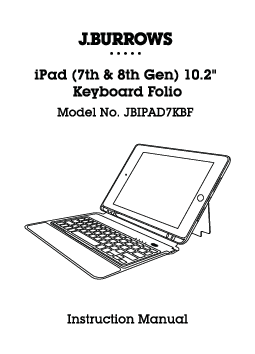
The product is a folio case with an integrated keyboard designed for the iPad (7th & 8th Gen) 10.2". It features a protective case, a pencil holder, a keyboard, and a kick stand. Indicator lights provide information on power, charging status, and Bluetooth connection. A Micro USB charging cable is included for charging the keyboard.
- ① Protective case
- ② Pencil holder
- ③ Keyboard
- ④ Caps lock indicator
- ⑤ Power indicator
- ⑥ Charging indicator
- ⑦ Bluetooth indicator
- ⑧ Kick stand
- ⑨ Keyboard power switch
- ⑩ Micro USB charging port
- ⑪ Micro USB charging cable
Operation
Step 1: Tilt up the back cover
Tilt up the back cover from the corner of the iPad case. [Diagram showing the back cover of the folio being tilted upwards from a corner.]
Step 2: Lift the centre support
Lift the centre support. [Diagram showing the centre support being lifted upwards.]
Step 3: Form a kick stand
Fold the top portion of the back cover until the magnetic centre support is attached firmly to form a kick stand. [Diagram showing the top part of the cover folded back to create a stand.]
Installation
- Install the iPad into the iPad protective case by aligning the back camera of the iPad with the camera opening on the case and ensure all edges of iPad are well wrapped by the case and secured.
- Make sure the iPad is turned on, and the Bluetooth Keyboard switch the power switch to the ON position.
- For first initial use (new pairing), press the "Fn" key and the letter "C" key on the Bluetooth keyboard together to activate the pairing process.
- Go to "Settings" of iPad and turn on Bluetooth function, then tap on "JBIPAD7KBF" on the available list to start pairing.
- Type the auto generated 4 digit code that will show on the iPad screen using the keyboard numbers then press the “enter” key. If pairing is unsuccessful please repeat steps 3 to 5.
- Once "Connected" is shown next to keyboard name on the iPad screen, pairing is successful and keyboard is ready for use.
- To reconnect to previously paired device, simply turn on the keyboard and Bluetooth function on the iPad. Keyboard will automatically search for the last paired device once it is turned on.
- To connect with a new device, please disconnect the keyboard from the previously connected device before initialising pairing again.
Keyboard Function Introduction
Indicator Lights
| Indicator | Description |
|---|---|
| Caps lock indicator | Indicator on means uppercase input, Indicator off means lowercase input. |
| Power indicator | Indicator flashes red when power is low. (Charging is needed.) |
| Charging indicator | Indicator is solid orange while charging, Indicator turns green when keyboard is fully charged. |
| Bluetooth indicator | Indicator flashes blue when pairing, Indicator turns off when pairing is successfully done. |
Fn Combination Function Keys
The keyboard features standard QWERTY layout with additional function keys. The Fn key combined with number keys (1-13) activate specific functions:
- Fn + 1: Display iPad home screen
- Fn + 2: Decrease display brightness
- Fn + 3: Increase display brightness
- Fn + 4: Search
- Fn + 5: Virtual keyboard
- Fn + 6: Change input method
- Fn + 7: Previous track
- Fn + 8: Play/Pause
- Fn + 9: Next track
- Fn + 10: Mute
- Fn + 11: Decrease volume
- Fn + 12: Increase volume
- Fn + 13: Delete
- Fn + 14: Lock screen
[Diagram showing the keyboard layout with numbered function keys from 1 to 13.]
Troubleshooting
- Issue: Power indicator light does not light up when power switch has been turned on.
Solution: Your keyboard has no battery power. Please charge your keyboard by connecting the micro USB charging cable with a working USB power source to the keyboard. - Issue: iPad is unable to find the keyboard in the Bluetooth search screen.
Solution: Check the keyboard to ensure that the power has been turned on and Bluetooth function on iPad is turned on. Press the "Fn" key and the letter "C" key on the Bluetooth keyboard together to activate the pairing process once again. - Issue: Seeing the keyboard listed after searching Bluetooth devices, but connection failed.
Solution: Switch OFF the keyboard power switch. Then in the bluetooth setting on the iPad, select "JBIPAD7KBF" from the "Devices" list, tap "i" icon to either "Disconnect" or "Forget This Device". Then follow instruction steps 2 to 5 to pair the Bluetooth keyboard to the iPad.
Note: Bluetooth keyboard will enter the standby mode to conserve battery power after 10 minutes of idling, press any key to awaken the keyboard.
Maintenance
- Do not place heavy object on the keyboard.
- Do not disassemble the keyboard.
- Do not apply any type of liquid directly on the keyboard.
- Keep the keyboard away from direct sunlight.
- Use a soft damp cloth with water or an alcohol-based disinfectant to clean the keys.
- Turn off the power of keyboard when it is not used for an extended period of time.
- If the keyboard is not used for extended periods, it is recommended to charge the keyboard every two months.
Specification
- Bluetooth version: 3.0
- Working time: 60 hrs
- Standby time: 200 hrs
- Cover range: up to 10m
- Battery type: Lithium polymer
- Battery capacity: 180mAh
- Input power: 5V 2.0A Max
- Charging port: Micro USB receptacle
- Unit dimension (when flat): 253 x 189 x 20 mm
- Unit weight: 420g
Package Contents
- iPad (7th & 8th Gen) 10.2" keyboard folio x 1
- USB charging cable x 1
- Instruction manual x 1
- Quick-start guide x 1
Product Warranty
Valid for Australian customers only
Officeworks Ltd warrants that this product will be free from defects and work as intended for 8 years from the date of purchase by the original customer. If the product has any defects or does not work as specified during the Warranty Period, Officeworks will, at its election and at its expense, repair or replace the product.
This warranty does not apply:
- to cosmetic damage;
- to damage caused by consumables used in connection with the product (such as batteries);
- where the product has not been used in accordance with all provided instructions;
- to damage arising from fair wear and tear;
- where the product has not been subject to reasonable use;
- where the product has been intentionally or negligently damaged; and/or
- if the customer has attempted to repair the product.
To make a claim under this warranty, please return your product with your receipt or proof of purchase to your nearest Officeworks store or contact 1300 633 423.
This warranty is provided in addition to any rights you may be entitled to under the Competition & Consumer Act 2010. Our goods come with guarantees that cannot be excluded under the Australian Consumer Law. You are entitled to a replacement or refund for a major failure and compensation for any other reasonably foreseeable loss or damage. You are also entitled to have the goods repaired or replaced if the goods fail to be of acceptable quality and the failure does not amount to a major failure.
Legal & Trademarks
Apple Pencil and iPad are not included.
Apple Pencil & iPad are trademarks of Apple Inc., registered in the U.S. and other countries.
Bluetooth® word mark and logos are registered trademarks owned by Bluetooth SIG, Inc. and any use of such marks by Officeworks Ltd. is under license. [Bluetooth logo description]
Officeworks Ltd
236-262 EAST BOUNDARY ROAD
EAST BENTLEIGH VIC 3165 AUSTRALIA
MADE IN CHINA ✔️
