

VRN-DD7HB Manual
File info: application/pdf · 32 pages · 5.41MB
VRN-DD7HB Manual
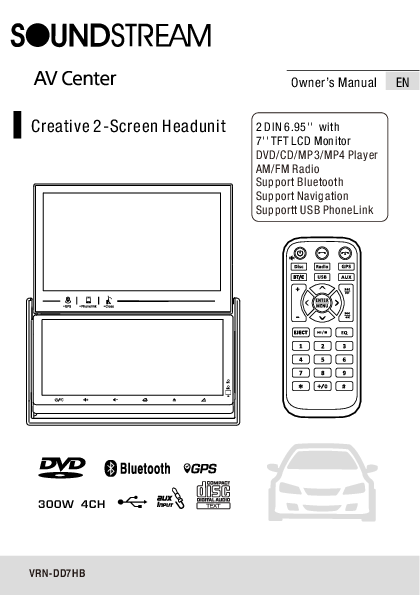
Creative 2-Screen Headunit - Soundstream
Support Bluetooth Support Navigation Supportt USB PhoneLink Owner’s Manual VRN-DD7HB EN. WARNING! ... Owner’s Manual 300W 4CH 2 DIN 6.95'' &7'' Double Monitor User Manual Warranty card GPS cable ...…
PDF VRN-DD7HB Manual
Owner's Manual EN. Creative 2-Screen Headunit. 2 DIN 6.95'' with 7'' TFT LCD Monitor DVD/CD/MP3/MP4 Player AM/FM Radio Support Bluetooth Support Navigation Supportt USB...
VRN-DD7HB Manual - Soundstream
7'' TFT LCD Monitor. DVD/CD/MP3/MP4 Player. AM/FM Radio. Support Bluetooth. Support Navigation. Supportt USB PhoneLink. Owner's Manual. VRN-DD7HB.
Full PDF Document

If the inline viewer fails, it will open the original document in compatibility mode automatically. You can also open the file directly.
Extracted Text
Owner's Manual EN

Creative 2-Screen Headunit

2 DIN 6.95'' with 7'' TFT LCD Monitor DVD/CD/MP3/MP4 Player AM/FM Radio Support Bluetooth Support Navigation Supportt USB PhoneLink

300W 4CH VRN-DD7HB

WARNING!

To promote safety, certain functions are disabled unless the parking brake is on. The Unit is designed to detect parked status and must be connected to the power supply side of the parking brake switch. Improper connection or use of his connection may violate applicable law and may result in serious injury or damage. To avoid the risk of damage and injury and the potential violation of applicable laws, this unit is not for use with a video screen that is visible to the driver.

To avoid the risk of accident and the potential violation of applicable laws, the front Video image feature should never be used while the vehicle is being driven. Also, other video displays should not be in a location where it is a visible distraction to the driver. In some countries or states the viewing of images on a display inside a vehicle even by persons other than the driver may be illegal. Where such regulations apply, they must be obeyed and this unit's DVD features should not be used.
Please remember to wear your seat belt at all times while operating your vehicle. If you are ever in an accident, your injuries can be considerably more severe if your seat belt is not properly buckled.
The supplier waves any and all liability when these warnings are not followed.
OPERATION PRECAUTIONS
Only connect to a 12V DC battery and negative grounding.
Avoid placing the product in direct sunlight, in areas with high levels of dust, high temperatures (over 40�C) or high humidity (over 90%). In case of high temperatures, cool down the car interior by means of ventilation or air-conditioning.
Operate in well ventilated areas.
Do not turn on or off the product in short intervals. When turning the unit off, wait for at least 10 seconds prior to turning the unit on again. Do not operate the player with scratched, bended or broken discs and when a disc is not loaded properly, do not force it into the player.

Do not watch video playback while driving which will cause serious danger and risks of traffic accident. It may violate the laws and regulations.(There may be exceptional case, i.e., using rear view camera and navigation system)
Do not install the unit where the operation for safety driving is restrained.
Do not disassembly the unit by yourself, if need repairing, please take the unit to the after service center.
Do not open and close the monitor manually, it may damage the monitor tilt system.
Do not touch the LCD screen by hard objects, it may damage or give scratch to the LCD screen.
If the back of monitor touches dashboard or air-conditioner inlet etc after open the monitor , then setup TILT level in monitor TILT menu to prevent damage from repeat touching.
Car parking under direct sunlight may increase the temperature inside the car and the unit may not be in proper operation, please try it again after the temperature returns to normal.
Do not replace the fuse on the power cable without professional guidance, using improper fuse may cause damage to the unit or even cause burn the unit.
Do not use irregular shaped Disk.
IR remote control operation may be hindered by monitor when the monitor is opened, thus please use the remote control at the similar level of remote control receiver.
Do not install the unit where the cooling fan is blocked.

Content
WARNING!....................................................................................................................................2 OPERATION PRECAUTIONS.............................................................................................................2 CONTENTS ..................................................................................................................................3 ACCESSORIES..............................................................................................................................4 INSTALLATION / UN-INSTALLATION .................................................................................................5 WIRING CONNECTIONS .................................................................................................................5 PANEL.........................................................................................................................................7 REMOTE CONTROL......................................................................................................................8 MAIN MENU................................................................................................................................9 �RADIO PLAYER..........................................................................................................................11 �USB INTERFEACE OPERATION.....................................................................................................12 �SETTING CONTROL....................................................................................................................13
Audio Setting........................................................................................................................13 General Setting.....................................................................................................................13 Radio Setting........................................................................................................................14 Display Setting.....................................................................................................................14 DVD Ratio Setting.................................................................................................................14 Bluetooth Setting.................................................................................................................14 System Information..............................................................................................................14 �GPS SECTION...........................................................................................................................15 �MOBILE PHONE LINK SCETION....................................................................................................22 �BLUETOOTH SCETION................................................................................................................2 2 �AV-IN MODE.............................................................................................................................24 �R-CAMERA MODE......................................................................................................................24 �OTHER FUNCTIONS....................................................................................................................24 NOTES ON DISC..........................................................................................................................25 TROUBLESHOOTING....................................................................................................................26 TROUBLESHOOTING....................................................................................................................27 TECHNICAL SPECIFICATIONS........................................................................................................28 BLUETOOTH CONNECTION ATTENTION INSTRUCTIONS.....................................................................29
.
3

ACCESSORIES

Package contains the following accessories for installation and operation of the unit.

(1) Washer, Spring Washer, M5 Nut 1 each

(2) Mounting Strap

1

(3) Bolt

1

(4) Screw

4

(5) Mounting Collar

1

(6) Release Key (7) Screw (8) Rubber Cushion

2
1
1
VRN-DD7HB Owner's Manual 2 DIN 6.95'' &7'' Double Monitor

Remote Control

300W 4CH

English

User Manual

Warranty card

GPS cable

Power cable

Trim ring

Micro SD card (Map)

Note:Product image may vary from the actual delivery.

INSTALLATION / UN-INSTALLATION

Note

Before starting installation of the unit, make sure the wiring is connected properly. Use only the parts provided with the unit to ensure proper installation. The use of unauthorized parts may cause malfunction. Install the unit where it does not get in the driver's way and will not injure the passenger in case there is a sudden stop, like an emergency stop.
INSTALLATION Figure 1
Insert the unit into dash-board hole and fix it If necessary, place the mount strap at the rear of the unit and fix it with provided washer as figure 2. Push the unit into the Half Sleeve until you hear a click sound Place Trim Ring over the unit and installation is completed as figure 3. (Some vehicle may not need Trim Ring).
UN-INSTALLATION
Insert the supplied extraction keys into the unit and pull the unit out with keeping the extraction keys. (as Figure. 4)

Figure.1 Dashboard

Figure.4

Figure.2
Figure.3
Mounting Strap
A mounting strap id often included with new stereos. For most installations, it is not necessary part of the installation process. However, It can be useful to help support the stereo in yr dash; it also helps reduce vibration. One end of mounting strap attaches (with a screw) to the rear of the stereo.
The other end attaches to an existing bolt or screw behind the dash. Just bend the shape as necessary to enable mounting.

WIRING CONNECTIONS

Make sure you have good chassis ground. A good ground connection will eliminate most electrical noise problems. A good chassis ground requires a tight connection to the vehicle's metal chassis. The area around the ground connection should be clean, bare metal without rust, paint, plastic, dust, or dirt for a good electrical connection.

Yellow
Yellow
White White Red Red

V-OUT1
V-OUT2 RL FL RR FR

V-OUT1 V-OUT2

FL

FR

Caution: Do not interchange the connection of the

CAM

VIN

RL

RR

wiring!!! For some car models you may need to modify wiring of the supplied power cord. Contact your authorized car dealer before installing this unit.
Using the power connector

Radio Antenna

LIN

RIN

Sub1 Sub2

Blue Blue

Subwoofer 2 Subwoofer 1

Red Right input

Yellow Video input

White Yellow

Left input Camera

USB

1 23 45 11 12 13 14 15

6 7 8 9 10 16 17 18 19 20

Cut the connector; connect the colored leads of the power cord to the car battery as shown in the

Power Connector

color

code

table

below

for

speaker

and

power

1 FL+(White) 6 IR(Green)

2 FL-(White/Black) 7 SWC 2(White/Blue)

cable connections.

11 FR+(Grey) 12 FR-(Grey/Black)

3 RL+(Green) 8 SWC 1(White) 13 RR+(Purple)

4 FR-(Green/Black)

5 ACC 12V+(Red)

9 Camera(Brown) 10 Parking Brake(Pink)

14 RR-(Purple/Black)

15 Ground- (Black)

5

WIRING CONNECTIONS

NOTE: Never connect cable to the system while it is connected to the battery power. Whenever the unit is disconnected from the battery, the preset memory will be erased and the unit will go back to its factory defaults. When the brown cable for steering wheel control connected to the steering wheel, we can use the steering wheel to control some unit.
ASWC Connections To use an external universal SWC module, connect only IR (Green) to the output of the module. Note: To watch video the parking wire should be connected to break signal. 2 cables are connected to a Hands-Free device (not included).
Parking wire Note: The parking wire is connected with brake signal; for safety, the programs can be seen on the monitor after braking the car..

(GND). The unit is using a BTL circuit and each loudspeaker must be connected with insulated cables according the diagram. Loudspeaker cables and/or optional external power amplifiers must always be about 30cm away from the antenna and/or antenna extension parts.
Connect the speakers according the following diagram, incorrect connections will damage the unit or your loudspeakers
Speaker Connection

Parking brake lead 2A

Brown wire

12V battery
Brake light

Car frame

Connecting the reversing line to taillight on the car

White

Car frame

Reverse driving light

Green

Pink wire Rear view video camera lead

P
R N D 2 L
Gearbox

+

-

12V Battery

Car frame

After connecting, when you start up the reverse gear, the unit will receive the picture from car rear view camera.

Note: Only use groundless loudspeakers. Use only loudspeakers of minimum 40Watt, using fewer watts may result in damaging your loudspeakers at higher volumes. Use 4~8  (Ohm impedance) loudspeakers only; using higher or lesser impedance may damage the unit. Do not use 3-cable loudspeakers and do not connect the loudspeakers minus to the car
6

Grey Purple

PANEL
9 123 4
10

11

5 67

8

9 10 11 12 13 14

15

GPS Button

1 Touch this Button, go to GPS mode

12

Phone Link Button 2 Touch this Button, go to Phone Link mode

Top Panel Close/ Adjustment Button

13

Condition: Top panel opened

Touch this button: Close top panel 3 Touch and hold this button for 3 seconds:

Adjust angle of top panel (Angle1  14

Angle2  Angle3  Angle4)

Top Panel

4 Top panel 7" display

15

Power Button/Mute Touch this button to turn on or mute the volume output, touch it again to resume 5 volume Touch and hold this button for 3 seconds to turn off the head unit

Bottom Panel
6
Bottom Panel 6.95" display

Vol-

16

7 Touch this button to decrease volume

Vol+

8 Press this button to increase volume

17

7

Home Button Touch this button to go back to main menu of bottom panel Eject Button Touch this button to eject a disc. If the disc is not removed for about 10 seconds after eject, the disc is reinserted automatically. Panel Open/ Adjustment Button Condition: top panel closed. Touch this button: Open top panel Touch and hold this button for 3 seconds: Adjust angle of bottom panel (Angle1  Angle2  Angle3  Angle4 Angle5  Angle6) Condition: Top panel opened Touch this button: No Function Touch and hold this button for 3 seconds: Adjust angle of bottom panel (Angle3  Angle4  Angle5  Angle6)
Reset Button Press it with a thin, sharp object. The unit will then be reset to factory default settings.
IR Sensor of Remote IR remote control signal receiving window. Max distance is 6-8 meters, 45 degree angle.
Mic Build in Microphone for Bluetooth phone calling. Micro SD Card Slot Micro SD card slot for GPS map.
16 17
Disc Slot Insert & Eject disc
Reset Button Reset the Unit.

REMOTE CONTROL

USB 9 Press it to USB mode.

1

3

10 VOL+ button

2

Press to increase volume level.

4

6

5 7

Cursor buttons

8

11 Use the buttons to select the menu

10

9

item, the title track or to show next frame.

13

11

14

Cursor buttons

12

15

Use the buttons to select the menu
12

17 18

item, The title tracks it or to show next

16

frame.

19

21

/ button

20

13 In DVD mode, Press

button to skip

to the next track, press and hold button

for two seconds to activate fast

22

forward(FF) in a track.

In RADIO mode, press to start manual

searching button Frequency up.

Cursor buttons Use the buttons to select the menu
14
item, the title tracks it or to show next frame.

POWER / MUTE 1 Press and hold to power it on or off. Short
press this button to mute the volume output, press it again to resume volume.
DIAL/ ANSWER button (Only for Bluetooth) 2 Press to make a call after inputted a
phone number or answer an incoming call.
REJECT / HANG UP button (Only for Bluetooth)
3
Press to reject a coming call or hang up while calling.
DVD button 4 Press it to DVD mode.
5 RADIO button Press it to Radio mode. GPS button
6
Press it to GPS mode.(Only for AVN model)

MENU/ENTER button 15 Press it to confirm selection, Press and
hold show main menu..
/ button Iin DVD mode, Press button to skip to the previous track. Press and hold button for two 16 seconds to activate fast reverse(REW) in a track. In RADIO mode, press and hold to start manual searching button Frequency down.
VOL- button 17 Press to decrease volume level.
Cursor buttons Use the buttons to select the menu 18 item. The title tracks it or to show next frame.
EJECT button 19 Press it to eject the disc.

BLUETOOTH button 7 Press it to Bluetooth mode.
AUX/AV IN button 8 Press it to AUX IN or AV IN mode.

PLAY/PAUSE/STOP button 20 In DVD mode, press it to stop playback,
press again to resume

8

REMOTE CONTROL
OPEN/TILT Button Press this Button to open and close the TFT monitor. WARNING: Do not obstruct the monitor while in the opening or closing cycle, this may cause damage to 21 the monitor mechanism and is NOT covered under warranty. Press and hold for 2 second to adjust the Monitor tilt angle: TILT ANGLE 1 => TILT ANGLE 2 => TILT ANGLE 3 => TILT ANGLE 4.
Digit 0-9 * # buttons In radio mode, select 1-6 the desired band; In DVD mode, select track.In
22
Bluetooth mode, 0-9 * # enter the phone number or input password.
REMOVE BATTERY

Note:
The distance may vary according to the brightness of ambient light. If the remote is not used for an extended period of time, remove the battery to prevent possible damage from battery leakage and corrosion. Do not place any objects between the remote control unit and the sensor on the unit. Do not drop the remote control onto the floor; it will damage it beyond repair. Do not use the remote control unit, while simultaneously operating the remote control unit of any other equipment; they may interfere resulting in improper operation. Dispose empty batteries in accordance with your local governmental regulations. Do not short-circuit, disassemble, heat or dispose of fire or flames the battery. Keep the battery out of reach of children, should the battery be swallowed, immediately consult a doctor.

MAIN MENU
The best way to discover the program is to explore each screen in detail, and to find out how to move from one to another. Read this chapter for a guided tour. Unit starts by displaying the Main menu. This is the root of the screen hierarchy, and you can simply access all features by tapping on the touch screen buttons. Touch the icons to enter a desired mode.
Bottom Panel

HOME

20

4:21 AM 01-01-2016
Monday

Radio

Disc

GPS

BT-Music BT-Phone

USB

Console

AV IN

R-Camera Phone Link

Touch this key to view the hidden toolbar
Touch this key to hide the toolbar Console Touch this key to go back to main
Touch this key to enter Bluetooth setting Touch this key to adjust the screen brightness Touch this key to enter setting menu

Radio mode GPS mode

Radio mode Bluetooth Music mode

USB mode

Bluetooth Phone mode

AV IN mode

Phone Link mode

Back View Camera mode

9

MAIN MENU

Bottom Panel
Console
NAVI Mode
Phone Link

NAVI Mode

GPS mode
Touch this key to select a desired mode on bottom panel (Disc  USB  AV IN  BT-Phone  Radio)

Phone Phone Link mode
Link
Touch this key to answer a call

Touch this key to end / reject the call

Touch this key to transfer a call from Bluetooth mode to phone, and vice versa

Touch this key to decrease volume
Touch this key to decrease volume
Touch this key to switch the mute setting to on or off
NOTE: The unit can be operated under the following conditions
If top panel is open, operations of GPS mode and Phone Link mode will switch to top panel automatically. (1) GPS mode only operates on top panel. Operations on bottom panel remain unchanged. (2) Top panel shown either GPS mode or Phone Link mode. Operations on bottom panel remain unchanged. (3) In USB mode, it is invalid to enter Phone Link mode, and vice versa. (4) Phone Link mode only operates on top panel. Operations on bottom panel remain unchanged.be swallowed, immediately consult a doctor.

Top Panel Mode Radio Disc

close

condition


Bottom Panel

GPS

BT BT Music Phone

USB

AV IN

R- Phone Camera Link


Top Panel Open
condition

Mode GPS Phone Link

Radio


Bottom Panel

Disc

GPS

BT BT Music Phone

USB

  (1)

AV IN

R- Phone Camera Link

   (2)

  (2)    (3)    (4)

10

ICON Operation

To start Radio, tap Radio icon on main menu screen.

Disc

MENU

OFF

Radio

20

87.50 03:45

SEEK

-

GPS VOL
- MAIN VOL

SEEK
+
+

1 2 3 4 5 87.50 90.10 98.10 106.10 107.90 87.50 RBDS PS RBDS PS RBDS PS RBDS PS RBDS PS RBDS PS

Console

Console

07:45

Return button Touch this button can choose FM1, FM2, FM3 Touch this button can choose AM1, AM2
Touch this button can scan the stations from 1-6, touch and hold it to save the stations with good reception automatically and scan each station for about 5 seconds.
Touch this button to select program type
Touch this button to select station backward manually
Touch this button to select station forward manually
Touch this button to adjust the EQ, it can choose USER  JAZZ  CLASSIC  POP ROCK  BEAT  FLAT
Touch this button to search backward
-SEEK
stations
Touch this button to search forward
SEEK
stations
1-6 preset selection

MENU Touch it to return to DVD menu
OFF Touch it to select Subtitle Return button
Touch it to go to previous page or next page of control bar in DVD mode
Touch it to select previous or next track
Touch it to start fast rewind or fast forward. Press one of the keys again to change the spooling speed (FFx2  FFx4  FFx8  FFx20). Press the PLAY key to regain normal playback
Pause playback. Press it again to continue playback.
Touch it to choose Repeat OFF  CHAPTER  TITLE  REP ALL
Touch it to switch Random on or off. Touch it to go back to main menu of top panel. Operations on bottom panel Console remain unchanged. No function when top panel is closed.
Touch it to adjust the EQ, it can choose USER  JAZZ  CLASSIC  POP  ROCK  BEAT  FLAT Touch it to enter DVD ratio setting

Note: When a radio signal is not received, the default for ST / MO function, once received radio function automatically converted to ST
To start DVD Player, tap DVD button on main menu screen
11

Touch it to adjust the screen brightness (1/4  2/4  3/4 4/4)
Touch it to select the Audio CH
Touch it to zoom in/out (OFF  ZOOM 2  ZOOM 3  ZOOM 4  ZOOM 1/2  ZOOM 1/3  ZOOM 1/4

ICON Operation

Note: 1. DVD Player will automatically start playing when you insert any DVD disc. 2. Warning displays if the vehicle is moving for driver's safety. 3. DVD Player will not only play video, but also picture and music files as well.
File Management DVD mode plays files in a)Disc b)USB c) Memory card

USB INTERFACE OPERATION

To play MP3/ MP4 files from a USB flash memory, insert a USB flash memory into the USB port on the back of the unit and then tap USB button on main menu screen.
When a USB is played, the screen will show following interface. Touch the source key you want to select; the unit will play MP3/ MP4/ JPEG files automatically.

USB

20

AVI PIC MUSIC CLIMAX Movie Scream

Touch to view any hidden items Return button.

Picture

T 3/27

Touch it to go to previous page or next page of control bar in DVD mode Touch it to return to TITLE MENU (you can choose music, picture and video to play)
Touch it to adjust the EQ, it can choose USER  JAZZ  CLASSIC  POP  ROCK  BEAT  FLAT Touch it to rotate the picture
Touch it to select previous or next track
Touch it to select previous or next track
Touch it to enter DVD ratio setting
Touch it to adjust the screen brightness (1/4  2/4  3/4 4/4)
Touch it to go back to main menu of top panel. Operations on bottom panel Console remain unchanged. No function when top panel is closed.
When play the music, the UI will display as below:

USB

20

Dance All Night

Ar st Name

all

Album Name

03:45

07:45

When play the picture, the UI will display as below:

12

ICON Operation

Touch it to return to TITLE MENU (you can choose music, picture and video to play) Touch it to select previous or next track
Touch it to select previous or next track
Touch it to select Repeat Off  Repeat 1  Repeat Folder. Touch it switch Random on or off
Touch it to adjust the EQ, it can choose USER  JAZZ  CLASSIC  POP  ROCK  BEAT  FLAT

When play the video, the UI will be display as below:

Video

C 3/27

OFF

Touch it to adjust the EQ, it can choose USER  JAZZ  CLASSIC  POP  ROCK  BEAT  FLAT Touch it to enter DVD ratio setting
Touch it to adjust the screen brightness (1/4  2/4  3/4 4/4)
Touch it to select the Audio CH

SETTING CONTROL
Your device has default system settings. You can customize the settings to suit your personal needs. Once you change settings, your new settings will remain until you change it again.

To start SETTING, touch

key to

view the hidden toolbar and then tap

SETUP icon to enter setting menu.

Audio Setting

Se ngs

20

03:45
Mute
all

07:45

EQ Fader/Balance Key Beep

ON !

OFF Touch it to select Subtitle Return button.
Touch it to return to TITLE MENU (you can choose music, picture and video to play)
Touch it to select previous or next track Touch it to start fast rewind or fast forward. Press one of the keys again to change the spooling speed (FFx2  FFx4  FFx8  FFx16). Press the PLAY key to regain normal playback Pause playback. Press it again to continue playback.
Touch it to select Repeat Off  Repeat 1  Repeat Folder.
Touch it to switch Random on or off

EQ: Press it to choose the EQ (USER  JAZZ  CLASSIC  POP ROCK  BEAT  FLAT)
Fader/Balance: Press it to adjust the Fader & Balance
Key Beep: Press it to Turn on or Turn off the touch key beep sound
General Setting

Se ngs

20

Language Background Desktop Colorful LED Time Setting

English
! AUTO

13

ICON Operation

Se ngs
Background Desktop Colorful LED Time Setting Default Value

20 AUTO

Top Panel: Adjust the color / brightness / contrast / tint display of top panel

Bottom Panel: Adjust the color / brightness / contrast / tint display of top panel

!
DVD Ratio Setting

Se ngs

20

Language: Press it choose English or Espa�ol
Background: Press it to choose different background picture
Desktop: Press it to change the desktop design Background: Press it to choose different background picture
Time Setting : Press it to setting the time, date, time zone
Default Value: Press it to choose the default setting

Radio Setting

Se ngs

20

Region

USA

4:3 PS
4:3 LB
16:9 !

Press it to choose DVD Ratio (4:3 PS / 4:3 LB / 16:9)

Bluetooth Setting

Se ngs

20

Bluetooth Auto Connect Auto Answer

ON
ON
ON !

!

Region: Select the radio region

Display Setting

Se ngs

20

B SCREEN A SCREEN

Bluetooth: Turn on or off the Bluetooth Auto Connect: Turn on or off the Auto connect Auto Answer: Turn on or off the Auto Answer

System Information

Se ngs

20

APP:

MCU:

DVD:

!

BT:

!

GPS:

Display the system information

14

GPS SCETION
To start GPS mode, please insert SD card in GPS slot on the front panel. Choose Navigation path and touch the Enter icon to enter the GPS (Navi path choose only for first using). You can choose road and run GPS.
Navigation setup

\SDMMC\20130513
Enter to GPS
\SDMMC\20130513
1. Getting started

When using the navigation software for the first time, an initial setup process starts automatically. Do as follows:
Select the program language. If your preferred language does not appear on the screen, tap or drag the list up or down with your finger to view all available languages. Tap English to select your preferred language. Tap Done to confirm your selection, and proceed to the next page.
Read the Software and Database End User License Agreement, and tap Accept if you agree with the terms of use.

You are now asked whether you allow the software to collect usage information and GPS logs that may be used for improving the application and the quality and coverage of maps. Tap Yes to allow the anonymous statistics or disable this function.

The Configuration wizard starts. Tap Next to continue.

Select the voice guidance language profile. If your

preferred language does not appear on the

screen, scroll the list for other available profiles.

Tap any item in the list for a short voice sample.

Tap

Next to confirm your selection, and

proceed to the next page.

15

GPS SCETION

Set your preferred time format and units. Tap Next to confirm your preferences. Set your preferred route planning options. Tap Next to confirm your preferences. The initial setup is now complete. Tap Finish The application starts.
2. Navigation menu
Startup screen: the Navigation menu

After the initial setup, and whenever the software is started, the Navigation menu appears. You have the following options:

Tap

to select your destination by entering

an address or selecting a place of interest, a

location on the map or one of your Favorite

destinations. You can also look up your recent

destinations from the Smart History or by entering

its coordinate.

Tap

to display the route parameters. You

can view the route in its full length on the map.

You can also perform route-related actions such

as editing or canceling your route, setting a start

point for the route, picking route alternatives,

avoiding parts of the route, simulating navigation

or adding the destination to your Favorites.

Tap

to simulate demo routes or to run

some additional applications.

Tap

to customize the way the navigation

software works.

Tap

to start navigating on the map.

3. Destination menu

16

GPS SCETION

In the Navigation menu

. The

Destination menu provides you with the following

options:

Tap to specify an address as your destination options:

Tap

to select a place of interest as your

destination

Tap map.

to navigate to a location selected on the

Tap

to choose from the list of your favorite

destinations.

Tap

or

to navigate to the recent

destination that is shown on the button.

Tap

to choose from the list of all recent

destinations.

Tap

for other search methods.

In the Navigation menu, tap

then

tap

. In the US, the screen proposes only the

country while in other countries you can see the

city or town where you are located

If needed, change the country or the state. Tap the button showing the name of the country.
1. Use the keyboard to enter the name of the country or the state. 2. After entering a couple of characters, the list of countries and states that match the entered string appears. Together with the country, you can select the state, or select the name of the country where it stands without a state to search for an address in all its states.

Outside the United States, the current city/town is displayed. This field is empty when you are in the US. Tap the button and use the keyboard to enter a part of the city/town name. As you enter letters, the most likely city/town name is always shown in the input field. You have the following options:

Tap

to select the city/town that is offered

in the input field.

4. Navigating to an address

Tap

to correct your entry.

Tap

to browse the list of city/town

names matching your input. Select a city/town

from the list.

17

GPS SCETION

5. Quick Find

Enter the street name:

Tap

Use the keyboard to enter a part

of the street name.

Tap to select the street that is offered in the

input field or tap

to browse the list of

all streets matching your input. Select a street

from the list.

Enter the house number:

Tap house number.

Use the keyboard to enter the

Tap

to finish entering the address.

The map appears with the selected destination in

the middle.

Tap

another map location if necessary,

then tap to confirm the destination.

After a short summary of the route parameters,

the map appears showing the entire route. Wait

for a few seconds or tap

and start

navigating.

With the help of Quick Find, you can search for a location near to a known Place of Interest. Search for the Place by its name first and then find your destination on the map. Do as follows (starting from the Navigation menu):

Tap

Ta p

Start entering the name of the Place of Interest on

the virtual keyboard. After entering some letters,

tap

, and select the Place from the list

of matching place names.

Scroll down the list if necessary, highlight the desired Place and tap

Check the details of the Place, and then tap

An overview map is displayed with the selected Place in the middle. Browse the map, and tap the map location that you want as your destination.
Tap
After a short summary of the route parameters, the map appears with the selected destination in the middle. The route is automatically calculated. The red Cursor appears where you tap the map.

18

GPS SCETION
6. Navigating to a place of interest

Tap

to search around the current

position or if it is not available, around the last

know position

Tap

to search for a place within a

selected city or town.

Tap

to search for a place around the

destination of the active route

Tap

to search along the active route,

and not around a given point.

This is useful when you search for a later stopover that results in a minimal detour only, such as searching for upcoming gas stations or restaurants.

7. An example of navigating to a place of interest

On the Map screen, tap

to return to the

Navigation menu. In the Navigation menu,

Tap

. You are offered the following preset

search categories:

Tap

to get a list of gas stations along

the route or if it is not available, around your

current position or your last known position.

Tap

to get a list of parking lots near the

destination or if it is not available, around your

current position or your last known position.

Tap

to get a list of restaurants along the

route, around your current position or your last

known position.

Tap

to get a list of accommodations near

the destination, around your current position or

your last known position.

You can also tap entering its name

and search for a place by

If none of the above is appropriate, tap

to

find a place of interest at the following locations:

Example: To find a park around your destination, do as follows (starting from the Navigation menu):
Tap
Tap Tap

19

GPS SCETION

Tap

The list of place categories appears. Tap or

slide your finger to browse the list, and tap

.

Tap

to browse the whole category, or

tap

to. narrow down your arch.

Tap any of the list items.
Check the details and the location of the place, and then tap

After a short summary of the route parameters,

the map appears showing the entire route. Wait

for a few seconds or tap

and start

navigating.

8.The Map screen

At the top of the screen, you see your heading and the house numbers on left and right if you have not selected a route destination. When navigating a route, you see the next maneuver and the next street/road on your route. Tap either of them to open the route itinerary.

Tap to open the Quick menu with a selection of functions that are useful during navigation.

Tap the map anywhere to explore the map around your current position. Additional map control buttons appear.

Tap

to open three data fields on the

map. Tap any of them to suppress the others. The

default values for navigation (you can change

them in Map settings):

the remaining distance to the destination,

the remaining time of the trip, and

the estimated time of the arrival at the

destination.

Tap

to open the Navigation menu.

9. More menu

The Map screen is the most important and frequently used screen of the software. The Vehimarker (a blue arrow by default) represents your current position, and the orange line shows the recommended route. There are screen buttons and data fields on the screen to help you navigate. During navigation, the screen shows route information.

The More menu provides you with various additional applications. In the Navigation menu, tap
Visit www.naviextras.com to get additional content, such as new maps or 3D landmarks and useful applications.
Access the Picture Viewer.

20

GPS SCETION
Access the clothing size converter
Access the fuel consumption monitor.
Access sunrise and sunset times.
Access your saved trip and track logs. Access country information, such as speed limit, maximum blood alcohol level or compulsory equipment. 10. Setting menu

In the Navigation menu, tap

. The Settings

menu provides you with the following options

(scroll the list to see all):

Adjust the different sound volumes, change the voice guidance profile, or enable and set up warnings.

21

Change the function buttons in the Quick menu of the Map screen.
Select the type of vehicle you are driving, the road types used in route planning, and the route planning method.
If more drivers use PDN-621HBfor navigating, their settings can be remembered by using one of the user profiles.
Adjust map related settings: change the daytime and night color schemes, change the default zoom level, switch between 2D and 3D map, suppress buildings or change the Vehimarker.
Adjust how the software helps you navigate with different kinds of route related information on the Map screen.
Turn the menu animations on or off, select a different skin for the application, or adjust the display backlight.
Change the program language, the time format, units or the time zone.
Turn the automatic trip or track log saving on or off, check the current size of the trip database.
The application collects usage information and GPS logs that may be used for improving the application and the quality and coverage of maps. Here you can enable or disable collecting these logs.
Modify the basic software parameters set during the initial setup process.

MOBILE PHONE LINK SCETION

Note: Mobile phone link function can only be available: Used for Android system phone. Do not support iphone till now. Set your phone's "USB debug mode" is opened. Connect the Bluetooth with Head unit.
When start to operate phone link function, firstly set the phone to USB debug mode; connect the USB cable with mobile phone; then confirm your phone has already connected with unit via Bluetooth and then tap Phone Link icon on the main menu enter to Phone link mode. And you can see below menu, and the unit will automatically connect your mobile phone (MOB), and install a APP into your mobile, after finished

those 2 step, then, unit will be indicated your phone menu in the unit and you can control the phone through the unit.

Connecting

1.Connecting your MOB

!

2.Install Interconneotion service

Enter MOB Setting > Enable Developer Option > Turn on USB debug > Connect USB line > Allow USB debug

Retry

Exit

SL01.3.3.53

If you want to enjoy your music from all speakers, please enter into the Bluetooth Music mode in bottom panel.

BULETOOTH SCETION

Warning: Driving and having a Telephone conversation at the same time is dangerous, please park your car before having a telephone conversation. The supplier waves any and all liability when this warning is not followed.

To enter Bluetooth mode, you can tap BT-Phone icon on Main menu or long press the mute/Bluetooth button on the Remote Control or press mode button on remote or on front panel.

BT Phone

20

Device not connected
SoundStream

12

3

x

4

5

6 Redial

7

8

9 Transfer

* 0/+ #

Console

Tap Dial button to enter call mode.
Tap this button can see phonebook.
Tap this button can see missed, received and dialed calls.

Tap this button Making and accept calling.
Tap this button to hang up the call.
Pairing Mode At the first time when using BLUETOOTH, you need to pair the mobile phone first.When a phone has not been paired with the unit, the BT icon and pairing mark will blink continually on the panel.
When the unit have connect with phone, the BT icon will turn on and the Mobile phone name (if available) will be display on the panel. According to mobile pairing device manual,after searching new device (SoundStream), select it, input password "0000" and confirm ok, device paring is finished. The text 'Enter Number' will shows on the panel after the pairing is completed. It means device is connected and ready for BLUETOOTH communication.
Auto-connect � Disconnect When power on the unit, the last paired phone will be connected to the device via Bluetooth automatically, after searching about one minute, if the device cannot find the paired phone, it will stop searching. When in standby mode (unconnected), long press Bluetooth button on remote control to active auto-connect function and the device will search the last paired phone.
22

BULETOOTH SCETION

If you want to disconnect the Bluetooth connection, turn off the Bluetooth on the phone.

1. DIAL BUTTON

Tap on Dial button to enter call mode.

In Call mode, the unit can be used as your

phone. Making and receiving calls are

possible with BLUETOOTH. Simply tap phone

number and tap

button to make a call,

and tap

button to hang up.

1.) Tap x button shortly to delete a

wrong digit, or press Reject/INT button on

remote to delete all the numbers at once.

2) Tap

button, the device automatically

makes a call to the latest call in its call log.
NOTE: the phonebook only supports Western Characters. Any difference in character will be shown such as "+, * or # "
2. Bluetooth Phone Book The unit can download the data from phone automatically when the pairing between a phone and the unit be completed. The unit displays the data which have been downloading from a phone. Select a number and tap SEND button to make a calling. Press the PB-DOWN button, phonebook will be updated and downloaded with new phonebook.
3. Calling History Tap HISTORY button to see history mode. The unit can download automatically al the data from the mobile phone. Dialed / Recrived / Missed calls are saved in history mode. Tap up/down arrow load previous / next history record.
4. Bluetooth- Music

BT Music

20

IPHONE Dance All Night Ryan Adams

Console
You can select the function with the key for previous, play or pause, stop and next.
A2DP (Advanced Audio Distribution Profile)
Music Player A2DP is a function which can receive the audio frequency signal from the mobile phone, amplified by the car audio and played out by the car speakers.
Notice: your mobile phone need to support A2DP. Tap the buttons on the screen as shown, or press corresponding buttons (PAUSE/PLAY, STOP,PREVIOUS/NEXT) on remote control to play, pause, play previous, or next music file.

23

OTHER MODE

To start AV-IN Mode, tap on AV IN button from main menu screen.
Connect the external audio/video signal source to this unit. Select AV-IN mode in the main menu and. TFT display as below:

AV IN

20

No Signal

This unit is equipped with back view camera output. The camera is used to observe the situation behind the vehicle when you are backing the car. Please connect your back view camera with the back car video input. And connect the reverse wire for back a car with the rear gear light. Rear view camera picture will be enabled when you are backing the car.
Note: If the Rear view camera is not connected, the TFT displays as below.
REAR VIEW CAMERA NOT CONNECTED

Console
To start Back View Camera mode, tap on RCamera button from main menu screen.

OTHER FUNCTIONS

Independent Volume Adjustment

Radio

20

VOL", then press and hold "-" or "+" to adjust the volume from bottom panel

87.50

SEEK

-

GPS VOL
- MAIN VOL

SEEK
+
+

1 2 3 4 5 87.50 90.10 98.10 106.10 107.90 87.50 RBDS PS RBDS PS RBDS PS RBDS PS RBDS PS RBDS PS

Parking
When the car is stopped and the parking brake is working, the screen can display the video image, otherwise the screen can't display the video image

Console
You can choose the "GPS & Phone VOL" or "MEDIA VOL" to adjust the volume from top panel or bottom panel independently.
Condition 1: Top panel is opened: Top panel: GPS / Phone Link mode Bottom panel: Radio / Disc / BT-Music / BT Music / USB / AV IN mode Touch "Vol-" or "Vol+" and select "GPS & Phone VOL", then press and hold "-" or "+" to adjust the volume from top panel Touch "Vol-" or "Vol+" and select "MEDIA
24

NOTES ON DISC

Only use groundless loudspeakers. Use only loudspeakers of minimal 40Watt, using fewer watts may result in damaging your loud speakers at higher volumes. Use 4~8  (Ohm impedance) loudspeakers only; using higher or lesser impedance may damage the unit. Do not use 3-cable loudspeakers and do not connect the loudspeakers minus to the car body. (GND). Using a BTL circuit and each loudspeaker must be connected with insulated cables according the diagram. Loudspeaker cables and/or optional external power amplifiers must always be about 30cm. away from the antenna and/or antenna extension parts. If want to display for 7" TFT, parking wire must be connected to ground.

Storing discs Always place discs in their case and store them vertically. Avoid storing discs in hot or humid places, places exposed to direct sunlight and places in which temperature is extremely low. Read and cautions included with the discs carefully.
Cleaning discs Fingerprints of dust on discs may reduce sound or picture quality. Remove them by gently wiping the disc from the center toward the edges using a soft cloth.

Handing discs.
Handing when holding with both hands

when holding with one hand

Do not use damaged (cracked or warped) discs. Do not scratch the signal surface or let it get dirty. Do not attach paper or seats to discs. The player may be damaged if here is any exposed glue, etc., on discs. For rental discs in particular, extra labels are often attached to the discs. Check carefully for any exposed glue before using such discs.

Do not use benzene, thinner or other volatile chemicals. Do not use record spray or antistatic spray either. We recommend using the separately sold cleaning set to clean discs. For touch dirt , apply some water to a soft cloth, wring out thoroughly wipe off the dirt, then wipe the disc with a dry cloth.
Irregular shaped discs Irregular shaped discs(heart-shaped discs, hexagonal discs, etc.) Can not be played on this payer. Doing so could damage the player Never use such discs.

25

General

TROUBLESHOOTING

Symptom

Cause

GeneralPower does not turn on.(No sound is produced.)

Fuse is blown In correct wiring

Remedy
Replace with fuse of the same amperage. If the fuse blows again, consult your store of purchase
Consult your local retailer.

No sound output when operating the unit with amplifiers or power antenna attached.

1. Turn off the unit.

2. Remove all wires attached to the power

Power antennal lead is antenna lead. Check each wire for a possible

shorted to ground

short to ground using an ohm meter.

excessive current is 3. Turn on the unit.

required or remote on 4. Reconnect each amplifier remote wire to

the amplifiers or power the power antenna lead one by one. If the

antenna.

amplifiers turn off before all wires are

attached, use an external replay to provide

remote-on voltage (excessive current

required).

The microprocessor

Nothing happens when buttons are pressed.

has malfunctioned due to noise, etc.

Display is not Accurate.

Panel or main unit Connectors are dirty

Turn off the power, Then press the [no open] button and remove the DCP. Press the reset button for about 2 seconds with a thin rod.
Wipe the dirt off with a soft cloth moistened with cleaning alcohol.

Compact disc is dirty Clean the compact disc without scratches

Sound is bad directly after power is turned

on.

Compact disc is heavily scratched or warped

Replace with scratches.

a

compact

disc

without

Water droplets may

Sound is bad directly after power is turned

on.

form on the internal lens when the car is parked in a humid

place

Let it dry for about 1 hour with the power on.

C D

26

TROUBLESHOOTING

Symptom

Cause

Remedy

NO POWER

THE CAR IGNITION IS NOT ON.

IF THE POWER SUPPLY IS PROPERLY CONNECTED TO THE CARACCESSORY SWITCH THE IGNITION KEY TO "ACC".

THE FUSE IS BLOWN.

REPLACE THE FUSE.

DISC

CANNOT

BE

LOADED.

PRESENCE OF THE PLAYER

DISC

INSIDE

REMOVE THE DISC IN THE PLAYER THEN PUT A NEW UPWARD.

INSERTING THE DISC IN INSERT THE COMPACT DISC WITH THE LABEL

UPSIDE DOWN.

FACING UPWARD.

DISC

CANNOT

BE

R

EAD

.

COMPACT DISC IS EXTREMELY DIRTY

OR

DEFECTIVE.

CLEAN THE DISC OR TRY TO PLAY A NEW ONE.

TEMPERATURE INSIDE THE CAR IS TOO HIGH.

COOL OFF UNTIL THE AMBIENT TEMPERATURE RETURNS TONORMAL.

VOLUME IS IN MINIMUM ADJUST VOLUME TO A DESIRED LEVEL.

NO SOUND

WIRING IS NOT PROPERLY CONNECTED.

CHECK WIRING CONNECTION.

THE OPERATION KEYS DO NOT WORK.

THE BUILT-IN MICROCOMPUTER IS NOT
FRONT PANEL IS NOT PROPERLY FIX INTO ITS PLACE.

PRESS THE POWER BUTTON FOR ABOUT 10 SECONDS TO RESET THE UNIT.

SOUND SKIPS.

THE INSTALLATION ANGLE IS MORE THAN 30 DEGREES.NOT OPERATING PROPERLY DUE TO NOISE.
THE DISC IS EXTREMELY DIRTY OR DEFECTIVE.

ADJUST THE INSTALLATION ANGLE TO LESS THAN 30 DEGREES.
CLEAN THE COMPACT DISC/TRY TO PLAY A NEW ONE.

THE RADIO DOES NOT WORK, THE RADIO STATION AUTOMATIC SELECTION DOES NOT WORK.

THE ANTENNA CABLE IS NOT CONNECTED THE SIGNALS ARE TOO WEAK.

INSERT THE ANTENNA CABLE FIRMLY SELECT A STATION MANUALLY.

27

TECHNICAL SPECIFICATIONS

General Power supply: Current consumption: Maximum power output: Compatible formats:
Dimensions (W x D x H) / weight: Working temperature range: ESP function:
TFT display Screen size: Resolution: Aspect ratio: Brightness: Contrast ratio:
FM Stereo Radio Frequency range(Europe Area): Frequency range(U.S.A Area): Frequency range( South America Area):
Frequency range(Russian Area):
Frequency range(Asia Area): Preset memory stations: AM/MW Radio Frequency range(Europe Area): Frequency range(U.S.A Area): Frequency range( South America Area): Frequency range(Russian Area): Frequency range(Asia Area): Preset memory stations:
Audio specification Frequency response:
USB interface USB type Support format

11~16V DC max. 10 A 4 x 50W channels (max) DVD/VCD//MP3/MP4/VIDEO/CDDA/PICTURE CDCDR/-RW/DVD�R/�RW PLAYBACK 178*170*100 mm/1.5 kg Working temperature range: 10 sec. for Audio CD, 120 sec. for MP3
6.2 inch 800*480 pixel 4:3/16:9 460 cd/ 500:1
87.5 � 108MHz(Step 50KHz) 87.5 � 107.9MHz(Step 200KHz) 87.5 � 107.9MHz(Step 100KHz) 87.5 � 108MHz(Step 50KHz) 65-74MHz(Step 30KHz) 87.5 � 108MHz(Step 100KHz) 18
522kHz - 1620 KHz(Step 9KHz) 530kHz - 1710 KHz(Step 10KHz) 530kHz - 1710 KHz(Step 10KHz) 522kHz - 1620 KHz(Step 9KHz) 531kHz - 1602 KHz(Step 10KHz) 12
20 Hz-20 KHz
USB 2.0 full speed mp3 , wma, mpeg1, mpeg2, avi

Specifications are subject to change without notice. Mass and dimension are approximate. 28

Bluetooth Connection Attention Instrucutons

!!ATTENTION INSTALLER!!
Bluetooth Connection Instructions

1. To enter Bluetooth mode, you can tap Bluetooth icon on Main menu or long press the "mute"/"Bluetooth" button on the Remote Control, or press "mode" button on remote or on front panel to select bluetooth mode.

BT Phone

20

Device not connected
SoundStream

1

2

3

x

4

5

6 Redial

7

8

9 Transfer

* 0/+ #

Console

2. At the 1st time when using BLUETOOTH, you need to pair the mobile phone first.
3. Place your Bluetooth Enabled cell phone in pairing mode.
4. Connect your phone to the radio, using the pass code 0000

29

Video File Conversion 101
File compression seems to be name of the game to see who can fit the most music and video onto today media deices. Unfortunately with so many compression formats and codecs, it becomes virtually impossibly for your head unit to support the multitude of song and video file types. To overcome the confusion of what video formats are compatible with this head unit, we suggest using a file converter to align the stars and change the many video file types you have to one standard. Surely there are many file conversion apps available on the line, but CNet seems to be a reliable source and has a good file conversion app available. Check out: http://download.cnet.com/Free -AVI -Video -Converter/3000 -2194_4 -75685273.html Drop by our website for the link instead of typing a million le ers and symbols into your web browser?
After the app downloads and installs, it's pretty simple to convert your files. Select the Add File button and browse your computer to find the alien file type you need to convert. The file info should appear at the top:
There are some optional choices after the file is selected, like changing the name to protect the innocent, or change the location the converted file is saved. If you feeling frisky go for it:
30

Video File Conversion 101
Otherwise, choose the file format you want to convert your movie to. May we recommend the AVI:
You can also choose the resolution for the screen size and type. If youeconverting an original file that is super high quality resolution, you might consider the HD options, but most commonly you should choose Normal Quality or Original Quality.
There are some fantastic options to change the standard codec, bit & frame rates, blood types, and so on, but we suggest keeping everything preset as the app recommends. Its these crazy variables that brought you here in the first place.
Finally, click convert and wait for the bell:
31

Support site
If you have any questions or for the latest support information on this product, please visit the web site below:
http://www.soundstream.com
If you have any questions/problems regarding this product, try the following:
1 Read Troubleshooting in these
Operating Instructions.
2 Please contact (U.S.A. only);
URL http://www.soundstream.com
http://www.soundstream.com �2017 Soundstream Corporation Printed in USA