

Using Vaddio Loader
File info: application/pdf · 6 pages · 207.25KB
Using Vaddio Loader
serial RS-232 VISCA firmware update software
serial, RS-232, VISCA, firmware, update, software
Using Vaddio Loader - Cloudinary
Number411-0039-30RevB–September2019 UsingVaddioLoader VaddioLoaderisusedtoupdatefirmwareinVaddioproductsthatrequireserialupdates.Mostofthesedonothave
Vaddio Loader Instructions
Camera Tools & Vaddio Support Center | Legrand AV
Extracted Text
Using Vaddio Loader
Vaddio Loader is used to update firmware in Vaddio products that require serial updates. Most of these do not have web interfaces. Vaddio Loader can also be used to verify the current firmware version installed on a Vaddio device, and act as a command line interface for ASCII or hex commands. Note These instructions are not device-specific. Please consult the product release notes for additional, product-specific information. The screen shots in this procedure were taken while updating an EasyUSB Mixer/Amp. The Vaddio Loader window will display different information if you are updating a different product.
Requirements
You will need a computer with a Windows operating system. Note If Vaddio Loader is already installed on this computer, you may need to uninstall it.
Downloading and Installing Vaddio Loader
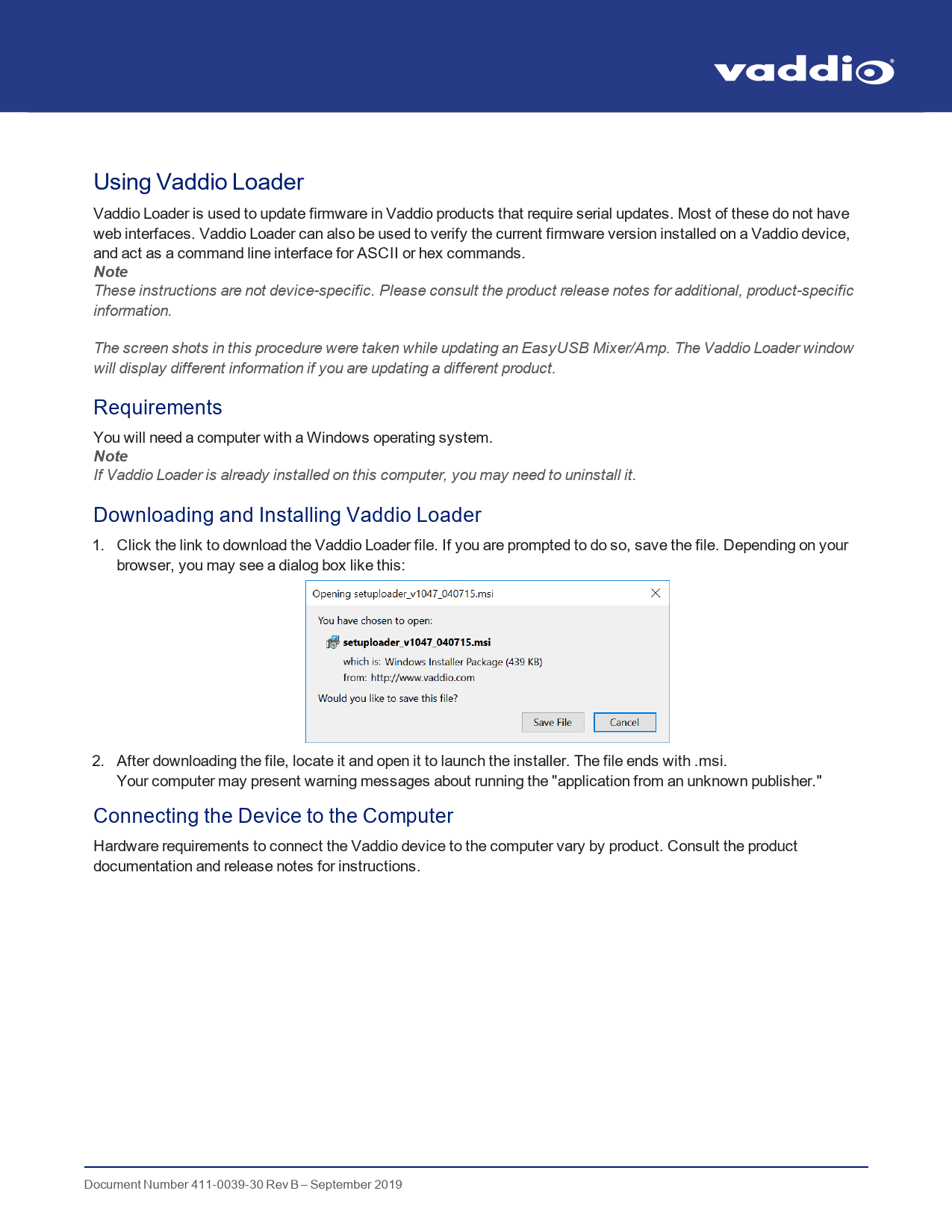
1. Click the link to download the Vaddio Loader file. If you are prompted to do so, save the file. Depending on your browser, you may see a dialog box like this:
2. After downloading the file, locate it and open it to launch the installer. The file ends with .msi. Your computer may present warning messages about running the "application from an unknown publisher."
Connecting the Device to the Computer
Hardware requirements to connect the Vaddio device to the computer vary by product. Consult the product documentation and release notes for instructions.
Document Number 411-0039-30 Rev B � September 2019

Using Vaddio Loader
Establishing Communication and Verifying Firmware Version
You will need to set up Vaddio Loader to recognize the device. Then you will need to verify that it's able to communicate with the device. To set up Vaddio Loader for the device: 1. Open Vaddio Loader. 2. Open the File menu and select the COM port your computer is using for the connection to the device.
3. Select the appropriate product type from the radio buttons � Control, Camera, Audio, or Discontinued � or select Part No. and enter the product's part number in the text box. This loads the appropriate product list.
4. Select the product to be updated from the product list.
2

Using Vaddio Loader
The way you verify communication depends on the type of product. Follow the procedure for the type of product you have: n Camera n CCU n Controller or audio product To verify that Vaddio Loader can communicate with a camera: 1. Open the File menu and select Serial Commands. The Serial Commands box opens. 2. In the Send Commands area, select Device Inquiry and Vaddio Version.
3. Select Send. 4. Check the firmware version shown in the first line of the response. If it is the same as the version
currently available on the website, you do not need to update the control firmware. The response does not show the motor or other firmware versions, you may still need to update firmware. 5. If you need to update the firmware, close this window to return to the main Vaddio Loader window. If you need to send commands to the device, leave this window open. To verify that Vaddio Loader can communicate with a CCU: 1. Open the File menu and select Serial Commands. The Serial Commands box opens. 2. In the Command text box, enter a command that will produce a change that you can visually verify, such as changing a CCU scene. Then select Send. Note The CCU does not send a response to Vaddio Loader. 3. Verify that the command had the expected effect on the CCU. 4. If you need to update the firmware, close this window to return to the main Vaddio Loader window. If you need to send commands to the device, leave this window open.
3

Using Vaddio Loader
To verify that Vaddio Loader can communicate with a controller or audio product: 1. Open the File menu and select Serial Commands. The Serial Commands box opens. 2. In the Command text box, enter a question mark. Then select Send. If the device is communicating
with your computer, the response box displays a reply; the reply depends on the device.
3. Check the firmware version shown in the first line of the response. If it is the same as the version currently available on the website, you do not need to update the firmware.
4. If you need to update the firmware, close this window to return to the main Vaddio Loader window. If you need to send commands to the device, leave this window open.
Now you're ready to send commands to the device or install a firmware update.
Sending Commands
1. If you are not already in the Serial Commands window, open the File menu and select Serial Commands.
2. In the Command text box, type a serial (RS-232) command. 3. Select Send. The response box displays a reply. When you are finished, return the device to service.
4

Using Vaddio Loader
Updating Firmware
If you have not already done so, download the release notes and firmware for the device(s) to be updated. The latest firmware for each device is on its product page on legrandav.com. Note If the firmware filename ends with .p7m, do not use Vaddio Loader. Install the firmware from the product's web interface, or from the web interface of a product that connects to and can push updates to the one you are attempting to update. For example, if the product is a TableMIC microphone, you can update it from a connected ConferenceSHOT AV camera or AV Bridge MATRIX PRO. In most cases, the firmware release notes include product-specific instructions for installing the firmware update. Read them; they may have important information. Some products have a special switch setting for installing firmware updates. Consult the product manual or the release notes and update instructions document for the correct switch setting. If you need to change the switch settings: 1. Disconnect power to the device. 2. Set the switch(es) appropriately. 3. Reconnect power to the device, and wait for it to finish booting. 4. Set up Vaddio Loader to recognize the device again. To install the firmware: 1. Click the Select Load File button, and select the firmware update file you downloaded. The filename and
timestamp populate into the blanks below the Select Load File button. 2. Double-check to be sure you have selected the right file. Then click Start. 3. During the update, the progress bar fills in and the activity indicators at the bottom right of the window
blink red and green. For a few controllers, the update may take up to an hour. Most products take under ten minutes.
Caution Do not disconnect power or the serial cable during the update. Interrupting the update can make the device non-functional. If this happens, contact Technical Support immediately. You may need to return the unit to Vaddio for service. When the update is complete, the progress bar shows 100% complete, the activity indicators stop blinking, and a message indicates that the update is complete.
5

Using Vaddio Loader
Returning the Device to Service
1. Disconnect the device's power, and disconnect it from your computer. 2. If you changed a switch setting to install the update, set the switch back to its previous position. 3. Some devices need additional actions (such as clearing memory or restoring factory defaults) before they return
to service. Consult the device's manual for instructions.
Vaddio is a brand of Legrand AV Inc.� Phone 800.572.2011 / +1.763.971.4400 � Fax +1.763.971.4464 � Email av.vaddio.support@legrand.com � Visit us at www.legrandav.com for firmware updates, specifications, drawings, manuals, technical support information, and more. �2019 Legrand AV Inc. Vaddio is a registered trademark of Legrand AV Inc. All other brand names or marks are used for identification purposes and are trademarks of their respective owners. All patents are protected under existing designations. Other patents pending. Commercial AV Brands Chief | Da-Lite | Middle Atlantic | Projecta | Vaddio