

File info: application/pdf · 110 pages · 22.49MB
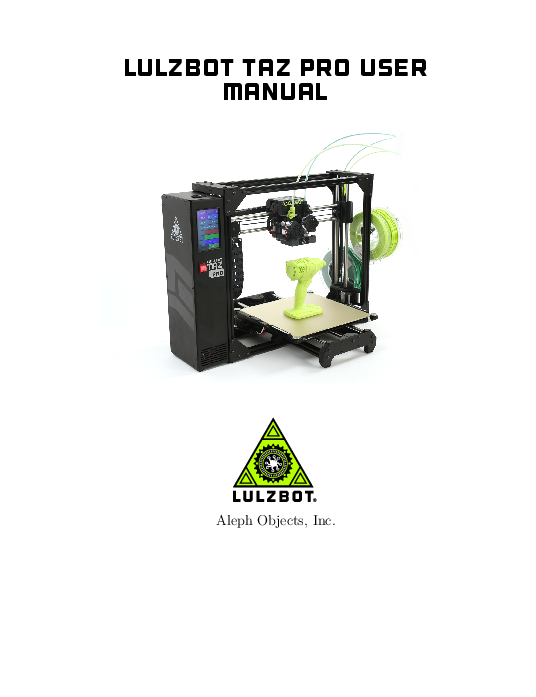
LulzBot TAZ PRO User Manual - LulzBot
READ THIS MANUAL COMPLETELY BEFORE UNPACKING AND. POWERING UP YOUR PRINTER. Hazards and Warnings. Your LulzBot TAZ 3D printer has ...
LulzBot TAZ PRO
LulzBot TAZ Pro User Manual by Aleph Objects, Inc. Copyright © 2019 Aleph Objects, Inc. Permission is granted to copy, distribute and/or modify this document under the terms of...
LulzBot TAZ PRO User Manual
Full PDF Document

If the inline viewer fails, it will open the original document in compatibility mode automatically. You can also open the file directly.
Extracted Text
LulzBot TAZ PRO User Manual
Aleph Objects, Inc.

LulzBot TAZ Pro User Manual by Aleph Objects, Inc. Copyright � 2019 Aleph Objects, Inc. Permission is granted to copy, distribute and/or modify this document under the terms of the Creative Commons Attribution 4.0 International Public License (CC BY-SA 4.0). Published by Aleph Objects, Inc., 626 West 66th Street, Loveland, Colorado, 80538 USA. LulzBot� and the LulzBot logo are registered trademarks of Aleph Objects, Inc. For more information, call +1-970-377-1111 or go to LulzBot.com and AlephObjects.com.

ISBN: ADD ISBN NUMBER ONCE SUBMITTED TO PRINT SHOP

Pro-20190514

Contents

WARNINGS Safety Information � � � � � � � � vii Read Me First! � � � � � � � � � � � � � � � � viii Hazards and Warnings � � � � � � � � � � � � � � viii Regulatory Compliance Statement Class B � � � � � � � ix

1 3D Printer Software

� � � � � � � 11

1.1 Software Overview � � � � � � � � � � � � � 12

1.2 Software Types � � � � � � � � � � � � � � 12

1.3 CAD and 3D Modeling Software � � � � � � � � 13

1.4 Alternative Printer Host Software � � � � � � 14

2 Cura LulzBot Edition � � � � � � � 15 2.1 Cura LulzBot Edition � � � � � � � � � � � 16 2.2 Recommended Print Settings � � � � � � � � � 16 2.3 View Options � � � � � � � � � � � � � � � 26 2.4 Monitor Screen � � � � � � � � � � � � � � 29 2.5 Starting Your First Print � � � � � � � � � 33 2.6 Removing Your First Print � � � � � � � � � 35 2.7 Custom Settings � � � � � � � � � � � � � 35 2.8 Quality Tab Settings � � � � � � � � � � � 36 2.9 Shell Tab Settings � � � � � � � � � � � � 39 2.10 Infill Tab Settings � � � � � � � � � � � � 44 2.11 Material Settings Tab � � � � � � � � � � � 49 2.12 Speed Settings Tab � � � � � � � � � � � � 54 2.13 Travel Tab Settings � � � � � � � � � � � � 56 2.14 Cooling Settings Tab � � � � � � � � � � � 57 2.15 Support Tab Settings � � � � � � � � � � � 59 2.16 Build Plate Adhesion Settings Tab � � � � � � 64

iii

CONTENTS

2.17 Dual Extrusion Settings Tab � � � � � � � � 65 2.18 Mesh Fixes Settings Tab � � � � � � � � � � 66 2.19 Special Modes Settings Tab � � � � � � � � � 67 2.20 Experimental Settings Tab � � � � � � � � � 69

3 Maintaining Your 3D Printer � � � � � � 75 3.1 Overview � � � � � � � � � � � � � � � � 76 3.2 Smooth Rods � � � � � � � � � � � � � � � 76 3.3 PEI Print Surface � � � � � � � � � � � � � 76 3.4 Hobbed Bolt � � � � � � � � � � � � � � � 76 3.5 Belts � � � � � � � � � � � � � � � � � 77 3.6 Hot End � � � � � � � � � � � � � � � � � 77 3.7 Nozzle Wiping Pad � � � � � � � � � � � � � 77 3.8 Bed Leveling Washers and Calibration Cube � � � 78 3.9 Cooling Fans � � � � � � � � � � � � � � � 78 3.10 Control Box � � � � � � � � � � � � � � � 78

4 Advanced Usage � � � � � � � � 79 4.1 Intro � � � � � � � � � � � � � � � � � 80 4.2 Changing nozzles � � � � � � � � � � � � � � 80 4.3 Bed Adhesion � � � � � � � � � � � � � � � 80

5 Troubleshooting � � � � � � � � 81 5.1 Troubleshooting � � � � � � � � � � � � � 82

6 Hardware and Software Source Code

� � � � 85

7 3D Printer Support

� � � � � � � 87

7.1 LulzBot � � � � � � � � � � � � � � � � � 88

7.2 Support � � � � � � � � � � � � � � � � � 88

7.3 Regional Phone Numbers � � � � � � � � � � � 88

7.4 Community � � � � � � � � � � � � � � � � 88

8 Warranty Information � � � � � � � 89 8.1 Warranty � � � � � � � � � � � � � � � � 90 8.2 Modification Warning � � � � � � � � � � � � 90

9 Contact Information

� � � � � � � 91

9.1 Support � � � � � � � � � � � � � � � � � 92

9.2 Sales � � � � � � � � � � � � � � � � � � 92

9.3 Regional Phone Numbers � � � � � � � � � � � 92

9.4 Websites � � � � � � � � � � � � � � � � � 93

iv

CONTENTS
Index � � � � � � � � � � � 95 Glossary � � � � � � � � � � 101
Notes � � � � � � � � � � � � � � � � � � � 105
v

List of Figures
2.1 Recommended Settings � � � � � � � � � � � � � 17 2.2 Options after selecting model � � � � � � � � � � � 20 2.3 Scaling your Model � � � � � � � � � � � � � � 21 2.4 Rotating your Model � � � � � � � � � � � � � � 22 2.5 Mirror Button Location � � � � � � � � � � � � � 23 2.6 Per Model Settings Location � � � � � � � � � � � 24 2.7 Custom Support Settings Location � � � � � � � � � 25 2.8 Extruder Assignment Location � � � � � � � � � � 26 2.9 View in Normal Mode � � � � � � � � � � � � � 27 2.10 View in X-ray � � � � � � � � � � � � � � � � 27 2.11 View in Layers � � � � � � � � � � � � � � � � 28 2.12 Viewing Cumulative Layers � � � � � � � � � � � 28 2.13 Viewing a Specific Layer � � � � � � � � � � � � 29 2.14 Monitor Button Location � � � � � � � � � � � � 29 2.15 Monitor Control Options � � � � � � � � � � � � 30 2.16 View in Custom Settings � � � � � � � � � � � � 36 2.17 Differences in Layer Height � � � � � � � � � � � 37 2.18 Different Support Options � � � � � � � � � � � � 60
vi

WARNINGS Safety Information

WARNING!
Read Me First!
READ THIS MANUAL COMPLETELY BEFORE UNPACKING AND POWERING UP YOUR PRINTER.
Hazards and Warnings
Your LulzBot TAZ 3D printer has motorized and heated parts. Always be aware of possible hazards when the printer is operational.
Electric Shock Hazard
Never open the electronics case when the printer is powered on. Before removing the electronics case cover, always power down the printer and completely turn off and unplug the printer. Allow the printer to discharge for at least one minute.
Burn Hazard
Never touch the hot end nozzle or heater block without first turning off the hot end and allowing it to completely cool down. The hot end can take up to 20 minutes to completely cool. Never touch recently extruded plastic. The plastic can stick to your skin and cause burns. The print surface can reach high temperatures that are capable of causing burns.
Fire Hazard
Never place flammable materials or liquids on or near the printer when it is powered on or operational. Liquid acetone, alcohol, or other chemicals may release vapors that are extremely flammable.
Pinch Hazard
When the printer is operational take care to never put your fingers near any moving parts including belts, pulleys, or gears. Tie back long hair or clothing that can get caught in the moving parts of the printer.
viii

REGULATORY COMPLIANCE STATEMENT CLASS B
Age Warning
For users under the age of 18, adult supervision is recommended. Beware of choking hazards around small children.
Modifications and Repairs Warning
At Aleph Objects, Inc. we respect your freedom to modify your LulzBot desktop 3D printer. However any modifications or attempted repairs that cause damage are not covered under the Warranty. Questions? Contact Technical Support by emailing support@lulzbot.com, or by calling +1970-377-1111.
Regulatory Compliance Statement Class B
Federal Communications Commission Statement
CAUTION: Changes or modifications not approved by the party responsible for compliance could void the users authority to operate the equipment. NOTE: This equipment has been tested and found to comply with the limits for a Class B digital device, pursuant to part 15 of the FCC Rules. These limits are designed to provide reasonable protection against harmful interference in a residential installation. This equipment generates, uses and can radiate radio frequency energy and, if not installed and used in accordance with the instructions, may cause harmful interference to radio communications. However, there is no guarantee that interference will not occur in a particular installation. If this equipment does cause harmful interference to radio or television reception, which can be determined by turning the equipment off and on, the user is encouraged to try to correct the interference by one or more of the following measures:
1. Reorient or relocate the receiving antenna.
2. Increase the separation between the equipment and receiver.
3. Connect the equipment into an outlet on a circuit different from that to which the receiver is connected.
4. Consult the dealer or an experienced radio/TV technician for help.
ix

WARNING!
Industry Canada Statement
Cet appareil num�rique de la classe B est conforme � la norme ICES-003 du Canada. This device complies with Canadian ICES-003 Class B.
Australian Communications and Media Authority Statement
This device has been tested and found to comply with the limits for a Class B digital device, pursuant to the Australian/New Zealand standard AS/NZS CISPR 22:2009 + A1:2010.
x

3D Printer Software

3D Printer Software
1.1 Software Overview
To operate your desktop 3D printer you will need to install a few software packages onto your PC. You will need a 3D printer host, an .STL to .GCODE generator, and optional CAD or 3D modeling software.
Cura LulzBot Edition is the recommended software for your LulzBot 3D printer. Download Cura LulzBot Edition by visiting LulzBot.com/Cura.
All of the following Free/Libre Software packages are available for GNU/Linux, Windows, and macOS. We highly recommend using these programs on GNU/Linux.
1.2 Software Types
Printer Hosts Printer Host software is used to control the 3D printer. The program not only allows you to manually move the printer along all the axes, but set temperatures manually, send commands, and receive feedback/error messages from the onboard electronics. We recommend that new users start with Cura LulzBot Edition as it includes a slicing engine as well.
Slicers These programs take the 3-Dimensional model (typically STL/OBJ/etc) and determine the 3D printer toolpath based on the options selected. The slicing engine uses the nozzle diameter, movement speeds, layer height, and other variables to determine the coordinates where it needs to move, and the rates at which it will do so. This information is exported out of the program as a GCODE file. The GCODE file is a plain-text file with a series of text-based codes and a list of the complete X,Y, and Z-axis coordinates used for printing the 3D model. We recommend that new users start with Cura LulzBot Edition as it includes the printer host as well.
12

1.3. CAD AND 3D MODELING SOFTWARE
1.3 CAD and 3D Modeling Software
LulzBot is not distributing a CAD or 3D modeling software package. However, multiple Free/Libre Software packages are available. Other common non-free CAD and 3D modeling software are also capable of exporting the required .STL files.
On some CAD and 3D modeling software you will need to select millimeters as the output unit. If possible it is best to build your 3D design in metric units rather than imperial units. Cura requires .STL/.OBJ files sized in millimeters. If an .STL/.OBJ with inches as units is loaded into Cura, the model will be scaled much smaller than expected. You can scale the model by 25.40 to compensate. The software listed below outputs millimeters as the unit by default.
FreeCAD
Website: http://www.freecadweb.org/ Although still in development, contains a full GUI for building CAD
models. FreeCAD is capable of creating simple to complex designs. STL files can also easily be exported for use with 3D printing. FreeCAD is available for GNU/Linux, Windows, and OS X. The latest development version is recommended.
OpenSCAD
Website: http://openscad.org OpenSCAD is different than FreeCAD in that it is script based. Rather
than using a GUI to generate CAD designs, OpenSCAD CAD designs are created using script based renderings. Users with programming experience would find this useful. Also, OpenSCAD uses a simple script language that is easy for users with little or no programming experience to learn.
Blender
Website: http://blender.org The most widely used Free/Libre Software 3D modeling software,
Blender is well documented with tutorials available on the Blender.org website as well as found online.
13

3D Printer Software
1.4 Alternative Printer Host Software
OctoPrint
Website: http://octoprint.org/ Octoprint is a printer host that uses a web-based interface to access and
control your 3D printer. Added web-cam functionality allows for time-lapse videos and a live stream. Octoprint will run on GNU/Linux, Windows, OS X based computers and can even run well on a Beagle Bone Black or a RaspberryPi (inexpensive business-card sized computers).
BotQueue
Website: https://www.botqueue.com/ BotQueue works well for those users wanting to have a web-based
multiple 3D printer operation running off a queuing system.
MatterControl
Website: http://www.mattercontrol.com/ MatterControl is another printer host that currently runs on
GNU/Linux, Windows, and OS X. It features 2D and 3D model viewing, a print queue, and print file organization and searching.
Source Files
Aleph Objects, Inc., the maker of the LulzBot TAZ 3D printer, completely supports Free Software, Libre Innovation, and Open Source Hardware. Along with the LulzBot TAZ 3D printer being a Free Software and Open Source Hardware design, it has been tested to work with 100% Free/Libre Software. Our source code and design files are hosted on:
LulzBot Download Server http://download.lulzbot.com LulzBot Development Server http://devel.lulzbot.com Aleph Objects Code Repository http://code.alephobjects.com
14

Cura LulzBot Edition

Cura LulzBot Edition
2.1 Cura LulzBot Edition
Installation and Setup
Cura LulzBot Edition is available for download on our website at https://LulzBot.com/cura. When installing, it is recommended to uninstall any previous versions of Cura you may have been using. Cura is designed for Fused Filament Fabrication (FFF) 3D printers. Fused Filament Fabrication is the term for the process of laying down successive layers of extruded filament to create a 3 dimensional object. As each layer of molten plastic is extruded into place, it fuses with the previous layer. When first opening Cura, you will be prompted to Add a Printer. This will consist of selecting your printer and what tool head you are using.
It is important to select the correct printer and tool head combination, as Cura uses custom profiles and machine settings based upon the specific printer and which tool head is installed.
� Download the appropriate installer for your computer operating system. Instructions on installation for each operating system are available at https://LulzBot.com/cura.
� Start Cura by launching it from your list of installed applications. If this is the first time that Cura has been used the "Add a Printer" window will open.
� Select LulzBot TAZ Pro from the Printer Section.
� Select TAZ Pro Dual Extruder from the Tool Head | Nozzle Diameter section.
� Select Add Printer.
2.2 Recommended Print Settings
After setting up your printer for the first time, you will be taken to the recommended print settings. This area allows you to quickly select a LulzBot tested and approved material and profile combination from the upper right hand corner.
16

2.2. RECOMMENDED PRINT SETTINGS
Figure 2.1: Recommended Settings
Material Selection
The filament type categories are separated by ease of use in the top right corner of the screen. From the Category drop down, select "All" to view all LulzBot approved and tested materials, or ease of use that you are comfortable with. The printer ships with a filament sample for the first print(s). Refer to the included Quick Start Guide for the proper "First Run" settings.
Selecting a Quick Print Profile
The profile quality settings can be found in the top right corner of the window, just below material selection. For most filaments, there will be High Detail, Standard, and High Speed options. Some of the more exotic filaments may only have a single profile. High Detail
Designed to give greater detail in finer and curved objects. This will have a smaller layer height, which will make each layer thinner, so that curves seem more natural and layers seem less noticeable. This
17

Cura LulzBot Edition
setting will also increase the total number of layers in the print, which will increase the overall print time.
Standard Designed to give a balanced resolution by increasing the layer height and print speeds. This will make the organic curves slightly more step-like than the fine setting, but it will reduce printing time.
High Speed Designed for fast prints where the overall model finish is not the primary concern. Most commonly used for quick iteration of designs when rapid prototyping.
Different Filament Manufacturers
Different filament manufacturers have different formulations for their specific brand. These different formulations may have different ideal settings. We highly recommend using the filament brands listed in Cura LulzBot Edition. Beautiful 3D printed objects start with reliable and consistent filament. The profiles included within Cura LulzBot Edition will be good starting points for other manufacturers; but they may require changes to various settings for ideal results.
Infill Selection
Infill represents how solid the inside of your object will be printed. Easily adjust infill by using the slider to drag the circle to your desired infill. 20% is a good starting point for most objects.
Printing Support Material
The support option will build up material underneath the portion extending in mid air, preventing gravity from making it droop. LulzBot 3D Printers are able to print models that have angles and overhangs, even without support material. This will depend on the overhang distance and angle of your particular model file, but a good rule of thumb is greater than 50 degree overhangs will require support. Turn this option on if sections of your model are extending in mid air. Where support is placed and at what angle, can be adjusted in advanced settings support.
18

2.2. RECOMMENDED PRINT SETTINGS
Build Plate Adhesion
This option is used to select different methods for helping ensure your model stays adhered to the build plate, and the extruder is prepared for printing. NOTE: In order to reach your full build volume, you will need to select "none" here. The build plate adhesion techniques use part of your build volume.
Skirt The skirt option prints a specified amount of material around the outside of your object. This prepares the extruder to ensure filament is flowing properly before actually beginning to print your part. It is normal for part of the skirt to not print, as it is priming the extruder for the actual part.
Brim Brim creates a single layer attached to and protruding around the base of your object. This increases the surface area of your print, preventing warping and ensuring adhesion to the build plate. This single layer thick line is then manually removed once the print is complete.
Raft The raft option will build up a layer of material underneath your object as a "platform" for the printed object to rest on. This setting can be helpful when the base of your model is not flat.
Load Model File
Select the 3D model you would like to print. Either use the Open Model button or select File > Open Model. Once the file has been loaded, you will see a 3D rendering of your object on the build platform. Select the model to see the various options.
Model Orientation
Move your model to change where it is printed on the build plate. Do this by left clicking on the model and dragging it to the desired location.
19

Cura LulzBot Edition
The blue, red, and green outlined corner of the 3D print bed view represents the front left hand corner of the build plate on your printer. You can view your model from different angles by holding down the right mouse button and dragging.
Figure 2.2: Options after selecting model Scale The Scale button displays the model dimensions, along with the ability to scale along the X Y or Z axes. Anything below the percentage 100 will reduce the objects size, while anything above the percentage 100 will increase the objects size. As a default, this is set to uniform scaling when first being selected. This will cause the X Y and Z axes to be scaled by the same amount when you make a change to any of them. To disable this, unselect the uniform scaling in the lower right hand corner.
20

2.2. RECOMMENDED PRINT SETTINGS
Figure 2.3: Scaling your Model Rotate The Rotate button will give you the ability to orient your model along all three axes. Once you click the rotate button, three circles will surround your model. The Blue circle will allow you to rotate around the Z-axis. The Green circle will rotate around the Y-axis. The Red circle will rotate around the X-axis. Cura defaults to 15 degree increments. Hold Shift to rotate by One Degree Increments. (Fig. 2.4, page 22)
21

Cura LulzBot Edition
Figure 2.4: Rotating your Model Lay Flat The Lay Flat option is available after selecting the rotate button. This will ensure that the flat portion of your print is securely attached to the bed. It is highly recommended to use this option after rotating your model in the Z direction, as it will help prevent potential adhesion issues during the print. Reset The Reset option is available after selecting the rotate button. This will return your model to the original orientation as defined by the CAD program when first loaded. Mirror The Mirror button creates a reversed / mirrored image of the selected object in either the X, Y, or Z axis directions.
22

2.2. RECOMMENDED PRINT SETTINGS
Figure 2.5: Mirror Button Location Per Model Settings The Per Model Settings allows you two print two or more objects with different slicing settings between the two. To activate this, first select which model you would like to modify settings on. Once selected, a drop down option will appear that contains options for "normal mode," "Print as support," "Don't support overlap with other models," "Modify settings for overlap with other models," and "Modify settings for infill with other models." After selecting the way you want to change your settings, click "Select settings."
23

Cura LulzBot Edition
Figure 2.6: Per Model Settings Location Custom Supports and Support Blocker Cura 3.6.3 and newer allows the ability to place custom supports where one wants, and block automatic supports where they are not needed. In order to use either of these features, you need to disable "Automatically drop models to the build plate" in "Prefernces > Configure Cura" section.
24

2.2. RECOMMENDED PRINT SETTINGS
Figure 2.7: Custom Support Settings Location After selecting your model and choosing your custom support option, you can now left click on areas of the model to place blocks. These blocks will either generate support in just that area, or prevent automatic support from being generated in that area depending on the choosen option. This action can also be performed by right clicking the object, and selecting which extruder you would like to print it. Please note that when working with the custom supports the blocks that are created won't extend all the way down to the build platform. This is normal, as long as you see the visible block connected to your model then the support was placed. You can check layer view before printing to ensure proper support generation/blocking. Extruder Assignment Near the lower left hand corner of the prepare screen will be two icons to easily assign an extruder to a model. Left click your model, and then select extruder 1 or extruder 2 to print with the respective tool head.
25

Cura LulzBot Edition
Figure 2.8: Extruder Assignment Location Multiply Object In the very lower left hand corner, there will be an easy button to multiply objects. Select your model, select the multiply object button, and determine the number of copies you would like. These will be automatically arranged on the build plate if they fit, and can be moved after the automatic placement. This action can also be performed by right clicking the object, and selecting multiply object.
2.3 View Options
Different modes allow you to view your model in a variety of ways. This can be helpful for spotting issues before the print even starts. In the top right hand corner, you can select your different view types.
Solid View
This is the standard view and shows the solid outer surfaces of the model. (Fig. 2.9, page 27):
26

2.3. VIEW OPTIONS
Figure 2.9: View in Normal Mode
X-Ray View
X-ray allows you to look inside of the object. This is helpful for detecting any manifold errors or other possible issues with your model. Problem areas will be highlighted in red. (Fig. 2.10, page 27)
Figure 2.10: View in X-ray
27

Cura LulzBot Edition
Layer View
To view the tool path of your print head and to ensure no skipped layers or gaps, use this option. You can select different color schemes to highlight different portions of your print. For the rest of these photos and examples, we will be using "Line Type" color scheme.
Figure 2.11: View in Layers
Figure 2.12: Viewing Cumulative Layers 28

2.4. MONITOR SCREEN
Figure 2.13: Viewing a Specific Layer
2.4 Monitor Screen
The monitor screen will allow you to connect to and control your 3D printer. From this screen you can heat the hot ends and bed, move all axes, send custom gcode commands, and begin prints. The monitor tab is located at the top of the prepare screen.
Figure 2.14: Monitor Button Location
29

Cura LulzBot Edition
After switching to the monitor tab, the right hand side of the screen will change and new options will be available to control your 3D printer. There are 4 main sections that comprise of Temperature Control and Monitoring, Active Print Information, Manual Controls, and finally Predefined Commands.
Figure 2.15: Monitor Control Options
Temperature Control and Monitoring
In the temperature control and monitoring section you can select each hot end's temperature and the bed temperature. By selecting the"Preheat" buttons with no temperature defined in the boxes, it will automatically set the temperature to whatever is currently set in the quality profile. If you would like to set a custom temperature, that number can be entered into the box and select preheat.
The temperature graph below the preheat options will report your current hot end and bed temperatures.
Active Print
The active print area will report statistics on the status of the current print job. This reports the File Name, Time Printed, Estimated Time Remaining, and Final Print Time. Cura LE uses acceleration and jerk
30

2.4. MONITOR SCREEN
settings to estimate the print time, be sure to update the stock settings if you have modified your firmware.
Manual Control
The manual control section will allow you to Connect to your 3D printer, control movement in all axes, heat all components, and send custom gcode commands directly to the machine. When your printer is plugged in to your computer and powered on the connect, disconnect, and console buttons become available.
Connect, Disconnect, Console � The connect button will allow you to communicate with and control your 3D printer. All commands in the Monitor Tab will require you to be connected before the printer will respond.
� The Disconnect button will terminate the connection with the current machine.
� The Console button will open a window that monitors communication between Cura LE and your 3D printer. This console can also be used to send custom gcode commands to your printer. See http://marlinfw.org/meta/gcode/ for a full list of gcode commands and their functions.
Movement, Heating, Extrusion After first connecting to your printer, you will be required to home all axes before you are allowed to manually move parts of the printer. This is to ensure the printer knows where its minimum positions are, and prevent collisions with the frame and/or bed. You will notice multiple input boxes labeled Move Length, Select Extruder, Extrusion Amount, and Select Temperature.
� Move Length allows you to specify a distance you would like to move. After inputting a distance select the positioning arrow corresponding to axis you would like to move.
31

Cura LulzBot Edition
� Select Extruder This option allows you define which extruder you will be using when selecting the extrude button.
� Extrusion Amount Input the amount of filament you would like fed into the print head when selecting the extrude button.
� Select Temperature Set a temperature for the hot end 1, hot end 2, or the bed. If setting a temperature for a hot end, be sure you have the correct hot end selected before pushing "heat extruder".
Predefined Commands
Cura LE comes with predefined commands specific to your printer. After connecting, selecting one of the buttons will perform the following options.
� Preheat nozzle will automatically heat your hot ends to the set temperature contained within you printing profile.
� Wipe nozzle will initiate the clean nozzle command. This will home your printer, heat your nozzles to the profiles specified wipe temperature, and clean each nozzle on the wiper pads.
� Cool nozzle will turn off the heat to both hot ends when selected.
� Preheat bed will set your bed temperature to what is defined in your quality profile.
� Cool bed will turn off the power going to your heated bed, allowing it to cool to room temperature.
� Cold pull will heat your hot end to the soften temperature set in your profile, and then remove the filament from your hot end.
� Motors off will turn off the motors for the X axis, Y axis, and Extruder. Your Z axis motors will remain engaged to prevent the X axis gantry from falling while powered on.
� Level X-axis will raise your print head to its maximum Z height, engaging both the left and right hand limit switches at the same time. If your X-axis is unlevel, you will hear a brief skipping sound as it levels itself.
32

2.5. STARTING YOUR FIRST PRINT
2.5 Starting Your First Print
Once you have your model, profile, and filament loaded, it is time for your first print! Refer to the Quick Start Guide included with your 3D printer. A PDF version is available at LulzBot.com/downloads.
Printing from USB Cable
Connect your 3D printer to a computer using a USB cable, power it on and select the Monitor button at the top of the main screen. While in the monitor screen select the connect button. Once connected, you will have a notification in the top right corner of the screen that states "Connected via USB."
Once you are connected, select "Print" from the lower right hand corner. This will begin the process of heating your hot ends, cleaning your nozzles, probing the corners, and starting the print.
USB Printing for Multiple Printers If you plan to run multiple printers from one computer, you will want to disable automatic port detection and manually specify which port to connect to. This can be done through Settings > Printers > Manage Printers > Machine Settings > Port > (select desired port).
Pausing Mid-Print
You will notice after you click the print button through Cura, the pause button to the right will become active. When selected, it will pause the print and automatically move your print head away from your object. This will allow color changes or material changes mid print.
Automatic Bed Leveling
Before each print your TAZ Pro will go through a wiping and a probing procedure in order to determine the slope/tilt of your bed. If your nozzle is dirty or not cleaned properly, this will prevent the printer from being able to create an electrical contact with the corners. Your TAZ Pro will automatically retry the wiping and probing procedure if this happens, up
33

Cura LulzBot Edition
to a maximum of three times. If three consecutive wipes and probes have failed, the printer will stop and a warning will sound. When this happens, clean you nozzles manually while at temperature using the Scotch-BriteTM pad included in the tool kit. If this is happening consistently, you should replace the wiping pad and/or adjust your wiping and probing temps for that specific filament.
Printing from USB Stick
While in the prepare screen, load your model into Cura with the proper filament and profile selected. Next, insert the included USB stick into your computer. In the lower right hand corner of the prepare screen, a drop down option will appear near "save to file." Choose "save to removable drive" and name your .gcode file appropriately. Once saved, select "eject" from the pop up window.
Start Print
Thanks to the TAZ Pro's automatic bed leveling system, it is now time to kick off the print! Insert the USB Stick into the printer. Through the LCD screen go to: USB Drive > Select Desired .gcode File > Print. Your TAZ will then go through the process of heating, cleaning, and probing your bed before starting the print.
Recommended Temperatures and Bed Preparation
When generating GCODE, it may be beneficial to adjust temperatures depending on your specific model file or filament. We have also found that for certain materials applying unscented glue stick to the print surface is required for successful bed adhesion and/or part release. Glue stick can also be added to help first layer adhesion on any material, and may be helpful for objects with a larger surface area. You can find our recommended temperature ranges and adhesion techniques below.
34

2.6. REMOVING YOUR FIRST PRINT

Filament Type

Bed Preparation

Nozzle Temp Bed Temp Removal Temp

ABS

Clean PEI

245-270

110

50

Nylons

Gluestick

240-270

65

45

TPU's

Gluestick+PEI/Clean Glass 225-240

60

25

Polycarbonate

Gluestick

250-295

60-110

45

PETG

Gluestick

235-265

80

45

PLA

Clean PEI

215-235

60

45

Soluble Support

Clean PEI

200-230

60

45

PolyCast

Clean PEI

215-235

60

45

Table 2.1: Recommended Temperatures (C)

2.6 Removing Your First Print
After your first print has finished, wait for the print surface to cool to the recommended print removal temperature. Your parts will be easier to remove if you allow your heated bed to cool down to optimal temperature. Your print bed will move forward once the model is ready to be removed.
Once your heated bed has cooled, use the blue handled knife that was included with your toolkit to remove the item. Carefully insert the blade of the knife between your print and heated bed. Once underneath the part rotate the blade lifting with the sharp edge into the part, to gently pop the piece off your plate.
2.7 Custom Settings
Custom Settings should not be used until enough experience with 3D printing has been gained to feel comfortable with all aspects of the printer and its operation. Recommended Mode will provide good results for most models. The first time Cura is launched it will default to the Recommended Settings interface. In order to have more control of your slicing and GCODE generation, you can switch to Custom Settings.
First choose your desired Quick Print profile, this will then copy over the current settings when changing to Custom Settings mode. Select

35

Cura LulzBot Edition
the Custom button next to the recommended button. The following drop down tabs will now be available: Quality, Shell, Infill, Material, Speed, Travel, Cooling, Support, Build Plate Adhesion, Dual Extrusion, Mesh Fixes, Special Modes, and Experimental.
Figure 2.16: View in Custom Settings
Setting Visibility
When first switching to custom settings, some options will be hidden by default. To select which options are available, go to Settings > Configure Setting Visibility You can now select which settings you would like available and which ones you would like hidden. This can be helpful for new users, or when teaching others the basics of 3D printing. In order to view all settings, select the checkbox in the top left near "check all." For the remainder of this manual, we will assume every option is visible.
2.8 Quality Tab Settings
This section will allow you to modify and adjust multiple settings that are dependent upon nozzle shape and diameter for specific parts of your print.
36

2.8. QUALITY TAB SETTINGS
Layer Height The thickness of each printed layer is known as the "Layer Height". The smaller the layer height, the smoother curves will appear. Smaller layer heights will also increase print time, as it will take more layers to complete the object.
When you have different layer heights between extruder 1 and extruder 2, the difference will be averaged. This is required as when printing each nozzle needs to print at the same height to avoid collisions with your object.
Figure 2.17: Differences in Layer Height Initial Layer Height The initial layer height will be the thickness of your first layer being printed. A larger layer height will help ensure adhesion of your part, and help prevent it from coming loose mid print. We have the default value set to 0.4 mm for every quality profile, to prevent adjustments to Z offset when swapping between quality profiles. After the first layer is complete, the thickness will return to the "layer height" set within the profile.
37

Cura LulzBot Edition
Line Width The line width will represent how wide the extruded plastic will be. This setting is set to your nozzle diameter by default. It is impossible to extrude a line that is skinnier than your nozzle diameter, and as such the default value is set to your nozzle diameter (0.5 mm.) You can increase line width up to 1.25 mm with the stock nozzle, as this represents the width of the "flat" portion of your nozzle tip. With other nozzles installed, these numbers will vary.
There are several different areas in which you can apply line width adjustments exclusively.
� Wall Line Width will alter the width of the extrusion on "walls" only. These will be the outermost vertical shells that comprise of your model.
� Outer Wall Line Width will change just the outer most walls line width. These can be visualized as the red areas of your model in "Layer View."
� Inner Wall Line Width will change just the inner most walls line width. These can be visualized as the green areas of your model in "Layer View."
� Top/Bottom Line Width will change the top and bottom layers line width. This can be helpful for fine tuning surface quality on the final object.
� Infill Line Width will change how wide your internal structure lines are extruded for the top and bottom thickness setting. Increasing this can be helpful for strength, but will use more material.
� Skirt/Brim Line Width will change how wide your skirt and/or brim are printed depending upon your selection.
� Initial Layer Line Width will determine how wide your initial layer is placed onto the plate.
38

2.9. SHELL TAB SETTINGS
Backlash Fading Distance Backlash is the amount of play in a mechanical system when changing directions. During the probing sequence before each print, your printer will measure the number of motor steps it takes to break electrical contact when raising the tool head. These steps are then used to determine backlash in the Z direction. This measurement is used to add additional steps when making movements in the Z direction to compensate for your specific machines backlash. After time and movements in the Z direction, this backlash will no longer be present and can be faded out.
The fading distance will determine over how many millimeters in Z to "fade" the backlash compensation. For example, if you are printing in 0.25 mm layer heights, and set fading distance to 1 mm you will use:
� 100% backlash correction on the first layer
� 75% backlash correction on the second layer
� 50% backlash correction on the third layer
� 25% backlash correction on the fourth layer
� 0% backlash correction on the fifth and subsequent layers. Backlash correction is turned on at 100% for the entire print by default by setting the layers to "99999." This is very helpful when printing at extremely small layer heights (less than 0.1 mm.) If you would like to use turn off backlash compensation, set this value to 0.
2.9 Shell Tab Settings
This section will allow you to change all of the settings used to generate the outer portions of your model. This includes inner walls, outer walls, top surface and bottom surface settings.
Wall Extruder The wall extruder option will allow you to specify which nozzle will be used for the inner and outer walls. This option is only available while using the Dual Extruder, and can be used to force specific material combinations for the outer shell of your object.
39

Cura LulzBot Edition
Wall Thickness The wall thickness setting is used to define how thick your outer shell is. When setting a wall thickness in millimeters, it should always be a multiple of your nozzle diameter or wall line width if you have made adjustments to that setting. If this is not an even multiple, Cura will attempt to match the distance as close as possible and may lead to undesired results.
The wall line count will define the number of walls to be printed. This will pull information from your nozzle diameter and wall line width, to automatically override the wall thickness number.
Outer Wall Wipe Distance The outer wall wipe distance will insert a short travel path into the inner wall before making a travel move. This is intended to allow any ooze from the nozzle to be caught and distributed on the interior of a print, giving a cleaner surface. Half the nozzle diameter is a good recommended starting point.
Top Surface Skin Layers The top surface skin layers allows you to make custom adjustments to just your top layer. When activated you can adjust your top pattern, the number of top layers, the infill pattern, and the infill direction. By changing these variables you can get different results for the top of your model to meet mechanical and aesthetic requirements.
Top/Bottom Extruder, Thickness, Pattern The top/bottom extruder option allows you to specify an extruder for printing the top and bottom layers. This can be helpful depending on the needs of the print, but usually will not require adjustment. In this section, you can also individually specify the top and bottom thickness, pattern, and direction of your model. You have the option to set a thickness in mm, or define it by the number of layers. As with the top surface patterns, you can adjust the infill pattern and angle for these layers here.
40

2.9. SHELL TAB SETTINGS
Outer Wall Inset The outer wall inset will allow you to print your outer wall skinnier than the nozzle of your diameter. This is accomplished by slightly overlapping the inner wall by the amount defined here.
Optimize Wall Printing Order This setting will attempt to optimize your tool path, speeding up the overall duration of the print. This will create a different order of operations on how your model is created, to reduce time. This can lead to quality concerns with alternating outer walls, and should only be used when that is not of concern.
Outer Before Inner Walls Printing the outer walls first can improve X/Y dimensional accuracy. As you will be printing the outer walls first, this setting can lead to cosmetic defects on the outside of your model from extra or missed extrusion after a travel move.
Alternate Extra Wall The alternate extra wall option will add an extra inner wall every other layer. This gives the infill very secure adhesion with the inner and outer walls, greatly improving strength. This setting will add additional print time to your model.
Compensate Inner/Outer Wall Overlaps While generating a tool path for inner and outer walls, sometimes an overlap will occur depending on model geometry. By activating inner and/or outer compensate overlaps it will slightly reduce extrusion in this area, preventing too much material from building up.
Minimum Wall Flow After activating compensation for inner and/our outer wall overlap, a minimum wall flow percentage setting will appear. This sets a minimum
41

Cura LulzBot Edition
flow percentage when compensating to never go below, helping ensure the strength of your final object.
Fill Gaps Between Walls This option will attempt to fill small gaps that are generated depending upon model geometry. For example, if you have a 2.2 mm cube, with wall thickness set to 1 mm you will have a 0.2 mm gap in the center of the cube. With this setting activated, it will fill the 0.2 mm gap providing stronger parts. With this setting disabled, it will leave the space empty which may produce more accurate parts.
Filter Out Tiny Gaps Filter out tiny gaps will try to identify any mesh errors, or tiny gaps in the outer section of your model. This reduces starts and stops, and helps the outer surface finish of your print.
Print Thin Walls The print thin walls option will attempt to print sections of your print that are smaller than your nozzle diameter in the X/Y plane. It is not recommended to use this setting on objects that are less than 1/2 your nozzle diameter.
Horizontal Expansion The horizontal expansion setting will add a set offset to your model object. Positive values can compensate for too large of holes, while negative values can compensate for too small of holes. You can set this for the entire print, or specifically for the initial layer.
Z Seam Alignment As your printer builds up layer by layer, there is a start and stop point to each layer before moving up in Z. Where this location happens on your outer most shell is referred to Z seam alignment. You have four separate options to choose from while defining this location:
42

2.9. SHELL TAB SETTINGS
� The Shortest option will set the Z seam location to the shortest path possible. This can speed up print time while leading to a systematic Z seam depending upon model geometry.
� The Random option will generate a random start and stop location for each layer, causing the "seam" to be broken up between layers.
� The Sharpest Corner option will place the Z seam along a corner, allowing it to be less noticeable.
� The User Specified selection will allow you to specify a X/Y coordinate on the bed plate. The Z seam will be placed as close to this location as possible when making Z-axis moves.
Seam Corner Preference Cura will automatically try to set up the Z seam on a corner, unless user specified is selected in alignment. The seam corner preference setting allows a user to define how a seam is hidden, without needing to manually define a coordinate. You have four options with this setting:
� The None option will ignore the corners of your objects while setting up Z seams.
� The Hide Seam option will attempt to put your Z seam on an inner corner, making it harder to see.
� The Expose Seam option will attempt to put your Z seam on an outer most corner, making it more visible.
� The Hide or Expose Seam option will allow Cura to decide to place the seam on an inner or outer corner. Cura will choose whichever option is quickest to complete the print.
Ignore Small Z Gaps Ignore small z gaps prevents excessive processing time while generating gcode and printing. If there is a small gap in the Z direction of your model, a top and bottom skin can be generated in the gcode. Checking this option will prevent the additional skin from being generated.
43

Cura LulzBot Edition
Extra Skin Wall Count Extra skin wall count will add additional walls for your top and bottom layers only. This is used as a cosmetic effect, and can also be used to help top layers when using sparse infill.
Ironing Ironing is a process where your nozzle will go over a horizontal top layer, performing a smoothing action giving cleaner top surfaces. After activated, several new options will appear.
� Iron only highest layer will prevent ironing from occurring on every horizontal layer, and only iron the topmost horizontal layer.
� Ironing pattern will allow you to specify how your horizontal layers are ironed. It is recommended to check layer view after selecting to ensure the ironing pattern fits your needs.
� Iron line spacing determines how far apart the lines are when "ironing" your top layers.
� Ironing flow allows you to extrude slightly while ironing. This can help fill any gaps in the top layer, but can be detrimental if set too high.
� Ironing inset will allow you to determine a distance to avoid from the outer edge of your object. This prevents material from being pushed over the wall of your object.
� Ironing speed allows you to specify a speed at which the ironing will occur.
2.10 Infill Tab Settings
The infill section in custom settings controls how the inner portions of your model are printed. Here you will find details on how each setting will affect your overall print.
44

2.10. INFILL TAB SETTINGS
Infill Extruder
On a dual extruder printer, you can specify which hot end will be used for infill of the object. If you select "not overridden" it will print the infill for each object with the assigned extruder
Infill Density
You can define an infill percentage, and Cura will automatically place infill at the proper spacing to meet this percentage. Cura will follow whatever pattern you have selected on infill pattern. Alternatively, you can specify a line distance and it will ignore the infill percentage setting.
Infill Pattern
The infill pattern will determine the path of how your infill is generated. There are several different patterns to choose from, offering different benefits and drawbacks.
� Grid will create infill by making a continuous line, bouncing off each wall at 45 degree angles. This is one of the faster infill types, as there are no wasted moves on travel are implemented.
� Lines will create the same patter as grid, however it generates them differently. It will generate all infill lines at 45 degree angles to your wall in one direction, and will then generate all perpendicular lines the other direction. This constrains travel moves along the inner wall.
� Triangles will create a triangular pattern of infill. Similar to grid, it will "bounce" of interior walls to a new angle, preventing any superfluous travel moves.
� Tri-Hexagon generates a hexagon infill pattern, with a triangle attached to the edge of each hexagon.
� Cubic generates 3-dimensional hexagons, with pyramids filling in the gaps. This helps increase strength, without adding much to overall print time.
45

Cura LulzBot Edition
� Cubic Subdivision generates an infill pattern similar to Cubic, however it leaves the center of your model at a lower density. This pattern helps support walls, while decreasing print time by printing less material.
� Octet generates a 3D cube pattern with the cubes standing on a corner relative to the build plate. This pattern helps increase strength by generating an internal 3 dimensional object, while keeping print time down by only printing in straight lines.
� Quarter Cubic generates a similar pattern to octet, however it generates rectangles on its corner opposed to cubes.
� Concentric builds internal walls, that are not connected to your outer walls. This infill will help save material, but may leave the outer walls of your final object weaker.
� Zig Zag will create an grid infill pattern similar to lines. However instead of traveling along the interior wall, it will extrude during this move increasing strength on your final object.
� Cross will generate a vertical "X" pattern within your infill. This pattern has a lot of stops and turns, and will increase your print time of your final object.
� Cross 3D will generate a 3 dimensional "X" pattern within your object. As with cross fill, the starts and stops will increase total print time of your object. The 3 dimensional crosses will also provide more strength than the standard cross pattern.
� Gyroid generates a wave pattern that rotates rotates along your inner walls as your object builds up. This generates 3 dimensional shapes for increased strength, while being very pleasing aesthetically.
Connect Infill Lines
This setting will add extra extrusions along the interior walls of your object. This helps increase strength of your object, and helps prevent infill lines from being seen through the outer shell of your objects.
46

2.10. INFILL TAB SETTINGS
Infill Line Directions
This setting will allow you to define the direction of infill lines globally. You will be required to leave the brackets surrounding your input for proper functionality. It is recommended to check layer view after updating this to ensure desired results.
Infill Offset Directions
This setting will allow you to change how your offset is placed in either the X or Y directions. This can be helpful if you have a small part, and would like to ensure infill is centered in that section.
Infill Line Multiplier
This option will multiple how many infill lines are generated internally. By default your infill will generate one line, multiplying this by 2 will make it 2 lines, side by side, in the same pattern. This can increase part strength at the cost of additional material and print time.
Infill and Skin Overlap Percentage
Infill and skin overlap percentage define the amount of overlap with infill based upon nozzle diameter. Infill overlap will define the amount of infill that is extruded into your inner wall, while skin overlap will determine how much infill is extruded into the outer wall. Setting these too high will show infill patterns through your outer wall. You can define each section by nozzle percentage overlap, or by a specific distance.
Infill Wipe Distance
This setting will determine how far into your infill your nozzle will move and the end of an infill layer. This will deposit any material on the interior of the model, and prevent drippage on the outside of your model.
47

Cura LulzBot Edition
Infill Layer Thickness
You can specify how thick your infill layer lines are here. It is important to always keep this a multiple of your layer thickness. If this is not a multiple of layer height, your nozzle can drag through already printed parts.
Gradual Infill Steps and Step Height
These settings modify how infill is generated from base of your object towards the top of your object. The infill steps will determine how many times your infill density is halved when moving down from the top of your object. The step height will determine how "thick" each section is before being halved.
Infill Before Walls
This option will force your printer to build the infill section of the layer before printing the inner and outer walls. This is helpful for increasing adhesion and strength to the outer shells, but can lead to cosmetic defects on the outer shell.
Infill Support
Infill support will help save material by only printing infill where the tops of objects require it. While saving time and material, the final object will be weaker and not uniformly strong.
Skin Removal Width
Skin removal width will limit how wide your inner and outer walls are on angled objects and top/bottom layers. This can help reduce material costs, but can lead to weaker objects and cosmetic defects depending on model geometry. This can be set for all portions of the model, or just top and/or bottom layers.
48

2.11. MATERIAL SETTINGS TAB
Skin Expand Distance
The skin expand distance setting will force your inner and outer walls into the infill, increasing adhesion and strength. You can specify this for the entire object, or just for the top and/or bottom layers.
Maximum Skin Angle for Expansion Defining the angle and width for skin expansion can refine where and when the extra material is being laid down. A 90 degree will refer to a vertical setting, while 0 degrees will represent a horizontal surface. You can also define where this happens based upon minimum wall thickness.
2.11 Material Settings Tab
The material settings tab will allow you to control how your 3D printers hot end(s) and extruder(s) deposit filament. This includes all temperatures, retractions, and flow rate for different portions of your print.
Default Printing Temperature
The default printing temperature is defined by the material, and serves a good base point for new profiles.
Printing Temperature
The printing temperature will override default printing temperature setting. Reduce this setting if you are seeing a lot of stringing on final prints, and increase this setting if you are getting weak layer adhesion.
Probe Temperature The probe temperature determines at what temperature your printer will probe the 4 corners before each print. The goal of this setting is to be hot enough to account for metal expansion when probing, but cool enough to prevent material from dripping out. If you are seeing multiple consistent probe failures with a specific filament, this will be a setting to adjust.
49

Cura LulzBot Edition
Soften Temperature Before each print, your printer will remove the filament from the hot end before wiping and probing the nozzle. This setting determines at what temperature the filament is removed from your hot end before that process. The goal is to have the filament hot enough to remove from the hot end, but cool enough to prevent dripping during the cleaning and probing process.
Wipe Temperature The wipe temperature will determine what temperature your hot end cleans itself on the wiping pad before each print. The goal is to be hot enough to clean the nozzle, without damaging the wiper pad. We recommend keeping this setting at 200 Celsius or lower to help the life of the wiper pad.
Printing Temperature Initial Layer
In order to help part adhesion, it can sometimes be helpful to print the first layer of your object at a higher temperature than the rest of your object. You can specify this temperature here. A good rule of thumb will be to keep the initial layer 5 Celsius hotter than the rest of the print.
Initial Printing Temperature
During dual extrusion, your inactive nozzle will cool down to standby temperature. As the printer comes closer to switching nozzles, it will begin to heat from standby temperature to initial printing temperature before moving to printing temperature. It is recommended to keep initial printing temperature 5 Celsius lower than printing temperature.
Final Printing Temperature
As your print progresses during dual extrusion, there will be a time when your printer swaps to its other nozzle automatically. Before switching to the new nozzle, your active nozzle will begin to cool to your final printing temperature. As with initial printing temperature, it is recommended to keep this temperature 5 Celsius below normal printing temperature.
50

2.11. MATERIAL SETTINGS TAB
Extrusion Cool Down Speed Modifier
The extrusion cool down speed modifier can be used to adjust heat to your hot end when extruding large amounts of plastic. This will send more power to the heater cartridge, prevent temperature dips and extrusion issues when printing at high speeds and/or high layer heights.
Build Plate Temperature
The build plate temperature will be used to help keep your object adhered to the bed during the printing process. In general, keeping this set at glass transition temperature for your specific filament is recommended.
Part Removal Temperature The part removal temperature will define at what point your bed moves forward, indicating that your printed part is ready to be removed from the build plate. In general, you DO NOT let the build plate cool fully to room temperature. This can cause bubbling in your PEI sheet as the part contracts, increasing the rate at which you need to replace that consumable.
Keep Heating This option will prevent your heated bed from cooling down after a print, and will maintain your part removal temperature. We highly recommend keeping this setting activated, as it will extend the life of your PEI print surface.
Build Plate Temperature Initial Layer More often than not, it is beneficial to have an initial bed temperature hotter than the rest of the print to help adhesion. Set the bed temperature to the desired temperature for the duration of the print, and adjust the initial layer accordingly here.
Diameter
The diameter setting is used by Cura to calculate exactly how much filament is being distributed during the printing process. In order to get
51

Cura LulzBot Edition
the most accurate prints, you can update this setting by measuring your filament diameter in multiple places and inserting the average here. We recommend starting with the filaments included within Cura LE, as these measurements have already been taken.
Flow Rate
The flow rate can be set in order to account for die swell. A number above 100% will have your printer extrude more filament, while a number below 100% will reduce the amount of filament being extruded. Increasing the initial layer flow rate can help first layer adhesion, and prevent your object from popping off mid print without affecting quality results of the rest of the object.
Retraction
Retraction settings control how the filament is pulled out of your hot end when it is not extruding. Getting these settings just right will prevent leaked filament from falling on your part during travel moves and dual extrusion.
Enable Retraction Enabling retraction causes the filament to be backed out of the hot end when not in use. This prevents filament from leaking on your part during travel moves, and when the hot end is not in use. Some more flexible filaments can be more reliable with this turned off, as it will prevent jamming and kinking of the filament within the hot end.
Retract at Layer Change Retract at layer change will have your extruder remove filament from the hot end when moving up in layers, and positioning to the beginning of the next layer.
52

2.11. MATERIAL SETTINGS TAB
Retraction Distance The retraction distance will determine how much filament is removed from the hot end during regular retraction moves. A good general starting point is between 1 mm and 3 mm.
Retraction Speeds The retraction speed setting will determine at what speed you retract filament from your nozzle, and what speed that filament is re-inserted into the nozzle during normal retraction moves. In general, a speed from 10 mm/s to 25 mm/s is good for most filaments. You can specify separate retract and prime speeds using retraction retract speed and retraction prime speed.
Retraction Extra Prime Amount
Retraction extra prime amount will add extra material when priming the nozzle after a retraction. This can be helpful for materials that are springy, and can compress when attempting to re-prime. In general, this setting should be left at 0.
Maximum Retraction Count
The maximum retraction count limits how many retractions can be performed during the minimum extrusion window. These settings prevent multiple retraction moves over the same piece of filament, reducing the likelihood of a strip out while extruding.
Standby Temperature
During dual extrusion, your inactive hot end will be set to a lower standby temperature to prevent oozing and dripping. This temperature should be close to your soften temperature, but can be adjusted as needed to prevent oozing.
53

Cura LulzBot Edition
Nozzle Switch Retraction Distance and Speeds
The nozzle switch retraction distance and speeds will be applied when switching between nozzles during dual extrusion printing. The nozzle switch retraction speed, prime speed, and retraction distance can be tweaked independently from standard settings. Adjusting these will help prevent dripping and color bleed with multiple materials and colors.
2.12 Speed Settings Tab
The print speed settings tab will allow you to control how quickly different portions of your print are produced. Just like a motor vehicle, your car may be able to drive 120 mph but it will handle better at 30 mph. The general rule of thumb is print slower for better results.
Print Speed
The print speed setting will be generic default. If there is no speed specified for a specific section in your profile, it will default to whatever is set here.
Infill Speed The infill speed setting will determine how quickly your infill is laid down. In general this setting can be faster than the wall speeds, as any printing defects here will be covered by your outer shell. Moving too quickly here can prevent infill from adhering properly, causing weaker parts.
Wall Speeds The wall speed sections will define how quickly the vertical walls of your model will be laid down. Having a slower outer wall will improve cosmetic results. Having your inner wall set to a speed between outer wall and infill will allow for better infill to wall adhesion, thus stronger parts.
Top/Bottom Speed The top and bottom speed setting will control how quickly your top and bottom layers are laid down. Having a slow top and bottom layer helps adhere your object to the bed, while giving more detailed top surfaces.
54

2.12. SPEED SETTINGS TAB
Initial Layer Speeds You can set your initial layer speed separately to help ensure a good bond with the plate on the first layer. A slower initial layer travel speed will help ensure your nozzle does not run into the print, releasing it from the bed.
Skirt/Brim Speed Here you can define how quickly your skirt and brim are being placed down. As this setting primarily affects the first layer, it is recommended to keep this the same as your first layer speed to help ensure adhesion.
Maximum Z Speed This setting can limit how quickly you are allowing your printer to move in the Z direction. If you attempt to move faster than your firmware allows, your firmware will override this setting and prevent movement. Leaving this setting to 0 will rely on Firmware Maximums to prevent too quick of movement.
Number of Slower Layers This setting will slow down additional layers past the initial layer speed settings. The speeds will slowly increase over X number of layers, moving from initial layer speeds to standard speeds.
Equalize Filament Flow This setting will automatically speed up or slow down your print, to maintain an equal flow volume. After initiating this option, you will be able to define the maximum speed at which your printer will move. If you choose to use this ability, it is best to find your maximum extrusion speed for your specific filament and temperature.
Enable Acceleration and Jerk Control Enabling Jerk and Acceleration control will allow you to specify different accelerations and jerks depending upon specific parts of your print. Initially all settings are set to your firmware defaults, and can be adjusted higher for faster prints or lower for slower more accurate prints.
55

Cura LulzBot Edition
2.13 Travel Tab Settings
The travel tab setting will define how your printer moves when not extruding material onto your part
Combing Mode
Combing mode will control where your hot end moves when not extruding material. There are four options that will slightly differ in how the printer handles this process:
� Off will allow your hot end to take the shortest possible route when developing a tool path.
� All will prevent your hot end from moving over previously printed areas while traveling. This can help reduce visible oozing, allowing a cleaner outer surface of your object. This will increase print time, as the travel path will need extra moves to avoid those sections of your print.
� No Skin will prevent the hot end from moving over final surface areas, providing cleaner top surfaces.
� Within Infill will keep the travel paths of the tool head within infill areas whenever possible. This will allow for cleaner walls and top surfaces, at the expense of additional print time.
Avoid Printed Parts When Traveling
Avoid printed parts when traveling will add additional travel moves to prevent your nozzle from going over a previously printed part. This can be helpful when printing multiple objects on the same plate to prevent any collisions with previous parts when traveling.
Layer Start
The layer start settings allow you to specify a point on the x/y coordinate plane which forces the tool head to travel to that point before starting a new layer. In order to help reduce print time, it is best to match this setting to the new layer start points.
56

2.14. COOLING SETTINGS TAB
Z Hop
The Z hop settings are helpful for improving quality across all model files. When activated, it will raise your extruder by X mm when not extruding. This gives clearance when moving over printed objects which reduces stringing and blobs on the outer portion of your prints caused by travel moves. Additionally, you can add Z hop when switching between extruders during dual extrusion.
2.14 Cooling Settings Tab
The cooling settings tab will allow you to change how your material is kept crisp and clean. If you are getting droopy results, you are printing too hot and want more cooling. If you are getting weak parts that easily break, you are printing too cool or with too much fan.
Enable Print Cooling
This checkbox will turn on your fan, and display more settings for finer control of how your printer cools. Uncheck this box if your specific material does not require cooling at all.
Fan Speed Settings While enable print cooling is selected, you will have access to fan speed, regular fan speed, and maximum fan speed.
� Fan speed will limit the maximum speed at which your fan can run. It is recommended to leave this at 100% and adjust the maximum and minimum fan speeds to achieve your desired result.
� Regular fan speed will determine the minimum fan speed your extrusion fan will run after a certain number of layers or height. Your extrusion fan will increase from 0% on layer 1, to your regular fan speed at your Regular fan speed at height or layer setting.
� Maximum fan speed will determine the absolute fastest your extrusion fan will spin. Your fan speed will range from regular fan speed to
57

Cura LulzBot Edition
maximum fan speed dependent upon regular/maximum fan speed threshold.
� Regular/maximum fan speed threshold will be used to determine how your printer changes between minimum and maximum fan speeds based on layer time. Any layer that takes more time than defined here will run the extrusion fan at regular speed. Any layer that takes less time than this, will scale from the regular fan speed up to the maximum fan speed.
� Initial fan speed will activate your fan at this speed for the first layer. Your fan speed will then ramp from initial fan speed to regular fan speed over the specified regular fan speed at height or layer.
� Regular fan speed at height or layer is used to determine how quickly your fan ramps from the initial layer fan speed, to the regular fan speed. This is used to generate a good profile for large objects (less cooling) and small objects (more cooling) at the same time.
Minimum Layer Time, Speed, and Lift Head
These settings will allow you to specify minimum times per layer when extruding, and how your printer handles changes to those times.
� The minimum layer time setting will define the absolute minimum time your printer will take on any one layer. If the layer takes less time, your printer will automatically slow down to reach this time.
� The minimum speed setting will prevent your printer from ever moving below that speed. This will override minimum layer time if your print needs to slow below that speed in order to reach the minimum time.
� The lift head option will park your print head away from your print in order to fulfill the settings of minimum layer time and minimum speed.
58

2.15. SUPPORT TAB SETTINGS
2.15 Support Tab Settings
Fused Filament Fabrication (FFF) works by building layer upon layer to generate a 3D object. Depending on the object, some of these layers may begin in mid air, with no material underneath it. Due to gravity, this will lead to poor results of your final object. Generating support will build material underneath the object to support it, that can then be removed post print. This section will explain how each setting affects the final results.
Generate Support
By default, no support will be generated when using included profiles for Cura LE. Select this option to generate support material and customize settings for ideal support.
Support Options
After enabling support, you will notice a plethora of new settings that can be adjusted depending on the specific application.
� Support wall line count will add walls to the outside of your support structure. This will increase support strength, but require more print time and material.
� Support Extruder will define which extruder to use for generating support. By default, updating this setting will change all support options to this extruder.
� Support infill extruder will print the infill of the support structure. In general, this can be left the same as support extruder.
� First layer support extruder will define which extruder to use for support for the first layer only. This can be helpful if there is a large difference in glass transition between the two materials you are printing.
� Support interface extruder will allow you to define a specific extruder for the support interface. The support interface is the support material printed just before making contact with your object.
59

Cura LulzBot Edition
This can be helpful for saving expensive support material such as soluble or break away support. � Support placement will determine how support is generated. Everywhere will build support everywhere, including within the object. Touching build plate will build support material just between the build plate and the object, ignoring interior holes of the object. (Fig. 2.18, page 60)
Figure 2.18: Different Support Options
Support Overhang Angle
The support overhang angle will work to limit what areas of the object are support and what are not. A 90 degree setting will only support objects that are parallel to the build plate, while a 0 degree option will support everything. A good recommended starting point is 45-60 degrees for most filaments.
60

2.15. SUPPORT TAB SETTINGS
Support Pattern
As with infill, there are different patterns for support generation available. Be sure to check your layer view before printing to ensure support placement is where it is needed, and not where it is not.
Support Density
The support density setting will determine how dense your support structures are. A more dense support structure will better support your object, but will be harder to remove post print. When setting a support density percentage, the line distances will automatically be calculated. You can override the automatic calculation, and specify support line distance if you prefer.
Enable Support Brim
Support brim will place a solid layer underneath your support, greatly increasing adhesion during the print. This is recommended when using sparse or custom infill. By adjusting Support Brim Width or Support Brim Line Count you can adjust how much brim is placed.
Support Infill Line Direction
Depending on model geometry, it may be beneficial to specify an infill line direction to ensure a well supported object, and reduce support material. After defining a support direction, it is recommended to check layer view before printing to ensure proper placement.
Support Distances
There are several support options that specify how far away your support material is kept from your object. These settings will affect efficiency of support, as well as ease of removal. It is important to find the right combination for your specific needs.
� Support Z distance defines the gap between your support structure and your model in the Z direction. A good starting point is one layer thickness for same material support, and 0 for soluble and/or
61

Cura LulzBot Edition
breakaway support material. You can also specify a separate gap for the top and bottom of the support material.
� Support X/Y distance will determine the distance between the support material and your object in the X/Y plane.
� Support distance priority will determine which support distance overrides the other. If clean undersides for the support surface are the most important factor, have Z override X/Y. If it is more important to have clean vertical lines next to support, have X/Y override Z.
� Support stair step height will determine how support is built on top of your model. This defines how far up your support will build in Z before moving out in the X/Y direction. A good starting point is twice your layer height.
� Support stair step width will determine how support is built on top of your model. This defines how far out your support will build in the X/Y direction before moving up in the Z direction.
� Support join distance defines the minimum distance how far apart two portions of your object(s) are to combine support structures. This can help save material and ensure support is adhered for small objects.
� Support horizontal expansion will add an offset to your support in the X/Y plane. This can help ensure support is covering all areas you require on your model. Check layer view before printing to ensure proper placement.
� Support infill layer thickness determines how thick your infill is for support material. This should always be equal to, or a multiple of your layer height to avoid part collisions with the print head.
� Gradual support infill steps reduces support farther down from the interface of the supported object. This setting will halve the set support density each time it moves X layers below the interface surface.
62

2.15. SUPPORT TAB SETTINGS
Enable Support Interface
Support interface creates a separate section on top of the support material, before supporting your object. This "interface" layer is designed to use a different material such as break away support. By just printing the special material at the interface, it allows one to use a cheaper material such as PLA for a majority of the support structure. You can specify a "roof" which will be at the top of your supports, or a "floor" which will be at the base of the support structure. Activating fan speed override can help set the interface in place, making support removal easier post print.
Tower Support Settings
Tower support will generate support material that expands outside the section of print it is meant to support at the base, and become smaller once getting closer to the support interface. This helps ensure a solid support structure, preventing parts from coming loose mid print.
Tower Diameter Tower diameter will define how far the base of the support extends outside of the object it is meant to support. A larger number here will help generate more stable support, but will require more material to print.
Minimum Diameter The minimum diameter setting will specify how wide the top of your support structure is when interacting with the model. Set this to your nozzle diameter (0.5 mm) to have the narrowest support top possible.
Tower Roof Angle The tower roof angle will build from your tower diameter base up to your minimum tower diameter at the specified angle. Higher numbers will provide a more vertical "pointy" support structure, while lower numbers will provide a more "flat" support build up.
63

Cura LulzBot Edition
2.16 Build Plate Adhesion Settings Tab
Build plate adhesion will allow you to modify how your object is adhered to the plate, along with priming your extruder before the print. First you will want to select what type of build plate adhesion technique to use. You have four separate options to choose from.
Skirt Skirt prints a single layer tall ring around your object, which is intended to prime the extruder and ensure no missed extrusion when starting your actual object. Once selected you can specify a distance to keep from the base of your object, a specific number of lines to print, and/or specify a minimum extrusion length for how much skirt to print.
Brim Brim will print a single layer thick line that extends around the base of your object. This increased surface area helps adhere the part to the build plate when your object has a small contact area. As with the skirt option, you can specify multiple items related to brim once this is selected. Default settings are usually sufficient to ensure adherence for most models.
Raft The raft option will build up support material underneath your part, and then print the entire object on this support material. This is extremely helpful for objects that do not have a flat surface. As with skirt and brim, once selected you can customize every aspect of how the raft is printed to suit your needs. Default settings are recommended as a good starting point.
None The none option will not use any build plate adhesion techniques, and go straight to printing your object. If you wish to reach the full build volume of your printer, you will need to select none here as Skirt, Brim, and Raft use a portion of the total build volume.
64

2.17. DUAL EXTRUSION SETTINGS TAB
2.17 Dual Extrusion Settings Tab
The dual extrusion settings tab contains two main options consisting of the priming tower and the ooze shield.
Prime Tower
A prime tower generates a pillar to be printed at a specified location on the build plate. The tool head will move to this location and print a layer with the active nozzle after a tool head switch when using dual extrusion. Once activating the prime tower, several new options appear.
� Circular prime tower will generate a round prime tower, which helps adhesion compared to the square prime tower. When using the prime tower, it is recommended to activate this setting.
� Prime tower size will define how large the prime tower is, and thus affect how much filament is extruded each time. 15 mm is a good starting point to ensure priming and adhesion.
� Prime tower position will allow you to define where the prime tower is located in the X/Y plane. Be sure to check this location, if it interferes with your object it will prevent slicing.
� Prime tower flow will increase or decrease the extrusion multiplier while printing the priming tower. For some filaments an increased flow rate will be required for good adhesion.
� Wipe inactive nozzle on prime tower will generate an extra travel move that wipes the inactive nozzle on the prime tower after switching. With the independent dual nozzles on the TAZ Pro, it is not recommended to use this option.
Ooze Shield
When the ooze shield is activated, it will generate a single wall (think "shield") around the outside of your object. This is printed with each nozzle being used in dual extrusion, and is designed to prevent any "dripping" filament from the nozzles before falling on your object. Once activated,
65

Cura LulzBot Edition
you can specify the angle at which the shield is generated, as well as the distance it is created from your object.
2.18 Mesh Fixes Settings Tab
The mesh fixes settings tab contains settings for Cura to attempt to fix design files. It is important to note that Cura is not a CAD program, and using these settings may have unintended consequences on your model design. The best practice will always be to print an STL file that is a single shell and has no manifold errors. Having multiple STL files in this format will not be an issue either.
Union Overlapping Volumes
Union overlapping volumes will attempt to combine overlapping meshes internally within your object. This can cause intentional internal cavities to disappear.
Remove All Holes
Remove all holes will ignore all internal geometry of your model, and only focus on the outside shape of the model.
Extensive Stitching
Extensive stitching will close any external holes of the mesh by connecting them with the nearest polygon. This can require a lot of additional processing time.
Keep Disconnected Faces
This setting will prevent Cura from attempting to fix any issues with your model. This should just be used as a last resort when unable to generate gcode, and still at that point may not produce ideal results.
66

2.19. SPECIAL MODES SETTINGS TAB
Merged Meshes Overlap
Merged meshes overlap will slightly overlap two models during dual extrusion to ensure good adhesion between the parts. Too large of a setting here can lead to color bleed on dual parts.
Remove Mesh Intersection
Remove mesh intersection will cause Cura to remove areas where multiple models overlap during dual extrusion.
Alternate Mesh Removal
Alternate mesh removal will alternate which model in the overlapping section is being ignored. The effect is an interwoven intersection between the two models.
2.19 Special Modes Settings Tab
The special modes section changes the basic way in which Cura will slice and generate gcode for your model. These can have some interesting effects for specific uses.
Mold
The mold option will print a negative of your model by generating a shell around your model leaving the internal structure empty. This can be used for pouring in a substrate later to set your 3D object within a mold.
Minimal Mold Width The minimal mold width setting determines how thick your mold will be around the outside of your object.
Mold Roof Height The mold roof height determines how far above your object the mold will print on horizontal surfaces. This will help give a more accurate model, as drooping can occur on long horizontal bridging sections.
67

Cura LulzBot Edition
Mold Angle The mold angle will determine how rounded the outside of your mold is. A 90 degree setting will have it follow your model exactly, while a 0 degree setting will be more round and use more material. A 40 degree setting is a good starting point.
Surface Mode
Surface mode allows you to specify two separate settings from the normal model geometry.
Surface Mode Surface mode will ignore your infill, top layer, and bottom layer. This prints an empty shell one wall thick, without a roof or base layer.
Both Mode Both mode acts very similar to surface mode, however it will print a roof and a base layer leaving a hollow shell of your object.
Spiralize Outer Contour
Spiralize outer contour is an excellent option for making aesthetic vases. This mode will ignore the infill of your object and the roof of your model. This will print a base layer, and once complete build a single shell wall of your object. The Z axis will slowly move up as it prints the wall in a spiral pattern, preventing any layer change lines.
Relative Extrusion
Relative extrusion will change the way gcode is generated. Instead of using an absolute coordinate positioning system, it will use relative movements from its previous location. This setting can be helpful when using the 3D printer for custom processes.
68

2.20. EXPERIMENTAL SETTINGS TAB
2.20 Experimental Settings Tab
The experimental settings tab is where new features are introduced, and may not be 100% reliable. Please reach out to Support@LulzBot.com with any feedback or issues encountered when using these settings.
Tree Support
Tree support will generate tree like structures in order to support specific locations of your print. This can help reduce support material usage, but can greatly increase slicing time. Once activated, there are several options to customize this support:
� Tree support branch angle determines the angle in which your branches extrude from the base of the tree. Use a lower angle for more vertical, stable supports. Use a higher angle for more reach of the branches.
� Tree support branch distance defines the distance apart the branches are when making contact with the model. A small number will support better, but make the support harder to remove. It is recommended to check layer view before printing to ensure proper placement.
� Tree support branch diameter determines the minimum diameter of the branch support. A larger diameter produces more stable supports, but uses more material.
� Tree support branch diameter angle determines the angle at which the branches increase towards the base. A 0 degree setting here will mean the branches are the exact same diameter from build plate to support.
� Tree support collision resolution determines the limit of the supports hitting the model. A lower number here will provide more accurate results, but greatly increases slicing time.
� Tree support wall thickness determines how thick the walls of the tree support will be.
69

Cura LulzBot Edition
� Tree support wall line count will allow you to define thickness of the tree support walls by number of walls instead of thickness.
Slicing Tolerance
Slicing tolerance helps define how to slice walls that are being built up at an angle. Middle takes the least slicing time, and will place the walls in the middle of the previous layer. Inclusive will align the wall on the inner portion of the previous layer's wall. Exclusive will align the wall with the previous layer's outer wall, providing increased details but requires longer processing time.
Infill Travel Optimization
Infill travel optimization will attempt to save time by changing the path of infill. The amount of time saved greatly depends on model geometry and infill pattern type.
Minimum Polygon Circumference
Minimum polygon circumference defines the smallest polygon that will attempt to be sliced. Any polygons that have a smaller circumference than set will be ignored.
Maximum Resolution
Maximum resolution defines the minimum length of a line segment generated while slicing. Smaller numbers provide greater resolution, but will take additional time to process gcode.
Maximum Travel Resolution
Maximum travel resolution will determine the minimum travel line segment. In general this setting should be just underneath your nozzle size.
70

2.20. EXPERIMENTAL SETTINGS TAB
Break Up Support In Chunks
Break up support in chunks will allow you to skip lines in the Zig Zag support pattern. This makes support easier to remove, but may not be as stable. After activating this option support chunk size will define how often you skip a layer in millimeters and support chunk line count will allow you to define every X layer it will happen.
Enable Draft Shield
Enable draft shield will create a single wall (think "shield") around your object. The intent is to maintain heat from the printed object to enable more uniform cooling, preventing warping. After being activated you can define how far away from your object the shield is, and how high it extends around your object.
Make Overhang Printable
Make overhang printable will change the geometry of the model itself. This will change any overhang angles to your set amount. It is recommended to change your model geometry in the CAD program of your choice opposed to this option.
Enable Coasting
This prevents extrusion from occurring near sharp corners and at the end of layers, and allows the pressure of the nozzle to extrude the remaining filament. This gives sharper corners, and prevents gaps and blobs at layer changes.
� Coasting volume determines how much of the material should be ignored at the end of a move or when changing directions. This number should be near your nozzle diameter cubed.
� Minimum volume before coasting determines how much feed stock must be taken into the extruder before enabling a coasting move. This ensures enough pressure has been built up to prevent a gap in the layer.
71

Cura LulzBot Edition
� Coasting speed determines how fast your print head will move during these moves. A slightly slower speed such as 90% is a good recommended starting point.
Alternate Skin Rotation
Alternate skin rotation allows you to change your top and bottom infill patterns. Usually the top and bottom layers are rotated at a 45 degree diagonal, but this setting allows rotations along the X and Y axis.
Spaghetti Infill
Spaghetti infill is designed to print the infill sporadically, causing the infill to curl up reducing print time. Once activated you can specify different aspects of how the infill is generated. This setting produces weaker parts and can be inconsistent between prints.
Enable Conical Support
Enabling conical support will make supports that have a small base, and get larger once closer to the part they are supposed to support. After activating, you can define the conical support angle and conical support minimum width. This setting tends to be less reliable than other support methods described previously.
Fuzzy Skin
Fuzzy skin creates a unique rough texture on the outside of your object. This is accomplished by making several small passes at an angle to the wall while printing. After activating you will be able to determine the skin thickness and skin density. This setting provides cosmetic benefits only.
Flow Rate Compensation
Flow rate compensation is a setting used to compensate for the pressure delay during retracts in Bowden systems. For direct drive systems such as LulzBot 3D Printers this setting will not be required.
72

2.20. EXPERIMENTAL SETTINGS TAB
Wire Frame Printing
Wire frame printing generates a wire frame of your object. This is accomplished by moving upward in the Z direction while making X/Y movements. After making an extrusion, it will move to a new location, drop down in Z, and repeat the process. This will make weak, yet aesthetically pleasing prints.
Use Adaptive Layers
Adaptive layers is an excellent setting that helps speed up print time while preserving high detail curves. Adaptive layers will print thicker layers on more vertical parts of your model, and thinner layers on more curved parts of your model.
� Adaptive layers maximum variation will define the largest layer difference allowed from the base layer and the top layer. A higher number will decrease print times, but reduce overall aesthetic quality.
� Adaptive layers variation in step size will determine the maximum change in layer height from one layer to the next.
� Adaptive layers threshold compares the tangent of the steepest slope of your model to determine if a small layer should be used or not. It is recommended to check layer prior to printing to ensure desired results.
Overhang Wall
The overhang wall settings will allow one to set separate settings for just wall overhangs. You can define wall overhang angle and wall overhang speed. Setting the angle to 90 degrees will prevent using this setting.
Enable Bridge Settings
Bridge settings is one of the most powerful and useful options within experimental settings. A bridging move is when the extruder connects one "post" to another "post", with no material underneath to support this from drooping due to gravity. When this setting is activated, you can control how the extruder moves and cools in these sections only.
73

Cura LulzBot Edition
� Minimum Bridge Wall Length determines the minimum length of a bridging move to use adjusted settings.
� Bridge Skin Support threshold determines if skin should use bridging overrides. If skin is supported by less than X% it will use bridge overrides.
� Bridge Wall Coasting determines what percentage of your coasting value to use before entering a bridging move.
� Bridge Speeds will control how quickly your printer and extruder are moving during different sections of the bridging moves. Faster moves generally provide better bridge sections.
� Bridge Flow % determines what flow rate to use in different sections of the bridge. A lower flow rate such as 90% helps provide cleaner bridges.
� Bridge Density % determines how dense certain portions of the bridging moves are. Values less than 100% may leave gaps between the lines.
� Bridge Multiple Layers allows you define the second and third layer of a bridge individually. This can reduce time by speeding up moves, as the first layer of the bridge will support the next.
74

Maintaining Your 3D Printer

Maintaining Your 3D Printer
3.1 Overview
Little maintenance is required keep your LulzBot TAZ Pro 3D printer running. Depending on your rate of use you will want to perform a quick check of your printer every 2 to 4 weeks. The following maintenance guidelines will keep your printer printing quality parts.
3.2 Smooth Rods
Wipe the smooth steel rods with a green scrub pad, clean cloth, or paper towel. The linear bushings leave a solid lubricant that builds up over time. Squeaking noises while the printer is in operation is likely a sign that the smooth rods need to be cleaned. NOTE: Never apply any lubricant or cleaning agent to the smooth rods as the bushings are self-lubricating.
3.3 PEI Print Surface
The PEI print surface is the key to well-balanced part adhesion and release. While long-lived, it will need to be replaced periodically and is considered a consumable item. To clean the PEI print surface, wipe clean with watered-down Isopropyl Alcohol 10:1 IPA to water ratio and a clean cloth. If you encounter prints lifting from the PEI surface, use fine grit sandpaper, typically 2000-2500 grit to clean the PEI print surface. We do not recommend printing on bare glass, as it can lead to glass bed damage or failure. Never use acetone to clean the PEI print surface as doing so can damage the film. You can find our maintenance and guides here: https://www.lulzbot.com/learn/tutorials
3.4 Hobbed Bolt
Filament is pulled through the extruder by a hobbed (or toothed) bolt. After repeated use, the teeth of the hobbed bolt can become filled with plastic. Using the dental pick from the printer kit, clean out the hobbed bolt teeth. If an extruder jam ever occurs, remove the plastic filament from the extruder and clean out the hobbed bolt.
76

3.5. BELTS
3.5 Belts
Over long periods or after extensive relocating of the printer you may need to re-tighten the belts on your 3D printer. For the X-axis, using the 2.5mm hex driver, loosen one of the belt clamps. The belts clamps are located on the X-axis carriage. To loosen the belt clamp, loosen the M3 screws on the clamp. Using the needle nose pliers, pull the belt tight. While holding the belt tight, tighten down the M3 screw. The Y-axis belt can be tightened using the same steps as the X-axis using the belt clamps found on the bottom of the Y-axis plate. Make sure not to over tighten the belts as this can cause binding and prevent full movement.
The Z axis belts used are continuous, and should not need tensioning. If they do require tensioning, use your M5 driver to tighten the screw on the top of your Z uppers.
3.6 Hot End
The hot end should be kept clean of extruded plastic by removing melted plastic strands with tweezers. If melted plastic builds up on the hot end nozzle you can clean it by raising the head off the build plate, and heating to extrusion temperature. Using a thick leather glove and a blue shop towel, carefully wipe off the outside of the hot end. Never use a metal wire brush on your hot end as it can potentially lead to a short on the electronics board.
3.7 Nozzle Wiping Pad
Over time the nozzle wiping pad will become filled with plastic residue. The pad can be flipped over once and will need to be replaced when both sides are covered in plastic. Replacement nozzle wiping pads are available in our online store at http://LulzBot.com. Do not attempt to use a plastic or polymer based wiping pad as it can melt, rather than clean the nozzle. A metal wiping pad should never be used, as it can cause a short on the electronics board. If the nozzle is not clean, the bed-level calibration process will fail.
77

Maintaining Your 3D Printer
3.8 Bed Leveling Washers and Calibration Cube
Keep the washers and calibration cube mounted on the Y axis plate clean and dust free by wiping them periodically with Isopropyl Alcohol (IPA), or a clean dry cloth. If the bed leveling washers are not clean during the bed calibration process the print surface or tool head may be damaged. If the calibration cube is not clean during the offset or backlash probing, you can get inaccurate results and possibly damage your tool head. Never attempt to clean the bed leveling washers or calibration cube during the probing sequence as it may lead to personal injury.
3.9 Cooling Fans
Every 2-4 weeks carefully clean your hot end cooling fan by powering off the 3D printer and unplugging the tool head from the extruder harness. Gently blow any dust away with short bursts from a can of compressed air.
3.10 Control Box
If dust is evident on the control box vents, unplug the printer and use short bursts of compressed air to blow out any dust. Once a quarter it is recommended to completely open the electronics cover, and blow away any debris on the board using short bursts from a can of compressed air.
78

Advanced Usage

Advanced Usage
4.1 Intro
After you become familiar with printing using the default settings, a few advanced techniques may help in getting better and more consistent prints from the LulzBot TAZ Pro 3D printer. Some of these instructions are items and materials not included with the TAZ. With any of these additional items or materials, follow safety and usage guidelines as instructed by the manufacturer.
4.2 Changing nozzles
Hot End related issues will not be covered under warranty after nozzle changes. Purchase a tool head from LulzBot.com with an alternate nozzle diameter for quick, easy, and simple changes.
Due to the specific torque of 30 inch pounds required to tighten the nozzle when removed, removing the nozzle is not recommended. Failure to properly tighten the nozzle to the specific recommended torque may lead to leaks or damage if over-tightened.
4.3 Bed Adhesion
You may find that during printing, printed parts lift off the print surface on the corners. If you are seeing this, turning on Brim in Cura will help increase the surface area of the print, improving part adhesion. If the corners of the part still lift, clean the PEI surface with IPA/ Isopropyl Alcohol and sand the surface with fine grit (2000-3000) sandpaper.
Glue stick/PVA Glue solution
While almost all 3D printing filaments will adhere well to the PEI print surface, Nylon-, Polyester-, polycarbonate-, and AmphoraTM-based filament print adhesion can be improved with the application of an unscented PVAbased glue solution/glue stick. Flexible filaments such as NinjaFlex� and SemiFlexTM can adhere too well and require an application of PVA-based glue to the print surface for easy print removal. Failure to properly treat the print surface can lead to a permanent bond to the PEI print surface and will require replacement which may not be covered under warranty.
80

Troubleshooting

Troubleshooting
5.1 Troubleshooting
Error Codes
The following error codes may be displayed within the Cura LulzBot Edition control window, or displayed on the Graphical LCD controller.
MINTEMP The thermistor for one of the hot ends is reading 0�C or below while attempting to heat. If your printing area is at room temperature, this is likely the result of a break in the thermistor wiring or poor connection.
MAXTEMP The thermistor reading has gone above the maximum temperature set in the firmware (300�C for the TAZ Pro.) This could be caused by shorted thermistor wires, a failing heater or poorly set PID values causing the hot end to overrun its set temp.
Thermal Error E1 Triggered by the primary hot end dropping in temperature beyond a threshold set in the firmware. It can be caused by a failing heater cartridge or excessive fan on the hot end, or in a worst case scenario, by the thermistor coming out of the tool head during printing.
Thermal Error E2 Triggered by the secondary hot end dropping in temperature beyond a threshold set in the firmware. It can be caused by a failing heater cartridge or excessive fan on the hot end, or in a worst case scenario, by the thermistor coming out of the tool head during printing.
Thermal Error Bed This is triggered by the bed dropping in temperature beyond a threshold set in the firmware. It can be caused by a failing bed heater or wiring or excessive fan on the bed, or in a worst case scenario, by the thermistor coming out of the bed during printing (unlikely).
82

5.1. TROUBLESHOOTING
PROBE FAIL CLEAN NOZZLE This means that the printer has detected a failed wiping routine and has not been able to correct itself with 3 rewipe sequences. This is usually caused by the wiping temps not being correct for the material that's coating the nozzle. Resolution:
� Use the correct Quickprint profile in Cura LulzBot Edition. � If you've just switched from a material that is printed at a higher
temperature to one that prints at a lower temperature, try heating the hot end to the wipe temperature recommended in that material's Quickprint profile. A printed wiper pad handle can make this much easier: http://devel.lulzbot.com/wiper_pads/wiper-pad-handle HEATING FAILED The hot end was not able to reach the target temperature.
Filament Runout Detected Your TAZ Pro comes equipped with a dual filament runout detector. If the filament runs out, or becomes stripped this error will appear. Ensure that filament is loaded and flowing properly, with a clean hobbed bolt before resuming print. If a number of false positives are occurring, filament runout detection can be disabled via the LCD screen. Go to Menu > Advanced Settings > Filament > Runout Detection > Turn down to ``0" or until it states ``Disabled".
83

Hardware and Software Source Code

Hardware and Software Source Code
The LulzBot TAZ Pro 3D printer is a Free Software and Open Source Hardware design. All of the source files are available at http://download.lulzbot.com/TAZ including:
� The latest version of this document, with LATEX source code. � 3D models and print files for all of the printed parts in .stl, .gcode,
and other original source files. � 3D calibration objects and random novelties. � Design files for all electronics and machined parts.
� Genuine E3D Hot Ends � Archim electronics schematic � Various spec sheets
� Bill of materials including every part needed to build the printer. � TAZ � Genuine E3D Hot Ends
� Drawings of components. � Aluminum extrusions � Genuine E3D Hot Ends � Bed plate
� Software binaries and source code for GNU/Linux and others. � Cura LulzBot Edition � Marlin
� Cura LulzBot Edition Print Profiles (vendor- and filament-specific configuration files). � LulzBot.com/Cura
86

3D Printer Support

3D Printer Support
7.1 LulzBot
For common technical support questions for your LulzBot TAZ 3D printer please visit LulzBot.com/support. Also, visit Forum.LulzBot.com for support and tips from the LulzBot 3D printer community. If you have further questions, e-mail our support team at Support@LulzBot.com. The Technical Support Team is available 24 hours a day, seven days a week except when closed due to weather or holiday. Please completely read this manual before contacting for support questions or help. The latest version of this information guide is also available at LulzBot.com/Download. You can also find more information including images, videos, and updated versions of this manual at LulzBot.com/Support.
7.2 Support
Email: Support@LulzBot.com Phone: +1-970-377-1111 x610
7.3 Regional Phone Numbers
The full list of regional phone numbers is available at LulzBot.com/contact-us A brief list can be found in this guide in Section 9.3.
7.4 Community
Community Support and Resources � LulzBot 3D printer forum: Forum.LulzBot.com � LulzBot Online Community: LulzBot.com/community
88

Warranty Information

Warranty Information
8.1 Warranty
Warranty information for your LulzBot TAZ 3D printer can be found at https://www.lulzbot.com/support/warranty
Extended Warranty
Optional extended warranty terms are available for purchase at https://www.lulzbot.com/store/parts/lulzbot-taz-extended-warranty.
8.2 Modification Warning
WARNING: At Aleph Objects, Inc we respect your freedom to modify your LulzBot desktop 3D printer. However, any modifications or attempted repairs that cause damage are not covered under the Warranty. Questions? Contact Technical Support by emailing Support@LulzBot.com or by calling +1-970-377-1111.
90

Contact Information

Contact Information
9.1 Support
Email: Support@LulzBot.com Phone: +1-970-377-1111 x610
9.2 Sales
Email: Sales@LulzBot.com Phone: +1-970-377-1111 x600
9.3 Regional Phone Numbers
A complete list of regional phone numbers is available at LulzBot.com/contact-us.
� Australia (Sydney): +61-280730598 � Argentina (Buenos Aires): +54-1152175948 � Belgium: +32-78480607 � Brasil (Sao Paulo): +55-1123911886 � Canada (Toronto): +1-647-560-0006 � China (Shenzhen): +86-75586243890 � Czech Republic (Prague): +420-255790505 � Denmark: +45-78791123 � Finland (Helsinki): +358-942417761 � Great Britain (London): +44-2036033166 � Israel (Jerusalem): +972-25609370 � Mexico (Mexico City): +52-5541708259 � Netherlands (Amsterdam): +31-208004975 � New Zealand (Auckland): +64-99143129
92

9.4. WEBSITES
� Norway (Oslo): +47-21983874 � Spain (Madrid): +34-912901413 � Sweden (Stockholm): +46-812410612 � Switzerland (Zurich): +41-445087565 � United States (Loveland): +1-970-377-1111
9.4 Websites
Aleph Objects, Inc., the makers of the LulzBot brand of 3D Printers: www.AlephObjects.com LulzBot 3D Printers and parts: www.LulzBot.com Forum.LulzBot.com
93

Index

Symbols .gco, 12 .gcode, 12 3D models, 19 3D printed parts, 86
A ABL, 33 acceleration control, 55 acetone, 77 active print, 30 adaptive layers, 73 address, 92 advanced techniques, 80 alternate extra wall, 41 alternate mesh removal, 67 alternate skin rotation, 72 aluminum extrusions, 86 AMF, 19 Archim, 78, 86 Australia, x auto-leveling, 78 automatic bed leveling, 33 avoid printed parts when travel-
ing, 56
B backlash fading distance, 39 bed adhesion, 80

bed level compensation, 33 bed plate, 86 belts, 77 bill of materials, 86 Blender, 13 blowers, 78 both mode, 68 BotQueue, 14 bottle, 80 break up support in chunks, 71 bridge settings, 73 brim, 19, 64, 80 brim speed, 55 build plate adhesion, 19, 64 build plate temperature, 51 burns, viii bushings, 76
C CAD, 13 calibration, 86 combing mode, 56 community support, 88 compensate inner wall overlap, 41 compensate outer wall overlap, 41 configs, 86 conical support, 72 connect, 31 connect infill lines, 46

95

INDEX

console, 31 contact, 92 contact info, 92 control, 31 cooling settings tab, 57 Cura, 16 Cura LulzBot Edition, 16, 86 custom supports, 24
D damage, 90 default printing temperature, 49 diameter, 51 disconnect, 31 download, 86 dual extrusion settings tab, 65
E E3D hot end, 86 electronics, viii, 78, 86 enable coasting, 71 enable draft shield, 71 enable retraction, 52 equalize filament flow, 55 Error Codes, 82 experimental settings tab, 69 extended warranty, 90 extensive stitching, 66 extra skin wall count, 44 extruder, viii extruder assignment, 25 extruder jam, 76 extruder troubleshooting, 76 extrusion cool down speed modi-
fier, 51 extrusion fan settings, 57
F failed repair, 90

fan, 78 FCC, ix filament, 17 filament runout, 83 filament vendors, 17 fill gaps between walls, 42 filter out tiny gaps, 42 final printing temperature, 50 first print, 33 flow, 52 flow rate compensation, 72 forums, 88 FreeCAD, 13 Freenode, 88 full color LCD, 34 full settings, 35 fuzzy skin, 72
G g-code, 12 GCODE, 12 gcode, 86 generate support, 59 glass, 76, 77 GLCD, 34 glue stick, 34, 80 GNU/Linux, 12�14 gradual infill step height, 48 gradual infill steps, 48 graphical LCD controller, 34
H hardware, 86 hazards, viii heater block, viii heating, 31 high detail, 18 high resolution, 80

96

INDEX

high speed, 18 hobbed bolt, 76 horizontal expansion, 42 hot end, 77, 80, 86
I ICES, x ignore small z gaps, 43 infill, 18, 44 infill before walls, 48 infill density, 45 infill extruder, 45 infill layer thickness, 48 infill line directions, 47 infill line multiplier, 47 infill line width, 38 infill offset, 47 infill overlap percentage, 47 infill patterns, 45 infill speed, 54 infill support, 48 infill travel optimization, 70 infill wipe distance, 47 initial layer height, 37 initial layer line width, 38 initial layer speed, 55 initial printing temperature, 50 inner wall extruder, 39 inner wall line width, 38 inner wall speed, 54 installation, 16 intermittent extrusion, 76 IPA, 80 IRC, 88 ironing, 44 Isopropyl Alcohol, 76 isopropyl alcohol, 80

J jerk control, 55
K keep disconnected faces, 66 keep heating, 51
L latex, 86 lay flat, 22 layer height, 17, 37 layer start, 56 layer view, 28 LCD, 34 leveling, 78 lift head, 58 line width, 38 load model, 19 lubricant, 76
M macOS, 12 maintenance, 76 make overhang printable, 71 manual control, 31 Marlin, 86 material selection, 17 material settings tab, 49 MatterControl, 14 maximum resolution, 70 maximum retraction count, 53 maximum skin angle for expan-
sion, 49 maximum travel resolution, 70 maximum z speed, 55 MAXTEMP, 82 merged meshes overlap, 67 mesh fixes, 66 minimal mold width, 67

97

INDEX

minimum diameter, 63 minimum layer speed, 58 minimum layer time, 58 minimum polygon circumference,
70 minimum wall flow, 41 MINTEMP, 82 mirror, 22 modification, 90 mold, 67 mold angle, 68 mold roof height, 67 monitor tab, 29 movement, 31 multiple printers, 33 multiply object, 26
N New Zealand, x NinjaFlex, 80 novelties, 86 nozzle, 77, 80 nozzle cooling fan, 78 nozzle switch retraction distance,
54 nozzle switch retraction speed, 54 nozzle wipe, 77 number of slow layers, 55 Nylon, 80
O OBJ, 19 OctoPrint, 14 ooze shield, 65 OpenSCAD, 13 operating system, 12 optimize wall printing order, 41 orientation, 19

OS X, 12�14 outer before inner walls, 41 outer wall extruder, 39 outer wall inset, 41 outer wall line width, 38 outer wall speed, 54 outer wall wipe distance, 40 overhang wall, 73
P part removal temperature, 51 pause print, 33 pausing the printing process, 33 PEI, 76, 80 PEI surface, 76 per model settings, 23 phone number, 92 Polycarbonate, 80 power supply, viii predefined commands, 32 prime tower, 65 print cooling, 57 print cooling fan, 78 print profiles, 86 print speed, 54 print thin walls, 42 printer host, 14 printer hosts, 12 printing from USB, 33 printing temperature, 49 printing temperature initial layer,
50 probe, 78 PROBE FAIL CLEAN NOZZLE,
83 probe temperature, 49 probing, 78 PVA, 80

98

INDEX

Q quality settings, 36 quick print profile, 17
R raft, 19, 64 recommended print settings, 16 relative extrusion, 68 remove all holes, 66 remove mesh intersection, 67 removing a print, 35 RepRap, 88 reset, 22 resolution, 17 retract at layer change, 52 retraction, 52 retraction distance, 53 retraction extra prime amount, 53 retraction speed, 53 rotating object, 21
S school glue, 80 seam corner preference, 43 SemiFlex, 80 setting visibility, 36 shell settings, 39 skin expand distance, 49 skin overlap percentage, 47 skin removal width, 48 skirt, 19, 64 skirt speed, 55 skirt/brim line width, 38 slicers, 12 slicing, 12 slicing profiles, 86 slicing tolerance, 70 smooth rods, 76

soften temperature, 50 software, 12, 14, 86 solid view, 26 source code, 86 source files, 14 spaghetti infill, 72 special modes, 67 speed settings tab, 54 spiralize outer contour, 68 standard quality, 18 standby temperature, 53 STL, 13, 14, 19, 86 support blocker, 24 support brim, 61 support density, 61 support distance settings, 61 support infill line direction, 61 support interface, 63 support material, 18 support options, 59 support overhang angle, 60 support pattern, 61 support tab settings, 59 surface mode, 68
T t-glase, 80 technical support, 88 temperature, viii temperature control, 30 temperature monitoring, 30 temperatures, 34 terms and conditions, 90 tetherless printing, 34 Thermal Error Bed, 82 Thermal Error E1, 82 Thermal Error E2, 82 threaded extension, 80

99

INDEX
top surface skin layers, 40 top/bottom extruder, 40 top/bottom line width, 38 top/bottom speed, 54 top/bottom thickness, 40 tower diameter, 63 tower roof angle, 63 tower support, 63 travel tab settings, 56 tree support, 69
U union overlapping volumes, 66 USB, 33 USB cable, 33
V view options, 26
W wall extruder, 39 wall speed, 54 wall thickness, 40 warnings, viii warping, 80 warranty, 90 white glue, 80 Windows, 12�14 wipe temperature, 50 wiping pad, 77 wire frame printing, 73 wires, viii
X X-ray, 27
Z z hop, 57 z seam alignment, 42
100

Glossary
.GCODE The file extension for G-Code files Cura Cura LulzBot Edition is a cross-platform software package that combines a slicing engine with a printer host interface. 3D Printer Also referred to as additive manufacturing, is the process of fabricating objects from 3D model data, through the deposition of a material in accumulative layers.
ABS Acrylonitrile butadiene styrene thermoplastic. Usually extrudes at 230�C with the Budaschnozzle and 240�C - 250�C with the LulzBot Hexagon Hot End.
CAD Computer Aided Design
FFF Fused Filament Fabrication� the process of laying down successive layers of extruded filament to create a 3 dimensional object. As each layer of molten plastic is extruded into place, it fuses with the previous layer. Filament Plastic material in a "string" like form, as it is fed to the printer. Free Software Free Software (or Free/Libre Software) can be thought of as "free as in free speech, not just free as in free beer", although most Free Software is available for no cost. Free Software can be copied, modified and is freely available for download.
GCODE The common name for the most widely used CNC programming language.
HDPE High-density polyethylene. Heater block Machined from aluminum, the heater block generates heat with a heater resistor and uses a thermistor to measure the temperature. Heater resistor A special type of resistor that is used to apply heat in a small area.
101

GLOSSARY
HIPS High-impact polystyrene. Usually extrudes at 230�C with the Budaschnozzle and 230�C with the LulzBot Hexagon Hot End Hot end The hot end is the assembled part where the plastic melts, including the nozzle, heater block, thermistor, and heat sink. Genuine E3D hot ends are installed on the stock TAZ Pro.
Infill Infill represents how solid the inside of your object will be. 0% will print the object completely hollow, while 100% will allow for a completely solid object.
Layer height The thickness of each individual deposited layer of the threedimensional model when cut with a slicing program. Laywoo-D3 Wooden filament similar to PLA. Forty percent of its content consists of recycled wood. Usually prints at 180�C to 210�C. Color can be changed by varying the extrusion temperature. Libre Innovation Aleph Objects uses Free/Libre Software to build and improve Open Source Hardware so that everything we create is free to be viewed, copied, and/or modified by anyone.
Nozzle The metal tip at the bottom of the hot end. It has a small hole where the plastic filament comes out of the printer.
Open Source Hardware Open source hardware is hardware whose design is made publicly available so that anyone can study, modify, distribute, make, and sell the design or hardware based on that design. The hardware source, the design from which it is made, is available in the preferred format for making modifications to it. For more information visit http://www.oshwa.org/definition/.
PLA Polylactic acid is a corn-based biodegradable polymer. Usually extrudes at 185�C with the Budaschnozzle and 205�C with the LulzBot Hexagon Hot End. Polycarbonate A strong and impact-resistant thermoplastic. Usually extrudes at 300�C. PVA Polyvinyl acetate is the main ingrediant in white glue, wood glue and the common school glue stick.
Resolution In general terms, the resolution you print at can be determined by the layer height you use. The LulzBot TAZ can print at a layer heights of 0.05 mm to 0.50 mm with the standard tool head.
102

GLOSSARY
Slic3r Slic3r is a cross-platform 3D model slicing engine. It's used to process the 3 dimensional model into the GCODE (tool path) needed to physically generate the print. Spool Plastic filament coiled and stored on a plastic reel. Preferred over 1.75mm filament due to improved feeding and better mounting options. Thermistor A special type of resistor that changes resistance based on temperature. It is used to measure temperature on the nozzle and the heated bed. Threaded extension Used to separate the heater block and nozzle from the PEEK insulator. The plastic filament passes through the threaded extension into the melting chamber.
103

Notes
Use the following pages to record notes and any personal preferences or tweaks you make to your LulzBot 3D printer for future reference.

This page is intentionally left blank

This page is intentionally left blank

Colophon
Created with 100% Free/Libre Software
GNU/Linux LATEX Memoir