

Trellix Lighting 7.0 user manual
Trellix Lighting 7.0 user manual
Trellix Connected Building Lighting System. IoT Infrastructure with Limitless Potential. Trellix provides an open IoT platform and infrastructure that connects intelligent sensors leveraging the real-estate of the physical light fixture to solve higher complexity problems in a commercial building to deliver actionable insights through the aggregation of valuable data., Better Data. Better Decisions., Trellix combined with our WaveLinx Connected Lighting System is a distributed network of LED lighting fixtur
Trellix, Connected, Building, Lighting, System., IoT, Infrastructure, with, Limitless, Potential., Trellix, provides, an, open, IoT, platform, and, infrastructure, that, connects, intelligent, sensors, leveraging, the, real-estate, of, the, physical, light, fixture, to, solve, higher, complexity, problems, in, a, commercial, building, to, deliver, actionable, insights, through, the, aggregation, of, valuable, data.;, Better, Data., Better, Decisions.;, Trellix, combined, with, our, WaveLinx, Connected, Ligh
Trellix Lighting 7.0 user manual - Cooper Lighting
This manual provided information on the installation and operation of Trellix ... where is the IP address of the Trellix Core host (192.168.2.100, by.
and IT professionals of Trellix products.
Lighting User Manual Trellix Important: Engage appropriate network security professionals to ensure all lighting control system hardware and servers are secure for access. Ensure IT professionals review the WaveLinx net…
This manual provided information on the installation and operation of Trellix Lighting ... Publication No. MN503077EN. April 2020. Cooper Lighting Solutions is a.
Full PDF Document

If the inline viewer fails, it will open the original document in compatibility mode automatically. You can also open the file directly.
Extracted Text
Lighting User Manual

Trellix

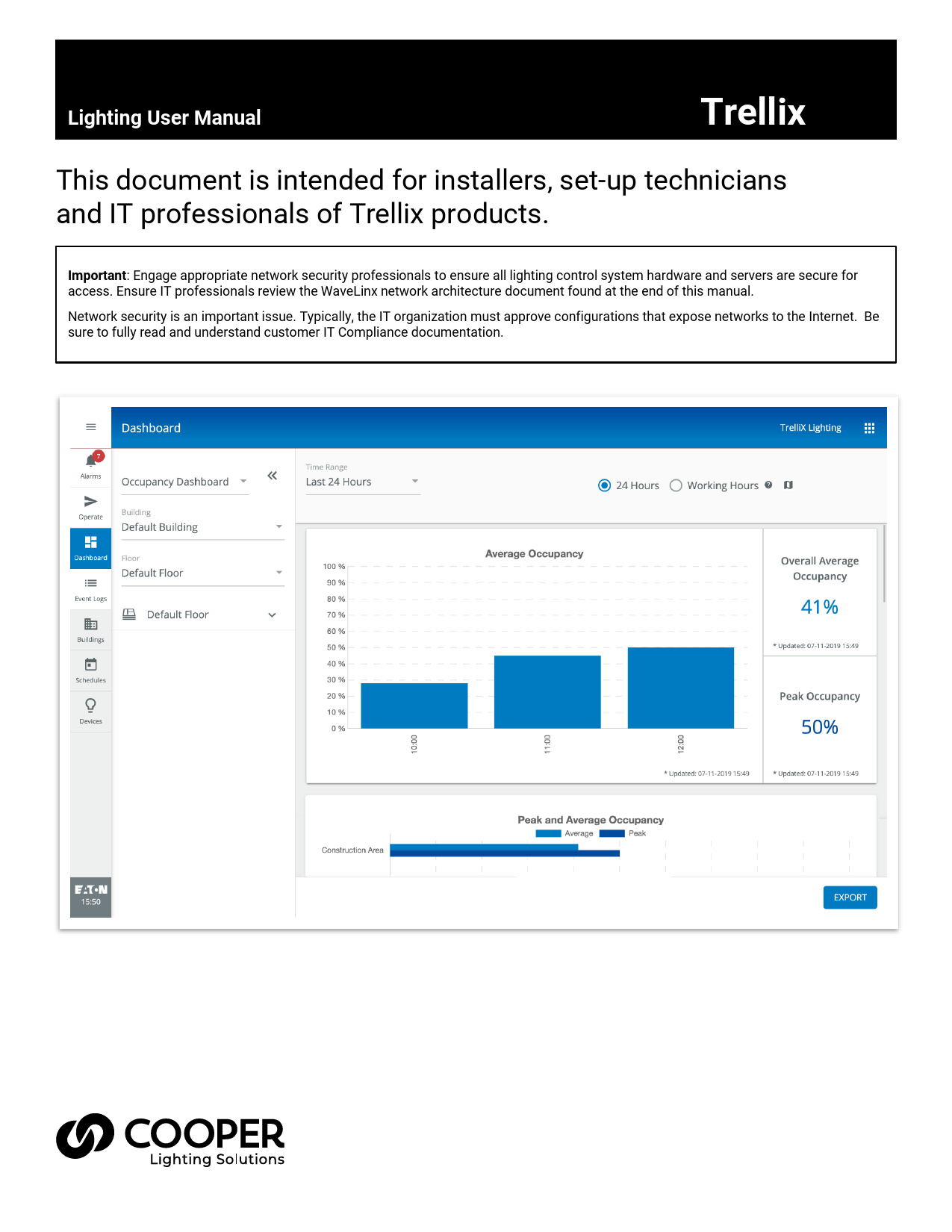
This document is intended for installers, set-up technicians and IT professionals of Trellix products.

Important: Engage appropriate network security professionals to ensure all lighting control system hardware and servers are secure for access. Ensure IT professionals review the WaveLinx network architecture document found at the end of this manual.
Network security is an important issue. Typically, the IT organization must approve configurations that expose networks to the Internet. Be sure to fully read and understand customer IT Compliance documentation.

WARNING
Read all the instructions thoroughly before installing this product. This manual provided information on the installation and operation of Trellix Lighting. For proper operation it is important to follow the instructions. The purpose of this document is to provide sufficient instructions for installation and basic troubleshooting.

www.cooperlighting.com

II

Contents
1 � About this Document ............................................................................................................................................................... 1
1.1 � Assumptions .....................................................................................................................................................................................1 1.2 � Using This Manual ............................................................................................................................................................................1 1.3 � Key Terms .........................................................................................................................................................................................1 1.4 � Related Documentation....................................................................................................................................................................2 1.5 � What's New .......................................................................................................................................................................................2
2 � Overview ................................................................................................................................................................................. 3
2.1 � System Components ........................................................................................................................................................................3 2.2 � Web Interface....................................................................................................................................................................................4 2.3 � Key Features .....................................................................................................................................................................................4 2.4 � Trellix Admin: System and User Management ................................................................................................................................5 2.5 � Requirements....................................................................................................................................................................................5
3 � Trellix Lighting Login and Authentication ................................................................................................................................. 6
3.1 � Changing Default Account Passwords ............................................................................................................................................6 3.2 � Logging into Trellix Lighting .............................................................................................................................................................6
4 � Managing Alarms and Events ................................................................................................................................................... 7
4.1 � Alarms Page......................................................................................................................................................................................7 4.2 � Alarm States .....................................................................................................................................................................................7 4.3 � Procedure..........................................................................................................................................................................................7
5 � Operating the Lighting System ............................................................................................................................................... 13
5.1 � Viewing a Floor Map .......................................................................................................................................................................13 5.2 � About Manual Override Commands...............................................................................................................................................16 5.3 � Raising and Lowering Area Light Levels........................................................................................................................................17 5.4 � Overriding Floors.............................................................................................................................................................................18 5.5 � Overriding Area Scenes and Light Levels ......................................................................................................................................19 5.6 � Overriding Zones.............................................................................................................................................................................22 5.7 � Overriding Devices ..........................................................................................................................................................................23
6 � Using the Energy Dashboard .................................................................................................................................................. 25
6.1 � The Energy Dashboard Page ..........................................................................................................................................................25 6.2 � Key Features ...................................................................................................................................................................................25 6.3 � Viewing Energy Data.......................................................................................................................................................................26
7 � Using the Occupancy Dashboard ............................................................................................................................................ 28
7.1 � The Occupancy Dashboard Page...................................................................................................................................................28 7.2 � How Occupancy Percentage is Calculated....................................................................................................................................28 7.3 � Key Features ...................................................................................................................................................................................30 7.4 � Viewing Occupancy Data................................................................................................................................................................30
8 � Exporting Alarm, Energy, Occupancy, and Event Data ............................................................................................................. 31
8.1 � Exporting .........................................................................................................................................................................................31
9 � Managing Schedules ............................................................................................................................................................. 35
9.1 � Filtering the Displayed Schedules ..................................................................................................................................................35 9.2 � Browsing the Calendar View ..........................................................................................................................................................38 9.3 � Searching Events ............................................................................................................................................................................39 9.4 � Enabling and Disabling Schedules .................................................................................................................................................40 9.5 � Viewing, Enabling, and Disabling Events .......................................................................................................................................41
10 � Appendix ............................................................................................................................................................................. 43
10.1 � Default Accounts, Roles, and Permissions..................................................................................................................................43 10.2 � Account Permissions ...................................................................................................................................................................43 10.3 � WaveLinx Alarms ..........................................................................................................................................................................44 10.4 � iLumin Alarms...............................................................................................................................................................................44

www.cooperlighting.com

III

1 � About this Document

1 � About this Document
This document describes how to configure, monitor and control the health of connected devices with the Trellix Smart Lighting IoT platform and associated applications.

Important
This document does not cover the initial Trellix Core installation and setup. Please refer to the Trellix Core Quick Start Guide if you are installing Trellix platform for the first time.

1.1 � Assumptions
The information and procedures in this document assume the following:
� One or more WaveLinx Wireless Area Controllers and/or iLumin Plus Ethernet Gateways have been installed and configured on your site
� You are familiar with the WaveLinx Mobile Application User Manual and WaveLinx System Network/IT Planning Guide, and/or the iLumin Plus Installation Guide
� You know the Trellix Core IP address and have a login account

1.2 � Using This Manual Use the table below to quickly identify the kinds of the tasks you need to perform.

If you are... New to Trellix Lighting

Then... See Overview.

Ready to login to Trellix as a new user

See Trellix Lighting Login and Authentication.

Working with Alarms and Events

See Managing Alarms and Events.

Controlling the Lighting System

See Operating the Lighting System.

Viewing the Energy Dashboard

See Using the Energy Dashboard.

Viewing the Occupancy Dashboard

See Using the Occupancy Dashboard.

Exporting data

See Exporting Alarm, Energy, Occupancy, and Event Data.

Working with Schedules

See Managing Schedules.

1.3 � Key Terms
The terms listed below are used in this document.
� Alarm � An error notification that requires an action � Application Programming Interface (API) � A set of clearly defined methods of communication between various software
components � BACnet -- A communications protocol for Building Automation and Control (BAC) networks � EG � Ethernet Gateway, used to connect iLumin Plus to Trellix � Event � A notification, such as a cleared alarm or system event, that does not require any action � iLumin Plus � Single lighting control solution for all traditional wired control application needs � Internet of Things (IoT) � The extension of Internet connectivity into physical devices, enabling them to communicate and interact
with over the Internet for remote monitoring and control � Lighting Control System (LCS) � A computer-based control system installed in a building to control and monitor lighting equipment
such as controllers, ballasts, drivers, keypads, and sensors (consists of hardware and software) � WaveLinx Low Voltage � Distributed Low Voltage power (formerly nDLVP) � Trellix Core (TC) � A gateway that aggregates Wireless Area Controller device data � Wireless Area Controller (WAC) � An application that coordinates the WaveLinx Mobile App with various WaveLinx devices to
provide lighting zone configuration, monitoring, and control (also referred to as "Controller" or "Area Controller")

www.cooperlighting.com

1

1 � About this Document

� Real Time Locating System (RTLS) � A system that automatically identifies and tracks the location of objects or people in real time, usually within a building or other contained area
� Wireless Area Controller (WAC) � An application that coordinates the WaveLinx Mobile App with various WaveLinx devices to provide lighting zone configuration, monitoring, and control (also referred to as "Controller" or "Area Controller")

1.4 � Related Documentation Document Trellix Core Quick Start Guide
Trellix Lighting System Configuration Guide
Trellix Lighting API Reference WaveLinx System Network/IT Planning Guide
WaveLinx Mobile Application User Manual
iLumin Plus Installation Guide Cyber Infrastructure Security Tips

Description This guide covers the initial installation and setup of Trellix platform. This guide covers the configuration and administration of an installed Trellix system. This manual describes the Trellix Lighting developer API.
This guide covers the planning, design, set up, and configuration of a WaveLinx System. This manual covers the use of the WaveLinx Mobile Application to configure the Wireless Area Controllers. This guide covers the installation of iLumin Plus.
Tips and advice about common security issues for non-technical computer users.

1.5 � What's New

The key changes in this release are listed and described below.

Change iLumin Plus support

Description Trellix Lighting now supports iLumin Plus devices as well as with WaveLinx devices.

Occupancy Dashboard

A new Occupancy Dashboard provides insight in space utilization.

Contact Closure

CCoE devices are now supported by Trellix Lighting.

www.cooperlighting.com

2

2 � Overview
2 � Overview
Trellix is an on-premise smart lighting IoT platform that moves real-time monitoring and processing to the edge of the network. The Trellix platform accelerates insight around your building operations and business processes, unlocking efficiency and enabling more effective decision-making with apps from Trellix and our partners.
The platform manages the trellis of digital sensors embedded in your connected LED lighting, collects the data gathered by the sensors, and analyzes the data to provide meaningful insights to users.
This on-premise platform hosts Trellix Core Services, a set of microservices required for fully functional IoT solutions; Trellix Sense, a set of interfaces to allow data exchange with third-party apps; and Trellix Apps, a set of Cooper-developed Apps designed to serve connected buildings and sport facilities.

2.1 � System Components The components of a Trellix system are described below.

Component Trellix Core Services
Trellix Exchange Trellix Admin
Trellix Lighting

Description
A set of microservices required for fully functional IoT solutions which facilitates device communication, device management, data upload, data aggregation and storage, data interfaces as well as robust user and device authentication and authorization.
A set of REST APIs that enable third-party applications to unlock the value of the data being gathered by Cooper's connected lighting system.
The Admin application lets users perform the administrative tasks required to manage the Trellix Core services such as: enabling/disabling interfaces; creating/editing/deleting users and roles; backing up and restoring configuration databases; and upgrading the platform.
The Lighting application lets users configure and monitor a code-compliant connected lighting system designed to create an energy-efficient space. With this application, you can perform high level supervisory tasks such as making changes to the light levels, creating lighting schedules and viewing your lighting system's energy usage. It is also the foundation for the sensing network and other advanced applications that leverage the data gathered by the system.

www.cooperlighting.com

3

2 � Overview

Component Trellix Locate

Description
The Locate application lets users monitor the location of objects or people in real time within a building or other contained area.
NOTE The use of the Locate application covered in the Trellix Locate User Manual and Trellix Locate API Reference. Please refer to those documents for further details.

2.2 � Web Interface
Trellix Lighting is accessed with a Web browser on a desktop that is connected to the LCS network. A desktop view of a Device Details on the Buildings page is shown below.

2.3 � Key Features
The key facility management features available in Trellix, grouped as they appear in the user interface shown above, are described below.

Feature

Description The app menu lets you switch between the Admin, Lighting, and (optionally) Locate apps.

Alarms

Monitor active alarms to see the health of your WaveLinx/iLumin system and quickly address issues. Troubleshooting tips, aggregated from Cooper's insight into its lighting systems, are provided. Alarms can also be emailed.

Operate

Monitor and control the lighting system with a floorplan or using the building hierarchy. A facility manager can control the light levels of a Floor, Area, Zone, or single light fixture. The floorplan can also indicate the status of a Device or an Area (e.g., light on/off, or faulty).

www.cooperlighting.com

4

2 � Overview

Feature Dashboard Event Logs
Devices

Description Access important information about how much energy use and savings by the lighting system and how occupants are using the space.
View all system notifications, including past alarms, and perform sequence of events analysis for a better understanding of system behavior.
Discover WACs and iLumin Plus Ethernet Gateways (EGs), associate them with Trellix Core, and view all devices associated with those WACs and EGs.
Automate Zone, Scene, Occupancy, and Wallstation behaviors with flexible custom schedules.

Schedules Configure a building hierarchy as well as create and edit floorplans.

Buildings

2.4 � Trellix Admin: System and User Management
The Admin application lets users perform the administrative tasks required to manage the Trellix Core services, such as: enabling and disabling interfaces; creating, editing and deleting users and roles; backing up and restoring configuration databases; and upgrading the platform:
� Users lets the system administrator create, edit, and delete users, create custom roles, and associate roles and areas of responsibility with each user.
� Published API lets system integrators integrate networked WaveLinx WACs with other enterprise systems using the Cooper REST API. Please refer to the Trellix Lighting API Reference for details.
� BACnet/IP lets system integrators easily combine networked WaveLinx WACs with a Building Automation System (BAS). The BAS can read and write to the WaveLinx Areas/Zones via the BACnet interface. Please refer to the Trellix Lighting BACnet Protocol Implementation Conformance Statement (PICS) for details.
� Demand Response lets facility managers participate in a Demand Response market by enabling Trellix Lighting to receive demand response signals via its OpenADR, BACnet or Public API, and then broadcast it to WaveLinx WACs.

2.5 � Requirements
Trellix Lighting has been tested with Safari 11+ for iOS devices, Chrome 53+ for Android devices, and Chrome 53+ or Edge for Windows laptops/tablets.

www.cooperlighting.com

5

3 � Trellix Lighting Login and Authentication

3 � Trellix Lighting Login and Authentication

Trellix Lighting provides a standard set of user accounts, roles, and permissions. Each role has a specific set of permissions, and each user account is assigned to one role. New user accounts, and new roles with custom permissions, can be created when logged into the Trellix Admin app under the Administrator role. The Facility Manager role allows the creation new user accounts and the assignment of existing roles.
3.1 � Changing Default Account Passwords
Changing the passwords provided by Cooper Lighting Solutions for all default accounts is critical for the security of your system. Refer to the Trellix Lighting System Configuration Guide for instructions on how to do this.
NOTE You will need the Trellix Core IP address, and a login account with System Administrator permissions to follow these procedures.

3.2 � Logging into Trellix Lighting

Follow the steps below to login to Trellix Lighting. See Default Accounts, Roles, and Permissions for more information about the default accounts provided.

NOTE The first time the Admin account is used to login to Trellix Core, a Setup Wizard guides the user through the initial system configuration. Refer to the Trellix Core Quick Start Guide for step-by-step instructions if you are installing Trellix for the first time.

Step 1

Action
Browse to https://<ipaddress>, where <ipaddress> is the IP address of the Trellix Core host (192.168.2.100, by default).

RESULT

2 Enter your Username and Password, and then click Login.
NOTES � After 10 failed attempts to log in, you will be locked out for 15 minutes. � If you cannot locate your username or password, contact your Facility Manager to reset the password. 3 To log out, click to expand the main menu, and then click Log Out.

www.cooperlighting.com

6

4 � Managing Alarms and Events
4 � Managing Alarms and Events
This chapter describes how to view and manage Alarms, Events, and Schedules, and how Alarm and Event data is exported, with Trellix Lighting. NOTE See Logging into Trellix Lighting if you are not familiar with accessing Trellix Lighting.
4.1 � Alarms Page The layout of the Trellix Lighting Alarms page is shown below. The Events page is similar but does not include a Details panel or provide acknowledgement features.

4.2 � Alarm States
In Trellix Lighting, an alarm can be in one of the following three states:
� Unacknowledged Alarm � An error notification that has not been acknowledged by the user � Acknowledged Alarm � An error notification that has been acknowledged, but is still in the error state and has not yet been moved
to the Events list � Pre-Cleared Alarm � An error notification that has returned to normal before acknowledged by the user

4.3 � Procedure The following procedure describes how to view, filter, acknowledge, force clear, comment, and display details for alarms and events.

If you want to... Display the Alarms page Display the Events page

Then... Click the Alarms in the main menu. Click Operate in the main menu, and then click the Event Log tab.

www.cooperlighting.com

7

If you want to... Sort alarm or event data

Then... 1. Click the column header that you want to sort with. 2. To reverse the order, click the column header again.
EXAMPLE � DESCENDING SORT BY DATE AND TIME

4 � Managing Alarms and Events

Filter alarm or event data

1. Click Filter (upper left, not shown), then click Filter Type, and then choose a specific filter (e.g., Status).
EXAMPLE � PICK FILTER

2. Select a status to limit the list to rows with that value (e.g., ACKNOWLEDGED), and the click Apply. EXAMPLE � PICK STATUS ACKNOWLEDGED

www.cooperlighting.com

8

If you want to... (cont'd)

4 � Managing Alarms and Events
Then... 3. View the list of alarms or events that correspond to the selected filter. EXAMPLE � EVENTS FILTERED BY ACKNOWLEDGE STATUS

Add another filter Remove a filter

Repeat Steps 1 to 3 in the preceding procedure. Click the X to the right of the filter name. EXAMPLE

View alarm details

Click an alarm row to display a sidebar containing Device, Troubleshooting, and Event details, along with any Comments that have been saved.
EXAMPLE

www.cooperlighting.com

9

If you want to...
Acknowledge a single alarm

Then... 1. Select the row of an unacknowledged alarm. 2. Click the Acknowledge button in the alarm details sidebar.
EXAMPLE

4 � Managing Alarms and Events

Force clear a single alarm

1. Select the row of an acknowledged alarm. 2. Click the Force Clear button in the alarm details sidebar.
NOTE You must be logged in with System Administrator permissions for this action.
EXAMPLE

www.cooperlighting.com 10

4 � Managing Alarms and Events

If you want to...
Acknowledge all alarms on the current page

Then... Click the Acknowledge button below the alarm data row, and then click Acknowledge Page. EXAMPLE

Acknowledge all alarms
Add a comment to an alarm

NOTE If there is more than one page of alarms, only alarms on the page currently being viewed will be acknowledged. Click the Acknowledge button below the alarm data row, and then click Acknowledge All. 1. Select the row of an unacknowledged alarm. 2. Scroll down in the sidebar to reveal the Leave a Comment field. 3. Click . 4. Enter your comment text, and then click to save it or click X to cancel.
EXAMPLE

www.cooperlighting.com 11

If you want to... Hide alarm or event details

Then... Click > in the upper left corner of the details panel. EXAMPLE

4 � Managing Alarms and Events

Show or hide columns in the alarms or events list

1. Click at the right end of the column headings. 2. Select the columns you want displayed, and then deselect the columns you want hidden. 3. Click Apply.
EXAMPLE

Load new alarms
Check the Trellix Lighting software version

Click the Reload button when it appears at the top of the Alarms tab.
EXAMPLE Be sure to use the Reload button provided in the message area. The Web browser's refresh feature, by design, will send you back to the login screen.
Click to expand the main navigation, and then scroll down to the About section.
RESULT

www.cooperlighting.com 12

5 � Operating the Lighting System
5 � Operating the Lighting System
This section describes the operation of Trellix Lighting components, such as raising and lower Area light levels or overriding Zone Status. 5.1 � Viewing a Floor Map Trellix Lighting shows relationship between your building floor plan and the configured Areas, Zones, and Devices (Refer to the Trellix System Configuration Manual for details on how this is done.) The image below shows a floor map with a Zone selected.
Status color legend Status Color Legend The Status Color Legend below shows the colors that indicate Alarm, Override, On, and Off states. These are displayed on the floor map and the building hierarchy that appears on the left. When more than one status applies, the highest priority will be used. For example, if a Device goes into alarm on a Floor that is overridden, the Alarm color (red) will be used.
www.cooperlighting.com 13

5 � Operating the Lighting System The example on the right shows a floor map with one Area in alarm (red) and the other with no Alarms or Overrides in effect (grey).

Procedure Follow the steps below to view a floor map.

Step 1

Action Click Operate in the main menu, and then select a Building in the Building navigation panel, and then select a Floor.

NOTE
A button indicates the selected component with details displayed. Clicking (selected).

beside the floor will make it active

EXAMPLE

www.cooperlighting.com 14

Step 2

Action Click View Map. EXAMPLE

5 � Operating the Lighting System

3 To filter what is shown, click in the Viewing Tools, then enable or disable Labels, and then select Areas, Zones, or Devices. RESULT
4 To reveal the color legend, click < in the Viewing Tools (Click > to hide the legend.) RESULT
5 The view of the floor plan can be adjusted as follows: � To zoom in, click , or double-click the background image, or use your computers scroll-to-zoom feature with the cursor over the map � To zoom out, click , or hold down the Shift key while double-clicking the image, or use your computers scroll-to-zoom feature with the cursor over the map � To fit the image to the window, click � To center the floor map in a new location, click and then click and drag the background image
www.cooperlighting.com 15

5 � Operating the Lighting System

Step 6

Action To highlight an Area, Zone, or Device, click it in the Building navigation panel or on the map. EXAMPLE

5.2 � About Manual Override Commands A manual override is a command issued from Trellix Lighting to a Floor, Area, Zone, or Device. An override can be normal and high priority. The difference between these priorities is as follows: � A normal priority command will only override a command that came before it if that command was also normal priority � A high priority command will override any normal or high priority command that came before it � A high priority command can be cancelled Permission Trellix Lighting limits the use of manual overrides with the normal priority override and high priority override permissions. The default Admin and Facman accounts have both, while the Tenant account has only normal priority override. Commands The override commands and priority levels that are available, assuming the appropriate permissions, are listed below: � Floor (Light Level) � Normal Priority � Area (Scene) - Normal Priority � Area (Light Level) � Normal or High Priority � Zone (Dimmable) � Normal or High Priority � Zone (On/Off) - Normal or High Priority � Device (all except standalone Sensor) � High Priority Occupancy Sets, Controllers, and standalone Sensors do not support overrides. Area Light Level Controls Trellix Lighting provides quick access to controls for raising and lowering the light level of an Area. These are normal priority commands and behave like a physical dimmer control. These controls do not require the Normal Priority Override or High Priority Override permission.
www.cooperlighting.com 16

5 � Operating the Lighting System

5.3 � Raising and Lowering Area Light Levels

Follow the steps below to raise or lower Area light levels.

Step 1

Action Click Operate in the main menu, then select a Building in the Building navigation panel, and then select a Floor.

EXAMPLE

2 Select an Area on the chosen Floor to display the Area Details. EXAMPLE

www.cooperlighting.com 17

5 � Operating the Lighting System

Step 3

Action Click Lower/Raise, and then click the raise or lower button to send that command to the selected Area.
NOTES � Light level is changed by 1%, with a 6 second fade rate, each time the button is clicked � Light level is changed by 4% every 250 milliseconds, with a 6 second fade rate, if the button is clicked and held � You can access the light level controls below on the Area Details panel of a floor map (if configured)
EXAMPLE

4 Click Close to exit.

5.4 � Overriding Floors Follow the steps below to override a Floor.

Step 1

Action Click Operate in the main menu, then select a Building in the Building navigation panel, and then select a Floor.

EXAMPLE

www.cooperlighting.com 18

5 � Operating the Lighting System

Step 2

Action Click Override, then drag the Light Level slider or enter a percentage value, and then enter the Until Next Event Fade Rate Seconds.
NOTE You can access the override controls below on the Floor Details panel of a floor map (if configured).
EXAMPLE

3 Click Send to apply the override, and Close when you are finished.

5.5 � Overriding Area Scenes and Light Levels

Follow the steps below to override the Scenes and Light Levels.

Step 1

Action Click Operate in the main menu, then select a Building in the Building navigation panel, and then select a Floor.

EXAMPLE

www.cooperlighting.com 19

Step 2

Action Select an Area on the chosen Floor to display the Area Details. EXAMPLE

5 � Operating the Lighting System

3 Click Override. NOTE You can access the override controls below on the Area Details panel of a floor map (if configured). EXAMPLE

www.cooperlighting.com 20

5 � Operating the Lighting System

Step 4

Action To override with a Scene, click Scene, then Select a Scene from the list, and then enter a Fade Rate Seconds value. Click Send to apply the override command.
NOTE You can access the scene controls below on the Area Details panel of a floor map (if configured).
EXAMPLE

s 5 To override with a Target Level, click Target Level, then
� To dim the light, select the Dimming Light check box, and then drag the dimming slider or enter a % value � To tune the light color, select the White Tuning Light check box, and drag the tuning slider or enter a K value � Select High Priority with a Duration value, or � Select Until Next Event with a Fade Rate value
NOTE You can access the light level controls below on the Area Details panel of a floor map (if configured).
EXAMPLE

www.cooperlighting.com 21

5 � Operating the Lighting System

Step 6 7

Action Click Send to apply the override, and Close when you are finished. To cancel an override, select the overridden Area, and then click Cancel Override.

5.6 � Overriding Zones Follow the steps below to override a Zone.

Step 1

Action Click Operate in the main menu, then select a Building in the Building navigation panel, and then select a Floor.

EXAMPLE

2 Select a Zone on the chosen Floor to display the Zone Details. EXAMPLE

www.cooperlighting.com 22

5 � Operating the Lighting System

Step 3

Action Click Override, then set the Zone Status to On or Off, and then � Select High Priority with a Duration value (shown below), or � Select Until Next Event with a Fade Rate value
NOTE You can access the override controls below on the Zone Details panel of a floor map (if configured).
EXAMPLE

4 Click Send to apply the override, and Close when you are finished.

5.7 � Overriding Devices Follow the steps below to override a Device.

Step 1 2

Action Click Operate in the main menu, then select a Building in the Building navigation panel, and then select a Floor. Select a Device on the chosen Floor to display the Device Details.

EXAMPLE

www.cooperlighting.com 23

5 � Operating the Lighting System

Step 3

Action Click Override, then drag the Light Level slider or enter a percentage value, then enter a Duration value. NOTE You can access the override controls below on the Device Details panel of a floor map (if configured). EXAMPLE

4 Click Send to apply the override, and Close when you are finished.

www.cooperlighting.com 24

6 � Using the Energy Dashboard
6 � Using the Energy Dashboard
This chapter describes the Trellix Lighting energy monitoring features available in the Dashboard. NOTE See Logging into Trellix Lighting if you are not familiar with accessing Trellix Lighting.
6.1 � The Energy Dashboard Page The Energy Dashboard provides insight into building lighting and receptacle energy use (measured and calculated). The layout of the Energy Dashboard page is shown below.

6.2 � Key Features
The key features of the Energy Dashboard are described in the table that follows.
About Baseline Energy
Note the following when viewing the Energy Savings Cards:
� The Baseline Energy for a floor is configured in the Floor properties, as described in the Trellix System Configuration Guide � If the Baseline Energy is not defined for any of the selected floors, the Savings Card values will not be calculated, and N/A will be
displayed � An asterisk (*) value indicates the displayed data may contain missing or unreliable data

Feature

Description The displayed data can be filtered by Building, Area, Zone and source (e.g., Lighting, Receptacle). It can also be limited to a Time Range (e.g., Last 24 Hours).
A bar graph of energy consumption for the Time Range being viewed.

www.cooperlighting.com 25

6 � Using the Energy Dashboard

Feature Period Savings Wattage Card Period Savings Card
Average Period Savings Card

Description
The difference between the Baseline Energy and Actual Energy on the selected floors over the displayed Time Range, in kWh.
EXAMPLE 4200 kWh � 3100 kWh = 1100 kWh
The Period Savings on the selected Floors over the displayed Time Range, as a percentage of the Baseline Energy. It is calculated as follows: (Period Savings kWh / Baseline Energy kWh) X 100
EXAMPLE (1100 kWh / 4200 kWh) X 100 = 26.2%
The Average Period Savings on the selected floors for the displayed Time Range, in kWh. This average is derived from the period being viewed (e.g., 7 days). It uses the total savings since data collection began and the total number of periods collected. It is calculated as follows:
Total Period Savings / Number of Periods
EXAMPLE Assuming a total savings of 43,800 kWh has accrued over 48 weeks, and a 7-day period is being displayed:
43,800 kWh / 48 7-day periods = 912.5 kWh/7-day period

6.3 � Viewing Energy Data Follow the steps below to view the data available in the Energy Dashboard.

If you want to...
Limit the Device and Building data in the report

Then...
1. Click Filter. 2. Select the Lighting check box, Receptacle check box, or both, depending on the Energy Sources you want
included in the report. 3. Click X to collapse the Filter sidebar (Your selections are indicated above the Energy Usage Chart.)

EXAMPLE

www.cooperlighting.com 26

If you want to...
Choose a preselected Time Range for the report

Then... Select a value in the Time Range menu. EXAMPLE

Choose a custom Time Range for the report

1. Select Custom in the Time Range menu. 2. Select a Start Date and End Date.
EXAMPLE

6 � Using the Energy Dashboard

www.cooperlighting.com 27

7 � Using the Occupancy Dashboard
7 � Using the Occupancy Dashboard
This chapter describes the Trellix Lighting occupancy monitoring features available in the Dashboard. NOTE See Logging into Trellix Lighting if you are not familiar with accessing Trellix Lighting. 7.1 � The Occupancy Dashboard Page The Occupancy Dashboard provides insight into the use of building spaces. The diagram below illustrates some of the available features.
7.2 � How Occupancy Percentage is Calculated The Occupancy percentage is determined by the proportion of the sensors in a space that detect motion and for how long. The sensors have a configurable delay period to provide more meaningful results, so that is also a factor. If the delay is 10 minutes, for example, once a sensor detects motion it will continue to report occupancy for 10 minutes after it stops detecting motion. The following example describes how the occupancy percentage is calculated.
www.cooperlighting.com 28

7 � Using the Occupancy Dashboard Example Let's take a conference room with 10 sensors, as illustrated below. All sensors are configured with a 20-minute time delay. At 9 AM the room is empty and none of the sensors have detected any motion. The occupancy percentage at that moment is 0/10 or 0%.
Next, let's say someone enters the room at 9:05 AM and 2 of the 10 sensors detect their presence, as shown below. The occupancy rate at that moment (9:05 AM) is now 2/10 or 20%.
Finally, let's say the person stays in the room for 5 minutes, that only the two sensors ever detect their presence, and that no one else enters the room before 10 AM. As illustrated below, when we include the 20-minute configured sensor delay, the occupancy for that hour would be determined as 25 minutes out of 60, as reported by 2 out of 10 sensors. The percentage calculation would be 25/60 x 2/10 = 8.33%.
www.cooperlighting.com 29

7 � Using the Occupancy Dashboard

7.3 � Key Features

The key features of the Occupancy Dashboard are described in the table below.

Feature Report by Floor

Description Occupancy data is presented for a selected Floor in a Building.

The main bar graph shows the average occupancy as a percentage, with Overall Average and Peak Occupancy cards displayed along the right side.

Time Range
Peak and Average Occupancy by Area Export to CSV

A default set of time ranges, such as Last 24 Hours or Last 30 Days, are provided. There is also a custom time range option.
There are individual Peak and Average Occupancy bar graphs for each Area on the selected Floor.
The occupancy data can be export to a CSV file for use with Excel and other tools.

7.4 � Viewing Occupancy Data Follow the steps below to view the data available in the Occupancy Dashboard.
NOTE An asterisk (*) value indicates the displayed data may contain missing or unreliable data.

If you want to...
Choose a preselected Time Range for the report

Then... Select a value in the Time Range menu. EXAMPLE

Choose a custom Time Range for the report

3. Select Custom in the Time Range menu. 4. Select a Start Date and End Date.
EXAMPLE

Enable and disable Area bar graphs

Click either the Average or Peak bar icons to show hide that data in the Area reporting. EXAMPLE

www.cooperlighting.com 30

8 � Exporting Alarm, Energy, Occupancy, and Event Data

8 � Exporting Alarm, Energy, Occupancy, and Event Data
The following procedure describes how to export alarm, energy, occupancy, and event data.
NOTES � Energy and Occupancy data are not available in PDF format � Comments are not included in the exported data � The display or download of a file will depend on the Web browser you are using and how it is configured

8.1 � Exporting If you want to export... Alarm data

Then...
1. Click Alarms in the main menu. 2. Check that only Filters you want are currently applied (as described in Managing Alarms and Events). 3. Click the Export Alarms button (behind PDF/Export list in example below), and then select the format
(PDF or Excel).
EXAMPLE

Energy data

1. Click Dashboard in the main menu. 2. Check that only Filters you want are currently applied (as described in Using the Energy Dashboard). 3. Click Export.
EXAMPLE

www.cooperlighting.com 31

8 � Exporting Alarm, Energy, Occupancy, and Event Data

If you want to export... Occupancy data

Then...
1. Click Dashboard in the main menu, and then click Occupancy. 2. Check that the Time Range and portion you want are currently applied (as described in Viewing
Occupancy Data). 3. Click Export, and then confirm the operation.
EXAMPLE

Event data

1. Click Events in the main menu. 2. Check that only Filters you want are currently applied (as described in Managing Alarms and Events). 3. Click the Export Events button (behind PDF/Export list in example below), and then select the format (PDF
or Excel).
EXAMPLE

www.cooperlighting.com 32

8 � Exporting Alarm, Energy, Occupancy, and Event Data PDF and Excel Examples The images below show examples of exported Trellix Energy and Occupancy data in CSV/Excel format. Excel (Energy Data)
Excel (Occupancy Data)
www.cooperlighting.com 33

PDF (Event Data) Excel (Event Data)

8 � Exporting Alarm, Energy, Occupancy, and Event Data

www.cooperlighting.com 34

9 � Managing Schedules
9 � Managing Schedules
The following procedure describes how to view, filter, search, and commit schedule data. The image below shows the Schedules page. 9.1 � Filtering the Displayed Schedules Follow the steps below to filter the schedules that appear in the Calendar view.

Step 1

Action
If the Schedules sidebar is not visible, click Trellix Core.
EXAMPLE

By default, the Schedules list will show all schedules that apply to this

www.cooperlighting.com 35

9 � Managing Schedules

Step 2

Action To limit the displayed schedules to a specific building, click Select Building, and then choose a building from the list. NOTE All floors for the selected building will be shown. EXAMPLE

3 To limit the displayed schedules to a specific floor, click the floor name. NOTE All Areas for the selected floor will be shown. EXAMPLE

www.cooperlighting.com 36

Step 4

Action To limit the displayed schedules to a specific Area, click the Area name. EXAMPLE

9 � Managing Schedules

5 To hide or show a specific Schedule, click beside it. EXAMPLE

www.cooperlighting.com 37

9 � Managing Schedules

9.2 � Browsing the Calendar View

Follow the steps below to search the browse Events in the Calendar view.

Step 1

Action
When the Schedules page is first displayed, the Calendar View is set to Day, and shows all Events for all visible Schedules on the current date.

NOTE The Month view is disabled when more than one Schedule is being displayed.

EXAMPLE

Other Tasks � Click the < and > beside the date to move back and ahead one day at a time � Click to show or hide the Schedules navigation panel 2 To see a week of Events in the view, click Week.
EXAMPLE

OTHER TASKS � Click the < and > beside the date range to move back and ahead one week at a time � Click to show or hide the Schedules navigation panel
www.cooperlighting.com 38

Step 3

Action To see a month of events in the view, hide all Schedules except one, and then click Month. EXAMPLE

9 � Managing Schedules

OTHER TASKS � Click the < and > beside the month to move back and ahead one month at a time � If a scroll bar appears on the right, use that to view the entire month � Click to show or hide the Schedules navigation panel

9.3 � Searching Events Follow the steps below to search the scheduled Events.

Step 1

Action Enter the text you are searching for in the Search Events box, and then press Enter or click . EXAMPLE

www.cooperlighting.com 39

Step 2

Action To limit the search to a specific schedule, select it from the list on the left. EXAMPLE

9 � Managing Schedules

3 Click Clear Results to return to the Schedules page.

9.4 � Enabling and Disabling Schedules

Follow the steps below to enable and disable a Schedule.

Step 1

Action
Click the Schedule in the navigation sidebar on the left to display the Schedule Details panel. The status of the Schedule is indicated by the Enabled (or Disabled) toggle.

EXAMPLE

www.cooperlighting.com 40

Step 2

Action Click the Enabled toggle to disable the schedule or click the Disabled toggle to enable it. NOTE When a schedule is disabled, it appears pale grey in the Schedule navigation and Calendar view. EXAMPLE

9 � Managing Schedules

3 Click > to collapse the Schedule Details panel.

9.5 � Viewing, Enabling, and Disabling Events Follow the steps below to view Event details, and to enable and disable an Event.

Step 1

Action Click the Event in the Calendar view to display the Event Details panel. The status of the Event is indicated by the Enabled (or Disabled) button.
EXAMPLE

www.cooperlighting.com 41

Step 2

Action Click the Enabled button to disable the Event or click the Disabled button to enable it. NOTE When an Event is disabled, it appears pale grey in the Calendar view. EXAMPLE

9 � Managing Schedules

3 Click > to collapse the Event Details panel.

www.cooperlighting.com 42

10 � Appendix

10 � Appendix

This chapter contains supporting information for Trellix.

10.1 � Default Accounts, Roles, and Permissions

The default user accounts, roles, and permissions provided with Trellix Lighting are described below.

Username Viewer
Tenant Facman ITAdmin
Admin

Password BXLinx!1
BXLinx!2 BXLinx!3 BXLinx!4
BXLinx!5

Role Assigned Viewer
Tenant Facility Manager IT Administrator
System Administrator

Permissions
The Viewer user has view-only access to the following: � Lighting app: Alarms, Operate, Event Log, and Dashboard
features. � Admin app: Alarms, Event Logs.
The Tenant user has view and operate access to the Alarms, Operate, Event Log and Dashboard features.
The Facility Manager user has view, operate and administer access to all features except the following: Manage Roles; Backup/Restore, Factory Reset; Firewall; GSA Warning; Language Plugin; and Software Upgrade.
The IT/Network Administrator has view, operate and administer access to the following: � Lighting app: Alarm, Operate, Event Log � Admin app: System - Backup/Restore; BACnet, Email Server;
Factory Reset; Firewall; GSA Warning; Language Plugin; Published API; and Software Upgrade.
The Trellix Lighting Administrator has full access to all features.

DRUser BXLinx!6 Demand Response

Public

BXLinx!7 Third Party Integration

The Demand Response User has access to the Demand Response and OpenADR interfaces.
NOTE It is not possible to login to the Web user interface with this account.
The Third-Party Integration User has access to the Public API.
NOTE It is not possible to login to the Web user interface with this account.

10.2 � Account Permissions The access provided by each Trellix permission is listed below.

Permission View Only

Description View-only access to assigned Areas.

User Management

Create, view, modify, and delete user accounts.

User Role Management

Management of user roles and permissions.

System Settings System Configuration

� Modify the system and subsystem networking settings � Backup and restore system configuration � Backup and restore the database � Update and manage system and subsystem software versions � View diagnostic logs components and features
Manage system configuration such as Buildings, Devices, and Floorplans.

Schedule

View and manage schedules in assigned Areas.

www.cooperlighting.com 43

Permission Acknowledge Alarms Normal Priority Override High Priority Override Demand Response
Interface Settings
Alarms and Events View

Description Acknowledge alarms.
Send a Normal Priority override.
Send a High Priority override.
Access demand response components and features (can only be assigned Demand Response role). Access integrated interface settings components and features (can only be assigned Third Party Integration role). View-only access to Alarms, Events, and Dashboard.

10.3 � WaveLinx Alarms

The WaveLinx alarms reported by Trellix Lighting are listed and described below.

Alarm

Description

Device not reachable

Unable to communicate with device

Battery low Battery very low Device failed to update

Device is battery-powered, and the battery will soon need replacement
Device is battery-powered, and will go offline very soon unless the battery is replaced
The WAC failed to update its firmware or that of a paired device

Voltage out of range

DC power bus voltage is out of its specified range

Lamp error

Occupancy sensor has signaled that the lamp voltage or current is out of the specified range

10.4 � iLumin Alarms

The iLumin alarms reported by Trellix Lighting are listed and described below.

Alarm

Description

E0270

No connection to EG2 during import. Import of controller data failed. Transceiver connection to controller failed.

E0277

No response from iLight API during import. Import of controller data failed. Error response received from controller/Transceiver.

E0014

No response from EG2. Unable to communicate with device.

E0001

The elms_transceiver lost connection to elms_adapter. WebSocket connection lost.

10 � Appendix

www.cooperlighting.com 44

FCC Statement � This device complies with Part 15 of the FCC Rules. Operation is subject to the following two conditions:
(1) This device may not cause harmful interference. (2) This device must accept any interference received, including interference that may cause undesired operation. Note: The grantee is not responsible for any changes or modifications not expressly approved by the party responsible for compliance. Such modifications could void the user's authority to operate the equipment. Note: The equipment has been tested and found to comply with the limits for a Class B digital device, pursuant to part 15 of the FCC Rules. These limits are designed to provide reasonable protection against harmful interference in a residential installation. This equipment generates uses and can radiate radio frequency energy and, if not installed and used in accordance with the instructions, may cause harmful interference to radio communications. However, there is no guarantee that interference will not occur in a particular installation. If this equipment does cause harmful interference to radio or television reception, which can be determined by turning the equipment off and on, the user is encouraged to try to correct the interference by one or more of the following measures: � Reorient or relocate the receiving antenna. � Increase the separation between the equipment and receiver. � Connect the equipment into an outlet on a circuit different from that to which the receiver is connected. � Consult the dealer or an experienced radio/TV technician for help. This device complies with FCC radiation exposure limits set forth for an uncontrolled environment. This equipment must be installed and operated in accordance with provided instructions and the antenna(s) used for this transmitter must be installed to provide a separation distance of at least 20 cm from all persons.
Warranties and Limitation of Liability Please refer to www.cooperlighting.com/WarrantyTerms for our terms and conditions.
Garanties et limitation de responsabilit� Veuillez consulter le site www.cooperlighting.com/WarrantyTerms pour obtenir les conditions g�n�rales.
Garant�as y Limitaci�n de Responsabilidad Visite www.cooperlighting.com/WarrantyTerms para conocer nuestros t�rminos y condiciones.

Cooper Lighting Solutions 1121 Highway 74 South Peachtree City, GA 30269 P: 770-486-4800 www.cooperlighting.com For service or technical assistance: 1-800-553-3879
Canada Sales 5925 McLaughlin Road Mississauga, OntarioL5R 1B8 P: 905-501-3000 F: 905-501-3172

� 2020 Cooper Lighting Solutions All Rights Reserved Printed in USA Publication No. MN503077EN April 2020

Cooper Lighting Solutions is a registered trademark.
All other trademarks are property of their respective owners.
Product availability, specifications, and compliances are subject to change without notice.