Home
›
JLab Audio
›
JLab JBuds Air ANC True Wireless Earbuds User Manual & Setup Guide

ℹ️ Document Conversion Notice:
This page was converted from the original file for easier reading. Diagrams/images may appear only in the original PDF below.
File info: application/pdf · 4 pages · 343.29KB
Warranty & Support
?
Your Warranty: All warranty claims are subject to JLab Audio authorization and at our sole discretion. Retain your proof of purchase to ensure warranty coverage.
??
U.S. Based Customer Support
Contact Us: Reach out to us at support@jlabaudio.com or visit jlabaudio.com/contact.
[Register Today]: Product updates | How-to tips | FAQs & more.
JBuds Air ANC Earbuds
First Time Setup
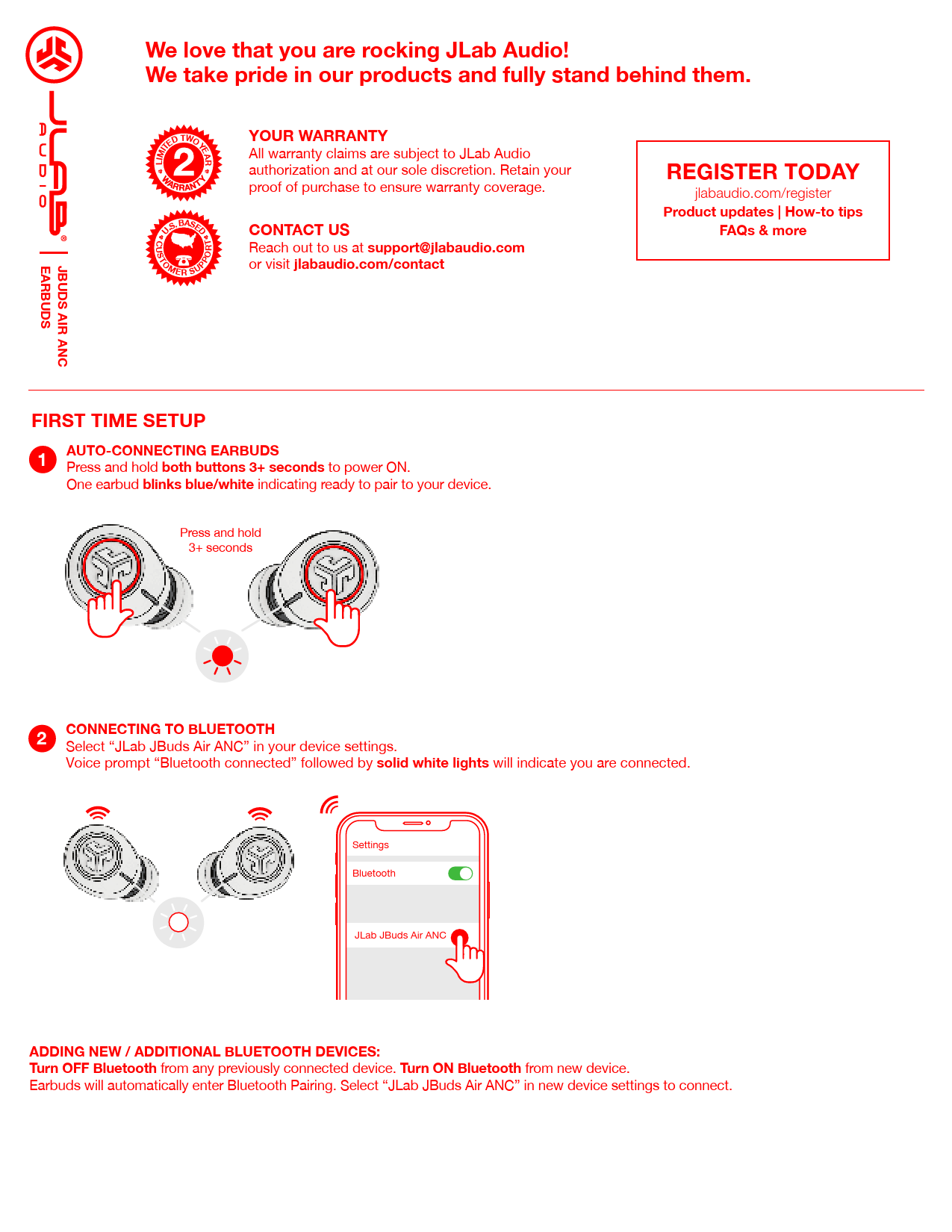
1. Auto-Connecting Earbuds
Press and hold both touch buttons for 3+ seconds to power ON. One earbud will blink blue/white, indicating it is ready to pair to your device.
[Illustration: Earbuds in charging case, one earbud removed showing blinking blue/white lights.]
Press and hold 3+ seconds [icon: touch sensor]
2. Connecting to Bluetooth
On your device's Bluetooth settings, select "JLab JBuds Air ANC". A voice prompt "Bluetooth connected" followed by solid white lights on the earbuds will indicate you are connected.
[Illustration: Mobile device screen showing Bluetooth settings with 'JLab JBuds Air ANC' selected. Earbuds shown with solid white lights.]
Adding New / Additional Bluetooth Devices
Turn OFF Bluetooth from any previously connected device. Turn ON Bluetooth from the new device. The earbuds will automatically enter Bluetooth Pairing mode. Select "JLab JBuds Air ANC" in the new device's settings to connect.
Button Functions
Left Earbud
- Volume Down: Single Tap
- Siri (iOS) or "OK Google" (Android): Double Tap
- Be Aware / ANC ON / ANC OFF: Press & hold 1+ sec
- Turn ON: Press & hold 3+ sec
- Change EQ: Triple Tap (JBuds Air ANC will cycle through 3 EQ settings)
[Illustration: Left earbud with touch sensor area highlighted.]
Right Earbud
- Volume Up: Single Tap
- Answer Call / Hang Up Call: Single Tap / Double Tap
- Reject Incoming Calls: Press & hold 1+ sec
- Play / Pause Music: Double Tap
- Track Forward: Press & hold 1+ sec
- Turn ON: Press & hold 3+ sec
- Change EQ: Triple Tap (JBuds Air ANC will cycle through 3 EQ settings)
[Illustration: Right earbud with touch sensor area highlighted.]
Music / Movie Mode
Press and hold both touch sensors simultaneously for 3+ seconds.
Power Off Without Charging Case
Turn off your device's Bluetooth. The earbuds will then power off automatically after 3 minutes.
Voice Prompts
- "Ready to Pair": JBuds Air are ready to pair to a Bluetooth device.
- "Bluetooth Connected": Earbud is connected to the device.
- "Battery Full": Indicates battery level is 100-80%.
- "Battery Medium": Indicates battery level is 80-20%.
- "Low Battery": Indicates battery level is less than 20%. When power decreases to 10%, "Low Battery" will play.
Custom EQ³ Sound Modes
Tap either the right or left earbud 3 times for different EQ settings. The JBuds Air ANC will cycle through 3 EQ settings:
- JLab Signature: JLab C3™ signature sound with amplified bass and vocals.
- Balanced: Even sound with no additional enhancements.
- Bass Boost: Amplified bass and sub-bass.
[Illustration: Visual representations of the three EQ sound profiles.]
Charging Earbuds
1. Charging
Match the corresponding L (Left) and R (Right) indicators on the charging case for proper charging. The earbuds will automatically power OFF and start charging.
Blue lights on the earbuds indicate they are charging and will turn OFF when fully charged.
[Illustration: Earbuds placed into the charging case, showing L and R indicators. Close-up of earbuds showing blue charging lights.]
2. Auto Power ON
Earbuds will automatically power ON and reconnect to your device when taken out of the case.
[Illustration: Earbuds being removed from the charging case.]
Charging Case
Connect the JBuds Air ANC charging case to a computer or USB 5V 1A (or less) output device.
LEDs pulse white when charging and turn solid white when fully charged.
[Illustration: Charging case connected via USB cable to a computer and a wall adapter. LEDs on the case are shown pulsing white.]
Fitting
Try all the optional Cush Fins™ and ear tips for the best fit and proper seal. A good seal significantly improves audio quality.
The Cush Fin should be aligned by positioning its contour around the microphone hole for optimal performance.
[Illustration: Earbud with Cush Fin and ear tip detached. Another illustration shows the earbud with Cush Fin and ear tip attached, highlighting the alignment of the Cush Fin near the microphone port.]
Troubleshooting
No Audio in One Earbud or Earbuds Disconnected (Manual Reset)
-
Enter your Bluetooth device settings and "forget" the JBuds Air ANC.
[Illustration: Mobile device screen showing Bluetooth settings with 'JLab JBuds Air ANC' selected and an option to 'Forget Device'.]
-
Open the charging case and keep the earbuds inside.
[Illustration: Charging case open with earbuds inside.]
-
On ONE earbud, quickly tap the touch sensor 7 times. The light will blink blue 3 times then turn off.
Repeat the same steps with the other earbud. Quickly tap the touch sensor 7 times. The light blinks blue 3 times then turns off.
[Illustration: Earbud touch sensor with a '7x tap' indicator.]
-
Wait 10 seconds, then open the charging case. Wait for both earbuds to blink blue/white. You are now ready to pair to your Bluetooth device.
[Illustration: Earbuds blinking blue/white in the open charging case.]
Instructional videos available at: jlabaudio.com/manuals
Echoes on Calls
If you experience microphone echo or poor call quality with the JBuds Air ANC, make sure the Cush Fin is not blocking the microphone port.
[Illustration: Left side shows an earbud with the microphone port covered by the Cush Fin or ear tip. Right side shows the microphone port clear.]
❌ Microphone covered
✔️ Microphone open
Quick Tips
- Either earbud can connect to your device and be used independently. Simply take out an earbud from the charging case, and it will auto-connect.
- Choosing the correct ear tip makes a significant improvement in audio quality due to a proper seal for the driver. Try all ear tips for best results.
Warning
⚠️ Fully dry off the earbuds before putting them in the charging case to avoid any damage to the case. The earbuds are sweat/water resistant, but the case is not.
[Illustration: Warning symbol with text about drying earbuds before charging.]
Cautions
- Avoid extreme heat, cold, and humidity.
- Avoid dropping or crushing the earbuds.
- Wax may build up in the earbud tips, lowering sound quality. Carefully remove wax with a cotton swab or other small tool to improve sound quality.
- If you experience discomfort or pain, try lowering the volume or discontinuing use temporarily.
- If you experience regular discomfort while using this product, discontinue use and consult your physician.
- Treat your earbuds with care, similar to a nice pair of sunglasses, and keep them in a safe location when not in use.
Resources
Shop products | Product alerts | Burn-in your headphones
JLab Audio + Burn-in Tool
[App Store icon] [Google Play icon]
Visit jlabaudio.com
Models: 008-07-0337, JBuds Air ANC Earbuds

