

Attune NxT Flow Cytometer System Restart Checklist (Pub.No. MAN0019366 B.0)
File info: application/pdf · 5 pages · 790.13KB
Attune NxT Flow Cytometer System Restart Checklist (Pub.No. MAN0019366 B.0)
NxT Flow Cytometer - Thermo Fisher Scientific
• Attune™ NxT User Guides: Contains Attune™ NxT user guide and maintenance and troubleshooting guide. • Helpful Attune information: Contains a training slide deck, fluorophore selection guide, consumables list, and a qu…
Full PDF Document

If the inline viewer fails, it will open the original document in compatibility mode automatically. You can also open the file directly.
Extracted Text
SYSTEM RESTART CHECKLIST
AttuneTM NxT Flow Cytometer
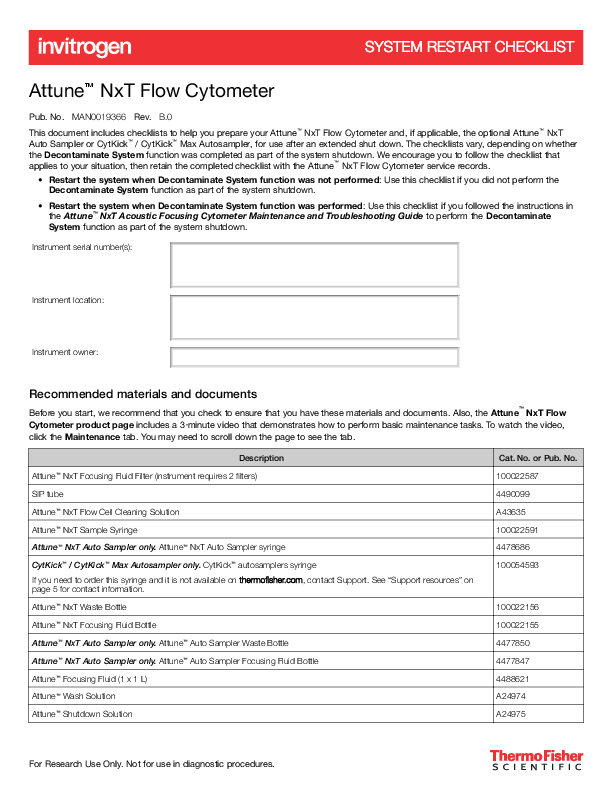
Pub. No. MAN0019366 Rev. B.0 This document includes checklists to help you prepare your AttuneTM NxT Flow Cytometer and, if applicable, the optional AttuneTM NxT Auto Sampler or CytKickTM / CytKickTM Max Autosampler, for use after an extended shut down. The checklists vary, depending on whether the Decontaminate System function was completed as part of the system shutdown. We encourage you to follow the checklist that applies to your situation, then retain the completed checklist with the AttuneTM NxT Flow Cytometer service records.
� Restart the system when Decontaminate System function was not performed: Use this checklist if you did not perform the Decontaminate System function as part of the system shutdown.
� Restart the system when Decontaminate System function was performed: Use this checklist if you followed the instructions in the AttuneTM NxT Acoustic Focusing Cytometer Maintenance and Troubleshooting Guide to perform the Decontaminate System function as part of the system shutdown.
Instrument serial number(s):

Instrument location:

Instrument owner:

Recommended materials and documents
Before you start, we recommend that you check to ensure that you have these materials and documents. Also, the AttuneTM NxT Flow Cytometer product page includes a 3minute video that demonstrates how to perform basic maintenance tasks. To watch the video, click the Maintenance tab. You may need to scroll down the page to see the tab.

Description AttuneTM NxT Focusing Fluid Filter (instrument requires 2 filters) SIP tube AttuneTM NxT Flow Cell Cleaning Solution AttuneTM NxT Sample Syringe AttuneTM NxT Auto Sampler only. AttuneTM NxT Auto Sampler syringe CytKickTM / CytKickTM Max Autosampler only. CytKickTM autosamplers syringe If you need to order this syringe and it is not available on thermofisher.com, contact Support. See "Support resources" on page 5 for contact information. AttuneTM NxT Waste Bottle AttuneTM NxT Focusing Fluid Bottle AttuneTM NxT Auto Sampler only. AttuneTM Auto Sampler Waste Bottle AttuneTM NxT Auto Sampler only. AttuneTM Auto Sampler Focusing Fluid Bottle AttuneTM Focusing Fluid (1 x 1 L) AttuneTM Wash Solution AttuneTM Shutdown Solution

Cat. No. or Pub. No. 100022587 4490099 A43635 100022591 4478686 100054593
100022156 100022155 4477850 4477847 4488621 A24974 A24975

For Research Use Only. Not for use in diagnostic procedures.

Description AttuneTM Debubble Solution Freshly prepared 10% bleach solution Add 1 part 5.25% sodium hypochlorite to 9 parts deionized water. AttuneTM Performance Tracking Beads AttuneTM NxT Acoustic Focusing Cytometer Maintenance and Troubleshooting Guide AttuneTM NxT Acoustic Focusing Cytometer User Guide

Cat. No. or Pub. No. A10496 N/A
4449754 100024234 100024235

Restart the system when Decontaminate System function was not performed
See the AttuneTM NxT Acoustic Focusing Cytometer User Guide and the AttuneTM NxT Acoustic Focusing Cytometer Maintenance and Troubleshooting Guide for detailed instructions, if needed. See "Recommended materials and documents" on page 1 for catalog numbers for all reagents and instrument consumables.
3 Task
Rinse all bottles.
Power cycle the instrument(s), and reboot the instrument computer.
Run the Decontaminate System function.
Change the AttuneTM NxT Focusing Fluid Filters.
Run the Startup function three times. During Startup, inspect the AttuneTM NxT Sample Syringe and, if applicable, the AttuneTM NxT Auto Sampler syringe or the CytKickTM autosamplers syringe. Look for dried salt or anything that looks like debris in the syringe barrel and on either side of the plunger. If there are signs of these issues, then we recommend that you replace the syringe on the cytometer and/or the autosampler.
Run the De-Bubble function two times using AttuneTM Debubble Solution.
Run the Rinse function two times.
Run the Deep Clean function using AttuneTM NxT Flow Cell Cleaning Solution or freshly prepared 10% bleach solution.
Prepare fresh AttuneTM Performance Tracking Beads, then run the Performance Test. If the Performance Test passes, then continue to your experiment. The Performance Test results should be similar to the pre-shutdown Performance Test results. The Levey-Jennings Reports provide a visual indication of the cytometer performance over time. If the Perfomance Test does not pass, then:
1. Run the Startup function three times. 2. Run the De-Bubble function two times using AttuneTM Debubble Solution. 3. Run the Rinse function two times. 4. Run the Deep Clean function using AttuneTM NxT Flow Cell Cleaning Solution or freshly prepared 10% bleach solution. 5. Run the Performance Test again. 6. If the test passes, then continue to your experiment.
If the test does not pass, then repeat steps 1 to 5. 7. If the test does not pass, see Performance Tracking troubleshooting in the AttuneTM NxT Acoustic Focusing Cytometer Maintenance and
Troubleshooting Guide, or contact Support, if needed. See "Support resources" on page 5.

2

AttuneTM NxT Flow Cytometer System Restart Checklist

Restart the system when Decontaminate System function was performed
See the AttuneTM NxT Acoustic Focusing Cytometer User Guide and the AttuneTM NxT Acoustic Focusing Cytometer Maintenance and Troubleshooting Guide for detailed instructions, if needed. See "Recommended materials and documents" on page 1 for catalog numbers for all reagents and instrument consumables.
3 Task
Rinse all bottles, then fill with fresh reagents: � AttuneTM Focusing Fluid � AttuneTM Wash Solution � AttuneTM Shutdown Solution
If you did not change the AttuneTM NxT Focusing Fluid Filters when you performed the system decontamination during shutdown, then change the filters. If you are not sure that the filters were changed, then it is best to replace them. Leaving filters installed after decontamination causes severe performance issues.
Power cycle the instrument(s), and reboot the instrument computer.
Run the Startup function three times. During Startup, inspect the AttuneTM NxT Sample Syringe and, if applicable, the AttuneTM NxT Auto Sampler syringe or the CytKickTM autosamplers syringe. Look for dried salt or anything that looks like debris in the syringe barrel and on either side of the plunger. If there are signs of these issues, then we recommend that you replace the syringe on the cytometer and/or the autosampler.
Run the De-Bubble function two times using AttuneTM Debubble Solution.
Run the Rinse function two times.
Run the Deep Clean function using AttuneTM NxT Flow Cell Cleaning Solution or freshly prepared 10% bleach solution.
Prepare fresh AttuneTM Performance Tracking Beads, then run the Performance Test. If the Performance Test passes, then continue to your experiment. The Performance Test results should be similar to the pre-shutdown Performance Test results. The Levey-Jennings Reports provide a visual indication of the cytometer performance over time. If the Perfomance Test does not pass, then:
1. Run the Startup function three times. 2. Run the De-Bubble function two times using AttuneTM Debubble Solution. 3. Run the Rinse function two times. 4. Run the Deep Clean function using AttuneTM NxT Flow Cell Cleaning Solution or freshly prepared 10% bleach solution. 5. Run the Performance Test again. 6. If the test passes, then continue to your experiment.
If the test does not pass, then repeat steps 1 to 5. 7. If the test does not pass, see Performance Tracking troubleshooting in the AttuneTM NxT Acoustic Focusing Cytometer Maintenance and
Troubleshooting Guide, or contact Support, if needed. See "Support resources" on page 5.

AttuneTM NxT Flow Cytometer System Restart Checklist

3

Troubleshooting
See the AttuneTM NxT Acoustic Focusing Cytometer Maintenance and Troubleshooting Guide (Pub. No. 100024234) for additional troubleshooting information.

Issue

Recommended actions

Data stream on time plot looks choppy, or Test for sample syringe movement:

no events are displayed

1. Open the syringe pump door located on the left side of the AttuneTM NxT Flow Cytometer.

2. While observing the sample syringe, click Rinse on the Instrument tab, then follow the prompts to start the Rinse function. � If the syringe is not moving at all, then:
a. Ensure that the USB cable connection between the back of the cytometer and the computer is firmly connected, then power cycle the instrument: � Close the AttuneTM NxT Software, then power off the cytometer and, if applicable, the autosampler.

� Power on the autosampler, then the cytometer, then open the AttuneTM NxT Software.

b. Sign in, then perform the Startup procedure. While the Startup function is running, observe the sample syringe.

c. If the syringe is still not moving or appears to be sticking (non-fluid motion), then consider changing the syringe before contacting our technical support team.

� If sample syringe movement is okay, then the system may have a clog. Consider changing the syringe.

Loose connections errors The system displays an error message (flashing blue backlights) that a fluidics sensor connection is loose (e.g., AttuneTM Wash Solution bottle or AttuneTM NxT Waste Bottle).

1. Ensure that the bottle is full (AttuneTM Focusing Fluid, AttuneTM Wash Solution, AttuneTM Shutdown Solution) or empty (AttuneTM NxT Waste Bottle). Fill up all bottles, and empty the waste.
2. Check all fluid lines and sensor connections. Ensure that they are firmly seated and plugged in. 3. Check the connections for both the cytometer and the autosampler. 4. If the connections appear to be firm and the error message still displays, a new replacement bottle
can be ordered, or a connection may be needed. Contact our technical support team. See "Support resources" on page 5.

Leak detection errors

The cytometer and the autosampler have a leak detector in their bottle bay basins that are designed to pick up large leaks (~5 mL).
1. Ensure that the fluid bottles are completely removed and/or reseated properly when refilled. 2. If either leak detector is triggered, inspect to confirm that there is a leak, then clean if needed. Look
for any signs of the source, such as a loose fitting or damaged bottle connections. Tighten or replace as necessary. 3. If there is a sign of an intermittent leak, confirm the leak sensor is operational by placing your finger over the leak sensor face in the bottle bay. It should trigger the leak sensor. The sensor may need sensitivity adjustment. Contact our technical support team for assistance. See "Support resources" on page 5. The sensitivity adjustment can be performed while technical support provides instructions.

4

AttuneTM NxT Flow Cytometer System Restart Checklist

Support resources
I need ... To access more AttuneTM NxT Flow Cytometer tools, documentation, or troubleshooting content
Immediate assistance

Resource
Visit the Flow Cytometry Support Center. Also, the AttuneTM NxT Flow Cytometer computer desktop includes these folders:
� AttuneTM NxT User Guides: Contains AttuneTM NxT user guide and maintenance and troubleshooting guide.
� Helpful Attune information: Contains a training slide deck, fluorophore selection guide, consumables list, and a quick reference guide.
In the United States: � Telephone: 1-800-955-6288 (9:00 a.m.�8:00 p.m. ET). Choose option 3, then option 1 for instrument service and hardware support. � Email: instrumentservices@thermofisher.com for the Technical Assistance Center (TAC) and instrument services
In Europe: � Telephone: 00-800-5345-5345 � Email: Eurotech@thermofisher.com
All other regions: Visit thermofisher.com/support to obtain support contact information for your location. Note: Ensure that you have your instrument serial number when you contact the technical support team. If Performance Tests are failing, please take a screen shot of the Performance Test results table, and download the log files before calling for assistance. To download log files, select the Instrument tab, then click Export Logs for Service (available in AttuneTM NxT Software v3.1 or later).

General product support To request technical support or a service call

Visit thermofisher.com/support. Visit thermofisher.com/contactus.

Life Technologies Holdings Pte Ltd | Block 33 | Marsiling Industrial Estate Road 3 | #07-06, Singapore 739256 For descriptions of symbols on product labels or product documents, go to thermofisher.com/symbols-definition.

The information in this guide is subject to change without notice. DISCLAIMER: TO THE EXTENT ALLOWED BY LAW, THERMO FISHER SCIENTIFIC INC. AND/OR ITS AFFILIATE(S) WILL NOT BE LIABLE FOR SPECIAL, INCIDENTAL, INDIRECT, PUNITIVE, MULTIPLE, OR CONSEQUENTIAL DAMAGES IN CONNECTION WITH OR ARISING FROM THIS DOCUMENT, INCLUDING YOUR USE OF IT.

Revision history: Pub. No. MAN0019366

Revision

Date

Description

A.0

27 May 2020

New document.

B.0
Arrows

11 June 2020

Minor correction to the first task in "Restart the system when Decontaminate System function was not performed" on page 2.

Important Licensing Information: These products may be covered by one or more Limited Use Label Licenses. By use of these products, you accept the terms and conditions of all o use in tahpispliScaVbGle.Limited Use Label Licenses.
�2020 Thermo Fisher Scientific Inc. All rights reserved. All trademarks are the property of Thermo Fisher Scientific and its subsidiaries unless otherwise specified.

ed callouts or arrows Callout&Arrow_Libary.

as needed.

and unused elements epository.

1
1
thermofisher.com/support | thermofisher.com/askaquestion thermofisher.com
11 June 2020