

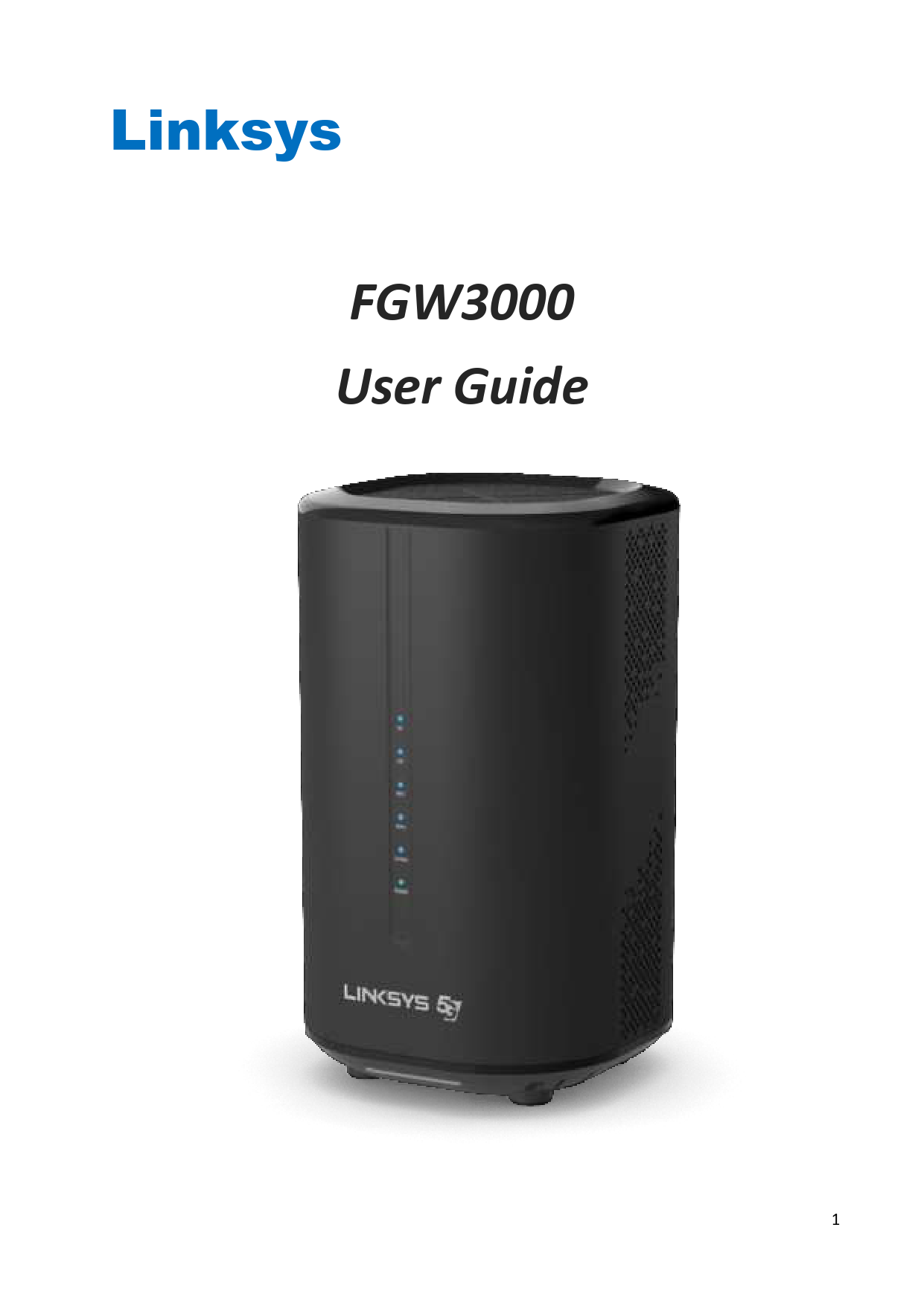
LINKSYS FGW3000 5G WiFi 6 Router User Guide
File info: application/pdf · 49 pages · 1.67MB
302
FGW3000 User Guide - downloads.linksys.com
16 . WiFi | Status . WiFi> Status . State: Possible states are ON and OFF. ON: WiFi is on. OFF: WiFi is off. Radio Channel: The channel used by CPE. Working Mode: This sows the working mode you designate in WiFi->…
Linksys FGW3000 User Guide
2021-10-21 — Please follow the steps below to install the router: Step 1. Insert SIM card into the router with instructions shown below until it clicks.
https://downloads.linksys.com/support/assets/userguide/FGW3000 LNKPG-00838 User Guide RevA00 V2
.linksys.com URL:
Full PDF Document

If the inline viewer fails, it will open the original document in compatibility mode automatically. You can also open the file directly.
Extracted Text
Linksys FGW3000 User Guide
1

Table of Contents
Table of Contents ............................................................................................................................. 2 Introduction...................................................................................................................................... 4
Product Overview.............................................................................................................4 LED Indicators...................................................................................................................5 Installation ........................................................................................................................ 7 Web Interface...................................................................................................................................8 Login to Web-GUI ............................................................................................................. 8 Detailed Configuration Page .......................................................................................... 10 Menu Structure .............................................................................................................. 11 Mobile Network | PIN ............................................................................................................ 12 WiFi................................................................................................................................. 15 WiFi | Status ........................................................................................................................... 16 WiFi | Settings | WiFi 2.4GHz.........................................................................................17 WiFi | Settings | WiFi 5GHz............................................................................................20 Network .................................................................................................................................. 23 Network | Status ............................................................................................................ 24 Network | WAN Setting (NAT Mode).............................................................................26 Network | LAN Setting ................................................................................................... 27 Network | Port Management ........................................................................................ 30 IPv6 ......................................................................................................................................... 31 IPv6 | Status ................................................................................................................... 32 IPv6 | Settings ................................................................................................................ 32 Firewall ................................................................................................................................... 33 Firewall | Basic ............................................................................................................... 34 Firewall | Access Restriction .......................................................................................... 35 Management .......................................................................................................................... 36 Management | Account ................................................................................................. 36 Management | Device Setting ....................................................................................... 38 Management | Time Settings ........................................................................................ 39 Management | Restore Default ..................................................................................... 40 Management | Software................................................................................................41 Monitoring.............................................................................................................................. 43 Management | Status .................................................................................................... 44 Management | Iperf.......................................................................................................46
2

Management | Diagnostic Tools .................................................................................... 47 About ...................................................................................................................................... 48 Specification ................................................................................................................................... 49
3

Introduction
Product Overview 1. Power Input 2. Power on/off Switch 3. LAN Port 4. USB Port (Reserve) 5. WPS Button 6. Nano Sim Card Slot 7. Reset Button (Press 5 sec for Reset to Default)
4

LED Indicators

LED Indication

Icon

Power

WiFi 2.4GHz

WiFi 5GHz
WPS
SIM/4G signal strength
5G signal strength (Primary cell) No LTE Connection Firmware Upgrade
Reset

LED Status
ON

Description Power ON

OFF

Power OFF

ON

2.4GHz Wi-Fi ON

Blinking

Transmitting data

OFF

2.4GHz Wi-Fi OFF

ON

5GHz Wi-Fi ON

Blinking

Transmitting data

OFF

5GHz Wi-Fi OFF

Blinking
ON
Off Blue LED
On Purple LED On
Red LED On
Red LED Blanking Blue LED On
Purple LED On Red LED On

WPS pairing (2min duration) WPS paired. (LED off after 5 sec)
No WPS Good Signal Medium Signal Weak Signal No SIM detect Good Signal Medium Signal Weak Signal

The LEDs of 4G & 5G are both off

All LEDs in chasing pattern with blue color

All LEDs blinking with Blue color

5

6

Installation Please follow the steps below to install the router: Step 1. Insert SIM card into the router with instructions shown below until it clicks. Step 2. Connect one of the LAN ports (any port will do) on the router to your PC with a RJ-45 Ethernet cable provided. Step 3. Insert the power cord into the DC-12V power jack of the router; and insert the plug into the power outlet. Step 4. Switch the power ON. The router will start the booting process. After a few seconds, the LED lights will start blinking. Step 5. When the router has booted up, you will see the following LED lights on in solid color: the WiFi 2.4GHz, WiFi 5GHz, LTE and 5G. You can now connect your device to the router via an ethernet cable or over WiFi. The network name (SSID) and password (key) can be found on the label underneath the router. Note: 1. To remove the SIM card, please press the card in until it clicks and it will pop out automatically. 2. Do not remove the SIM card when the router is operating.
7

Web Interface
Login to Web-GUI Users' devices are assumed in CPE LAN side. Please follow the steps below to configure your device through the web interface: Step1: Open the Web browser (Ex: Internet Explorer, Firefox or Chrome) and enter the
default IP address of CPE, which is : http://192.168.15.1
Web browser
Step2: Enter USERNAME/PASSWORD to access the web management interface. The default USERNAME/PASSWORD is admin/admin.
Web management interface
8

Step3: After successful login, you can see "Brief Summary Page". Brief Summary Page is composed of many blocks and each block contains its own feature. A concise description is presented in the block. Users can click on it to enter "Detailed Configuration Page" to see the complete settings or tweak the configuration. Detailed information about this page will be stated belo

Brief Summary Page

Brief Summary Page

After you've opened up GUI page, the first page you see is "Brief Summary Page". This window shows all the current settings and system information. It gives you an overview of the current status of your device.

After login, users can see a "Brief Summary Page" about all functions of FGW3000, each block is a link to "Detailed Configuration Page". (Ex: Click "Network", you can go to "Network" main menu with sub-menu like WAN Setting or Port Management and other settings about Network)

9

Detailed Configuration Page After clicking any block in "Brief Summary Page", the webpage would be switched to the "Detailed Configuration Page". (Take"Mobile Network" block for example)
Detailed Configuration
Main Menu Show the current main menu Sub Menu Clickable, can jump to another Sub Menu under the same Main Menu
10

Menu Structure

After entering "Detailed Configuration Page", the user can quickly jump to the specified Sub

Menu.

Users can refer to the menu structure given below:

Mobile Network WiFi
Network IPv6
Firewall
Management
Monitoring About

PIN Status Settings Status WAN Setting LAN Setting Port Management Status Settings Basic Access Restriction Account Device Setting Time Settings Restore Default Software Status Iperf Diagnostic Tools Status

11

Mobile Network | PIN
Mobile Network>PIN Mobile Network >PIN >Enable PIN
Mobile Network >PIN > Change PIN
12

Enable PIN: Enable/Disable PIN code protection. 13

Change PIN: Change the PIN code. Remaining Attempts: remaining times to try PIN code.

Cancel button Apply button

Reset fields to the last saved values. Commit the changes made and save to the CPE device, some services will be reloaded.

Please make sure the current technology is 5G. It can be checked from upper left corner of Web-GUI.

If you enter wrong PIN more than three times (maximum numbers of attempts allowed), your SIM card will become "PUK-locked" status. Please contact your service provider for further unlock instruction.
Remaining Attempts is just an example. Real number is determined by user's SIM card.
If users want to change the PIN code of SIM card, they need to enable "Enable PIN code check" function in advance.

14

WiFi In WiFi main menu, you can display and configure settings about WiFi. Users can see SSID, current channel and working mode as well as configure wireless setting, security and access control list

Display in Brief Summary Page

Menu Structure: WiFi

Status Settings

15

WiFi | Status

WiFi> Status
State: Possible states are ON and OFF.  ON: WiFi is on.  OFF: WiFi is off. Radio Channel: The channel used by CPE. Working Mode: This sows the working mode you designate in WiFi->Setting. WiFi MAC: As titled. Network Name (SSID): As titled. SSID Broadcast: As titled.

Refresh button Auto button

Click the "Refresh" button to trigger refresh manually. This button will update the status information periodically. (The period can be configured by changing "GUI Refresh Time"in page Management/Device Setting)

Radio channel, WiFi MAC and Network Name (SSID) are all examples here.

16

WiFi | Settings | WiFi 2.4GHz

Wireless Settings

WiFi> Settings>WiFi 2.4GHz

 Interface Status: Click "Disable" button to disable WiFi, or click "Enable" to activate WiFi

function.  Network Name (SSID): SSID (service set identifier) is a label representing wireless AP. Wireless

clients would see the SSID broadcasted by AP.  Radio Channel: The channel to use. Selecting "Auto" will allow CPE to choose the best channel

automatically.

To avoid the interference , "Radio Channel" will be automatically

changed due to the selected "LTE Band"

 Working Mode: There are "802.11axg", "802.11b/g", "802.11g/n", "802.11b", "802.11g".  Bandwidth: The setting is only available when the wireless protocol is used; select the
bandwidth from the drop-down list. � 20M � Set the bandwidth to 20M. � 40M � Set the bandwidth to 40M. � 20M/40M � The bandwidth setting will automatically be switched to either 20M or 40M by
CPE based on the environment.  SSID Broadcast: Having SSID broadcast disabled essentially makes your CPE invisible unless a
wireless client already knows the SSID. The default option of SSID Broadcast is "Enabled".  AP Isolation: Enable or disable AP Isolation feature
17

Security  Security Types Setup: There are 10 different security types provided as below �

Authentication Open Systems 802.1x
WPA3-Personal
WPA2-Personal
WPA-Personal WPA2/WPA3-Personal Mixed Mode WPA/WPA2-Personal Mixed Mode
WPA2-Enterprise

Encryption

NONE

802.1x Settings -

Rekey Interval

WEP

RADIUS Server

RADIUS Port

RADIUS Key

CCMP

Pre-shared Settings Key Pass Phrase

AES

Pre-shared Settings -

TKIP

Rekey Interval

TKIP/AES Key Pass Phrase

CCMP

Wi-Fi Protected Setup(WPS)�

TKIP/CCMP Enable WPS

AES

Pre-shared Settings -

TKIP

Rekey Interval

TKIP/AES Key Pass Phrase

CCMP

Wi-Fi Protected Setup(WPS)�

TKIP/CCMP Enable WPS (only for AES and TKIP/AES.)

CCMP

Pre-shared Settings Key Pass Phrase

Pre-shared Settings -

TKIP/AES Rekey Interval

TKIP

Key Pass Phrase

AES

Wi-Fi Protected Setup(WPS)�

Enable WPS (only for AES and TKIP/AES.)

802.1x Settings -

TKIP/AES Rekey Interval:

TKIP

RADIUS Server

AES

RADIUS Port

RADIUS Key

18

WPA-Enterprise

TKIP AES TKIP/AES

WPA/WPA2-Enterprise Mixed Mode

TKIP AES TKIP/AES

802.1x Settings Rekey Interval: RADIUS Server RADIUS Port RADIUS Key 802.1x Settings Rekey Interval: RADIUS Server RADIUS Port RADIUS Key

 Wi-Fi Protected Setup(WPS)  Enable WPS: User can share their WiFi via WPS when this box is checked.
Access Control List: Users can block or allow clients with certain MAC addresses to access to CPE.  Disable: Any clients can establish the connection.  WhiteList: Only clients with MAC addresses in "Access Control List" can establish the connection, other clients will be blocked.  BlackList: Only clients with MAC addresses in "Access Control List" will be blocked, other clients can establish the connection.

Cancel button Apply button

Reset fields to the last saved values. Commit the changes made and save to the CPE device, some services will be reloaded.

If you select "WhiteList" and have no MAC address in the list, no one can establish the connection.

19

WiFi | Settings | WiFi 5GHz

WiFi> Settings>WiFi 5GHz
Wireless Setting  Interface Status: Click "Disable" button to disable WiFi, or click "Enable" to activate WiFi
function.  Network Name (SSID): SSID (service set identifier) is a label representing wireless AP. Wireless
clients would see the SSID broadcasted by AP.  Radio Channel: The channel to use. Selecting "Auto" will allow CPE to choose the best channel
automatically.  Working Mode: There are "802.11axa", "802.11a/n", "802.11ac", or "802.11a"  Bandwidth: Select the bandwidth from the drop-down list.
� 20M � Set the bandwidth to 20M. � 40M � Set the bandwidth to 40M. � 80M � Set the bandwidth to 80M. � 20M/40M/80M� The bandwidth setting will automatically be switched to either 20M or
40M or 80M by CPE based on the environment.  SSID Broadcast: Having SSID broadcast disabled essentially makes your CPE invisible unless a
wireless client already knows the SSID. The default option of SSID Broadcast is "Enabled".  AP Isolation: Enable or disable AP Isolation feature Security  Security Types Setup: There are 10 different security types provided as below �

Authentication

Encryption

20

Open Systems

NONE

802.1x Settings -

Rekey Interval

802.1x

WEP

RADIUS Server

RADIUS Port

RADIUS Key

WPA3-Personal

CCMP

Pre-shared Settings Key Pass Phrase

AES

Pre-shared Settings -

TKIP

Rekey Interval

WPA2-Personal

TKIP/AES Key Pass Phrase

CCMP

Wi-Fi Protected Setup(WPS)�

TKIP/CCMP Enable WPS

AES

Pre-shared Settings -

TKIP

Rekey Interval

WPA-Personal

TKIP/AES Key Pass Phrase

CCMP

Wi-Fi Protected Setup(WPS)�

TKIP/CCMP Enable WPS (only for AES and TKIP/AES.)

WPA2/WPA3-Personal CCMP
Mixed Mode

Pre-shared Settings Key Pass Phrase

Pre-shared Settings -

WPA/WPA2-Personal Mixed Mode

TKIP/AES TKIP AES

Rekey Interval Key Pass Phrase Wi-Fi Protected Setup(WPS)�

Enable WPS (only for AES and TKIP/AES.)

802.1x Settings -

TKIP/AES Rekey Interval:

WPA2-Enterprise

TKIP

RADIUS Server

AES

RADIUS Port

RADIUS Key

802.1x Settings -

TKIP

Rekey Interval:

WPA-Enterprise

AES

RADIUS Server

TKIP/AES RADIUS Port

RADIUS Key

21

WPA/WPA2-Enterprise Mixed Mode

TKIP AES TKIP/AES

802.1x Settings Rekey Interval: RADIUS Server RADIUS Port RADIUS Key

 Wi-Fi Protected Setup(WPS)  Enable WPS: User can share their WiFi via WPS when this box is checked.
Access Control List: Users can block or allow clients with certain MAC addresses to access to CPE.  Disable: Any clients can establish the connection.  WhiteList: Only clients with MAC addresses in "Access Control List" can establish the connection, other clients will be blocked.  BlackList: Only clients with MAC addresses in "Access Control List" will be blocked, other clients can establish the connection.

Cancel button Apply button

Reset fields to the last saved values. Commit the changes made and save to the CPE device, some services will be reloaded.

If you select "WhiteList" and have no MAC address in the list, no one can establish the connection.

22

Network
The "Network" page allows user to configure network function such as WAN setting, LAN Setting, QOS,
Port Management, DSCP, and MGMT Service.

Display in Brief Summary Page

Menu Structure: Network

Status WAN Setting LAN Setting Port Management

23

Network | Status LAN Information
Network> Status > LAN Information
WAN Information: This section shows WAN IP, MAC, Gateway, DNS Server, Time Server of NR indoor CPE and statistics of TX and RX Bytes and Packets of WAN interface.

Network > Status > WAN Information
Lease Status Table: This section shows all clients who get IP from DHCP server in NR indoor CPE.

Network > Status > Lease Status Table

Refresh button Auto button

Click the "Refresh" button to trigger refresh manually. This button will update the status information periodically. The period can be set from "GUI Refresh Time"in page Management/Device Setting)

The address and TX/RX bytes are all examples here. Real values depend on the local ISP provider.

24

25

Network | WAN Setting (NAT Mode)

Network > WAN Setting
WAN Connection Type: NAT mode.
WAN MTU: This value is "Maximum Transmission Unit". The size of a single packet can only be as large as MTU. If the size of the packet exceeds MTU, the packet would be fragmented. DNS1/2: Domain Name Server, editable when users select "Static" in "Connection Mode". Otherwise, DNS information will be given by DHCP server. WAN IP Address/ Subnet Mask/ Gateway Address: These values are un-editable.

Cancel button Apply button

Reset fields to the last saved values. Commit the changes made and save to the CPE device, some services will be reloaded.

26

Network | LAN Setting
Network >LAN Setting
LAN Setting:  LAN IP Address / Subnet Mask: The IP address and subnet mask used by CPE in LAN
 If users choose other tunnel mode, this IP means LAN side domain and Web GUI IP address. (This IP will change IP prefix in "DHCP Server" , "Port Forwarding" and "Port Trigger")
DHCP Server Settings: (Available in NAT, Tunnel, Router Mode)
Network>LAN Setting
CPE has a built-in DHCP server to manage the distribution of IP addresses. A device connected to CPE 27

through the Ethernet port or WiFi would obtain a dynamic IP address from CPE. Enable DHCP Server: enable/disable DHCP server DHCP Starting IP Address: The starting IP address assigned by DHCP server. DHCP Ending IP Address: The ending IP address assigned by DHCP server.
Notice that WiFi and Ethernet share the same DHCP server, the range of IP addresses should not be narrow. Otherwise, clients cannot get LAN IP addresses.
From ISP: When the checkbox is ticked, clients set CPE as DNS server, but CPE will only act as a "DNS relay".
If users want to know DNS Servers obtained from ISP, It can be found in "Network > Status > WAN Information > DNS Server"
DNS 1/ DNS2 / DNS3: If the checkbox "From ISP" is not ticked, users can designate the DNS server for DHCP clients. Two pictures below are captured from CPE and a PC in LAN, DNS fields are "1.1.1.1", "2.2.2.2" and "3.3.3.3". Clients' DNS request will be directly sent to the first operative server in the order of primary, secondary and tertiary DNS.
Network > DHCP Server> not From ISP
"1.1.1.1", "2.2.2.2" and "3.3.3.3" are examples.
DHCP Lease Time: The life time of the IP assigned by DHCP server( range: 2 minutes-365days) Lease Reservation Table: This table records the mapping of MAC and IP addresses. Clients with the specific MAC address in the table would get the corresponding IP address. Click "Add +" button to add a new mapping, clicking "Delete" icon ( ) to delete it. To enable the mapping, users have to tick the "Enable" checkbox.
An example is illustrated below. If a client with MAC Address "11:22:33:44:55:66"requests IP, DHCP server will assign IP "192.168.15.123" and the host name "Example" to it. 28

Network > DHCP Server> Lease Reservation Table
"Example", "11:22:33:44:55:66", "192.168.15.179" are examples here.

Cancel button Apply button

Reset fields to the last saved values. Commit the changes made and save to the CPE device, some services will be reloaded.

29

Network | Port Management

Port Forwarding:

Network > Port Management

 For a single port, multiple ports or a range of ports--sends traffic inbound on a specific port or ports to a specific device or port on your Wi-Fi
Port Trigger:
 In port range triggering, the system watches outgoing data for specific port numbers. The system remembers the IP address of the device that requests the data so that when the requested data returns, it is routed back to the proper device

30

IPv6
The "IPv6" page allows user to get IPv6 information such as WAN Connection Type and WAN IPv6 Address.
Display in Brief Summary Page

Menu structure: IPv6

Status Settings

31

IPv6 | Status

IPv6 | Settings

IPv6> Status

IPv6 Connection Type: Show IPv6 Connection Type with "Auto Configuration (SLAAC/DHCPv6). DNS From: Get DNS from Auto or Static LAN Prefix Type: choose LAN Prefix Type with Extend WAN Prefix, Prefix Delegation, or Static Auto IPv6 Address Assignment: auto assignment IPv6 address

32

Firewall
The "Firewall" page allows user to configure firewall to block and grant some network access.
Display in Brief Summary Page

Menu structure: Firewall

Basic Access Restriction

33

Firewall | Basic

Firewall > Basic

Enable Firewall: Enable/Disable firewall. DMZ IP Address: All network traffic from WAN is forwarded to this IP address in LAN. Redirect ICMP to the host: Thefunctionwill be activated if DMZ is enabled.Tick the checkbox to haveCPEpassICMPmessages to hosts, or un-tick the checkbox to let the CPE reply ICMP messages. Multicast Filter: If the checkbox is ticked, multicast packets would be dropped; otherwise, they pass through. Enable UPnP IGD:Enable/Disable Internet Gateway Device.

Cancel button Reset fields to the last saved values.

Apply button

Commit the changes made and save to the CPE device, some services will be reloaded.

34

Firewall | Access Restriction
Firewall > Access Restriction
Set and enable individual firewall rules by date / Time, device and note blocked reason.
35

Management
The "Management" page allows user to configure the main system parameters such as password, language,
device time/name ...etc.

Display in Brief Summary Page

Menu structure: Management

Account Device Setting Time Settings Restore Default Software

Management | Account

Management > Account
The Account page lets you change the default username and password for superuser and enduser. There should be at least 9 characters for the password. Click "Apply" to save this change. Tick the checkbox "Enable" to enable the account.
36

Apply button Cancel button

Commit the changes made and save them to the CPE device. Reset fields to the last saved values

37

Management | Device Setting
Management > Device Setting
Timeout/Refresh Setting  Management Session Timeout:Automatic logout after the period. (Range: 0-10 Minutes; 0
means never expired)  GUI Refresh Time: When users press "auto" button in any page, the page refresh every the
designated time. (Range: 5-60 Seconds) Device Name: The name of CPE. Users can login to CPE from any deviceinthe internal network by entering the device name on the address bar.  Current Device Name: Display the current device name.  New Device Name: A field toupdate your current device name.
Apply button Commit the changes made and save them to the CPE device. Cancel button Reset fields to the last saved values
38

Management | Time Settings
Management > Time Settings
 Current Local Time: Display current local time; or click "Synchronize with PC" button to synchronize the time of CPE with PC.
 Time Zone: as titled.  Auto Adjust for Daylight Saving Time: Enable this option if your location observes Daylight
Savings Time.  Time Server Information: Setting the NTP server.  NTP1/2: Users can specify two NTP servers in "IP" or "Domain name" format.
Apply button Commit the changes made and save them to the CPE device. Cancel button Reset fields to the last saved values
39

Management | Restore Default
Management > Restore Default
Select Management>Restore Default to go back to the factory default settings. Restore Default: Click "Restore" button to clear all users' configuration and restore to factory default settings.
Restore to default settings Window
Integrity Check: Integrity check for the software used in the device in case the storage device is broken. The green check indicates the investigation is passed.
Integrity Check Window
40

Management | Software
Management > Software
Software Upgrade: Click "Browse" button to select the ipkg file to upload, and then click "Upgrade"to install the selected file. The Upgrading window will be shown as below and then the reboot process will be started to let the change taken effect. The ipkg file you have uploaded will be shown in the table below the device software version.
Management > Software> Upgrading Window
After pressing the "Upgrade" button, it will automatically reboot the CPE and upgrade the firmware with the specified file. You will be prompted to re-login to the CPE after the upgrade is complete. FOTA Upgrade: Click "Check New Firmware" button to get the latest firmware from cloud server.
41

Management > Software> FOTA Upgrade
42

Monitoring
The "Monitoring" page allows user to monitor system resource such as CPU, Memory, Uplink and Downlik
data rate, and enable Iperf and diagnostic tools ...etc.

Display in Brief Summary Page

Menu structure: Monitoring

Status Iperf Diagnostic Tools

43

Management | Status The "Status" page allows user to monitor system resource such as CPU, Memory, Uplink and Downlik data rate.
Management > Software>Status
System Perf. Monitor Period: Set system perf. Monitor period by second
Management > Software>CPU Utilization
CPU Usage Threshold: Set CPU Usage Threshold percentage
Management > Software>Memory Utilization
Memory Usage Threshold: Set Memory Usage Threshold percentage
44

Management > Software>Uplink & Downlink Data Rate Management > Software>System Information
45

Management | Iperf
Management > Iperf
Enable/Disable Iperf with many parameters settings such as Iperf Version, Server Port, Management Port, Measurement Time, Protocol Type and get result
46

Management | Diagnostic Tools
Management > Diagnostics Tools
Use system Diagnostics tools to set up parameters such as Diagnostics Type, Protocol Type, Ping Count, Packet Size, Ping Timeout, and get the Diagnostic Result afterward
47

About
This section shows the device information such as Product Name, Serial Number, IMEI,and IMSI

Menu structure:

About

Display in Brief Summary Page Status

48

Specification
 Support 5G NR Sub 6GHz for both TDD & FDD  5G NR TDD Bands : 78/79*  5G NR FDD Bands : n1/3/5
 Support LTE  FDD Bands: B1/3/7/8
 Support USIM card  Web-based configuration  Support 2 RJ-45 Giga Ethernet Port  Support 802.11ax/b/g/n (2x2) Wi-Fi 6 Technology @ 2.4GHz  Support 802.11ax/ac/an/a (4x4) Wi-Fi Technology @ 5GHz *WiFi 5G will not be available when device is connected to 5G n79 network
LNKPG-00838 Rev A00 49