

TRENZ C10LP Cyclone 10 LP RefKit User Guide
File info: application/pdf · 75 pages · 3.54MB
Cyclone 10 LP Refkit User Guide
Intel FPGA, Cyclone 10 LP
C10LP Refkit User Guide
Arty Z7: All Programmable SoC Zynq-7000 Z7-20 Development Platform | Xilinx Zynq SoC | Programmable Logic | Products | Trenz Electronic GmbH Online Shop (EN)
Extracted Text
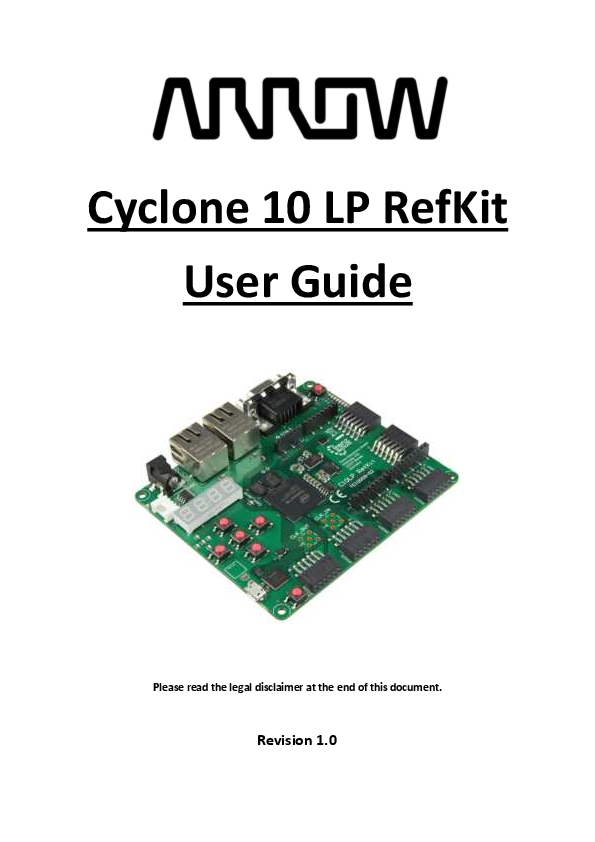
Cyclone 10 LP RefKit User Guide
Please read the legal disclaimer at the end of this document.
Revision 1.0

Table of Contents
Table of Figures ..................................................................................................................... 4 Cyclone 10 LP RefKit Development Board ............................................................. 5
1.1 About Arrow Cyclone 10 LP RefKit Board ......................................................................... 5 1.2 Useful Links ....................................................................................................................... 5 1.3 Getting Help...................................................................................................................... 6
Introduction to the Cyclone 10 LP RefKit Board..................................................... 7 2.1 Layout and Components................................................................................................... 7 2.2 Hardware variations ......................................................................................................... 9 2.3 Block Diagram ................................................................................................................. 10
Connections and Peripherals of the Cyclone 10 LP RefKit Board .......................... 11 3.1 Board Status Elements.................................................................................................... 11 3.2 Clock Circuitry ................................................................................................................. 11 3.3 Peripherals Connected to the FPGA ............................................................................... 12
3.3.1 Communication and Configuration......................................................................... 12 3.3.2 Fast Ethernet ........................................................................................................... 14 3.3.3 Serial Configuration Flash Memory ........................................................................ 15 3.3.4 HyperRAM ............................................................................................................... 16 3.3.5 SDRAM Memory...................................................................................................... 17 3.3.6 QSPI Flash Memory ................................................................................................. 18 3.3.7 EEPROMs ................................................................................................................. 18 3.3.8 ADC/DAC ................................................................................................................. 19 3.3.9 I2C Grove Connector ............................................................................................... 20 3.3.10 Arduino Header ....................................................................................................... 21 3.3.11 PMOD Connectors................................................................................................... 22 3.3.12 VGA.......................................................................................................................... 24 3.3.13 LEDs ......................................................................................................................... 25 3.3.14 Push Buttons ........................................................................................................... 26 3.3.15 7-segment LED Display............................................................................................ 27 3.3.16 Power Tree .............................................................................................................. 28
Software and Driver Installation ......................................................................... 30 4.1 Installing Quartus Prime Software.................................................................................. 30 4.2 Installing Arrow USB Programmer2................................................................................ 31 4.3 License ............................................................................................................................ 33

Cyclone 10 LP RefKit User Guide

Page | 2

www.arrow.com February 2022

New Project with Cyclone 10 LP RefKit ............................................................... 34 5.1 Creating a new Blinky Project with Cyclone 10 LP RefKit ............................................... 34 5.2 Building a Blinky Project with Cyclone 10 LP RefKit ....................................................... 39
5.2.1 Block Diagram ......................................................................................................... 39 5.2.2 Components of the Design...................................................................................... 39 5.2.3 Catalog IP ................................................................................................................ 40 5.2.4 Create and Configure PLL........................................................................................ 40 5.2.5 Create and Configure the Counter.......................................................................... 44 5.2.6 Create and Configure the Multiplexer .................................................................... 46 5.2.7 Adding the Components to the Schematic ............................................................. 48 5.2.8 Connecting the Components .................................................................................. 50 5.2.9 Add inputs, outputs to the schematic..................................................................... 53 5.2.10 Analysis and Synthesis ............................................................................................ 55 5.2.11 Adding Timing Constraints ...................................................................................... 56 5.2.12 Pinning Assignments ............................................................................................... 57 5.2.13 Compiling the Design .............................................................................................. 60 5.2.14 Reading the Compilation Report............................................................................. 61
Configuring the Cyclone 10 LP RefKit .................................................................. 63 6.1 Configure the FPGA in JTAG mode ................................................................................. 63 6.2 Serial configuration flash memory programming .......................................................... 66
6.2.1 Programming File generation ................................................................................. 67 6.2.2 Device Programming ............................................................................................... 70 6.3 Testing the Design .......................................................................................................... 71
Common Issues and Fixes................................................................................... 72 Appendix ........................................................................................................... 73 8.1 Revision History .............................................................................................................. 73 8.2 Legal Disclaimer .............................................................................................................. 74

Cyclone 10 LP RefKit User Guide

Page | 3

www.arrow.com February 2022

Table of Figures
Figure 1 � Cyclone 10 LP RefKit Board (top view) ............................................................................ 7 Figure 2 � Cyclone 10 LP RefKit Board (bottom view) ..................................................................... 8 Figure 3 - Cyclone 10 LP RefKit Block Diagram .............................................................................. 10
Figure 4 � Position of Indication LEDs............................................................................................ 11 Figure 5 � Cyclone 10 LP RefKit Clock Tree .................................................................................... 12 Figure 6 � JTAG Connections.......................................................................................................... 13 Figure 7 � FTDI Connections .......................................................................................................... 13 Figure 8 � MAC-to-PHY connection ............................................................................................... 14 Figure 9 � Configuration Flash Connections .................................................................................. 16 Figure 10 � HyperRAM Connections .............................................................................................. 16 Figure 11 � SDRAM Connections ................................................................................................... 17 Figure 12 � QSPI Flash Connections ............................................................................................... 18 Figure 13 � EEPROM Connections ................................................................................................. 19 Figure 14 � ADC/DAC Connections ................................................................................................ 19 Figure 15 � I2C Grove Connector ................................................................................................... 20 Figure 16 - Arduino Header Connections....................................................................................... 21
Figure 17 � PMOD Headers Connections....................................................................................... 22 Figure 18 � VGA Connections......................................................................................................... 24 Figure 19 � LED Connections.......................................................................................................... 25 Figure 20 � Button Connections .................................................................................................... 26 Figure 21 � 4-digit 7-segment Display Connections ...................................................................... 27 Figure 22 � Quadruple Seven-segment LED Display's Internal Circuit Diagram............................ 28 Figure 23 � Power Tree Connections ............................................................................................. 29

Cyclone 10 LP RefKit User Guide

Page | 4

www.arrow.com February 2022

Cyclone 10 LP RefKit Development Board
1.1 About Arrow Cyclone 10 LP RefKit Board
The Cyclone 10 LP Reference Kit is a customizable development board that targets all kinds of applications with a wide range of interfaces. The board is based on Cyclone 10 LP FPGA, which is optimized for low-cost and low-power designs, making them ideal for high-volume and costsensitive applications. High-density sea of programmable gates and onboard resources allow implementation of Nios II 32-bit microcontroller IP, which provides the ideal solution for I/O expansion, chip-to-chip interfacing, industrial, automotive, and consumer applications. The C10LP RefKit is equipped with an Arrow USB Programmer2, 2 ports 10/100Mbps Ethernet, SDRAM, HyperRAM, flash memory, VGA, 8-channel ADC/DAC, PMODs, and ARDUINO connectors making it a fully featured plug and play solution without any additional costs.
The C10LP RefKit board contains all the tools needed to use the board in conjunction with a computer that runs a 64-bit Linux / Microsoft Windows 10 operating system or later.
1.2 Useful Links
A set of useful links that can be used to get relevant information about the Cyclone 10 LP RefKit or the Cyclone 10 LP FPGA. � Cyclone 10 LP RefKit at Arrow Shop � Cyclone 10 LP RefKit at Trenz Electronic Shop � Intel Cyclone 10 LP Webpage � Cyclone 10 LP RefKit Wiki Page

Cyclone 10 LP RefKit User Guide

Page | 5

www.arrow.com February 2022

1.3 Getting Help
Here are the addresses where you can get help if you encounter any problems:
� Arrow Electronics In Person
Arrow EMEA + 49 (0) 6102 5030 0
Online
https://arrow.com
� Trenz Electronic GmbH
https://www.trenz-electronic.de/en/

Cyclone 10 LP RefKit User Guide

Page | 6

www.arrow.com February 2022

Introduction to the Cyclone 10 LP RefKit Board
2.1 Layout and Components
Figure 1 and Figure 2 shows a top view and the bottom view of the board. It depicts the layout of the board and indicates the location of the various connectors and key components.

er Input

ast Et ernet rts

D

er In icat r LED
I C r e C nnect r
Digit egment Display C D E LED
ser LEDs ser u ns

laster

micr

c nnect r

ri ge

ser u n

yper

Cycl ne L

D I ea er

Figure 1 � Cyclone 10 LP RefKit Board (top view)

eset u n ser LEDs
DC D C D C n gura n as mem ry
Ds

Cyclone 10 LP RefKit User Guide

Page | 7

www.arrow.com February 2022

Et ernet s nal g I s

C ress EE

s

I las em ry
p nal Cl c I s

Figure 2 � Cyclone 10 LP RefKit Board (bottom view)

The following features are available on the Cyclone 10 LP RefKit board:

FPGA Device
� Intel Cyclone 10 LP 10CL055YU484C8G device. Features of the FPGA on the C10LP RefKit:
Resources
Logic Elements (LE) M9K Memory (Kb) 18 x 18 Multiplier PLLs I/O
Memory Devices
� 64-256Mbit external SDRAM memory1 � 64Mbit external HyperRAM memory � 64-128Mbit external QSPI Flash memory1 � 16Mbit EPCQ serial configuration flash memory � 2 2Kbit serial MAC-Address EEPROM memory

Device 10CL055 55,856
2,340 156 4 321

1 The different board variations are equipped with different memory devices

Cyclone 10 LP RefKit User Guide

Page | 8

www.arrow.com February 2022

Configuration and Debug
� On-board Arrow USB Programmer2 (micro-USB type B connector) � JTAG mode

Interfaces
� 2 10/100Mbps Ethernet PHYs with RJ45 connectors � 8-Channel, 12-bits configurable ADC/DAC

Connectors
� 6 PMOD Headers � Arduino Uno R3 compatible Header � VGA with 15-pin high density D-Sub connector � I2C Grove connector � Optional SMA connectors for preferred frequency

Buttons and Indicators
� 4-Digit 7-Segment LED Display � 7 Buttons � 13 user LEDs � 2 board status LEDs

Power
� Recommended external supply voltage range: � Recommended external supply current: � Recommended I/O signal voltage range:

+5.0 V (nominal) 3 A 0 to +3.3 V

2.2 Hardware variations

Multiple board configurations are available with Cyclone 10 LP RefKit have different equipment. This user guide covers REV02 hardware revision with 8C and 8CA featured boards.

These two boards are the same with the exception that different memory devices have been mounted.

Ordering Code

SDRAM

SDRAM feature QSPI Flash

TEI0009-02-055-8C IS42S16400J-7BL TEI0009-02-055-8CA IS42S16160J-7BL

64Mbit up to 143MHz
256Mbit up to 143MHz

IS25LP064A-JBLE IS25LP128F-JBLE

QSPI Flash feature
64Mbit up to 133MHz
128Mbit up to 166MHz

Cyclone 10 LP RefKit User Guide

Page | 9

www.arrow.com February 2022

2.3 Block Diagram
Figure 3 represents the block diagram of the board. All the connections are established through the Cyclone 10 LP FPGA device to provide maximum flexibility for users. Users can configure the FPGA to implement any system design.

Figure 3 - Cyclone 10 LP RefKit Block Diagram

Cyclone 10 LP RefKit User Guide

Page | 10

www.arrow.com February 2022

Connections and Peripherals of the Cyclone 10 LP RefKit Board
3.1 Board Status Elements
In addition to the 13 user LEDs that the FPGA can control, there are 2 additional board-specific status LEDs that can indicate the status of the board.
er In icat r LED
C D E LED

Figure 4 � Position of Indication LEDs

Board Reference D1 D10

LED Name 3.3V CONF_DONE

Description On when 3.3V power is active On when configuration data was loaded to Cyclone 10 LP device without error

3.2 Clock Circuitry
All the external clocks of the system can be seen in Figure 5. There are two default clocks which are 12MHz and 25MHz. Both clock signals are connected and driving the FPGA's user logic and other interfaces (Arrow USB Programmer2 and Ethernet). There are optional slots for other clocks that you can either add another preferred clock source to the FPGA (CLK_IN_SMA) or generate an FPGA-controlled clock (CLK_OUT_SMA). All clock signals are connected to the internal PLLs of the FPGA.
For more information on clocks and PLLs of the Cyclone 10 LP, please refer to this document.

Cyclone 10 LP RefKit User Guide

Page | 11

www.arrow.com February 2022

CL I

E

CL

scillat r

CL

E

scillat r

CL

E
Figure 5 � Cyclone 10 LP RefKit Clock Tree

Board Reference CLK12M CLK_25M CLK_IN_SMA CLK_OUT_SMA

FPGA Pin No. PIN_G21 PIN_AA12 PIN_B11 PIN_E5

Pin Func. Input Input Input Output

Description 12MHz clock input 25MHz clock input Optional clock input Optional clock output

I/O Std 3.3 V 3.3 V 3.3 V 3.3 V

3.3 Peripherals Connected to the FPGA

3.3.1 Communication and Configuration
The C10LP RefKit board uses a single chip to perform configuration of the device and communication over USB.
3.3.1.1 JTAG Chain Configuration
There are two types of configuration methods supported by C10LP RefKit:
1. JTAG Configuration: configuration using JTAG ports. JTAG configuration scheme allows you to directly configure the device core through JTAG pins (TDI, TDO, TMS and TCK pins). The Quartus Prime software automatically generates a .sof that can be downloaded to the Cyclone 10 LP with a download cable through the Quartus Prime Programmer.
2. Configuration from EPCQ-A flash: configuration using external flash. Before configuration, you need to program the configuration data .jic into the configuration flash memory (EPCQA) which provides non-volatile storage for the bit stream. The information is retained within

Cyclone 10 LP RefKit User Guide

Page | 12

www.arrow.com February 2022

EPCQ-A even if the C10LP RefKit is turned off. When the board is powered on, the configuration data in the EPCQ-A is automatically loaded into the Cyclone 10 LP FPGA.

C

L

DI

L

icr

D

L

L

Figure 6 � JTAG Connections

Board Reference TCK TDO TDI TMS

FPGA Pin No. PIN_L2 PIN_L4 PIN_L5 PIN_L1

Pin Func. Input Output Input Input

Description Test Interface Clock Test Data Out Test Data In Test Mode Select

I/O Std 3.3 V 3.3 V 3.3 V 3.3 V

For detailed information about how to configure the Cyclone 10 LP, please refer to Chapter 6.

3.3.1.2 USB Communication
The FTDI chip converts signals from USB 2.0 to a variety of standard serial and parallel interfaces. Channel A of FTDI chip is used in MPPSE mode for JTAG. Channel B is routed to FPGA and is usable for other standard interfaces.

C

D

D

D

D

D

D

C

D

D

C

D

D

D

D

D

D

D

D

E

D

D

E

C

C

C

C

C

C

C

C

C

C

C

C

C

C

C

C

Figure 7 � FTDI Connections

Cyclone 10 LP RefKit User Guide

Page | 13

icr
www.arrow.com February 2022

Board Reference BDBUS0 BDBUS1 BDBUS2 BDBUS3 BDBUS4 BDBUS5 BDBUS6 BDBUS7 BCBUS0 BCBUS1 BCBUS2 BCBUS3 BCBUS4 BCBUS5 BCBUS6 BCBUS7

FPGA Pin No. PIN_C20 PIN_B21 PIN_B22 PIN_C21 PIN_C22 PIN_D21 PIN_D22 PIN_E21 PIN_E22 PIN_F21 PIN_F22 PIN_H21 PIN_H22 PIN_J21 PIN_J21 PIN_J19

Pin Func. Bidir Bidir Bidir Bidir Bidir Bidir Bidir Bidir Bidir Bidir Bidir Bidir Bidir Bidir Bidir Bidir

Description D[0] of bidirectional data bus D[1] of bidirectional data bus D[2] of bidirectional data bus D[3] of bidirectional data bus D[4] of bidirectional data bus D[5] of bidirectional data bus D[6] of bidirectional data bus D[7] of bidirectional data bus D[0] of bidirectional data bus D[1] of bidirectional data bus D[2] of bidirectional data bus D[3] of bidirectional data bus D[4] of bidirectional data bus D[5] of bidirectional data bus D[6] of bidirectional data bus D[7] of bidirectional data bus

I/O Std 3.3 V 3.3 V 3.3 V 3.3 V 3.3 V 3.3 V 3.3 V 3.3 V 3.3 V 3.3 V 3.3 V 3.3 V 3.3 V 3.3 V 3.3 V 3.3 V

3.3.2 Fast Ethernet
The board has two independent 10/100Mbps Ethernet ports with RJ-45 connectors. For the physical layer, the Microchip KSZ8081 Ethernet PHY is used, which is suitable for general applications.
The MAC-to-PHY interface is configured to a MII interface connections with MDIO interface as management.

E

DI

E

II

E

DI

E

II

Et ernet Et ernet

Figure 8 � MAC-to-PHY connection

Board Reference ETH1_MDIO ETH1_MDC ETH1_COL ETH1_CRS

FPGA Pin No. PIN_AA21 PIN_AA22 PIN_T19 PIN_R20

Pin Func. Bidir
Output Bidir Bidir

Description Management Interface Data Management Interface Clock MII Collision Detect MII Carrier Sense

I/O Std 3.3 V 3.3 V 3.3 V 3.3 V

Cyclone 10 LP RefKit User Guide

Page | 14

www.arrow.com February 2022

Board Reference ETH1_RXDV ETH1_RST ETH1_INTRP ETH1_RXC ETH1_RXER ETH1_RXD0 ETH1_RXD1 ETH1_RXD2 ETH1_RXD3 ETH1_TXC ETH1_TXEN ETH1_TXD0 ETH1_TXD1 ETH1_TXD2 ETH1_TXD3 ETH2_MDIO ETH2_MDC ETH2_COL ETH2_CRS ETH2_RXDV ETH2_RST ETH2_INTRP ETH2_RXC ETH2_RXER ETH2_RXD0 ETH2_RXD1 ETH2_RXD2 ETH2_RXD3 ETH2_TXC ETH2_TXEN ETH2_TXD0 ETH2_TXD1 ETH2_TXD2 ETH2_TXD3

FPGA Pin No. PIN_W21 PIN_R19 PIN_U22 PIN_V22 PIN_V21 PIN_W22 PIN_W20 PIN_Y21 PIN_Y22 PIN_U21 PIN_T18 PIN_T17 PIN_U20 PIN_U19 PIN_T20 PIN_N20 PIN_N18 PIN_P21 PIN_P22 PIN_R18 PIN_M21 PIN_N17 PIN_R17 PIN_P17 PIN_M20 PIN_M19 PIN_M16 PIN_N19 PIN_N16 PIN_R22 PIN_R21 PIN_N21 PIN_M22 PIN_N22

Pin Func. Bidir
Output Bidir Bidir Bidir Bidir Bidir Bidir Bidir Bidir
Output Output Output Output Output
Bidir Output
Bidir Bidir Bidir Output Bidir Bidir Bidir Bidir Bidir Bidir Bidir Bidir Output Output Output Output Output

Description MII Receive Data Valid Chip Reset Interrupt MII Receive Clock MII Receive Error MII Receive Data D[0] MII Receive Data D[1] MII Receive Data D[2] MII Receive Data D[3] MII Transmit Clock MII Transmit Enable MII Transmit Data D[0] MII Transmit Data D[1] MII Transmit Data D[2] MII Transmit Data D[3] Management Interface Data Management Interface Clock MII Collision Detect MII Carrier Sense MII Receive Data Valid Chip Reset Interrupt MII Receive Clock MII Receive Error MII Receive Data D[0] MII Receive Data D[1] MII Receive Data D[2] MII Receive Data D[3] MII Transmit Clock MII Transmit Enable MII Transmit Data D[0] MII Transmit Data D[1] MII Transmit Data D[2] MII Transmit Data D[3]

I/O Std 3.3 V 3.3 V 3.3 V 3.3 V 3.3 V 3.3 V 3.3 V 3.3 V 3.3 V 3.3 V 3.3 V 3.3 V 3.3 V 3.3 V 3.3 V 3.3 V 3.3 V 3.3 V 3.3 V 3.3 V 3.3 V 3.3 V 3.3 V 3.3 V 3.3 V 3.3 V 3.3 V 3.3 V 3.3 V 3.3 V 3.3 V 3.3 V 3.3 V 3.3 V

3.3.3 Serial Configuration Flash Memory
The C10LP RefKit board is integrated with a 16MBit of serial flash memory that can be used for user data and programming non-volatile storage. The configuration bitstream is downloaded into the serial configuration device which automatically loads the configuration data into the Cyclone 10 LP when the board is powered on. Device memory capacity not consumed storing configuration data can be used as general-purpose non-volatile memory, which is perfect for program and data storage. Several interfaces available with Nios II embedded processors allow you to access the serial configuration device as a memory module connected to your embedded system.

Cyclone 10 LP RefKit User Guide

Page | 15

www.arrow.com February 2022

D

DCL

E C

D

D

Figure 9 � Configuration Flash Connections

E C it

Board Reference AS_DATA AS_DCLK AS_NCS AS_ASDO

FPGA Pin No. PIN_K1 PIN_K2 PIN_E2 PIN_D1

Pin Func. Input Output Output Output

Description Data In Clock Chip Select Data Out

I/O Std 3.3 V 3.3 V 3.3 V 3.3 V

3.3.4 HyperRAM
A 64Mbit Pseudo Static Random Access Memory using a self-refresh DRAM array is integrated on C10LP RefKit. The Cyclone 10 LP connects to this memory via a very low signal count interface, called HyperBus.

D

CL

yper

C

C

I

LL

E E

Figure 10 � HyperRAM Connections

Board Reference HR_CLK HR_RW HR_CS HR_RESET HR_D0 HR_D1 HR_D2 HR_D3 HR_D4 HR_D5 HR_D6 HR_D7

FPGA Pin No. PIN_T16 PIN_U13 PIN_V13 PIN_U12 PIN_T15 PIN_W17 PIN_U14 PIN_R15 PIN_R14 PIN_V16 PIN_U16 PIN_U17

Pin Func. Output
Bidir Output Output
Bidir Bidir Bidir Bidir Bidir Bidir Bidir Bidir

Description Single Ended Clock Read Write Data Strobe Chip Select Hardware Reset Data [0] Data [1] Data [2] Data [3] Data [4] Data [5] Data [6] Data [7]

Cyclone 10 LP RefKit User Guide

Page | 16

I/O Std 3.3 V 3.3 V 3.3 V 3.3 V 3.3 V 3.3 V 3.3 V 3.3 V 3.3 V 3.3 V 3.3 V 3.3 V
www.arrow.com February 2022

3.3.5 SDRAM Memory
The C10LP RefKit board supports single-chip SDRAM with up to 256Mbit density2 which can operate up to 143 MHz clock frequency. Below are the connections and pinning of the SDRAM used in the C10LP RefKit.

Data
D
ress C mman

Figure 11 � SDRAM Connections

Board Reference A0 A1 A2 A3 A4 A5 A6 A7 A8 A9 A10 A11 A12 A13 BA0 BA1 RAS CAS WE CS CLK CKE DQ0 DQ1 DQ2 DQ3 DQ4 DQ5 DQ6 DQ7

FPGA Pin No. PIN_V5 PIN_Y3 PIN_W6 PIN_Y4 PIN_AB5 PIN_AB6 PIN_AA6 PIN_AA7 PIN_AB8 PIN_AA5 PIN_V6 PIN_AA8 PIN_AB8 PIN_AB9 PIN_Y6 PIN_V7 PIN_V8 PIN_Y7 PIN_W8 PIN_W7 PIN_AA3 PIN_AA4 PIN_AB16 PIN_Y17 PIN_AA16 PIN_AA19 PIN_AB18 PIN_AA20 PIN_AB19 PIN_AB20

Pin Func. Output Output Output Output Output Output Output Output Output Output Output Output Output Output Output Output Output Output Output Output Output Output
Bidir Bidir Bidir Bidir Bidir Bidir Bidir Bidir

Description SDRAM Address [0] SDRAM Address [1] SDRAM Address [2] SDRAM Address [3] SDRAM Address [4] SDRAM Address [5] SDRAM Address [6] SDRAM Address [7] SDRAM Address [8] SDRAM Address [9] SDRAM Address [10] SDRAM Address [11] SDRAM Address [12] SDRAM Address [13] SDRAM Bank Address [0] SDRAM Bank Address [1] SDRAM Row Address Strobe SDRAM Column Address Strobe SDRAM Write Enable SDRAM Chip Select SDRAM Input Clock SDRAM Clock Enable SDRAM Data [0] SDRAM Data [1] SDRAM Data [2] SDRAM Data [3] SDRAM Data [4] SDRAM Data [5] SDRAM Data [6] SDRAM Data [7]

I/O Std 3.3 V 3.3 V 3.3 V 3.3 V 3.3 V 3.3 V 3.3 V 3.3 V 3.3 V 3.3 V 3.3 V 3.3 V 3.3 V 3.3 V 3.3 V 3.3 V 3.3 V 3.3 V 3.3 V 3.3 V 3.3 V 3.3 V 3.3 V 3.3 V 3.3 V 3.3 V 3.3 V 3.3 V 3.3 V 3.3 V

2 The size of the mounted SDRAM depends on the board variation. For detailed information, please refer to Chapter 2.2.

Cyclone 10 LP RefKit User Guide

Page | 17

www.arrow.com February 2022

Board Reference DQ8 DQ9 DQ10 DQ11 DQ12 DQ13 DQ14 DQ15 DQM0 DQM1

FPGA Pin No. PIN_Y13 PIN_Y15 PIN_AA13 PIN_AB15 PIN_AB13 PIN_AA15 PIN_AA14 PIN_AB14 PIN_Y14 PIN_W13

Pin Func. Bidir Bidir Bidir Bidir Bidir Bidir Bidir Bidir
Output Output

Description SDRAM Data [8] SDRAM Data [9] SDRAM Data [10] SDRAM Data [11] SDRAM Data [12] SDRAM Data [13] SDRAM Data [14] SDRAM Data [15] SDRAM Lower Data Mask SDRAM Upper Data Mask

I/O Std 3.3 V 3.3 V 3.3 V 3.3 V 3.3 V 3.3 V 3.3 V 3.3 V 3.3 V 3.3 V

3.3.6 QSPI Flash Memory
There is a non-volatile, QSPI Flash memory with up to 128Mbit density3 which can operate on up to 166MHz on the board. It can be used to store larger size user data or software for Nios II embedded processors.

C

CL

I

D

I

E

I

E

I

I las

Figure 12 � QSPI Flash Connections

Board Reference F_CS F_CLK F_IO0 F_IO1 F_IO2 F_IO3

FPGA Pin No. PIN_F15 PIN_F16 PIN_G16 PIN_D15 PIN_E16 PIN_E15

Pin Func. Output Output
Bidir Bidir Bidir Bidir

Description Chip Enable Serial Data Clock Serial Data [0] Serial Data [1] Serial Data [2] Serial Data [3]

I/O Std 3.3 V 3.3 V 3.3 V 3.3 V 3.3 V 3.3 V

3.3.7 EEPROMs
The C10LP RefKit board has 2 pieces 2Kb serial EEPROMs that can be used for MAC address configuration. The EEPROMs are pre-programmed with a globally unique EUI-48 node address.

3 The size of the mounted QSPI Flash depends on the board variation. For detailed information, please refer to Chapter 2.2.

Cyclone 10 LP RefKit User Guide

Page | 18

www.arrow.com February 2022

IC D D
I C CL

EE
ress
E

EE E

Figure 13 � EEPROM Connections

Board Reference FPGA Pin No.

I2C_SDA

PIN_F17

I2C_SCL

PIN_D20

Pin Func. Bidir
Output

Description Serial Data Line Serial Clock Line

ress
I/O Std 3.3 V 3.3 V

3.3.8 ADC/DAC
The C10LP RefKit is equipped with an 8-channel, 12-bit, configurable analog-to-digital, digital-toanalog converter. There are 2 dedicated through-hole connection points on the board for 2 analog channels, while the remaining 6 channels are directly connected to the J4 header of the Arduino interface.

r uin ea er

E

DD

DD

C

CL

I

I

I

I

I

DC D C

I

I

D

I

I I

Figure 14 � ADC/DAC Connections

Board Reference ADDA_RSTN ADDA_SYNC MCLK MOSI MISO

FPGA Pin No. PIN_V4 PIN_R5 PIN_T5 PIN_T4 PIN_R6

Pin Func. Output Output Output Output Input

Description Reset Synchronization Serial Clock Input Master Output Slave Input Master Input Slave Output

r uin ea er
I/O Std 3.3 V 3.3 V 3.3 V 3.3 V 3.3 V

Cyclone 10 LP RefKit User Guide

Page | 19

www.arrow.com February 2022

Board Reference AREF AIN0 AIN1 AIN2 AIN3 AIN4 AIN5 AIN6 AIN7

Connector J1 / 8 J4 / 1 J4 / 2 J4 / 3 J4 / 4 J4 / 5 J4 / 6 TP1 TP2

Description External Reference Voltage Analog I/O Channel 0 Analog I/O Channel 1 Analog I/O Channel 2 Analog I/O Channel 3 Analog I/O Channel 4 Analog I/O Channel 5 Analog I/O Channel 6 Analog I/O Channel 7

Note: The FPGA is also directly connected to the J4 connector. If AIN5..0 are used as analog input/output, make sure that the belonging FPGA I/Os are unused and configured as input tri-stated!

Note: Do not drive a voltage greater than 3.3V to the analog I/Os. Voltages greater than 3.3V can cause irreversible damage to the FPGA!

3.3.9 I2C Grove Connector
There is a Grove connector which allows external, I2C compatible devices to be connected to the C10LP RefKit board.

D I C CL IC D

r e C nnect r

D
Figure 15 � I2C Grove Connector

Board Reference I2C_SCL I2C_SDA 3.3V GND

FPGA Pin No.
PIN_D20 PIN_F17
-

Grove Pin
1 2 3 4

Pin Func. Output Bidir PWR PWR

Description
Serial Clock Line Serial Data Line 3.3V power to the connector Ground output to the connector

I/O Std
3.3 V 3.3 V
-

Note: The EEPROMs are also connected to this I2C bus, 0x50h and 0x51h addresses are reserved for these EEPROMs.

Cyclone 10 LP RefKit User Guide

Page | 20

www.arrow.com February 2022

3.3.10 Arduino Header
The C10LP RefKit board offers connectivity to classic Arduino compatible shields that could also alternatively be used as GPIOs. The Arduino connectors offer up to 23 digital I/Os which comes with four independent headers.

r uin ea er

D D

D D

D

D

D

E

D

E

D

D

D

I

I

I

r uin

I

ea er

I

I

D n c

r uin ea er

D

D

D

D

D

D

D

E D D

E

D CL

r uin ea er E
n c

Figure 16 - Arduino Header Connections

Board Reference D0_RXD D1_TXD D2 D3 D4 D5 D6 D7 D8 D9 D10 D11 D12 D13 GND AREF

FPGA Pin No.
PIN_J7 PIN_H7 PIN_H6 PIN_J4 PIN_E4 PIN_E3 PIN_D2 PIN_F2 PIN_B2 PIN_B1 PIN_G3 PIN_H2 PIN_F1 PIN_J4
-

Arduino Header J2 / 1 J2 / 2 J2 / 3 J2 / 4 J2 / 5 J2 / 6 J2 / 7 J2 / 8 J1 / 1 J1 / 2 J1 / 3 J1 / 4 J1 / 5 J1 / 6 J1 / 7 J1 / 8

Pin Func. Bidir Bidir Bidir Bidir Bidir Bidir Bidir Bidir Bidir Bidir Bidir Bidir Bidir Bidir PWR PWR

Description

I/O Std

Digital I/O [0] or Serial In Digital I/O [1] or Serial Out Digital I/O [2] Digital I/O [3] Digital I/O [4] Digital I/O [5] Digital I/O [6] Digital I/O [7] Digital I/O [8] Digital I/O [9] Digital I/O [10] Digital I/O [11] Digital I/O [12] Digital I/O [13] Ground output to the connector Input reference voltage for ADC/DAC

3.3 V 3.3 V 3.3 V 3.3 V 3.3 V 3.3 V 3.3 V 3.3 V 3.3 V 3.3 V 3.3 V 3.3V 3.3 V 3.3 V
-

Cyclone 10 LP RefKit User Guide

Page | 21

www.arrow.com February 2022

Board Reference D14_SDA D15_SCL n.c. 3.3V EXT_RST 3.3V 5V GND GND n.c. AIN0 AIN1 AIN2 AIN3 AIN4 AIN5

FPGA Pin No.
PIN_E1 PIN_H3
PIN_P7 PIN_J6 PIN_H1 PIN_J2 PIN_J1 PIN_J3 PIN_J5

Arduino Header J1 / 9 J1 / 10 J3 / 1 J3 / 2 J3 / 3 J3 / 4 J3 / 5 J3 / 6 J3 / 7 J3 / 8 J4 / 1 J4 / 2 J4 / 3 J4 / 4 J4 / 5 J4 / 6

Pin Func. Bidir Bidir
PWR Bidir PWR PWR PWR PWR
Bidir Bidir Bidir Bidir Bidir Bidir

Description
Digital I/O [14] or Serial Data Line Digital I/O [15] or Serial Clock Line Not connected 3.3V power to the connector Reset signal of the FPGA 3.3V power to the connector 5V power to the connector Ground output to the connector Ground output to the connector Not connected GPIO [0] GPIO [1] GPIO [2] GPIO [3] GPIO [4] GPIO [5]

I/O Std
3.3 V 3.3 V
3.3 V 3.3 V 3.3 V 3.3 V 3.3 V 3.3 V 3.3 V

Note: The ADC/DAC is also directly connected to the J4 connector. If AIN5..0 are used as digital I/Os of the FPGA, make sure that the ADC/DAC does not drive these wires!

3.3.11 PMOD Connectors
The C10LP RefKit board offers connectivity to PMOD compatible connectors, making it possible to add a big variety of sensors or ICs to the system. The board has 6 PMOD connectors that can be configured to 2  6 pins or 1  12 pins

D c et
D
D c et
D
D c et
D

I

I

I

I

I

I

Figure 17 � PMOD Headers Connections

Cyclone 10 LP RefKit User Guide

Page | 22

D c et
D
D c et
D
D c et
D
www.arrow.com February 2022

Board Reference P1_IO1 P1_IO2 P1_IO3 P1_IO4 P1_IO5 P1_IO6 P1_IO7 P1_IO8 P2_IO1 P2_IO2 P2_IO3 P2_IO4 P2_IO5 P2_IO6 P2_IO7 P2_IO8 P3_IO1 P3_IO2 P3_IO3 P3_IO4 P3_IO5 P3_IO6 P3_IO7 P3_IO8 P4_IO1 P4_IO2 P4_IO3 P4_IO4 P4_IO5 P4_IO6 P4_IO7 P4_IO8 P5_IO1 P5_IO2 P5_IO3 P5_IO4 P5_IO5 P5_IO6 P5_IO7 P5_IO8 P6_IO1 P6_IO2 P6_IO3 P6_IO4 P6_IO5

FPGA Pin No.
PIN_V3 PIN_P6 PIN_P4 PIN_N5 PIN_N7 PIN_R4 PIN_P5 PIN_N7 PIN_N1 PIN_M2 PIN_M4 PIN_L6 PIN_N2 PIN_M1 PIN_M3 PIN_M6 PIN_A3 PIN_B3 PIN_A4 PIN_B4 PIN_B6 PIN_A6 PIN_C6 PIN_A5 PIN_A7 PIN_B7 PIN_A8 PIN_B8 PIN_B10 PIN_A10 PIN_B9 PIN_A9 PIN_A14 PIN_B15 PIN_A15 PIN_B16 PIN_B14 PIN_A13 PIN_B13 PIN_A16 PIN_B19 PIN_A19 PIN_B20 PIN_A20 PIN_A18

PMOD Header P1 / 1 P1 / 2 P1 / 3 P1 / 4 P1 / 7 P1 / 8 P1 / 9 P1 / 10 P2 / 1 P2 / 2 P2 / 3 P2 / 4 P2 / 7 P2 / 8 P2 / 9 P2 / 10 P3 / 1 P3 / 2 P3 / 3 P3 / 4 P3 / 7 P3 / 8 P3 / 9 P3 / 10 P4 / 1 P4 / 2 P4 / 3 P4 / 4 P4 / 7 P4 / 8 P4 / 9 P4 / 10 P5 / 1 P5 / 2 P5 / 3 P5 / 4 P5 / 7 P5 / 8 P5 / 9 P5 / 10 P6 / 1 P6 / 2 P6 / 3 P6 / 4 P6 / 7

Pin Func. Bidir Bidir Bidir Bidir Bidir Bidir Bidir Bidir Bidir Bidir Bidir Bidir Bidir Bidir Bidir Bidir Bidir Bidir Bidir Bidir Bidir Bidir Bidir Bidir Bidir Bidir Bidir Bidir Bidir Bidir Bidir Bidir Bidir Bidir Bidir Bidir Bidir Bidir Bidir Bidir Bidir Bidir Bidir Bidir Bidir

Description
PMOD I/O [1] of P1 PMOD I/O [2] of P1 PMOD I/O [3] of P1 PMOD I/O [4] of P1 PMOD I/O [5] of P1 PMOD I/O [6] of P1 PMOD I/O [7] of P1 PMOD I/O [8] of P1 PMOD I/O [1] of P2 PMOD I/O [2] of P2 PMOD I/O [3] of P2 PMOD I/O [4] of P2 PMOD I/O [5] of P2 PMOD I/O [6] of P2 PMOD I/O [7] of P2 PMOD I/O [8] of P2 PMOD I/O [1] of P3 PMOD I/O [2] of P3 PMOD I/O [3] of P3 PMOD I/O [4] of P3 PMOD I/O [5] of P3 PMOD I/O [6] of P3 PMOD I/O [7] of P3 PMOD I/O [8] of P3 PMOD I/O [1] of P4 PMOD I/O [2] of P4 PMOD I/O [3] of P4 PMOD I/O [4] of P4 PMOD I/O [5] of P4 PMOD I/O [6] of P4 PMOD I/O [7] of P4 PMOD I/O [8] of P4 PMOD I/O [1] of P5 PMOD I/O [2] of P5 PMOD I/O [3] of P5 PMOD I/O [4] of P5 PMOD I/O [5] of P5 PMOD I/O [6] of P5 PMOD I/O [7] of P5 PMOD I/O [8] of P5 PMOD I/O [1] of P6 PMOD I/O [2] of P6 PMOD I/O [3] of P6 PMOD I/O [4] of P6 PMOD I/O [5] of P6

I/O Std
3.3 V 3.3 V 3.3 V 3.3 V 3.3 V 3.3 V 3.3 V 3.3 V 3.3 V 3.3 V 3.3 V 3.3 V 3.3 V 3.3 V 3.3 V 3.3 V 3.3 V 3.3 V 3.3 V 3.3 V 3.3 V 3.3 V 3.3 V 3.3 V 3.3 V 3.3 V 3.3 V 3.3 V 3.3 V 3.3 V 3.3 V 3.3 V 3.3 V 3.3 V 3.3 V 3.3 V 3.3 V 3.3 V 3.3 V 3.3 V 3.3 V 3.3 V 3.3 V 3.3 V 3.3 V

Cyclone 10 LP RefKit User Guide

Page | 23

www.arrow.com February 2022

Board Reference P6_IO6 P6_IO7 P6_IO8 GND 3.3V

FPGA Pin No.
PIN_B18 PIN_A17 PIN_B17
-

PMOD Header P6 / 8 P6 / 9 P6 / 10 5, 114 6, 124

Pin Func. Bidir Bidir Bidir PWR PWR

Description
PMOD I/O [6] of P6 PMOD I/O [7] of P6 PMOD I/O [8] of P6 Ground 3.3 V Power to PMODs

I/O Std
3.3 V 3.3 V 3.3 V
-

3.3.12 VGA
The C10LP RefKit provides VGA connectivity that allows users to display content on a monitor. The VGA uses a 4-bit resistor-network DAC which supports up to 640  480 resolutions at a 60Hz refresh rate with 4096 colors.

IELD D

Figure 18 � VGA Connections

Board Reference VGA_R0 VGA_R1 VGA_R2 VGA_R3 VGA_G0 VGA_G1 VGA_G2

FPGA Pin No. PIN_R3 PIN_V2 PIN_W2 PIN_Y2 PIN_Y1 PIN_W1 PIN_V1

Pin Func. Output Output Output Output Output Output Output

Description VGA Red [0] VGA Red [1] VGA Red [2] VGA Red [3] VGA Green [0] VGA Green [1] VGA Green [2]

4 Pins 5, 6, 11, and 12 applies to all, P1..6 PMOD connectors.

Cyclone 10 LP RefKit User Guide

Page | 24

I/O Std 3.3 V 3.3 V 3.3 V 3.3 V 3.3 V 3.3 V 3.3 V
www.arrow.com February 2022

Board Reference FPGA Pin No. Pin Func.

Description

VGA_G3

PIN_U2

Output VGA Green [3]

VGA_B0

PIN_U1

Output VGA Blue [0]

VGA_B1

PIN_R2

Output VGA Blue [1]

VGA_B2

PIN_R1

Output VGA Blue [2]

VGA_B3

PIN_P2

Output VGA Blue [3]

VGA_VS

PIN_P3

Output Vertical Synchronization

VGA_HS

PIN_P1

Output Horizontal Synchronization

The 4, 9, 11, 12, and 15 pins of the J11 connector are not connected.

I/O Std 3.3 V 3.3 V 3.3 V 3.3 V 3.3 V 3.3 V 3.3 V

3.3.13 LEDs
There is a total of 13 red user-controllable LEDs connected to the FPGA in two types of splits. 8 LEDs are arranged in a traditional row, and an additional 5 LEDs are arranged in a joystick shape according to the location of the pushbuttons. Each LED is driven directly and individually by the Cyclone 10 LP FPGA, driving its associated pin to a high logic level for on or low logic level for off.

LED

C

D

LED

D

D

LED

C

D

LED

C

D

LED

D

D

LED D
LED D
LED D
LED D
LED D
LED D
LED D
LED D

Figure 19 � LED Connections

Board Reference LED1 LED2 LED3 LED4 LED5 LED6

FPGA Pin No. PIN_AB10 PIN_AA10 PIN_AA9 PIN_Y10 PIN_W10 PIN_U9

Pin Func. Output Output Output Output Output Output

I/O Std 3.3 V 3.3 V 3.3 V 3.3 V 3.3 V 3.3 V

Cyclone 10 LP RefKit User Guide

Page | 25

www.arrow.com February 2022

Board Reference LED7 LED8 LED_PB1 LED_PB2 LED_PB3 LED_PB4 LED_PB5

FPGA Pin No. PIN_U8 PIN_U7 PIN_C18 PIN_D19 PIN_C19 PIN_C17 PIN_D18

Pin Func. Output Output Output Output Output Output Output

I/O Std 3.3 V 3.3 V 3.3 V 3.3 V 3.3 V 3.3 V 3.3 V

3.3.14 Push Buttons
The board has seven push buttons connected to the FPGA that allow users to interact with the Cyclone 10 LP FPGA device. 5 of them are placed in a joystick shape for better usability. Push buttons drive their associated pins low logic level when pressed and high logic level when released.

E I
E E E E
E E

Figure 20 � Button Connections

Board Reference RESET USER_BTN1 USER_BTN2 USER_BTN3 USER_BTN4 USER_BTN5 RST_GPIO

FPGA Pin No. PIN_K5 PIN_U10 PIN_U11 PIN_V11 PIN_T10 PIN_T11 PIN_V15

Pin Func. Input Input Input Input Input Input Input

Description nCONFIG User button User button User button User button User button User button

Cyclone 10 LP RefKit User Guide

Page | 26

I/O Std 3.3 V 3.3 V 3.3 V 3.3 V 3.3 V 3.3 V 3.3 V
www.arrow.com February 2022

3.3.15 7-segment LED Display
The C10LP RefKit board has a Quadruple seven-segment LED display to display numbers. This display has a multiplex common anode structure to reduce the number of control signals. The connections and the structure of the display are shown in the figures below.

E E E E E

E C

E C

E CC

C

E CD

D

E CE

E

E C

E C

E CD

D

Figure 21 � 4-digit 7-segment Display Connections

Board Reference SEG_AN SEG_AN1 SEG_AN2 SEG_AN3 SEG_AN4 SEG_CA SEG_CB SEG_CC SEG_CD SEG_CE SEG_CF SEG_CG SEG_CDP

FPGA Pin No.
PIN_H20 PIN_F20 PIN_H16 PIN_J20 PIN_K17 PIN_J17 PIN_H17 PIN_G17 PIN_G18 PIN_K18 PIN_F19 PIN_J18 PIN_H19

LED Display
AN AN1 AN2 AN3 AN4
A B C D E F G DP

Pin Func. Output Output Output Output Output Output Output Output Output Output Output Output Output

Description
Common Anode for L1, L2 and L3 Common Anode for Digit 1 Common Anode for Digit 2 Common Anode for Digit 3 Common Anode for Digit 4 Segment A or L1 Segment B or L2 Segment C or L3 Segment D Segment E Segment F Segment G Decimal Point

D
I/O Std
3.3 V 3.3 V 3.3 V 3.3 V 3.3 V 3.3 V 3.3 V 3.3 V 3.3 V 3.3 V 3.3 V 3.3 V 3.3 V

Cyclone 10 LP RefKit User Guide

Page | 27

www.arrow.com February 2022

DI I

C DE

D

DI I DI I DI I DI I

L

L

E

C

L

DD

DI I

DI I

C DE

D LLL

C DE

D

DI I

C DE

D

CDE

D

Figure 22 � Quadruple Seven-segment LED Display's Internal Circuit Diagram

3.3.16 Power Tree
The Cyclone 10 LP RefKit is powered by circuit Enpiri n's uc regulator which provides high efficiency on a small layout. The board is powered through a 2.0mm DC Jack connector. All devices are powered by a 3.3V voltage line and the 5V and 3.3V lines are fed back to the Arduino header to power that connection if needed. The Cyclone 10 LP FPGA is powered by 2 Enpirion devices.

Cyclone 10 LP RefKit User Guide

Page | 28

www.arrow.com February 2022

DC ac I

Circuit r tec n L C

E

I

E

I

Figure 23 � Power Tree Connections

DC D C yper E C D

I las

rr

laster

EE

s

Et ernet s

scillat rs

Ds

IC r e

r uin

Cyclone 10 LP RefKit User Guide

Page | 29

www.arrow.com February 2022

Software and Driver Installation
Firstly, it is required to create your Basic Intel Account if y u n't n ne alrea y It is require to download the software. Below are guides for installing the software and drivers for Windows operating systems.

4.1 Installing Quartus Prime Software

4.1.1 4.1.2 4.1.3 4.1.4

Go to the Intel Download Center: Link. Select Windows as the operating system (highlighted in red). Select Release 21.1, or your preferred version (highlighted in red). Download t e f ll ing files fr m t e "In i i ual iles" ta (highlighted in yellow): - Quartus Prime Lite Edition (Free) - Questa � Intel FPGA Edition (includes Starter Edition) - Cyclone 10 LP device support

4.1.5 Click on button to begin the download and save them in the same folder.

Cyclone 10 LP RefKit User Guide

Page | 30

www.arrow.com February 2022

4.1.6 After the download is finished, run the Quartus Prime installer.
4.1.7 When prompted to select the components, the installer will automatically detect the Cyclone 10 LP device support and Questa packages when they are in the same folder. Make sure these components are selected:

4.1.8 Finish the installation of the Quartus Lite and proceeded to the next section to install Arrow USB Programmer2 to be able to connect to the C10LP RefKit board.

4.2 Installing Arrow USB Programmer2
The Cyclone 10 LP RefKit board uses version 2 of the Arrow USB Programmer2 programming solution, that is an FTDI FT2232H Hi-Speed USB controller plus a programmer DLL. Since this FTDI USB controller is a very common standard device, usually no specific drivers are needed to make the C10LP RefKit work.
4.2.1 Download the appropriate version5 of Arrow USB Programmer2 for C10LP RefKit from Trenz Electronic Wiki page or alternatively this direct link.

5Modules produced after June 2020 are no longer compatible with older drivers. Please install driver version 2.4 or newer.

Cyclone 10 LP RefKit User Guide

Page | 31

www.arrow.com February 2022

4.2.2 After downloading the file, run the installer to install the Arrow USB Programmer2. The setup executable installs the programmer DLL and adds some keys to the registry of the PC.
4.2.3 After connecting the C10LP RefKit board to the PC, two unknown devices might appear in t e " t er e ices" secti n f e ice manager f t e C

Windows usually automatically finds the appropriate drivers for these devices. After some

time t e " t er e ices" secti n s ul e empty Instea t

erial C n erters

should be listed in the secti n " erial us c ntr llers"

urt erm re a

erial rt s ul e liste in t e " rts C

L " secti n

Cyclone 10 LP RefKit User Guide

Page | 32

www.arrow.com February 2022

Note that the number of the port will most probably be different from the one shown here.
In case Windows does not automatically find the appropriate drivers go to http://www.ftdichip.com/Drivers/D2XX.htm to download the setup executable to install the required drivers.

4.3 License

Quartus Lite does not require a license, its use is completely free. However, even though Questa Starter Edition can be used free of charge, you need to generate a free license for it.

4.3.1 4.3.2 4.3.3 4.3.4

Log in to Intel FPGA Self-Service Licensing Center Go to Sign up for Evaluation or Free Licenses tab Select Questa*-Intel FPGA Starter Edition SW-QUESTA option Set the seats and accept the terms of use this license

4.3.5 4.3.6 4.3.7

Click on Get License button In the pop-up window select +New computer under Create a New Computer In the Create Computer window, fill in the fields with your computer details and click on Generate License.

The license file will be provided by email, or you can also download it under Intel FPGA Self-Service Licensing Center.

Cyclone 10 LP RefKit User Guide

Page | 33

www.arrow.com February 2022

New Project with Cyclone 10 LP RefKit
5.1 Creating a new Blinky Project with Cyclone 10 LP RefKit
5.1.1 Launch Quartus Prime Lite Edition from the Start Menu.
5.1.2 In the Quartus Prime tool, create a new project: File -> New Project Wizard. The New Project Wizard walks you through the project settings, such as the name, directories, files, directories, device family and other settings. These settings can be changed later if needed.

5.1.3 Click "Next" Cyclone 10 LP RefKit User Guide

Page | 34

www.arrow.com February 2022

5.1.4 Browse in the project directory and choose a preferred location for the new project. Then create new folder named C10LPRefKit_blinky. This will be the folder containing all the project files.

5.1.5 Enter the project name: "t p".

5.1.6 Click "Next"

Cyclone 10 LP RefKit User Guide

Page | 35

www.arrow.com February 2022

5.1.7 Project Type
In this page you choose the Project Type. In this tutorial, a new project will be created, and thus the default settings of empty project should be selected.

5.1.8 Click "Next"
5.1.9 Add Project Files The Add File window will appear. For this tutorial, new design files will be created so no files will be added. For other designs, files could be added here.

5.1.10 Click "Next" Cyclone 10 LP RefKit User Guide

Page | 36

www.arrow.com February 2022

5.1.11 Select the Device Part Number of the C10LPRefKit Board
In the Family and Device Settings, use the pull-down menu to select the family as Cyclone 10 LP. Then in the Name Filter enter 10CL055YU484C8G.

Rather than entering the exact part number, the pull-down menus can be used to select the correct family, package, pin count, and speed grade. Quartus Prime will use these settings to compile the design, and also provide the programming file that you will use later to program the device.
5.1.12 Click "Next"
5.1.13 EDA Tool Settings
In the EDA tool Settings window, disable any EDA tools, if there are any present. EDA tools are third party tools that work with Quartus Prime for design entry, simulation, verification, and board-level timing. For this tutorial, no EDA software will be used, as only Quartus Prime will be used.

Cyclone 10 LP RefKit User Guide

Page | 37

www.arrow.com February 2022

5.1.14 Click "Next"
5.1.15 Project Summary Page This is the Summary Page that shows the settings Quartus Prime will use for this Project. Those settings can be changed if required later.

5.1.16 Click "Finish"

Cyclone 10 LP RefKit User Guide

Page | 38

www.arrow.com February 2022

5.2 Building a Blinky Project with Cyclone 10 LP RefKit
Overview: In this section you will create the components to a design, make connections, set the pins, and compile a project. The goal is to go through the design process of a simple blinky project, where the toggle speed of the LEDs could be controlled by one of the pushbuttons of the C10LP RefKit.
5.2.1 Block Diagram
The final system that will be built with the following steps will look as follows when complete:

5.2.2 Components of the Design
There are three components in the system: a PLL, a counter and a mux. The components, in the following steps, will be built separately and then connected together. A user push button on the board controls the mux. The mux in turn control which of the counter outputs (slow counting or fast counting) will be shown on the LEDs. There are different ways to create components, such as RTL or schematic. In this lab, schematics will be used. There are also different ways for entering schematics such as Qsys and IP Catalog. This lab will focus on the IP Catalog.

Cyclone 10 LP RefKit User Guide

Page | 39

www.arrow.com February 2022

5.2.3 Catalog IP
The IP Catalog allows you to create and modify design files with custom variations. The IP Catalog window is open by default when you open Quartus Prime. If it's not present, you can open it by going to the tab Tool  IP Catalog.

5.2.4 Create and Configure PLL
In the IP Catalog, browse for ALTPLL, via: Basic Functions  Clocks; PLLs and Resets  PLL or type in t e searc fiel f r " LL" 5.2.4.1 In the Search bar of the IP Catalog, type "pll" and select ALTPLL which stands for Altera
Phase Locked Loop.

Cyclone 10 LP RefKit User Guide

Page | 40

www.arrow.com February 2022

5.2.4.2 Click "Add" When the Save IP Variation window appears, enter the file name variation as PLL and select VHDL (Verilog can be used as well). Both Verilog and VHDL schematics will be created.
5.2.4.3 Click "OK" The next step is to configure the PLL component that we just named.
5.2.4.4 Enter the PLL reference clock frequency to match the clock input on the C10LP RefKit Board. We have 12 MHz and 25MHz clock signals coming into the FPGA, in this example, we will use 12MHz for the inclk0 input. The setting should look like this:

5.2.4.5 Click "Next" 5.2.4.6 Simplify the PLL, by disabling `areset' and `locked output'.
The setting should look like this:

Cyclone 10 LP RefKit User Guide

Page | 41

www.arrow.com February 2022

5.2.4.7 Click " e t"
5.2.4.8 Continue to select Next to go through the various options (from Pages 3 to Pages 5) but leaving the default options as they are. The page numbers can be seen on the top of the window.
5.2.4.9 On page 6, (c0-Core/External Output Clock) select "Enter utput cl c frequency" an set the requested setting to 20 MHz, leave the rest as default. For simplification, there is one input to the PLL (12 MHz), and one output of the PLL (20 MHz)

Cyclone 10 LP RefKit User Guide

Page | 42

www.arrow.com February 2022

5.2.4.10 Click "Next" until reaching page 12.
5.2.4.11 On page 12 there is a list of output files that will be generated. Since the design will be done in a schematic, you will need to select PLL.bsf checkbox. The .bsf file provides a symbol that can be used in the schematic design we will be creating later.

5.2.4.12 Click "Finish" The PLL (1st component) will now be created.
5.2.4.13 If this is the first time that you are using this version of Quartus Prime, you might see a pop-up Window for Quartus Prime IP Files, that asks if the tool should add IP files automatically after generating them.

5.2.4.14 elect " ut matically a uartus Prime IP Files to all projects".
5.2.4.15 Click "Yes" to allow all of the IP to automatically be added to the project, and so that this message will not be seen for other designs.

Cyclone 10 LP RefKit User Guide

Page | 43

www.arrow.com February 2022

5.2.5 Create and Configure the Counter The next step is to create the counter which will drive the LEDs on the C10LP RefKit board. 5.2.5.1 To create this counter, select the IP Catalog and expand the Basics  Arithmetic and
select t e L C E r type "c unter" in t e searc fiel
Note that the LPM stands for Library of Parameterized Modules 5.2.5.2 Click "Add" 5.2.5.3 en t e a e I ariati n p p up appears enter "simple c unter" an select DL as
below:
5.2.5.4 Click "OK" 5.2.5.5 The next step is to increase the size of the counter to a number of bits large enough to
divide down the clock so we can see the LEDs toggling. 5.2.5.6 Change this number to 32. 5.2.5.7 Let the counter to be Up only, so the LEDs will show the counters counting up.

Cyclone 10 LP RefKit User Guide

Page | 44

www.arrow.com February 2022

5.2.5.8 Select "Next" until reaching Page 5. 5.2.5.9 Select simple_counter.bsf checkbox to generate a symbol for our schematic design.

5.2.5.10 Click "Finish" The counter is now created.
Cyclone 10 LP RefKit User Guide

Page | 45

www.arrow.com February 2022

5.2.6 Create and Configure the Multiplexer The next step is to create a mux component. This mux will be used along with a push button on the C10LP RefKit board to control the speed of the counter, where the counter outputs will be seen on the LEDs. 5.2.6.1 To create this mux, select IP Catalog and expand Basic Functions  Miscellaneous and
select LPM_MUX or type mux in the search field.
5.2.6.2 Click "Add". 5.2.6.3 In the Save IP Variation, enter the name of the counter_mux and the file type to be VHDL.
5.2.6.4 Click "OK" 5.2.6.5 Select 2 data inputs and the width of the input and output buses to be 8 bits. The reason
for 8 bits is that there are 8 LEDs to be toggled (showing count values). The screen should look like this now:

Cyclone 10 LP RefKit User Guide

Page | 46

www.arrow.com February 2022

5.2.6.6 Click "Next" until Page 3. 5.2.6.7 Select counter_mux.bsf checkbox to generate a symbol for our schematic design.

5.2.6.8 Click "Finish"

Cyclone 10 LP RefKit User Guide

Page | 47

www.arrow.com February 2022

5.2.7 Adding the Components to the Schematic The next step would be to connect all three components together. 5.2.7.1 To do so, select File menu, then select New and select Block Diagram/Schematic File.
5.2.7.2 Click "OK" A new schematic will be created, where the components can be added.
5.2.7.3 Right click on the schematic page and select Insert  Symbol... as seen below.

5.2.7.4 In the new window, expand "Project" and the three components that were created can now be seen.

Cyclone 10 LP RefKit User Guide

Page | 48

www.arrow.com February 2022

5.2.7.5 Select " LL"
5.2.7.6 Click "OK"
5.2.7.7 The PLL component can be added now by left clicking on the schematic page.
5.2.7.8 Just like in the steps from 5.2.7.3 to 5.2.7.6, do the same for counter_mux and simple_counter to add them to the schematic page. The order of adding the components does not matter, as the connections between them will happen in the following steps.
5.2.7.9 After adding three components, your schematic should look similar to the following. To place them similarly, simply drag the components to the appropriate locations.

Cyclone 10 LP RefKit User Guide

Page | 49

www.arrow.com February 2022

5.2.8 Connecting the Components
Next step is to make the proper connections between the three components we just added to the schematic. 5.2.8.1 Select the " ode Tool".

5.2.8.2 Connect the c0 of the PLL to the simple_counter as shown below:

This will mean that a single signal (c0) is connected to the simple_counter (clock).

Cyclone 10 LP RefKit User Guide

Page | 50

www.arrow.com February 2022

5.2.8.3 Select the "Bus Tool".

5.2.8.4 Using the bus tool create a connection coming out of the simple_counter and one connection for each of the inputs of the counter_mux as show below.

5.2.8.5 Right click on the output bus of the simple counter that you just created and select "Properties".
Set the name of the bus to: counter[31..0] The view of the "Bus Properties" should look like this:

Cyclone 10 LP RefKit User Guide

Page | 51

www.arrow.com February 2022

5.2.8.6 Clic " "
5.2.8.7 Do the same for input buses of the mux: Name the top bus input: data1x[7..0]  counter[24..31] Name the bottom bus input: data0x[7..0]  counter[19..26]
Schematic should look like this:

Cyclone 10 LP RefKit User Guide

Page | 52

www.arrow.com February 2022

5.2.9 Add inputs, outputs to the schematic 5.2.9.1 Click on the "Pin Tool" as show below and select "Input".

5.2.9.2 Add one input pin for inclk0 of the PLL and add other one input pin for sel of counter_mux.
Your schematic should look like this:

5.2.9.3 Rename the pin_name1 to CLK12M by double clicking its current name. This is going to be the clock signal coming into the FPGA.
5.2.9.4 Rename the pin_name2 to USER_BTN by double clicking its current name. This is going to be one of the user buttons of the C10LP RefKit board to select the mux.

Cyclone 10 LP RefKit User Guide

Page | 53

www.arrow.com February 2022

5.2.9.5 Using the " ode Tool" connect: CLK12M  inclk0 (of the PLL component) USER_BTN  sel (of the counter_mux component) Your schematic should look like this now:
5.2.9.6 Click on the "Pin Tool" as before, but this time select "Output".

5.2.9.7 Add one output pin for the LEDs.
5.2.9.8 Rename the pin to LED[7..0].
5.2.9.9 Using the "Bus Tool", make the connection between counter_mux component and output pin: result[7..0]  LED[7..0] The final schematic should look like the following:

Cyclone 10 LP RefKit User Guide

Page | 54

www.arrow.com February 2022

Looking at the schematic, even though the buses are not connected together by wires, the names of counter tell Quartus Prime to connect the signals together. Overall, the user button will toggle between displaying higher 8 bits of the counter and 8 lower bits of the counter. The signals of the counter that are not connected will not be used by Quartus Prime.
5.2.9.10 Save your design. Open the File Menu and select "Save". Save it as top.bdf
5.2.10 Analysis and Synthesis
The next step is to run Analysis and Synthesis to ensure that there are no errors in the design. To run Analysis and synthesis open Processing  Start  Analysis and Synthesis or from clicking
button on the top toolbar. There should be no errors. If there are errors, they should be fixed before continuing and Analysis and Synthesis run again.

Cyclone 10 LP RefKit User Guide

Page | 55

www.arrow.com February 2022

5.2.11 Adding Timing Constraints
Timing Constraints tell the Quartus what the timing requirements for this design are. Timing Constraints are required in every CPLD/FPGA design. 5.2.11.1 To add the timing constraints, select File  New and under the "Other File" section,
select "Synopsys Design Constraints File" and select "OK"

5.2.11.2 Type or copy the following lines into this new file:
#create input clock which is 12MHz create_clock -name CLK12M -period 83.333 [get_ports {CLK12M}] #derive PLL clocks derive_pll_clocks #derive clock uncertainty derive_clock_uncertainty #set false path set_false_path -from [get_ports {USER_BTN}] set_false_path -from * -to [get_ports {LED*}]

The first line "create cl c " tells Quartus Prime that the clock, CLK12M is 83.333 ns (12 MHz). It also assigns the CLK12M to a pin (port) in the .sdc format. The second line " eri e pll cl c s" tells the software to look if there are any PLLs, and if so, automatically derive the clock multiplication/division of the outputs of the PLL even if they are used internally within the CPLD/FPGA. The third line " eri e cl c uncertainty" tells the software to automatically determine the internal clock uncertainty. No clock is ideal, and thus there will be some internal jitter within the FPGA associated with it.
e f urt an fift line "set false pat " tells the software to not do any timing optimization to the stated paths/pins. The I/Os of this design are trivial, so they can be ignored in the Timing Analysis.

Cyclone 10 LP RefKit User Guide

Page | 56

www.arrow.com February 2022

5.2.11.3 Use File  Save to save it as top.sdc.
5.2.11.4 Ensure that the file is added to the Project: Assignments  Settings and select "Timing Analyzer". The top.sdc should have been already added by default. If it is not, it will need to be added manually.

5.2.12 Pinning Assignments
Before the design can be downloaded to the FPGA, pin assignments that match the hardware on the board are needed. There are different ways to do this such as the Pin Planner, Assignment Editor, and text files. The following steps will show one of these ways, the Pin Planner. Since there are only 10 pins that need to be assigned, the Pin Planner can be used. If many pins are needed, other ways can be used such as the Quartus Assignment Editor, or by importing constraints from a text file or spreadsheet.
5.2.12.1 Open the Pin Planner: Assignments  Pin Planner.
A new window will open as seen below:

Cyclone 10 LP RefKit User Guide

Page | 57

www.arrow.com February 2022

5.2.12.2 To make pin assignments, select the CLK12M (node name) on the bottom portion and drag and drop it to pin G21 of the Top View of the FPGA or alternatively set the Location field of the CLK12M to PIN_G21.

Note that the Location of the CLK12M is now set to Location PIN_G21 (as seen in blue colour in the top view of the FPGA).
5.2.12.3 The other pins need to be assigned as well. Just like previously set all the pins to their appropriate locations using the table below, by either drag and drop or writing manually the location.

Cyclone 10 LP RefKit User Guide

Page | 58

www.arrow.com February 2022

Node Name LED[7] LED[6] LED[5] LED[4] LED[3] LED[2] LED[1] LED[0] USER_BTN

Pin Location PIN_U7 PIN_U8 PIN_U9 PIN_W10 PIN_Y10 PIN_AA9 PIN_AA10 PIN_AB10 PIN_T11

On the board we have multiple user buttons, in this case, we will use S1, which is the central of joystick buttons.

5.2.12.4 Now the Pin Planner should look like this after assigning all the pin locations.

5.2.12.5 The specific pins are now selected, but the I/O standards now need to be set as well. The button, LEDS, and clock pins are the same I/O standard for C10LP RefKit since all banks and peripherals are powered by 3.3V. The USER_BTN, the LEDs and clock pins are 3.3-V LVTTL. These I/O standards can be set in the Pin Planner, by selecting the I/O Standard. Select the I/O standard either from the "All Pins" tab or the "Groups" tab and change the 2.5V (default) to the specific I/O standard.

Cyclone 10 LP RefKit User Guide

Page | 59

www.arrow.com February 2022

The Pin Planner should now look like this:

5.2.12.6 Close the Pin Planner. The settings are automatically saved.
5.2.13 Compiling the Design
5.2.13.1 You can set the default I/O Standard which can eliminate some design warning and save you time from setting the standard for some pins manually. Open Assignments  Device  Device and Pin Options  Voltage and set Default I/O Standard to "3.3-V LVTTL" and press "OK" to all the windows.

Cyclone 10 LP RefKit User Guide

Page | 60

www.arrow.com February 2022

The next step is to compile and complete the design. This step will verify that there are no errors, create internal databases, and create programming files that will be used in the next steps. 5.2.13.2 To compile the design, select Processing  Start Compilation or push the button on the toolbar. If there are errors, they will need to be resolved and re-compiled before the design can be programmed to the board. When Compiling finishes and there are no errors, there will be a message at the bottom of the window that states: Full Compilation was successful and a 100% indication along with the compile time in the right bottom corner.
5.2.14 Reading the Compilation Report After successfully compiling the design, a Compilation Report should appear as shown above:

Cyclone 10 LP RefKit User Guide

Page | 61

www.arrow.com February 2022

This report is very useful with a lot of information about the design. Last message state that the design was fully constrained, Timing Analysis and compilation successful, but there is more to it:
� In the Flow Summary, it can be seen how many logic elements the whole design took, along with total PLLs, registers, pins, etc.
� In Analysis and Synthesis, more detailed information about the resources used can be seen in Resource Usage Summary, as well how many LEs were used for each component in Resource Utilization by Entity.
� In the Fitter, more detailed information about the pins and their banks can be seen.
� Timing Analyzer shows various timing information concerning the design, as well as if the design has met the timing requirements. In this case timing requirements were met, but in other cases that requirements might not be met, could be solved by going over the information provided in the reports inside this folder. Most notable reports in this folder are the maximum frequency the design can achieve, setup and hold slack, unconstrained paths in case they were missed, etc.

Cyclone 10 LP RefKit User Guide

Page | 62

www.arrow.com February 2022

Configuring the Cyclone 10 LP RefKit
After successfully compiling your project, there should new files be generated. In case of Cyclone 10 LP devices, only the .sof file is generated automatically.

6.1 Configure the FPGA in JTAG mode

6.1.1

Connect your C10LP RefKit board to a power supply and then to your PC using an USB

cable. Since t e rr

laster s ul e alrea y installe t e in 's De ice

Manager should display the following entries are highlighted in red (port number may

differ depending on your PC). If the Arrow USB Blaster is not installed, please refer to

Chapter 4.2 for installing the drivers.

6.1.2 Open the Quartus Prime Programmer from Tools  Programmer or double-click on Program Device (Open Programmer) from the Tasks pane.

Cyclone 10 LP RefKit User Guide

Page | 63

www.arrow.com February 2022

6.1.3 The programmer should add the programming file automatically. After opening the program this should be the view of the new window:

6.1.4 Click Hardware Setup... and double click Arrow-USB-Blaster entry in the Hardware Setup tab. The Currently selected hardware should now show Arrow-USB-Blaster [USB0]
(depending on your PC, the USB port number may variant).

6.1.5 Click "Close"
6.1.6 Make sure the hardware setup is Arrow-USB-Blaster [USB0] and the mode is JTAG. If the Mode is not set to JTAG, click on it, and select JTAG from the drop-down menu.

Cyclone 10 LP RefKit User Guide

Page | 64

www.arrow.com February 2022

6.1.7 If the configuration has been added by default, you can skip the following steps and continue with the 6.1.12 point.
6.1.8 Clic " ut Detect" n t e left si e f t e r grammer
6.1.9 Select 10CL055Y e ice an clic " " n t e elect Device window.

6.1.10 Double click <none> to choose programming file.
6.1.11 Navigate to <project_directory>/output_files/ in your compilation directory. Select and open the top.sof file.

Cyclone 10 LP RefKit User Guide

Page | 65

www.arrow.com February 2022

6.1.12 Make sure the Programmer shows the correct file and correct part in the JTAG chain and check the Program/Configure checkbox.

6.1.13 Click Start to program the C10LP RefKit. When the configuration is complete, the Progress bar should reach 100% (Successful).
The design is now programmed to the FPGA. Note that turning off and then on the FPGA will result into losing its configuration.
6.2 Serial configuration flash memory programming
The configuration data to be written to EPCQ-A will be part of the JTAG indirect configuration file (.jic). This configuration data is automatically loaded from the serial configuration flash into the Cyclone 10 LP device when the board is powered up.

Cyclone 10 LP RefKit User Guide

Page | 66

www.arrow.com February 2022

6.2.1 Programming File generation 6.2.1.1 In Quartus Prime, go to File  Convert Programming Files...

6.2.1.2 Set the programming file type to JTAG Indirect Configuration File (.jic).
6.2.1.3 Click on the button for configuration device.
6.2.1.4 Select Cyclone 10 LP for the Device family, choose EPCQ16A from the Configuration device tab, and make sure that the Active Serial is set to mode.

Cyclone 10 LP RefKit User Guide

Page | 67

www.arrow.com February 2022

6.2.1.5 Click OK. Now the output programming file settings should look like this:

6.2.1.6 Select Flash Loader under Input files to covert settings and click on dd evice... button.

6.2.1.7 On the new window select Cyclone 10 LP as Device family and 10CL055Y as Device name.

Cyclone 10 LP RefKit User Guide

Page | 68

www.arrow.com February 2022

6.2.1.8 Click OK to add device to Flash Loader. 6.2.1.9 Select SOF Data under Input files to convert and click on dd File... button. 6.2.1.10 Go to <project_directory>/output_files/ and open top.sof. 6.2.1.11 Make sure that your settings are same as the picture below and if everything is correct.

Cyclone 10 LP RefKit User Guide

Page | 69

www.arrow.com February 2022

6.2.1.12 Click Generate. 6.2.1.13 Click OK on the successful file generation notification and close Convert Programming
File window.
6.2.2 Device Programming 6.2.2.1 Open Programmer. 6.2.2.2 Select output_files/top.sof and click Change File... button.

6.2.2.3 Go to <project_directory>/output_files/ and open output_file.jic. When you add the .jic file, the Programmer will automatically update the JTAG chain and put EPCQ-A flash memory.
6.2.2.4 Make sure the Programmer shows the correct file and correct parts in the JTAG chain and check the Program/Configure checkbox.

Cyclone 10 LP RefKit User Guide

Page | 70

www.arrow.com February 2022

6.2.2.5 Click Start to configure EPCQ-A. The programming could take a while.
6.2.2.6 When the programming is finished, the C10LP RefKit should be able to keep its configuration data even after powered off.
At this point our program is stored in the EPCQ-A flash memory, but the Cyclone 10 LP current configuration is the Serial Flash Loader which is responsible for programming configuration flash memory. We can simply reconfigure the FPGA with our program by pushing RESET button which will reset the FPGA and automatically loads the configuration from EPCQ-A.
6.3 Testing the Design
Does not matter which way the C10LP RefKit was configured, the results should be the same for both methods, with the only difference being if configuration is retained after power off. On the board by default, the LEDS should now toggle in a slow counting sequence. Push and hold the S1 USER_BTN (central joystick button) to see that the LEDs will now toggle in a very fast counting sequence. USER_BTN is on the side of the LEDs. Releasing the USER_BTN, will make the LEDs toggle at a slower rate as before.

Cyclone 10 LP RefKit User Guide

Page | 71

www.arrow.com February 2022

Common Issues and Fixes
1) Issue: In some rare cases when using Windows 10 operating system, the programmer DLL is not properly loaded/unloaded, causing the Quartus Programmer to not detect the Arrow USB Programmer2.
Solution: Restart the Altera JTAG Server using the Services application of Windows.

Cyclone 10 LP RefKit User Guide

Page | 72

www.arrow.com February 2022

Appendix

8.1 Revision History

Version
V1.0

Change Log
Initial Version

Date of Change
17/02/2022

Cyclone 10 LP RefKit User Guide

Page | 73

www.arrow.com February 2022

8.2 Legal Disclaimer
ARROW ELECTRONICS
EVALUATION BOARD LICENSE AGREEMENT
By using this evaluation board or kit (together with all related software, firmware, components, and cumentati n pr i e y rr "E aluati n ar " u " u" are agreeing t e un y t e terms an
c n iti ns f t is E aluati n ar License greement " greement" D n t use t e E aluati n ar until You have read and agreed to this Agreement. Your use of the Evaluation Board constitutes Your acceptance of this Agreement.
PURPOSE The purpose of this evaluation board is solely intended for evaluation purposes. Any use of the Board beyond these purposes is on your own risk. Furthermore, according the applicable law, the offering Arrow entity explicitly does not warrant, guarantee or provide any remedies to you with regard to the board.
LICENSE Arrow grants You a non-exclusive, limited right to use the enclosed Evaluation Board offering limited features only for Your evaluation and testing purposes in a research and development setting. Usage in a live environment is prohibited. The Evaluation Board shall not be, in any case, directly or indirectly assembled as a part in any production of Yours as it is solely developed to serve evaluation purposes and has no direct function and is not a finished product.
EVALUATION BOARD STATUS The Evaluation Board offers limited features allowing You only to evaluate and test purposes. The Evaluation Board is not intended for consumer or household use. You are not authorized to use the Evaluation Board in any production system, and it may not be offered for sale or lease, or sold, leased or otherwise distributed for commercial purposes.
OWNERSHIP AND COPYRIGHT Title to the Evaluation Board remains with Arrow and/or its licensors. This Agreement does not involve any transfer f intellectual pr perty rig ts "I f r e aluati n ar u may n t rem e any c pyrig t r t er proprietary rights notices without prior written authorization from Arrow or it licensors.
RESTRICTIONS AND WARNINGS Before You handle or use the Evaluation Board, You shall comply with all such warnings and other instructions and employ reasonable safety precautions in using the Evaluation Board. Failure to do so may result in death, personal injury, or property damage.
You shall not use the Evaluation Board in any safety critical or functional safety testing, including but not limited to testing of life supporting, military or nuclear applications. Arrow expressly disclaims any responsibility for such usage which shall be made at Your sole risk.
WARRANTY Arrow warrants that it has the right to provide the evaluation board to you. This warranty is provided by Arrow in lieu of all other warranties, written or oral, statutory, express or implied, including any warranty as to merchantability, non-infringement, fitness for any particular purpose, or uninterrupted or error-free operation, all f ic are e pressly isclaime e e aluati n ar is pr i e "as is" it ut any other rights or warranties, directly or indirectly.
You warrant to Arrow that the evaluation board is used only by electronics experts who understand the dangers of handling and using such items, you assume all responsibility and liability for any improper or unsafe handling or use of the evaluation board by you, your employees, affiliates, contractors, and designees.

Cyclone 10 LP RefKit User Guide

Page | 74

www.arrow.com February 2022

LIMITATION OF LIABILITIES In no event shall Arrow be liable to you, whether in contract, tort (including negligence), strict liability, or any other legal theory, for any direct, indirect, special, consequential, incidental, punitive, or exemplary damages
it respect t any matters relating t t is agreement In n e ent s all arr 's lia ility arising ut f t is agreement in the aggregate exceed the amount paid by you under this agreement for the purchase of the evaluation board.
IDENTIFICATION You shall, at Your expense, defend Arrow and its Affiliates and Licensors against a claim or action brought by a third party for infringement or misappropriation of any patent, copyright, trade secret or other intellectual property right of a third party to the extent resulting from (1) Your combination of the Evaluation Board with any other component, system, software, or firmware, (2) Your modification of the Evaluation Board, or (3) Your use of the Evaluation Board in a manner not permitted under this Agreement. You shall indemnify Arrow and its Affiliates and Licensors against and pay any resulting costs and damages finally awarded against Arrow and its Affiliates and Licensors or agreed to in any settlement, provided that You have sole control of the defense and settlement of the claim or action, and Arrow cooperates in the defense and furnishes all related evidence under its control at Your expense. Arrow will be entitled to participate in the defense of such claim or action and to employ counsel at its own expense.
RECYCLING The Evaluation Board is not to be disposed as an urban waste. At the end of its life cycle, differentiated waste collection must be followed, as stated in the directive 2002/96/EC. In all the countries belonging to the European Union (EU Dir. 2002/96/EC) and those following differentiated recycling, the Evaluation Board is subject to differentiated recycling at the end of its life cycle, therefore: It is forbidden to dispose the Evaluation Board as an undifferentiated waste or with other domestic wastes. Consult the local authorities for more information on the proper disposal channels. An incorrect Evaluation Board disposal may cause damage to the environment and is punishable by the law.

Cyclone 10 LP RefKit User Guide

Page | 75

www.arrow.com February 2022
References
-
 FPGA Software Download Center
-
 PSG Quoting and Licensing
-
 Cyclone 10 LP RefKit 10CL055 Development Board, 32 MByte SDRAM, 16 MByte Flash | Intel Cyclone | Programmable Logic | Products | Trenz Elec…
-
 TEI0009 - C10LP RefKit - Public Docs - Trenz Electronic Wiki
-
 Loading...
-
Intel® Cyclone® 10 LP FPGA Devices - Intel® FPGA
-
 Development, integration, manufacturing and sales of FPGA and SoC modules | Trenz Electronic GmbH