

File info: application/pdf · 3 pages · 1.04MB
utomatic Chicken Coop Door - Tractor Supply Company
MANUAL RUN: Pressing the Mode button until you reach Manual Runallows you to open/close the door at any time, manually. If the green light remains on next to Manual Run, the door will NOT operate automatically. FUNCTION…
OverEZ Automatic Chicken Coop Door - Tractor Supply Co.
choose timed or manual open/ close. Electric or 12 volt battery- ... WIFI CONNECTION: If you have purchased this feature, please use the instructions below.
Full PDF Document

If the inline viewer fails, it will open the original document in compatibility mode automatically. You can also open the file directly.
Extracted Text
�

�

� I
I [ll!!DmlllllDillllmilllfflll1

SKU�AUCD
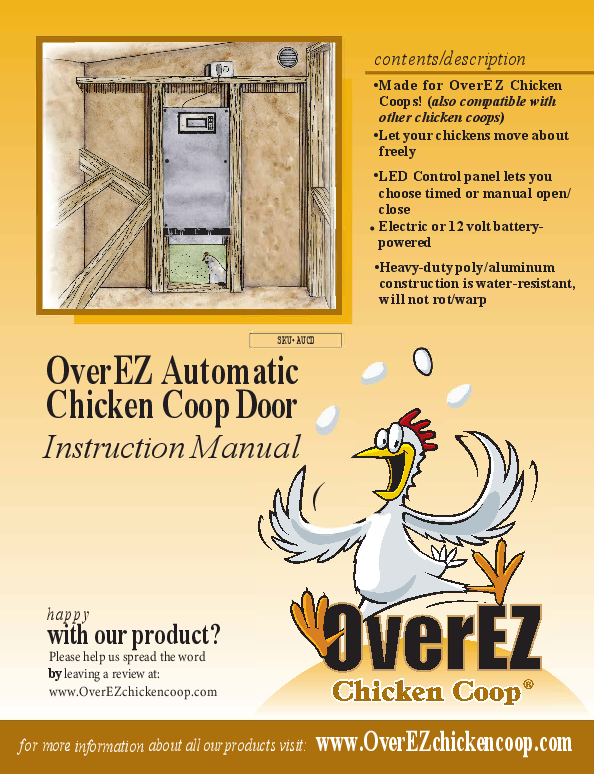
OverEZ Automatic Chicken Coop Door
Instruction Manual
(

�

contents/description
�Made for OverEZ Chicken Coops! (also compatible with other chicken coops) �Let your chickens move about freely
�LED Control panel lets you choose timed or manual open/ close Electric or 12 volt batterypowered
�Heavy-duty poly/aluminum construction is water-resistant, will not rot/warp

happy
with our product?
Please help us spread the word by leaving a review at: www.OverEZchickencoop.com
for more information about all ourproducts visit: www.OverEZchickencoop.com

STEP 1: STEP 2:
STEP 3: STEP 4:

SETTING UP YOUR OVEREZ AUTOMATIC CHICKEN COOP DOOR
You will need a drill to install this door.
CONFIRM THAT ALL PARTS ARE PRESENT 1 AUTO DOOR with Motor Control Box Installed
4 Installation Screws 1 Power Adaptor

You have the option to:
A. Keep your current chicken coop door installed and just keep the door open B. Totally Remove the current chicken coop door.
(Remove door by removing 6 screws on the outside hinges attached to the chicken coop trim.) You can put putty in the screw holes and touch up the paint, if desired.

Set up your power supply. You need to choose between one of the following options:

A.

For Electrical Power: Insert power cord in pre-drilled hole at the top of the door frame.

Plug the wire into the bottom of the controller accessible from the back side of the door. Then

plug the wire from the control panel into an extension cord or the OverEZ Chicken Coop

Electrical/Heat Package Outlet.

B.

For Battery Power: If you purchased the 12V wire to connect directly to your own 12V

battery, you will need to disconnect your 110V power cord from the bottom of the control panel

and plug in the 12V wire.

NOTE: You cannot use two power sources!

Place the door in between the 2 studs by the chicken coop door of your coop. Push the door
towards the outside until it hits the siding. Fasten the top of the door to the studs on each side of the door with the 2 provided screws. There are 2 pre-drilled holes on the top of the door. Please ignore these holes as the screws would puncture the siding if you put the screws through there. DO NOT PUT THE SCREWS OUT THROUGH THE SIDING! Fasten the bottom of the door through the floor using the 2 provided screws.

*Optional (Recommended)* Seal/Caulk around the outside of the automatic door after installation from the siding to the door.

WIFI CONNECTION: If you have purchased this feature, please use the instructions below.
Power up your door and go to the manual mode to lower the door. Take the wire that connects your WIFI unit to your control panel, feed it through the hole in the top of the door and plug it in the back on the bottom of the control panel.

SMART COOP AUTO DOOR

MAIN BUTTONS:

MODE

Pressing Mode allows you to cycle through each option. Each time you press mode, a green

light appears next to one of the functions.

OPEN

Pressing Open will open the door manually.

CLOSE

Pressing Close will close the door manually.

FUNCTIONS FOR MANUAL SETUP:

MANUAL RUN: Pressing the Mode button until you reach Manual Run allows you to open/close the door at any time, manually. If the green light remains on next to Manual Run, the door will NOT operate automatically.

FUNCTIONS FOR AUTOMATIC SETUP:

CLOCK TIME SET This should be your first step! Press Mode until the green light is next to Clock time set. Press Open until the correct hour is reached. No decimal should show next to the number if the current time is AM. A decimal will appear next to the time if you are setting current time as a PM hour. Press Close to move the minutes to the correct time.

OPEN TIME SET Press Mode until the green light is next to Open time set. Press Open until the correct hour for the door to open is reached. No decimal should show at the bottom right hand corner of the display screen if you are setting for morning. Press Close to move the minutes to the correct time.

CLOSE TIME SET Press Mode until the green light is next to Close time set. Press Open until the correct hour for the door to close is reached. A decimal point should show at the bottom right hand corner of the display screen if you are setting for PM. Press Close to move the minutes to the correct time.

TIMER RUN Pressing the Mode button until you reach Timer Run allows the door to open and close automatically. If the green light remains on next to Timer Run, the door will operate automatically at the times you set earlier.

OTHER NOTES:
A Green Light needs to be displayed by either "Manual Run" or "Timer Run" at the end of Setup.